

Combining Responses
What's on this page
Qtip: Contact Account Services or your Account Executive prior to importing historical responses as this may require an update to your license.

Attention: Imported responses are billable under the new simplified pricing and packaging plans. If you license is on the new pricing plan, you can check your license’s usage with the Interaction Usage Report. Contact Account Services if you have questions about your license.

About Combining Responses
If necessary, you can combine response data from 2 surveys. The steps differ depending on whether you are combining data from 2 identical surveys or 2 dissimilar surveys (not recommended).
Qtip: You can learn more about importing data by visiting our Import Responses page.
Attention: These instructions are written specifically for survey projects.
Combining Responses from Identical Surveys
Qtip: Make sure that you export both datasets in the same format – both as “use values” or as “use labels.” See the linked page on Export Options.
Qtip: If your file contains special characters, we recommend exporting a TSV instead of a CSV.
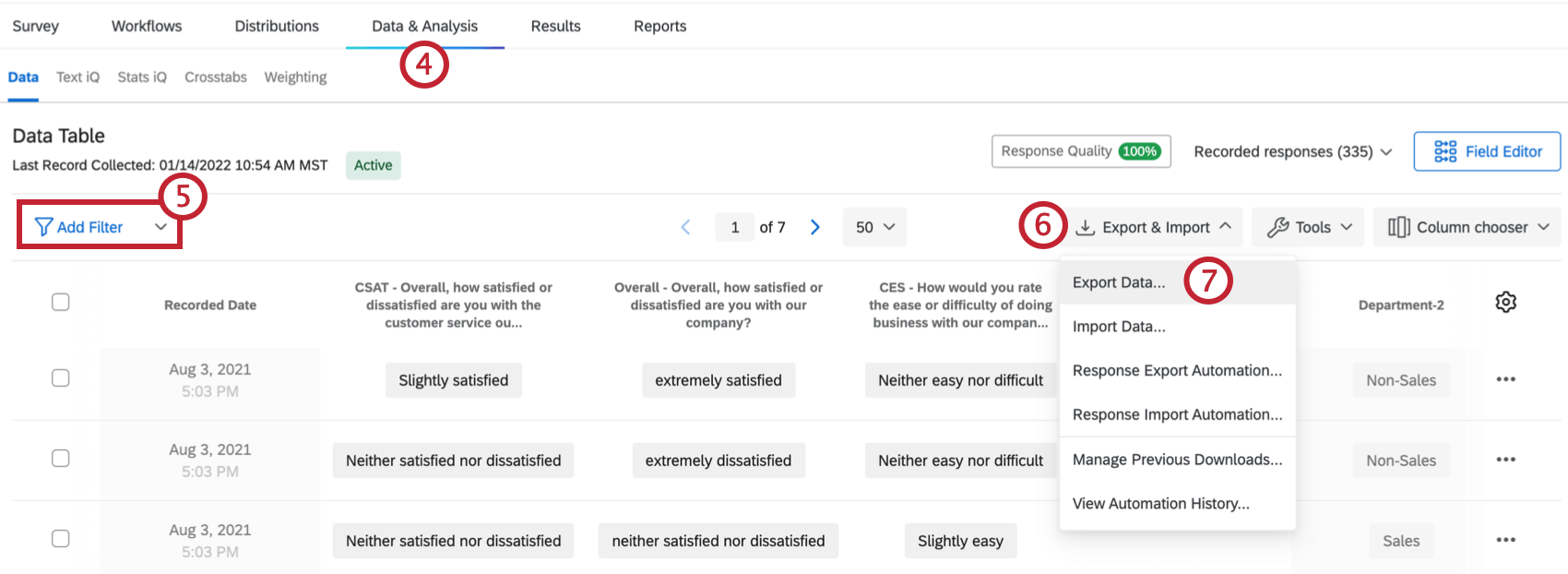
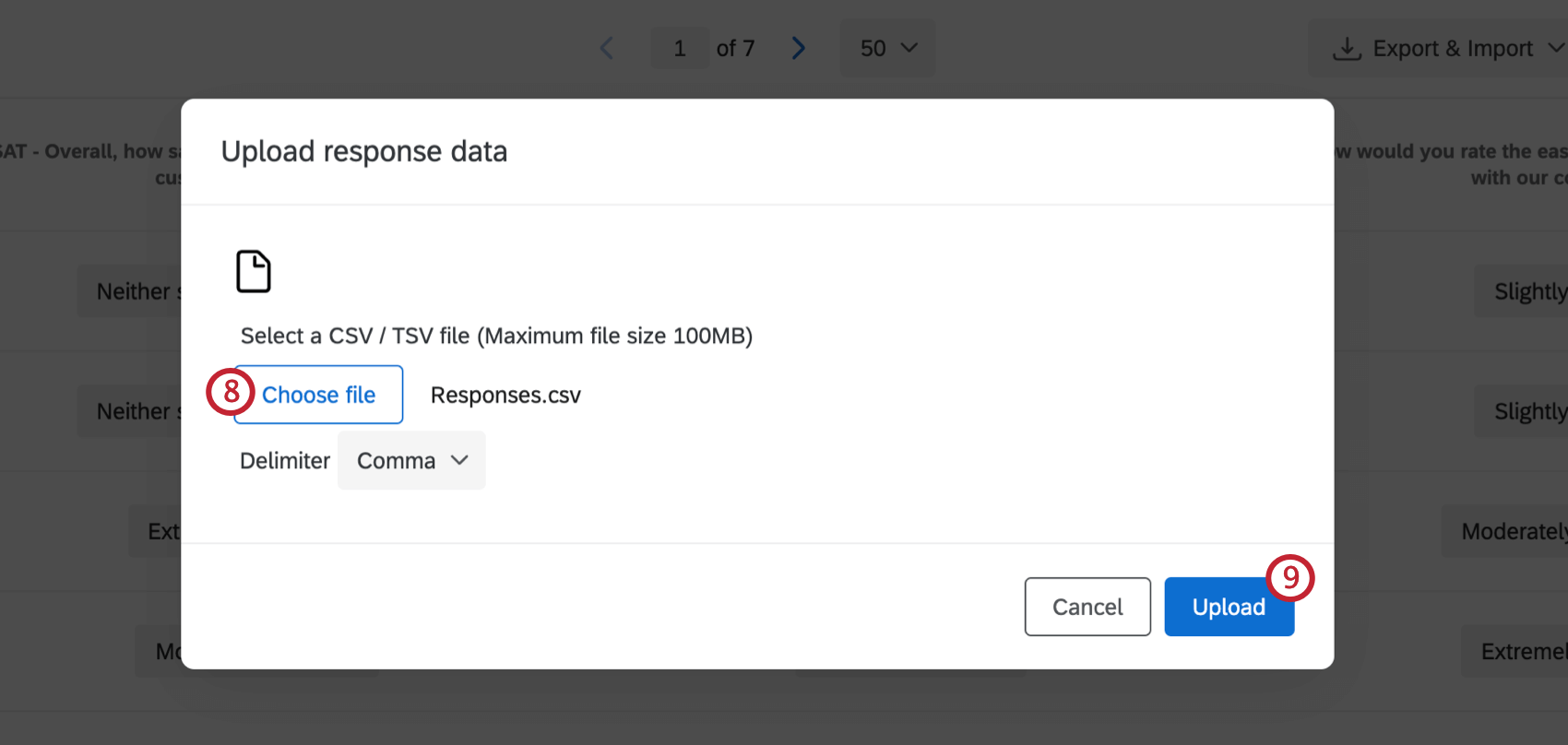
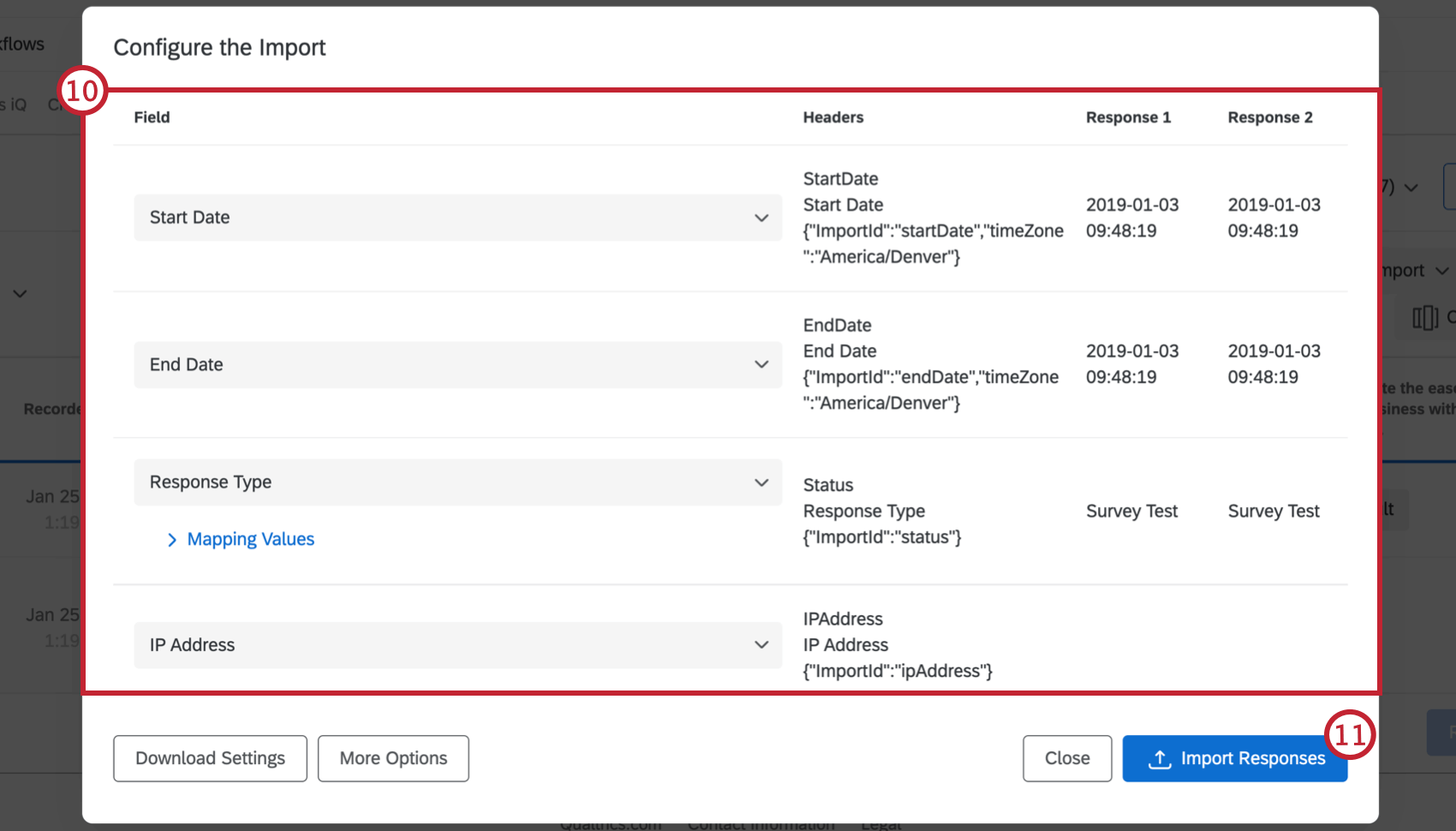
Combining Responses from Dissimilar Surveys
If you are combining responses from 2 surveys that aren’t identical, there are extra steps you’ll need to take to make sure the data is imported correctly. You’ll need to create a hybrid survey that can hold data from the 2 nonidentical surveys and then create a hybrid dataset.
For simplicity, we’ll call one of the 2 surveys you’re combining Survey 1 and the other Survey 2.
Creating a hybrid survey
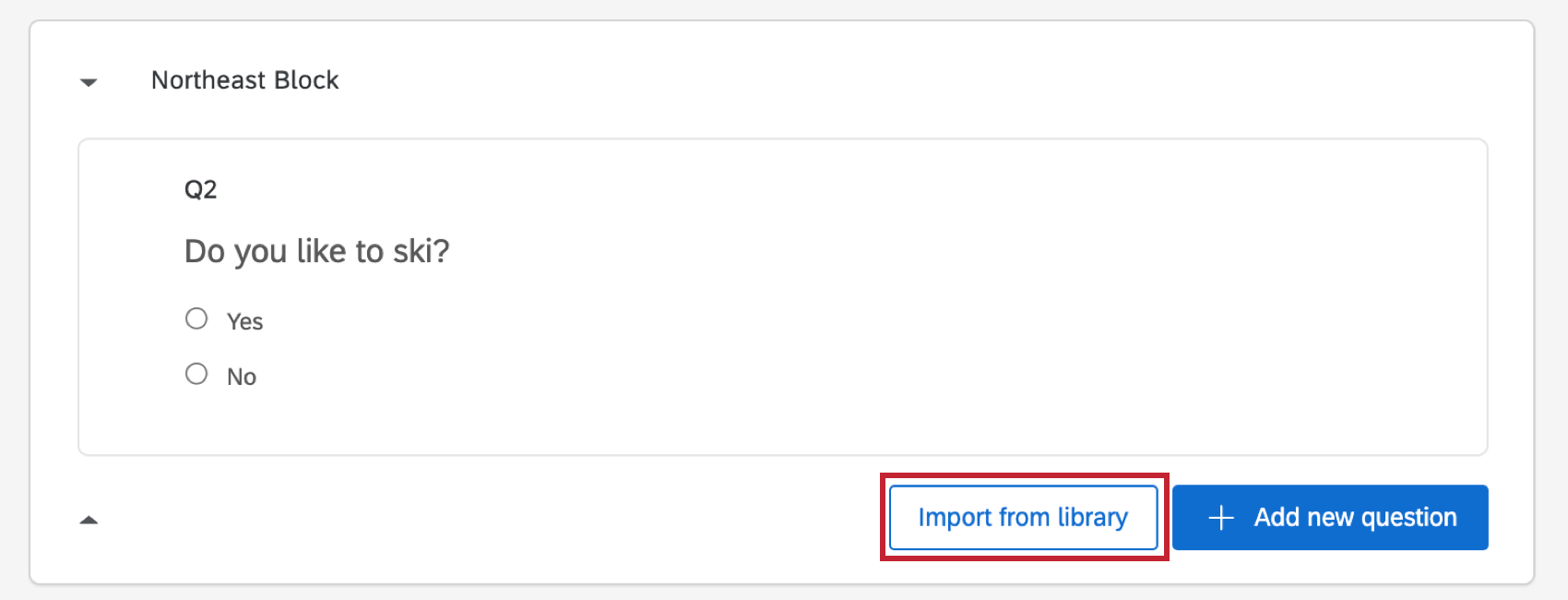
Creating a hybrid dataset
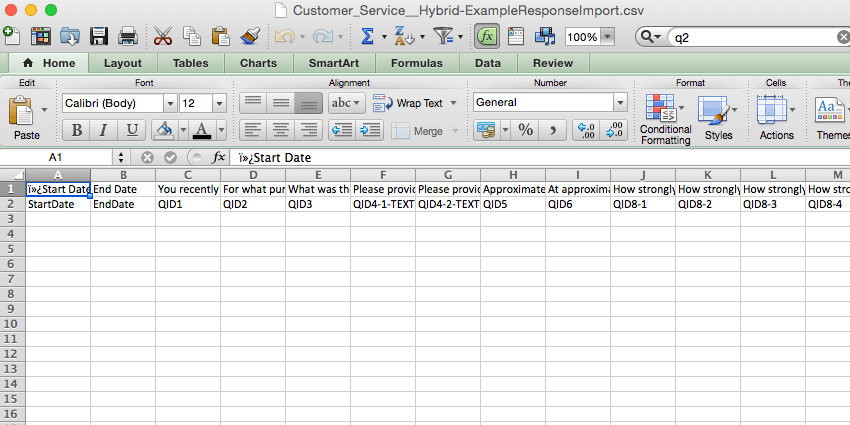
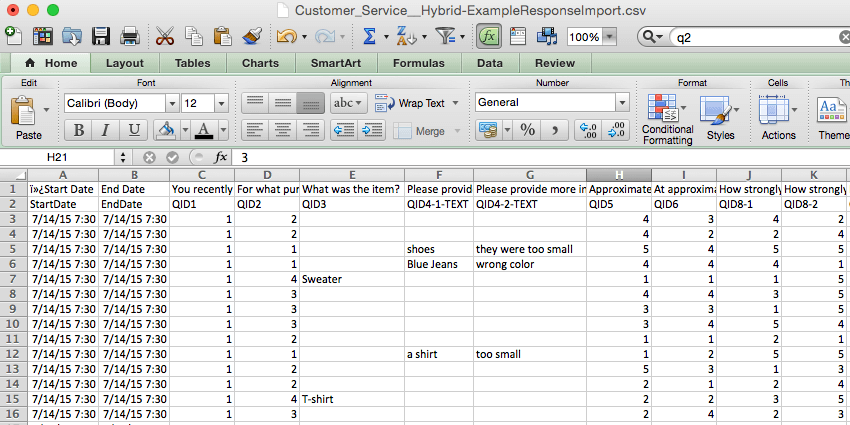
Qtip: If you added all the questions from Survey 2 to the end of the hybrid survey, you will easily be able to copy your Survey 2 data in a block to the hybrid template.
Importing a hybrid dataset
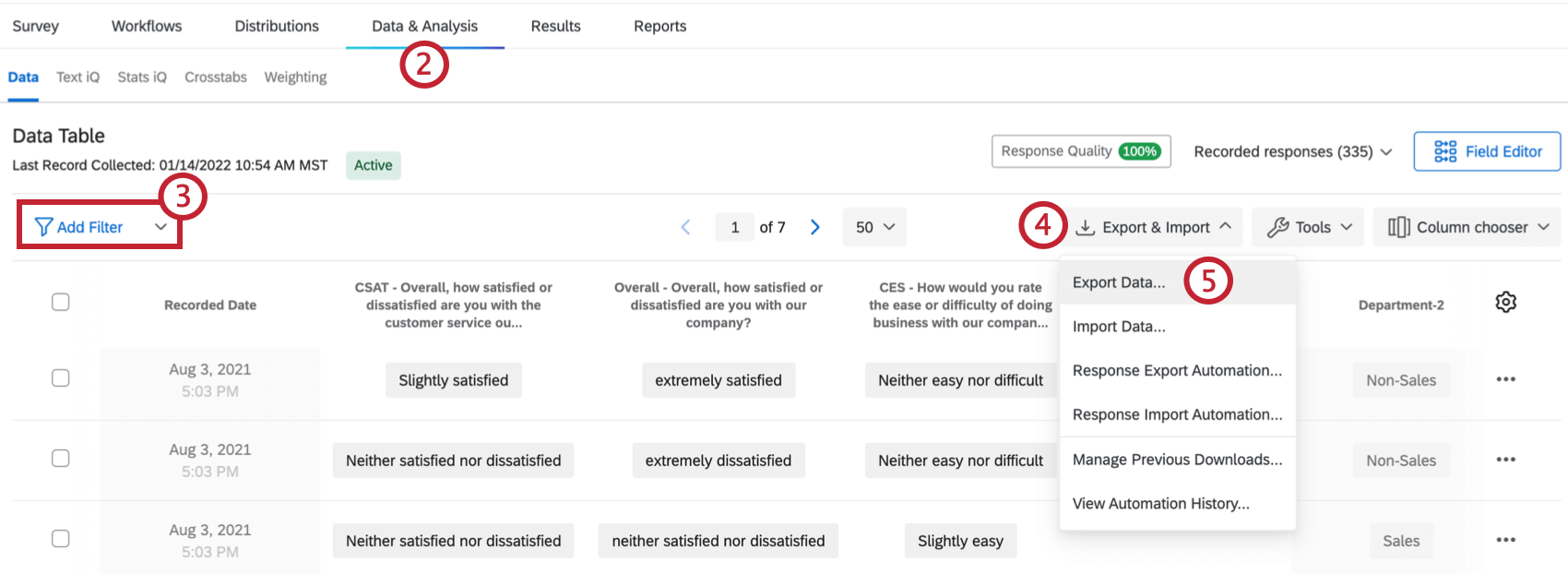
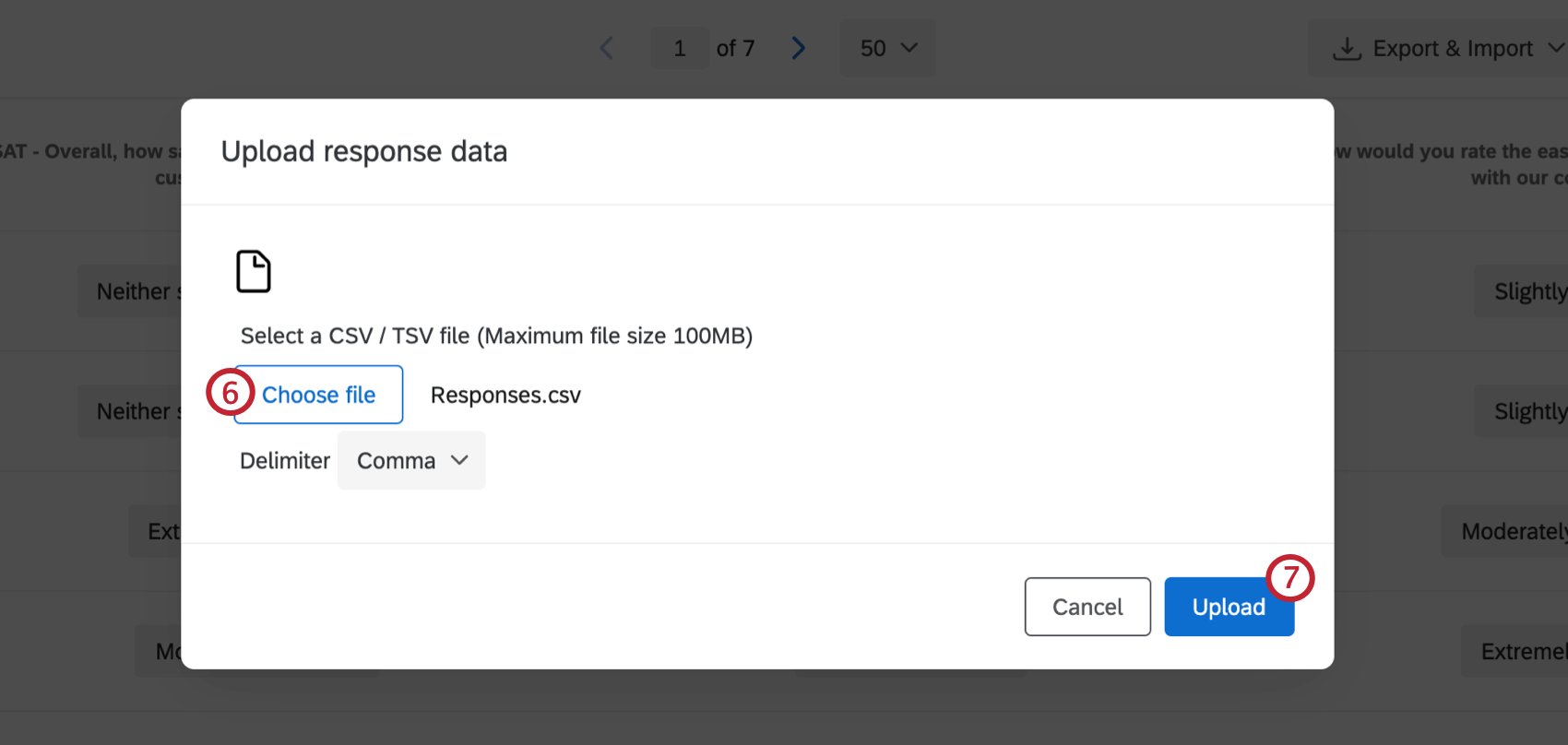
Troubleshooting
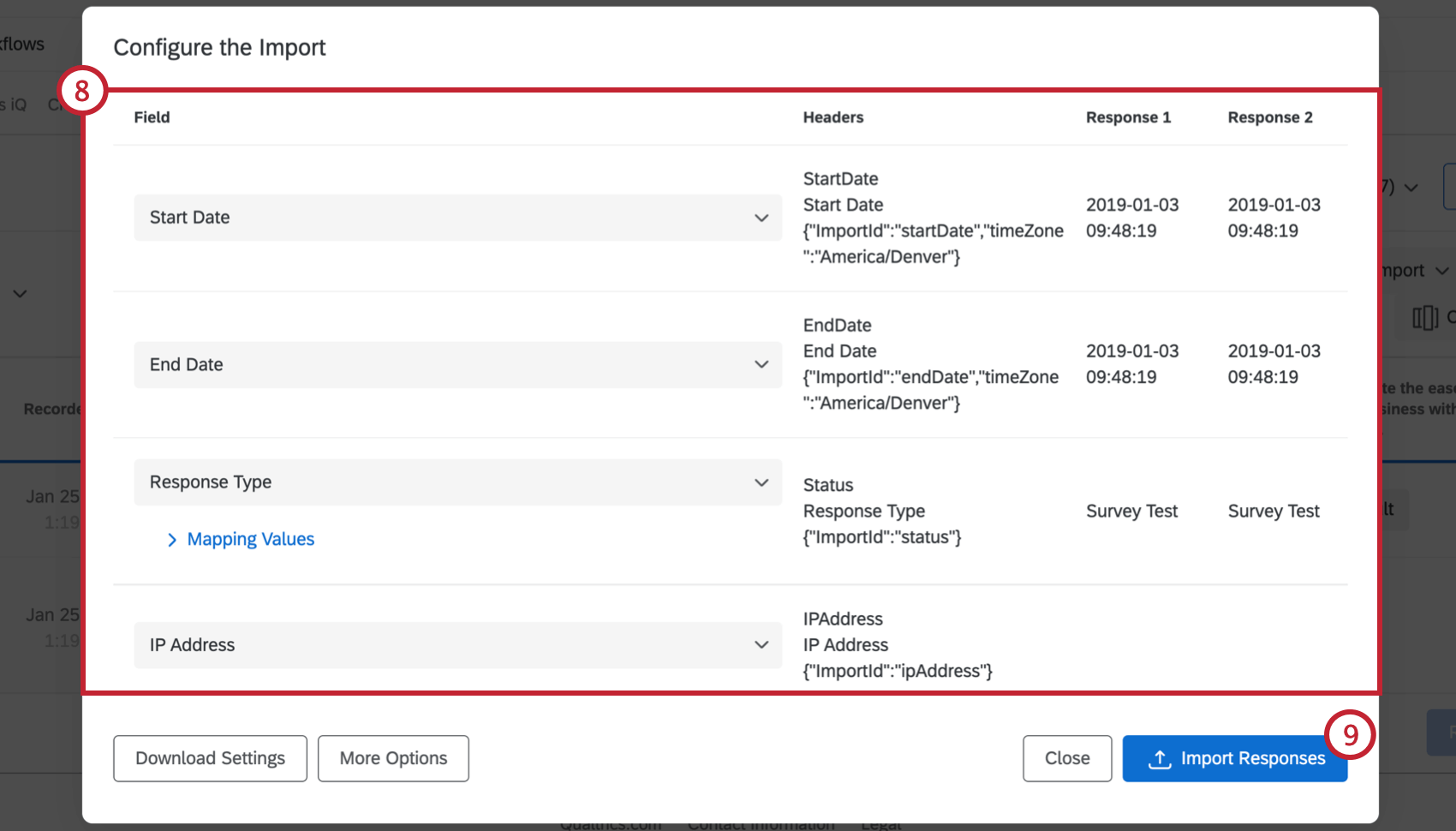
After clicking Import Responses, you may receive error messages. Error messages don’t automatically mean that there is something wrong with your data, but there might be inconsistencies between the original data files and the template. Check the following:
- The data matches up with the column headers in the template
- There are no empty data fields for questions with validation (e.g., a respondent didn’t answer a question that now has Force Response)
- The question values are all recode values or labels – not both, since it’s harder to combine the 2
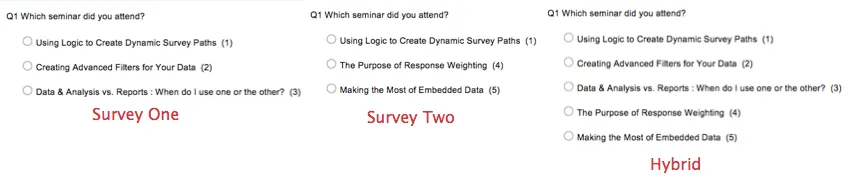
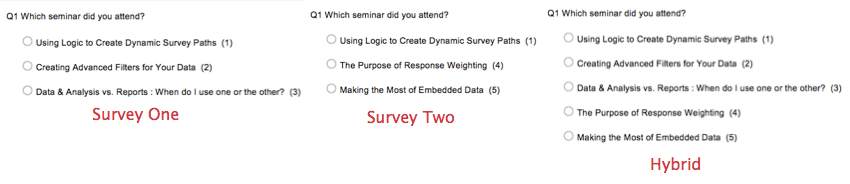
- The question’s wording or its recode values are the same in the original surveys and in the hybrid Example: This screenshot shows a similar question in survey 1, 2, and the hybrid, and the recode values for each choice. Notice how survey 2’s recode values are numbered slightly out of order so the hybrid survey can make more sense.

Qtip: If you continue to experience issues with importing your responses, visit the CSV/TSV Upload Issues page for further troubleshooting techniques.
FAQs
What responses actually count toward my license?
What responses actually count toward my license?
Licensed responses are any completed responses that are not Survey Previews or Survey Tests. Completed responses can include imported responses, finished surveys, and partial surveys that were moved out of responses in progress and recorded. If you ever want to know the exact number of interactions you’ve used, reach out to your Brand Admin. You can also view your response usage by going to Account Settings to view the legacy Account Usage report.
Contact Account Services or your Account Executive prior to importing historical responses, as this may require an update to your license.
Can I import my own data into Qualtrics?
Can I import my own data into Qualtrics?
How does account usage differ from recorded responses?
How does account usage differ from recorded responses?
Think of recorded responses as the total number of complete responses collected for a survey. This can include individual responses, anonymous responses, imported responses, and more.
Imported responses are billable under the new simplified pricing and packaging plans. If your license is on the new pricing plan, you can check your license’s usage with the Interaction Usage Report. If you are on multiple suites, imports are not currently included in the usage report. If you are not on a new plan, imports are not included in your usage report. Contact Account Services if you have questions about your license.
Account Usage shows you how many responses you’ve collected, labeled as “Allowed Responses.” This excludes imported responses because they are considered separate. If you have questions about pricing for imported responses, reach out to your Account Executive.
That's great! Thank you for your feedback!
Thank you for your feedback!