

Renaming Your Survey
What's on this page
About Renaming Your Survey
Qualtrics projects have 3 names:
- Project Name: The name that displays in Qualtrics.
- Survey Header: The name that can be displayed to respondents.
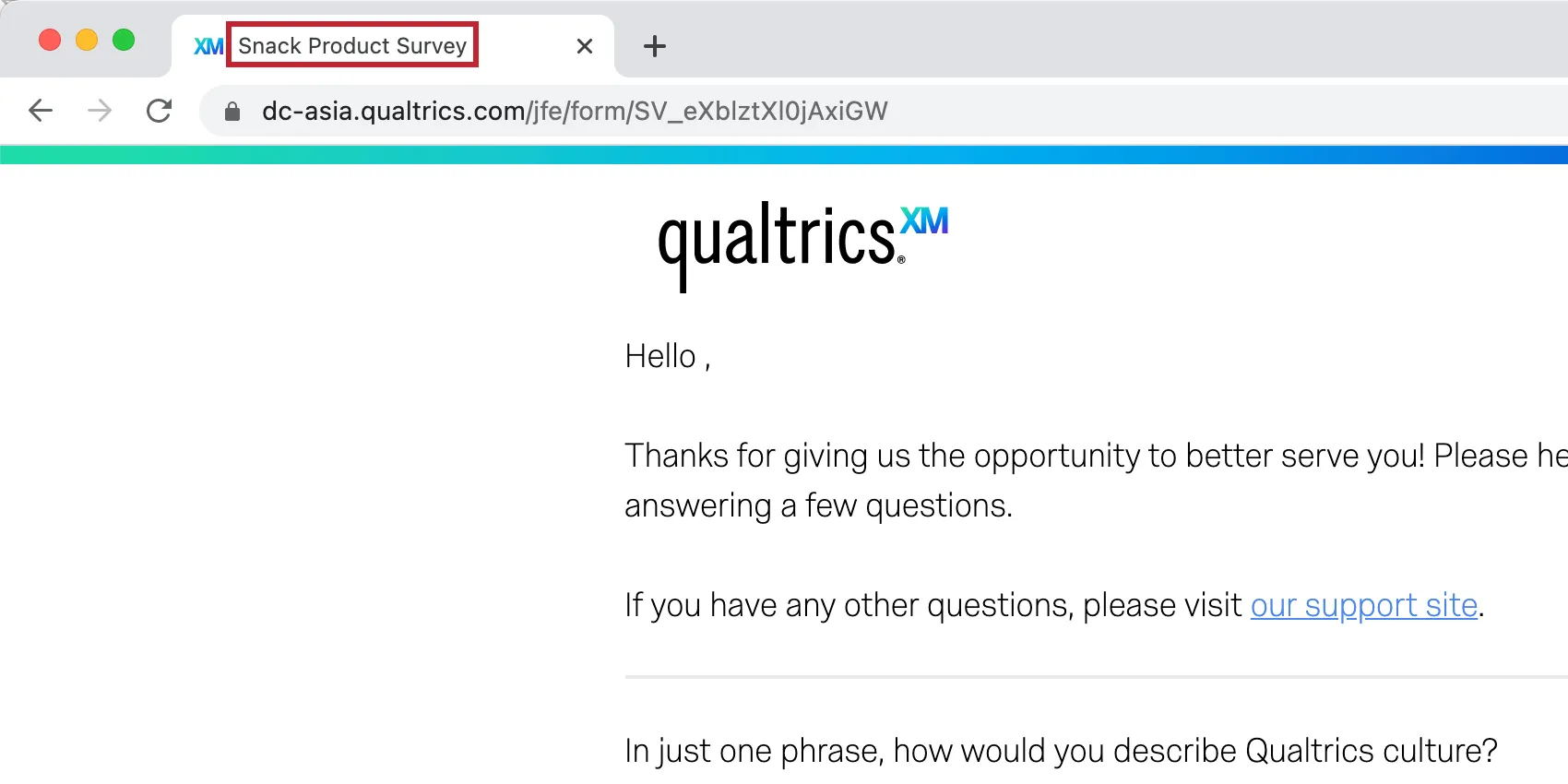
- Display Name: The name that appears on the survey browser tab.
You can change or update each of these at any time.
Project Name
Your project name is used for identifying your overall project (survey, responses, results) within Qualtrics. This is the name you see when on the Projects page and the name that appears at the top of the screen when you’re navigating through the different tab for your project.

This name isn’t displayed to respondents and is just for your internal organizational purposes. You have 2 ways to change this name, as described below.
Changing the project name from the Projects page
See Renaming a Project.
Qtip: This method works best for all project types.

Changing the project name from the Survey tab
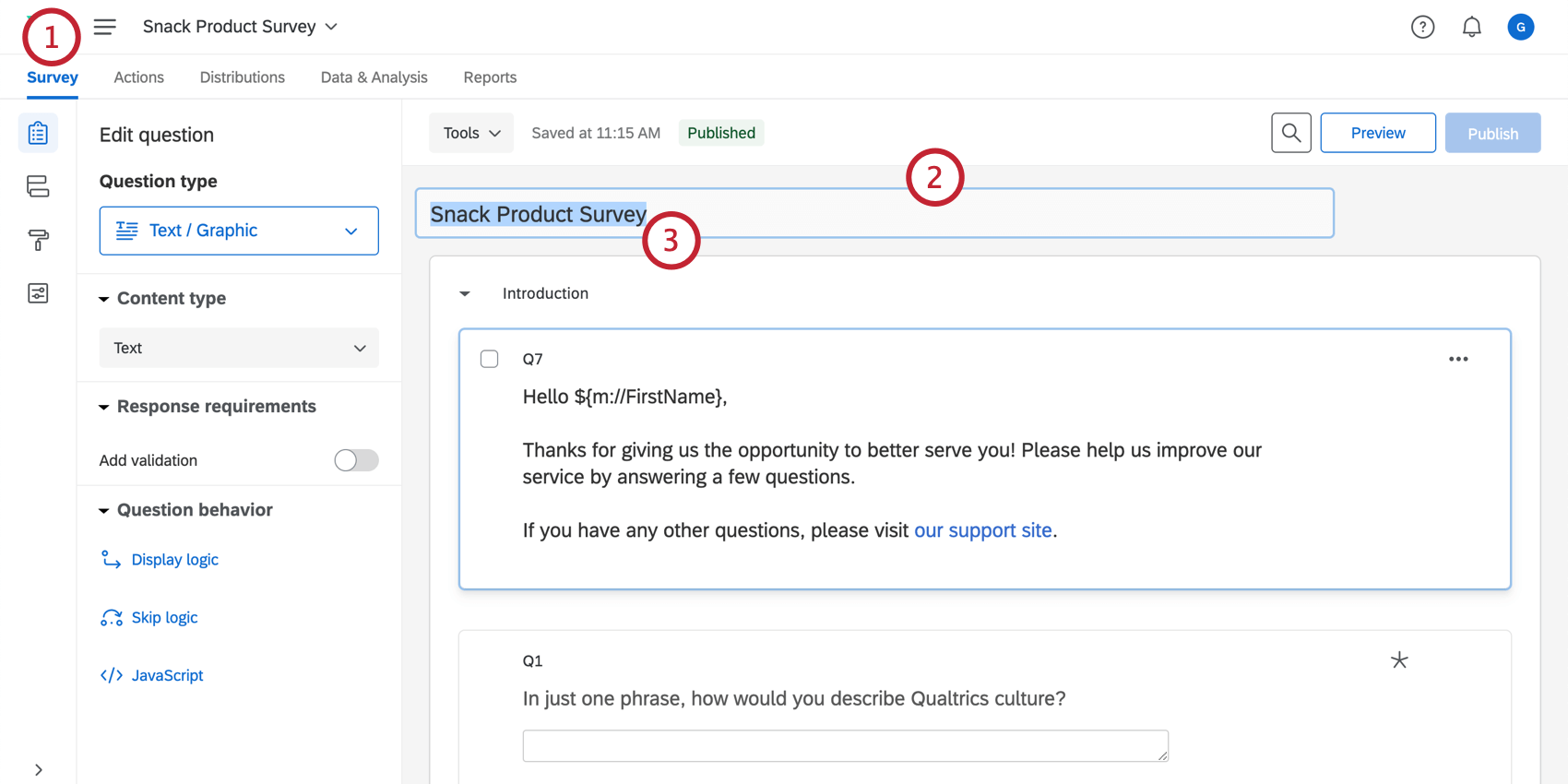
Qtip: If you’re renaming an Employee Experience, Maxdiff, or Conjoint project, this will only change the name of the form in the survey builder. You won’t see a change on the Projects page.
Survey Header
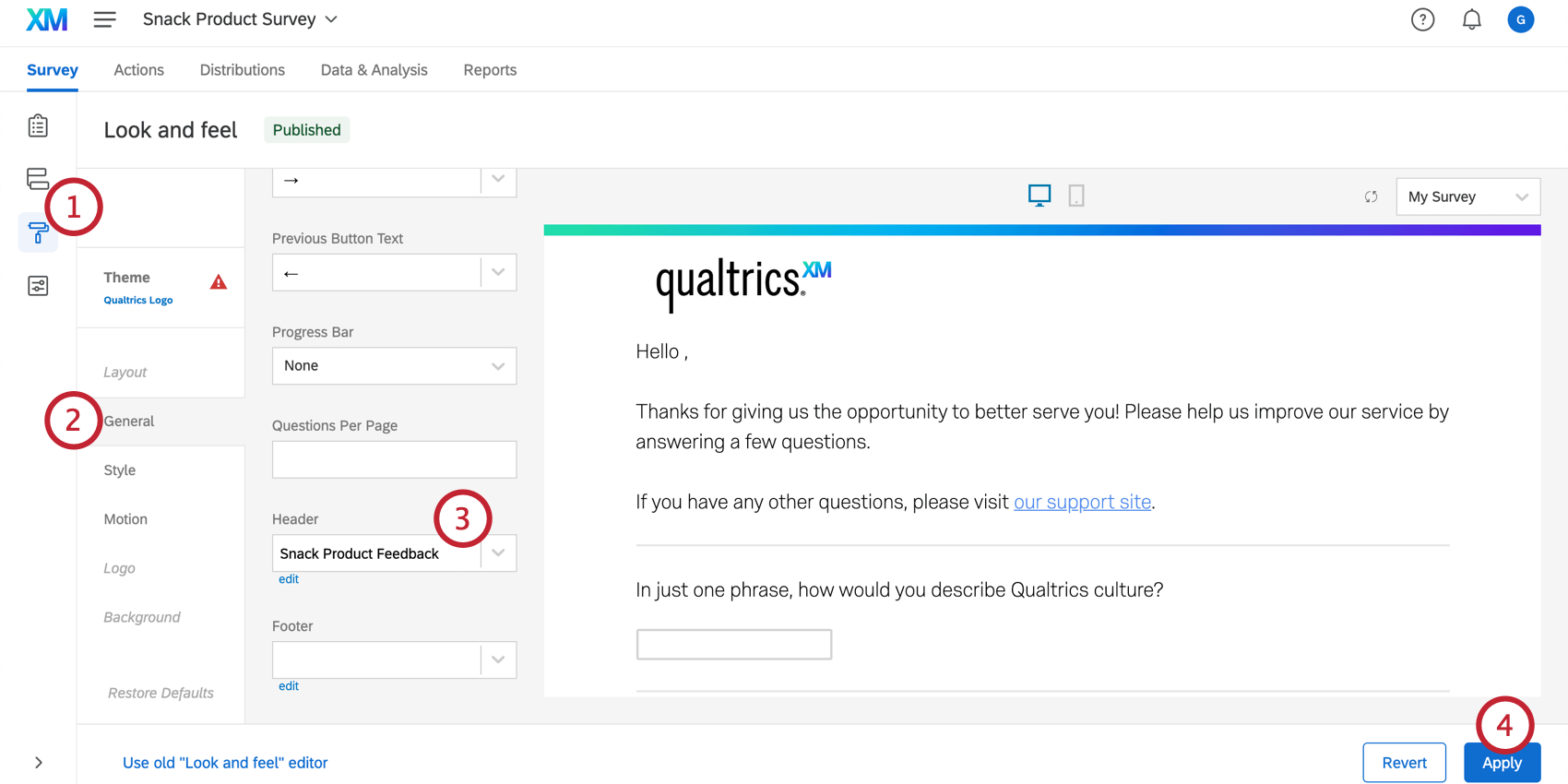
You can include a header at the top of every page of your survey, displaying content like a logo or a survey name. This can be accomplished through your Look and feel menu.

Qtip: If you want a logo or survey name to appear only at the top of the first page in your survey, you can add a descriptive question to the beginning of the survey and place your content there.
Adding a survey header
Display Name
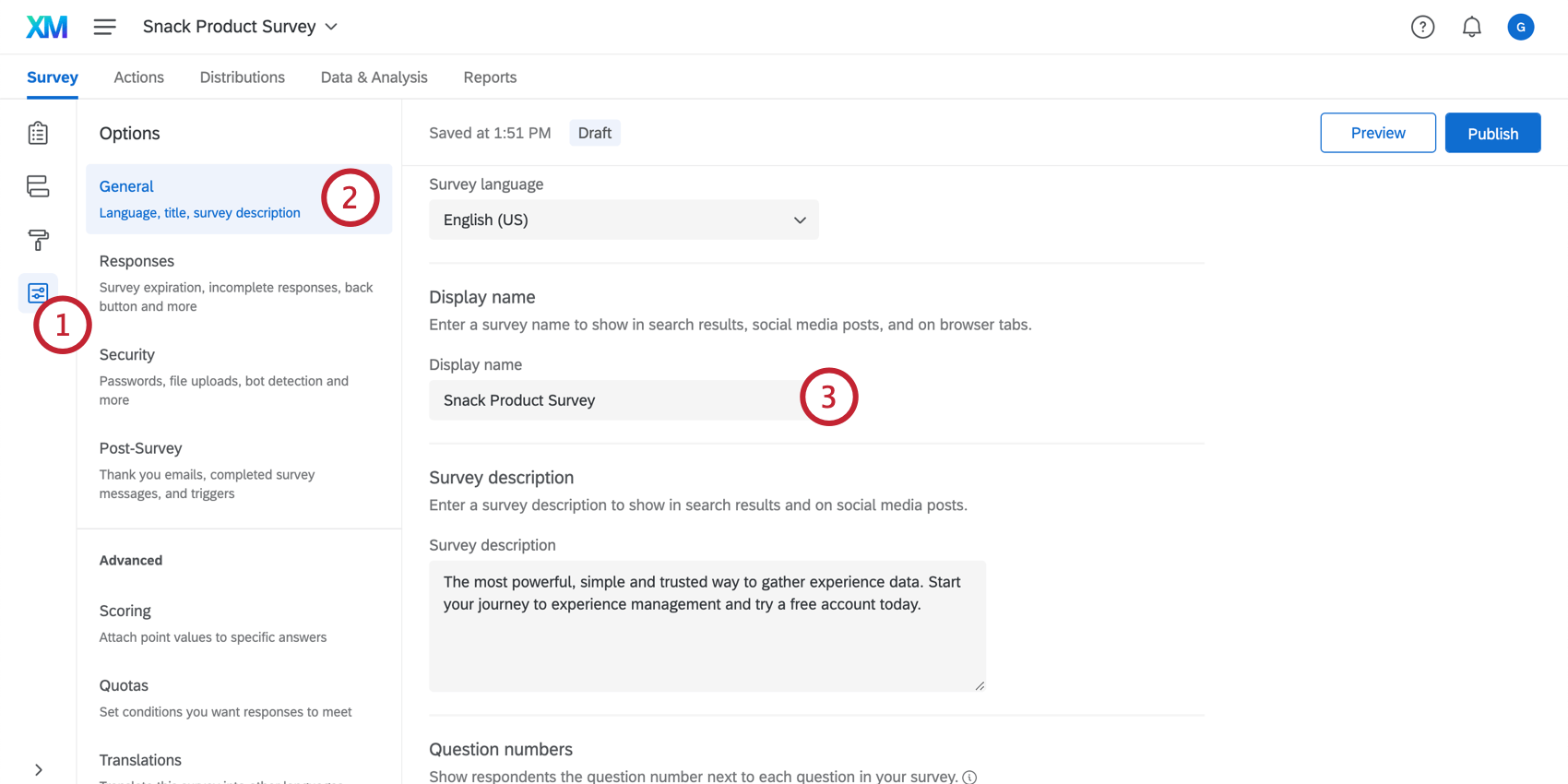
The display name is the text that displays on the browser tab found near the top of your browsing window. You can change this title in your Survey options, under the General tab.
Editing the Display Name
That's great! Thank you for your feedback!
Thank you for your feedback!