

Manage Users in CX Directory Task
What's on this page
Qtip: This support page describes functionality that we intend to release starting October 7, 2026. Qualtrics may, in its sole discretion and without liability, change the timing of any product feature rollout, change the functionality for any in preview or in development product feature, or choose not to release a product feature or functionality for any reason or for no reason.
About the Manage Users in CX Directory Task
Attention: To use this feature, your license must have unique identifiers and CX user admin enabled. If your license does not have these features and you would like to learn more, contact Account Services.

The Manage Users in CX Directory task is used to manage CX user data in Qualtrics, by adding new users, updating existing users, or even deleting specified users. This data loader task can process changes to a lot of records at one time, helping you keep your CX user data up-to-date on a regular basis. To use this task, you must first extract data from another source using a data extractor task.
Qtip: For information on general limits that apply to ETL workflows, see Workflow Limits. For any task-specific limits, refer to the information on this page.
Before You Start
- Understand where data is coming from: Where is the data you plan to add to the directory coming from? Is it a Google Drive? Your company’s server? The answer to this question determines which extraction task you use.
- Make sure your files are organized: Think carefully about how you identify the files you want to upload to Qualtrics, such as the name prefixes for files or the folders they all belong to.
Qtip: Files containing users you plan to delete and files containing users you plan to add or update should either belong to different folders, and / or have different name prefixes.
Example: Every file of deleted users has “to-remove” in the name. Every file of updated or newly added users has “to-update” in the name.

Setting Up a Manage Users in CX Directory Task
Select Data source (ETL extractor). In this step, you’ll extract data that you can load to another destination. See using Building ETL Workflows for more information.
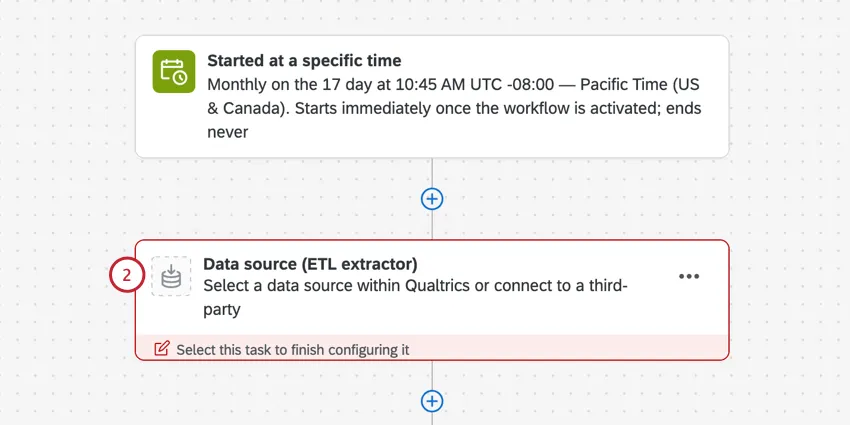
Your task must import the following fields:
- Unique Identifier
Qtip: If you want to delete users rather than add or update them, all you need is the unique identifier.
- FirstName
- LastName
Email.

Qtip: We recommend using the extract data from SFTP files task. The user data example file is configured for use with this task.
Qtip: There is a maximum file size of 100 MB.
Qtip: If your organization uses SSO, include a Username column to be filled in with the values from your Active Directory that you are passing us for the username attribute. The #brandID will be appended to the username automatically upon upload of the file. If your organization doesn’t use SSO, this column should generally match the email column.
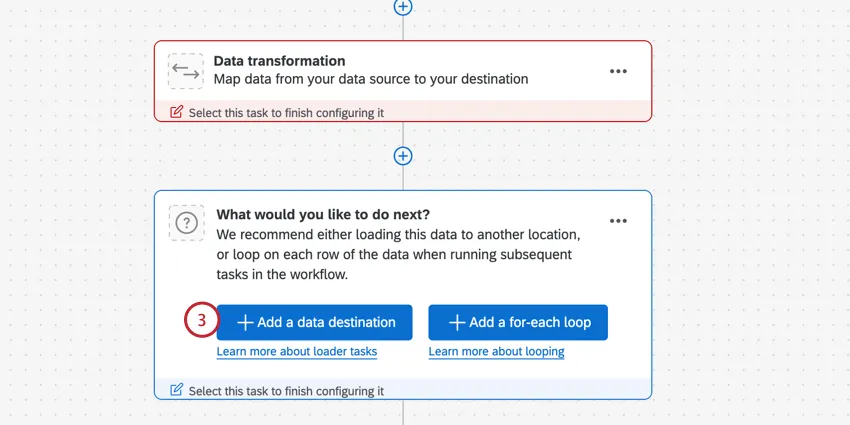
Click Add a data destination.
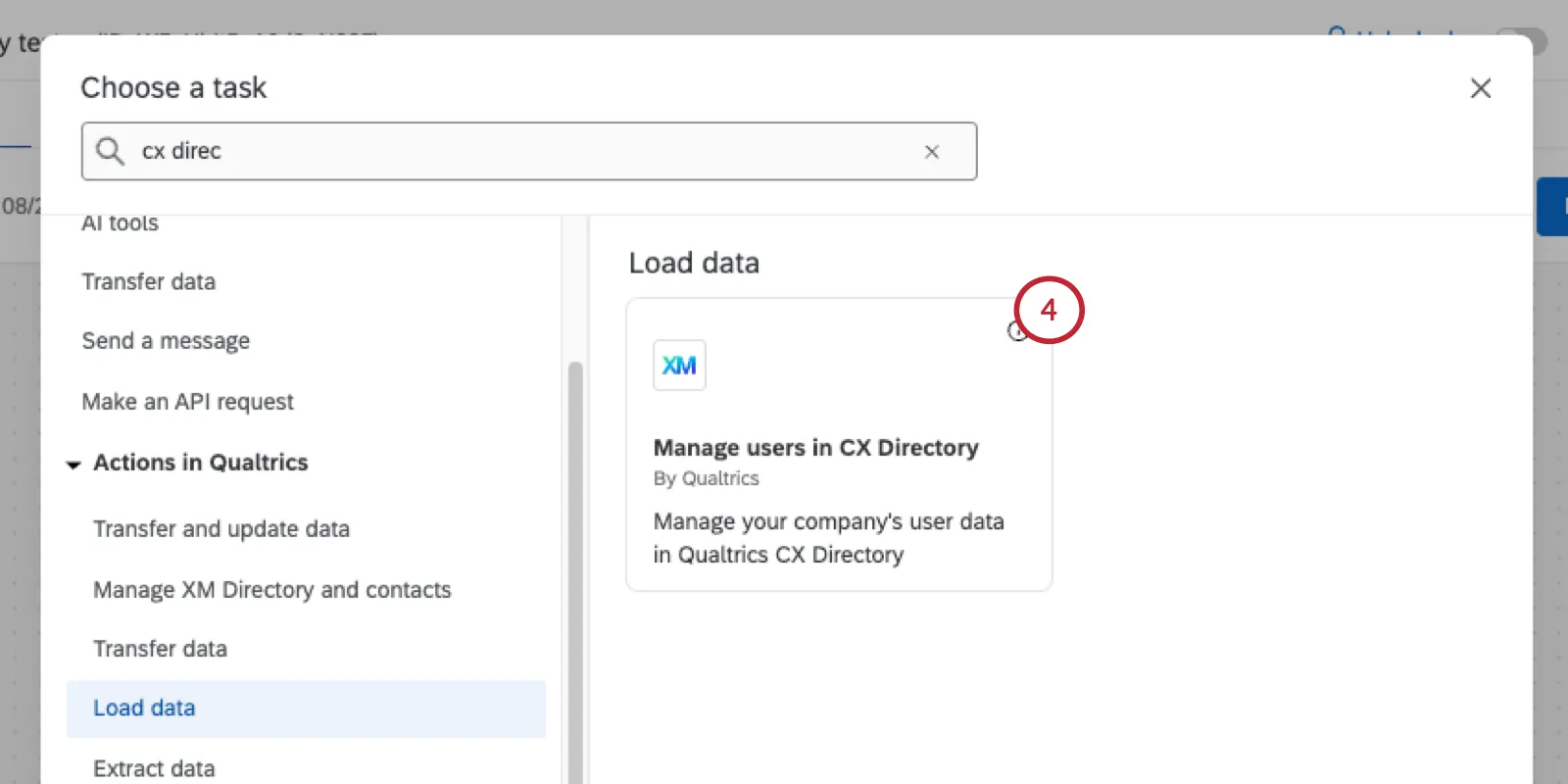
Choose the Manage Users in CX Directory task.
Choose between the following:
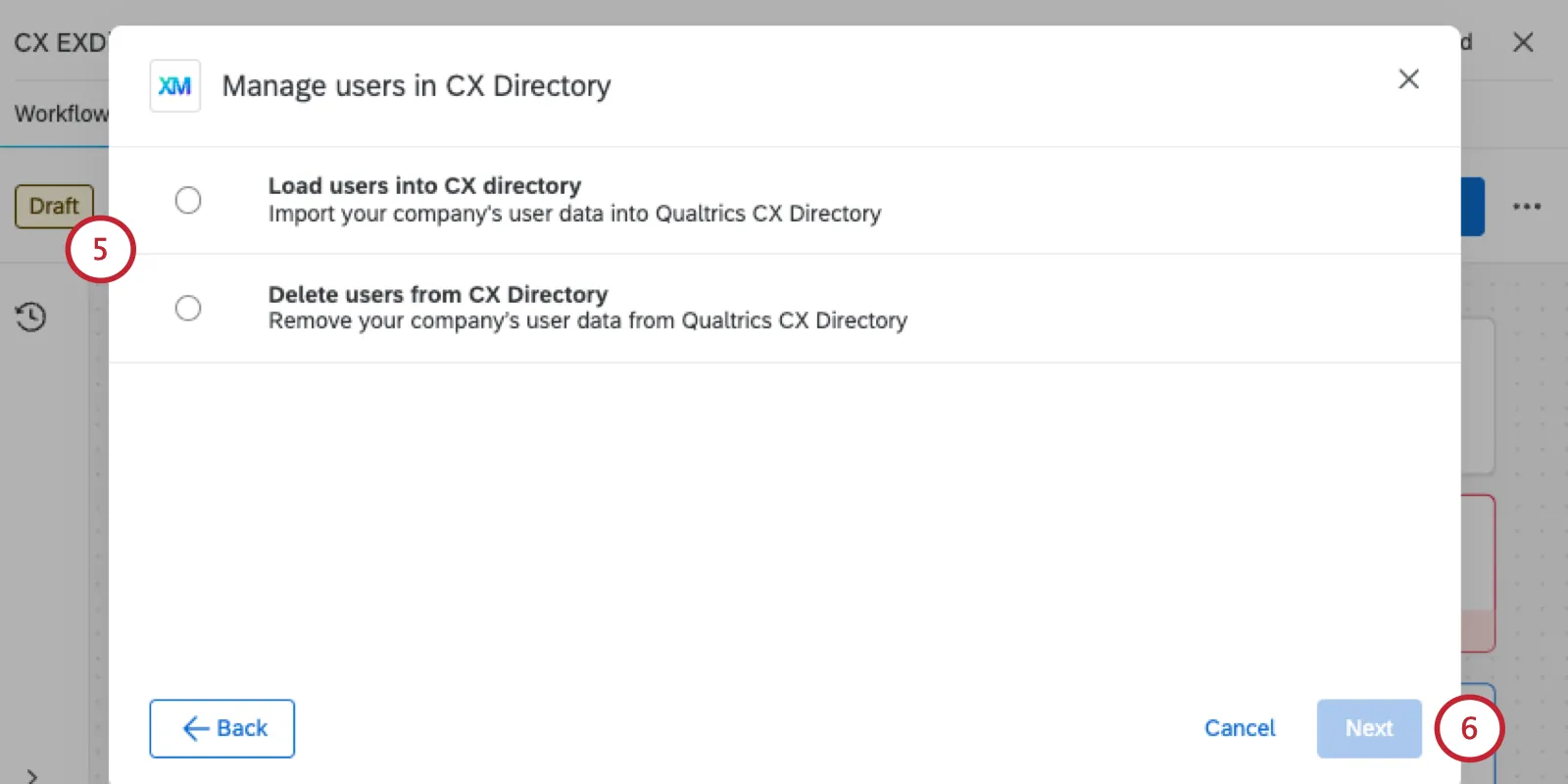
- Load users into CX directory: Import your company’s user data into Qualtrics CX user admin. This option can be used to both update existing users with new metadata and to add entirely new users.
- Delete users from CX directory: Remove your company’s user data from Qualtrics CX user admin.
Click Next.
Depending on what you selected, the next steps vary. Click your chosen section for next steps.
Load Users into CX Directory
Qtip: These steps assume you’ve followed the initial workflow setup described here and selected Load users into CX directory.
Select the data extraction task you set up earlier.
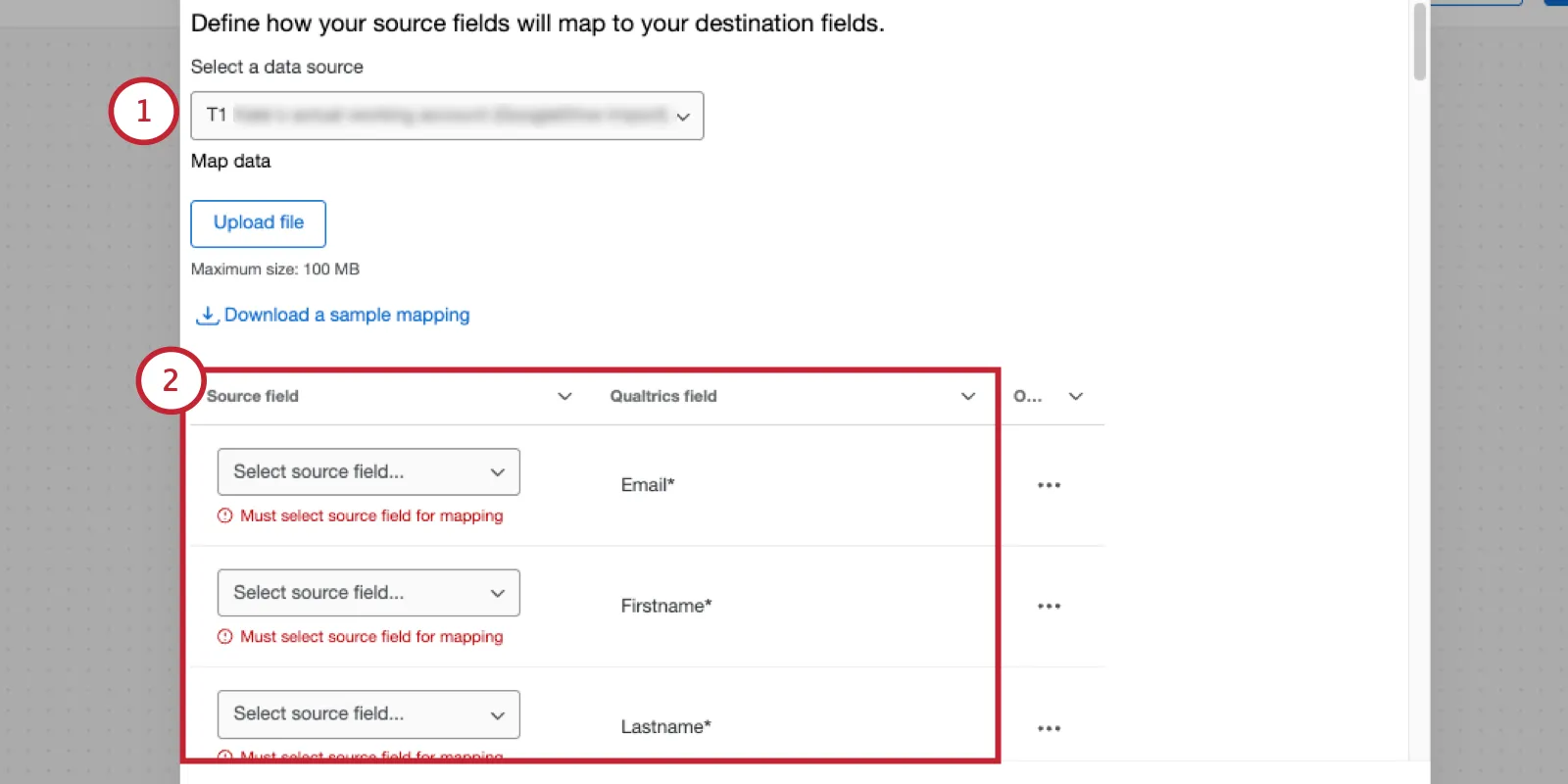
Begin mapping your imported data fields to CX user attributes using the menus. Fields marked with an asterisk are required.
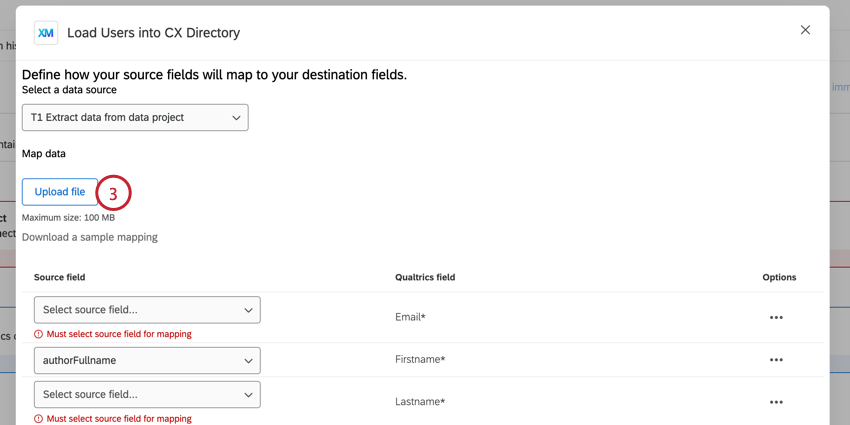
Qtip: You can also map fields via a file upload.
Qtip: By default, all existing CX user attributes in your license will be included in your mapping.
Qtip: If your source field and CX directory field names match exactly, then they will be automatically mapped for you!
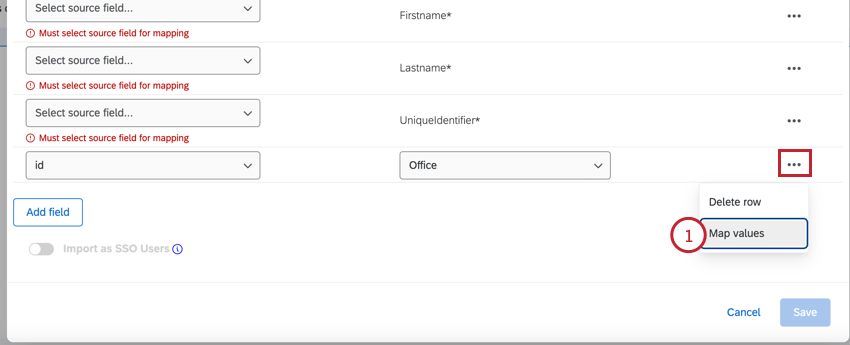
If needed, you can map individual values for each field by clicking Map values. This is useful if you want to use different data values in Qualtrics. See Mapping Fields and Values for more information on mapping individual values.
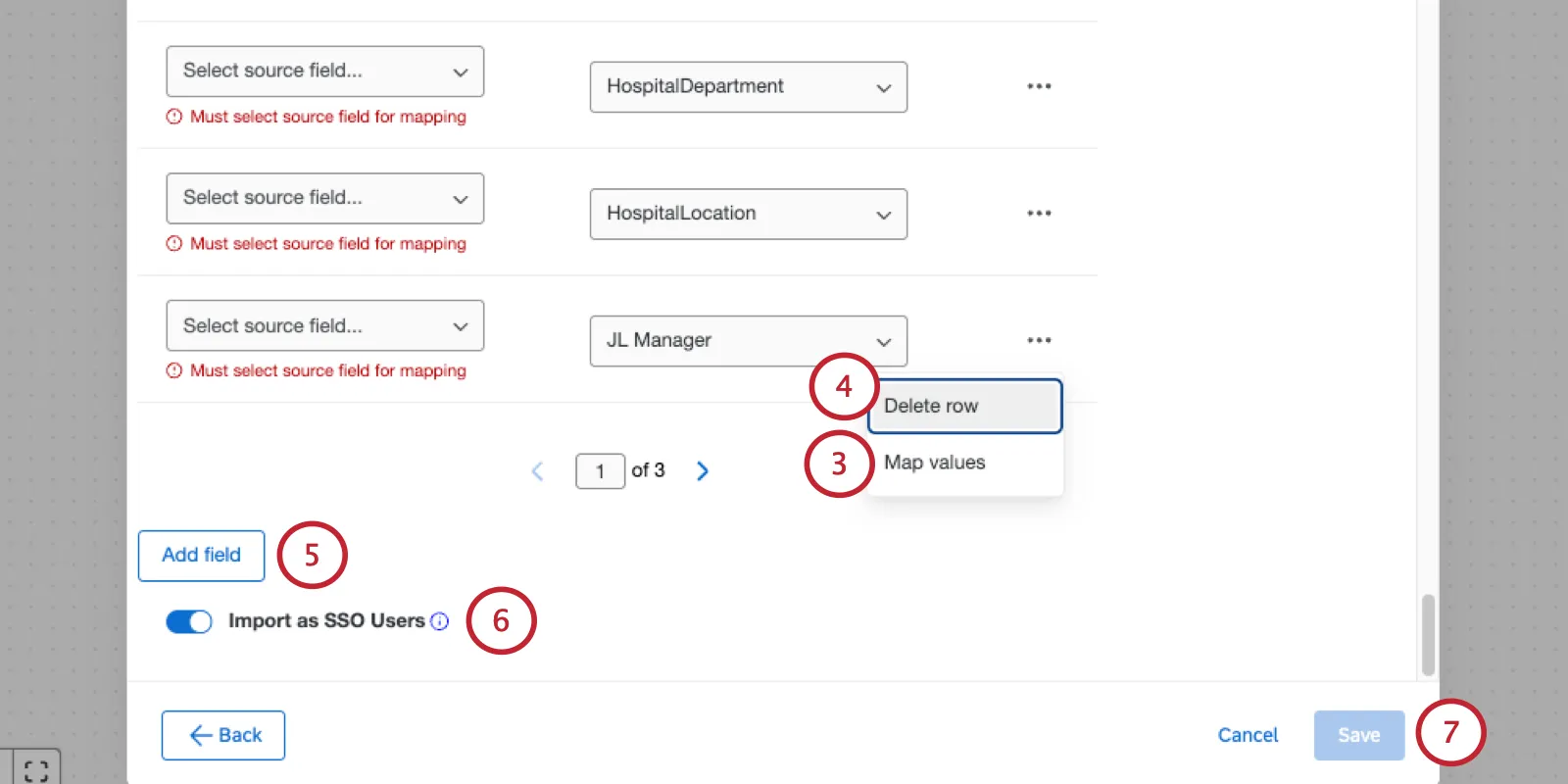
Example: In our imported data file, we have the value “Europe” but want this saved as “EMEA” in Qualtrics. This can be done by mapping values.
You can remove any unnecessary fields by clicking Delete row next to the field.
Qtip: You must remove any unmapped CX user attributes.
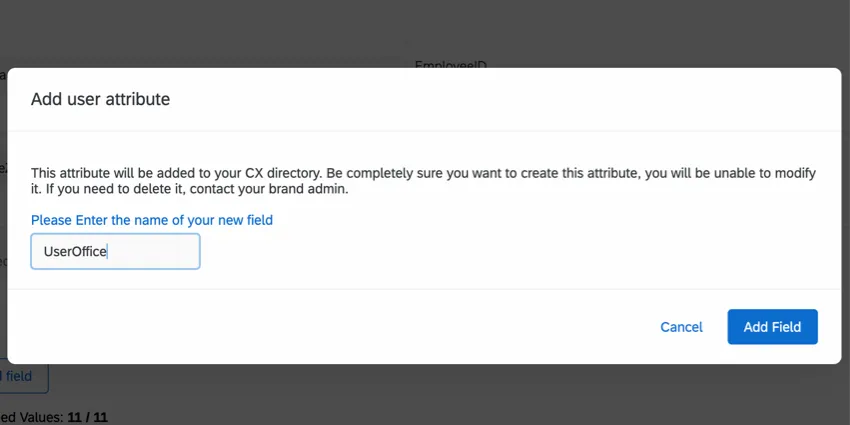
If needed, click Add field to add additional fields to your mapping. When adding a new field, you can map to an existing CX user attribute, or create a new one.
Qtip: If creating a new field, you must give the field a name. Be careful when naming your field, as you cannot edit or delete it without contacting your Brand Administrator.
If your license has SSO enabled, you can enable Import as SSO Users to import these users with their SSO username. This will allow the user to access Qualtrics via SSO.
Qtip: Person metadata can have multiple values. For example, To show Barnaby is assigned to multiple office locations, his Office field might be equal to Provo|Seattle. If you’re using this workflow to create SSO users, make sure you’re using one of the approved delimiters and adjust your organization settings accordingly. See Adding an SSO Connection for more details.
When finished, click Save.
Qtip: The task will not let you save if your mapping is incomplete. If the Save button is grayed-out, then double-check your mapping.
When the workflow runs, your users will be imported to Qualtrics and saved in your CX user admin.
Mapping Loaded User Fields and Values
When setting up the load data task, you can map your imported data fields via a file upload. This section covers how to map fields and individual field values using a file.
Mapping Fields
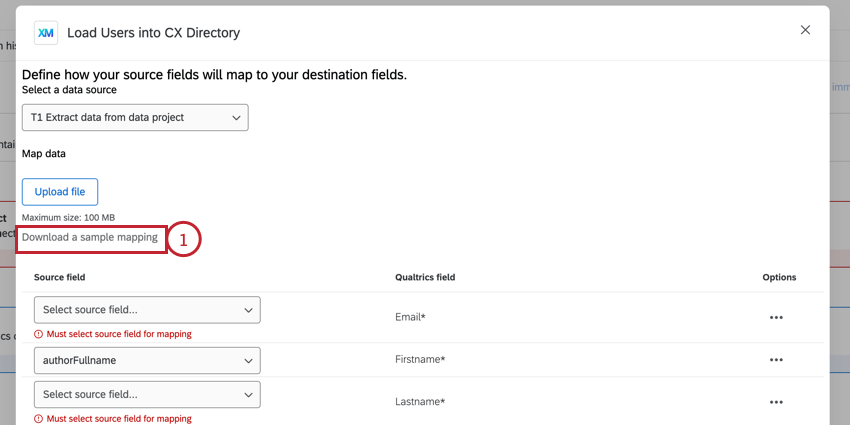
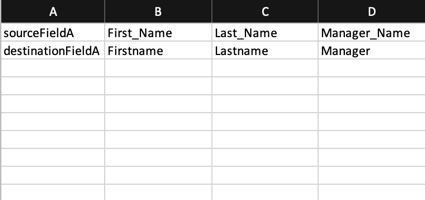
- Each column in the file is 1 field mapping.
- The value in the first cell in the column is the source field name.
- The value in the second cell in the column is the Qualtrics field name.
- Your file cannot exceed 100MB.
- Save your file as a CSV file.
Mapping Values
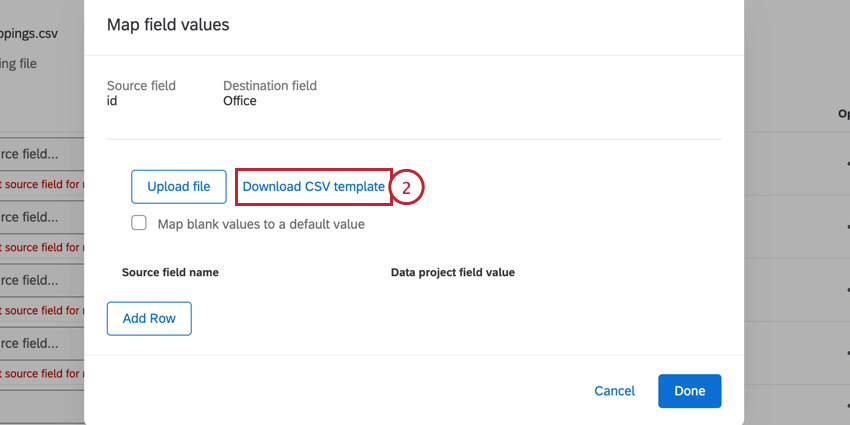
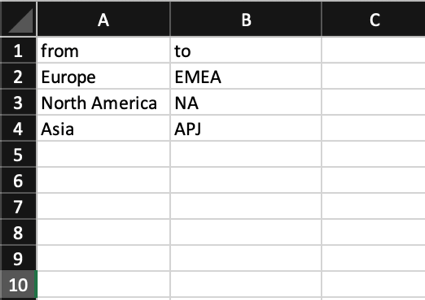
- The imported field values should go in the “from” column.
- The field values you want saved in Qualtrics should go in the “to” column.
- You can include up to 1000 mappings in your file.
- Save your file as a CSV file.
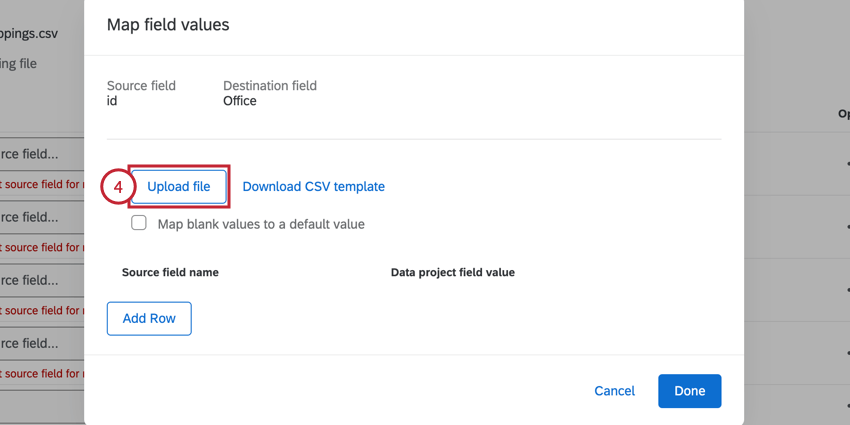
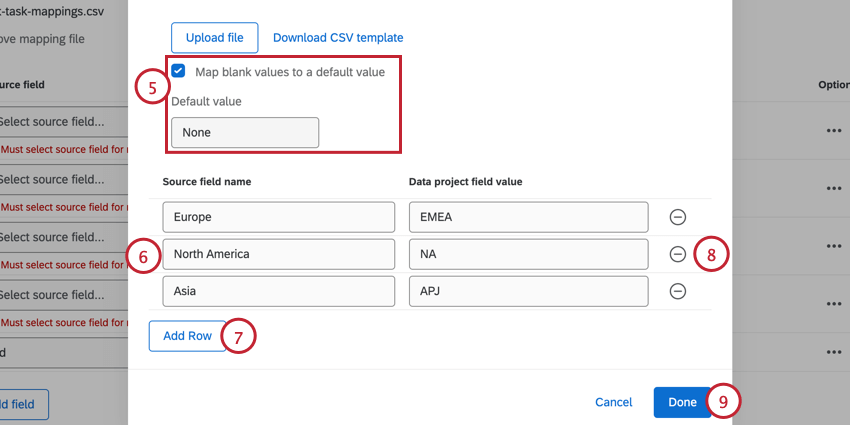
Example: Let’s say I’m importing employees and we have a field for “Office Location.” Some employees are remote and therefore do not have a value for this field. Instead of skipping this field for employees without a value, I can specify a different value, such as “Remote” to be imported for these employees.
Delete Users from CX Directory
Qtip: These steps assume you’ve followed the initial workflow setup described here and selected Delete users from CX directory.
Attention: This workflow will automatically delete users and their data from your CX directory based on the selected schedule, source data, and mapping criteria.
Select the data extraction task you set up earlier.
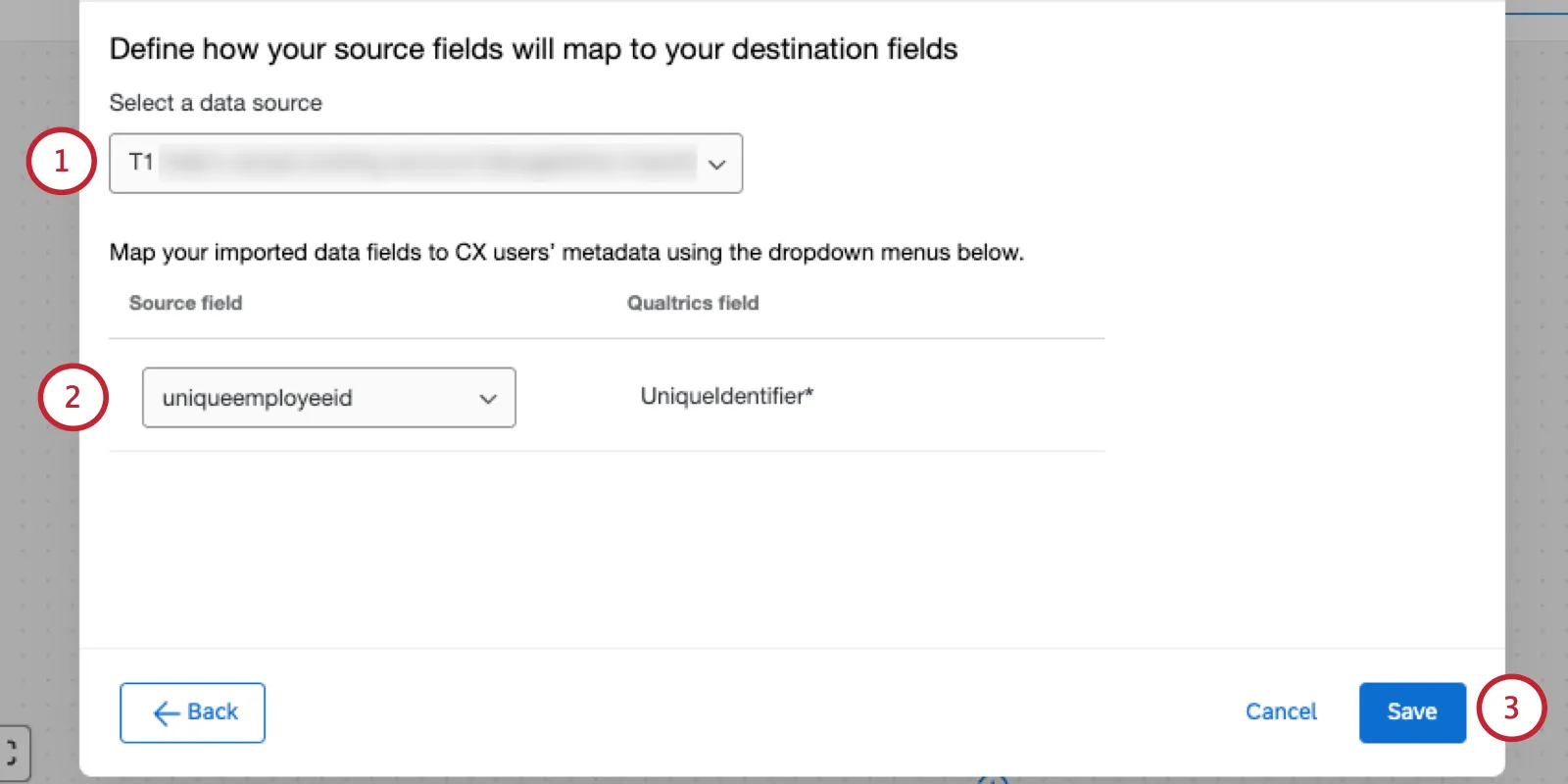
Select the field that maps back to the Qualtrics unique identifier.
Qtip: Learn more about CX user unique identifiers.
Click Save.
Read the warning.
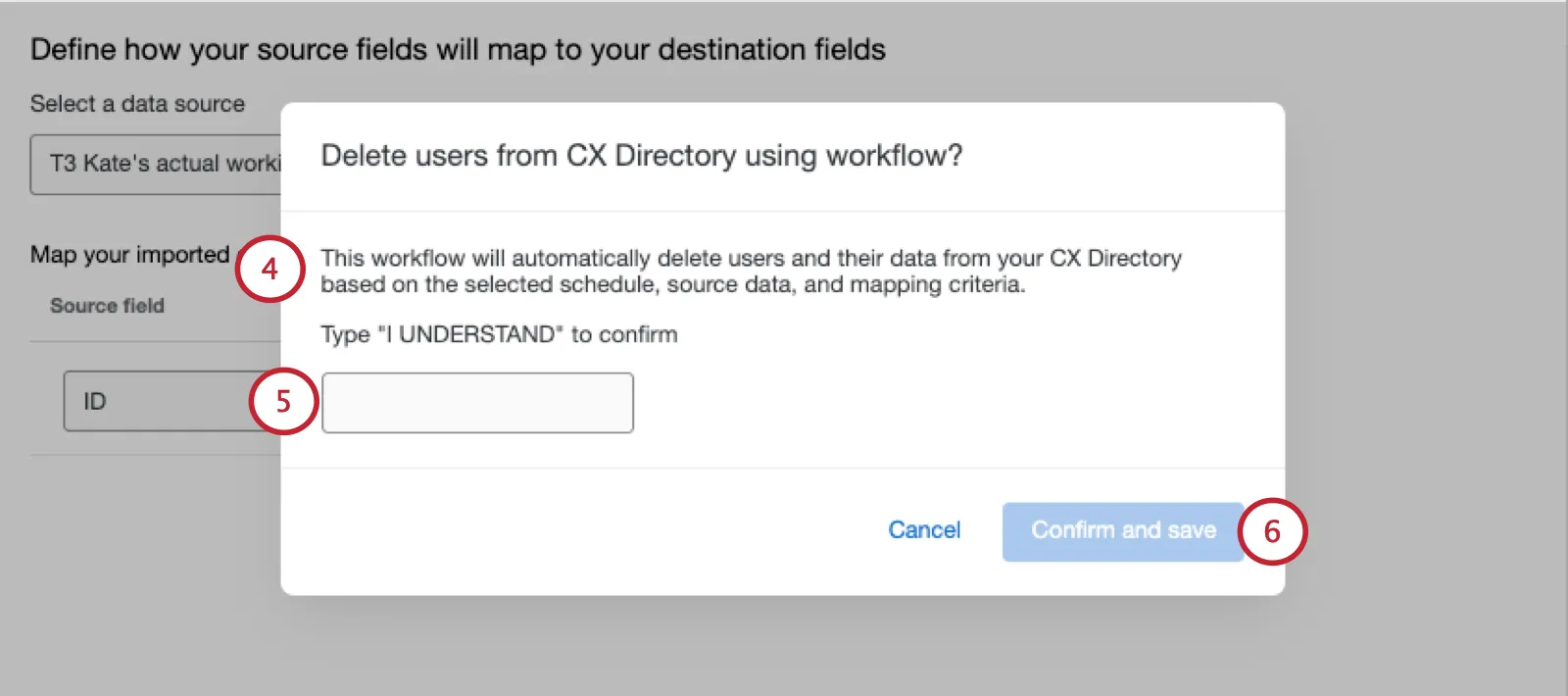
Type “I UNDERSTAND.”
Click Confirm and save.
Troubleshooting Tips
This section covers common issues that can appear when setting up this task.
- When this task runs successfully, you’ll see the message “There were no files available when this task was run,” in your workflow run history. This is because the processed data is based on the extractor task earlier in your workflow, not a separate file.
- After selecting the task, you may see the error Directory not found, try reloading the page. This error appears if your license does not have access to CX user admin. To enable CX user admin, contact Account Services.
- After selecting the task, you may see the error Unique ID is required to be enabled to use this extension. This error appears when your license does not have unique identifiers. To enable unique identifiers, contact Account Services.
- If the Save button is grayed-out, then that means your mapping is not complete. Make sure that any fields included in the task are completely mapped.
- All fields must be added to the task in order for them to be updated. If a field is not added via Mapping Fields and Values, it will not be added or updated.
See also "Before You Start" at the top of the page.
FAQs
Do I have access to all extensions available through the Workflows templates?
Do I have access to all extensions available through the Workflows templates?
Is there a link to all Workflows events and tasks?
Is there a link to all Workflows events and tasks?
What are Workflows templates?
What are Workflows templates?
What are workflows? / Where are actions?
What are workflows? / Where are actions?
There are no changes to workflow functionality as part of this update.
How do I add or remove an extension from my Qualtrics account?
How do I add or remove an extension from my Qualtrics account?
That's great! Thank you for your feedback!
Thank you for your feedback!