

Incomplete Survey Responses
What's on this page
About Incomplete Responses
After a respondent starts a survey, they have a certain amount of time allotted for them to complete the survey, regardless of the survey’s activation status or expiration dates. Sometimes, respondents will get partway through a survey before they quit. The Incomplete survey responses survey option allows you to determine whether to record or delete incomplete responses, and after how long.
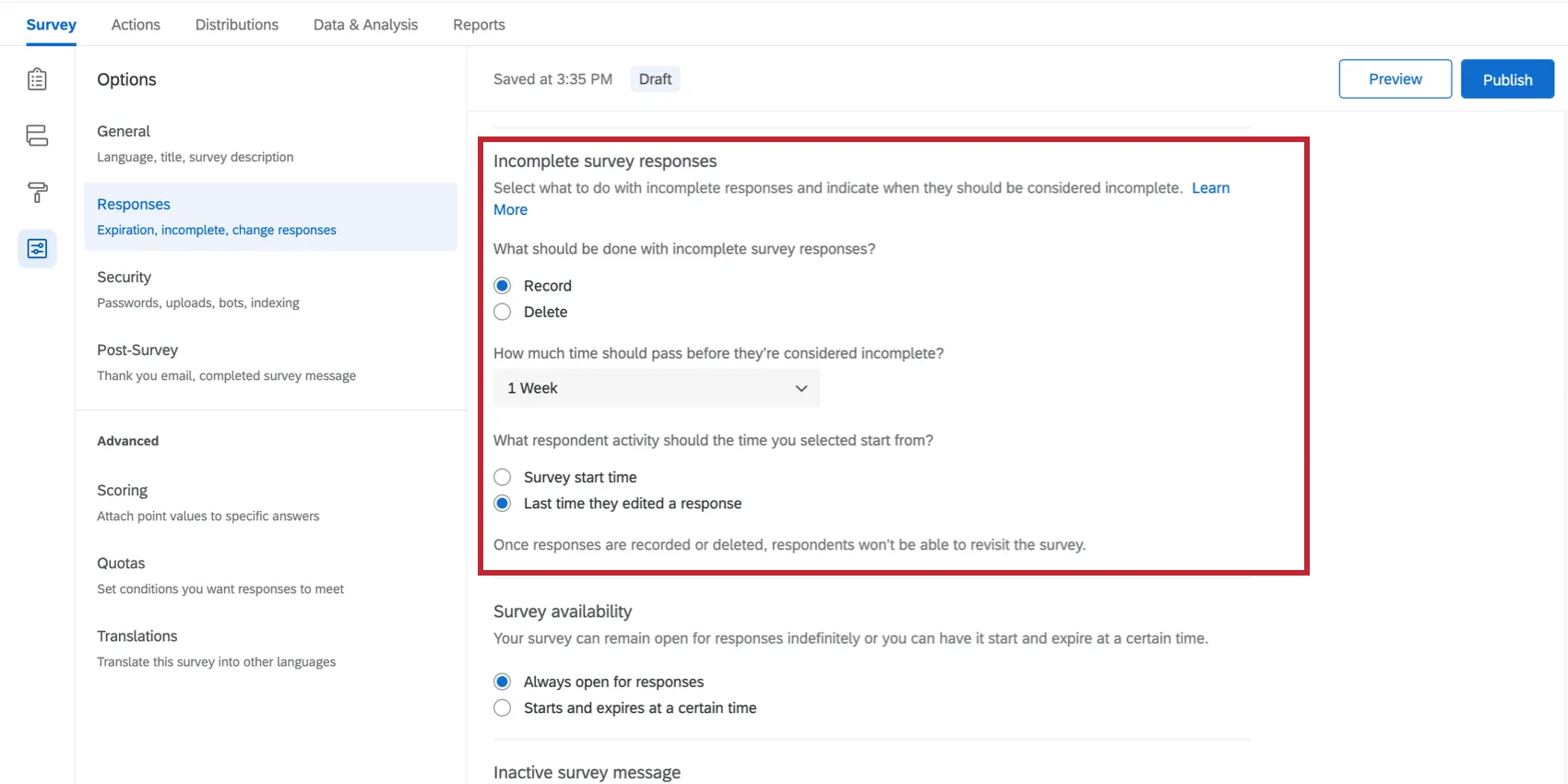
In this page, you will learn all about incomplete responses—how Qualtrics stores survey progress, how participants can return to finish a survey, and how incomplete responses are reported in the dataset.
Qtip: These setting used to be called “Partial Completion” in the old survey editor, and incomplete survey responses were called “partial responses.”

Understanding Incomplete Responses
As a respondent progresses through a survey (navigates to the next page in a survey), the answers they input are securely sent to Qualtrics servers and stored as responses in progress. This saving happens automatically as they navigate to the next page—respondents do not need to click any sort of “Save” button. Additionally, incomplete responses do not require the next button to be clicked when a recipient entered the survey via the embedded inline survey link of an email.
Please note that responses are only saved as the respondent progresses to the next page of the survey. If you have a survey that is only on one page, Qualtrics would not be able to save any progress the respondent makes on the survey since there is not another page for the respondent to progress to. Instead, the respondent would have to complete their response in one sitting. Qualtrics recommends periodically adding page breaks in your survey to avoid this issue.
Qtip: Qualtrics doesn’t save empty responses, so if a participant hasn’t answered any questions and their response is closed, it will be deleted instead of saved in Recorded Responses. Likewise, if a 1-page survey is started and not completed by a respondent but is then closed either manually or by the incomplete response deadline, their response will be deleted (since no progress was saved). Be sure to add page breaks in your survey to ensure the respondent’s progress is periodically saved.
Once a participant completes the survey, their response is moved from the Responses in Progress section over to Recorded Responses, where it will show up in reports and in downloaded survey data.
If a participant closes their web browser without finishing the survey, the response will stay in responses in progress for a set amount of time, in case the participant comes back to finish. This amount of time is set in survey options. If the participant doesn’t come back within the allotted time frame, the response will automatically be closed as-is and moved over to Recorded Responses.
The Incomplete survey responses setting in your survey options allows you to choose how long partial responses will remain responses in progress before being closed and moved over to Recorded Responses.
Setting a Time Frame for Incomplete Survey Responses
In this section, we explain how to set the amount of time during which incomplete survey responses will remain incomplete before you either delete them or record them.
Qtip: Incomplete responses are always either recorded or deleted after 1 year, even if a respondent edits their response before the cutoff time frame.
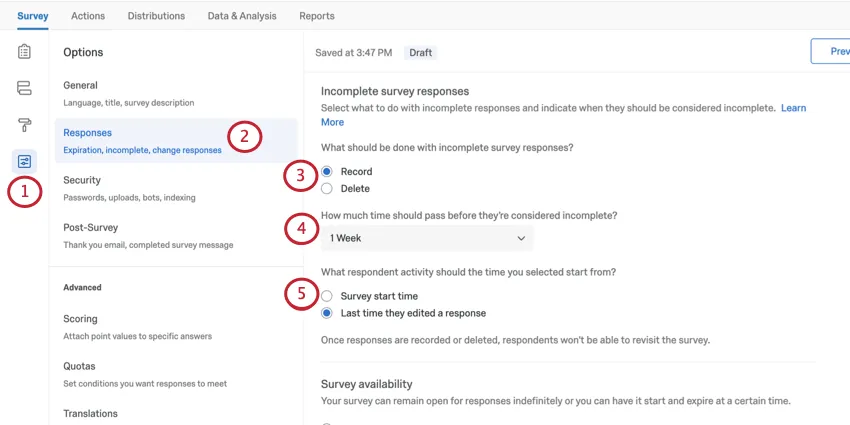
- Record: Record the response when the deadline is met. Attention: Responses at 0% progress will be deleted, even if this option is set to record.

- Delete: Delete the response when the deadline is met. Attention: If you choose Delete, then even responses in progress that you close manually or responses in progress that you close when deactivating the survey will be deleted!
Qtip: Whether you decide to record or delete, your options are 1 hour, 4 hours, 24 hours, 48 hours, 72 hours, 1 week, 2 weeks, 1 month, 3 months, 6 months, or a year. You should note that if you select “multiple responses” in a Lifecycle survey, the default setting for the “how much time should pass before they’re considered incomplete” setting is defaulted to 1 week. This is true even if an option other than 1 week was previously selected.
- Start survey start time: When your respondent first started the survey. Example: Let’s say I configure it so that partial responses are recorded 1 week after the respondent starts the survey. I send out the survey on August 1 and the respondent begins their response on August 3 but does not finish it. The respondent has until August 10 to complete their response.

- Last time they edited a response: When your respondent last edited their survey response. Example: Let’s say I configure it so that partial responses are recorded 1 week after the respondent’s last activity. The respondent begins the survey on August 1. They close the survey without completing it, generating a response in progress. Their current deadline is August 8. The respondent revisits their response and edits it on August 5 but still does not complete their response. Their new deadline is August 12.
Qtip: You can change the settings for incomplete survey responses at any time, even when collecting data. However, be sure to publish your changes so they take effect!
Please note that the respondent’s deadline is locked in place when they begin the survey. Conversely, the record or delete action is checked and applied when the response is closed. For example, if a respondent starts a response when the setting is set to “delete 1 week after last activity”, and you then change it to “record 1 month after last activity”, their response will still be closed after 1 week. However, it will be recorded instead of deleted due to the current action setting.
If you would like to see what the settings for incomplete survey responses were at the time your respondent started the survey, look at your survey’s version history and compare the respondent’s start date to the published version of your survey at that time.
Qtip: If you are sending reminder emails on your survey, it’s best practice to set the incomplete survey response deadline greater than or equal to the length of the reminder period.
For example, if you’re setting up your email invitation to send 2 reminder emails, the first sending after 5 days and the second after 10 days, then you should configure your settings for incomplete survey responses to be at least 10 days as well. With this set-up, users that open the survey on the first invitation but do not complete it will be able to resume their survey session when they receive their second reminder email (because the survey hasn’t expired yet).
Saving Survey Progress
Each time a respondent switches pages in the survey, the answers they’ve provided so far are sent securely to Qualtrics servers, and saved as part of their partial response.
For participants who don’t finish the survey in 1 sitting, you can allow respondents to finish later – that way if they leave the survey, they can start right where they left off the next time they click the survey link. See the linked support page for more details. Note that this option isn’t necessary for surveys distributed through email or SMS with personal links, because then progress is saved by default.
Incomplete Survey Response Settings vs. Survey Availability
The survey availability date determines how long participants have to use survey links (anonymous link, emailed links, personal links, etc.) to start new responses. Once this date passes, all survey links will expire and no participant can start a new survey response.
However, participants who have already started their surveys will be able to complete their responses for a limited period of time. How long they have is determined by the Incomplete survey responses setting.
Qtip: If you have Automatic survey closure enabled, all in-progress survey sessions will be closed when the survey availability date passes.
Example: Let’s say survey availability is set to 60 days and the setting for incomplete survey responses is set to 2 weeks. You receive your survey link and wait 55 days before clicking on it. As soon as you move past the first page (i.e., click the first “next” button), the setting for incomplete survey responses takes over. You now have 2 weeks to finish taking the survey (even though the survey expires in 5 days). Through this means, participants can submit survey responses after a survey has expired or been deactivated.
Rather than rely on the setting for incomplete survey responses, you can choose to close all responses in progress when you deactivate the survey. This will close all surveys regardless of how far along they are in the deadline for incomplete survey responses, and it will stop anyone from submitting after that point.
Qtip: You can close individual responses in progress in the Data & Analysis tab.
Identifying Incomplete Responses in Your Dataset
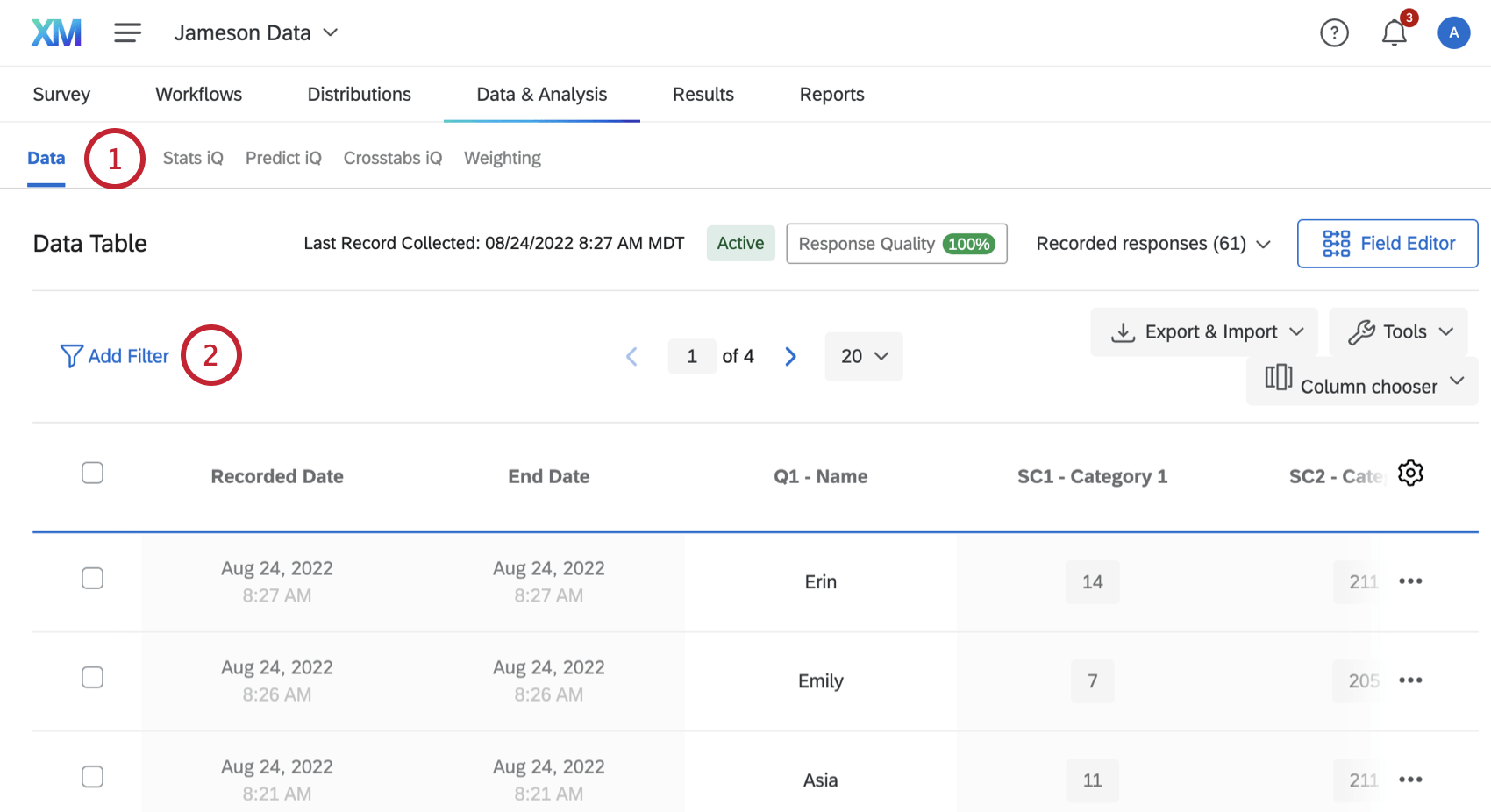
If your incomplete survey response setting is set to record partial responses, you may want to identify these responses in your data. This is easily done by filtering your responses by the survey metadata field Finished is False.
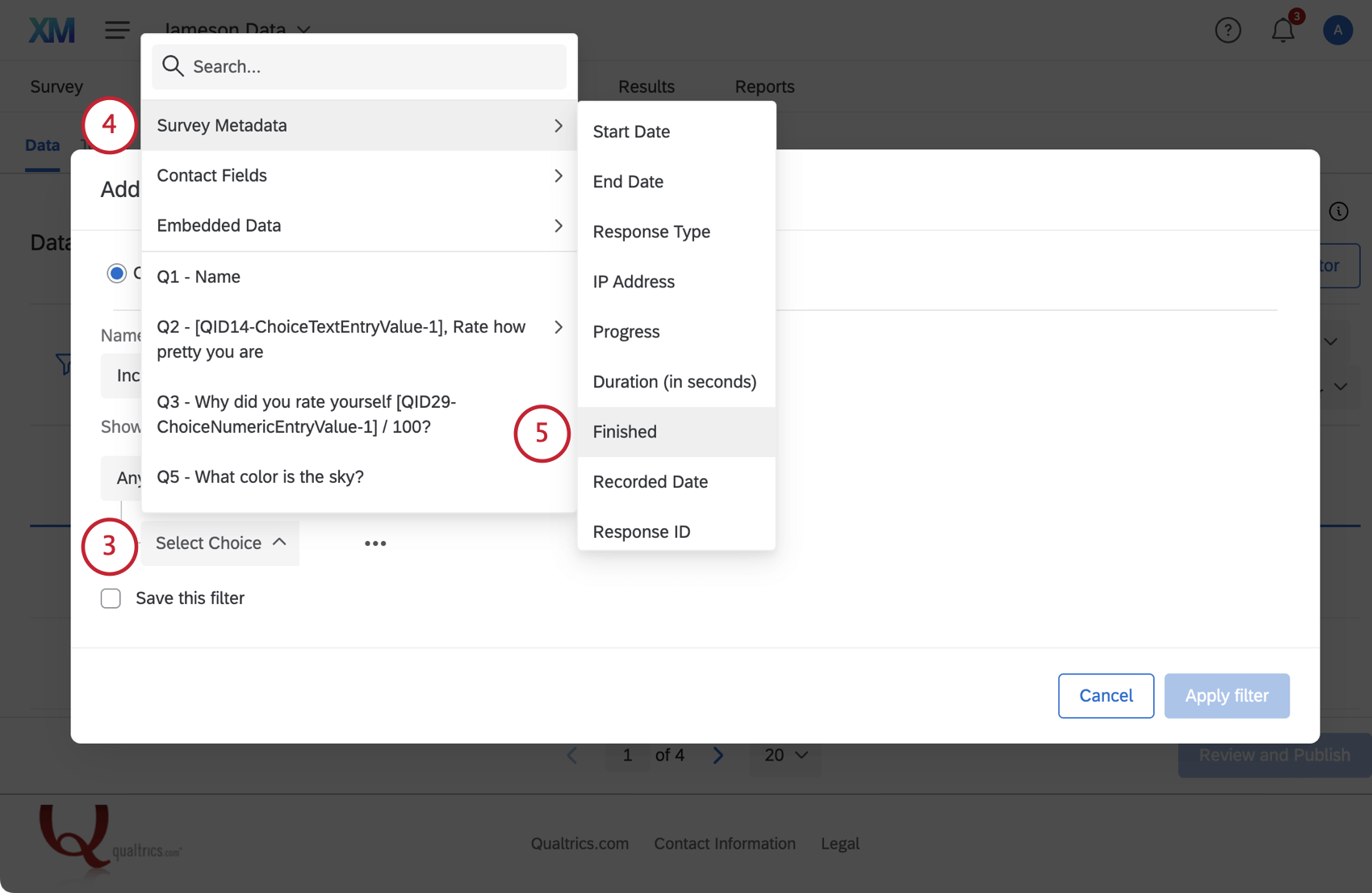
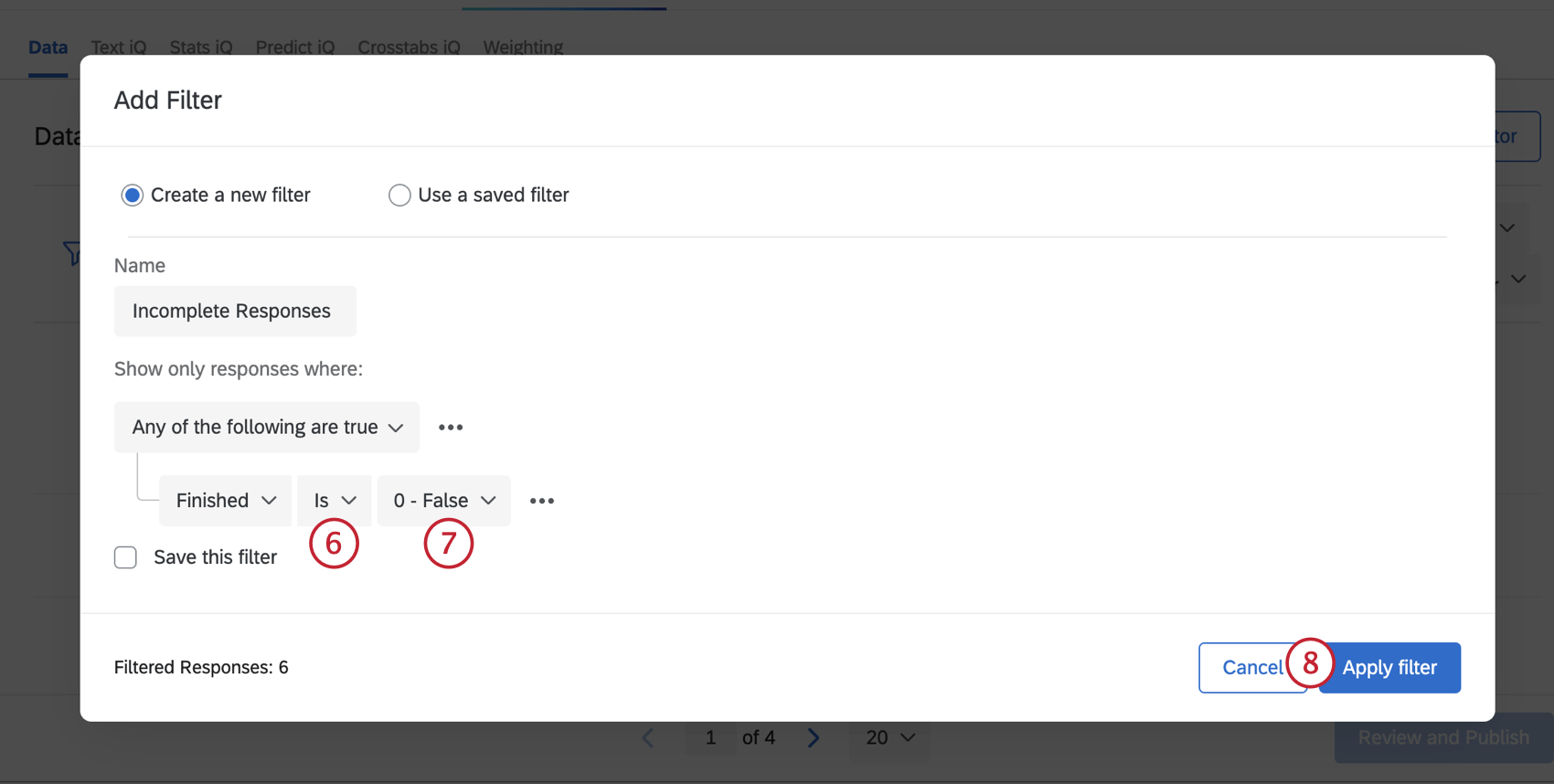
Qtip: Add a column for the Progress field to your dataset to see how far into your survey your respondents got before dropping off. This can help inform where you may need to make edits to your survey to encourage respondents to keep going.
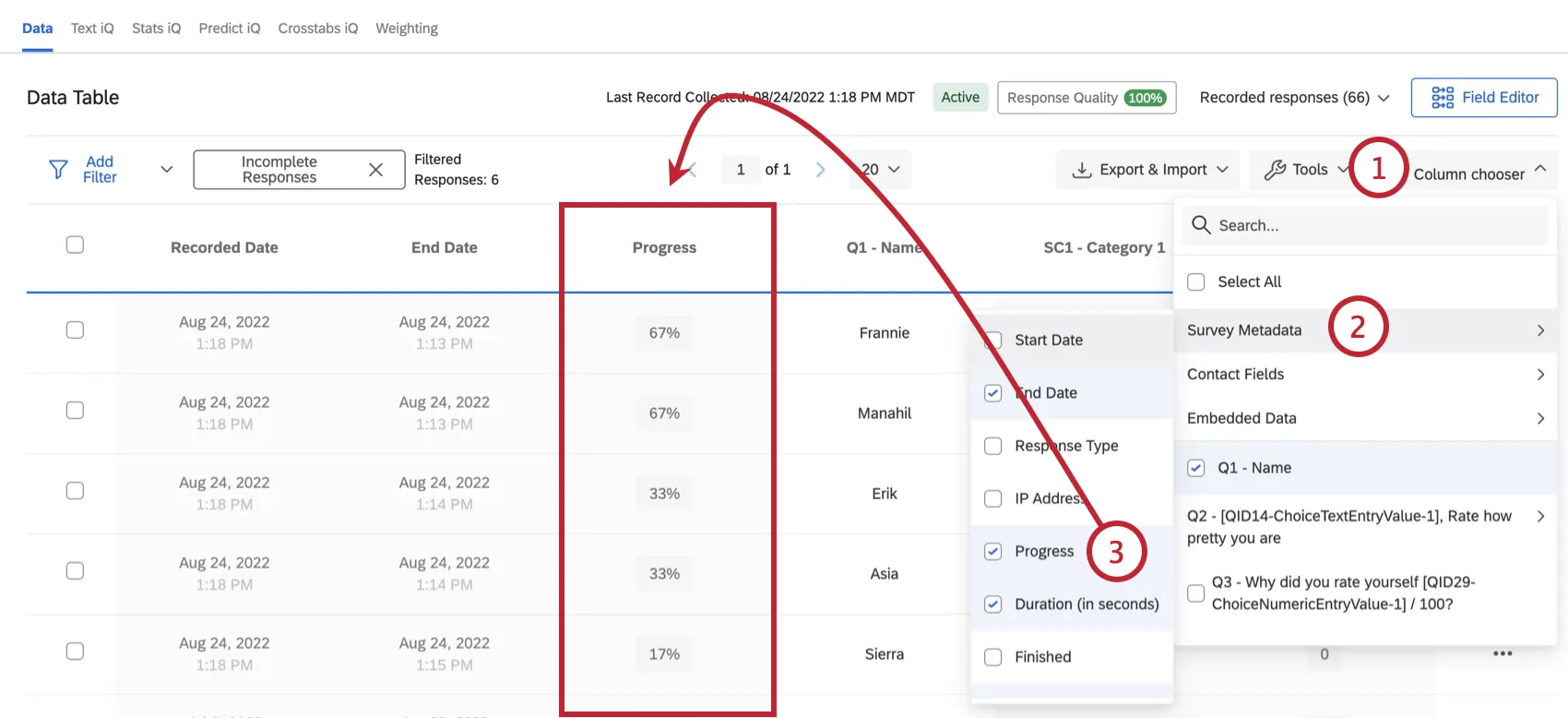
Qtip: If you’d like to see only completed responses, filter your data for Finished is True.
Survey Options in Different Project Types
Survey options are available in many different types of projects. The options described on this page are available in:
There are a few other projects that have access to survey options, but with unique functionality to keep in mind.
- For Engagement, Lifecycle, or Ad Hoc Employee Research projects, please see Survey Options (EX).
- For Pulse, see the section on survey options in Features Available in Pulse Surveys.
- For 360 projects, see Survey Options (360).
- For Conjoint and MaxDiff, see Survey Options.
FAQs
I set a survey expiration date, but some responses are still coming in. What is happening?
I set a survey expiration date, but some responses are still coming in. What is happening?
When the survey expiration date arrives, respondents who have already started their surveys will be able to complete their responses for a limited period of time. How long they have is determined by the Incomplete Survey Response setting (also found in Survey Options).
For example, let's say Survey Availability is set to 60 days and Incomplete Survey Response completion is set to 2 weeks. You receive your survey link and wait 55 days before clicking on it. As soon as you move past the first page (i.e., click the first "next" button), the Incomplete Survey Response setting takes over. You now have 2 weeks to finish taking the survey (even though the survey expires in 5 days). In this situation, participants can submit survey responses after a survey has expired or been deactivated.
If you want to avoid this scenario, you can pause response collection and choose to close all incomplete responses. This will close all surveys regardless of Incomplete Survey Response status and stop anyone from submitting after that point. All the partial data will be added to the Recorded Responses page with all the other survey data.
Does a survey expire? Under what circumstances?
Does a survey expire? Under what circumstances?
Yes - see Distribution and Survey Expiration for a full explanation.
What is the incomplete survey responses setting?
What is the incomplete survey responses setting?
For more information regarding Incomplete Survey Responses, visit the Partial Completion support page.
That's great! Thank you for your feedback!
Thank you for your feedback!