

Formula Fields
What's on this page
About Formula Fields
Formulas are a type of custom field that allow you to calculate math operations with survey data. Once created, formulas will apply to existing data and be calculated for incoming data. This makes formulas a great alternative to embedded data. Once created, formulas can be used in data analysis and reporting the same way you’d use other numeric survey data.
Example: You ask your respondents for their height and weight to calculate their BMIs (Body Mass Indexes). After data collection, you realize you forgot to add a math operation for BMI to your embedded data. Creating a formula allows you to calculate this on data that has already been collected.

This support page covers how to create a new formula. For information on making changes to an existing formula, see Editing Custom Fields.
Creating a Formula
Qtip: A formula’s data format will always be numeric and cannot be changed.
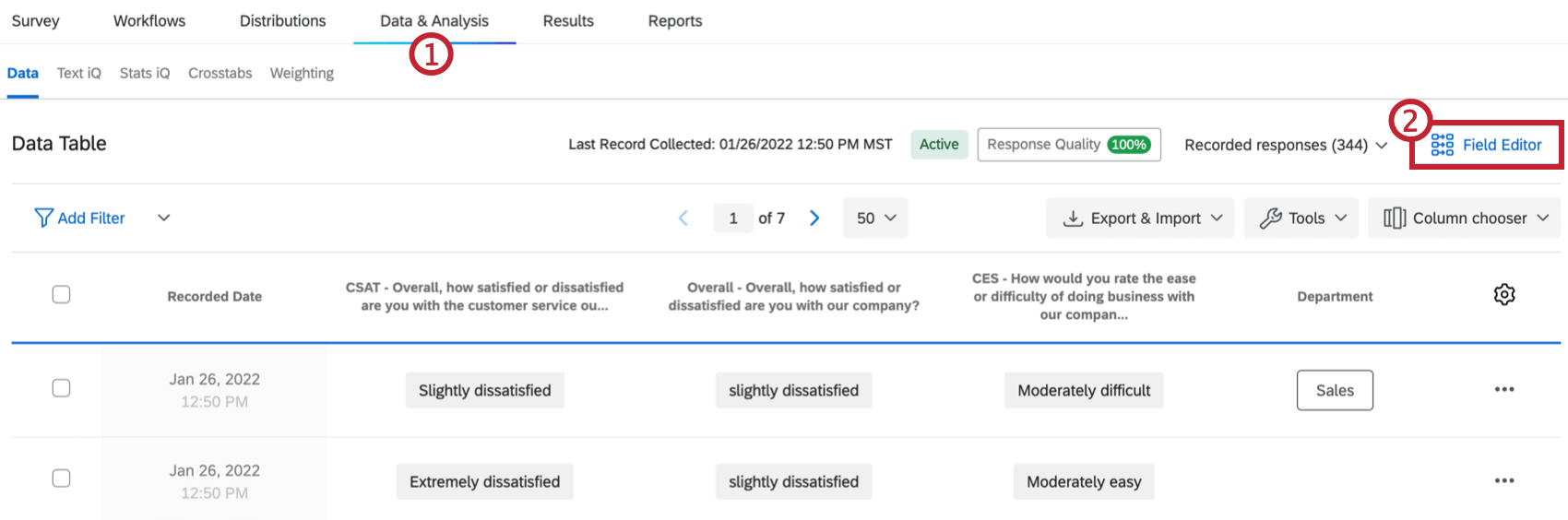
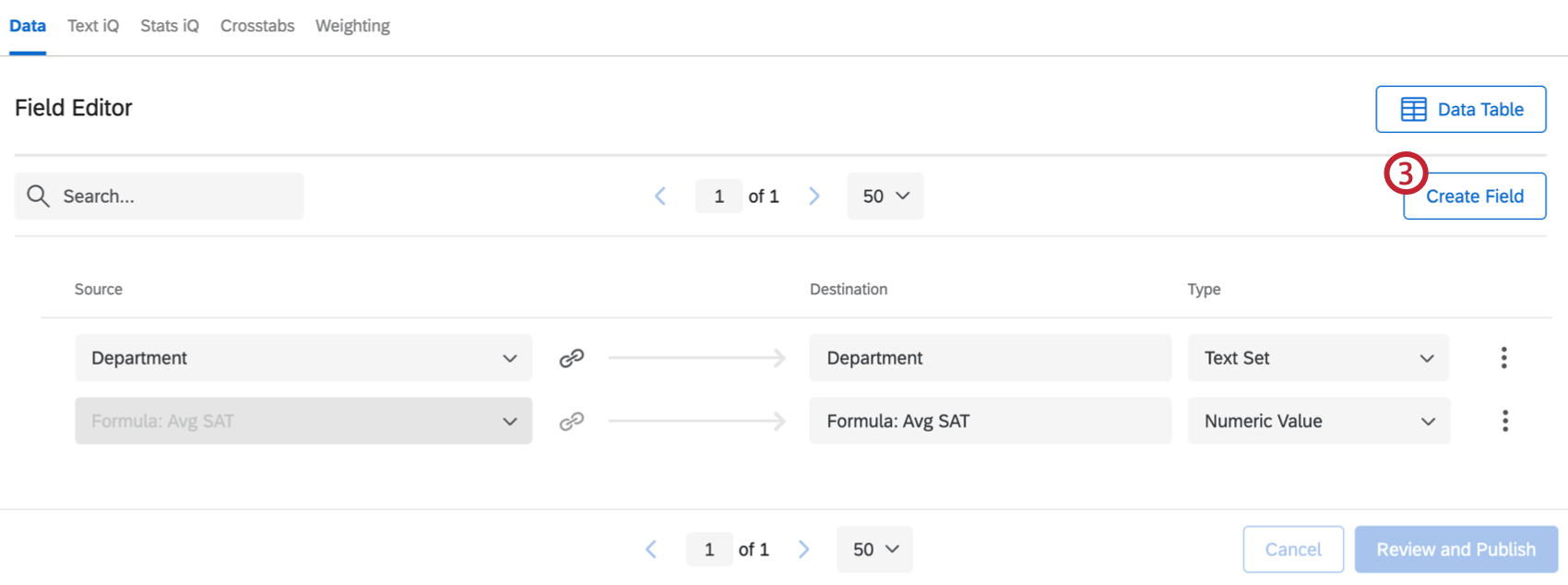
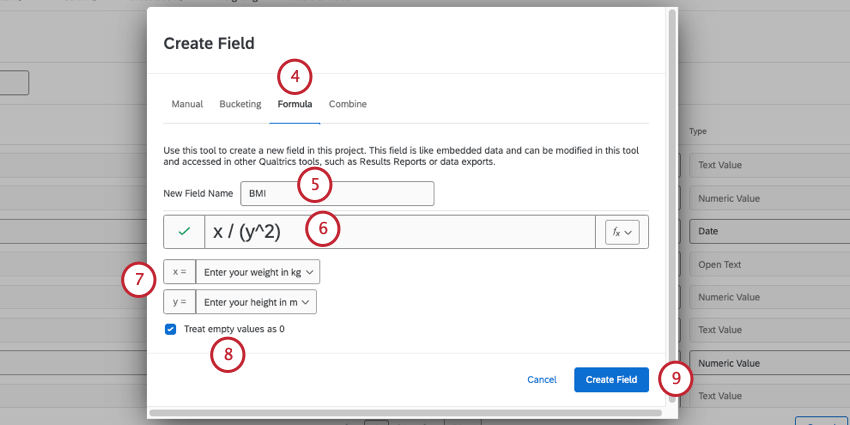
Qtip: Every formula starts with x and y, but you can add new variables by typing new letters into the box, and remove variables by deleting the corresponding letter from the formula box.
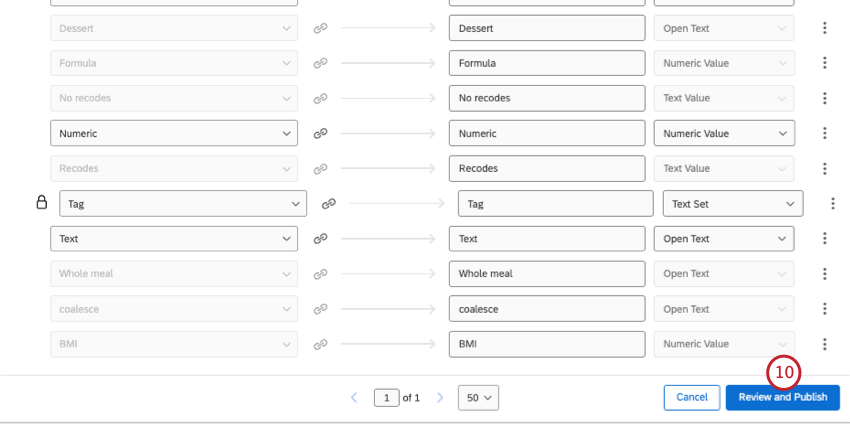
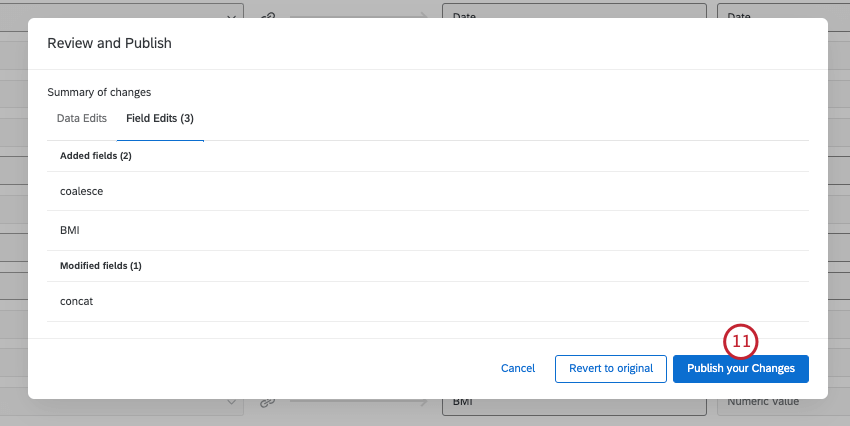
Qtip: Click Data Table to return to your response data.
Qtip: Formulas aren’t calculated until after a response is submitted. If you want to display calculations to your respondents in the middle of a survey, use math operations.
Using the Correct Syntax
A formula has to make sense before it can be added to your data. A warning icon will appear if the formula doesn’t make sense, and you won’t be able to save your changes until it’s corrected. Here are a few recommendations:
- Always remember to close parentheses. ( x + y ) will work, but x + y ) won’t.
- Numbers, single-letter variables, and the symbols listed in the table below are compatible with formulas. However, combined letters, like xy, are not. Instead, use x * y.
- Spacing has no impact on the effectiveness of a formula. x/(y^2) and x / ( y ^ 2 ) will work the same way.
Available Operations
| Math Operation | Symbol | Example |
|---|---|---|
| Addition | + | x + y |
| Subtraction | – | x – y |
| Multiplication | * | x * y |
| Division | / | x / y |
| Powers (x^2) | ^ | x ^ y |
| Absolute Values | abs( ) | abs(x) |
| Ceiling | ceil( ) | ceil(x) |
| Floor | floor( ) | floor(x) |
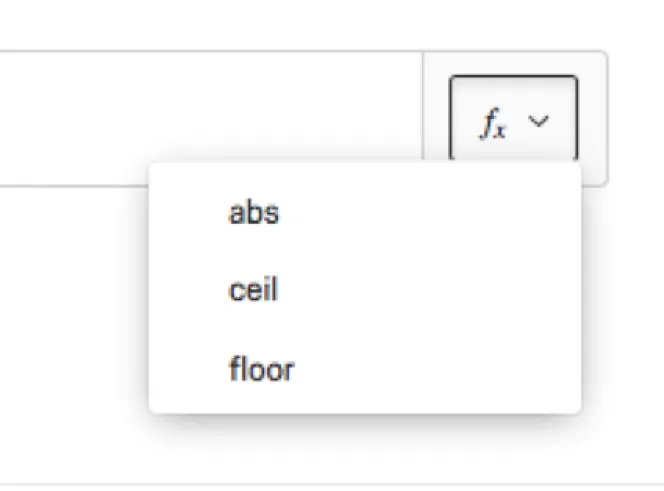
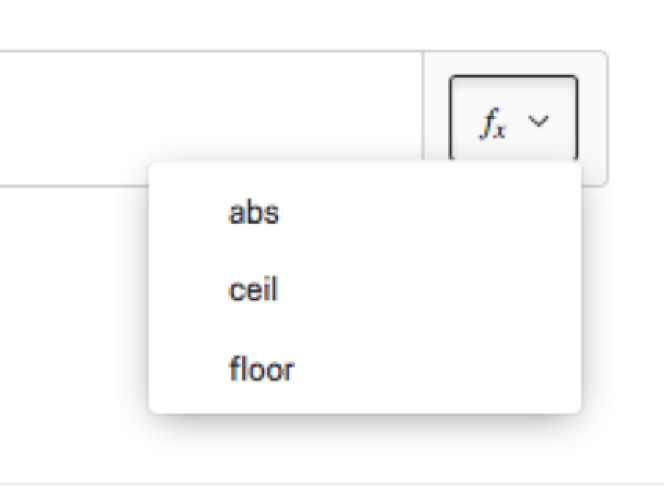
Qtip: If you don’t want to type them in, you can access Absolute Value, Ceiling, and Floor from the function (fx) icon, as seen below.
Fields You Can Use in Formulas
Not all survey information can be used in a formula. Compatible items must finite in nature, or be set to accept numeric values. This includes:
- Questions with multiple choices. Make sure to recode values as intended.
- Questions set to numeric-only answers, such as sliders and constant sum questions.
- Text entry questions set to numeric validation.
- Embedded data set as number or number set types.
- Numeric survey metadata, such as response type, progress, duration (in seconds), and finished status.
- Numeric manual fields.
Qtip: Looking to combine non-numeric data? Check out our Bucketing Field and Manual Field pages instead.
Qtip: Formulas aren’t compatible with custom fields (except numeric), scoring, or questions where you can provide multiple answers.
Projects Where Formulas Can Be Created
Depending on your license, you may have access to several different types of projects that have a Data & Analysis tab. The options described on this page are available in:
- Survey projects
- XM Solutions
- Imported data projects
- 360 projects Qtip: See Creating New Fields (360) for more details.

- Conjoint / MaxDiff Qtip: While you can build formulas from Conjoint and MaxDiff-specific fields, the data may not make sense and cannot be recoded. We recommend only building formulas from survey fields.
- CX Dashboards
Qtip: When custom fields are added to a CX Dashboard, they become derived data. Although supported, they behave a little differently than other survey fields do. See Derived Data for more details.
While the functionality is technically available, we do not recommend using these custom fields with other types of Employee Experience projects. See Creating New Fields (EX) for more details.
Qtip: While other areas of the platform (like dashboards, Stats iQ, and directories), may also allow you to create new fields, this page is solely focused on how to create new custom fields in Data & Analysis. For steps on creating other kinds of fields across the XM platform, try narrowing your support site search.
FAQs
How do I edit my custom fields?
How do I edit my custom fields?
Can I edit or add information to a response after it has been submitted?
Can I edit or add information to a response after it has been submitted?
If you would like an individual to retake their response instead, you can find instructions for this on the Retake Survey Link support page.
My custom fields don't have data and say "Invalid." What happened?
My custom fields don't have data and say "Invalid." What happened?
That's great! Thank you for your feedback!
Thank you for your feedback!