

SFTP Troubleshooting
What's on this page
About SFTP Troubleshooting
SFTP stands for SSH File Transfer Protocol. In essence, it is one method used to transfer files from your server to Qualtrics, or vice versa. This page covers the most common issues that arise when setting up an SFTP connection, and how to troubleshoot the problem. When troubleshooting SFTP connections, you should work with your IT team who will be able to help with server and network issues.
Where Qualtrics Uses SFTP
Below is a list of everywhere in the Qualtrics product you can use SFTP connections:
- Response Import & Export Automations: Automatically import or export survey data.
- Extract Data from SFTP Files Task: Import data from your SFTP server to use in Qualtrics.
General SFTP Best Practices
This section contains best practices advice to make sure your SFTP connection is as smooth as possible.
- Do not use special characters in your SFTP credentials.
- Qualtrics needs to “touch” (i.e. access) the file multiple times on your server before it is successfully transferred to Qualtrics. Please ensure your SFTP server is configured to allow multiple touches to files. If your server is set up to delete the file after one touch, then the connection will fail.
- Make sure you’ve allowlisted the Qualtrics IP ranges. The ranges to allowlist can be found here. Qtip: These are the same IP ranges for email distributions, SSO configurations, automations, etc.
 Qtip: If your account is within our FedRAMP environment, the IP addresses for allowlisting differ from those found on this page. To securely access your IP address information, please login to your FedRAMP Customer Success Hub.
SFTP Network Issues
There are several common network issues that can come up when setting up an SFTP connection. To diagnose network issues, contact Qualtrics Support who will be able to tell you if your SFTP is failing due to a network issue.
If a support member identifies that a network issue is causing the SFTP connection to fail, then you will need to work with your IT team to fix the issue. The most common network issues are:
- I/O timeouts: I/O timeouts are caused by the SFTP server not responding to the Qualtrics SFTP client’s requests. Incorrect username/hostname commonly lead to I/O timeout errors.
- Connection reset by peer errors: Connection reset by peer errors are caused by the Qualtrics SFTP server receiving an RST TCP packet. This package signals that the server should close the connection.
Most networking issues, including the two mentioned above, are caused by a firewall, IPS, or other network control system inside the network of the SFTP server. Qualtrics does not have any system in our network that would cause such issues. To help mitigate these issues, you can have your IT team add the Qualtrics IP ranges to your server’s allow list to make sure no traffic from us is blocked on your server.
If allowlisting does not solve the issue, your IT team should run a packet trace inside the SFTP server’s network to determine what in the network is causing the issue. Common issues are dropped packets or incorrectly sent RST packets. If your IT team believes that the unusual network activity is being caused by Qualtrics, we ask that they send us a packet dump at the edge of the network.
SFTP Server Issues
SFTP server issues occur when there is a problem with the machine running the SFTP server. To diagnose server issues, contact Qualtrics Support, who will be able to tell you if your SFTP is failing due to a server issue.
The most common SFTP server issues are:
- Mismatched encryption methods. Qtip: Encryption is not supported on response import and export automations.
- Custom scripts or bots running on the SFTP server that manage files and conflict with the automation file ingestion process.
- The slashes ( / ) in the folder path are the wrong direction. If you have successfully connected to the SFTP but still don’t see any files available for import, you may need to switch the direction of the slashes.
Qualtrics automations do not support any additional file management on top of the basic SFTP protocol. If you have a system that deletes or moves a file after it is “touched,” or if your system only permits a file “touch” so many times before failing, you will need to remove these extra measures for the SFTP server to be compatible with Qualtrics automations. Qualtrics manages the ingestion of the files itself on the server, and it will “touch” the files several times before removing them.
Should your IT/Networking department suspect that irregular activities on the SFTP server stem from Qualtrics, we request that they provide our Support Team with a copy of the relevant SFTP logs. It’s important that your IT department clearly identifies and explains any abnormalities found within the logs, since we are unable to interpret these logs without proper context.
SSH Key Authentication
You can authenticate to an SFTP server using either a username and a password, or a username and an SSH key. If you can authenticate successfully with a username and password, but can’t do so with the SSH key, here are some things you can test:
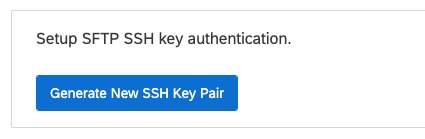
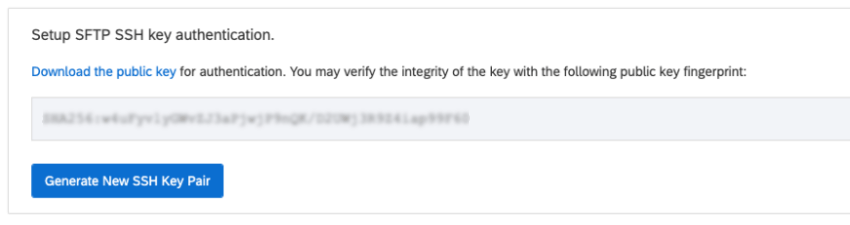
Qtip: The public key fingerprint is displayed in Qualtrics while you are setting up your SSH. Once you’ve downloaded the public key file, you can also run the following command on the computer where your public key is stored to get its fingerprint:
ssh-keygen -lf <path_to_public_key_file>
If you’re unsure how to run commands, please reach out to your IT team for assistance.
Qtip: You can check for the flag PubkeyAuthentication in your /etc/ssh/sshd_config file and set it to yes. The public keys should be added to the authorized_keys. Qualtrics uses a private key to log in. When a private key is used to log in to the SSH server, the server checks the corresponding public key in the authorized_keys file. If the public key is found and matches, the user is authenticated and granted access.
-
- You can fetch your SFTP server IP using dig your.SFTPserver.com. Qtip: To find your SFTP server’s IP address, please reach out to your organization’s IT team.
- Make sure you are allowlisting Qualtrics server IPs and that your fire wall is not blocking this information.
- You can fetch your SFTP server IP using dig your.SFTPserver.com.
That's great! Thank you for your feedback!
Thank you for your feedback!