

Survey Response Event
What's on this page
About Survey Response Events
Have you ever wanted to generate a lead in Salesforce when respondents take your survey? Or would you like to be notified when responses are updated via the Qualtrics API? Maybe you want to receive emails about responses uploaded via the Offline App but not submitted via the anonymous link. All of these use cases and more are possible using the survey response event.
The survey response event allows you to trigger different tasks when new responses are collected or existing responses are updated.
Types of Projects That Can Start This Event
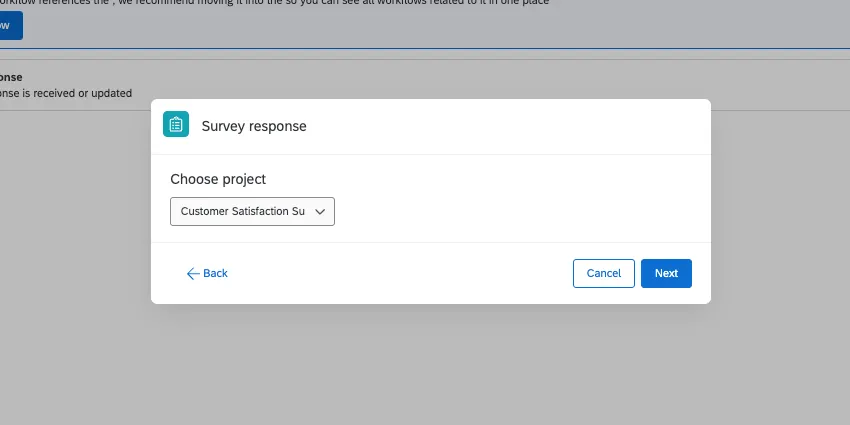
You can create a survey response event in just about every type of project with a Workflows tab. However, we highly recommend using this event with a standard survey project.
If you choose to use the following types of projects instead, keep in mind that they may not work the same way survey projects do.
- 360
- Ad Hoc Employee Research
- Engagement
- Pulse
- Lifecycle
- Conjoint
- MaxDiff
Attention: In Employee Experience projects, you cannot pull participant metadata into other parts of the workflow, like email tasks or tickets.

Types of Survey Response Events
The following response types can be used to define a survey response event:
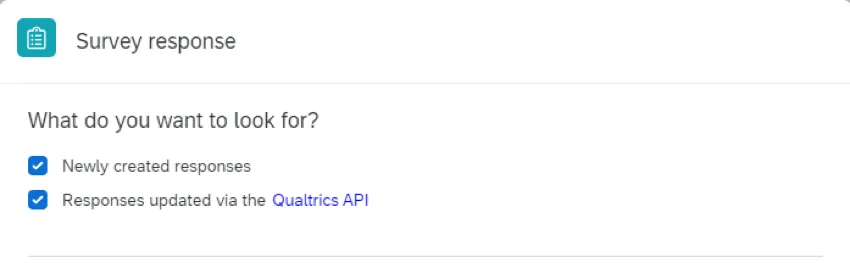
- Newly created responses: A new response has been submitted.
Response updated via the Qualtrics API: An existing response was edited using the Qualtrics API.

Qtip: For help writing the API call for updating responses, check out our API Documentation.
Qtip: If you want this task to fire for all responses, you should select both created and updated responses.
Setting Up a Survey Response Event
In the Workflows tab of a project or the stand-alone Workflows page, click Create a workflow. For survey response events, we generally recommend you create the workflow in the Workflows tab of a project.
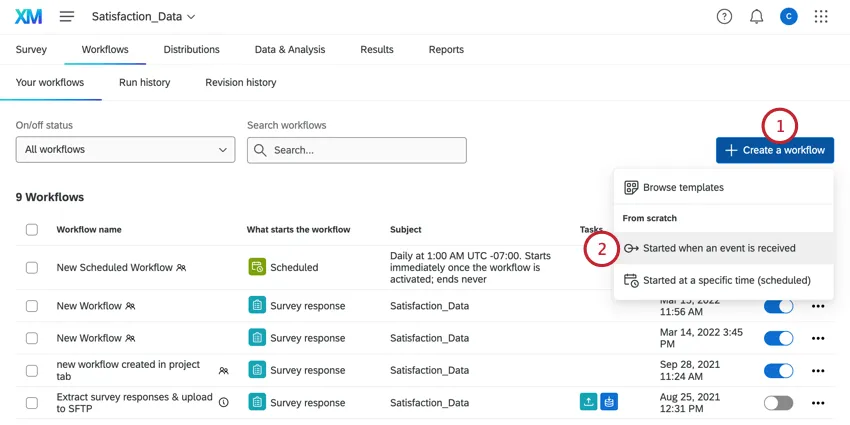
Choose Started when an event is received.
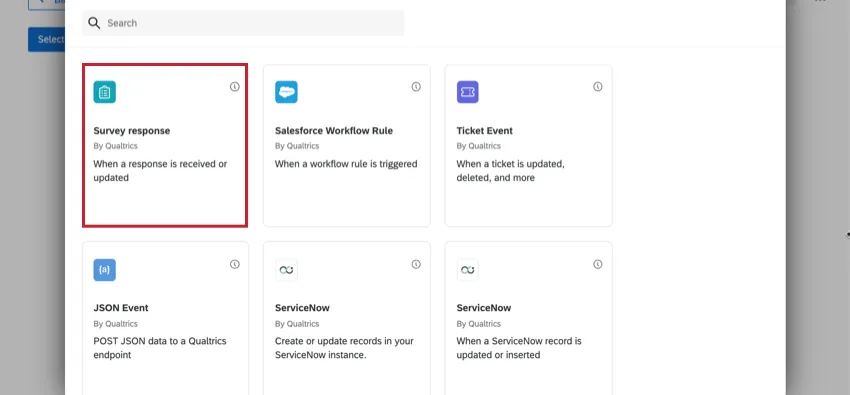
Choose the Survey response event.
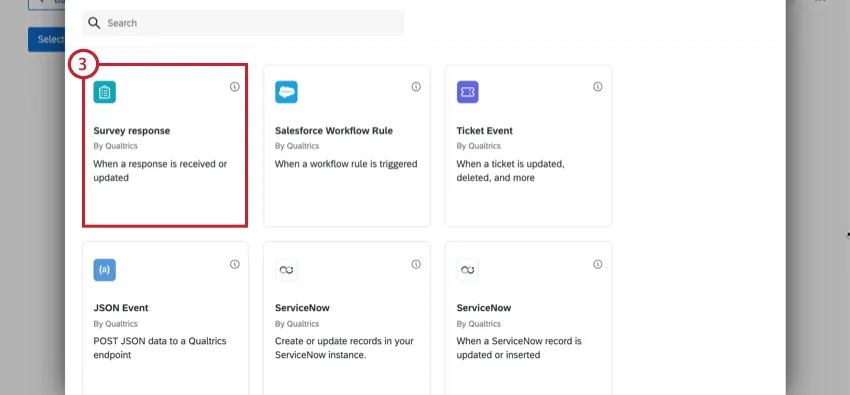
Set the type of survey response event.
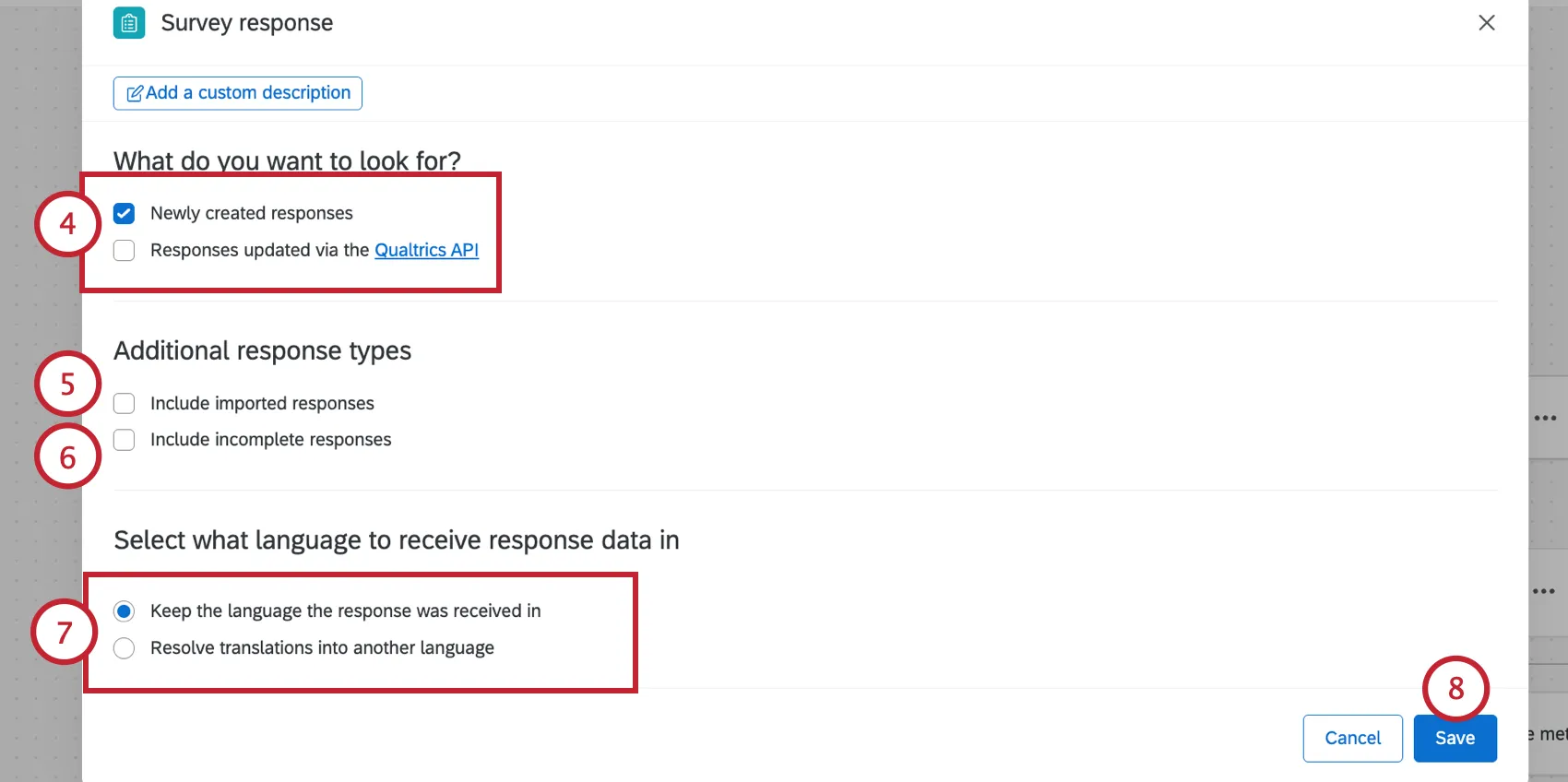
If you want, select Include imported responses. If this isn’t selected, importing responses will not trigger the workflow.
If you want, select Include incomplete responses. If this isn’t selected, incomplete responses that have been closed will not trigger the workflow.
If your survey is available in multiple languages, choose how response data is handled. See Survey Response Events for Multi-Language Surveys for more information.
Click Finish.
If desired, click the plus sign ( + ) and choose Add a condition to add conditions to your workflow. Conditions determine the criteria for your workflow to fire. See the setting conditions for a survey response event section for more details.
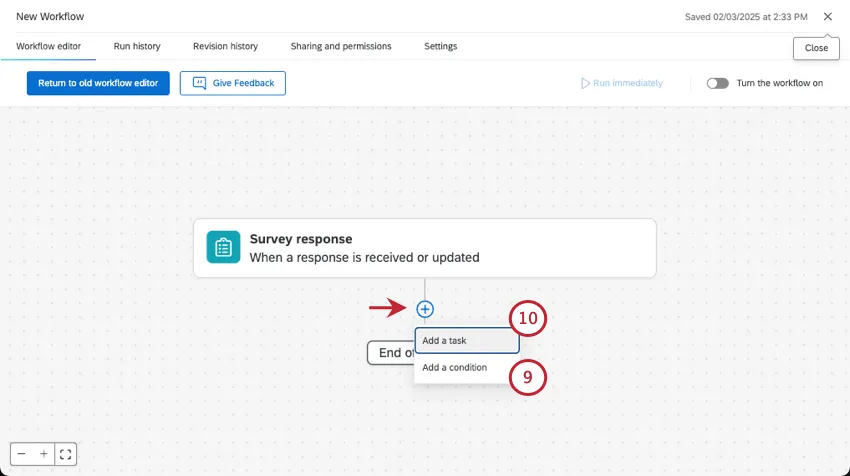
Click the plus sign ( + ) and select Add a task to add a task to your workflow. Tasks determine the result of your workflow. See defining tasks for an explanation of every available task.
Survey Response Events for Multi-Language Surveys
Qtip: If your survey is only available in one language, it doesn’t matter what you choose for this option.
If your survey is translated into multiple languages, you can specify which language to process response data in. This option is useful if you need your responses to be in a certain language for sending the data to a third-party system using the same workflow. This option also lets you pipe text in a language other than the survey’s default language.
Example: We want to send response summaries to our department head for review. While the survey data has been collected in many different languages, we want to show it to her in French, the department head’s native language.

Example: Let’s say we want to map the respondent’s answers back to fields in Salesforce. If the Salesforce object can’t handle non-English characters, then we’ll want our respondent’s answers translated to English so that they can be imported to Salesforce.
Qtip: This option only impacts the response data for using the data in the same workflow. It does not impact how the response is saved in data & analysis. The response will be saved in the language that the respondent took the survey in.
Under Select what language to receive response data in, choose between the following:
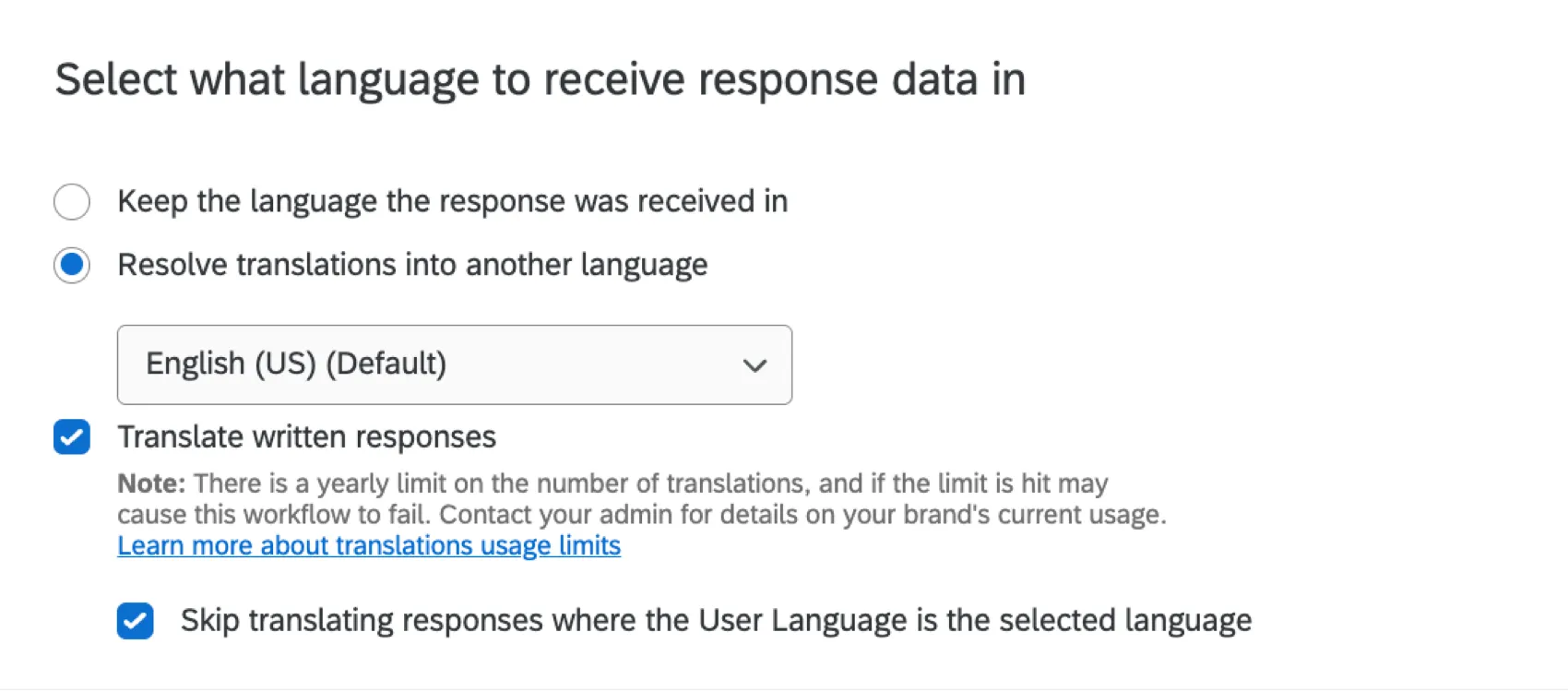
- Keep the language the response was received in: The response data will not be translated and will remain in the language that the respondent took the survey in. This option is selected by default.
- Resolve translations into another language: Choose from one of the languages the survey is already translated into. If you select this option, then there are additional options that you can enable:
- Translate written responses: Automatically translate user-provided text responses into the selected language. The workflow will only translate fields that are used in piped text in the workflow’s tasks.
Attention: Text translation requires that you have Advanced Text iQ and that you have Allow Third-Party Comment Translations enabled in the Organization Settings tab. Please note that even if you disable this permission, any comment translations you have started will not stop until you suspend them. For access to Advanced Text iQ, contact Account Services or your Brand Administrator.
Qtip: Translations cannot be used when you are bulk updating responses.
Qtip: Survey fields (like answers to multiple choice questions) are translated using the translation provided by you when you translate your survey. Open text responses are translated using the Google Translate service that’s available when translating responses in Data & Analysis.
- Skip translating responses where the User Language is the selected language: If you decide to translate text responses, then you can select this option to skip translating any responses that are already in the desired language.
Qtip: The user language is the language the respondent selected when taking the survey.
Qtip: You can use piped text to insert your translated responses into tasks in your workflow. Make sure you select the “(translated)” option.
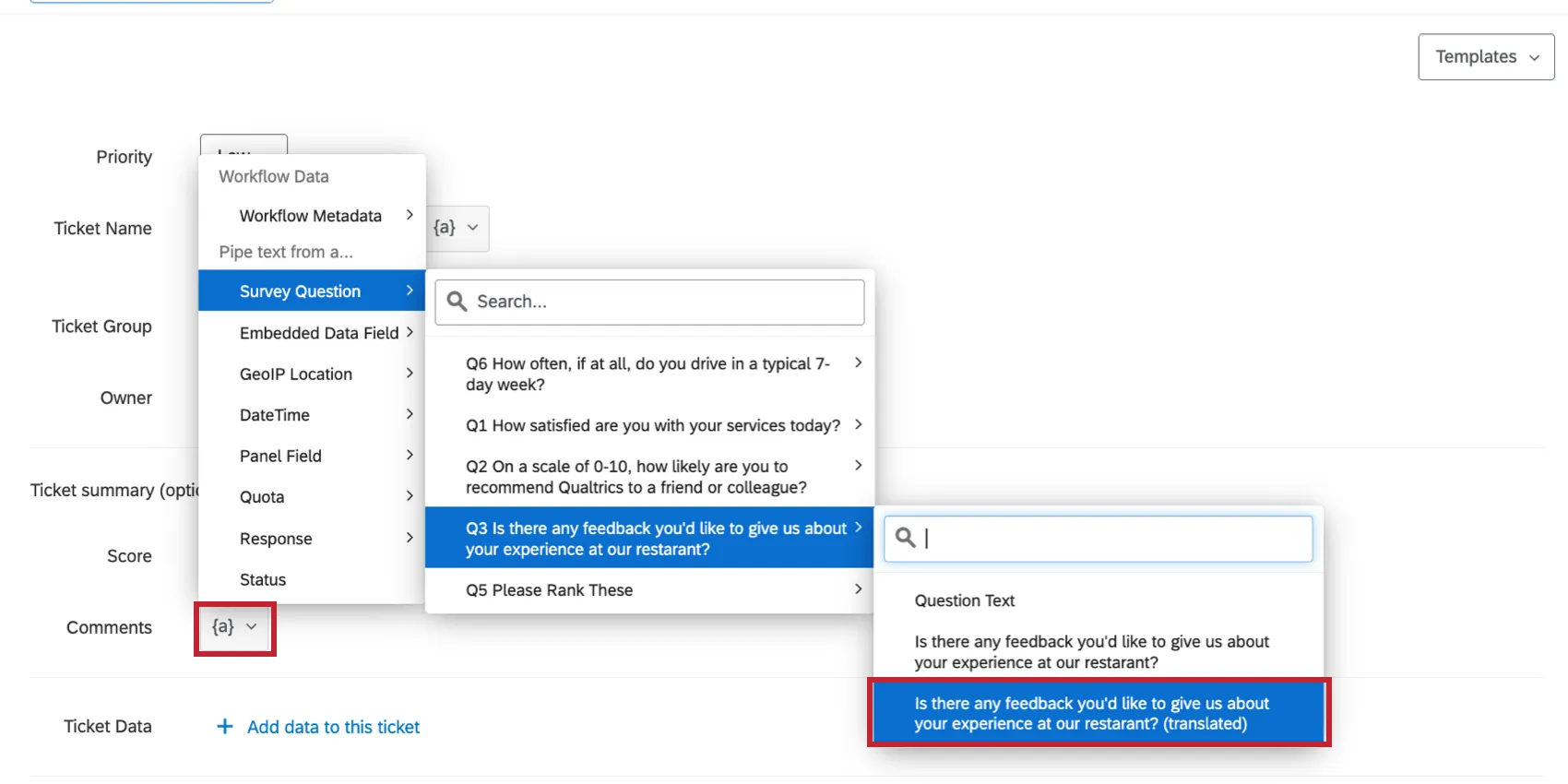
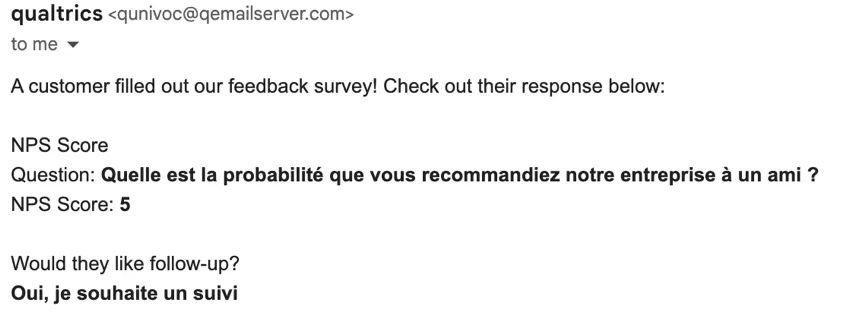
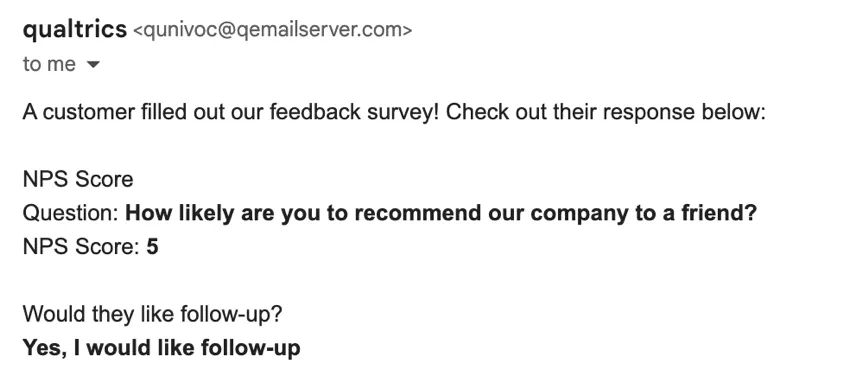
Example: Let’s say we distribute a survey in both English and French. In the same workflow as our survey response event, we have an email task to send an email. We want to pipe in the respondent’s answers (bolded in the example images) into the email. What appears in the email depends on what we choose for this option.
If we choose “Keep the language the response was received in,” then the respondent’s answers will appear in the email in the same language that the respondent took the survey in. So if the respondent took the survey in French, then the email will have French answers in it.
If we choose “Resolve translations into another language: English,” then all respondent answers will appear in English.
Setting Conditions for a Survey Response Event
Conditional statements apply All or Any to define when a task should be triggered. In “all” conditions, every condition listed below must be met. It is similar to joining statements by “and.” In “any” conditions, any of the conditions can be met, but not all have to be. It is similar to joining statements by “or.”
Example: In this example, only one of the two conditions must be met for the task to be triggered.
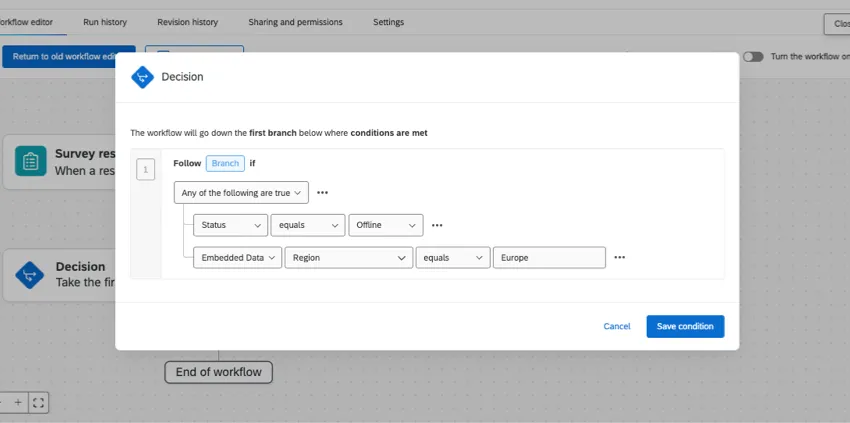
The conditions you set for a survey response event can be based off of various pieces of information about the response.
- Question: How the respondent answered a question.
- Embedded Data: The value of an embedded data field.
- Quota: Quota counts for quotas in your survey.
Status: The type of survey response.
Qtip: By default, imported responses will not trigger tasks. They will only trigger tasks if there are conditions that do not exclude imported responses. For example, if a condition is set to Status is Equal to Normal, then imported responses will not trigger the task. If a condition is set to Status is Not Equal to Preview, then imported responses will trigger the task.
- Respondent: A grouping based on a segment in the XM Directory.
Piped Text Based on a Survey Response Event
The survey response event has a few unique piped text options available to you in subsequent tasks. These fields let you display data about the response that triggered the workflow. These data fields correspond to the respondent data for the survey response.
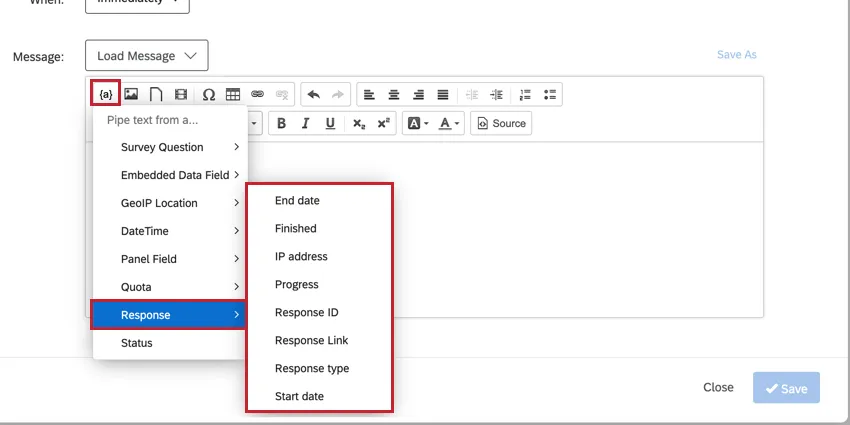
These fields include:
- End date: The date and time that the respondent submitted their response.
- Finished: Indicated if the respondent finished their response by completing the survey.
- IP address: The respondent’s IP address. This will be empty if the response has been anonymized.
- Progress: Displays how far the respondent got into the survey.
- Response ID: The ID for the survey response.
Response Link: A link to view the response.
Qtip: You can customize the response report by adding parameters to the response link piped text. For instructions and more information, see Email Task.
- Response type: The type of response (anonymous link, email invitation, etc).
- Start date: The date and time that the respondent submitted their response.
Response Link Options
Selecting the response link field via piped text will add a link to a report detailing the response data. You can edit the link by adding parameters to customize the response report generated. For more information, see Response Reports.
Date fields
The Start date and End date fields work a bit differently than other date-based piped text fields.
By default, the dates returned by these fields will be in the MST time zone. However, you can specify a different time zone by adding the following query string within the piped text:
?timezone=TZID where the TZID is the time zone identifier of the time zone.
Example: To change the Start Date to Eastern Standard Time, the piped text code will be:
${rm://Field/EndDate?timezone=America/New_York}
FAQs
Do I have access to all extensions available through the Workflows templates?
Do I have access to all extensions available through the Workflows templates?
Is there a link to all Workflows events and tasks?
Is there a link to all Workflows events and tasks?
What are Workflows templates?
What are Workflows templates?
What are workflows? / Where are actions?
What are workflows? / Where are actions?
There are no changes to workflow functionality as part of this update.
The survey response dates in this workflow aren't displaying in my time zone. Is that intended?
The survey response dates in this workflow aren't displaying in my time zone. Is that intended?
To capture the date in your time zone, you can always set an embedded data equal to today's date.
That's great! Thank you for your feedback!
Thank you for your feedback!