

Extract Data from Google Drive Task
What's on this page
About the Extract Data from Google Drive Task
You can import data from your Google Drive account to Qualtrics so it can then be used to automatically add XM Directory users, employees, or CX Dashboard users. Depending on your needs, this import can be done on a scheduled basis, or even just one time.
This feature is available to any Qualtrics customer with access to Workflows and a Google Drive account.
Qtip: You can combine the “Extract data from Google Drive” task with other loader tasks, such as the add contacts and transactions to XMD task.
Qtip: For information on general limits that apply to ETL workflows, see Workflow Limits. For any task-specific limits, refer to the information on this page.
Before You Get Started
Before you get started importing data from Google Drive to Qualtrics, take into account the following considerations:
- What do you want to do with your Google Drive data once it’s in Qualtrics? Take a look at the available loader tasks for a list of options.
- What Google Drive account will you use? Make sure the files you want to import to Qualtrics are owned or shared by this account. Keep in mind you will need ownership of the files if you want to delete or move them after they’re processed.
- Where are the files you’d like to import? Make sure they are in a distinct folder and not just under “My Drive.”
- Are you looking to import a specific file, or multiple files on a scheduled basis? If you’re importing just one file, you can proceed to set up. Otherwise, consider the following.
- Do your files fit a consistent format? For example, files you hope to import in the same workflow should have the same headers / columns / fields, even if the values differ. Example: You set up a workflow to regularly upload contacts from Google Drive to your XM Directory. Every file has columns for Firstname, Lastname, Email, Phone, UniqueID, and Location.

- Are there special naming conventions for files you’d like to import? This is not required, but encouraged, if you’d just like to clearly distinguish files for import, especially if they live in the same file as non-processed files.
- What do you want to do with a file once it’s processed? This is not just for identifying the Google Drive files that have already been uploaded to Qualtrics, but for preventing them from being uploaded again if there are no changes. For example, do you want the processed file’s name to be edited? If so, think if there is a prefix you want to be added to the name. Do you want the file to be moved to a different folder? In that case, make sure to create the new folder.
Connecting a Google Drive Account
Before you can use the Extract data from Google Drive task, you must connect a Google Drive account for Qualtrics to extract data from. Accounts may be added by Brand Administrators for other users in the brand to use, or by individual users for their personal use.
The connection for the Extract data from Google Drive task is separate from the connections for other Google extensions, such as Google Calendar and Google Sheets.
Qtip: When setting up a Google Drive account, you should connect a user who will have access to the files you want to process. The user must also be an owner of the files if you want to delete or move the processed files.
Adding an account as a brand administrator
If you are a Brand Administrator, you can add a Google Drive account for some or all users in your license to use.
For more on managing which users have access to this account, see Determining Who Can Use an Extension Account.
Adding an account as an individual user
Follow the steps in this section to add a Google Drive account for your personal use. Only you will be able to use the account that you connect.
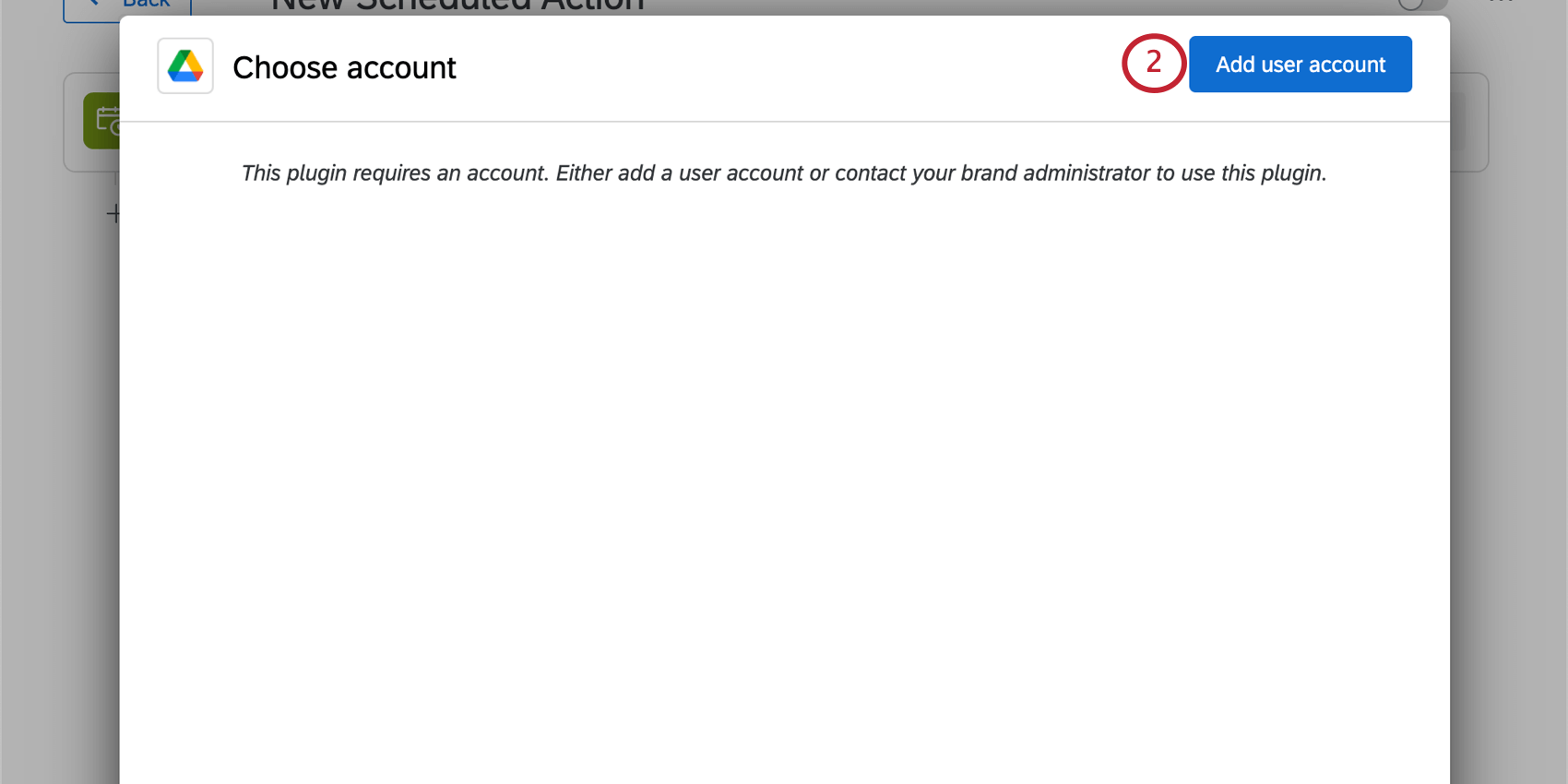
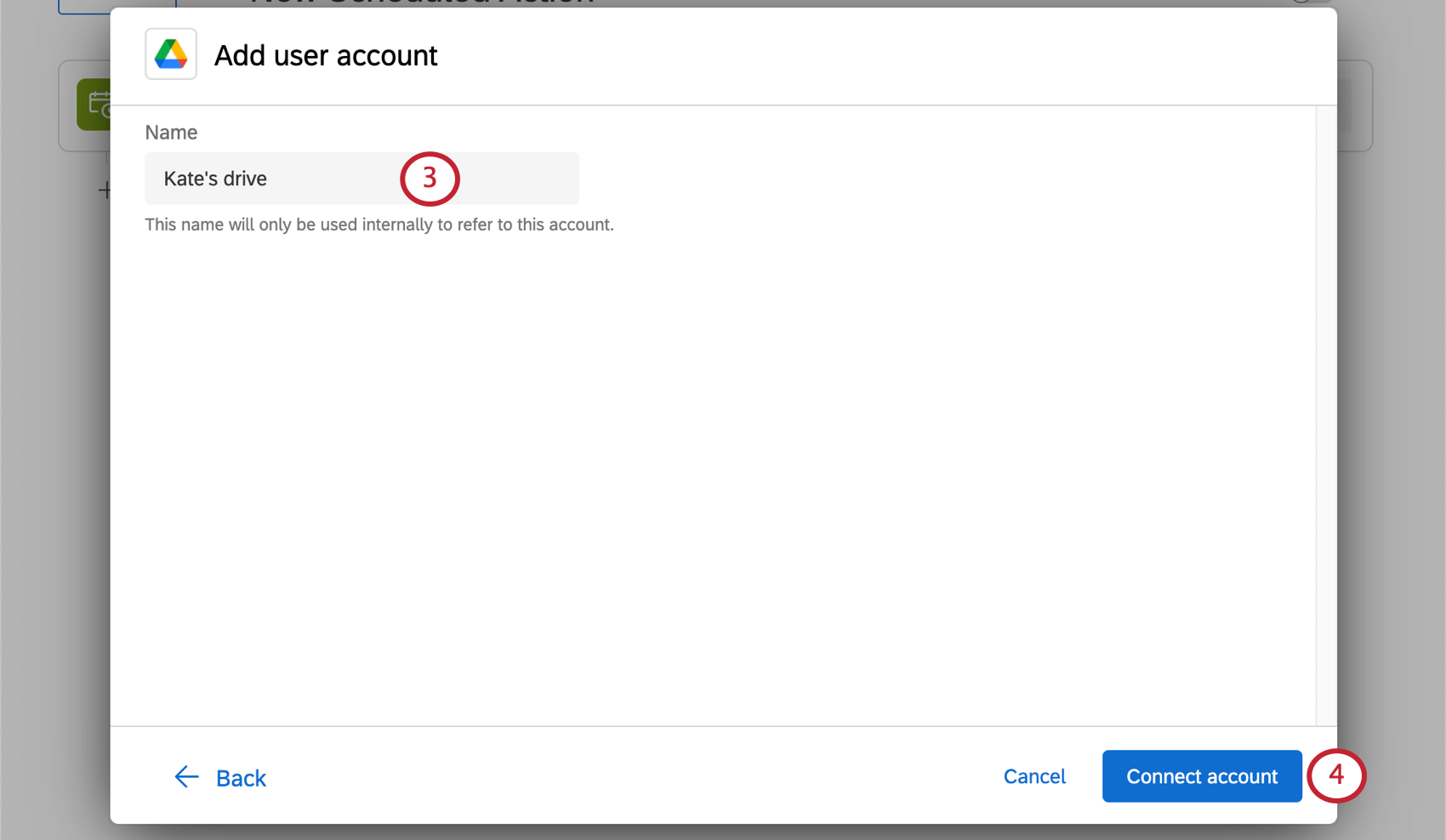
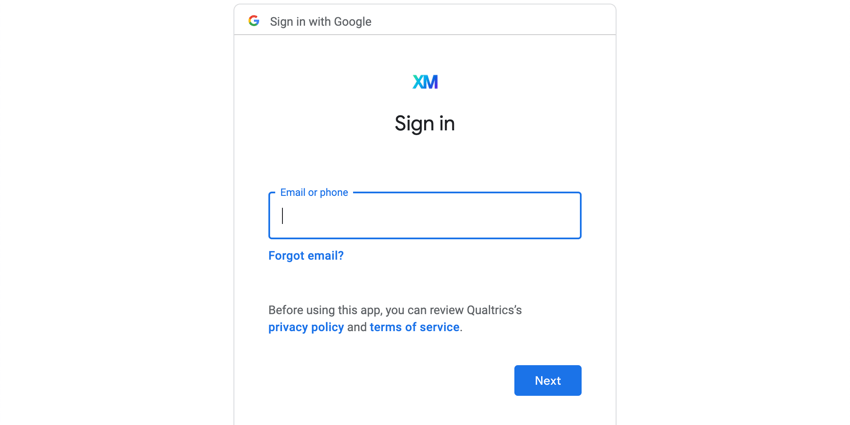
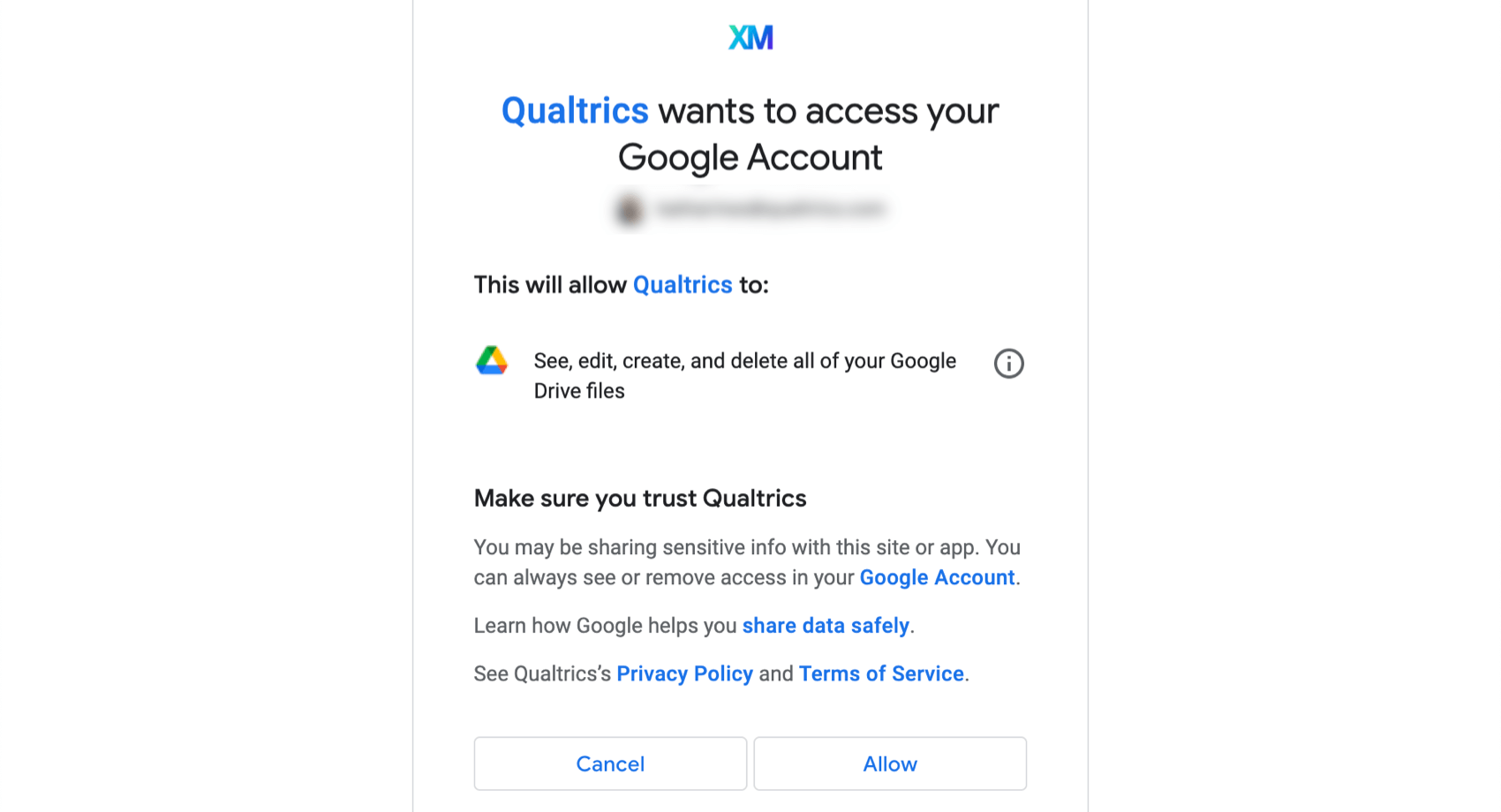
Setting up an Extract Data from Google Drive Task
Attention: For the Extract Data from Google Drive task the maximum file size is 100MB for CSV and TSV files. The limit is 10 MB for Google Sheets.

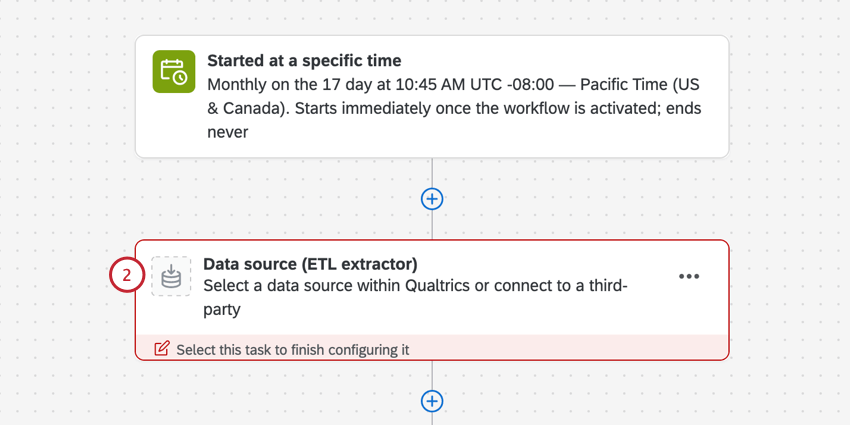
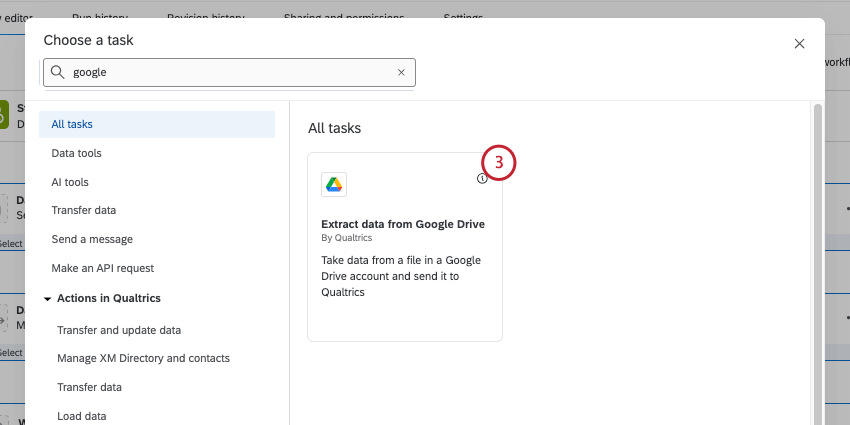
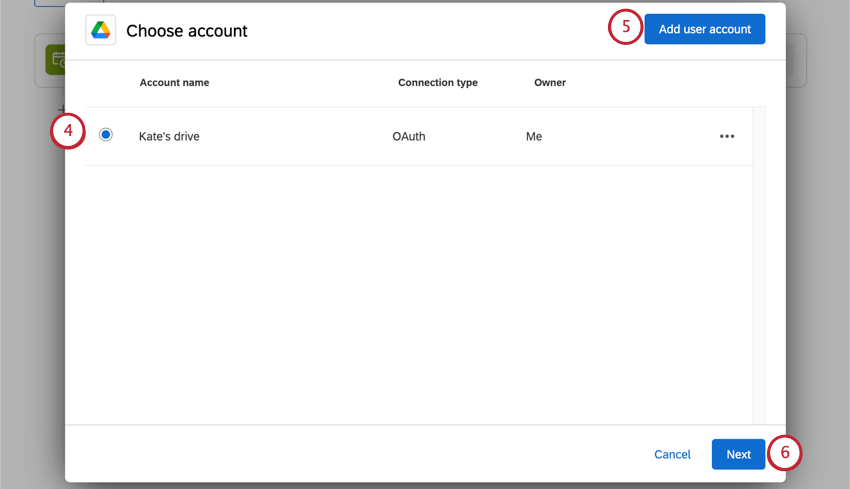
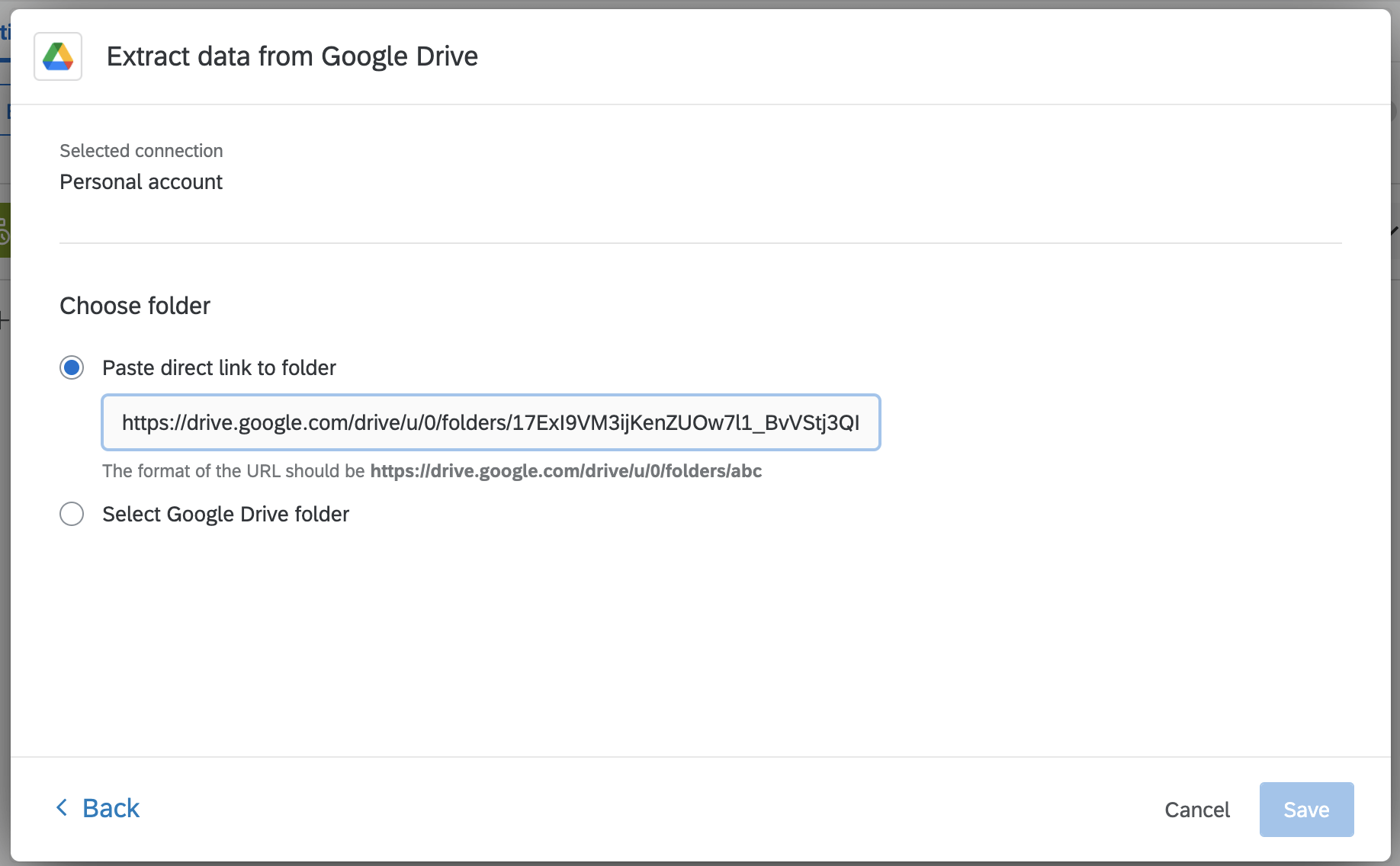
- Paste direct link to folder: In Google Drive, navigate to the folder you want to select. Copy the full URL from your browser. Then, back in Qualtrics, paste the link in the field.
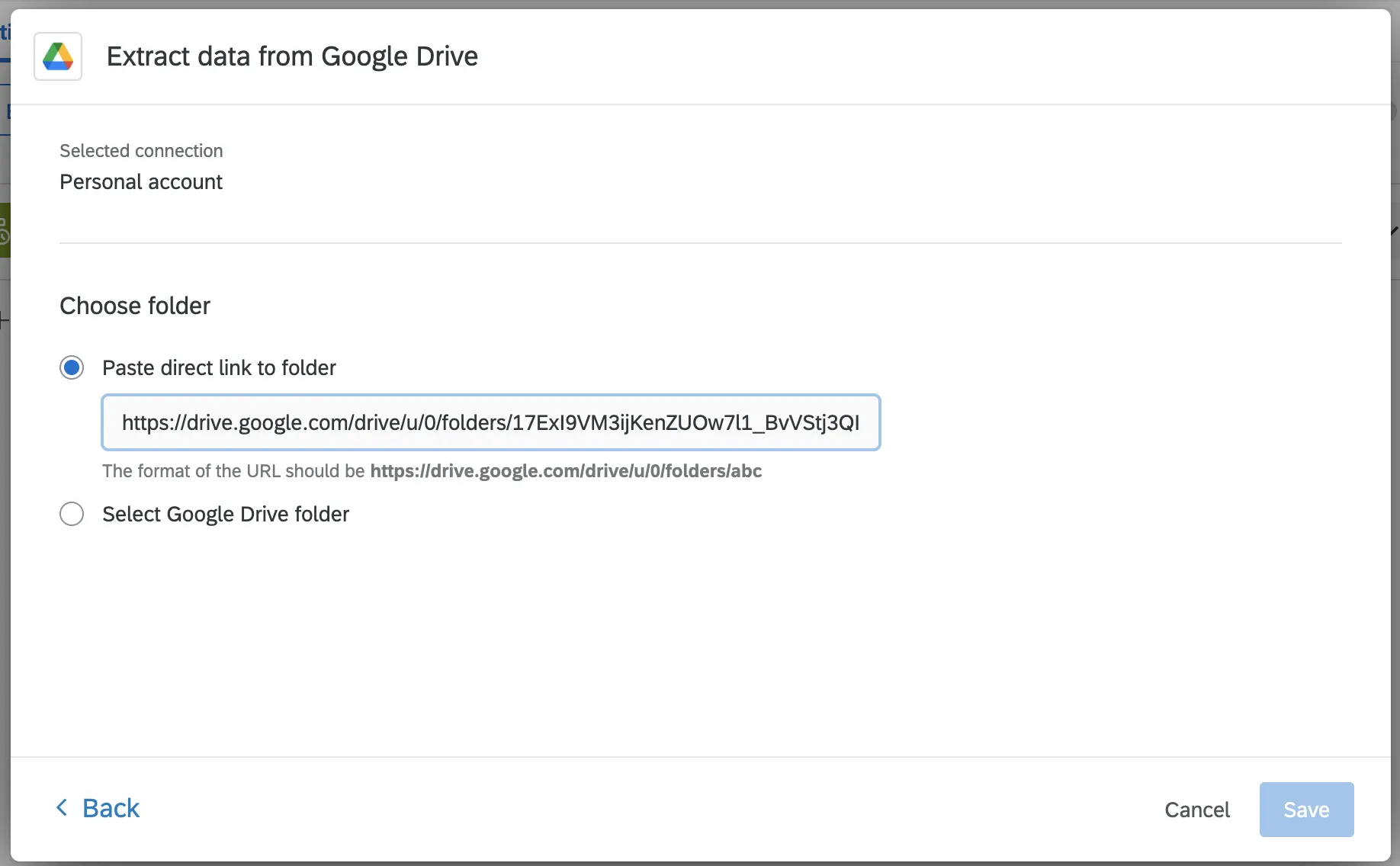
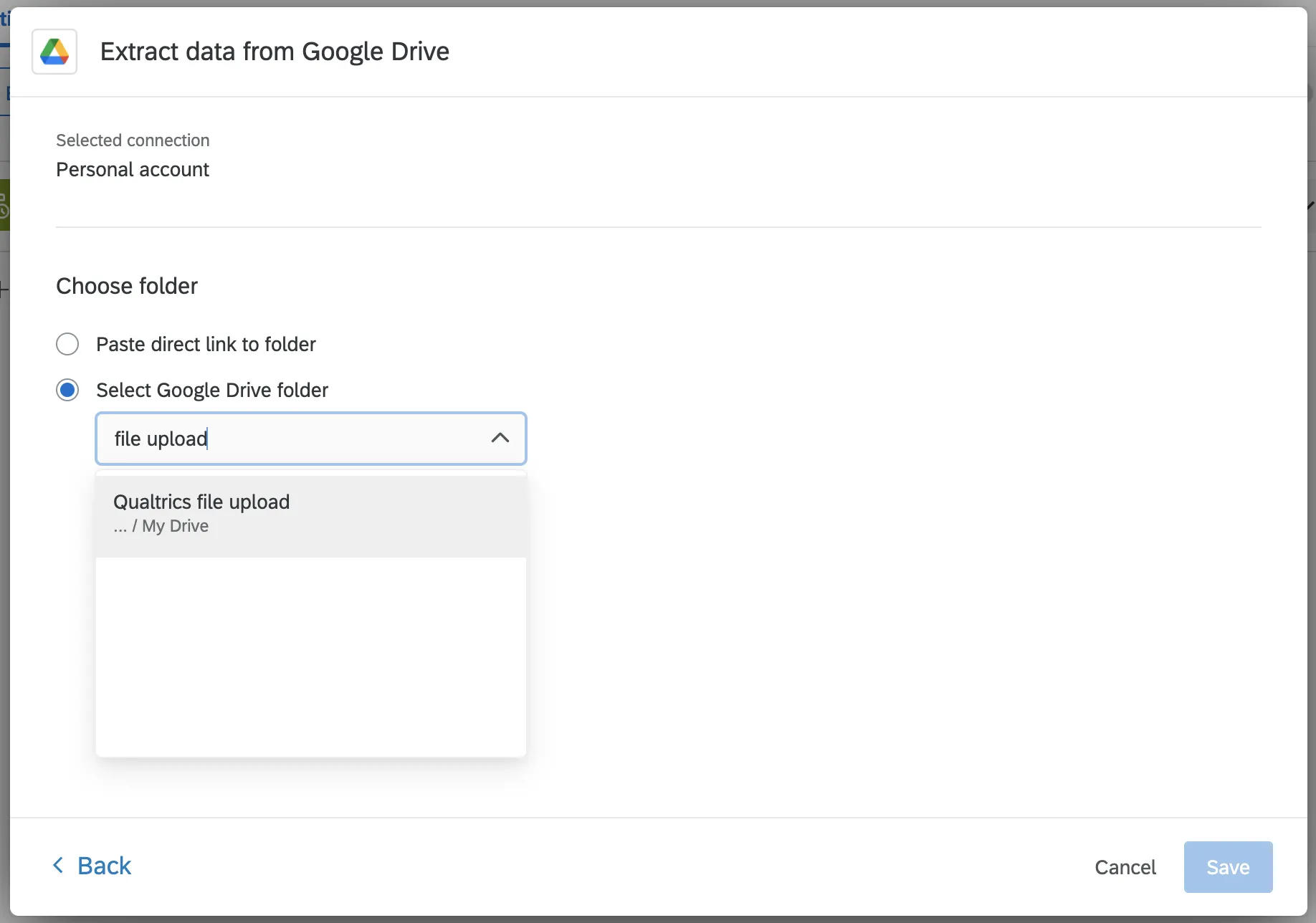
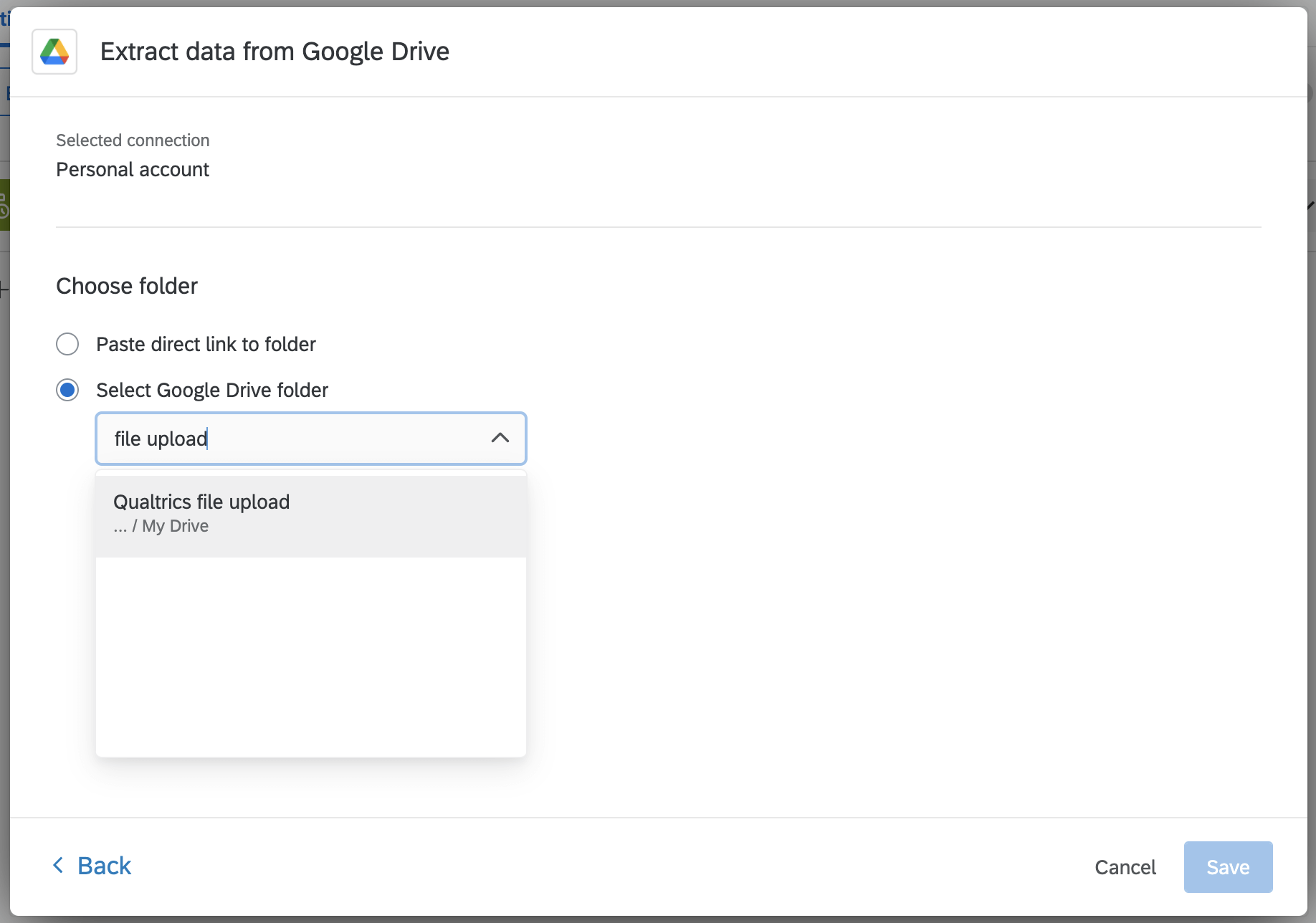
- Select Google Drive folder: A dropdown menu will appear, listing the folders in your Google Drive. You can type the name of your folder to find it.
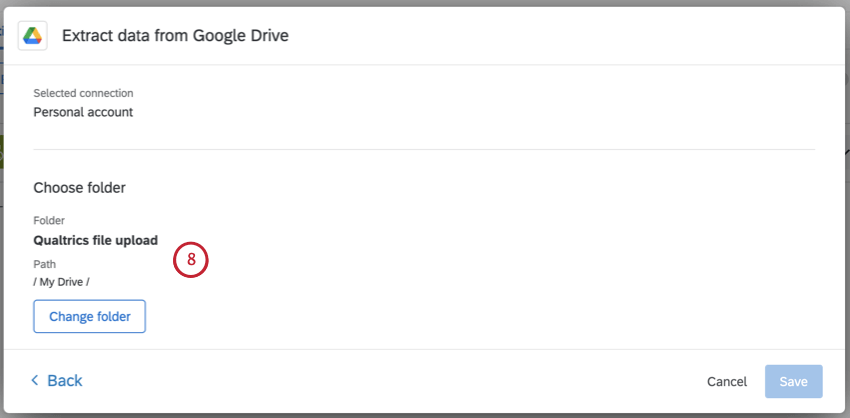
Qtip: If you want to select a different folder, click Change folder.
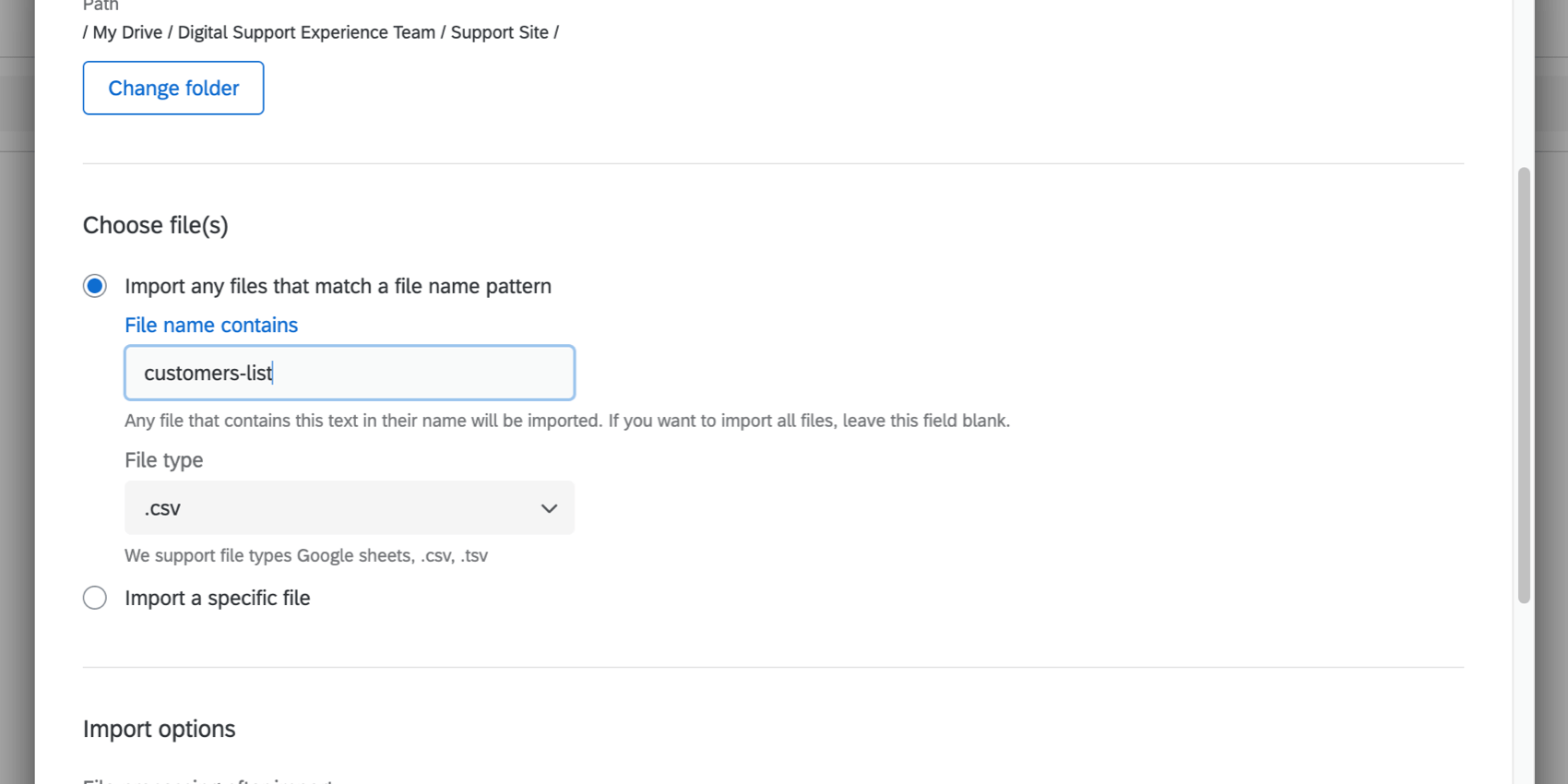
- Import any files that match a file name pattern: This is the best option for imports you want to happen on a scheduled basis. Providing a part of a file name is a great way to identify only related files, while ignoring any others that may be in the folder. You can also leave this field blank if all files added to your chosen folder are eligible for upload. Once you’ve decided your file name, then choose a file type. You can choose between CSV, TSV, and Google Sheets.
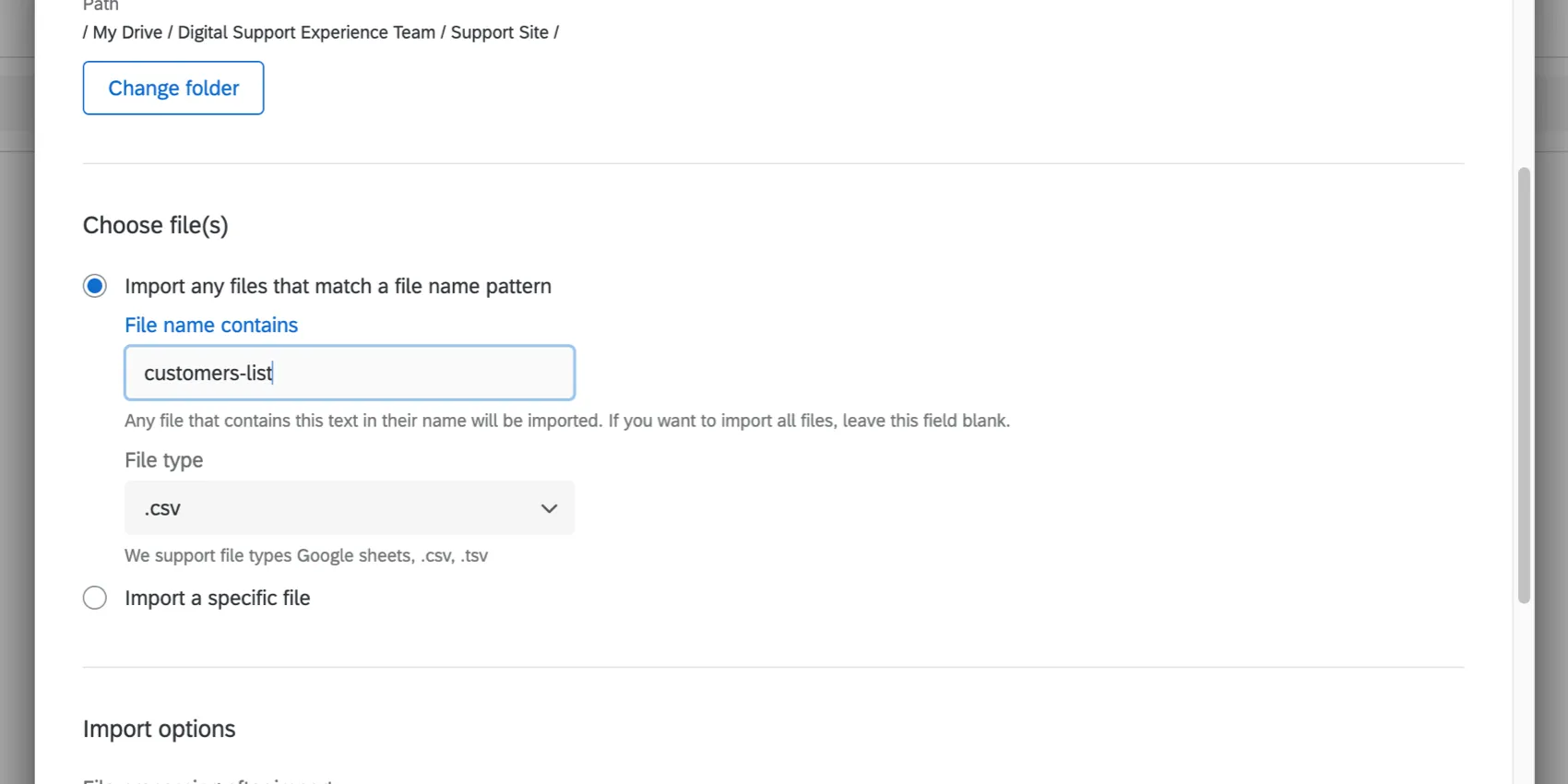 Example:
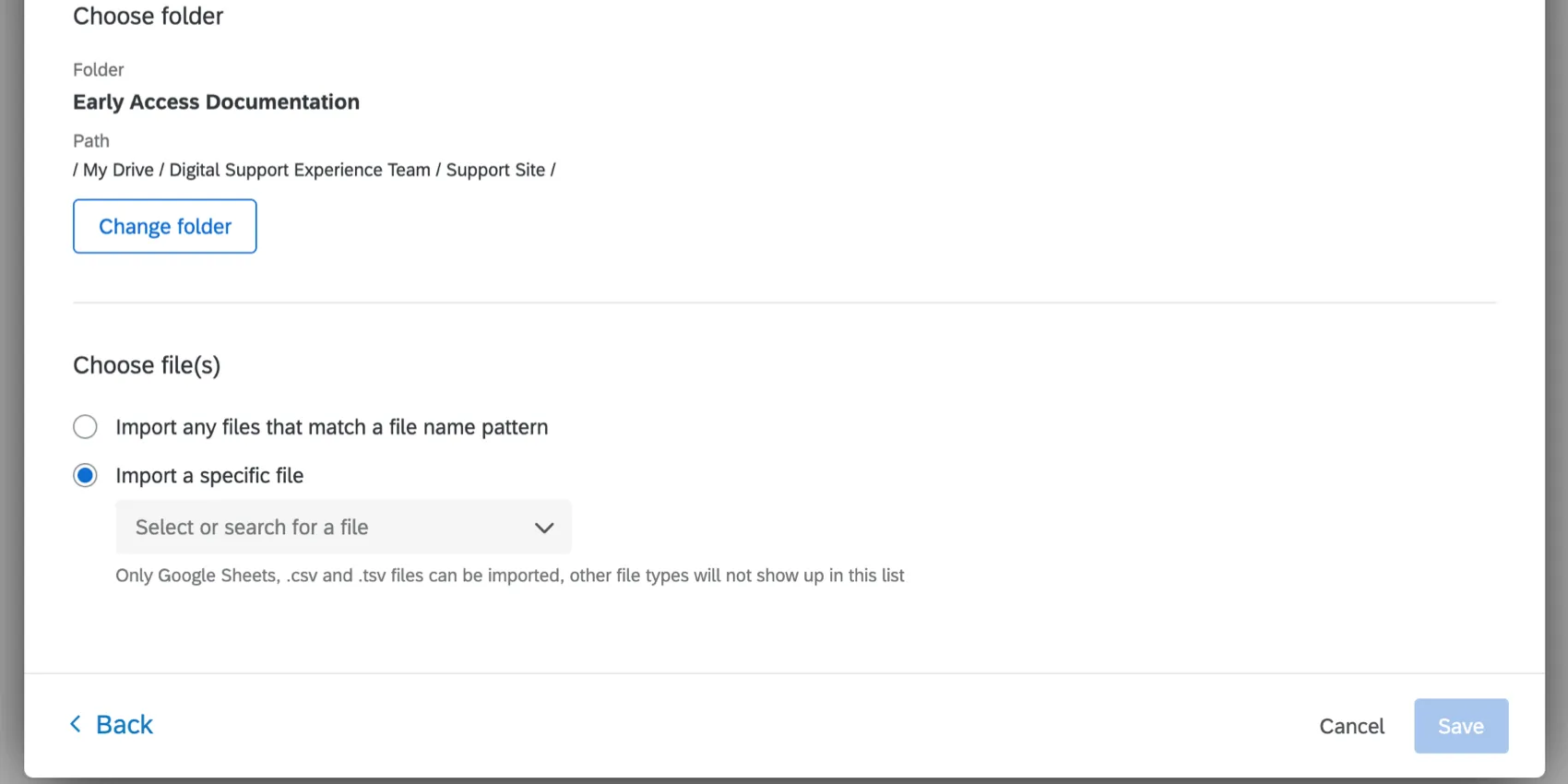
You are importing contacts on a regular basis. All your contacts files have “contacts” as the prefix and then a date, so they’re easily identifiable. - Import a specific file: Select a specific file in the source folder. This is a good way to run a one-time import, rather than a regular, scheduled import. Only CSV, TSV, and Google Sheets files will be available for import. You can search a file by name.
Attention: Files with slashes in the file name (e.g., file/name.CSV) are not allowed and do not work with this task.
Qtip: The account used in this task must be the file owner in order to delete, rename, or move a file after it is processed.
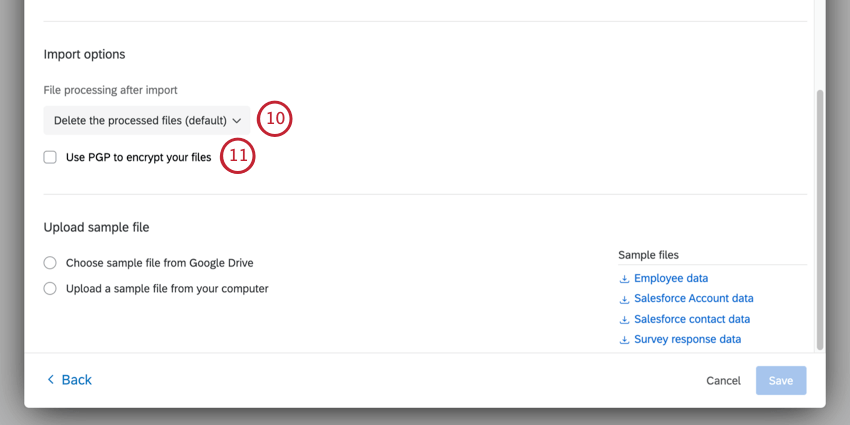
- Delete the processed files. This is the default choice. Once the file is imported to Qualtrics, it is deleted from Google Drive.
- Keep processed files and rename them. Instead of deleting the files, they will be renamed. Specify a file prefix that will be added to the files’ names when they are processed. We will also add the time when the file was processed to the name, to avoid any duplicates. Example: If the prefix is “processed-” then a file named employee-data will be renamed processed-employee-data_2021-06-09_093039.
- Keep processed files and move them to a different folder. Move the processed file to another folder. You can select the destination folder the same way you selected the source folder, either by pasting in a link or selecting it from the dropdown.
- Keep processed files. Once imported, the file will remain in its original folder. Make sure that between workflow run cycles its content is updated, or the same file will be imported all over again.
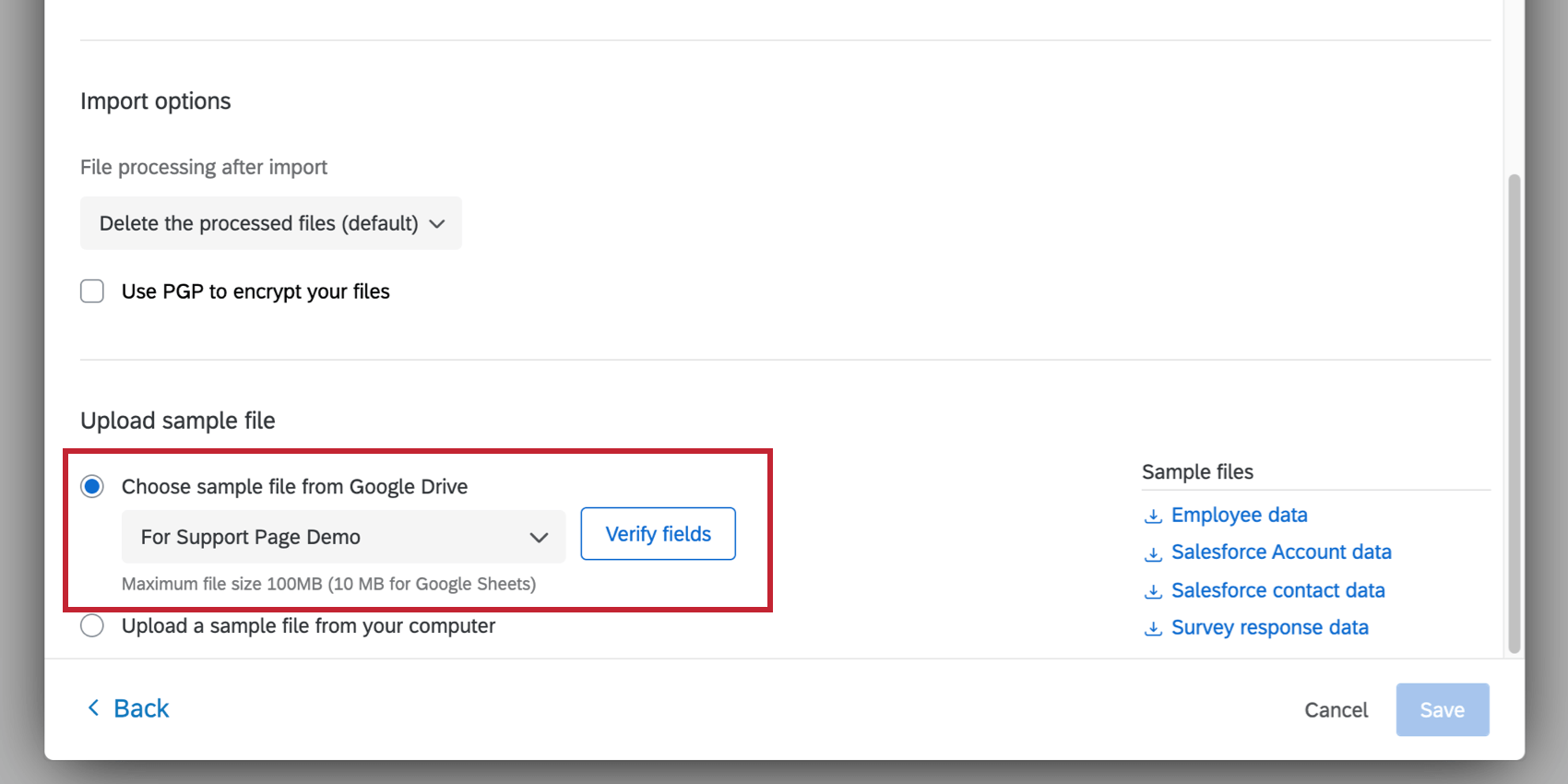
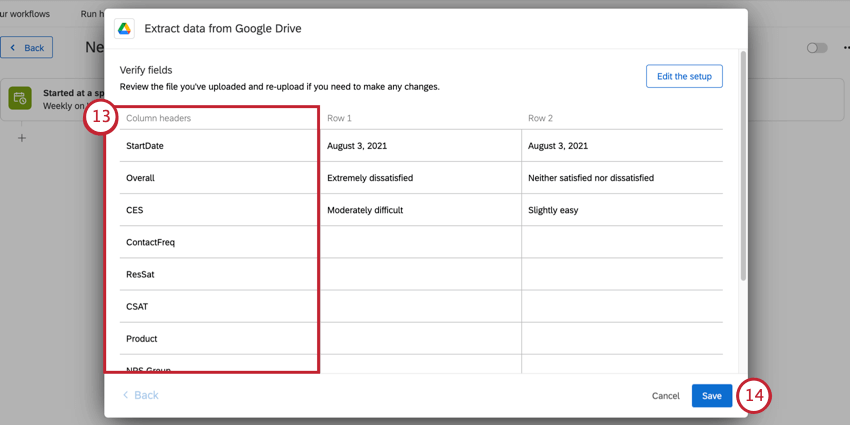
- Choose sample file from Google Drive: Choose a sample file directly from Google Drive. Only CSVs, TSVs, and Google Sheets will appear here; the maximum file size is 100MB for CSV and TSV, 10 MB for Google sheets. Before you can submit the file format, you need to click Verify fields to ensure the doc looks correct.
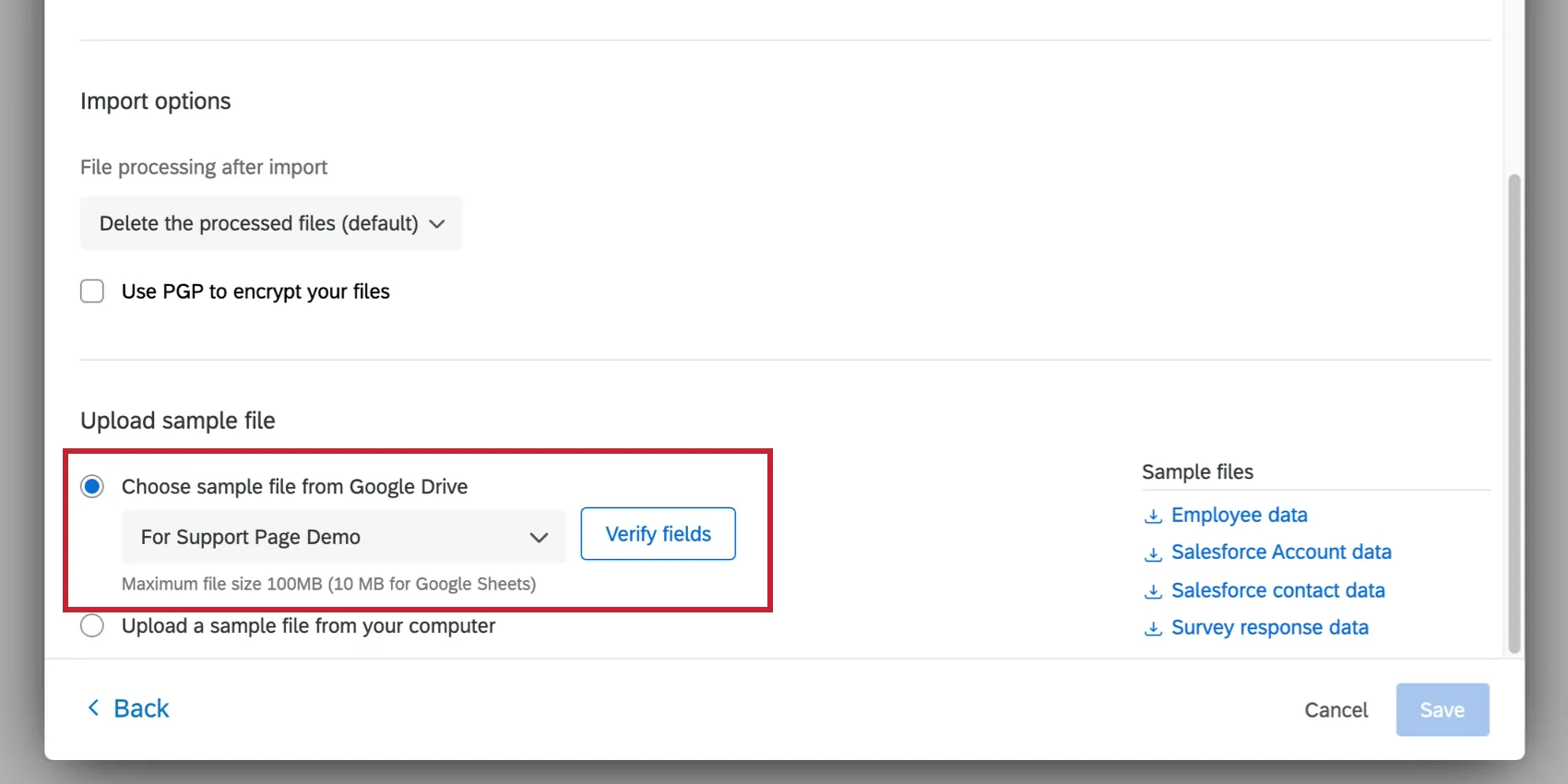 Qtip: Are you uploading one specific file? Select this file again for your sample file.
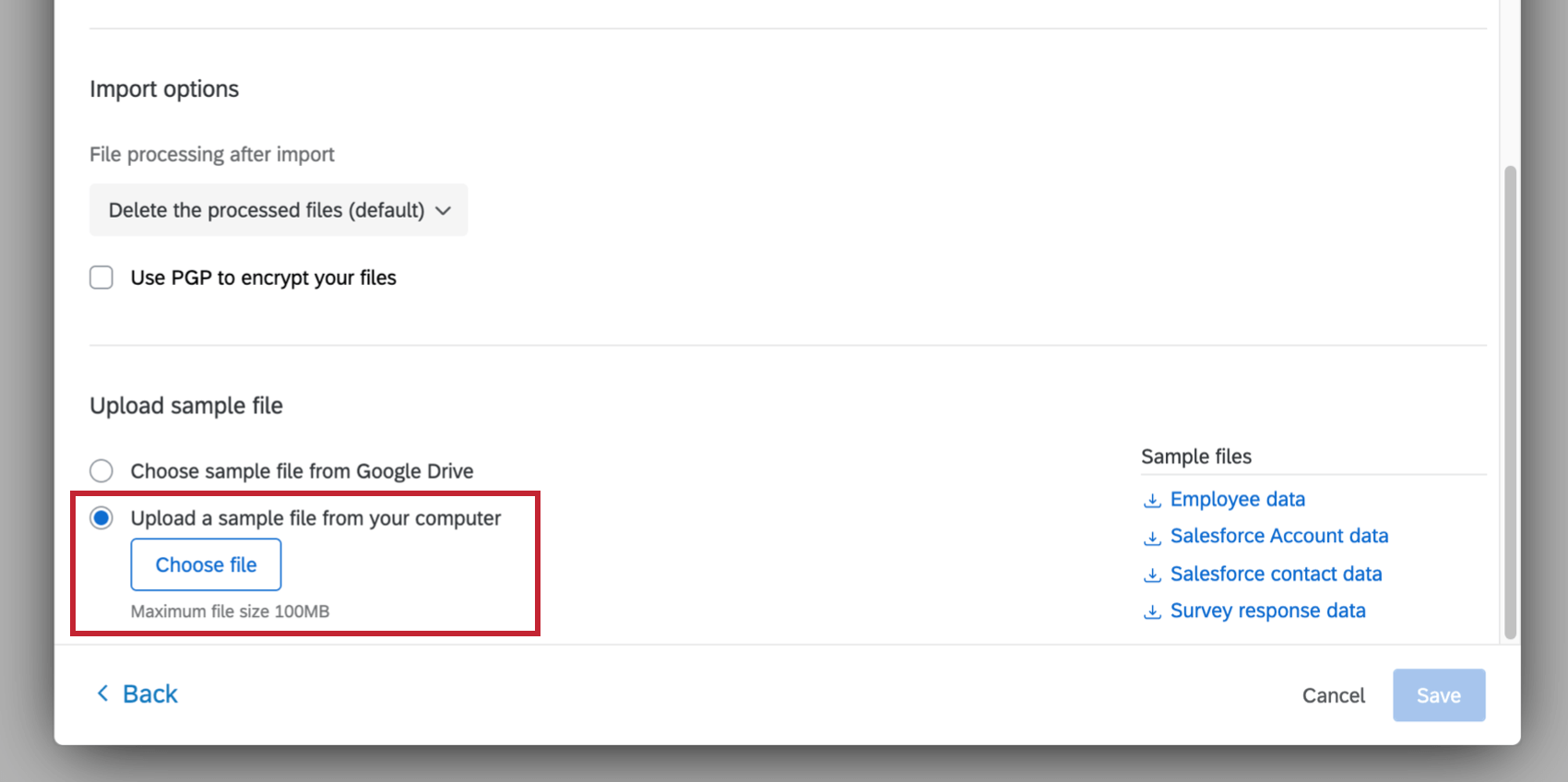
- Upload a sample file from your computer: Upload a CSV or TSV (max size 100MB) from your computer.
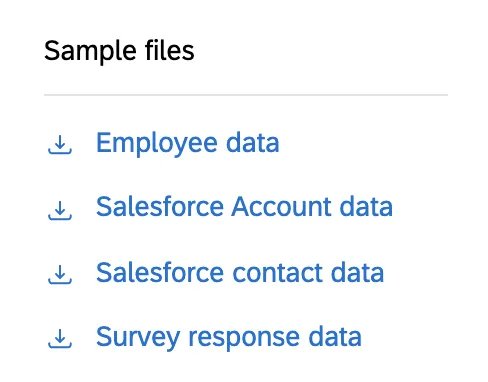
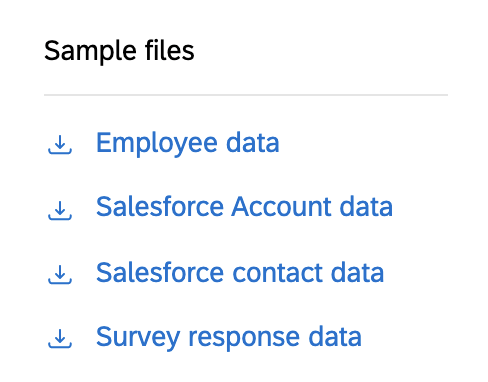
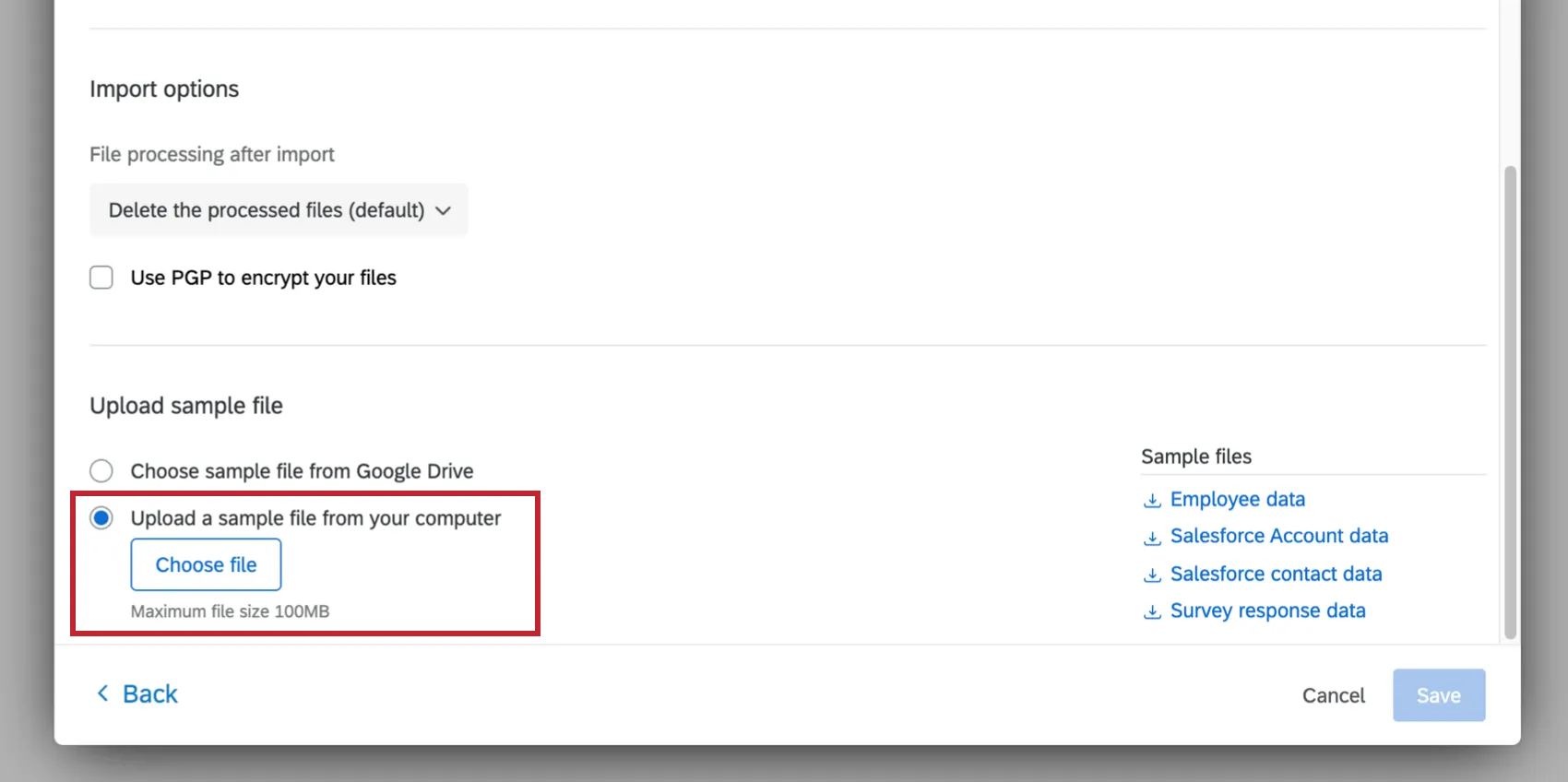 Qtip: If you’d like, you can download the sample files in the task, or download the files in the Example Files section. The only supported file encoding format is UTF-8. Some spreadsheet softwares save files as Unicode UTF-8, which is different from UTF-8, if you are getting unexpected errors. Please ensure that you are exporting in UTF-8 format and not Unicode UTF-8.
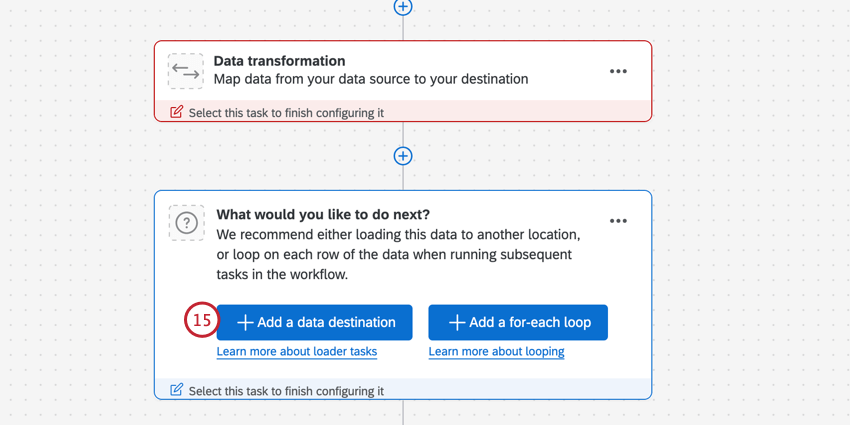
Conditions Based on Data Extracted
Once you have finished setting up your Google Drive task, you can set conditions based on the data extracted. This allows you to be specific about what happens next in your workflow.
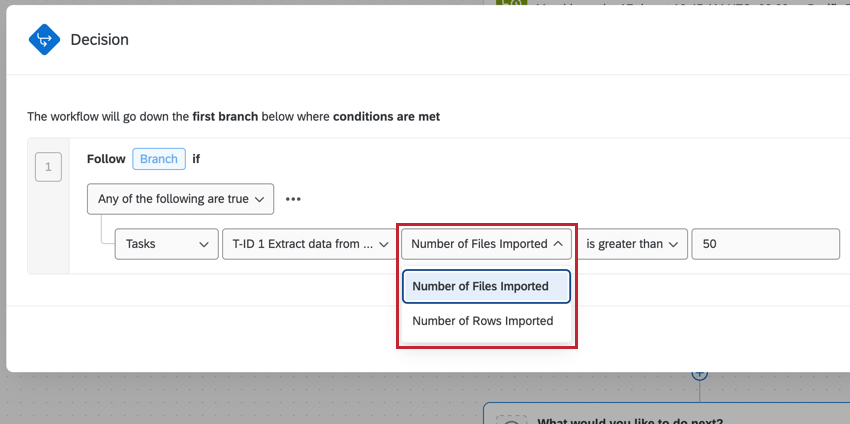
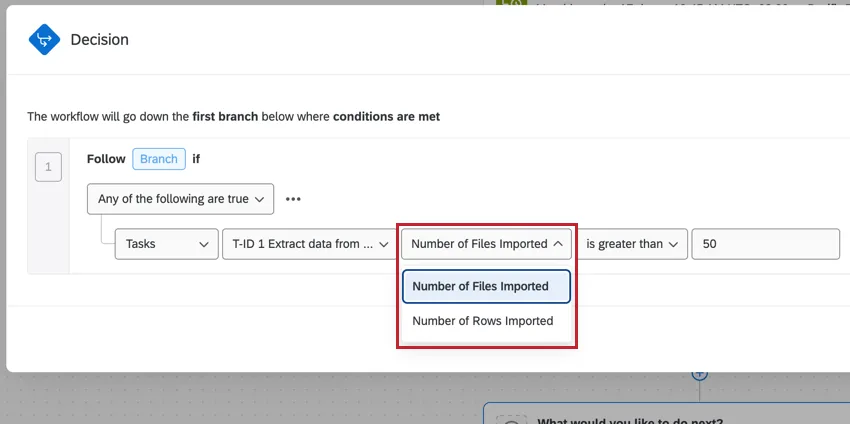
The following is a list of types of conditions you can add to a workflow after an “Extract data from Google Drive” task.
- Number of files imported
- Number of rows imported
You can then specify an exact number or a range (greater than, less than, etc.). For example, you can say that files will only be uploaded to the CX directory if there are less than 100 rows.
Qtip: To get these options, create a new condition, select Tasks, then select your “Extract data from Google Drive” task.
FAQs
How can I tell the difference between first party and third party extensions? Where do I go for support for either kind?
How can I tell the difference between first party and third party extensions? Where do I go for support for either kind?
How do I add or remove an extension from my Qualtrics account?
How do I add or remove an extension from my Qualtrics account?
That's great! Thank you for your feedback!
Thank you for your feedback!