-

Qualtrics Platform -

Customer Journey Optimizer -

XM Discover -

Qualtrics Social Connect
Survey Options Overview
About Survey Options
Survey options allow you to change many general survey settings, such as the timeframe the survey’s available, the addition of a back button or visible question numbers, and more.
To access these settings, click Survey options from the left navigation on the Survey tab.
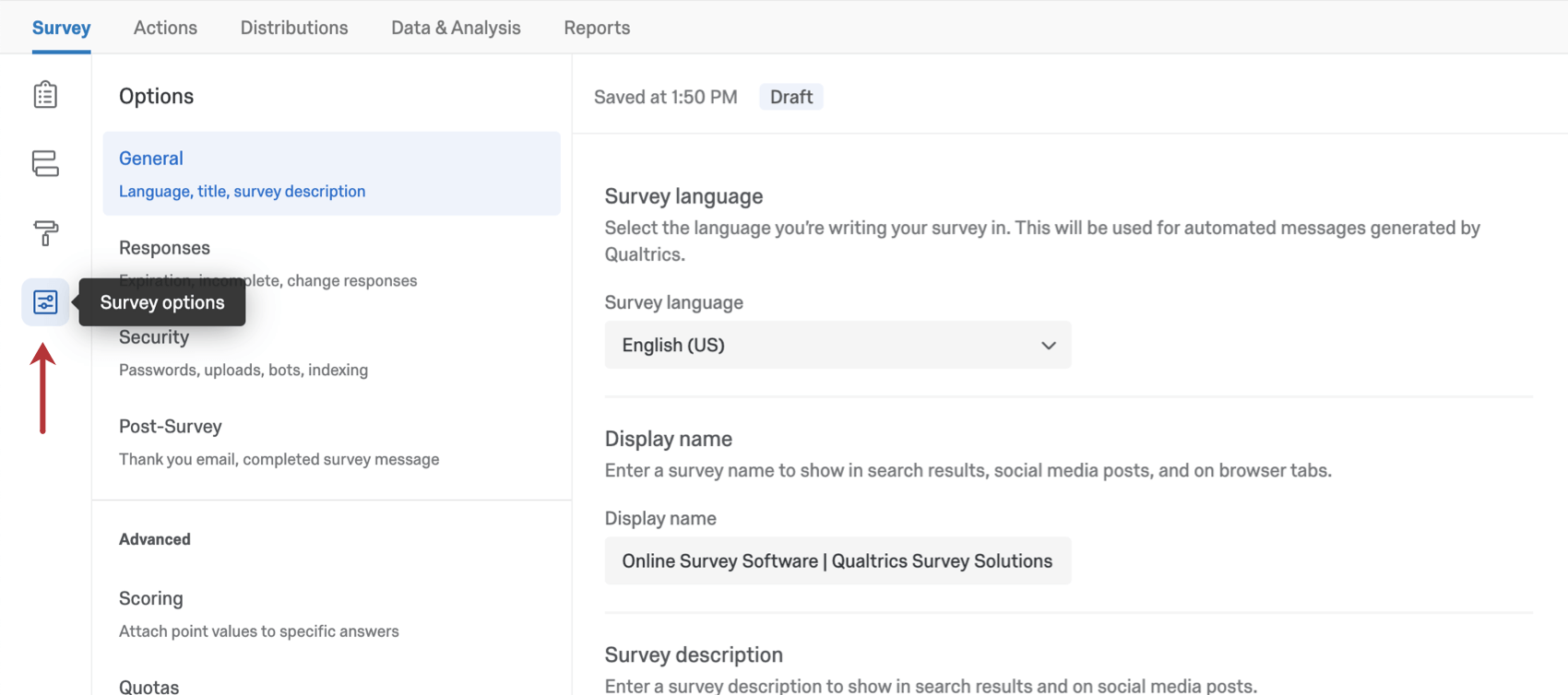
Survey options is divided into 5 sections, described below.

General
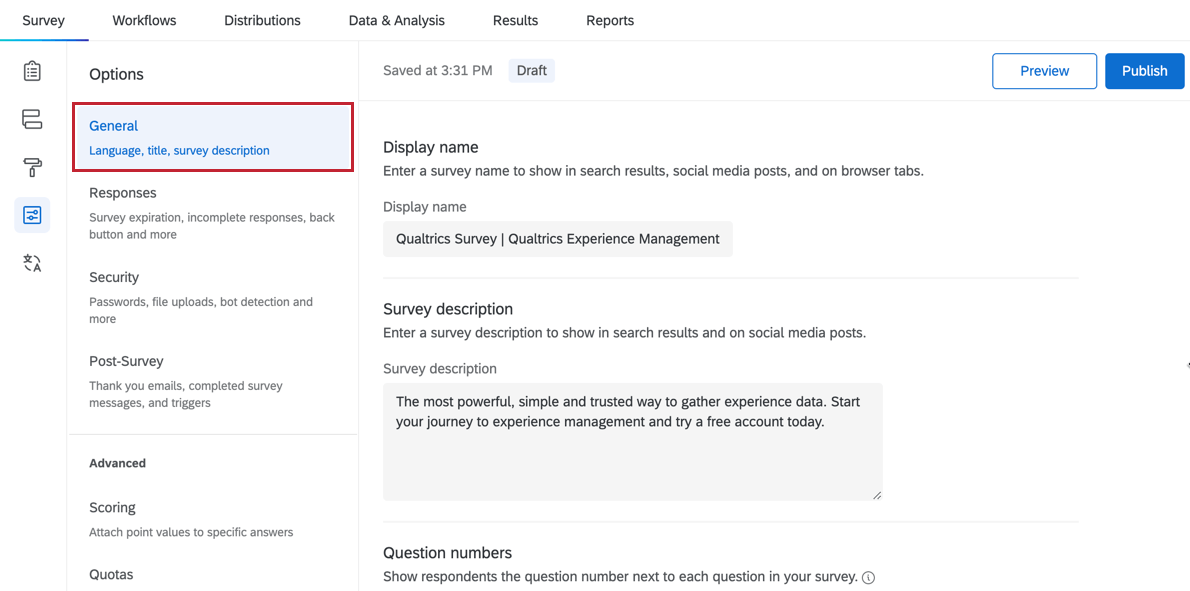
The General section contains survey options related to the survey’s title and description displayed in search results, question numbering, and ExpertReview.
Responses
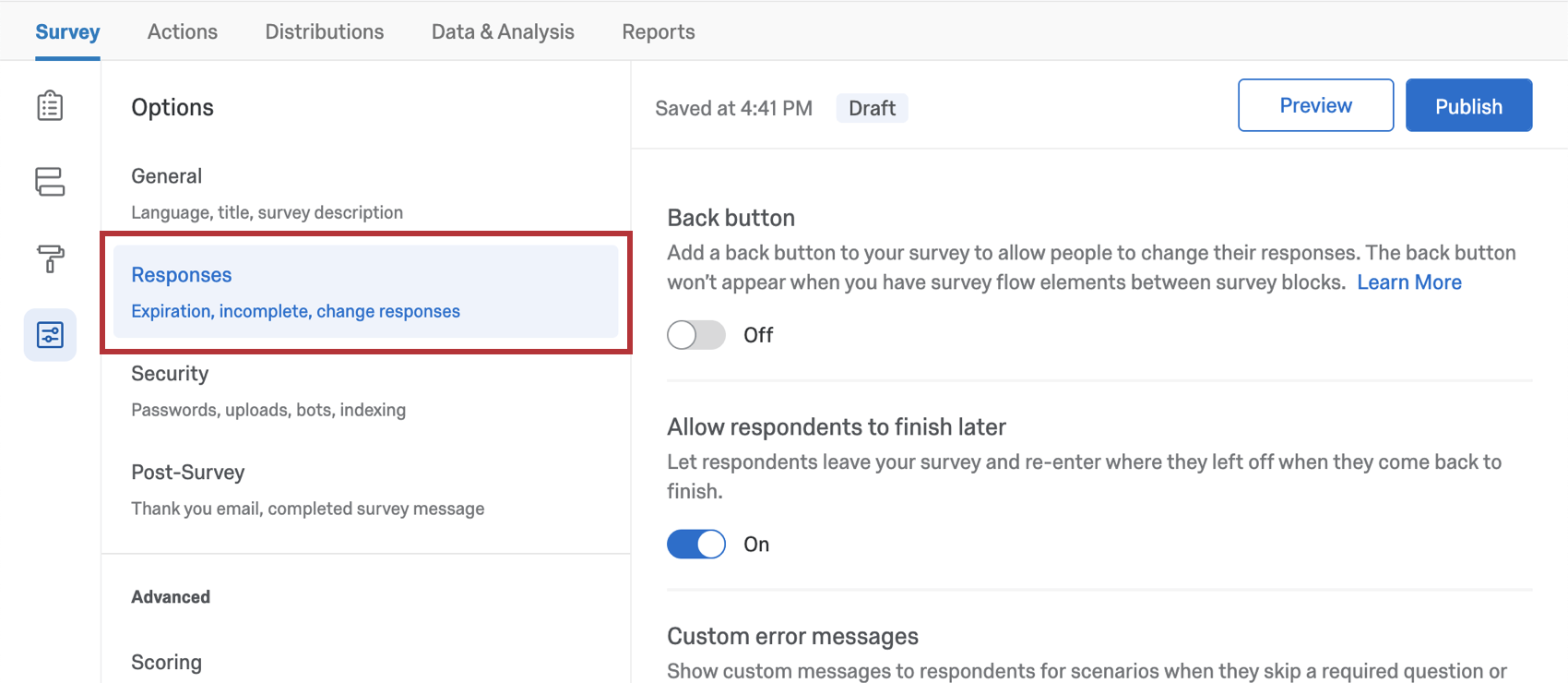
The survey options in the Responses section affect how responses are recorded and how respondents experience the survey-taking process. Here, you’ll find settings related to how respondents can change their answers during a survey session, the error messages they should receive, what to do with incomplete responses, and more.
Security
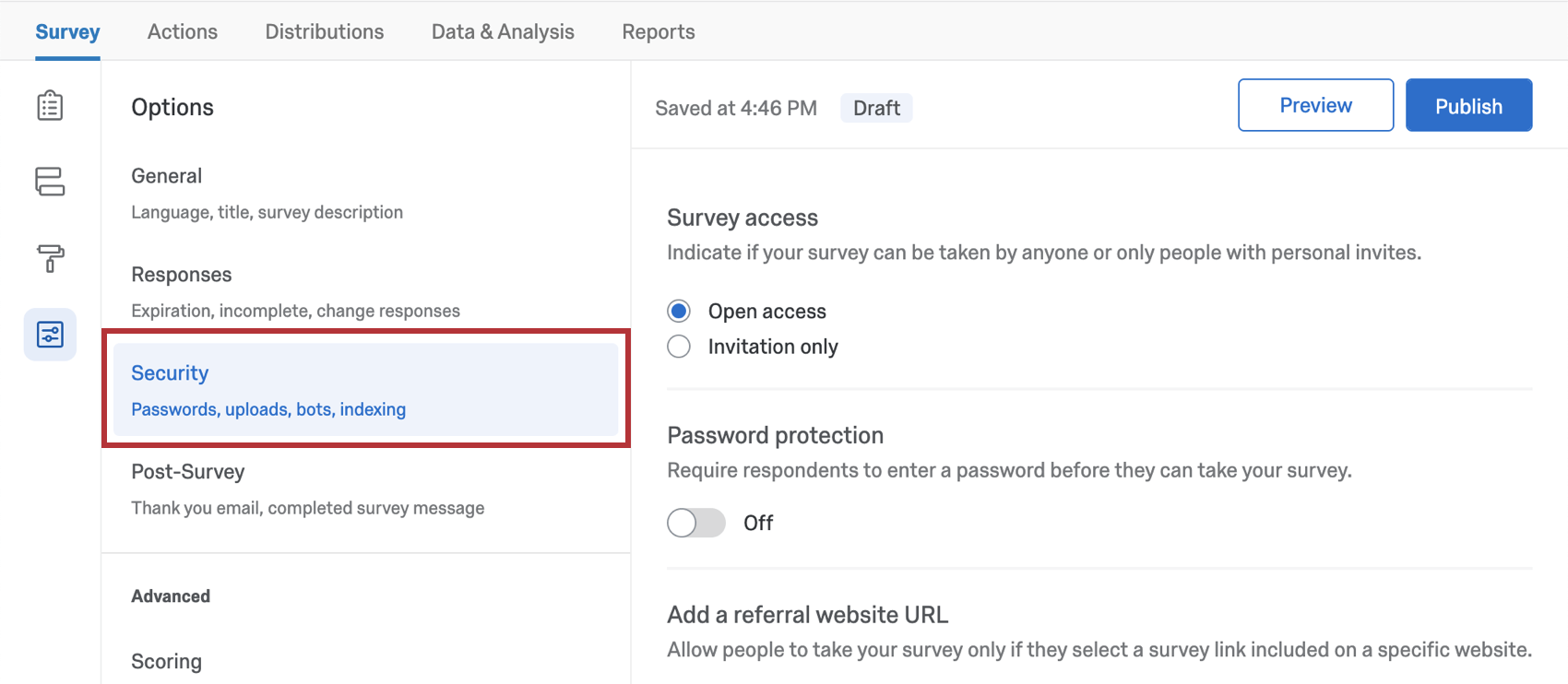
The survey options in the Security section can increase your survey’s security and protect it from unwanted responses.
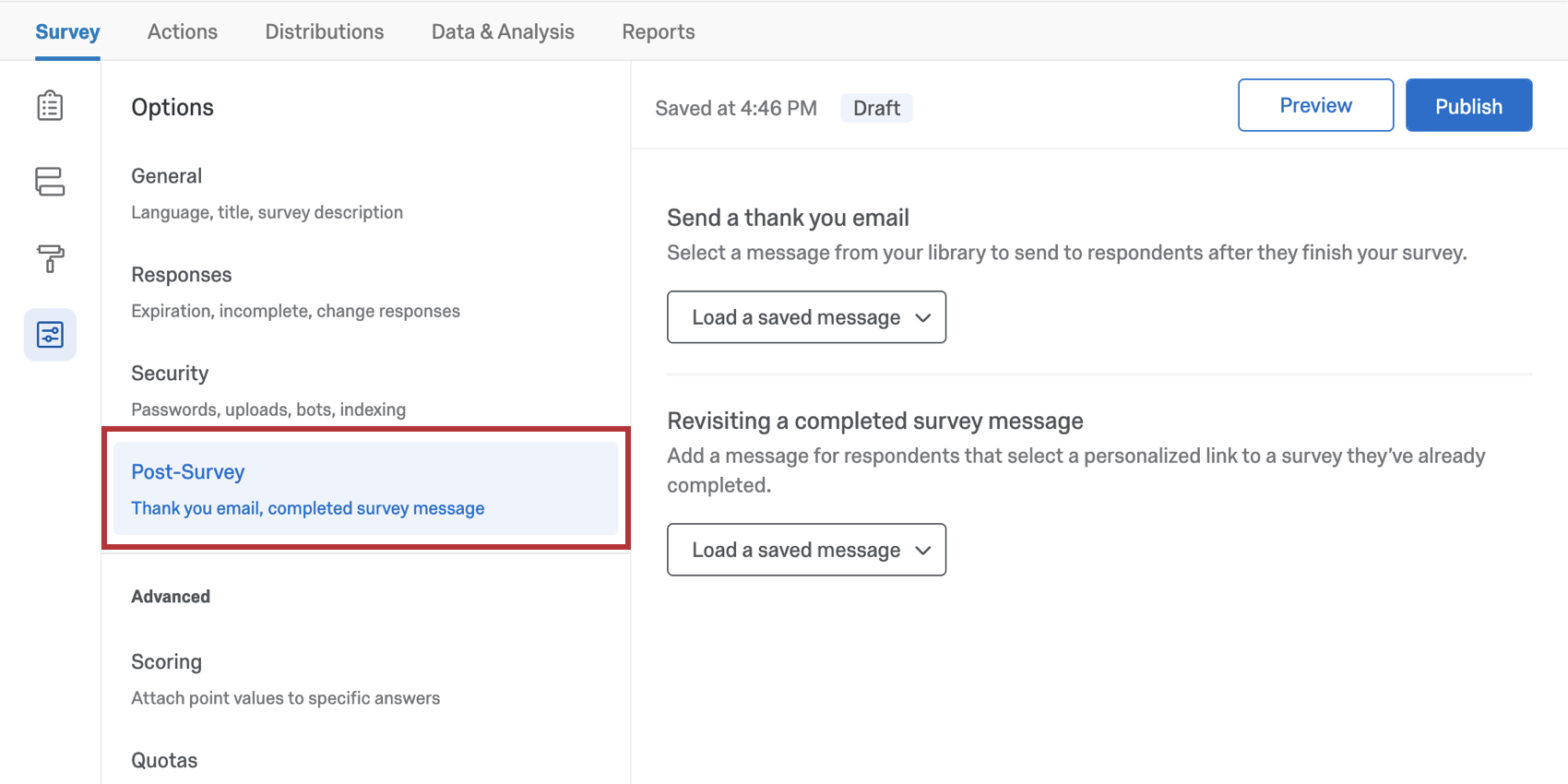
Post-Survey
The survey options under Post-Survey concern what happens after a survey ends.
Advanced
In the Advanced section of your survey options, you can find additional settings that can enhance your survey.
- Scoring: Assign point values to answer choices to use your survey as a test or quiz.
- Quotas: Create and monitor quotas on your surveys.
- Translations: Translate your survey into multiple languages, allowing respondents to choose which language to view the survey in. You also set the survey’s base language here.
- Adobe Analytics: Augment data you have stored for website visitors with data collected through a Qualtrics survey, or integrate Website Feedback with Adobe Analytics.
Survey Options in Different Project Types
Survey options are available in many different types of projects. The options described on this page are available in:
There are a few other projects that have access to survey options, but with unique functionality to keep in mind.
- For Engagement, Lifecycle, or Ad Hoc Employee Research projects, please see Survey Options (EX).
- For Pulse, see the section on survey options in Features Available in Pulse Surveys.
- For 360 projects, see Survey Options (360).
- For Conjoint and MaxDiff, see Survey Options.