Loading...
Skip to article
  • Qualtrics Platform
    Qualtrics Platform
  • Customer Journey Optimizer
    Customer Journey Optimizer
  • XM Discover
    XM Discover
  • Qualtrics Social Connect
    Qualtrics Social Connect

Coaching Recommendations Project


Was this helpful?


This site is protected by reCAPTCHA and the Google Privacy Policy and Terms of Service apply.

The feedback you submit here is used only to help improve this page.

That’s great! Thank you for your feedback!

Thank you for your feedback!


Qtip: This page describes functionality that we intend to release starting December 17, 2025. Qualtrics may, in its sole discretion and without liability, change the timing of any product feature rollout, change the functionality for any in preview or in development product feature, or choose not to release a product feature or functionality for any reason or for no reason.

About Coaching Recommendations

Coaching Recommendations projects enable you to get insights on agent performance and ongoing coaching for your contact center teams. Once configured, these projects can be linked to an instance of a Customer Care App so you can visualize agent performance and coaching within several informative widgets.

To set up a coaching recommendations project you’ll need the following:

Creating a Coaching Recommendations Project

You can create a Coaching Recommendations Project by going to the Catalog and either searching it by name or finding it within the Customer XM category.
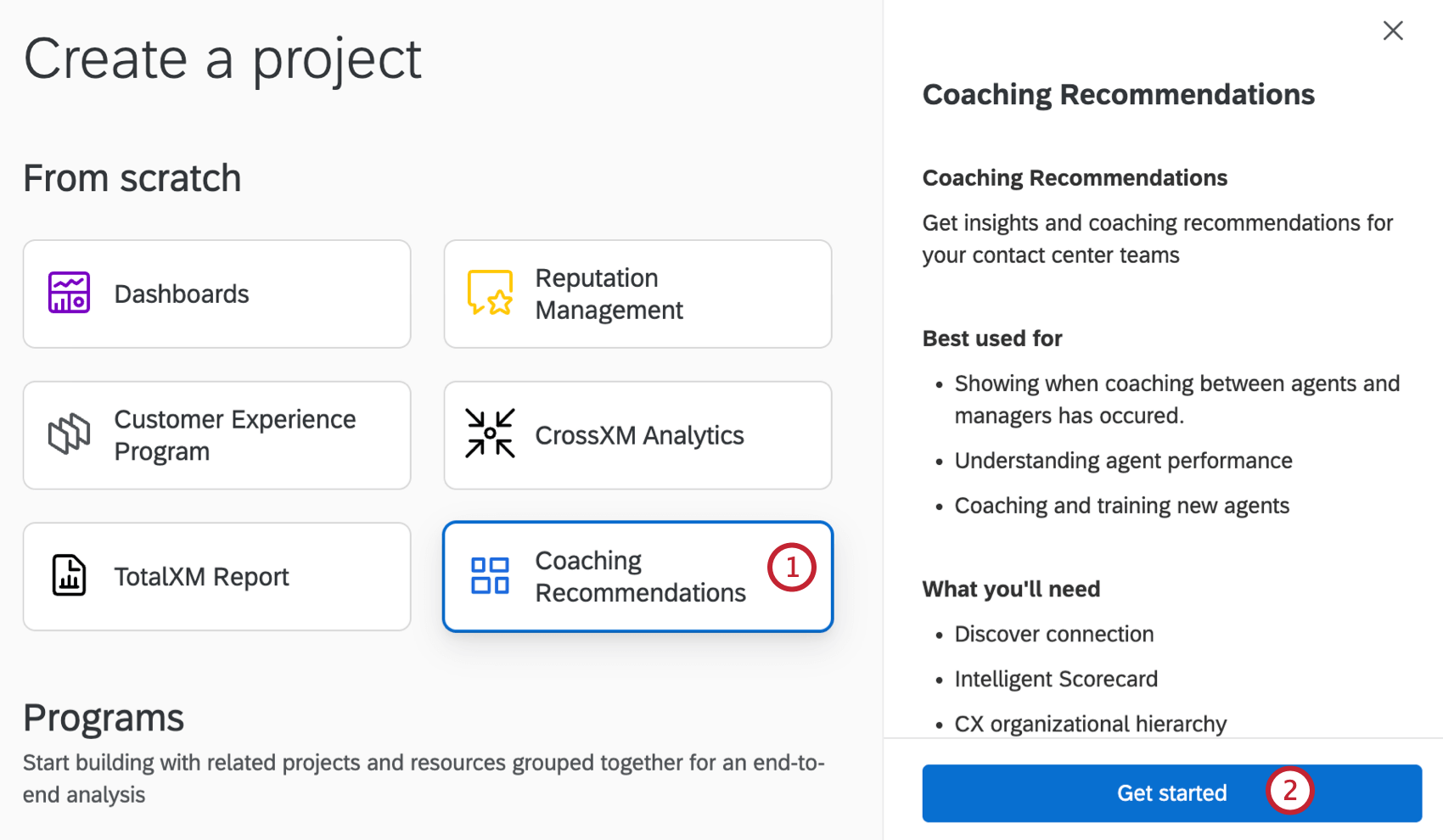
  1. Select Coaching Recommendations from the catalog.
    coaching recommendations project selected in the catalog
  2. Click Get started.
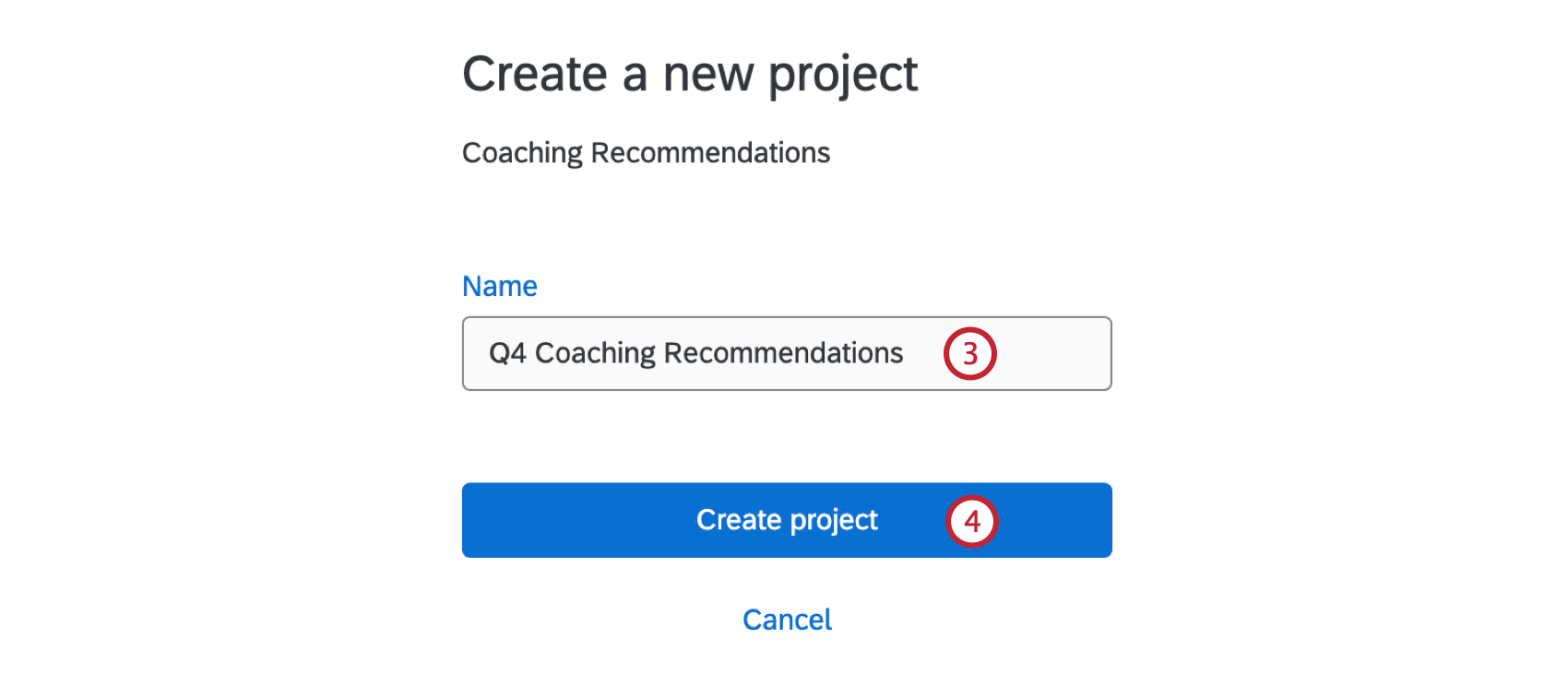
  3. Enter a name for your program.
    adding a name for a coaching recommendations project
  4. Click Create project.

Project Details Tab

You’ll be taken to the Project Details tab after you’ve created your project. Here you can configure project properties, set up a rubric, and configure coaching settings. You have to complete each section in order before moving on to the next one. The status of each section will update as you complete it.

Attention: Click Save as you progress through each section to make sure your configuration is saved.

Project Properties

In the project properties section you can configure the properties your coaching recommendations project will have. This includes a Discover data source, a CX organizational hierarchy, and agent identification. Once configured, your Discover rubric criteria can be edited in the next section.
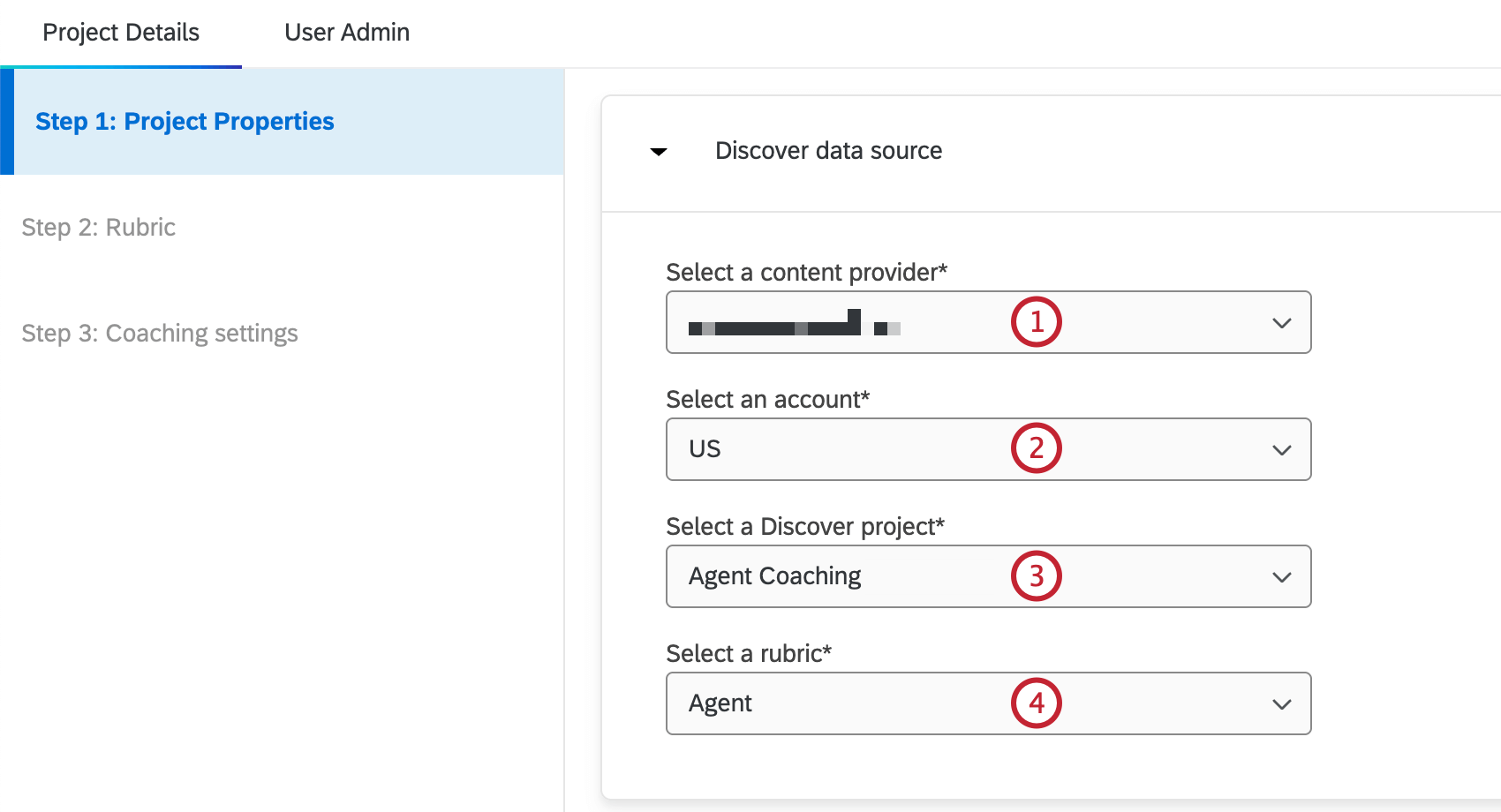
  1. Use the dropdown to select a content provider.
    steps to configure the discover data source for your coaching recommendations project
  2. Select an account.
  3. Select a Discover project.
  4. Select a rubric.
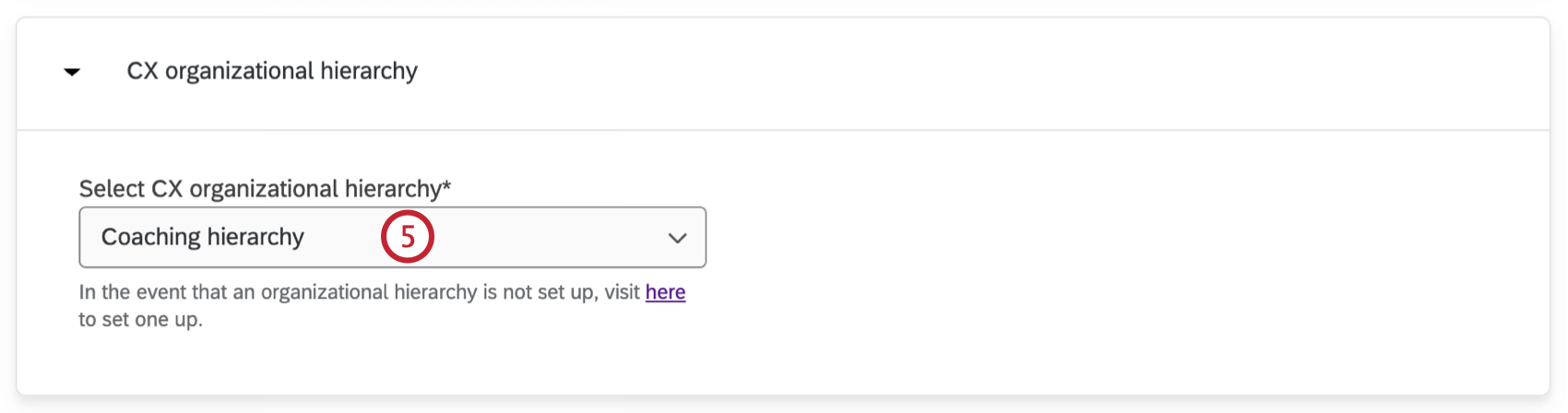
  5. Use the dropdown to select a Select CX organizational hierarchy. If you don’t already have one set up, you can create one in the User Admin Tab.
    configuring the cx organizational hierarchy for your coaching recommendations project
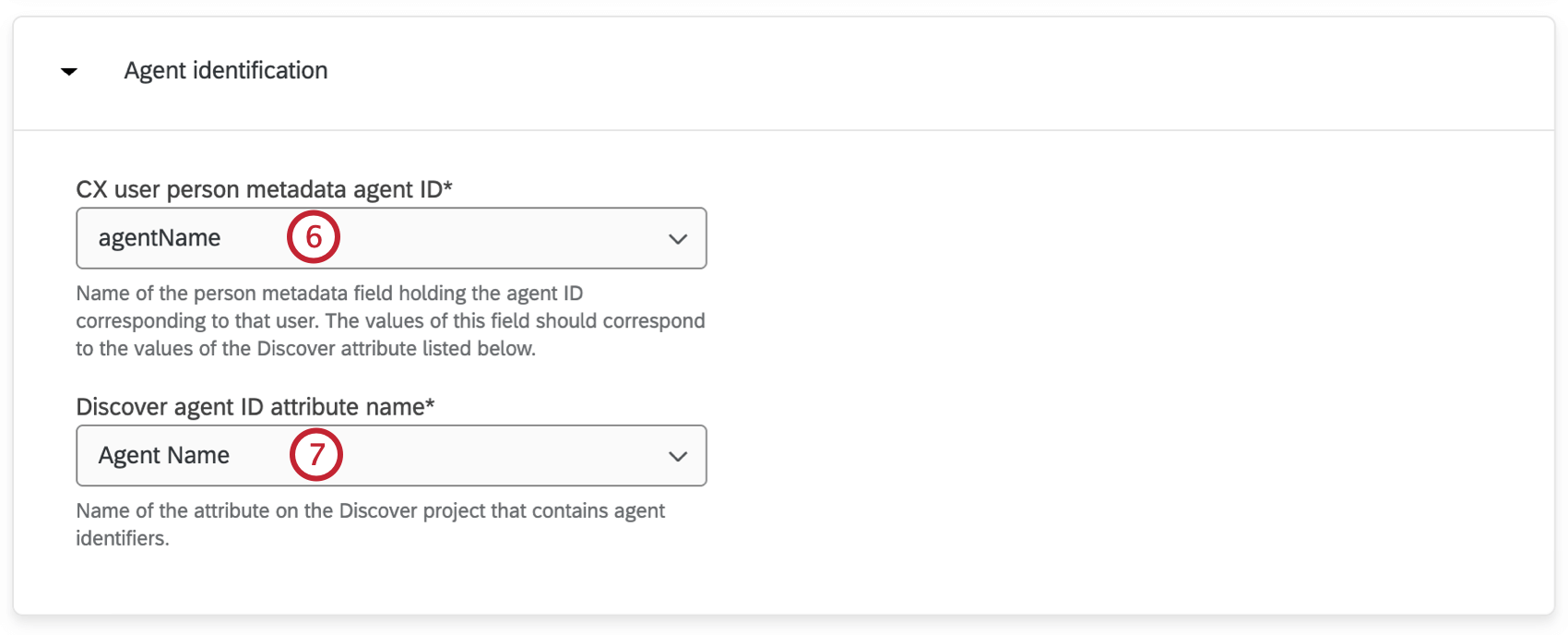
  6. Use the dropdown to select a CX user person metadata agent ID. This is the name of the person metadata field holding the agent ID corresponding to that user. The values of this field should correspond to the values of the Discover attribute listed below.
    configuring agent identification for your coaching recommendations project
  7. Select a Discover agent ID attribute name. This is the name of the attribute on the Discover project that contains agent identifiers.
  8. Click Next.

Rubric

The scoring criteria from the rubric you created in XM Discover will be automatically added to this section after it is selected within the Project Properties section. Follow the steps below for each scoring criteria you want to include in your coaching plan.
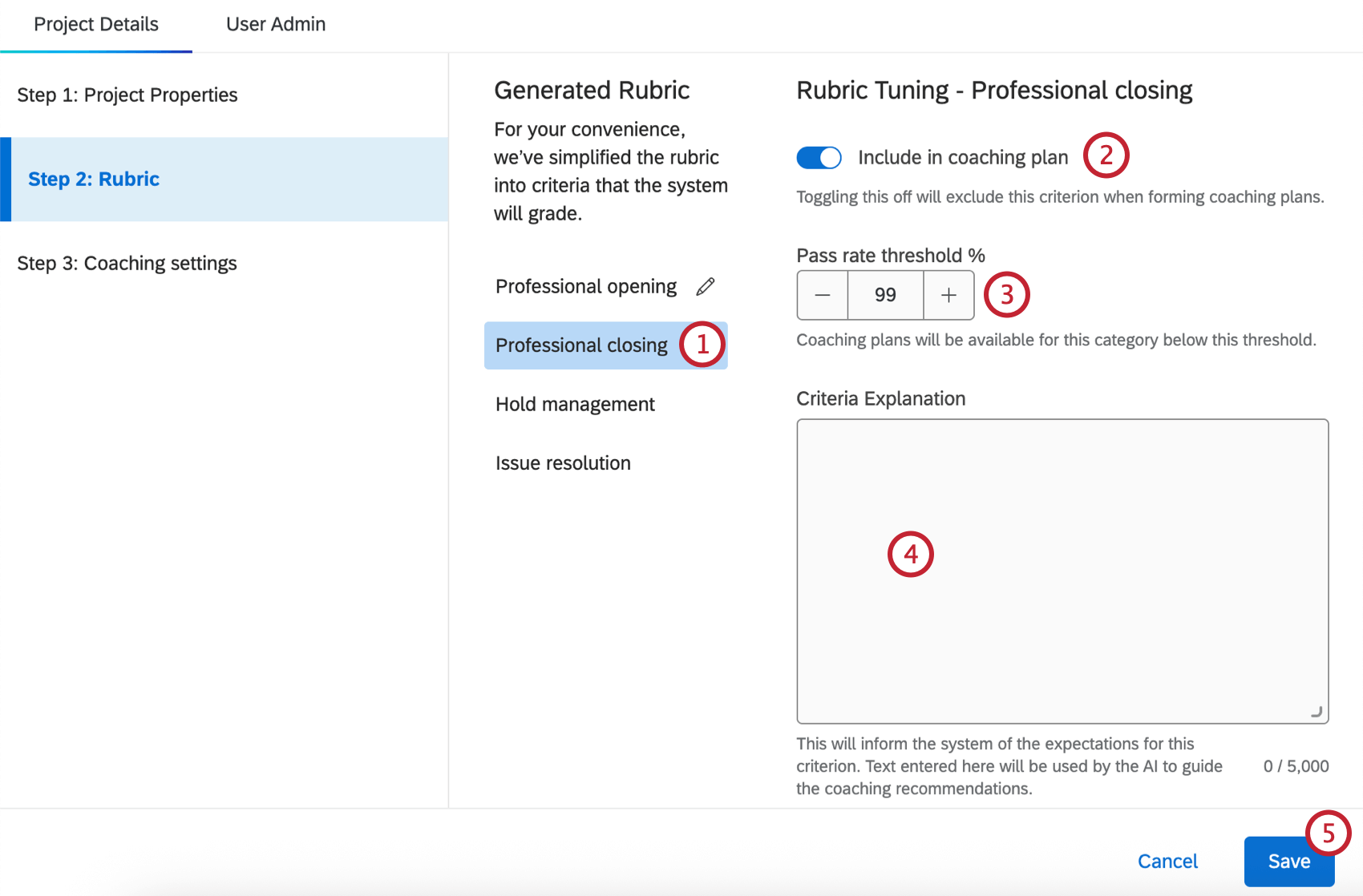
  1. Select one of your rubric’s criteria.
    adding rubric criteria to the coaching recommendations project
  2. Click Include in coaching plan to include the criteria when forming coaching plans.
  3. Use the plus and minus signs to set the pass rate threshold. Agents performing below this threshold will have coaching plans created for this category.
  4. Enter a criteria explanation. The expectations you add here will be used to guide the coaching recommendations that are generated.
  5. Click Save.
Qtip: Any criteria you’ve edited will have a pencil icon next to them. This icon will disappear when you click Save.

Coaching Settings

In this section you can set the number of coaching recommendations that will be displayed in the coaching tab of your Customer Care app.
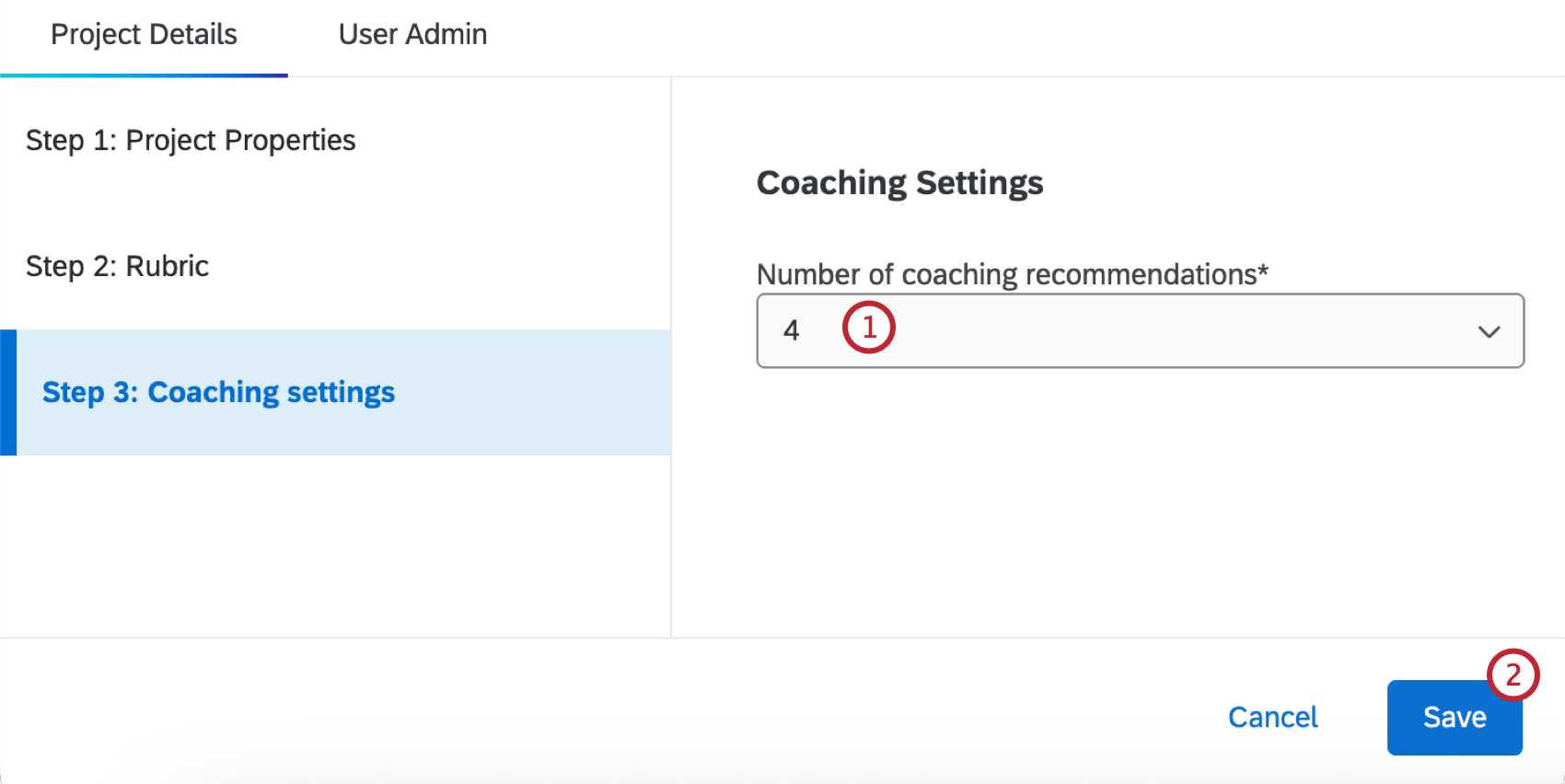
  1. Use the dropdown to select the Number of coaching recommendations you want to include in the customer care app.
    editing coaching settings within the project
  2. Click Save.

User Admin Tab

In the User Admin tab you can manage and upload users, create org hierarchies, and create roles. The functionality in this tab is the same as User Admin in CX Dashboards. See Managing CX Dashboard Users for more information and instructions on using this tab.