

Customer Care App Overview
What's on this page
About the Customer Care App
The Customer Care app is a centralized workspace where frontline staff (like contact center managers and customer care agents) can measure and improve team performance by calculating key team metrics, tracking tickets, and providing feedback to employees.
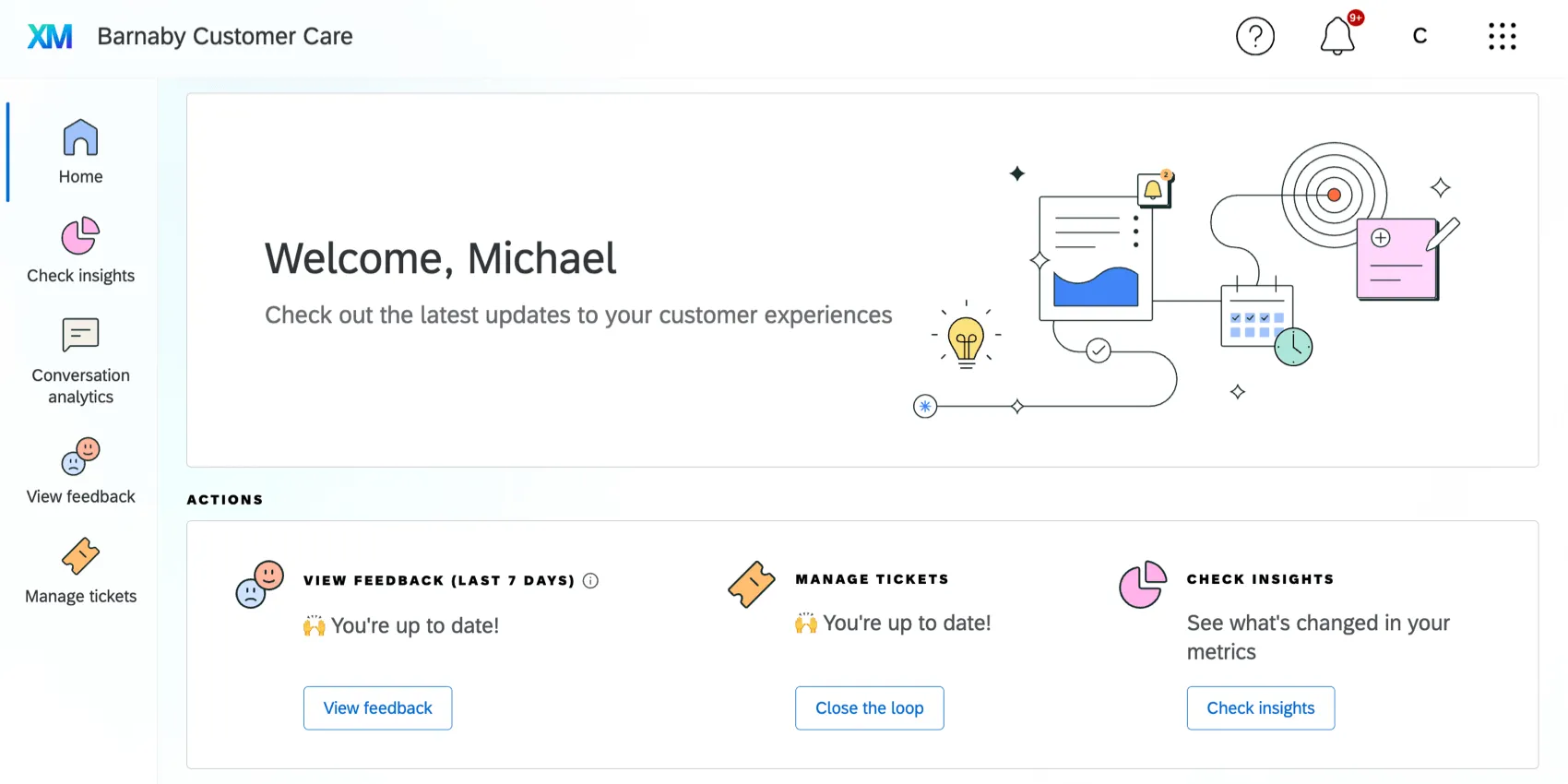
You can build multiple versions of the Customer Care app, enabling you to create specialized workspaces (for example, you can have one app that focuses on your sales organization, while another one focuses on your customer support organization). See Creating Apps for instructions on creating new versions.
Qtip: The Customer Care app is not available for brands with data isolation.

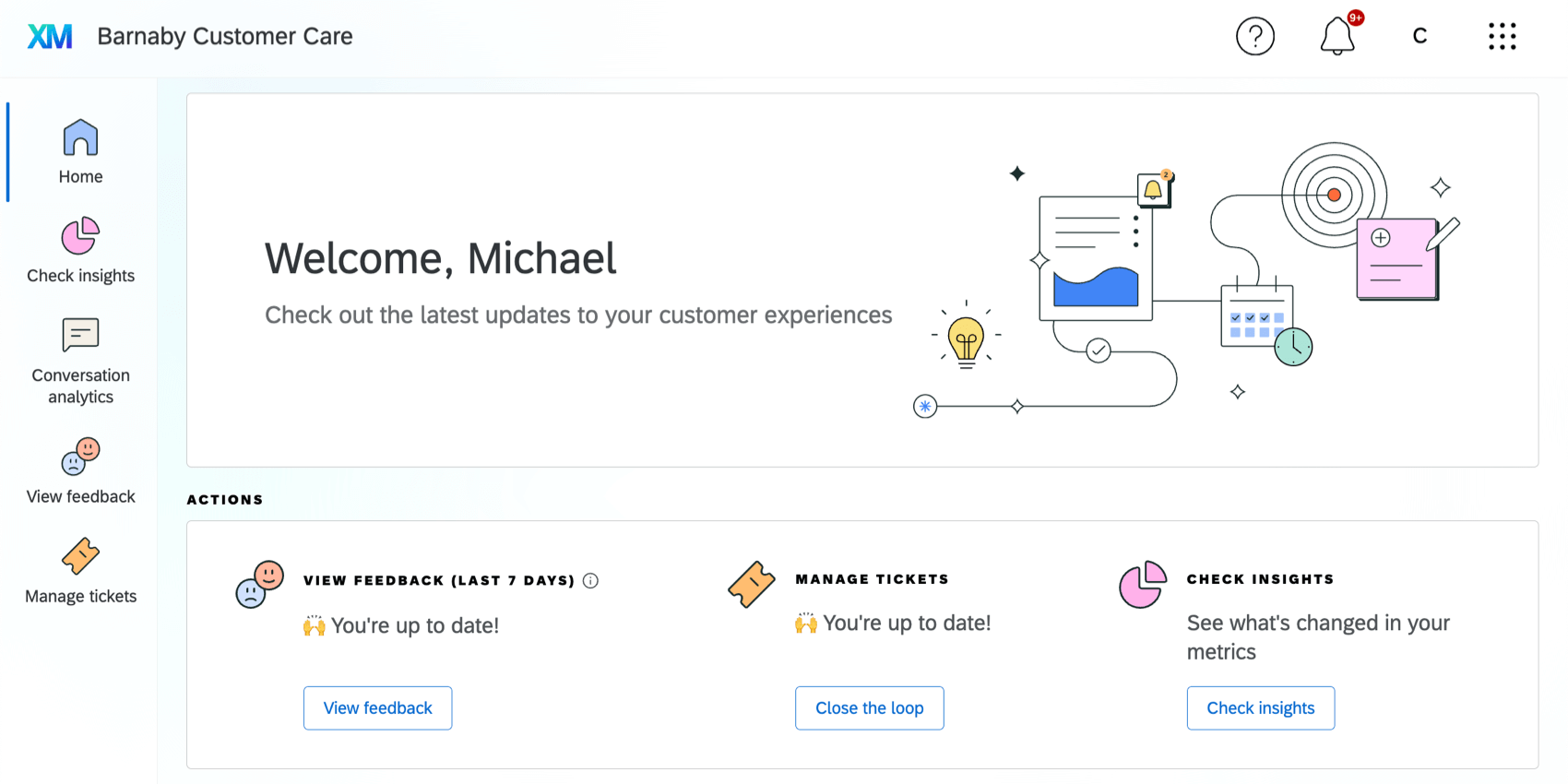
For information on configuring the Customer Care App as an administrator, see Configuring a Customer Care App.
Required Permissions
There are 2 permissions that control who has access to the Customer Care app. Administrators can use these permissions to restrict who can view and edit the Customer Care app. These permissions can be enabled for Individual Users as well as User Types.
- Use Customer Care App: This permission allows users to access the Customer Care app once it is activated for the organization. Brand Admins and CX Admins have this permission enabled by default.
- Manage Customer Care App: This permission allows users to configure, preview, and activate the Customer Care app for their organization. Brand Admins and CX Admins have this permission enabled by default.
If your organization has multiple instances of the Location Experience Hub, access to each instance is managed with user roles. See Role-Based App Access for more information on configuring roles as an administrator.
Accessing the Customer Care App
For most users, accessing a Customer Care app is as easy as logging into your Qualtrics account.
If you’re an administrator or have permission to create projects, you may also have access to the Qualtrics platform. In that case, you can access the applications available to you when logging in.
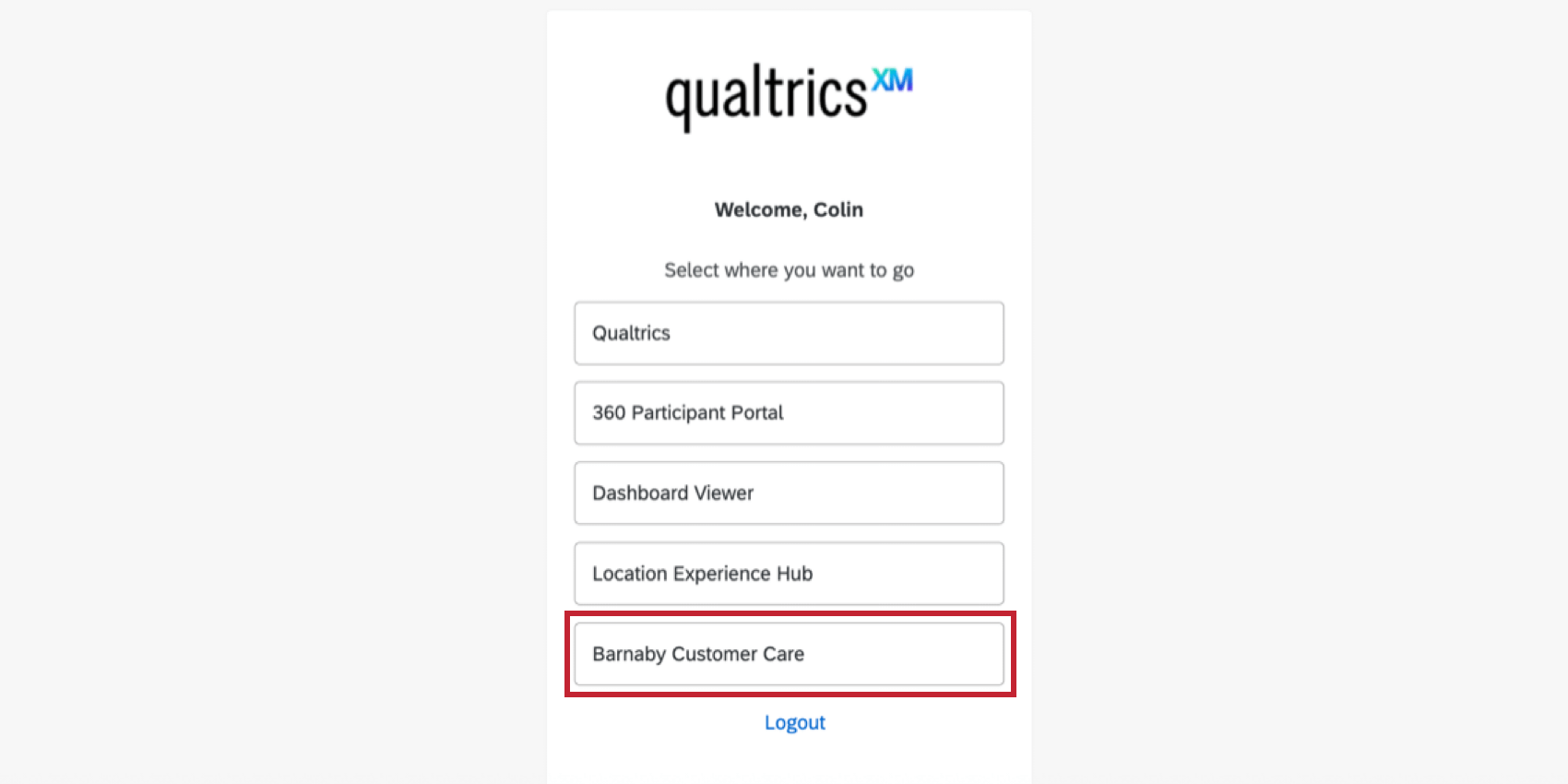
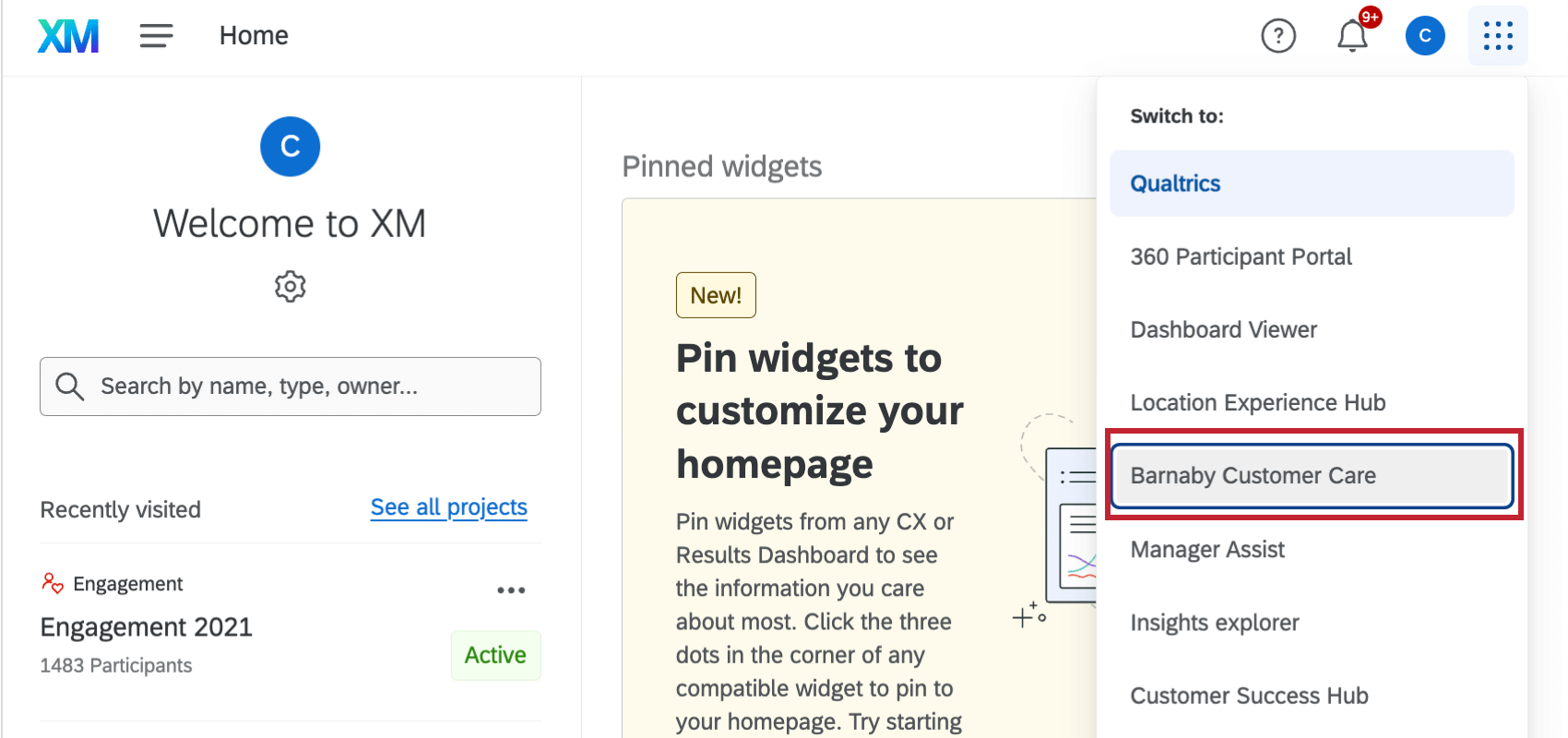
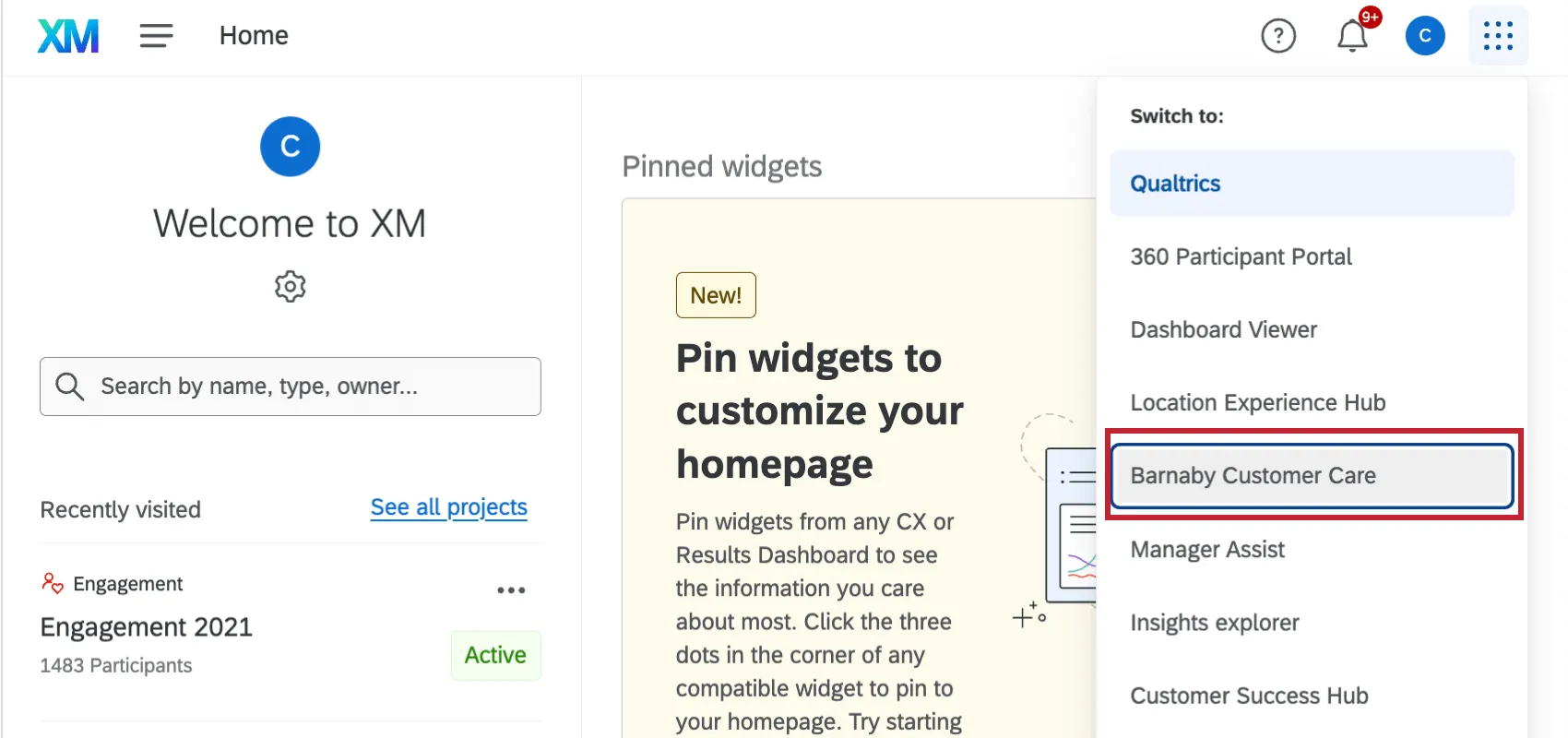
Select Customer Care to navigate to your customer care app.
Qtip: An Admin can rename the Customer Care app, so it may be called something different here.
Once you’re logged in, you can still navigate between applications at any time. Click the button in the top-right to see your options. Select Customer Care to navigate to your Customer Care app.
Navigating the Customer Care App
The Customer Care app has up to 7 tabs that let you manage, view, and act on your data. Administrators can choose which tabs to enable for your organization, so you may see all of these tabs, or you may only see a few. For information on configuring tabs as an administrator, see Settings Tab.
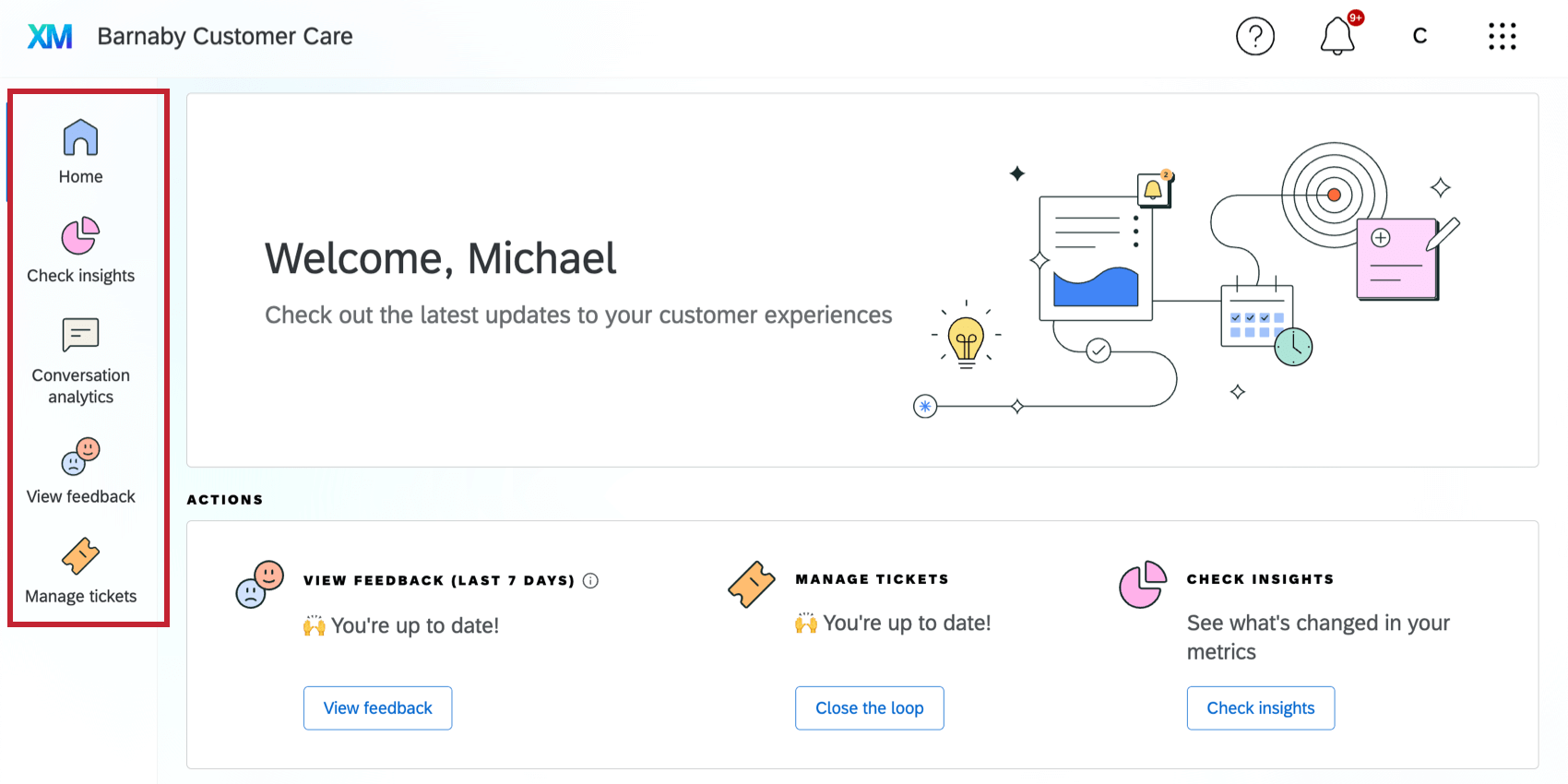
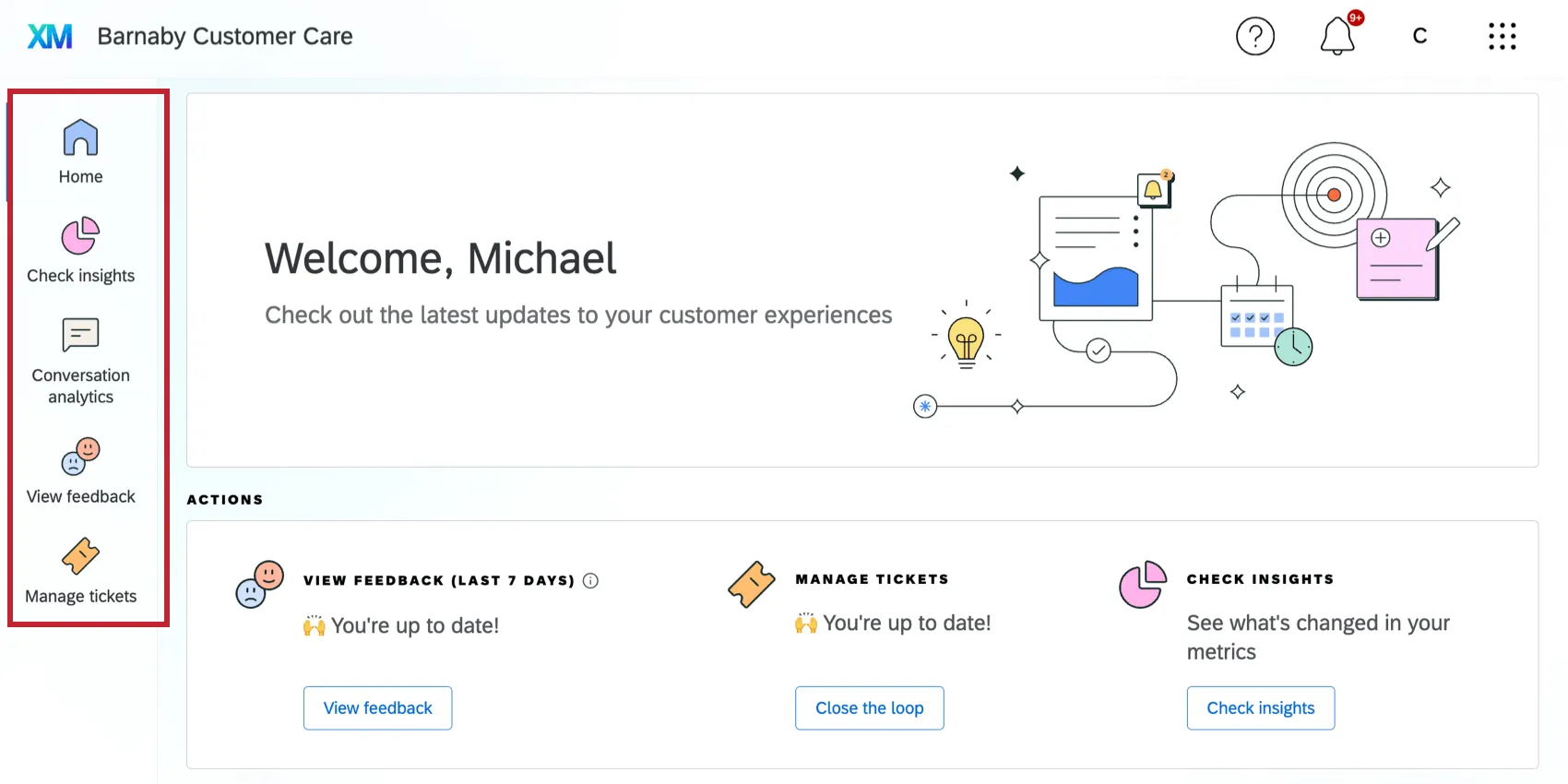
- Home: See a program-wide overview, including available actions and key metrics.
- Check insights: View insights and KPIs for your area of management.
- Conversation analytics: View analytics about your customer conversations.
- View feedback: View customer verbatims about your organization.
- Manage tickets: View and manage tickets and ticket queues.
- Action planning: View and manage action plans.
- Resource center: View additional help resources and answers to questions.
Coaching Tab
The Coaching tab contains coaching plans for every agent in your contact center. These plans are automatically created using your own conversation data. Within this tab you can see various widgets, including an overview of team performance, contact center metrics, and coaching recommendations. For more information about this tab, see Coaching Tab (Customer Care App).
That's great! Thank you for your feedback!
Thank you for your feedback!