

Settings Tab (Location Experience Hub)
What's on this page
Attention: This feature is only available to users on the new simplified pricing and packaging plans or customers who actively participated in the Preview Program for this feature. For more information, see Qualtrics Public Preview. If you have questions about your Qualtrics pricing and packaging plan, reach out to Account Services.

About the Settings Tab
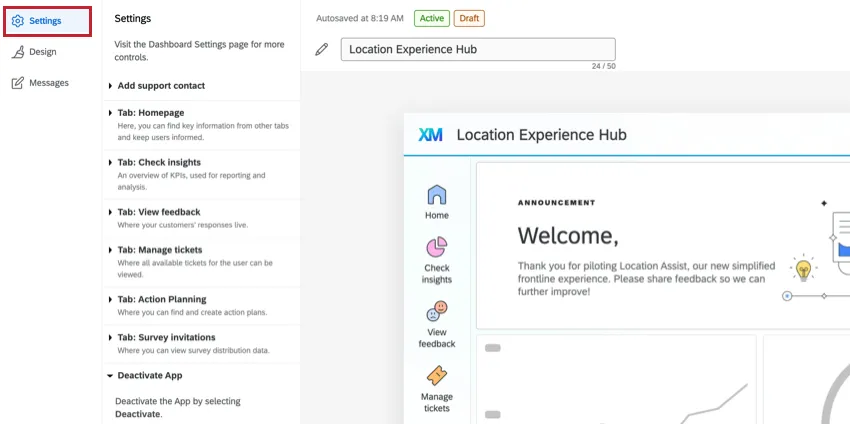
In the Settings tab of the Location Experience Hub, you can choose which tabs to display to users, and edit how those tabs appear. For more information on setting up the Location Experience Hub, see Configuring Location Experience Hub. For an overview, see Location Experience Hub Overview.
Navigating to Settings
First, go to App configuration.
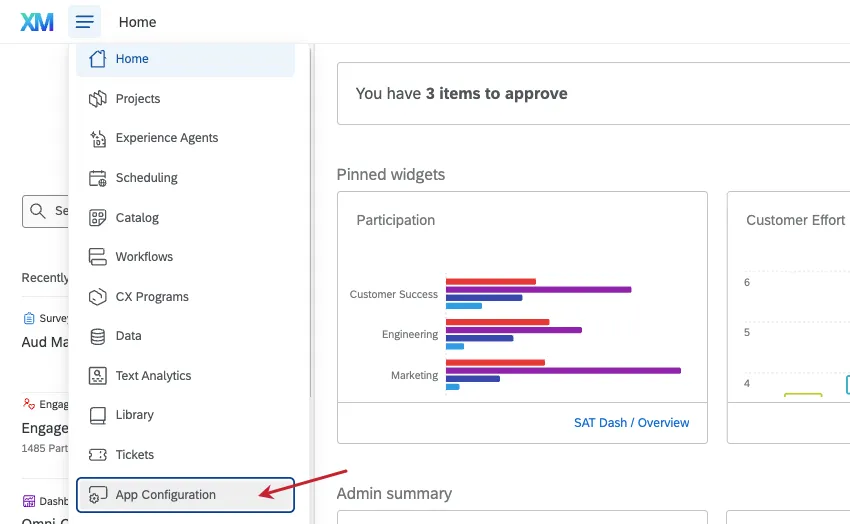
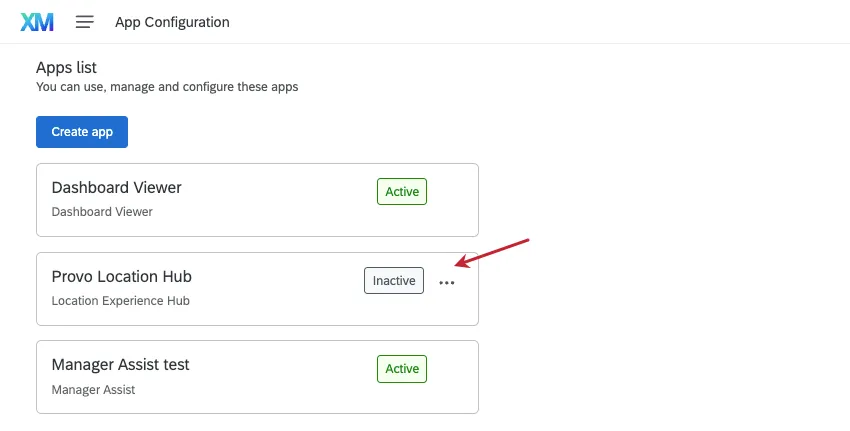
Make sure you've already followed the steps to create your location experience hub. If so, you'll be able to access the hub from the app configuration page.
From there, click Settings.
Hiding Tabs
To hide any tabs from appearing in the Location Experience Hub for your organization, select Toggle-off to hide page from view next to the name of the page you want to hide.
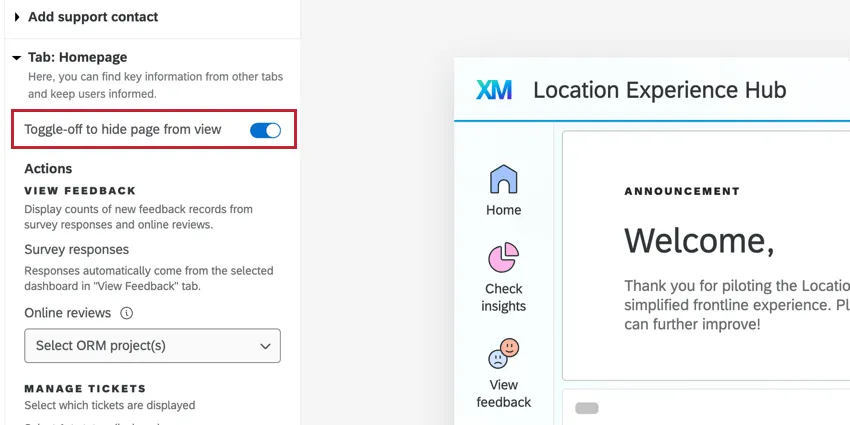
Note that this toggle will only show or hide a tab. You still need to set up the relevant dashboard, tickets queue, etc. for content to appear within each tab.
Dashboard Limitations
When configuring Location Experience Hub tabs, if other users within your organization have the Manage Location Experience Hub App permission, you may see a dashboard selected that you don’t have access to. If you change this selection, you won’t be able to reselect the original dashboard.
To further customize what appears in each tab, if you have access to the dashboard that was selected, you can edit its appearance and data.
Attention: You cannot select the same dashboard page across multiple tabs within the Location Experience Hub.
Renaming Location Experience Hub
You can rename the Location Experience Hub name that is displayed to users. Click the pencil icon and then type a new name in the box.

Add Support Contact
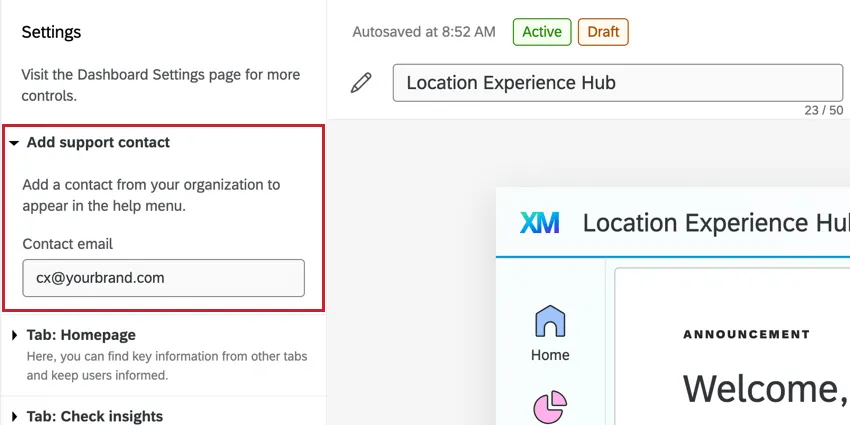
Here you can enter a contact from your organization to appear in the help menu. Type the email address of the contact into the text box.
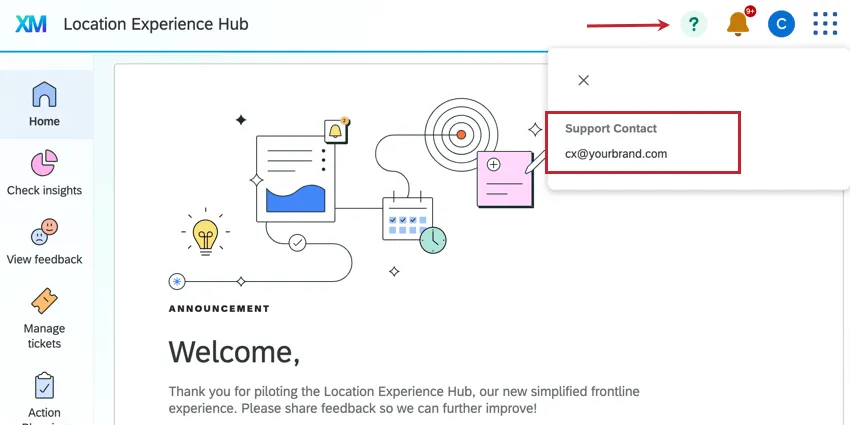
The email address you enter will appear when users click on the help icon within the Location Experience Hub.
Homepage
Here you can customize the appearance of the Home tab. The options you configure here will affect what is displayed within the Actions and Key Metrics cards on the Home tab.
To start, toggle the homepage on. You can choose a name for this tab and an icon that will appear next to it.

Actions
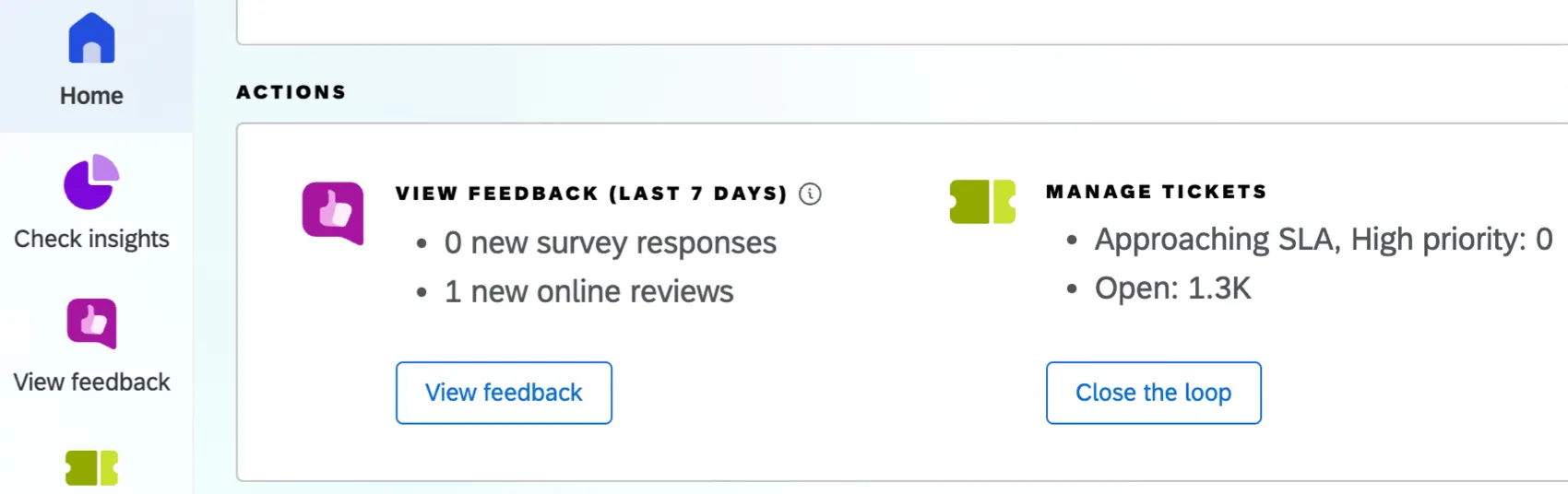
This card shows recent feedback and tickets for your organization.
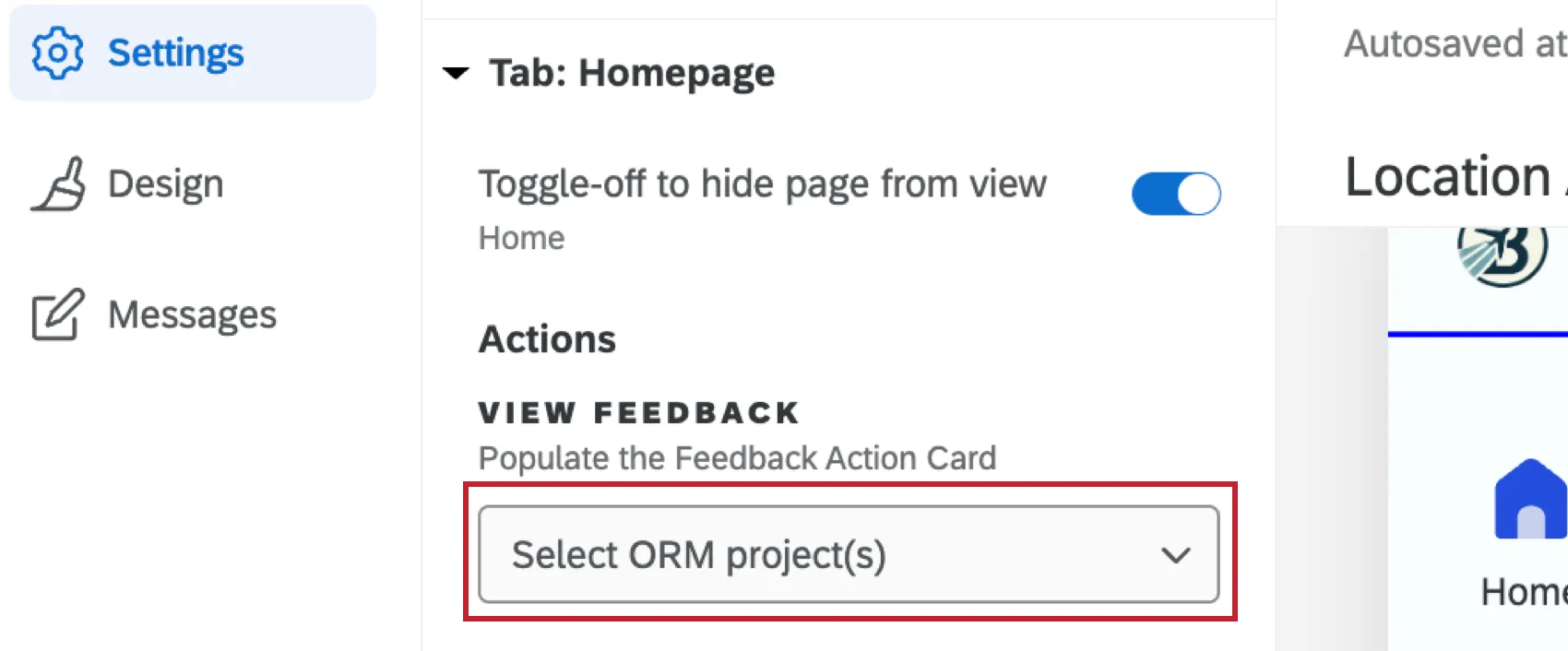
Use the dropdown underneath View Feedback to select a Reputation Management project or projects to contribute to the displayed count of online reviews. This lets you ensure no projects with competitor reviews are selected.
Qtip: If your homepage “View Feedback” tile incorrectly displays 0 reviews, it could be due to your project configuration. Make sure the dashboard you’ve selected in the Tab: View Feedback settings has the same ORM source as the project you’ve selected for your homepage.

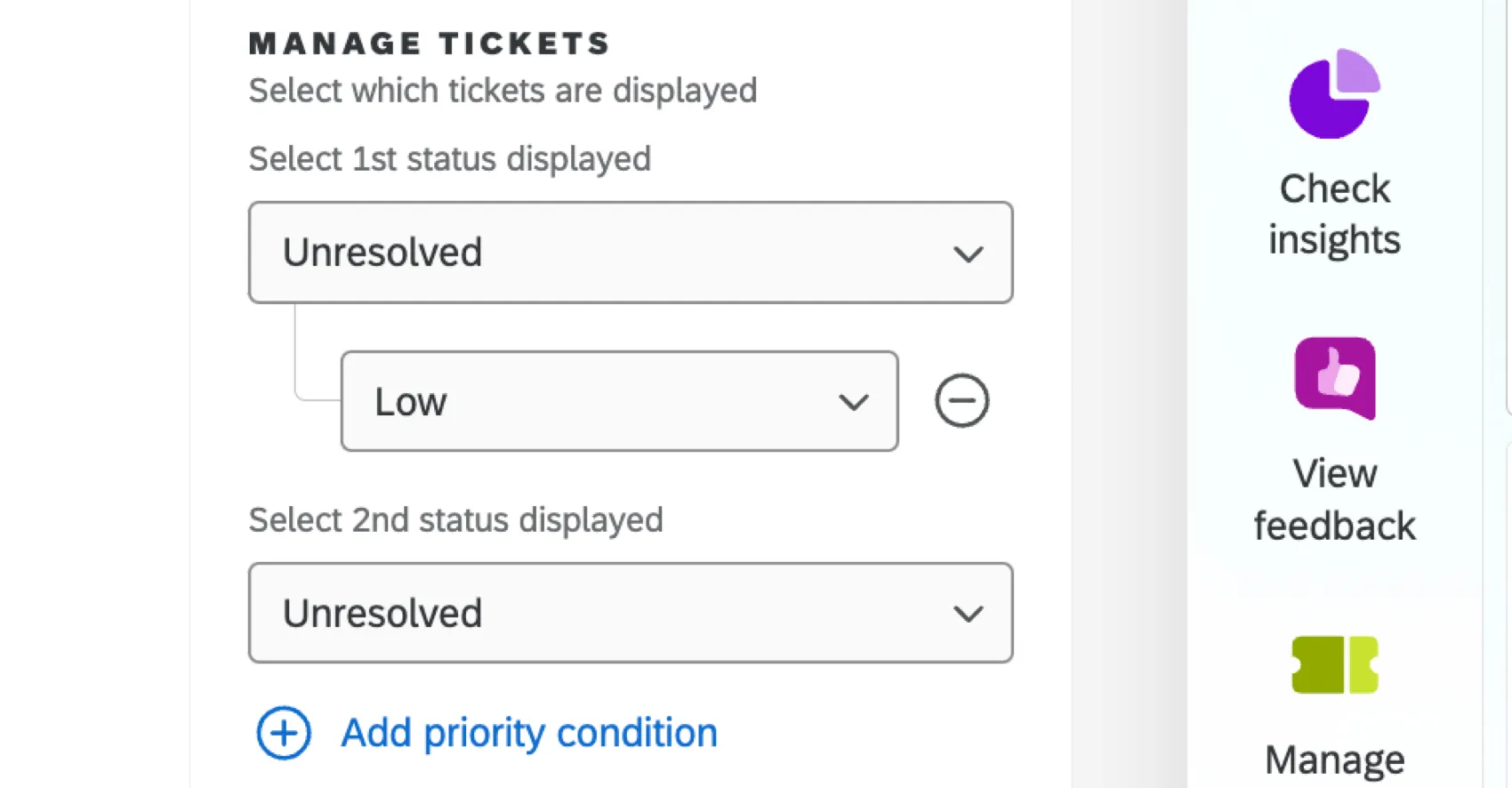
Under Manage Tickets, you can select which ticket statuses will be displayed. Use the dropdowns to select a first and second status. You can also click Add priority condition to only display tickets of your selected status with a specific priority.
Key Metrics
The Key Metrics card shows up to 4 Key Performance Indicators (KPIs) for your organization.
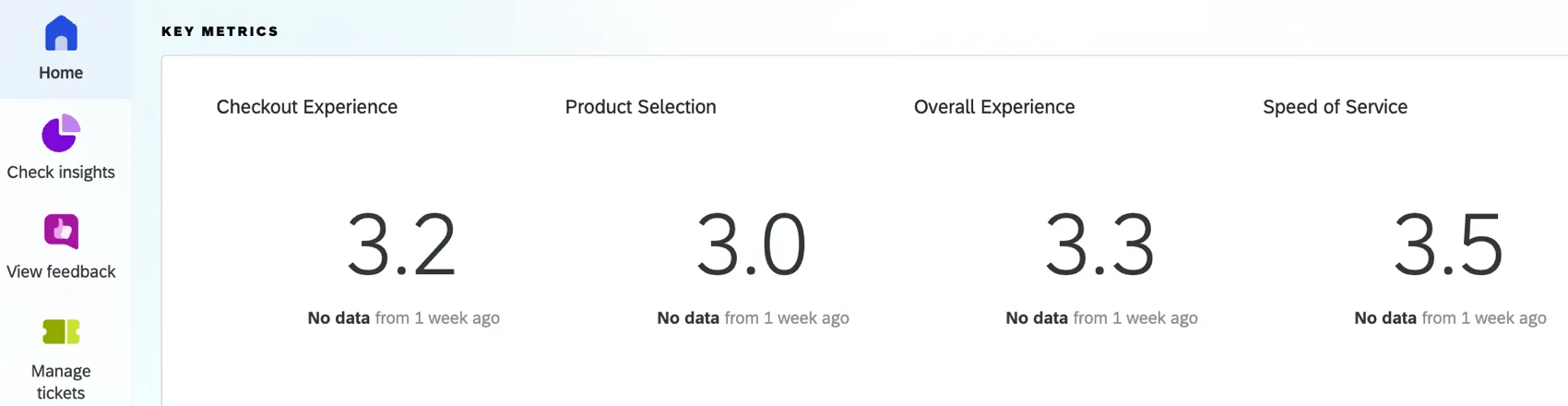
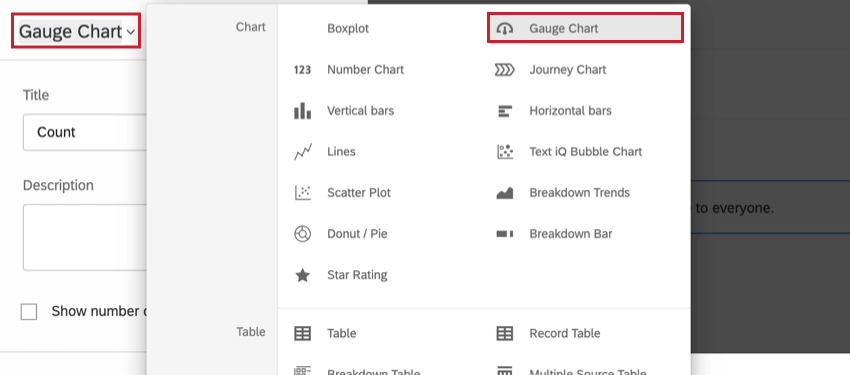
You can customize the metrics that appear here by selecting number chart and gauge chart widgets from your existing dashboards. When choosing widgets to display here, keep in mind how they interact with dashboard filters and permissions:
- Default page filters and widget filters from the dashboard will be applied to the widget in the Location Experience Hub.
- User role data restrictions from the dashboard are applied to the user viewing the widget in the Location Experience Hub.
- If a dashboard user applies a filter while using the dashboard and then navigates to the Location Experience Hub, their filter application will not be reflected in the widget in the hub.
To add widgets to this card, click Add metric widget. Select the dashboard, dashboard page, and then the number chart or gauge chart widget you'd like to display. You can add up to 4 widgets, and widgets will be displayed from left to right.
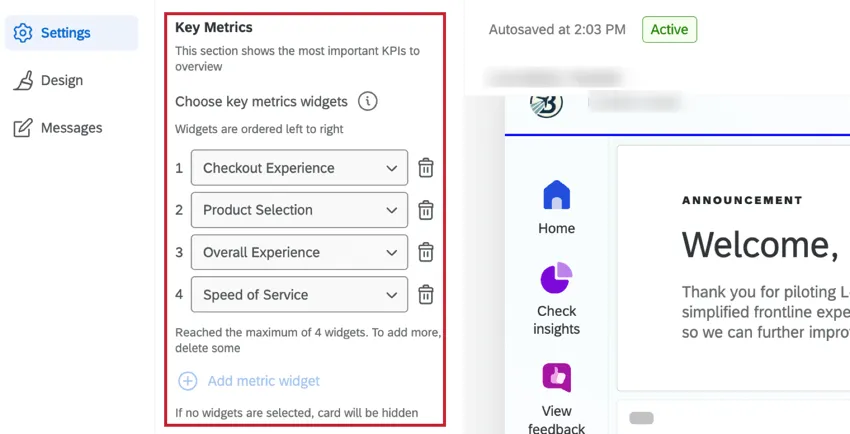
If needed, click the trash icon to delete a widget.
Qtip: If no widgets are added, the key metric card will be hidden.
Qtip: If the number chart or gauge chart you’d like to use isn’t appearing here, then it may be an older version of the widget that isn’t compatible with the Location Experience Hub. You can update the widget by following the steps below:
Check Insights
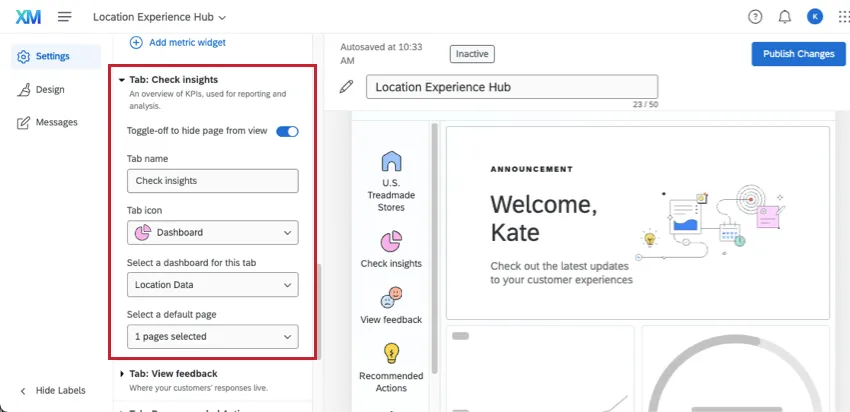
Here you can select a CX dashboard to display key insights. Use the dropdown to select a dashboard you have access to.
You can use the toggle at the top to hide or display the page to your app users.
View Feedback
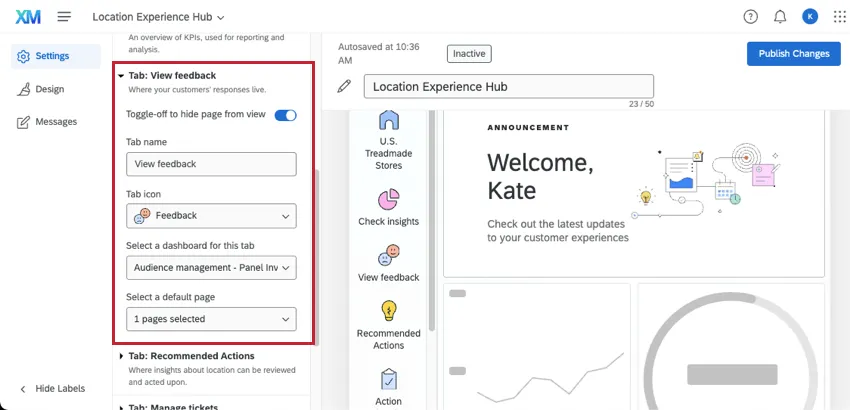
Here you can select a dashboard to display customer feedback and verbatims.
You can use the toggle at the top to hide or display the page to your app users.
Recommended Actions
Attention: Recommended actions are in preview and are not yet available to all users. Please contact your Account Team if you are interested in this functionality.
Here you can select a dashboard that shows insights about each location and gives users the ability to act on those insights.
You can use the toggle at the top to hide or display the page to your app users.

Manage Tickets
This page will display a standard view of all tickets and queues. You can set the name of the tab and its icon, but don’t need to customize anything else. When viewing the Location Experience Hub, users can add filters to view tickets for specific teams, groups, statuses, or priorities.
For content to appear here, you’ll need to set up tickets for your organization, including triggering tickets and routing those tickets to users.
Action Planning
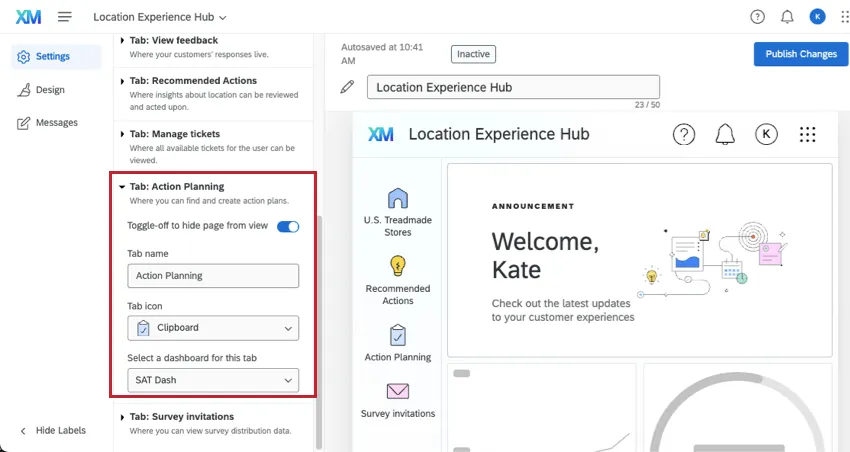
Here you can select a dashboard to display action plans. The dashboard must have CX Action Planning already set up.
You can use the toggle at the top to hide or display the page to your app users.
Survey Invitations
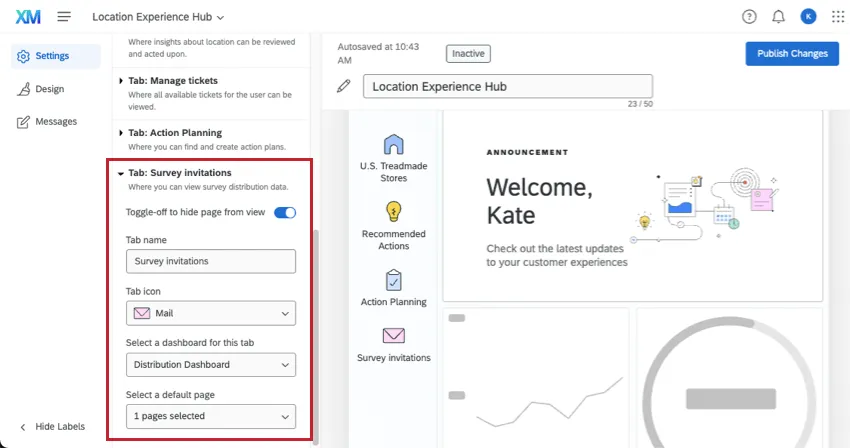
Here you can select a dashboard to display survey distribution data. For example, a dashboard that shows respondent funnel data.
You can use the toggle at the top to hide or display the page to your app users.
That's great! Thank you for your feedback!
Thank you for your feedback!