-

Qualtrics Platform -

Customer Journey Optimizer -

XM Discover -

Qualtrics Social Connect
Email Data Project
About Email Data Projects
Email Data projects were designed to fulfill your omnichannel listening needs for email data. You can use extractor tasks to extract emails from contact center providers like Genesys and NICE CXone, then store that data in your project for further analysis. While the entire, end-to-end program setup can be found on Omnichannel Listening Management, this page focuses more on how to create and navigate your email data project.
Creating an Email Data Project
You can create an Email Data project by going to the Catalog and searching it by name.
- Select Email Data from the catalog.
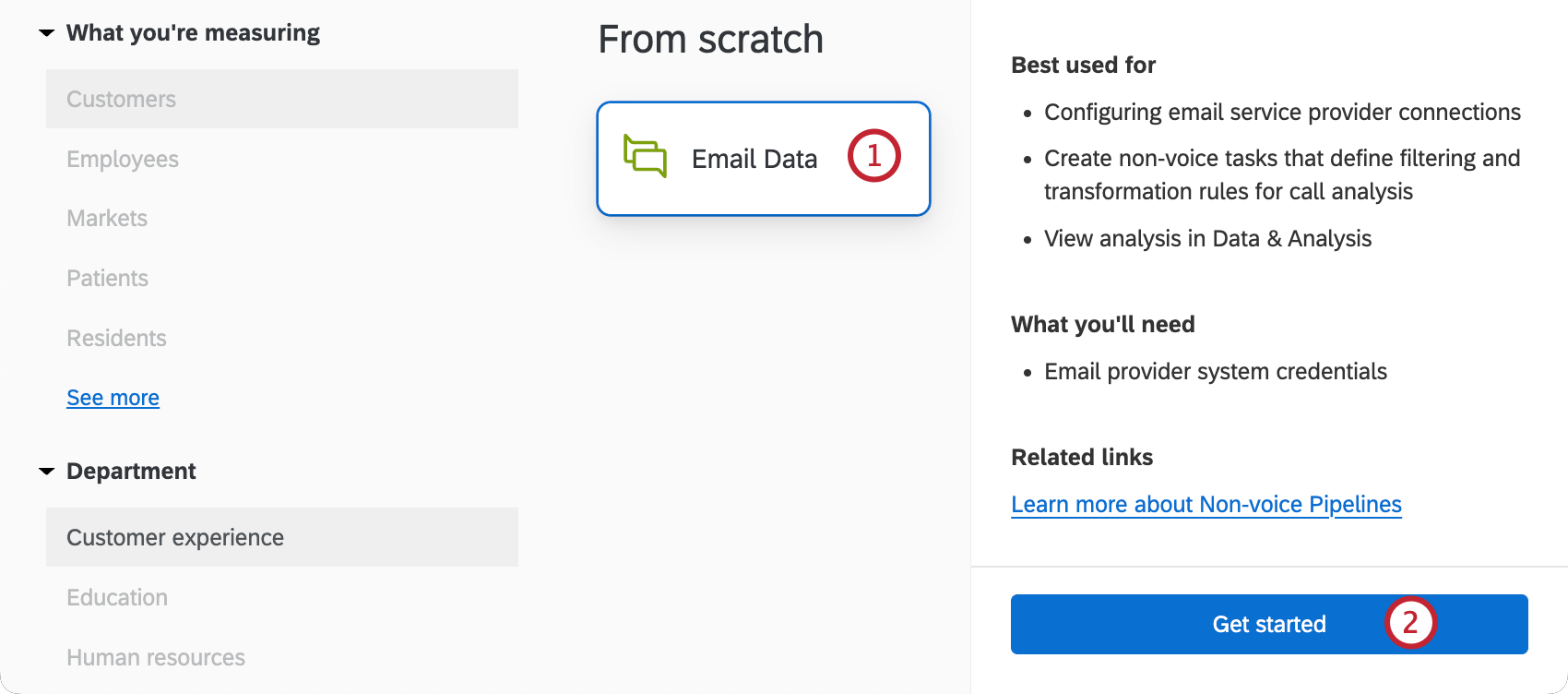
- Click Get started.
- Enter a name for your project.
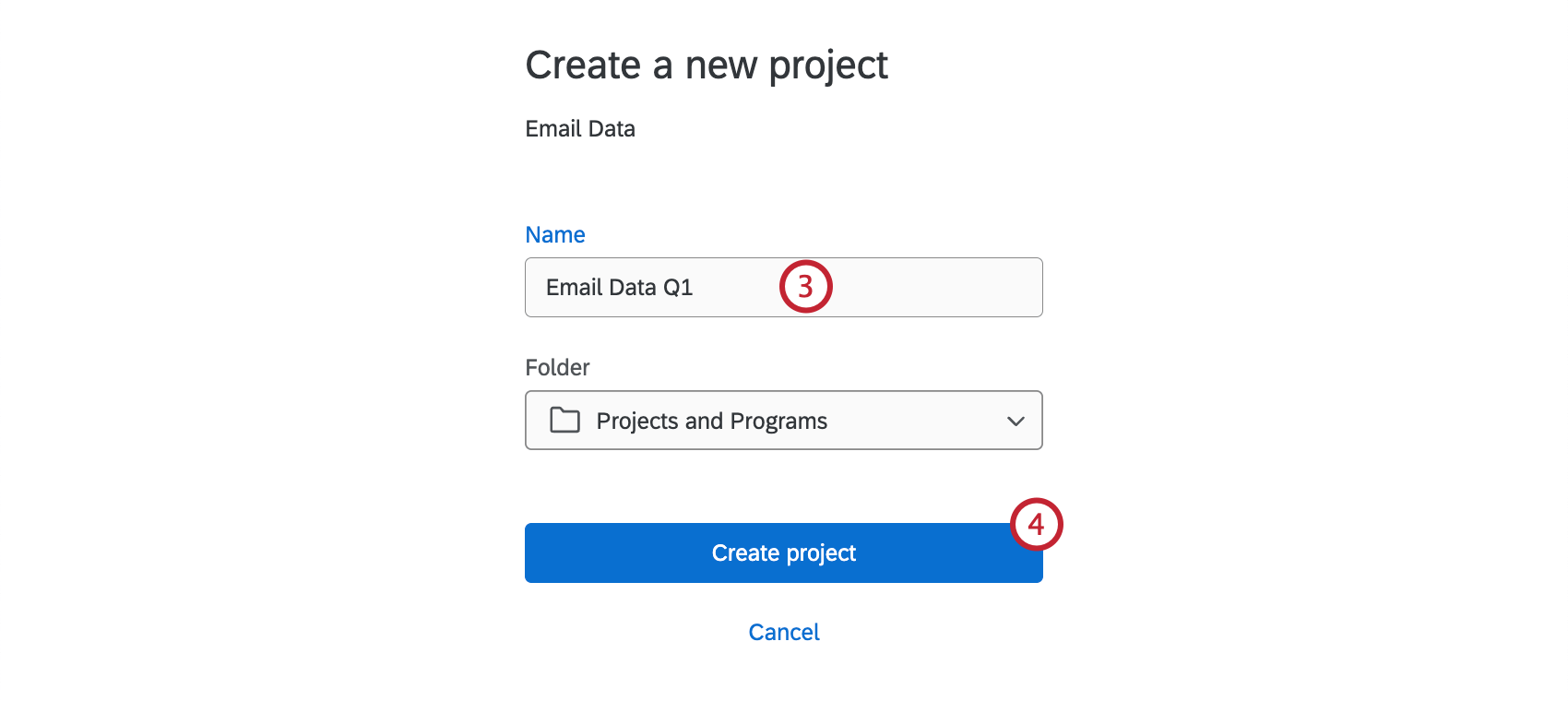
- Click Create project.
Navigating Email Data Projects
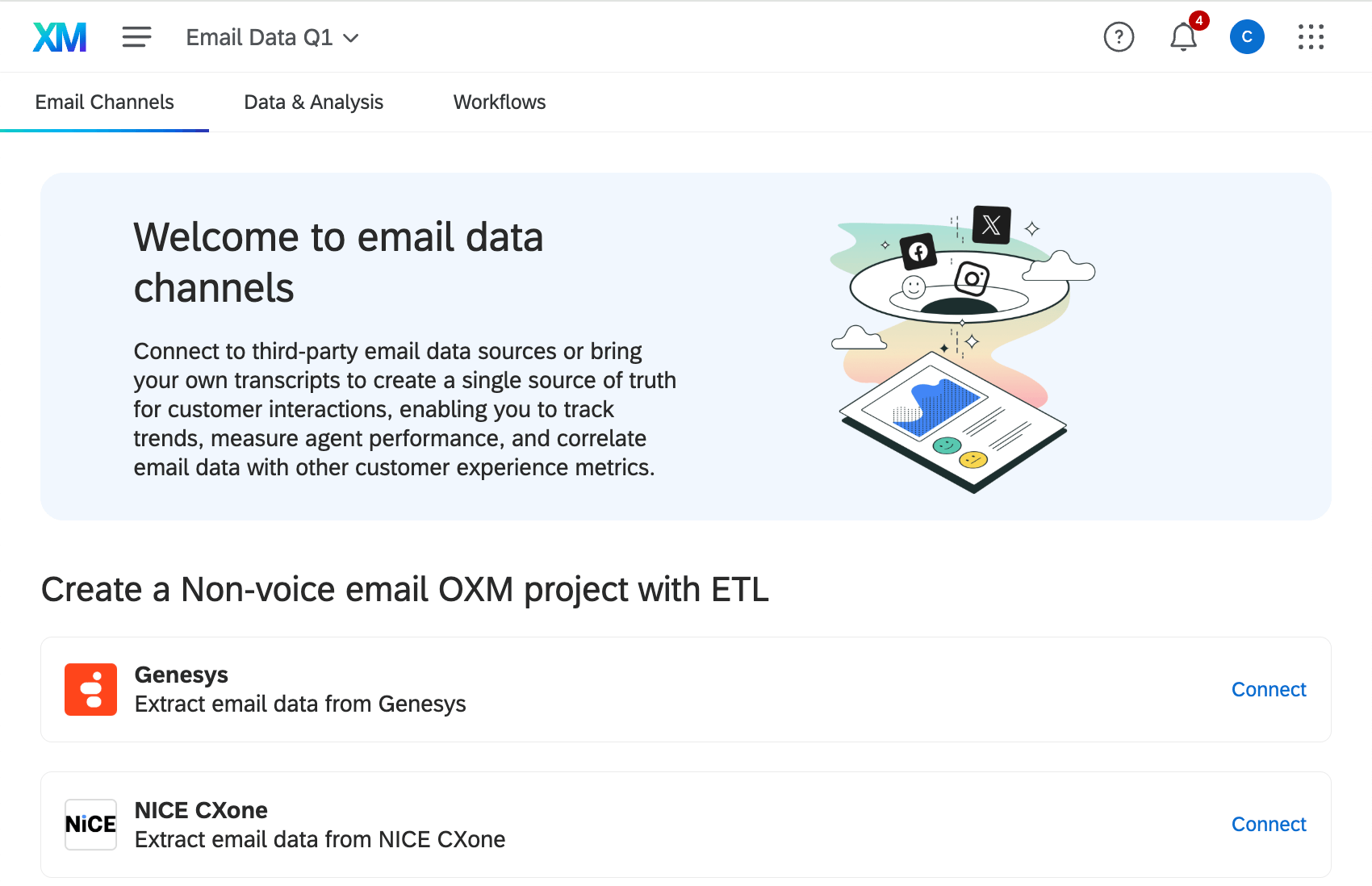
Email data projects have 3 main tabs:
- Email Channels: This is the homepage of your project. Here, you can connect channels, see the channels you’re currently connected to, and view more information about their limits.
- Data & Analysis: As your workflows extract email data, this will appear in this tab. Use this space to browse data and perform introductory analysis.
- Workflows: Use this tab to set up automations called “workflows,” which work by extracting email data from external platforms on a regular schedule of your choice.
Data & Analysis in Email Data Projects
As your workflows extract email data, this will appear in the Data & Analysis tab. Use this space to browse data and perform introductory analysis. While you can view and manage responses on the Data tab, deeper data analysis and reporting happens elsewhere in the platform. See our Omnichannel Listening page for how to use Text Analytics and dashboards with your conversational data.
Here’s the functionality you can expect in Data & Analysis, with links to the appropriate support pages:
- Editing Responses
- Export Data
- Re-Import Data
Qtip: The option to re-import data allows you to edit data that’s already in your project. You cannot import new social data using the Data & Analysis tab, and must instead use workflows to extract data from email providers.
- Recorded Responses
- Filtering Responses
- Field Editor
Using the Workflows Tab
Workflows extracting email data can be created in your email data project, or in the stand-alone Workflows tab. Creating them within your project is recommended, as you’ll easily be able to view all relevant extractor tasks in one place.
The workflows tab in email data projects functions the same as the workflows tab in chat data projects. See Using the Workflows Tab for instructions.
Collaborating on Email Data Projects
You can invite other Qualtrics users to create and edit your email data project.
Collaboration works the same with email data projects as it does with reputation management projects, except collaborators can only have Admin access. There is no read-only access for email data projects. For steps, see this page on collaboration.