

Synthetic Panels
What's on this page
About Synthetic Panels
Recruiting the right participants for a study can be difficult. You may not get the exact demographics you need, and the shorter the deadline, the less sure you can be that everyone will answer on time. One possible solution can be to use synthetic panels.
Synthetic panels are powered by a first party proprietary AI model developed here at Qualtrics. Our synthetic panel is trained on thousands of responses from a variety of demographic backgrounds in order to more accurately predict how certain populations would respond to a survey.
Our synthetic panel is based on the United States General Population, and is only available in English. This panel comes with ready-made quotas and target breakouts in order to represent your chosen population and make it easy to launch your survey right away.
Attention: This feature is only available to users on the new simplified pricing and packaging plans or customers who actively participated in the Preview Program for this feature. For more information, see Qualtrics Public Preview. If you have questions about your Qualtrics pricing and packaging plan, reach out to Account Services.
Qtip: When reporting results from a synthetic panel, it’s important to be transparent. Make sure you communicate that your data comes from generative AI.
Attention: Some Qualtrics features work better with synthetic panels than others. For guidance, see Designing a Survey for Synthetic Panels.
Getting Access to Synthetic Panels
Purchasing Subscription Credits
Synthetic panels can only be purchased using subscription credits with Edge Qualtrics Audiences. You can only purchase these credits from your Account Executive.
Qtip: You cannot finish launching a synthetic panel until subscription credits have been added to your account.
Required User Permissions
Users need the Access Online Panel permission enabled before they can access synthetic panels or the online panel tool. Brand Administrators can adjust these permissions as needed. See User, Group, & Division Permissions for more details.
Writing Survey Questions for Synthetic Panels
When you’re planning to use synthetic panels, you can get higher quality responses by writing your survey in a certain way.
Topics
Our synthetic panels work well when asked about the following topics:
- Lifestyle (activities, fashion, food and drink, etc.)
- Social Sciences (demographics; individual, family, and community topics; etc.)
- Economics (shopping and purchase behavior, gift giving, socioeconomic issues, etc.)
- Healthcare (general personal health, wellness, fitness, etc.)
- Psychology (attitudes, personality traits, motivations, etc.)
- Communication (entertainment, news, media, etc.)
- Business (firmographics, brand perceptions, marketing, etc.)
- Leisure (athletics, team fandom, gambling, hunting, fishing, etc.)
Question-writing best practices
To get the most reliable and actionable results from synthetic audiences, consider these question-writing best practices:
- Ask forward-looking and attitudinal questions.
- Synthetic panels perform best with perceptions, preferences, and intent-based questions. For example, “How likely are you to try…?”
- Synthetic panels are less applicable for studies on past behaviors, detailed recall, brand recall, or awareness questions. For example, “When did you last visit…?”
- Provide context within the question.
- Just like human respondents, synthetic responses improve when questions include relevant details or framing.
- Be sure to put relevant context into the questions themselves (not blocks of separate text).
- Use multiple choice questions.
- Closed-ended questions provide the most consistent, realistic synthetic data.
- Some of the best synthetic results have come from surveys that are fully single-select multiple choice.
- Use phrases and words instead of numbers or symbols.
- Write “five dollars” instead of “$5” to avoid misinterpretation.
- Avoid contradictions.
- For example, if you ask respondents to pick their top three brands, hide those same options when asking for their bottom three.
- Avoid overly restrictive screeners.
- Our model mirrors natural incidence rates. Try not to use too many screeners (e.g., “own a dog, live in the Midwest, and shop at Walmart weekly”).
- We recommend keeping screeners light and broad when using synthetic panels (e.g., “own a pet”), then refine targeting when you move into human data collection. Qtip: If you need to guarantee a specific condition (e.g., only homeowners), use a single, forced-choice question to lock it in rather than layering multiple restrictive criteria. The model will remember this context throughout the survey, ensuring respondents flow through logically while still maintaining reliable results.

Designing a Survey for Synthetic Panels
Not all Qualtrics features can be used with synthetic panels. As a general rule, the simpler the survey design, the more likely the synthetic panel will be able to answer questions.
For example, synthetic panels can answer multiple choice questions fairly well, and work with common features like randomization and logic. However, synthetic panels can’t answer several question types, nor are they compatible with some complex features, like authenticators and Javascript.
Attention: Make sure your survey is complete and published before you run a synthetic panel. Do not edit your survey while your panel is running.
Compatible features
The following is a list of features that work well with synthetic panels:
- Survey projects
- Multiple choice questions (all types, including single and multiple answer)
- Text entry questions
- Matrix table questions – Likert – Single answer
- Matrix table questions – Likert – Multiple answers
- Piped text
- Force response
- Request response
- Display logic based on:
- Skip logic (all types)
- Recode values (including variable names and export tags)
- Survey access: available to anyone
- Carry forward choices
- Choice randomization
- Question randomization
- Loop & merge
- Reusable choices
- Branch logic
- Randomizer
- Web service
Incompatible features
Qtip: Synthetic panels do not understand embedded information like images, videos, files, and hyperlinks. However, they still successfully complete surveys that include these details.
If a feature is not on the list above, it is either not supported by synthetic panels or may not behave as expected. Although the following is not an exhaustive list, here are some examples of incompatible features:
- Text entry on multiple choice (“Allow text entry”)
- Matrix table dropdown list
- Matrix table drag and drop
- Any other matrix table formats
- Other question types
- Custom validation (including specific character ranges and content type restrictions)
- Display logic based on GeoIP Location or Device type
- In-page display logic
- Default choices
- Javascript
- Authenticator
- End of survey element (if using anything other than a default message)
- Table of contents
- Survey access: invitation only
- Survey options that limit entry to the survey (like passwords and availability)
Creating a Synthetic Panel
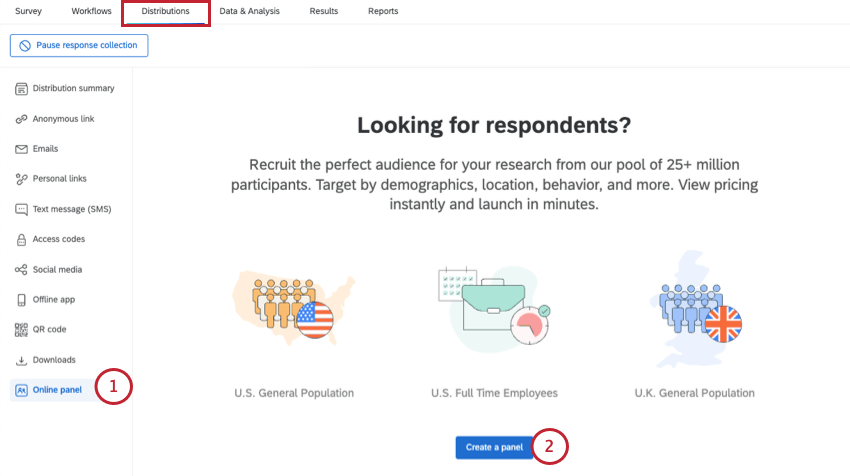
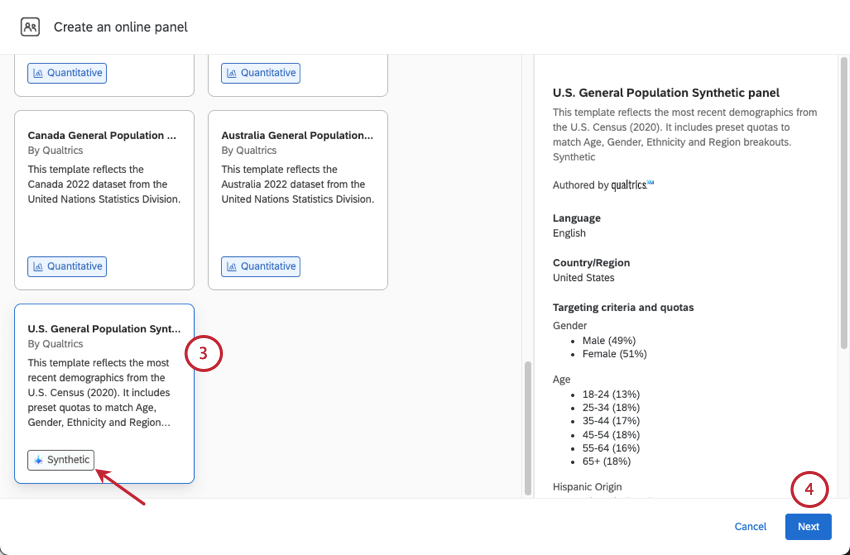
Qtip: You can click Save and exit at any step in the setup to save your panel as a draft.
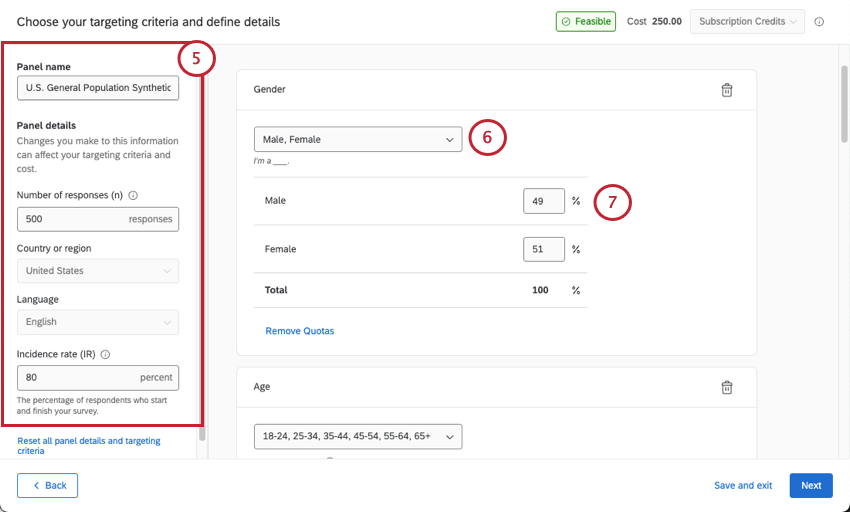
- Panel name: By default, this is the panel type, but you can change this as needed.
- Number of responses: The number of responses you’d like collected for your research. You can collect between 50 to 10,000 responses per panel. Qtip: When determining this number, you should consider the analyses you want to perform on your collected data. For a 95% confidence interval ±5, the general guidance is ~350 responses per cut of the dataset. For example, if you plan to review male versus female data separately, you would want 700 responses (350 per group). See the Sample Size Calculator for help determining your sample size.
- Country, region, and language: This information will be filled out based on the template selected and cannot be modified. Attention: If a demographic region and language template aren’t available, we cannot offer a matching synthetic panel at this time. Currently, the only synthetic panel available is based on the S. General Population in English.

- Incidence rate (IR): The target percentage of panelists who complete the survey after starting it. See Calculating Incidence Rate for help determining your incidence rate. Attention: Synthetic panels do not support an incidence rate below 80%.Attention: Changing any of these fields except for panel name may affect your panel’s cost and feasibility. See Panel Cost and Feasibility for more information.
Qtip: You must have at least one quota set in your panel.
Qtip: Items with quotas can only sum to 30 across all criteria (e.g., Male 49%, Female 51% would be 2 items with quotas). There is no limit to items without quotas.
Qtip: Click Remove Quotas if you want to ask the question of your panelists but not require certain quota targets to be met.
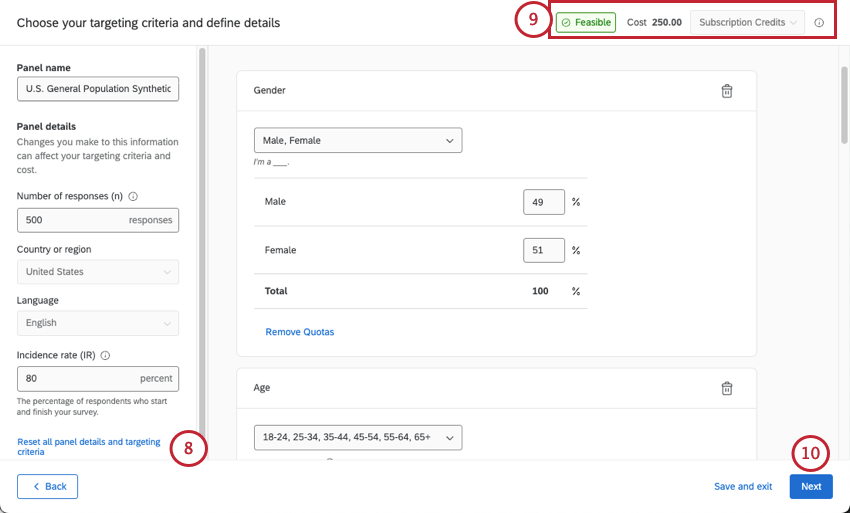
Qtip: If your panel is not feasible or the cost is too high to purchase in the platform, you can reach out to your Qualtrics Research Services representative. If you do not have a research rep or you’re unsure of their contact information, reach out to your Account Executive.
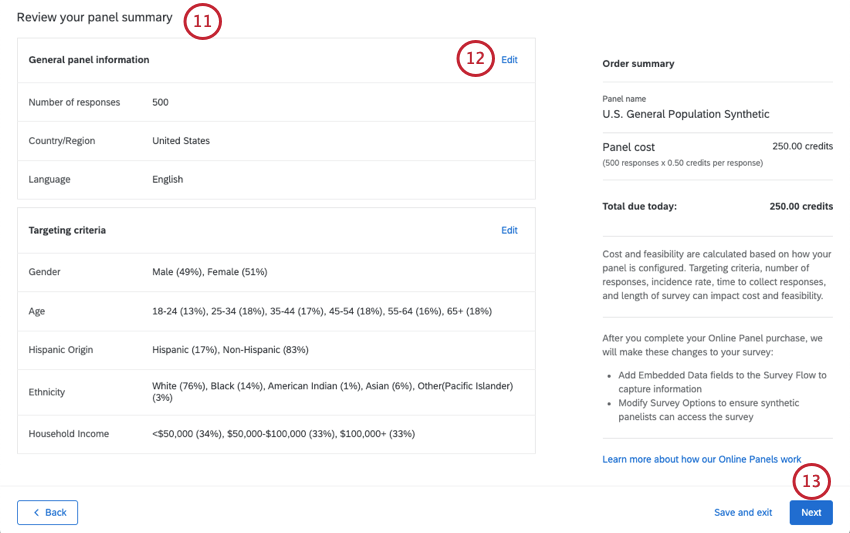
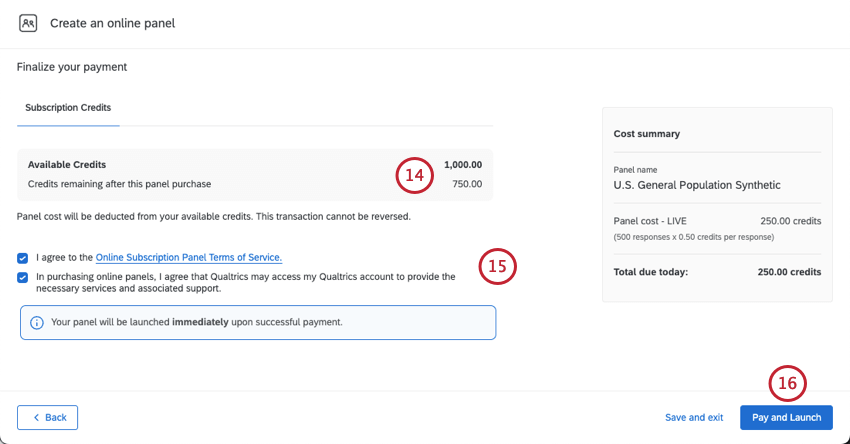
Qtip: You have a limit of 5 open online panels at a time. Synthetic panels count towards this limit.
Identifying a Synthetic Response
Qtip: While synthetic panels are much faster than human ones, they are not instantaneous. It may take some time for your responses to appear in your project.
Responses collected from a synthetic panel have a Response Type marked as Synthetic. Below is an example of the field being displayed as a column in Data & Analysis.
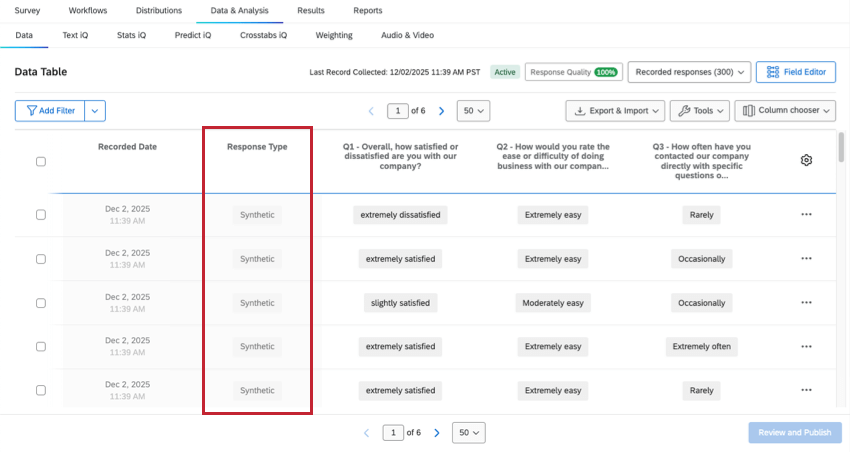
The response type can be used just like any other survey field. including:
- Filter responses in Data & Analysis
- Display in Results Dashboard, CX Dashboard, and BX Dashboard widgets
- Filter dashboards
In addition, panel data also contains a lot of helpful information about the demographics of each synthetic respondent. Learn more at Viewing Panel Data.
More About Online Panels
Below are some general resources on the online panel tool that also apply to synthetic panels. Keep in mind that these links will take you to the general Online Panels support page, so there may be other sections not linked here that are not applicable to synthetic panels, like different payment options and the ability to pause.
Attention: Data reconciliation is not available for synthetic panels.
FAQs
Can I use synthetic responses in dashboards and other reports?
Can I use synthetic responses in dashboards and other reports?
Do synthetic responses consume interactions?
Do synthetic responses consume interactions?
Should I keep to certain methodologies when using synthetic panels?
Should I keep to certain methodologies when using synthetic panels?
- Strategic Understanding (for example, Attitude and Usage, Market Landscape, Needs Assessment, etc.)
- Innovation Studies and Product Research (Idea Screening, Idea Generation, etc.)
- Shopper Research (Shelf Optimization, Trip Missions, Shopper Journey, etc.)
- Customer Experience Research / Voice of the Customer (for example, NPS.)
That's great! Thank you for your feedback!
Thank you for your feedback!