

Translation Memory
What's on this page
About the Translation Memory
The translation memory allows you to store translations that can be quickly downloaded into projects and dashboards across your brand. Once translations are uploaded to the translation memory, they can be accessed on demand by anyone in your brand.
The translation memory can be used in the following products:
Accessing the Translation Memory
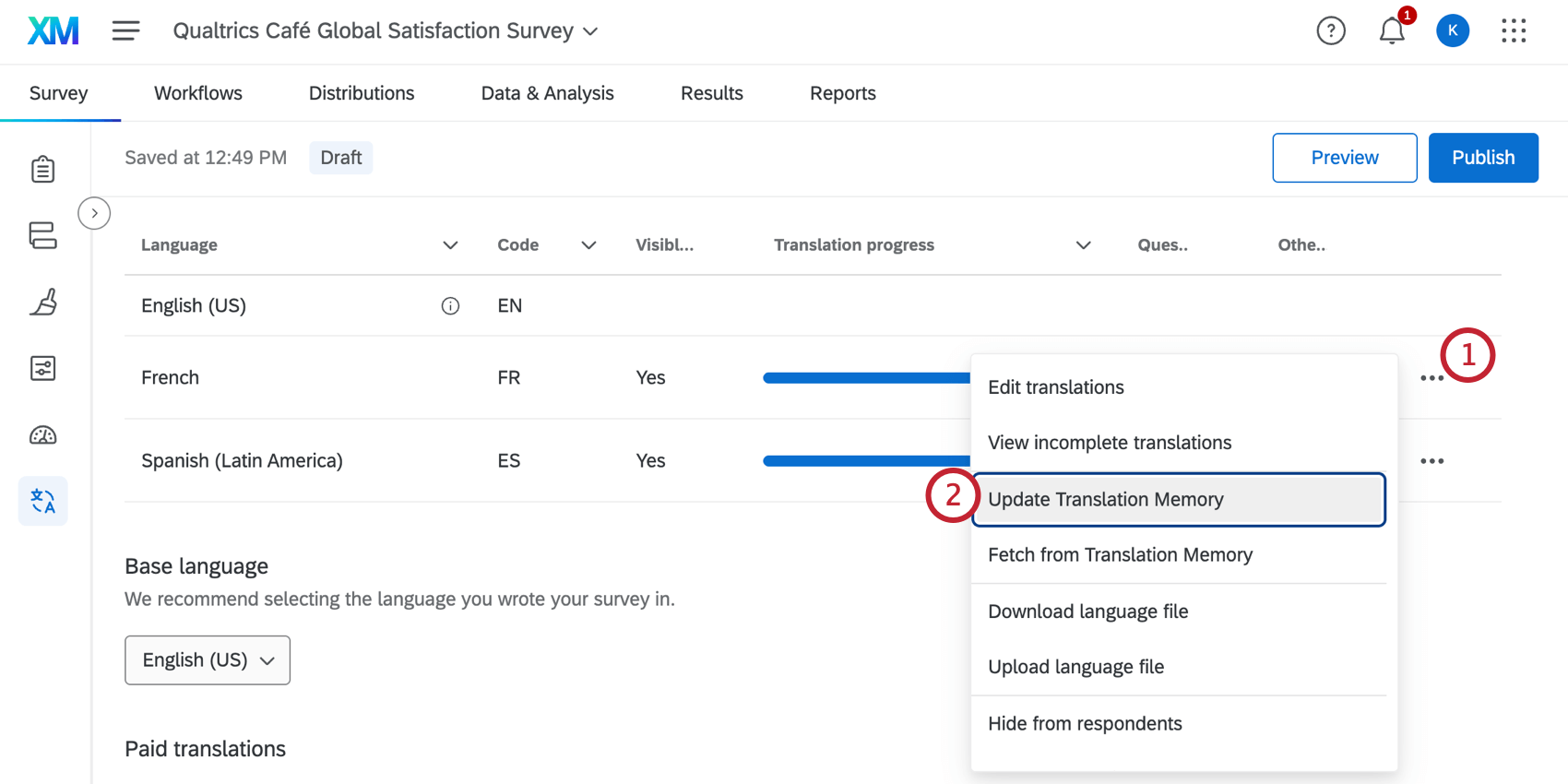
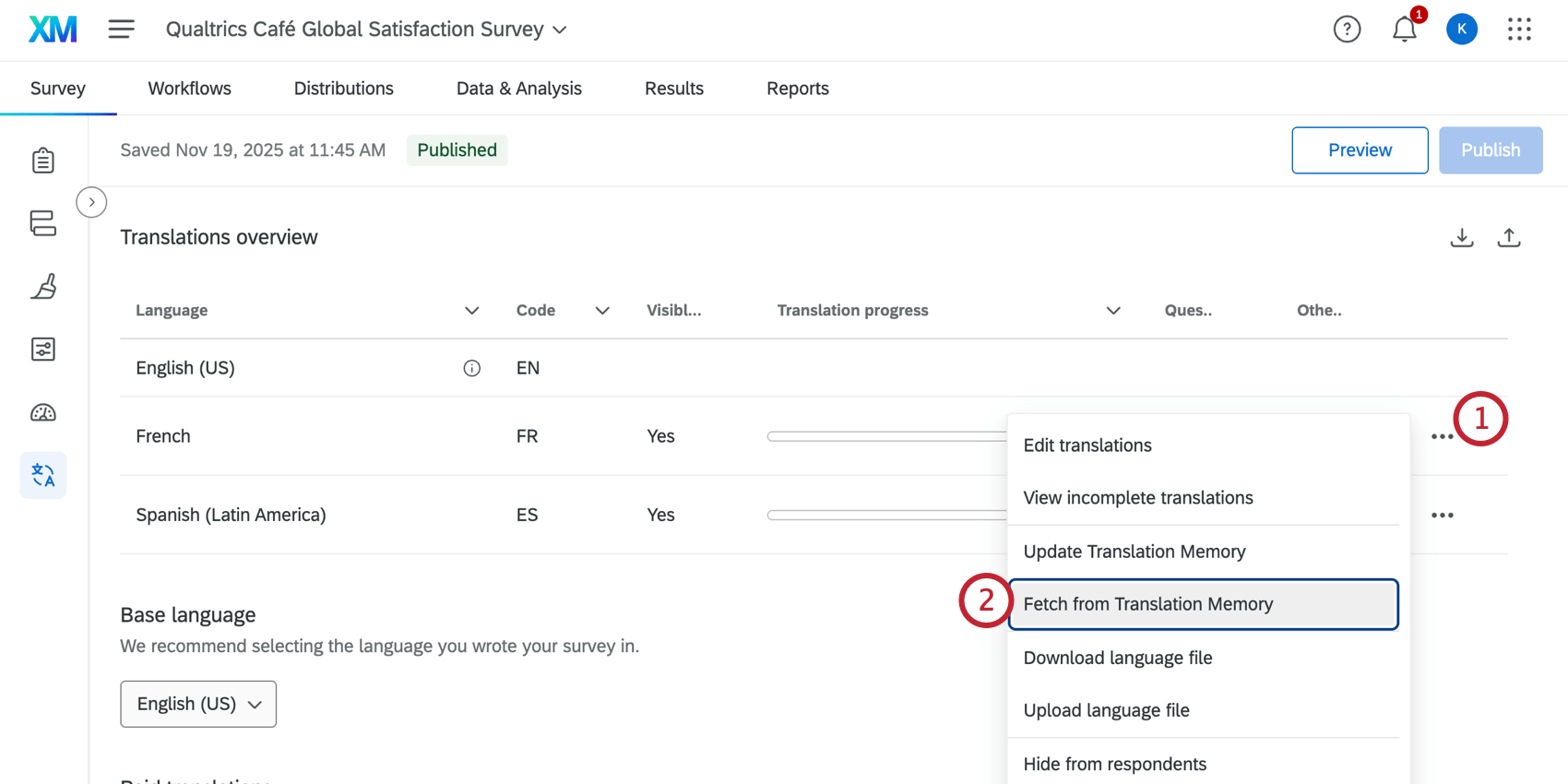
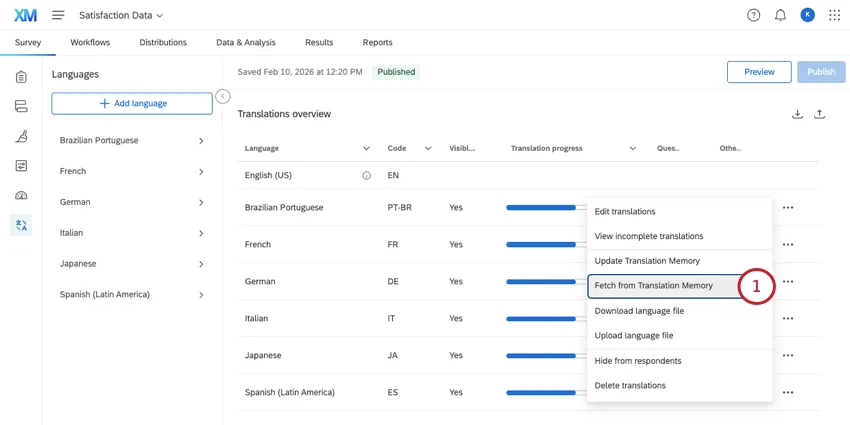
When translating a survey, you can access the translation memory in the translations tab of the survey builder. Click the 3 dots next to a language to access the translation memory options.
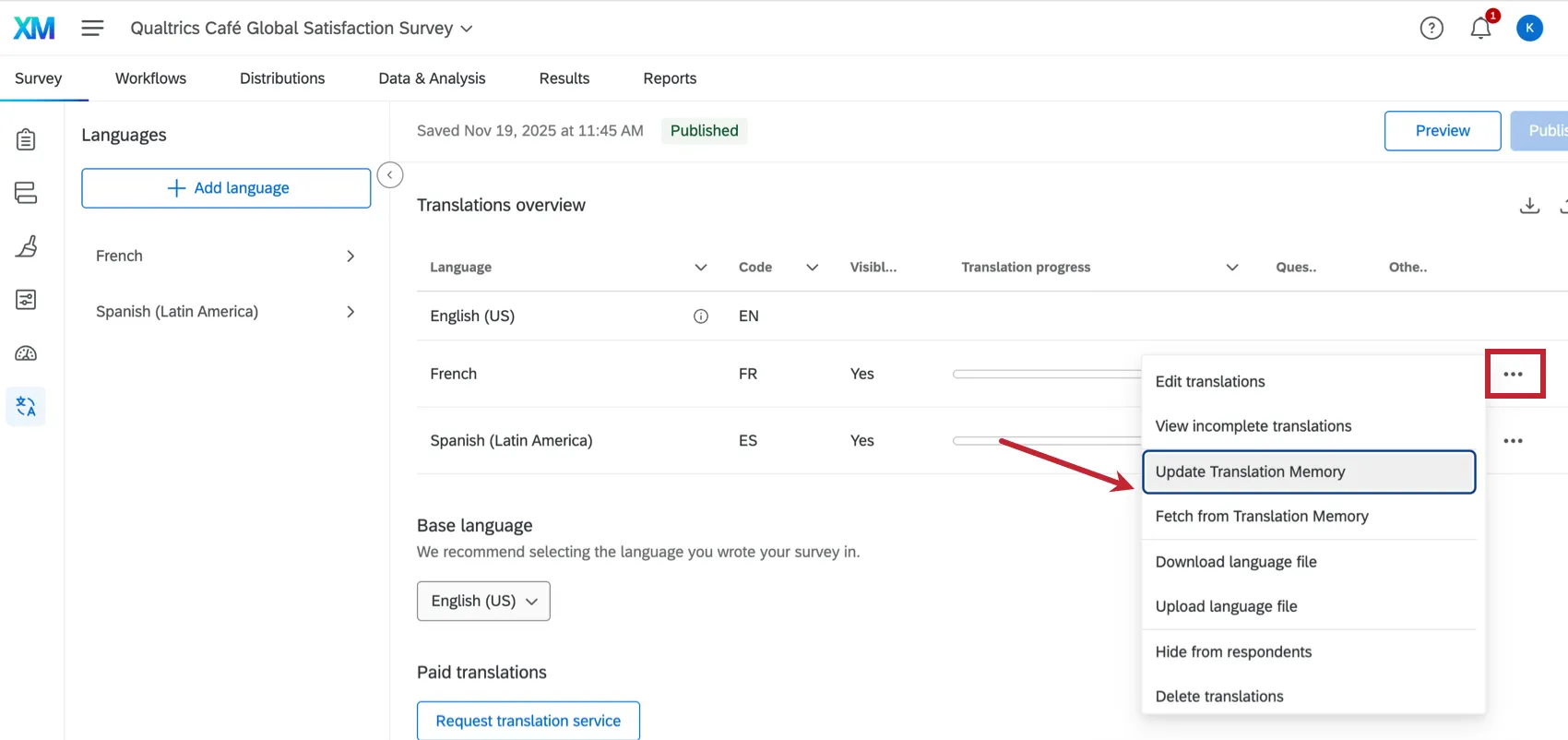
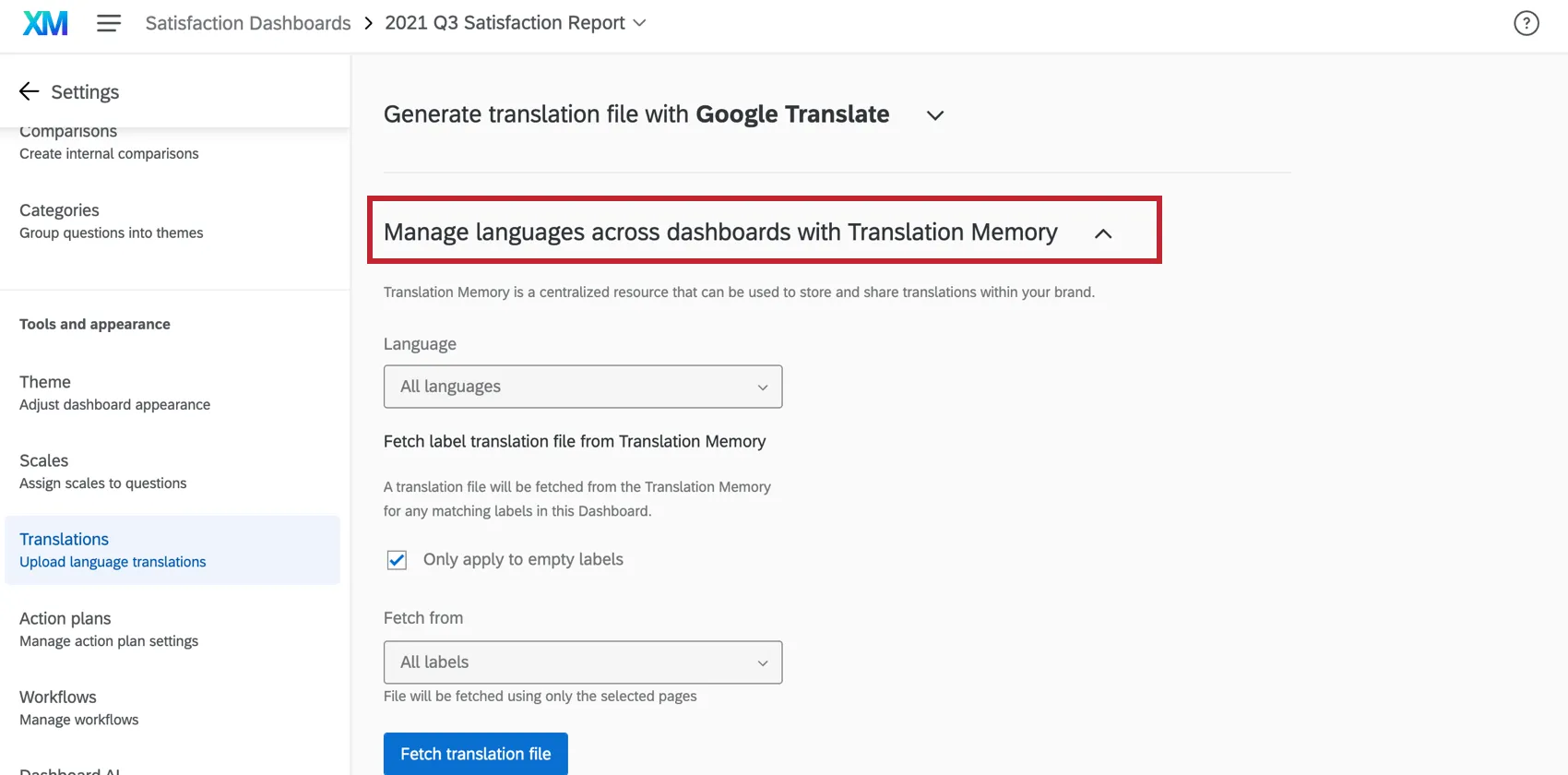
When translating dashboard labels, the translation memory can be accessed in the translations tab of the dashboard settings. For more information, see Managing Languages Using the Translation Memory.
Updating the Translation Memory
Qtip: You must have the Update Translation Memory user permission enabled in order to update the translation memory. For access to this feature, reach out to your Brand Administrator.

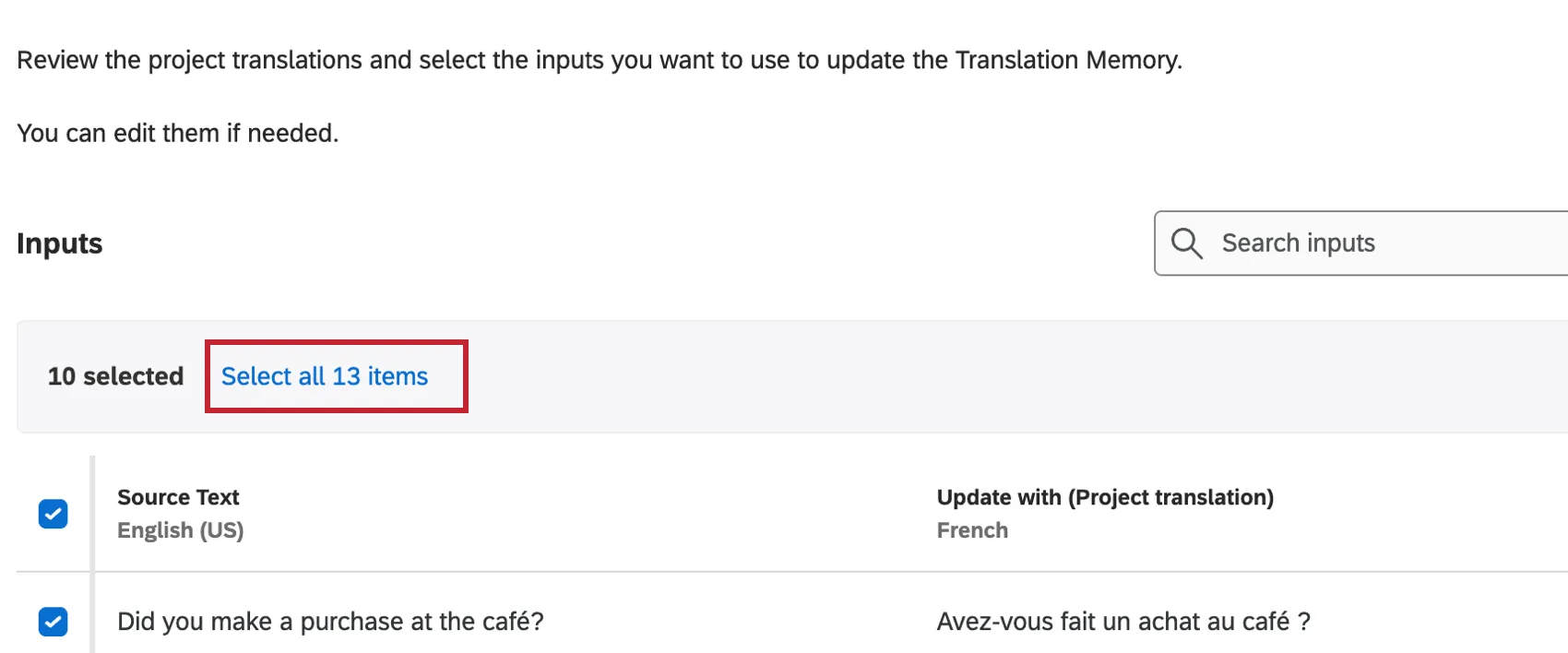
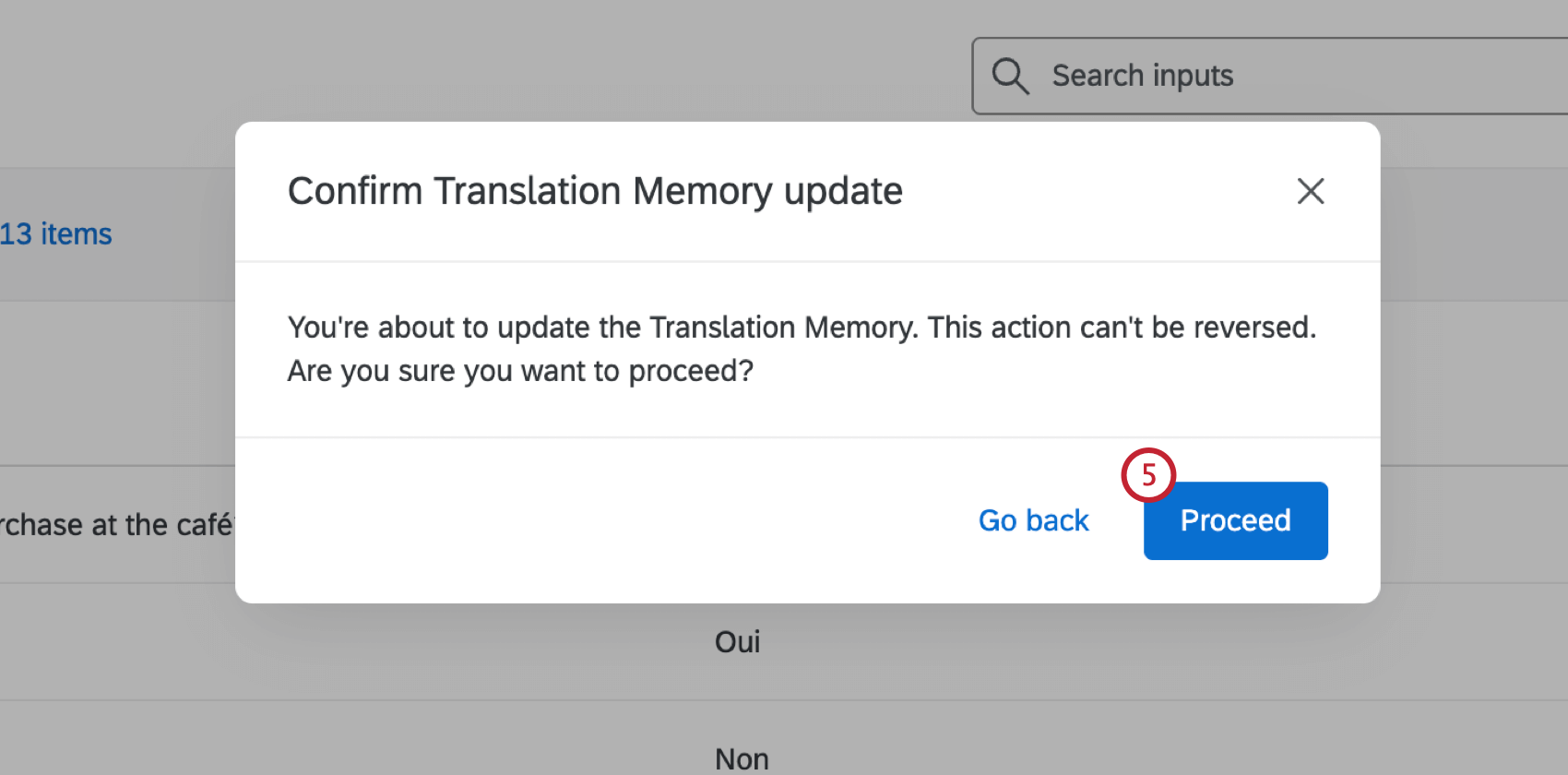
You must update the translation memory in order for translated strings to be accessible across your brand. Once you update the translation memory, you’ll be able to fetch translations by following the steps in the section below.
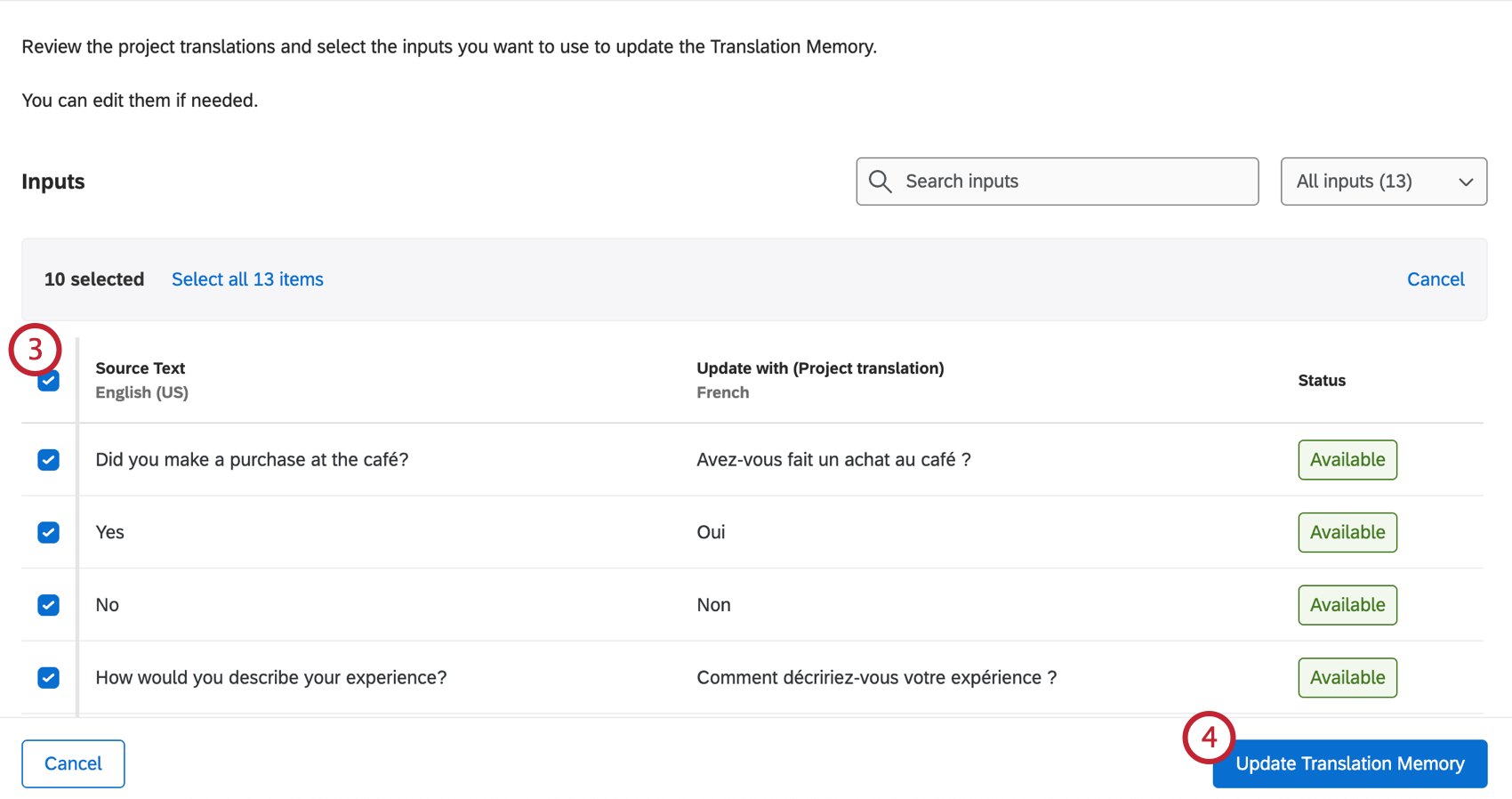
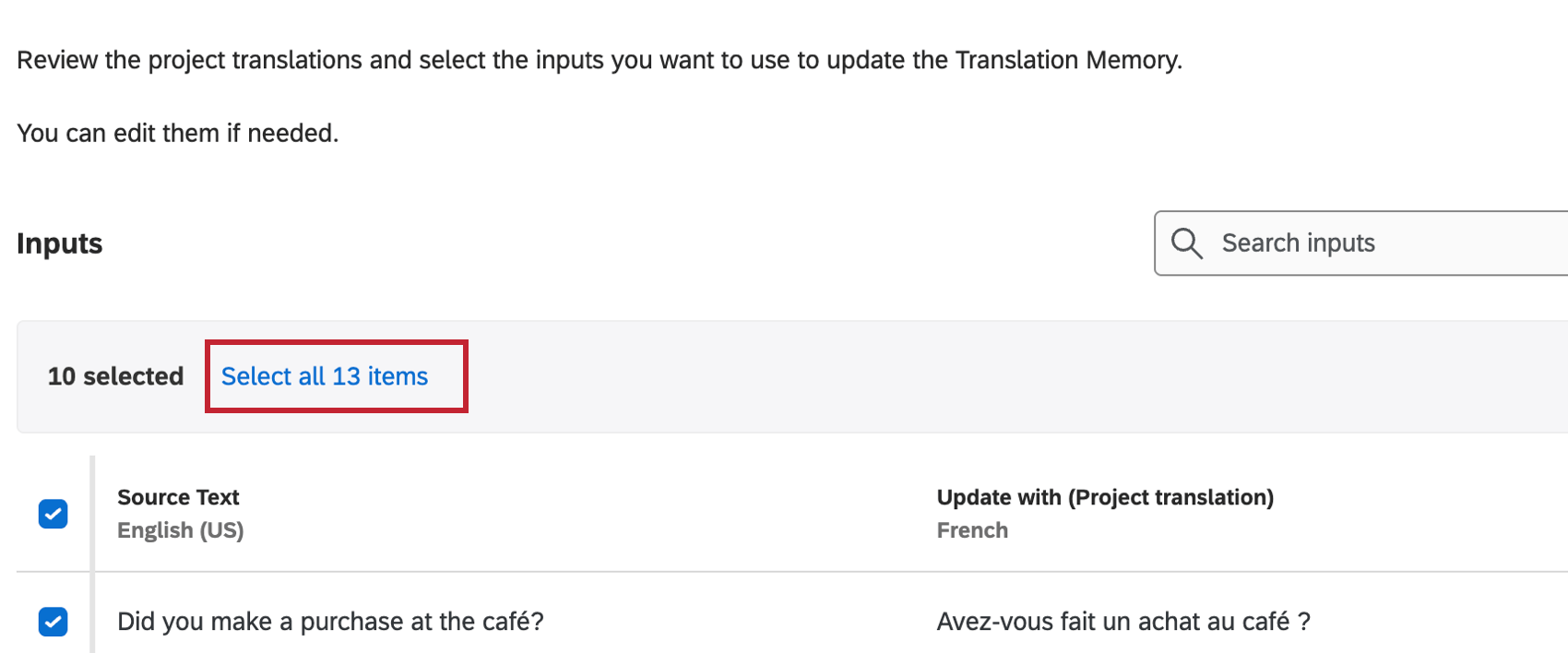
Qtip: If you have multiple pages of translations, you can click Select all translations to quickly select all of them.
Fetching Translations from the Translation Memory
Fetch translations from the translation memory to pull them directly into your project.
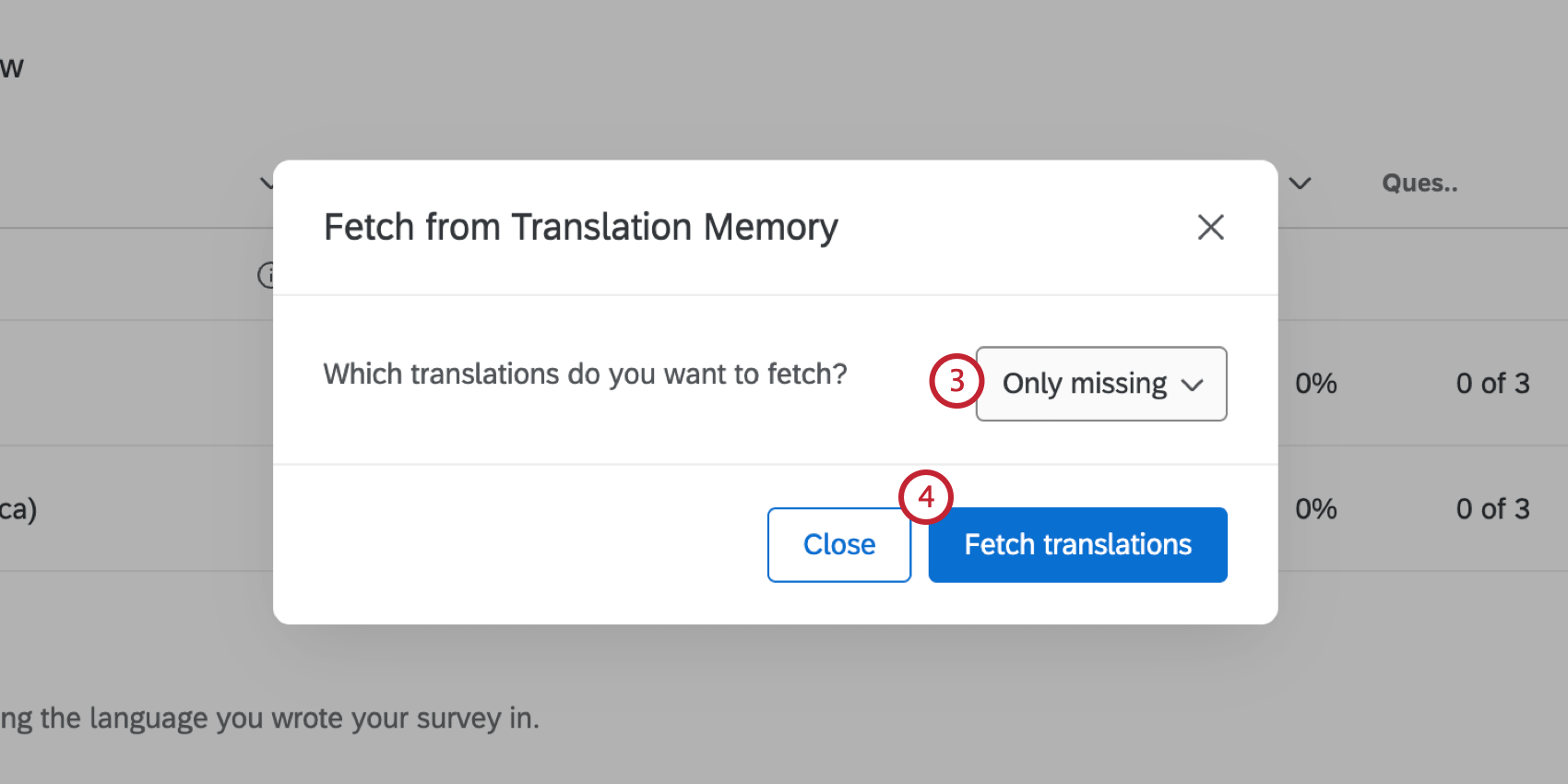
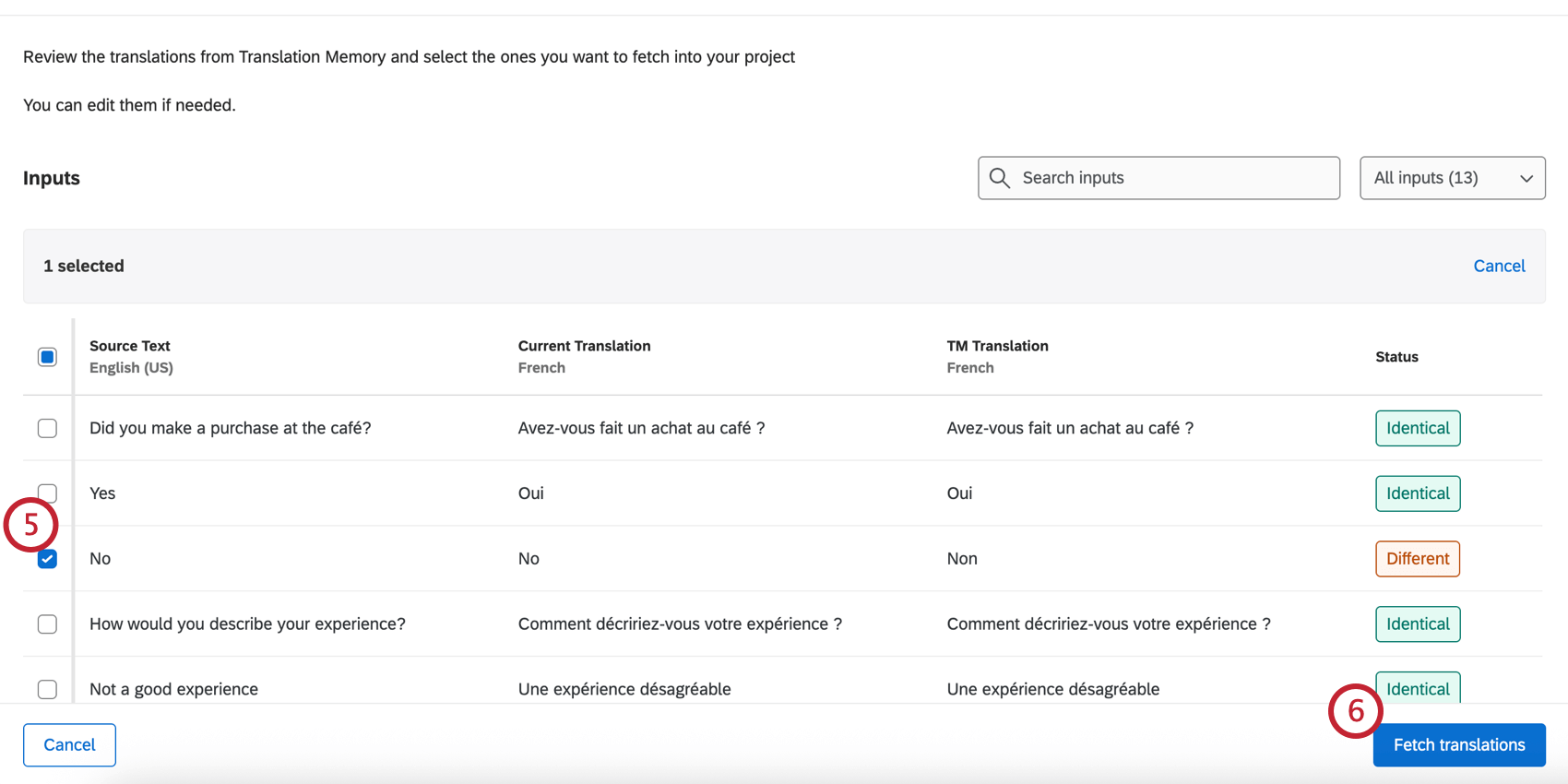
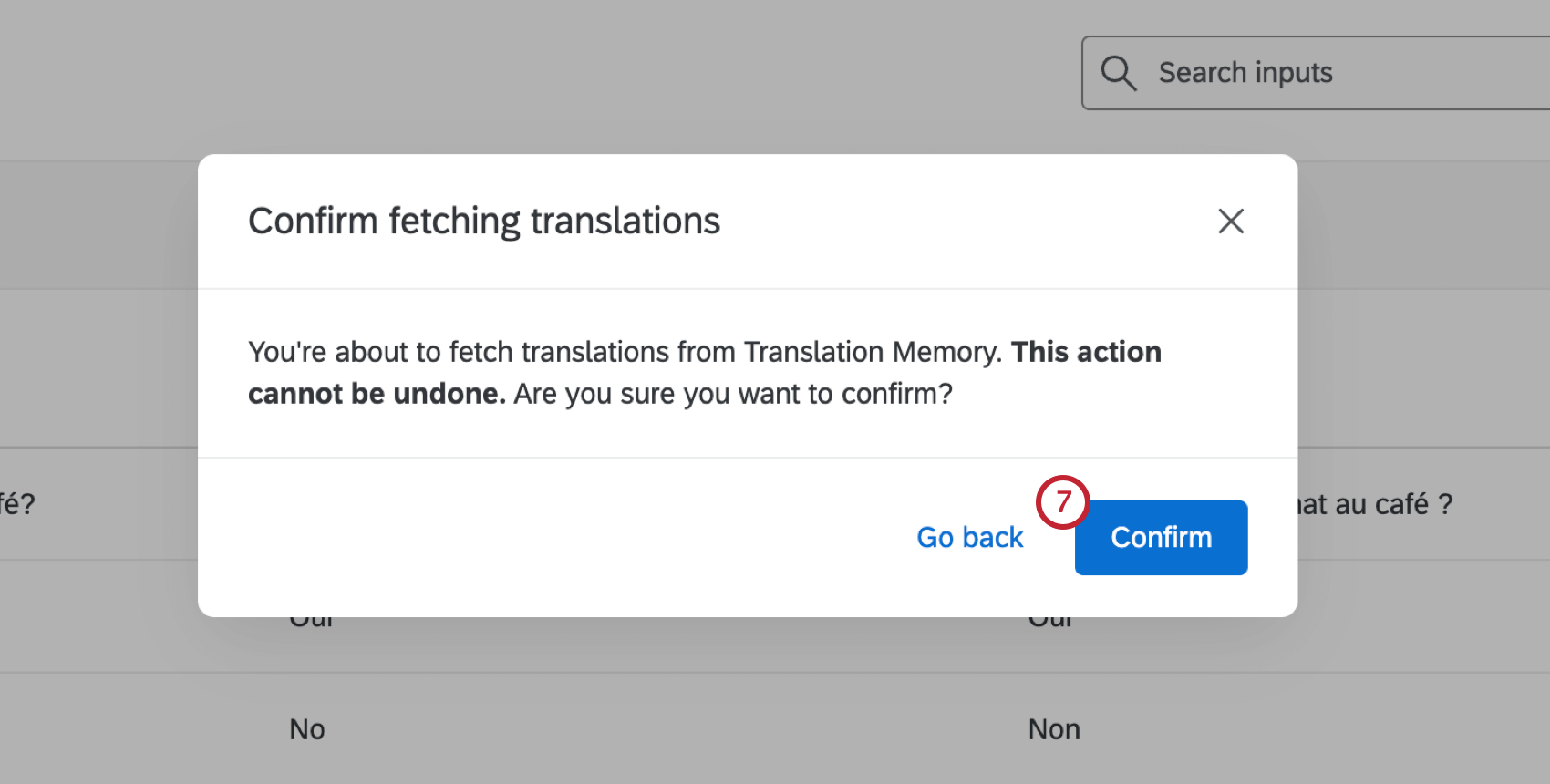
Editing Translation Memory
Once you’ve fetched the translation memory for a language in your survey, you can edit your project’s translation and the translation memory itself at the same time. You can also just edit the project translation.
Making direct edits to the translation memory ensures that the next time a project in your brand fetches the translation memory, it’ll match the most up-to-date translations.
Example: You fetch the translation memory for your survey. You realize there’s a better way to ask a question in Spanish than either the memory or the survey says. You can fix the question’s Spanish translation in both the memory and the survey simultaneously.

Qtip: You must have an existing translation memory before you can follow the steps below. See Updating the Translation Memory.
If you need to add lots of content from your project to the translation memory, you should update the translation memory. However, for smaller, individual edits, see the steps below:
Review the translations retrieved for this language. Each row represents a different line of translatable text. You’ll see a column for:
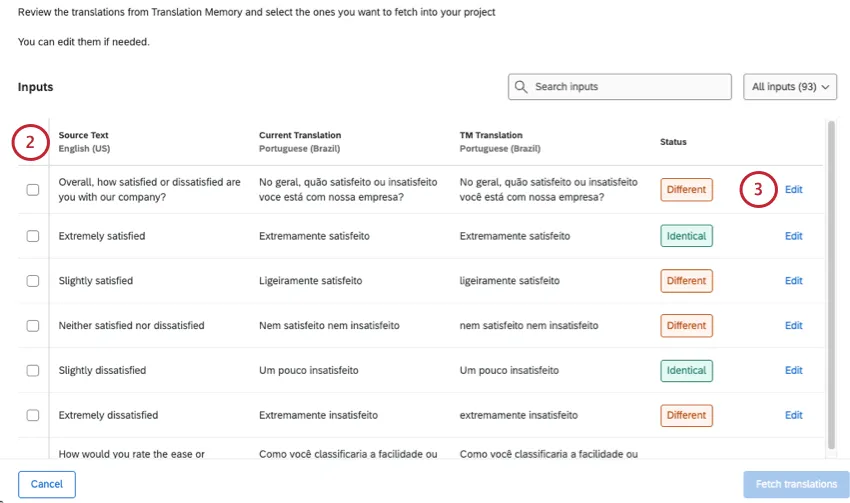
- Source text: The text in its original, untranslated form.
- Current translation: The translation in the survey project right now.
- TM translation: What’s in the translation memory right now.
Click Edit next to a translation you want to change.
The editor contains the translation memory (TM translation). Edit the text to match what you want to appear in your project’s translation.
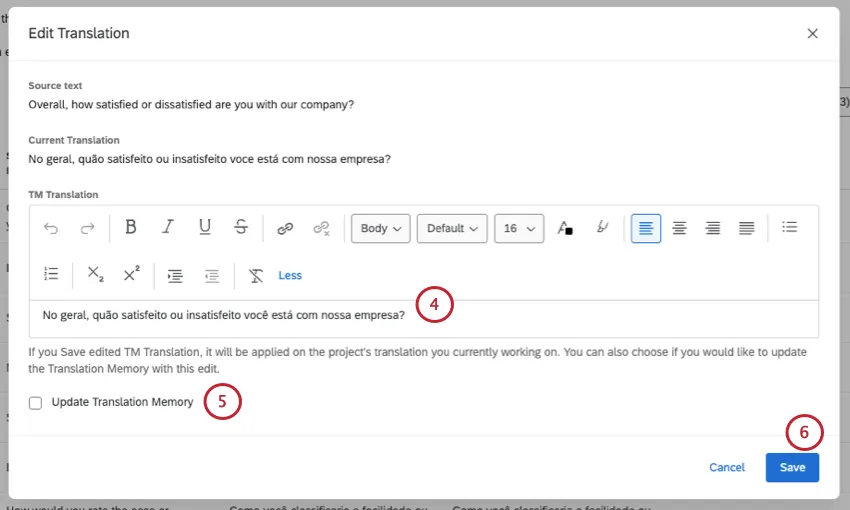
To update the translation memory with your edits, click Update Translation Memory.
Attention: If you don’t select this setting, only the project translation will be edited, not the translation in the memory.

Click Save.
Qtip: The steps covered above can only be performed in a survey. For dashboards, see steps on fetching and updating the translation memory.
That's great! Thank you for your feedback!
Thank you for your feedback!