-

Qualtrics Platform -

Customer Journey Optimizer -

XM Discover -

Qualtrics Social Connect
Math Operations
About Math Operations
Math operations allow you to create custom values with each response. For example, you can create a function that calculates a formula using scoring for individual participants. Math operations can be performed in the survey flow, within a question, or choice text.
Survey Flow
Math operations performed in the survey flow should be saved as embedded data. The results of the equation are not displayed to the respondent by default. If you would like to display the results of the equation to respondents, you can do so through the use of piped text.

Question or Choice Text
Math operations performed in question or choice text are displayed to the respondent, but are not reported in the survey results.
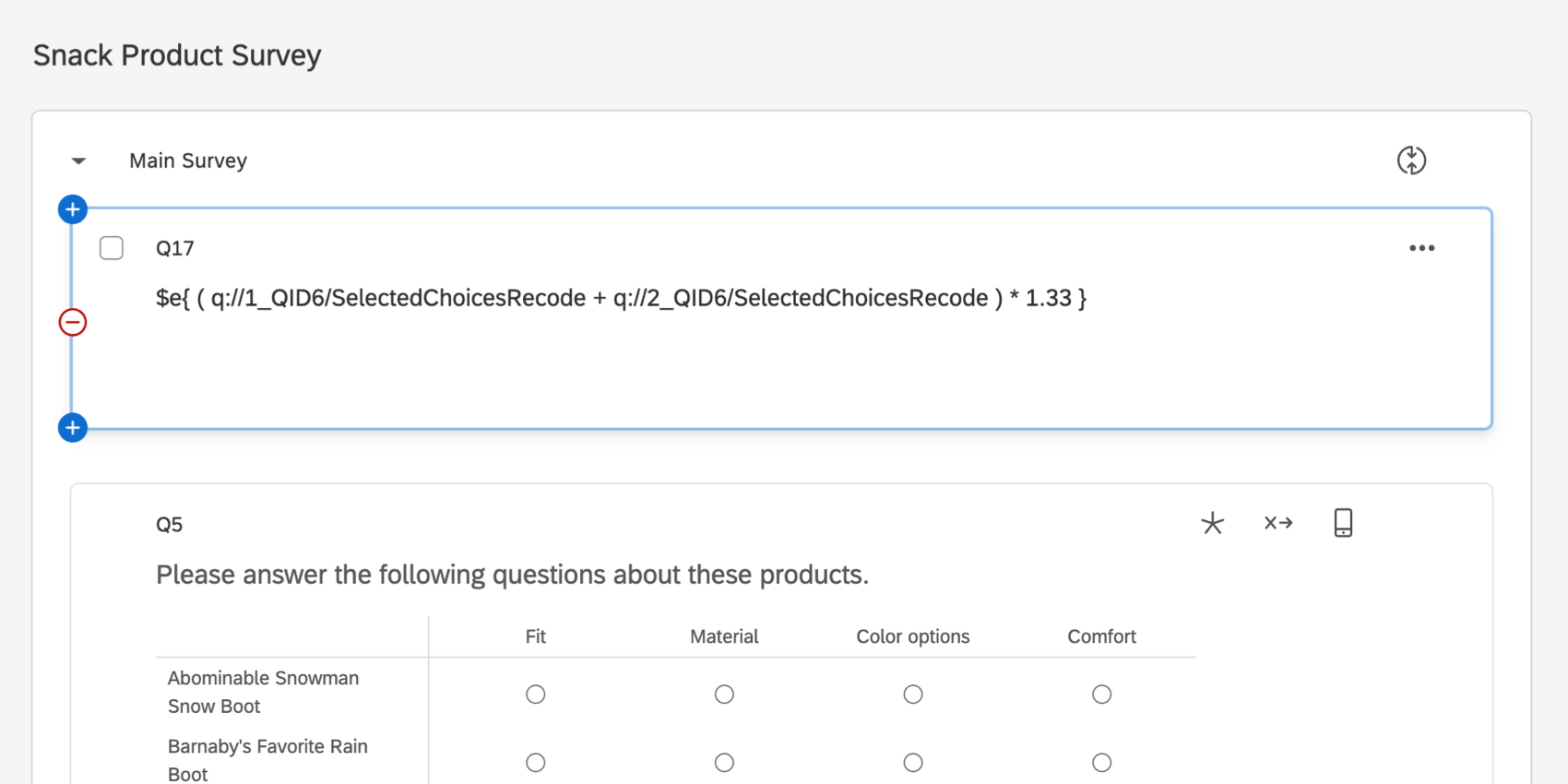
Math Operations Syntax
All math operations are contained within the following syntax:
$e{ }
The math equation will be inserted between { and }. All items in the equation should be separated by a space.
$e{ 4 + 4 }
Syntax in Right-to-Left Languages
If your survey is written in a right-to-left language such as Hebrew or Arabic, the syntax you use for math operations is a little different:
{ }#$
Example: To add 4 + 4:
{ 4 + 4 }#$
The math equation will be inserted between { and }. All items in the equation should be separated by a space.
Using Piped Text
Adding 4 + 4 is great, but more useful is the ability to perform math operations on answers provided in the survey. For example, one study may call for multiplying the answer to a satisfaction question by a fixed number. This is where piped text comes in.
Piped text is used to pull in a dynamic number for each respondent. For a review on how to generate the piped text code representing the number needed in your equation, refer to our piped text support page.
Piped text follows a specific format:
${q://QID1/SelectedChoicesRecode}
To use piped text in a math operation, remove the ${ and }. The resulting code would look like this:
q://QID1/SelectedChoicesRecode
Once placed in a math operation, the operation would look like this:
$e{ q://QID1/SelectedChoicesRecode * 4 }
Decimals & Thousands Separators
- Math operations support numeric values only.
- In computer science the decimal is defined as a period (.) separator. You will not be able to use a comma (,) as a decimal.
Example: $e{ 1.5 + 1 } will equal 2.5, which is correct. $e{ 1,5 + 1 } will equal 1, which is incorrect.
- Thousands separators or decimal commas (,) can break the math operation. Instead, omit the thousand separator or decimal commas.
Example: When trying to work with a number in the thousands, $e{ 1000 + 1 } will equal 1001, which is correct. $e{ 1,000 + 1 } will equal 1, which is incorrect in this example. $e{ 1.000 + 1 } will equal 2, which is also incorrect in this example.
Available Operations
Addition, Subtraction, Multiplication, and Division
$e{ 1 + 2 - 3 / 4 * 8 } resolves to -3.Parentheses
Parentheses may be added to specify order of operations.
$e{ ( 1 + 2 - 3 ) / 4 * 8 } resolves to 0.Exponents
$e{ 6 ^ 2 } resolves to 36.Square Roots
$e{ sqrt( 9 ) } resolves to 3.Using an exponent instead would also be appropriate. For example, $e{ 9 ^ ( 1 / 2 ) }.
Absolute Value
$e{ abs( -23 ) } resolves to 23.Rounding
$e{ round( 10 / 3 , 2 ) } rounds 10/3 with 2 decimal places and resolves to 3.33.Remainder
$e{ 16 % 9 } divides 16 by 9 and returns the remainder, which is 7.
Troubleshooting Math Operations
Math operations may not evaluate if they are formatted incorrectly. If your math operation is not evaluating, check for 2 common errors: HTML spaces in the equation and incorrectly formatted piped text.
HTML Spaces
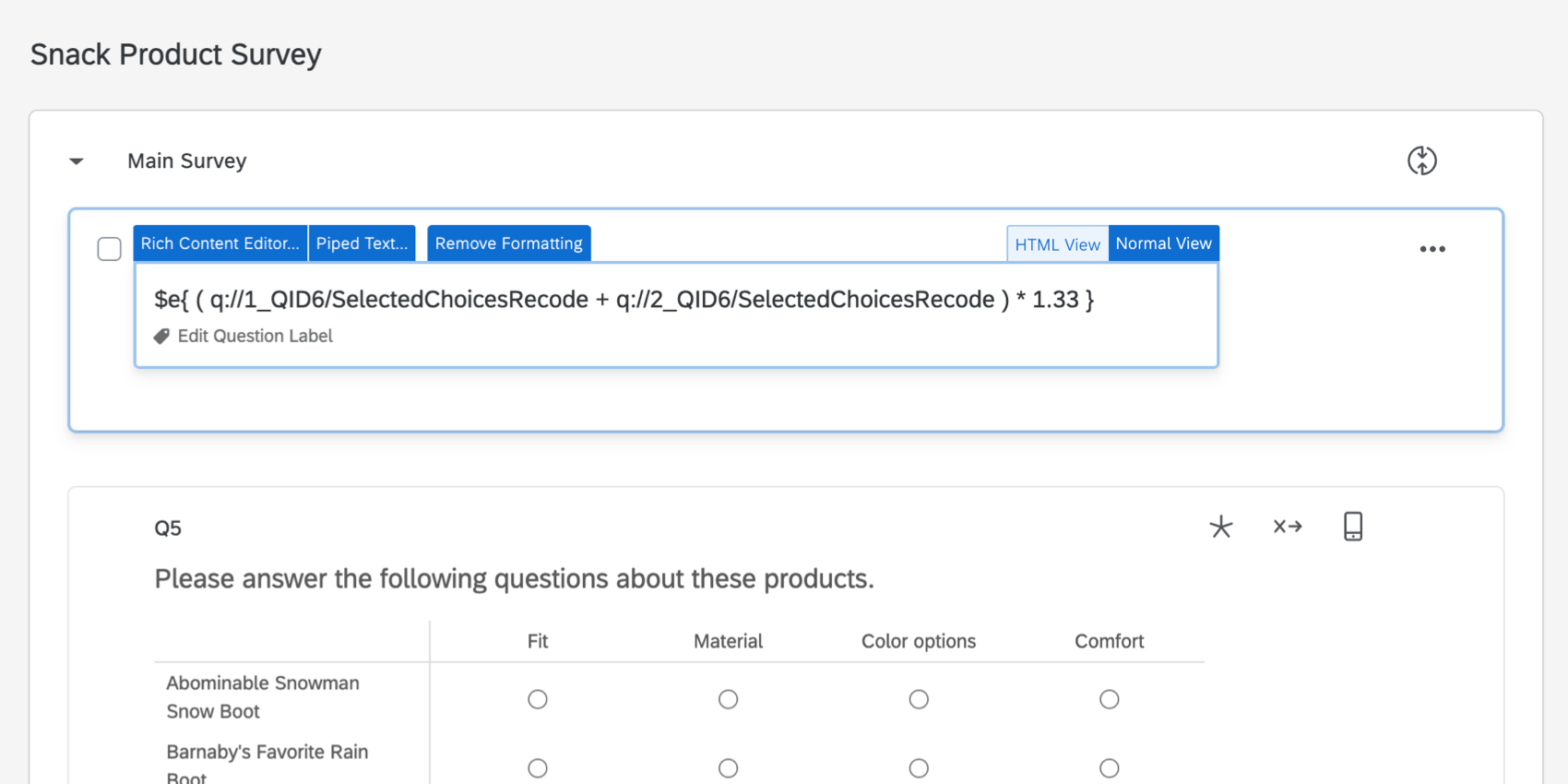
When writing a math equation in the rich content editor, spaces may be converted into HTML, invalidating the equation. The following equation looks fine in the standard view of the rich content editor:
However, switching to the source view of the text editor, you will notice 1 of the spaces has been converted to HTML, displayed as “ ”.
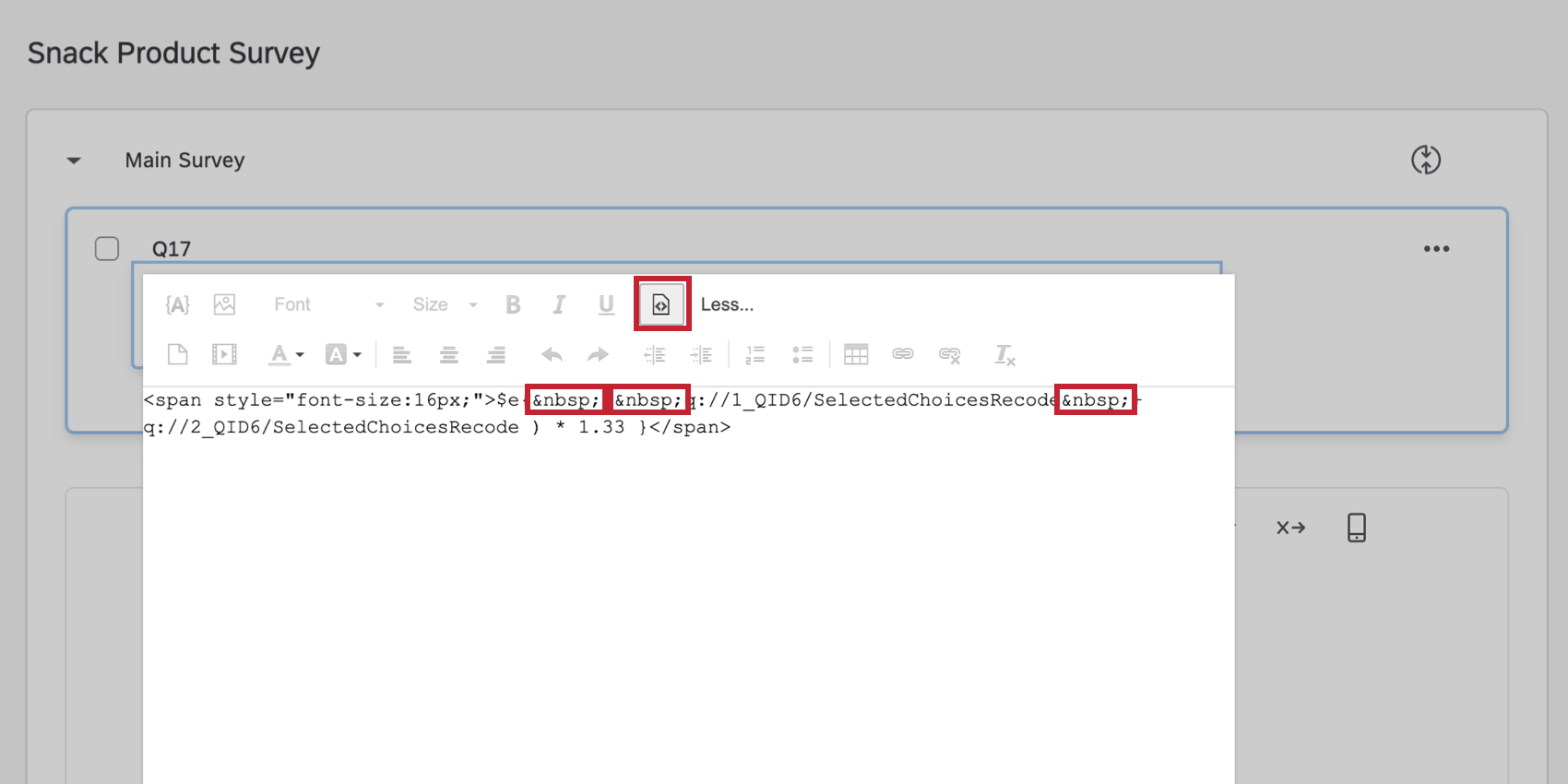
and other HTML tags invalidate a math equation. Remove these from the source view to fix the equation.
Incorrectly Formatted Piped Text
As discussed above, when using piped text in a math operation, $ and { } should be removed from the piped text code. For instance, the piped text code ${q://QID1/SelectedChoicesRecode} should be used in a math equation as q://QID1/SelectedChoicesRecode.
Many math operations will work fine if $ and { } are not removed from the piped text. However, if the piped text does not have a value (for example, if the respondent skipped the question the piped text is referencing) and if $ and { } have not been removed, the equation will fail.
Remove $ and { } from all equations to prevent failures when the piped text is empty.
See the Math Operations Syntax section above to ensure you are following all syntax rules in your math operations.
Incorrect Spacing in the Equation
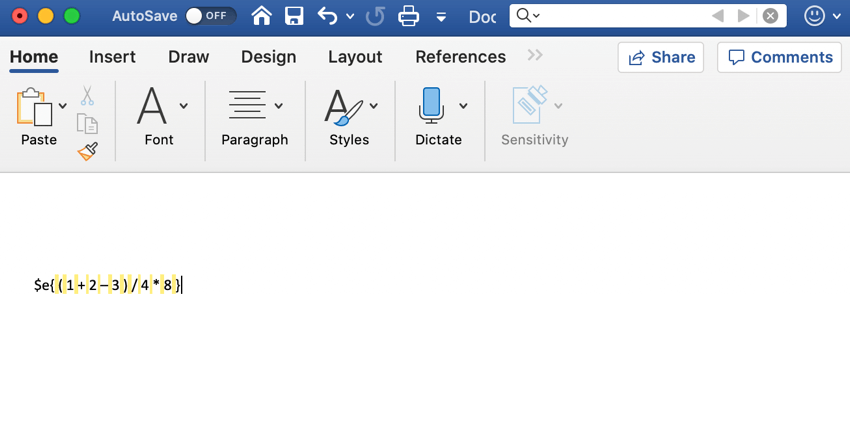
Remember, every item in your math equation needs to be separated by a space. If you’re having trouble finding the spaces in your equation, follow the below steps:
- Copy your equation.
- Open a text editor, such as Microsoft Word.
- Perform a search. On Mac, this is CMD + F and on PC, this is CTRL + F.
- Search for a space by pressing the space bar on your keyboard.
- All of the spaces in your formula should be highlighted. You can then identify where you are missing spaces.
Math Operations in Different Project Types
Math operations can be used in just about every type of project. The options described on this page are available in:
- Survey projects
- XM Solutions
- Engagement
- Lifecycle
- Ad Hoc Employee Research
- Pulse
- 360
- Conjoint
- MaxDiff
Keep in mind that related features, like scoring, and the places where you can display math operations, such as reports, can vary by project. It’s also important to keep in mind that different projects may have unique piped text available.