

Text iQ-Powered Survey Flows
What's on this page
About Text iQ-Powered Survey Flows
Attention: Text iQ-powered survey flows are available only to Advanced Text iQ clients. If you have questions about what’s included in your license or would like to upgrade your license, contact your Qualtrics Account Executive.

As respondents provide open feedback on your survey, Qualtrics can assess the sentiment of the response, topics used in the response, and the sentiment of those particular topics. Once these calculations are made, you can use branch logic to send respondents to different paths in the survey depending on the sentiment or topics present in their response.
This page will cover the basics of setting up a Text iQ-powered survey flow, will provide an example of a survey that uses this flow effectively. In the example we use throughout the page, we are owners of an online store called Tread. The purpose of our survey is to ask people for open-ended feedback on our store’s products. In 1 example, we give the respondents the option to return a product if we detect they’ve used words related to damage in the response. In the other example, we send an email to respondents who seem to describe our products as low-quality, allowing us to send them follow-up surveys or rewards as-needed.
Qtip: In order to use Text iQ-powered survey flows, your survey must have a text entry question, another question with a text entry field in it, a form field question, or an embedded data field formatted as open text.

Adding Text Sentiment – Topic Elements to the Survey Flow
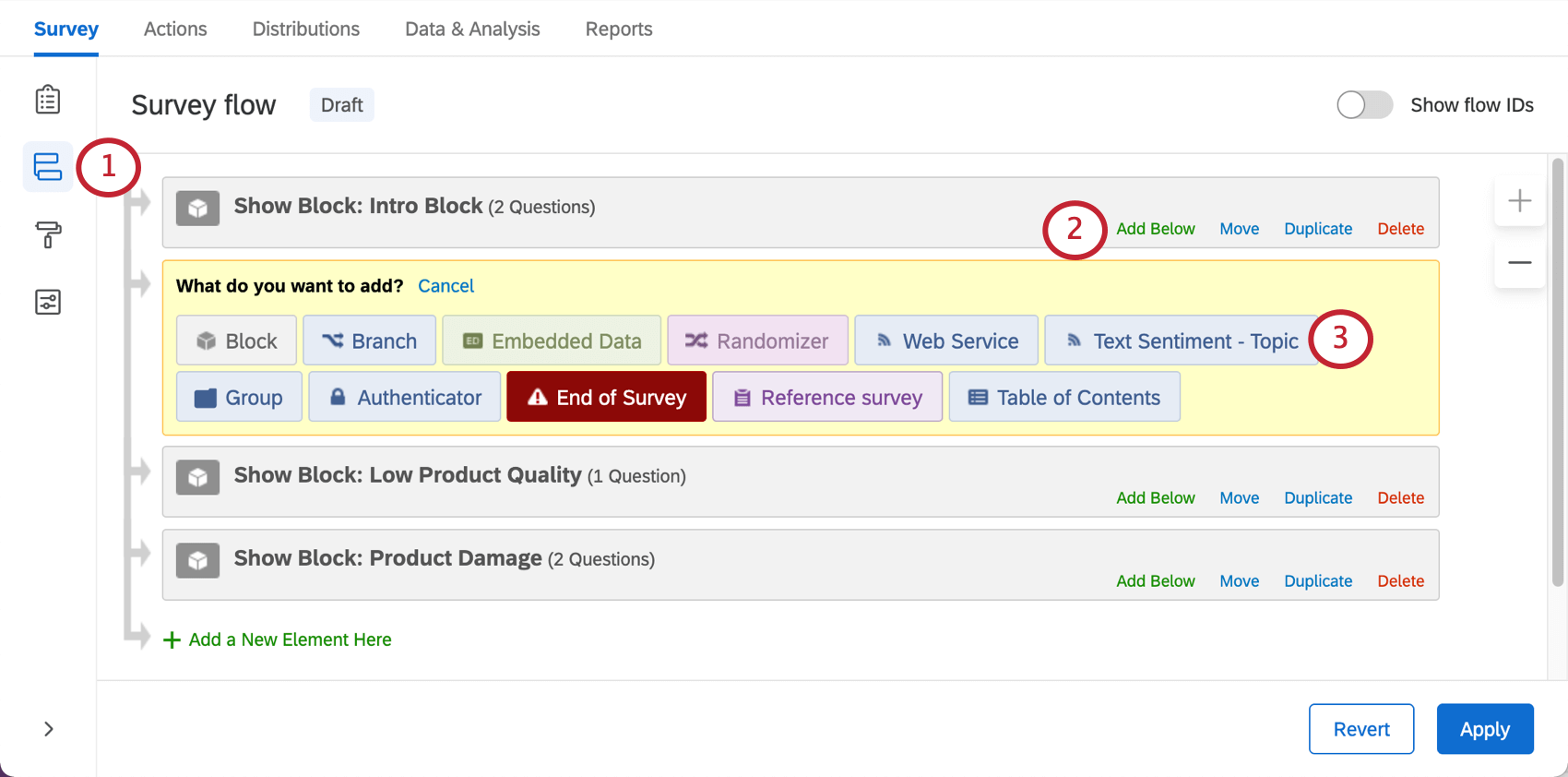
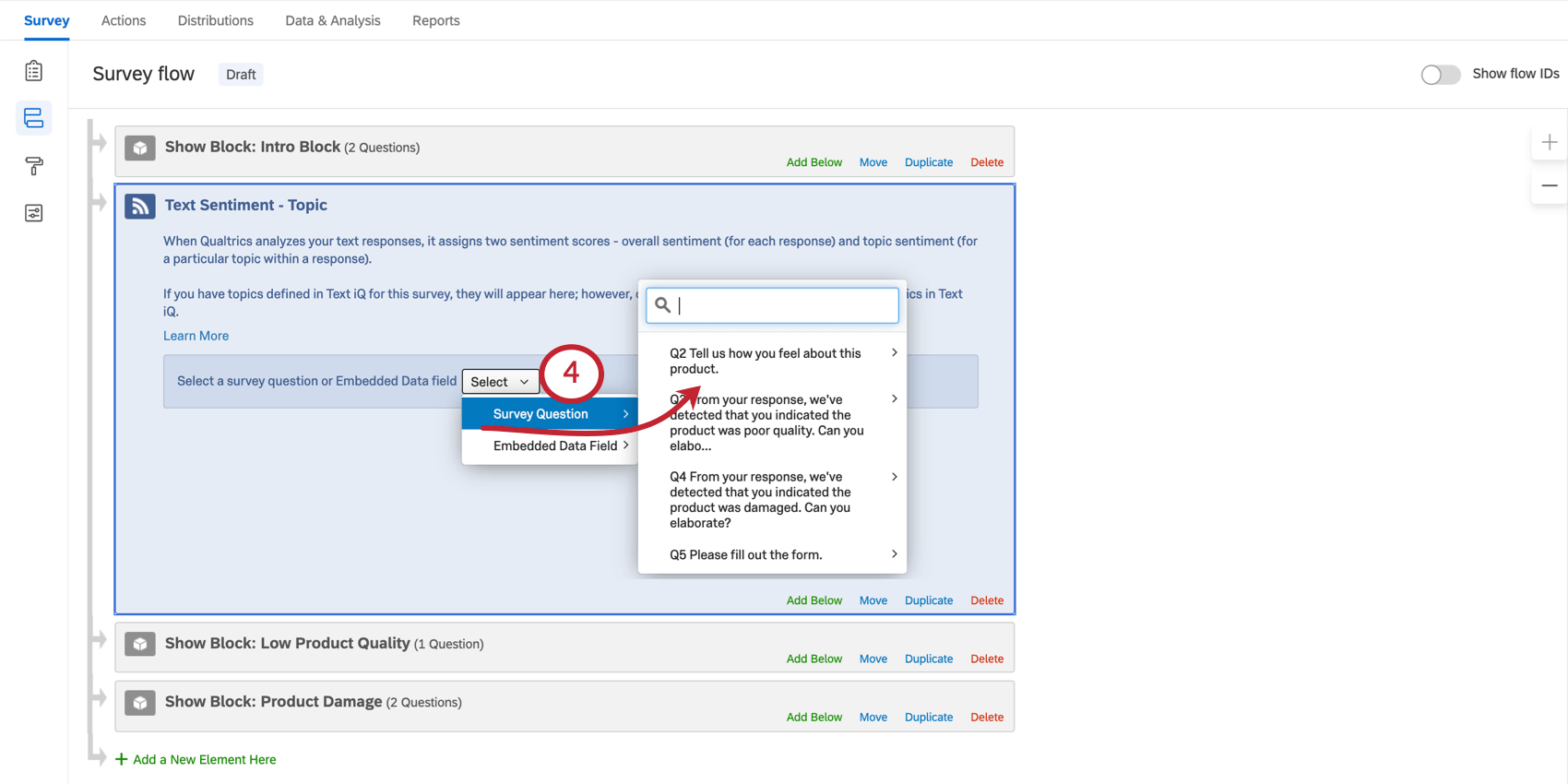
Qtip: Remember you can click Move to drag an element to another part of the Survey Flow. The Text iQ element needs to appear after the block where the feedback question (Step 4) is located, but before any blocks where you will display or use logic based on the topics and sentiments in the element.
Set Embedded Data for Sentiment of Response
In this section of the Text iQ element, you can save the sentiment of the whole response as an Embedded Data field. This is useful if you want to base branch logic or other conditions on the response’s sentiment.
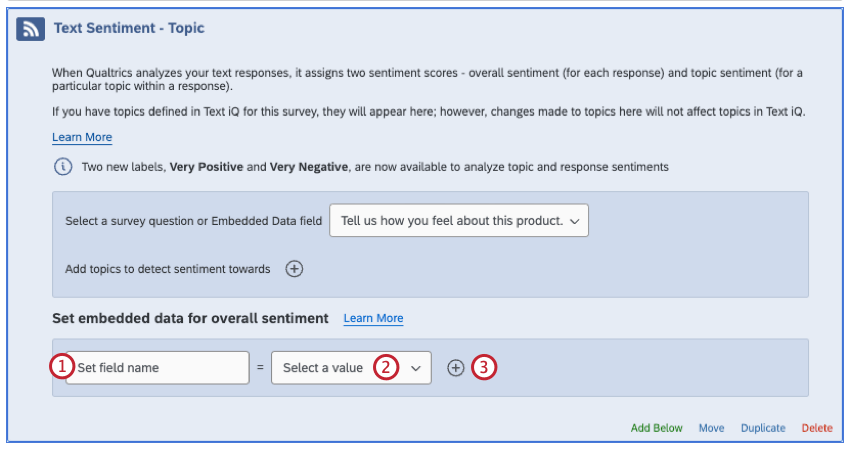
Qtip: For ease of use, you can name this field after the question or embedded data it’s based on, such as ProductFeedbackSentiment or ProductFeedbackScore. In this example, we’re calling it the OverallSentimentScore because we’re analyzing the sentiment score of the whole question, not just the topics within that response.
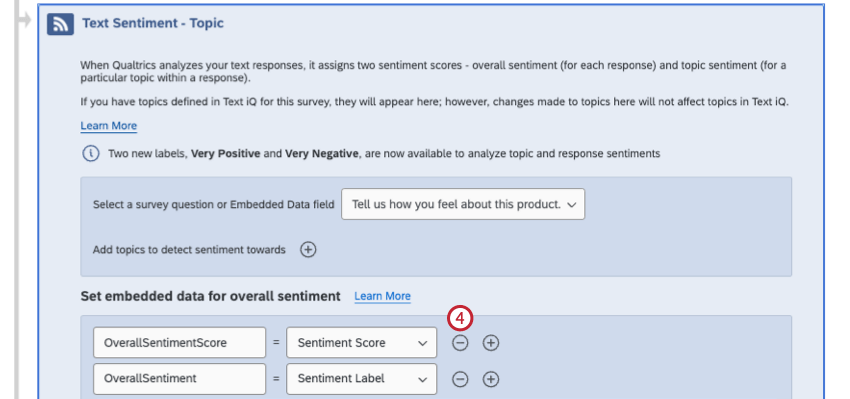
- Sentiment Label: Whether a comment is Positive, Negative, Neutral, or Mixed in tone. When using this field to create branch logic, make sure the labels are capitalized and spelled correctly (e.g., “Positive,” not “positive”).
- Sentiment Score: A -2 to +2 score for the sentiment of a comment. For example, a very intense, positive response such as “I love Love LOVE YOUR COMPANY!” would score a +2. An intensely negative response, such as, “I UTTERLY DESPISE your company!” would get a -2. A 0 is a neutral score.
Adding Topics and Topic Sentiments
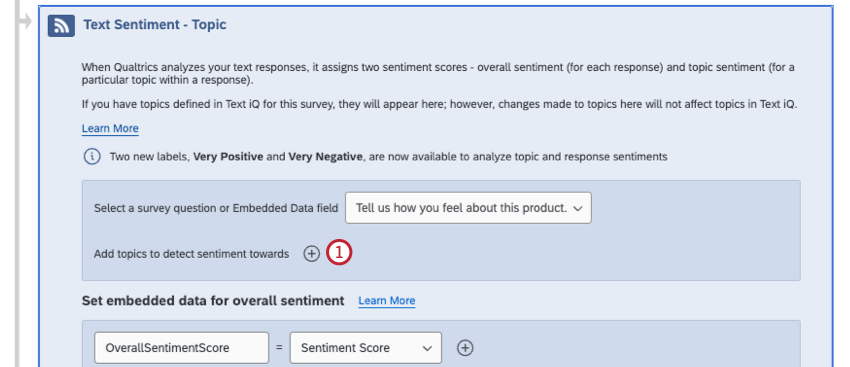
As you add topics, you can also evaluate the sentiment of those topics. For example, a respondent may give a mixed comment where they compliment your restaurant’s ice cream while harshly critiquing your burgers. You may want to branch them off to different parts of the survey based on their sentiment towards the burgers, but not necessarily the ice cream.
When writing queries, be careful to make sure your statements make sense. Don’t leave conjunctions hanging (e.g., make sure “and,” “or,” etc. aren’t the last word in the query), double-check your spelling, and make sure to close parentheses.
Qtip: You can only add 5 topics to this Survey Flow element. Queries cannot exceed 1000 characters.
Qtip: If a survey taker responds with more than 1000 characters, then only the first 1000 characters will be analyzed.
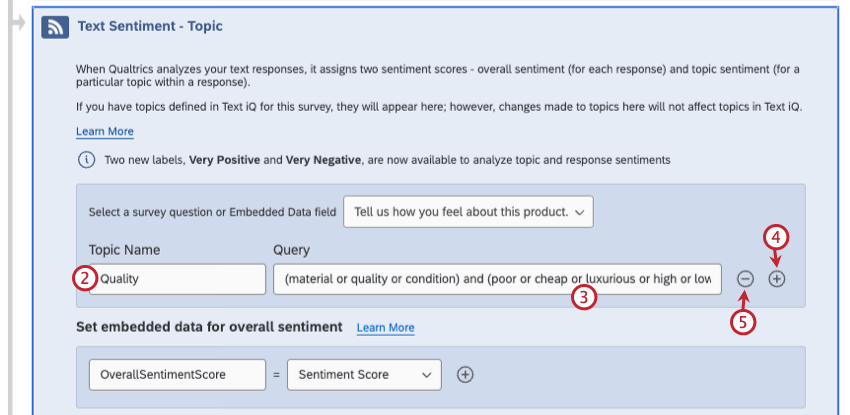
Qtip: Topics should be based on subjects relevant to the feedback you’re asking for, such as subjects you want more insight on. E.g., “cleanliness” is a good topic for a physical store, but is not likely to be brought up in feedback for an online store. Try to keep topics broad and unbiased. E.g., “quality” is a better topic than “poor quality.” An overall “quality” topic can be stronger than having a topic for each material your products are made of, since respondents aren’t likely to call every material out by name, and will opt for general assessments, such as, “looked cheap and tore easily.”
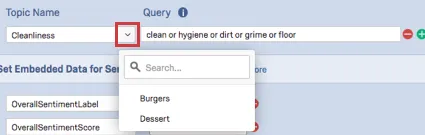
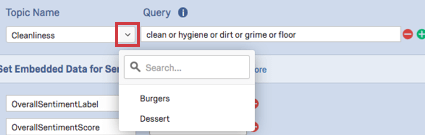
Qtip: If this is an active survey you have already created topics for, you can click the dropdown to choose a preexisting topic.
Qtip: You cannot leave this field blank. Text iQ uses lemmatization to identify responses with different tenses of the same word (e.g., “clean” will pick up cleans, cleaning, cleaned, and even common misspellings, like “cleen”). However, Text iQ will not pick up on synonyms (e.g., “clean” will not pick up “hygienic”) unless you add them to the query. For more on building queries, see the linked support page.
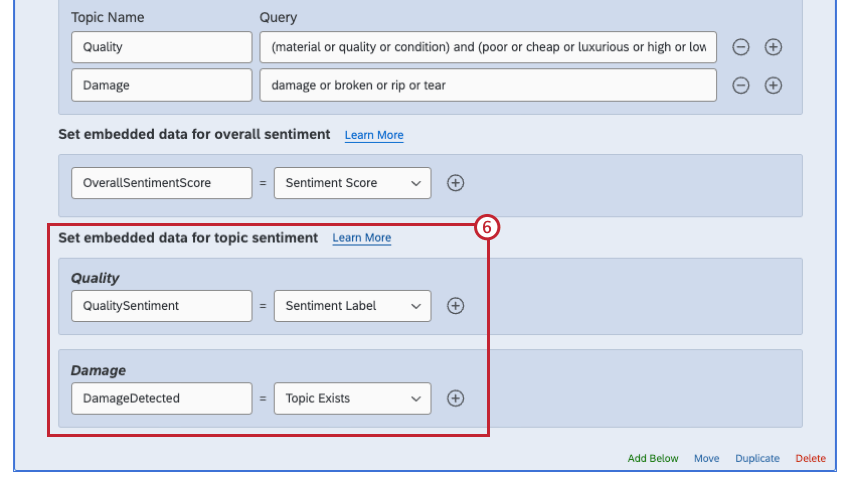
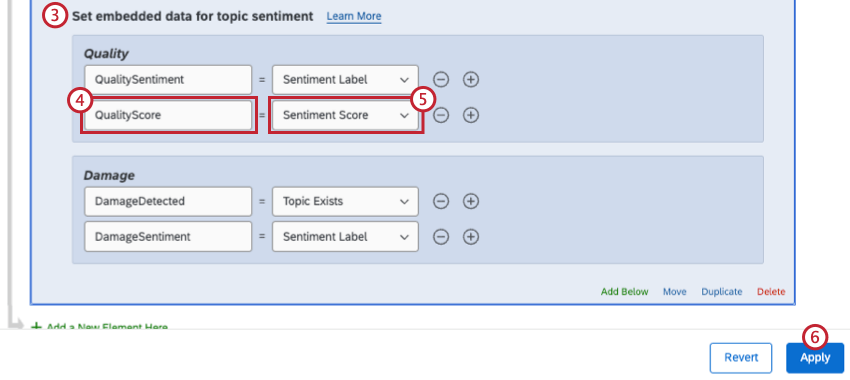
- Topic Exists: A true/false value of whether the comment was tagged with this topic or not. When using this field to create branch logic, make sure the values are set to true or false (case-sensitive). Example: Using the embedded data set in screenshot above as reference, if damage, tears breaks, or rips were mentioned in the response, the Damage topic would be applied, and the DamageDetected field would be equal to true.

- Topic Name: The value of the embedded data field would be the name of the topic.
- Sentiment Label: Whether a comment about this topic is Positive, Negative, Neutral, or Mixed in tone. Mixed differs from Neutral in that it suggests that both Positive and Negative sentiment are present. When using this field to create branch logic, make sure the labels are capitalized and spelled correctly (e.g., “Positive,” not “positive”).
- Sentiment Score: A -2 to +2 score for the sentiment of a topic. For example, a very intense, positive response such as “I love Love LOVE YOUR COMPANY!” would score a +2. An intensely negative response, such as, “I UTTERLY DESPISE your company!” would get a -2. A 0 is a neutral score.
Using Text iQ-Powered Survey Flows to Ask Follow-Up Questions
This section will go over how to build a product feedback survey that uses Text iQ-powered survey flows to send the respondent to different questions. In particular, we’re looking for respondents who have reported damage to a product, so we can offer them the chance to return the product, and for respondents who identified our product as being low quality, so we can ask them for specific examples we can action in a product redesign.
This survey is just an example. The survey build and topic queries included here have been developed with great care, but are not guaranteed to fit everyone’s research needs.
Survey Setup
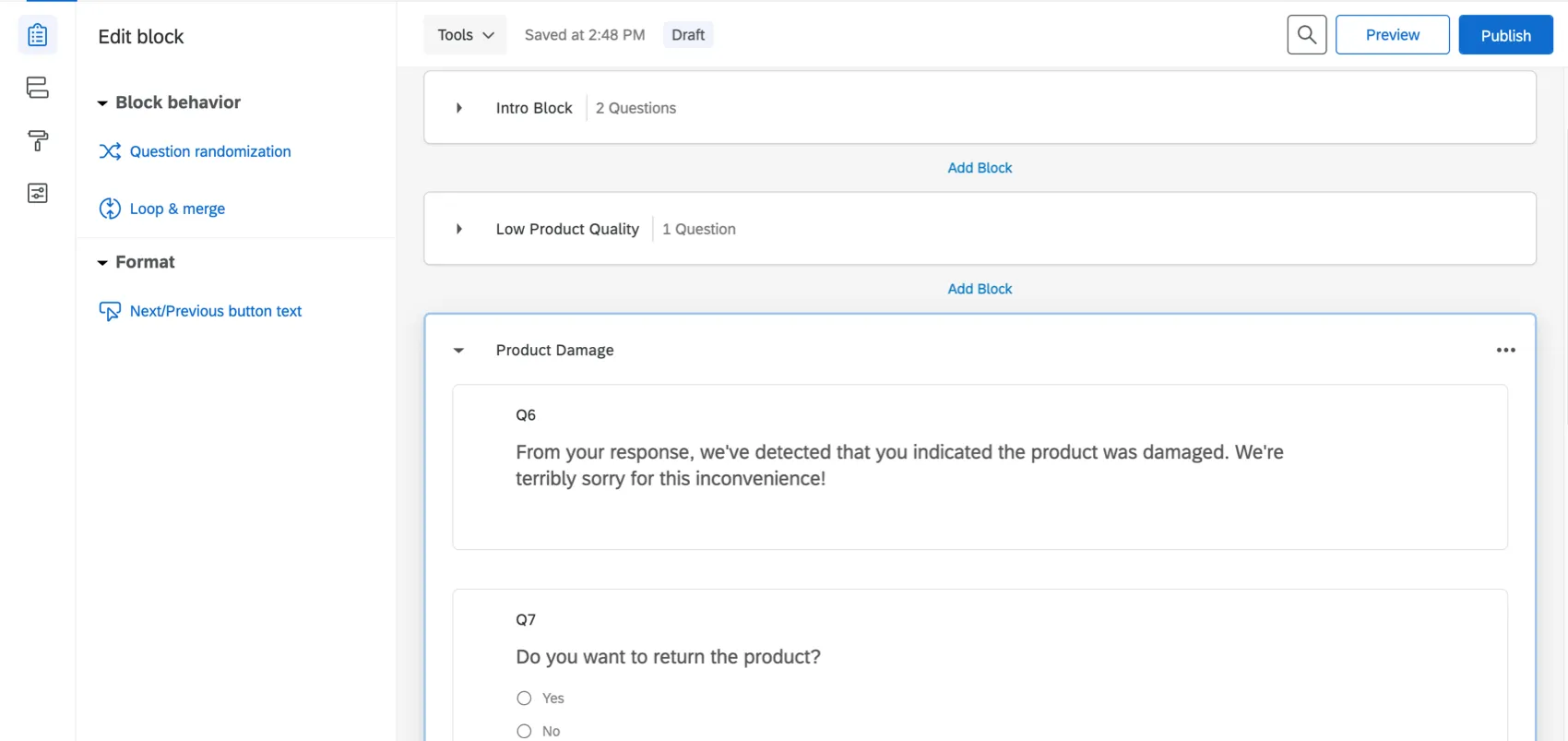
In this example, we are running a survey that asks for respondents’ feedback on products they purchased from our imaginary company. The survey in this example has the following:
- A first block titled “Intro Block.” This block asks the user to select a product (multiple choice) and then provide open-ended feedback on that product (text entry).
- A second block titled “Low Product Quality” where we ask for details on why the respondent felt the product had such poor quality (text entry).
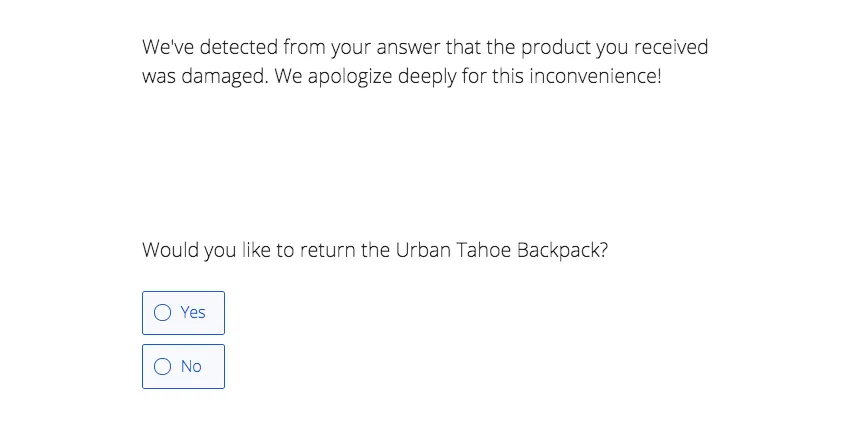
- A third block titled “Product Damage.” This block apologizes for the damage and asks if the respondent would like to return the product (multiple choice).
Text iQ Flow Setup
In this example, the text entry question asking for open-ended product feedback (first block) is being analyzed with Text iQ.
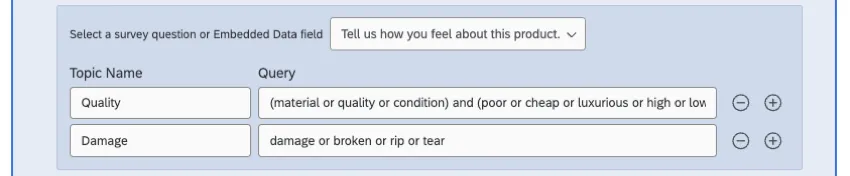
Qtip: These queries are meant to act as examples. While they have been carefully crafted to capture as many relevant responses possible, they are not guaranteed to catch every response related to these concepts. Always be careful when building topic queries to think of as many scenarios as possible to hone your topics’ accuracy.
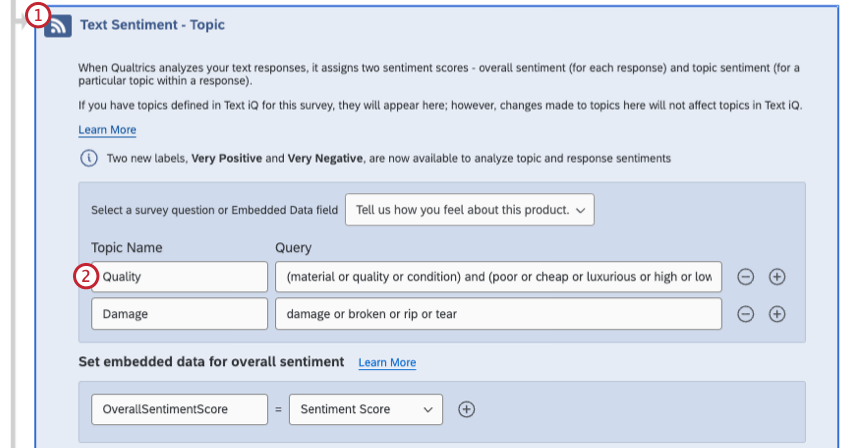
| Topic Name | Query |
|---|---|
| Quality | (material or quality or condition) and (poor or cheap or luxurious or high or low or great or bad) |
| Damage | damage or broken or rip or tear |
Qtip: For more on building topics using complex queries, see Building Complex Searches.
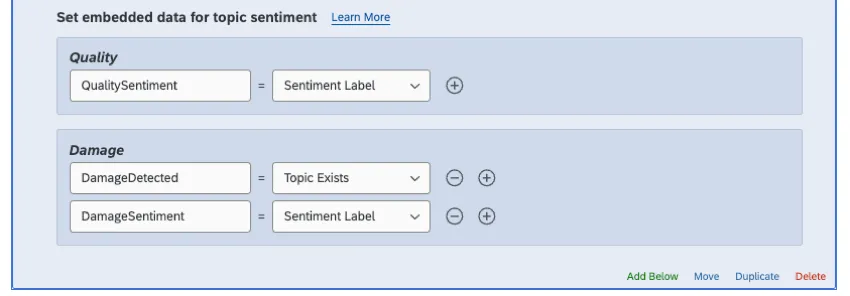
| Topic | Embedded Data Name | Field Being Captured |
|---|---|---|
| Quality | QualitySentiment | Sentiment Label |
| Damage | DamageDetected | Topic Exists |
| Damage | DamageSentiment | Sentiment Label |
Survey Flow and Branch Logic Setup
The survey flow is in the following order:
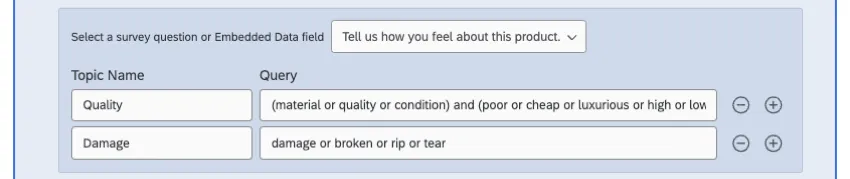
- At the top of the Survey Flow, an “Intro Block” that asks for a product and open-ended feedback.
- Text iQ element.
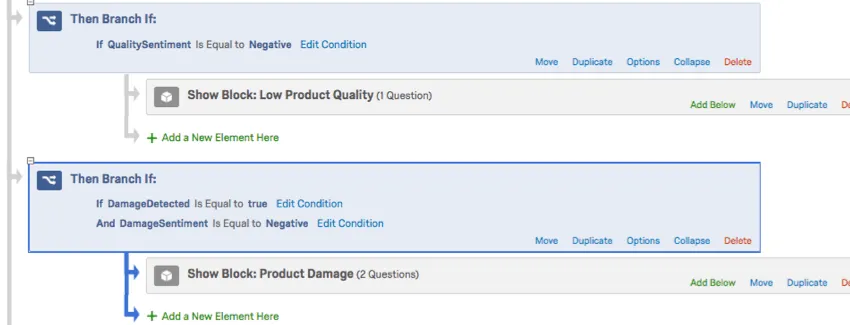
- First branch:
- The condition says that if the embedded data QualitySentiment is equal to Negative, the respondent will go to the “Low Product Quality” block, where they’ll be asked to explain why they felt the product was low quality. This is so we can act on this feedback and improve the product.
- Second branch:
- The condition says that if the embedded data DamageDetected is true, AND DamageSentiment is Negative, the respondent will go to the “Product Damage” block.
- The idea here is that if some mention of damage is detected in the response, the respondent will be asked if they want to return their damaged product. We add the DamageSentiment condition to the branch to ensure they’re not making the rare positive statement about damage, e.g., “I love that this purse doesn’t damage easily!”
Qtip: It’s important the Text iQ element appears before the branches, because the Text iQ element has to save the sentiments and topics as embedded data before you can base logic off of those embedded data.
Respondent View
After selecting the product they want to review, the respondent says that the product broke quickly and seems to be of bad quality.
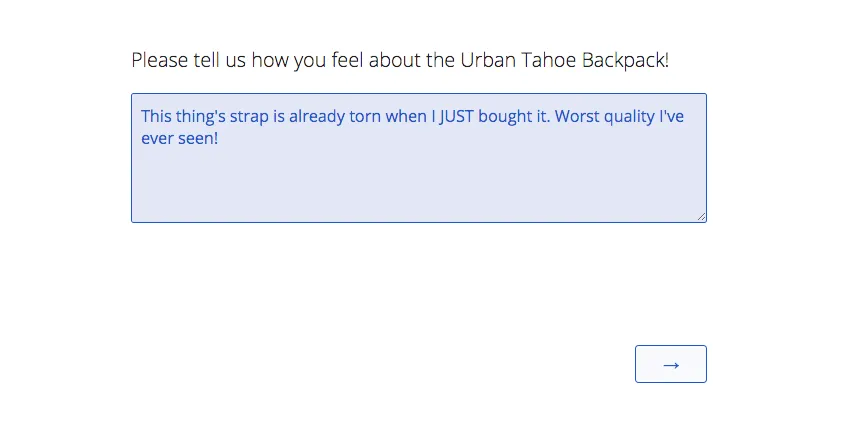
Because of the use of the word “quality” and the highly negative sentiment of the word “awful,” the “Low Product Quality” block appears, asking the respondent to elaborate on what made the product so low quality.
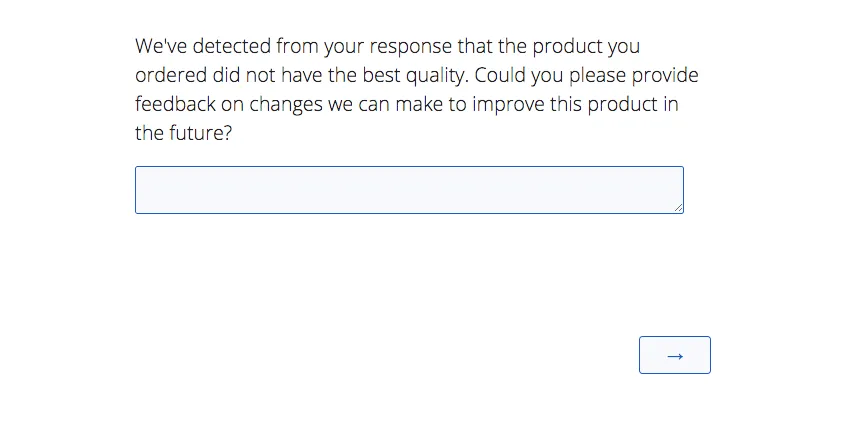
Because of the use of the word “torn,” the “Product Damage” block appears, asking the respondent if they’d like to return the product.
Using Text iQ-Powered Survey Flows to Send Email Tasks
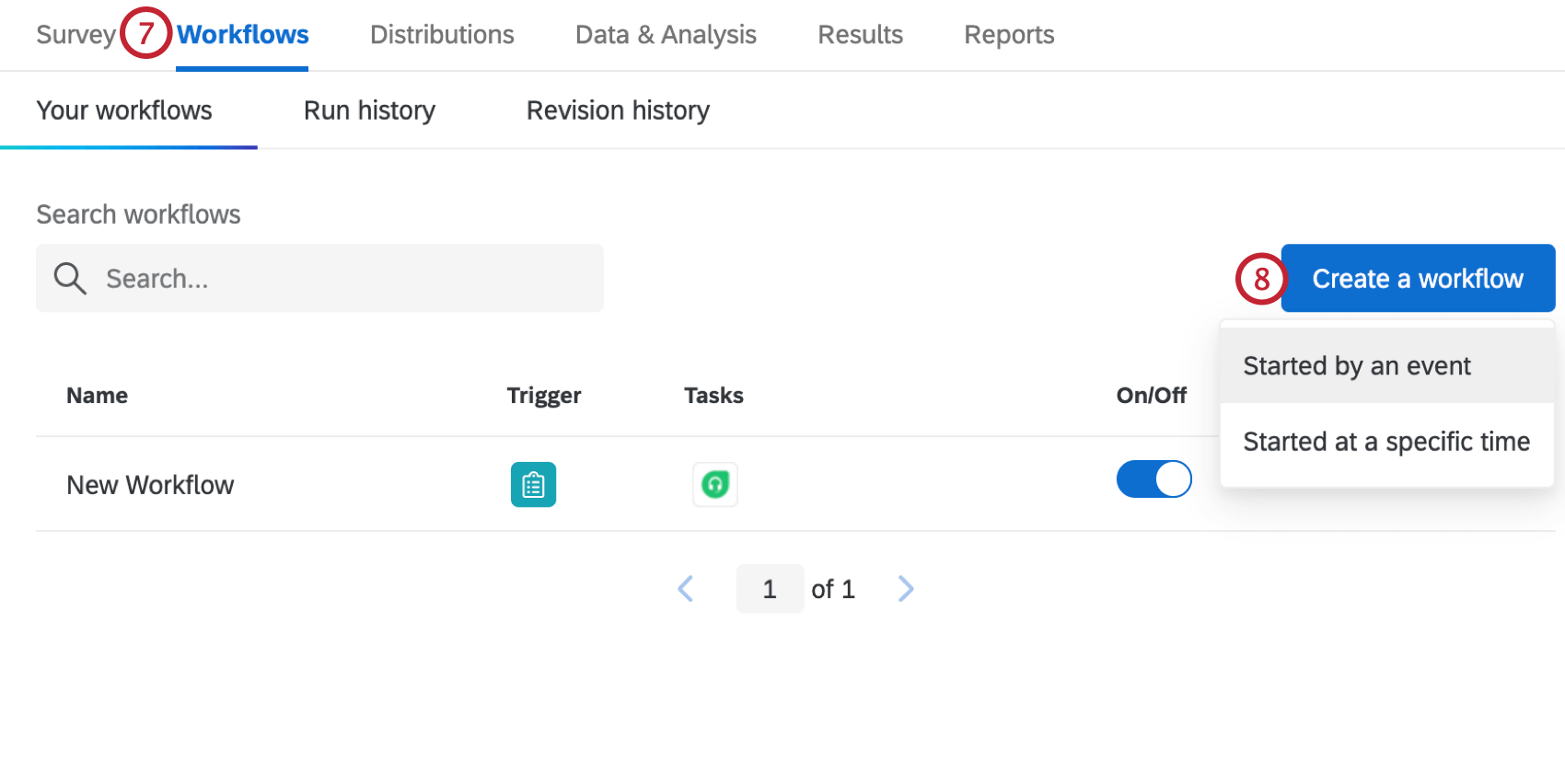
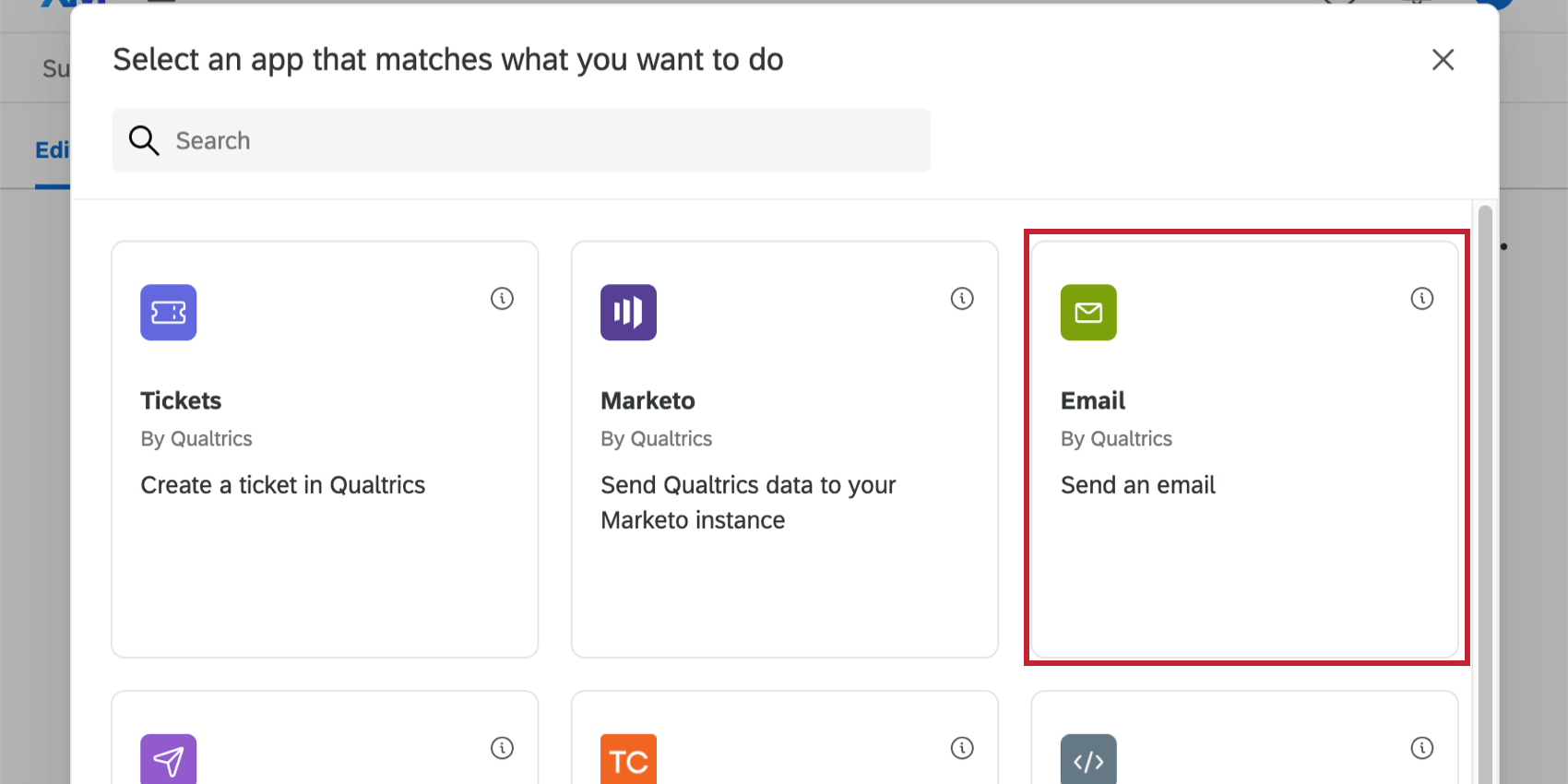
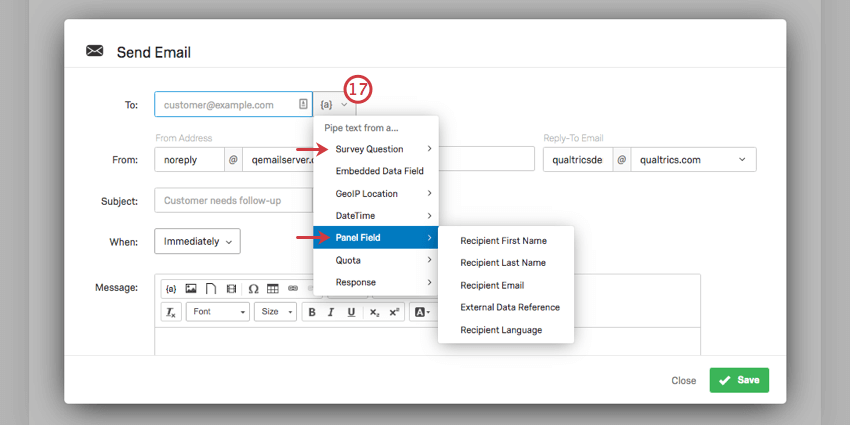
Emails can be sent out once a respondent who fits certain criteria finishes their survey. The email then either goes out to the respondent, or to a static list of colleagues.
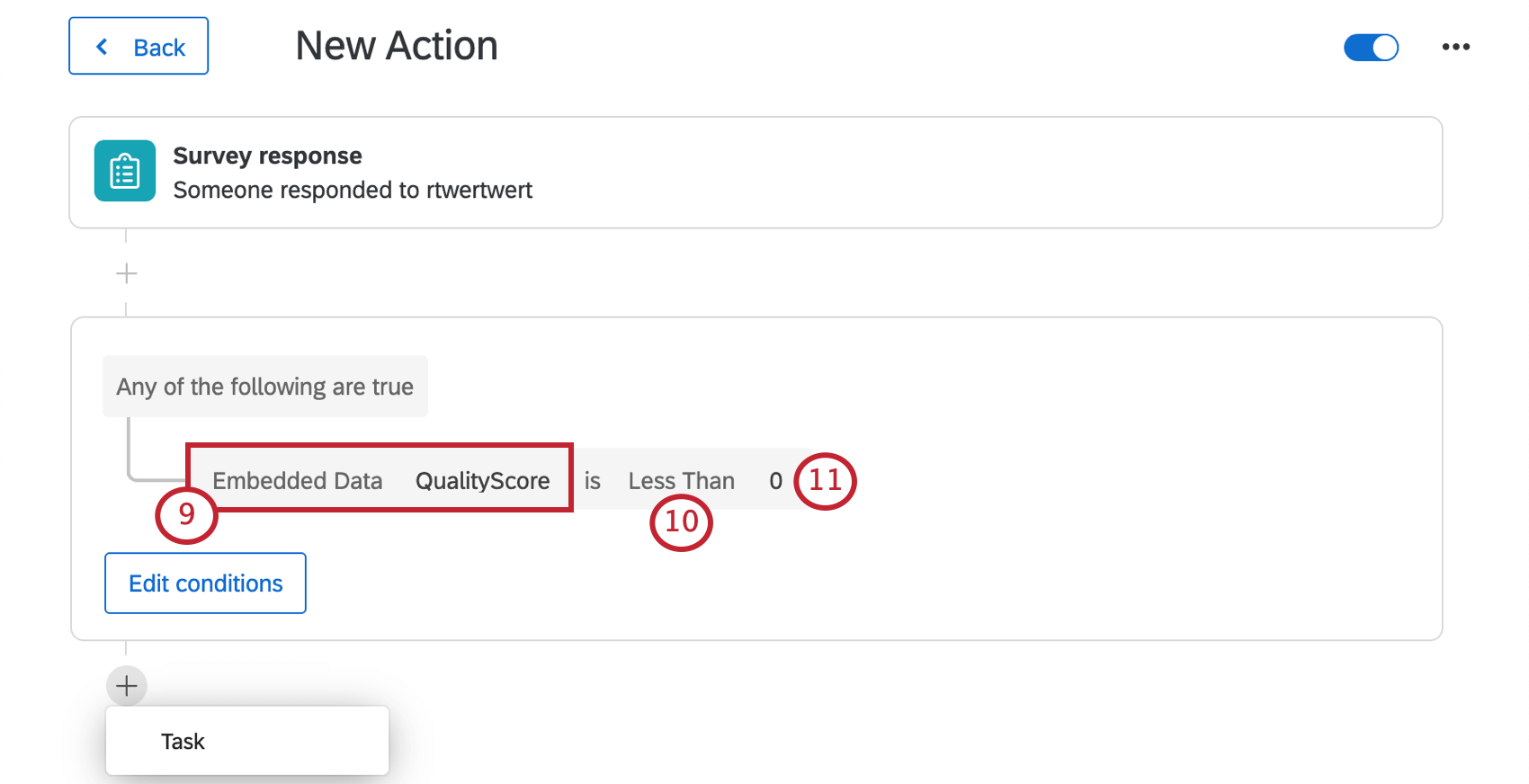
In this example, we’re going to send a follow-up email to respondents who indicated negative sentiment towards product quality.
Types of Projects that Support This Feature
Text iQ-powered survey flows are available only to Advanced Text iQ clients. However, once this feature is enabled, it can be used in most project types, including:
Qtip: Some of the projects listed above, such as Conjoints and MaxDiff, do not have access to Data & Analysis Text iQ. However, you can still use the survey flow Text iQ feature described on this support page.
FAQs
Are the topics I add in the Survey Flow the same as topics I add in Text iQ?
Are the topics I add in the Survey Flow the same as topics I add in Text iQ?
You can pull topics already defined in Text iQ into the survey flow for quick building, but they are not actually linked.
The survey flow element will indicate if a topic that was sourced from Text iQ has changed and will allow the client to sync it up so the queries are the same, but does not link the data . This is to protect the survey flow in live surveys from any changes made to topics in Text iQ.
Can I have multiple Text iQ elements in my Survey Flow?
Can I have multiple Text iQ elements in my Survey Flow?
Can I use the Text iQ Survey Flow element to replace sentiment in Text iQ in the Data & Analysis tab?
Can I use the Text iQ Survey Flow element to replace sentiment in Text iQ in the Data & Analysis tab?
What languages are supported by the Text iQ Survey Flow element?
What languages are supported by the Text iQ Survey Flow element?
How does the Text iQ Survey Flow element know which language to analyze the response with?
How does the Text iQ Survey Flow element know which language to analyze the response with?
That's great! Thank you for your feedback!
Thank you for your feedback!