

Guided Action Planning (EX)
What's on this page
Qtip: This page describes functionality available to Engagement, Pulse, and Lifecycle projects. For more details on each, see Types of Employee Experience Projects.

About Guided Action Planning
Guided action planning allows you to close the loop with employee feedback, giving every leader and manager the power to drive impact in areas employees care about most. Admins can give managers best practice guidance and recommended actions specific to each focus area so they can create action plans. Furthermore, you can embed your own culture-specific content in any EX project, or leverage Qualtrics best practices content in the guided XM Employee Engagement Solution to associate with each recommended action.
The focus areas widget works hand-in-hand with guided action planning, surfacing top-level actions managers should focus on to drive improvement with their teams.
Qtip: To determine who can access action plans, see the Permissions section of the Action Planning Basic Overview.
Qtip: To report on your action plans, see the Reporting on Action Plans section of the Action Planning Basic Overview.
Enabling Action Planning
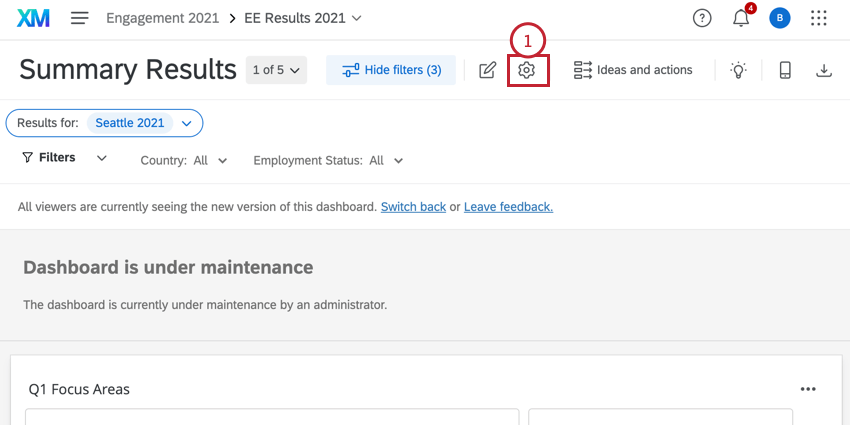
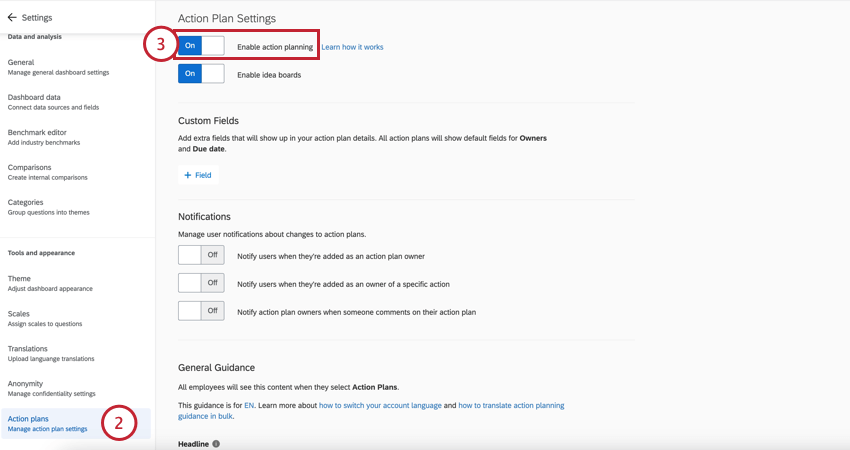
Action planning can be enabled on the dashboard level. Those with editing access over the dashboard and action plans can enable this feature.
Customizing Action Plan Guidance
Users with editing access over the dashboard and the action plans can edit the guidance that comes with the action plans. To edit the action plan guidance, go to the Action plans section of your dashboard settings. For more information and step-by-step instructions, see Action Plans Dashboard Settings (EX).
Translating Guided Action Planning
If you’ve added guided action planning to your dashboard, you can upload translations for all your guidance. This works similarly to how you upload dashboard translations.
Qtip: See the Available Languages for EX Dashboards.
Attention: Complete your guided action planning setup before you upload translations. If you make edits to your guided action planning after translating it, you will need to repeat the translation process in order for those edits to be translated.

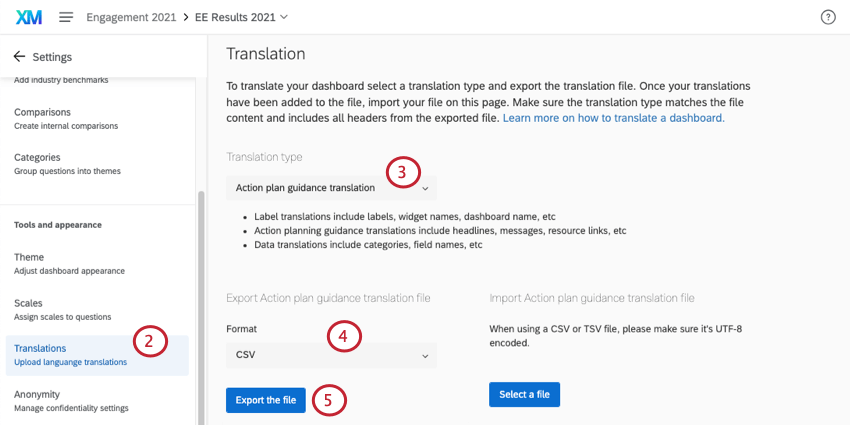
Qtip: We generally advise sticking to TSV, since this file type is better at handling special characters outside the English alphabet.
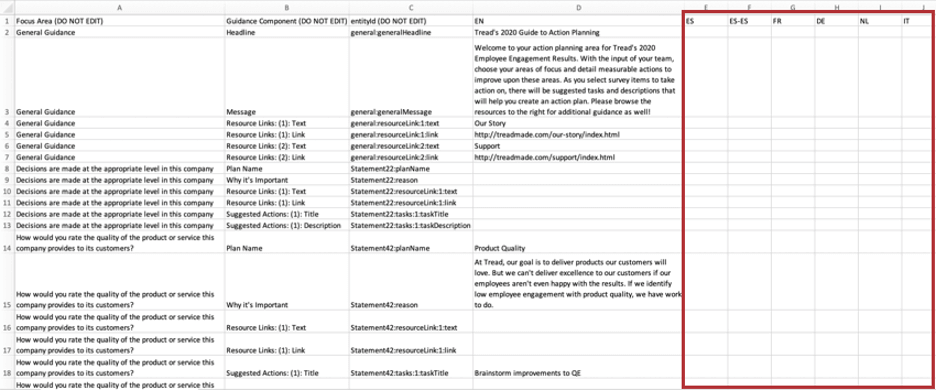
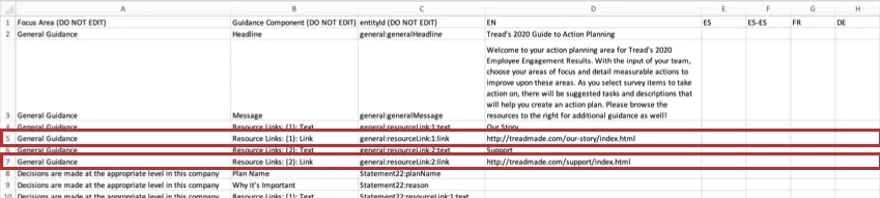
- See the List of Language Codes page for guidance about each language column.
- Follow the file’s exact formatting for creating your translations.
- Use the English column (EN) as a guide.
- Copy and paste to ensure formatting is correct. Do not delete or rearrange the columns, as this will cause the import to fail and translations to be lost.
- Do not delete the strings of numbers and letters – these are internal IDs that identify the parts of the dashboard you are translating.
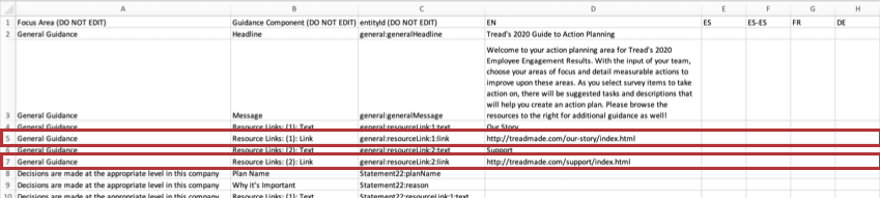
- If part of your guidance includes links to employee resources, provide new links to the translated materials. Otherwise, you may want to include in your translations warnings that the linked materials aren’t translated, and copy over the same links.
Warning: Once you’ve saved the file, do not open it again, as this could cause you to lose formatting for any special characters.
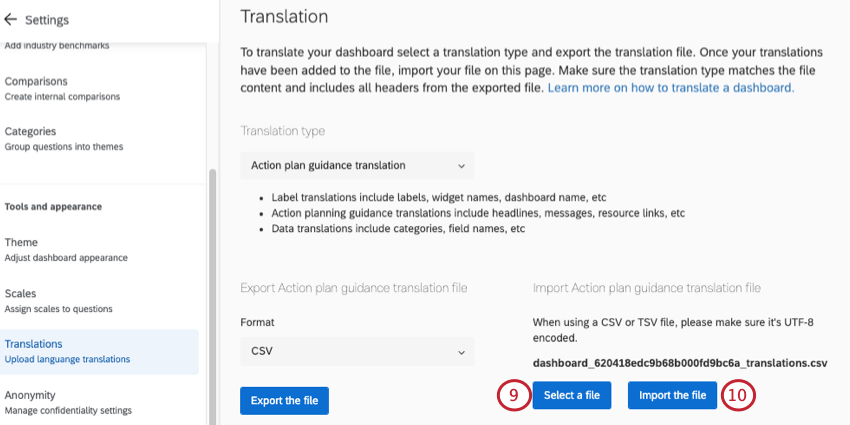
Depending on the number of translations and the size of the dashboard, it may take a few minutes for the translations to fully load. You’re free to exit out of the dashboard and the translations will continue to process.
Attention: After adding translations, be careful if you edit details in the for your guided action plans. Edits will only apply to the language for the user editing the guided action plan. For example, if I have my guided action plans in 5 languages and then make changes in English, only the English guided action plans will be updated.
Translating Custom Action Planning Fields
When translating any custom fields associated with your action planning, use the regular label translation for the dashboard.
Troubleshooting Translations
See the Dashboard Translation page for help opening files, previewing translations, fixing file formatting, and more.
That's great! Thank you for your feedback!
Thank you for your feedback!