

Distributions Basic Overview
What's on this page
Opening the Distributions Tab
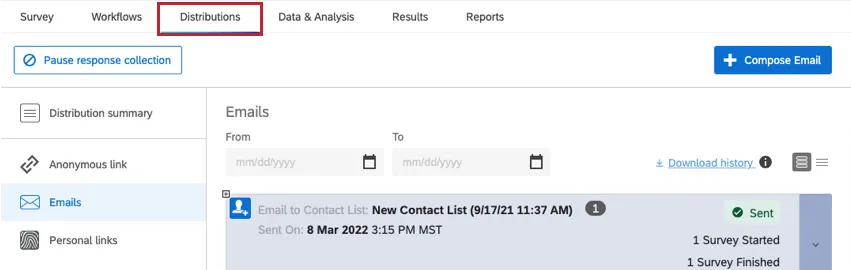
Select the Distributions tab to:
- Activate a new survey.
- Start collecting responses.
- Monitor your response collection metrics.
Qtip: If you do not have the Distributions tab available to you and the survey has been shared with you, contact the survey owner to request that they give you permission to distribute the survey. If you own the survey and don’t have the tab available, contact your Brand Administrator so they can enable the permission on your account.

Distribution Tab Basics
The first time you open the Distributions tab, you’ll be asked to choose a distribution type. Once you make your selection, your project will be activated, meaning anyone with access can fill out the survey. For more, see Starting Response Collection.
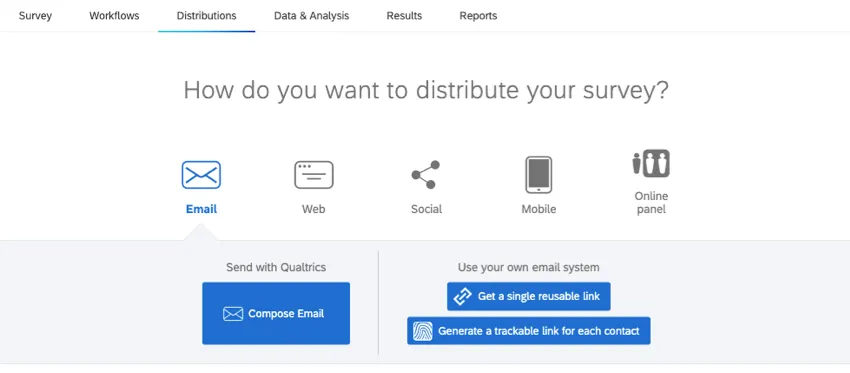
Qtip: You can use several distribution methods for the same project.
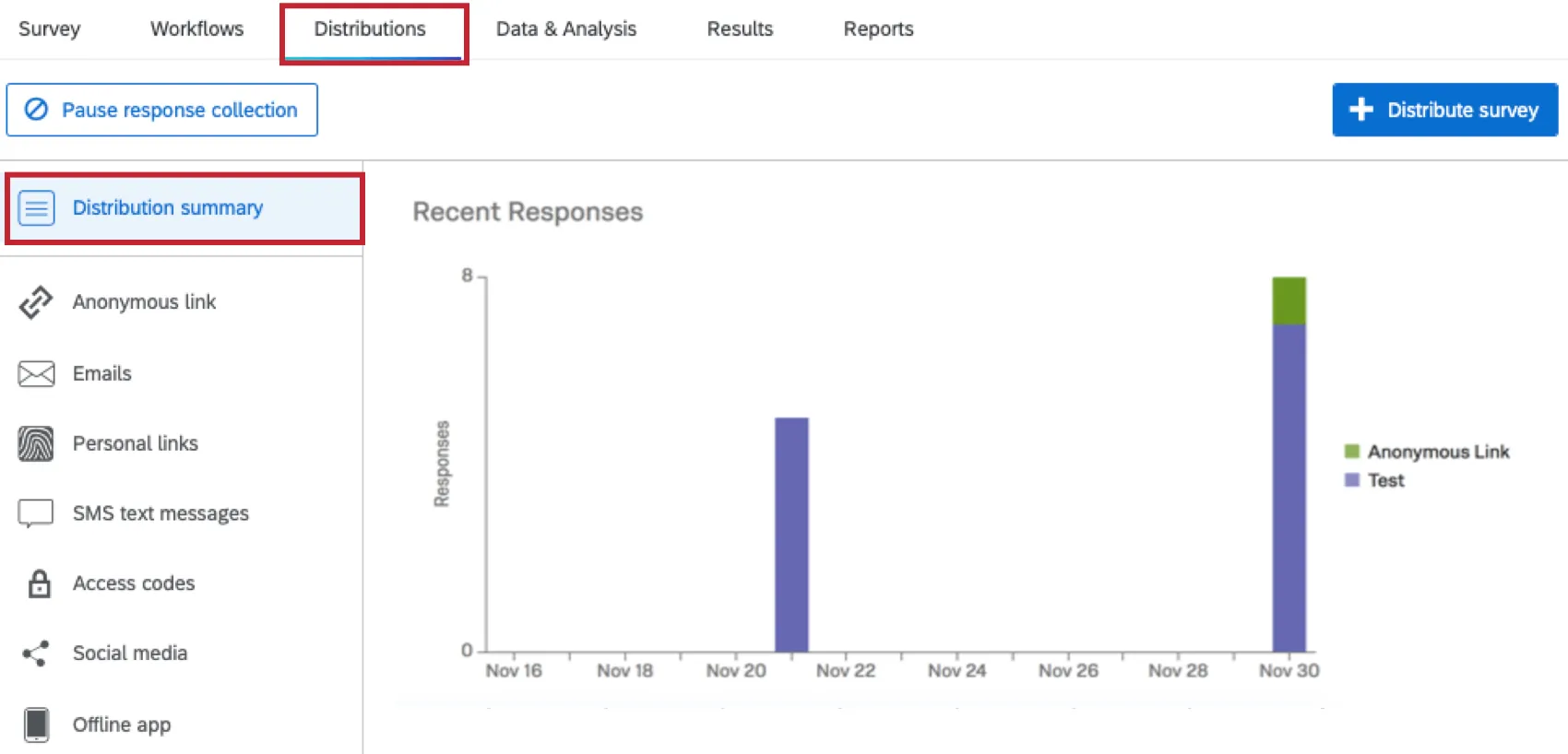
After you select your initial channel and method, Qualtrics will show a distribution summary so you can track recent response metrics. Responses are broken down by channel with an interactive graph and a table displaying your response trends. These metrics can help you spot troubles early and adjust quickly to keep your research on track. The summary can also help you decide if you have sufficient data to stop collecting data.
Qtip: To learn more, visit the distribution summary page.
Stages of Response Collection
To protect your project’s response data, a survey passes through stages:
- New: You are still creating your survey. No data is being collected.
- Active: You have selected your distribution channels and methods.
- Paused: You have paused or halted survey collection because you:
- Have completed your data collection.
Need to make corrections or add additional questions.

Warning: If you are not careful, some changes may invalidate parts of your data. To identify the types of changes that may affect reliability and validity, visit the testing/editing active surveys page.
- Resume: You have decided to resume response collection.
- Expired & Closed: You have set a survey availability date and time. At that instant, survey collection ends and the survey is closed to any additional responses. Even after you’ve passed your availability date, you can:
- Restart your data collection. You will need to remove the availability from before resuming data collection.
- Recycle a survey by making a copy.
- Delete all of the current responses and redistribute the survey again.
Qtip: Read the collecting responses page to learn more about pausing and resuming response collection.
Email Distributions
Email distribution uses either the Qualtrics mailer or your own email system to send custom survey invitations.
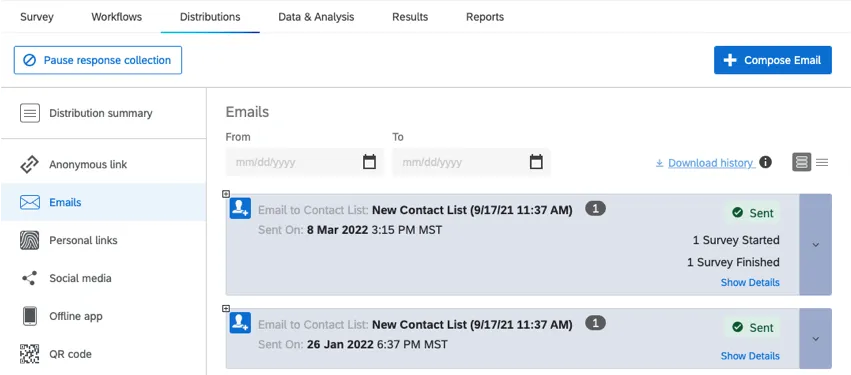
If you choose the Qualtrics mailer method, unique individual links are sent to the members on your contact list. Individual links record identifying respondent information that you can use in future reports or as embedded data.
Qtip: Click here to learn how to create a contact list.
Emailing Anonymous vs. Personal Links
Researchers who use their own mail systems will generally use reusable anonymous links, which do not record identifying respondent information. (Essentially, everyone gets the same link.) Anonymous links can also be helpful if you want to post your link to a website.
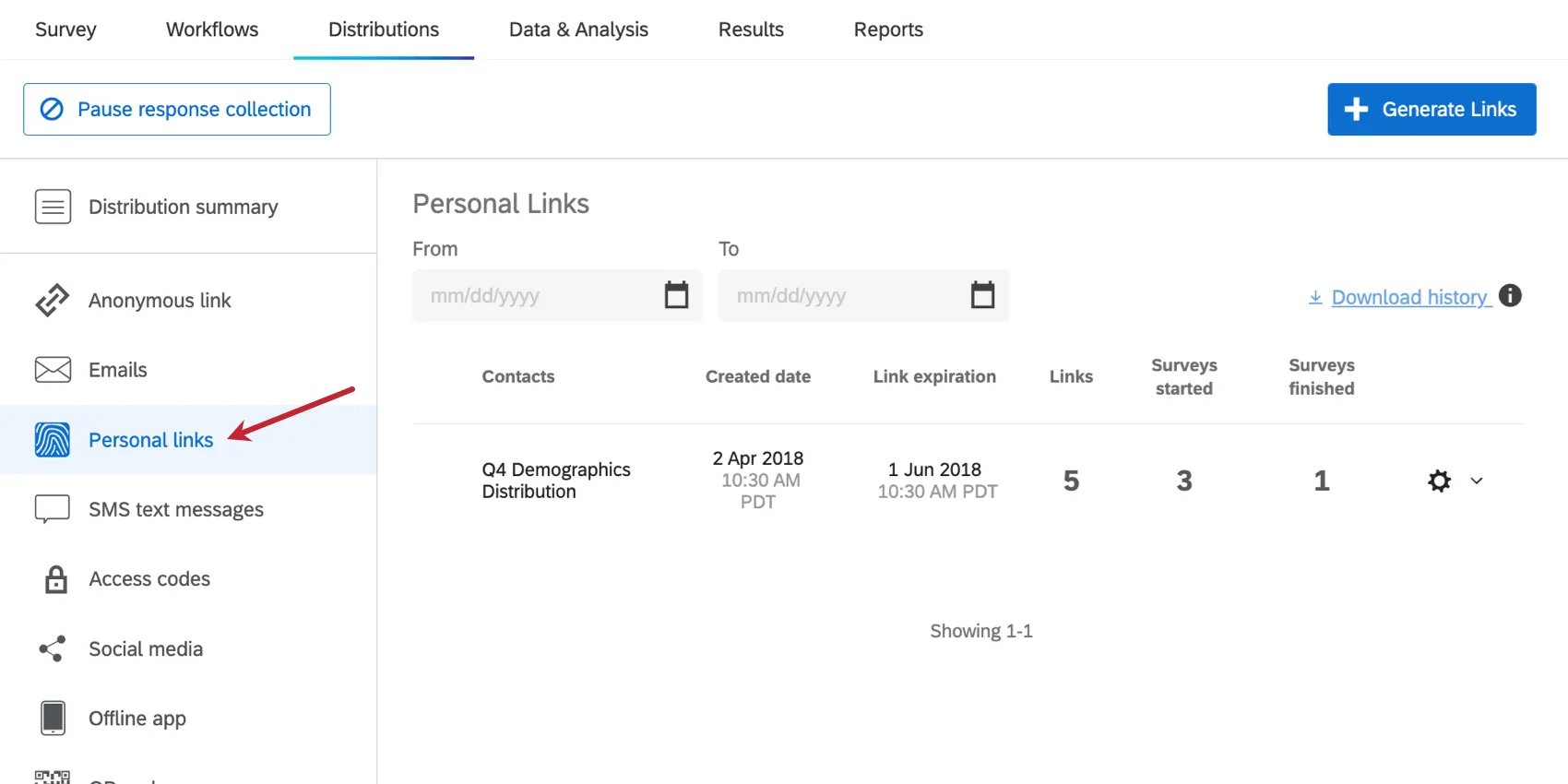
However, if you use a third-party mail system, but still need to track the responses belonging to specific recipients, you can generate personal links. The links are downloaded to your computer in a CSV file which can then be merged into your contact list.
Qtip: The data stored in a CSV (comma-separated values) file can be uploaded to a relational database or spreadsheet application like Microsoft Excel or Google Sheets. CSV is a common format used to transfer large amounts of data between applications.
Email Management
Qualtrics provides detailed metrics of your email distributions, keeping track of emails sent, failed, finished, and bounced. Learn more in the email distribution management page.
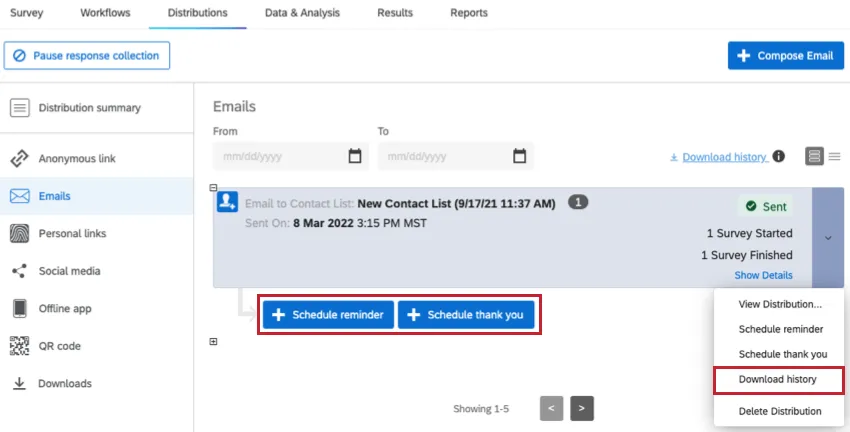
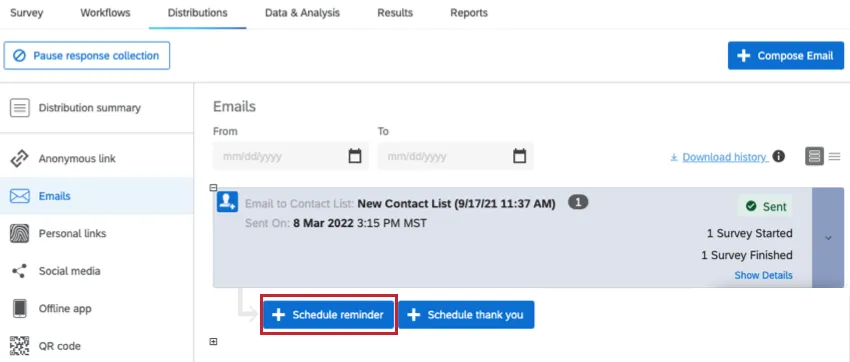
Email distributions also let you schedule and manage reminders and thank you messages, as explained on the reminder and thank you emails support page.
Troubleshooting Emails
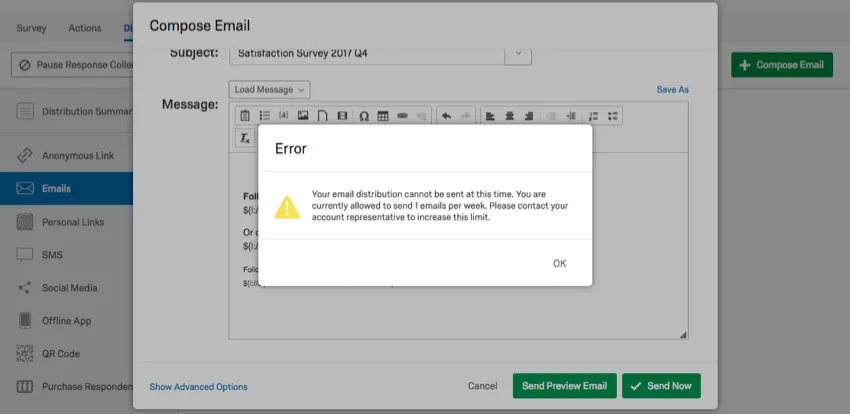
You never want to see error messages, but when you do, refer to the email distribution error messages page for specific details. Errors may occur by:
- Exceeding email limits
- Mismatching email addresses (SPF check fails)
- Lacking a survey link
- Not including an opt-out link
Spam plagues the Internet. And the security systems designed to prevent spam may get in the way of your data collection efforts. Visit the avoid being marked as spam page for tips and tricks to avoid having your messages tossed into the spam folder of your recipients.
Email deliverability rates may also improve by using Qualtrics “From” addresses, which will help messages avoid the trap of being tagged as fraudulent. To give Qualtrics permission to send emails as if they are from your own domain, you’ll need to set up a custom FROM domain, complete with a DKIM and MX record established by your IT team.
You can also set up a SMTP (Simple Mail Transfer Protocol) Relay that will allow you to transfer Qualtrics emails to your own email server first and then send the messages to your recipients using your email domain. Learn more on the using a custom From address page.
Web Distributions
The Web channel provides these key methods and tools:
- Anonymous link
- Website feedback intercepts
Anonymous Links
Copy and paste anonymous links to email messages, social media sites, websites, or in-page pop-ups.
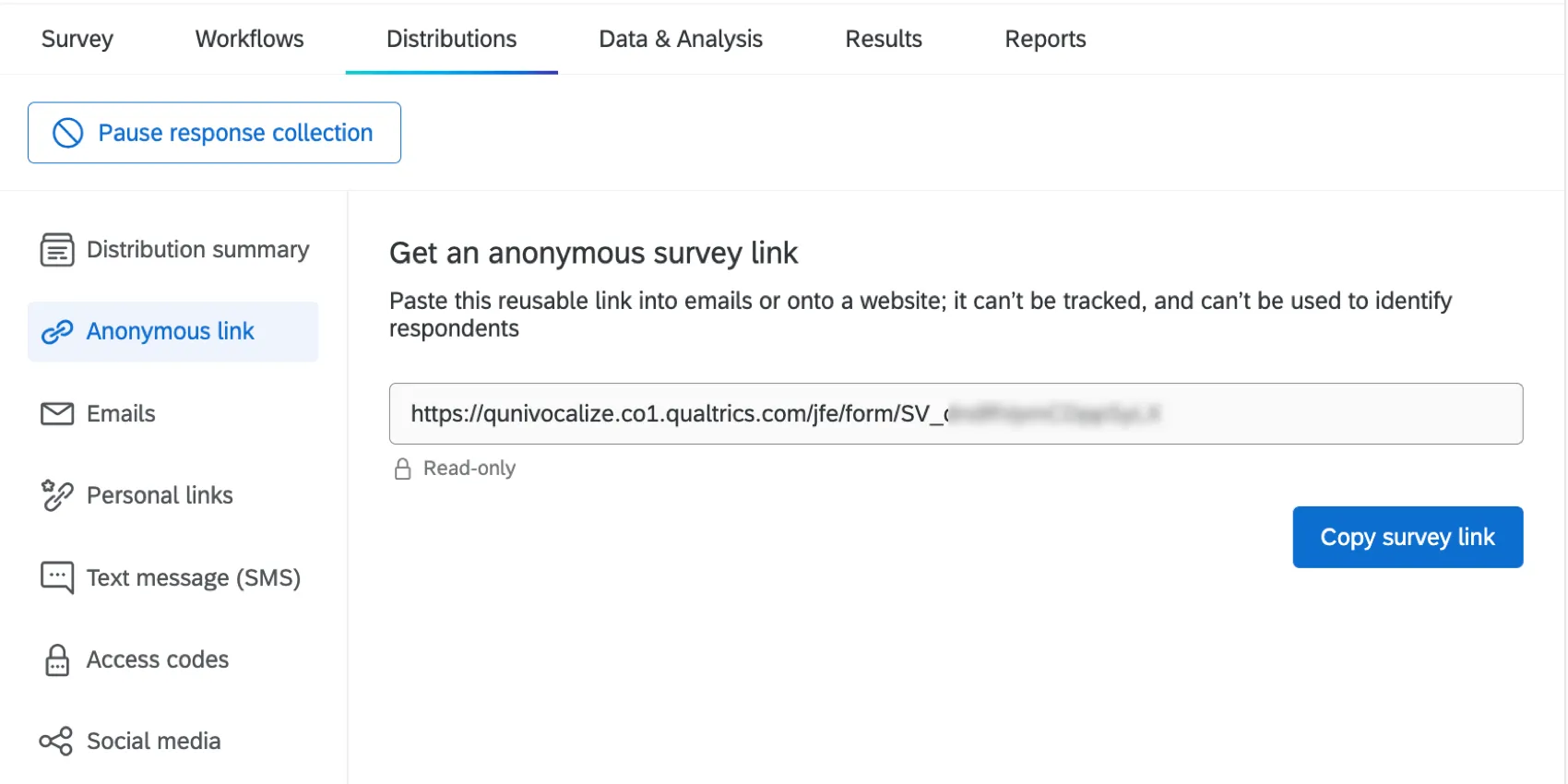
Anonymous Links are easy to deploy, but they come with pros and cons:
- They collect responses with no identifying information. (Unless you ask for information, or set up an authenticator.)
- There is no limit to how many times a respondent can use the anonymous link.
- To prevent multiple responses from the same person (a.k.a., preventing multiple submissions) consult the Security Survey Options page.
- You can make it so that progress is saved so respondents can close their window and return to the same browser and finish later. (See the Allow Responds to Finish Later support page.)
- You can disable the anonymous link option by enabling By Invitation Only in the survey options. This is useful if you would like to convert your distribution method to individual links only.
Website and App Intercepts
Website / App Insights help you deliver a great digital experience to your customers by embedding feedback requests right inside your website.
Website / App Insights are not available with every license. To learn more about this feature and all of its capabilities, see Getting Started with Website / App Insights.
Social Media Distributions
Distributing on social media platforms is as easy as picking 1 of the available options (Twitter, Facebook, Reddit, LinkedIn, Google+, and Pinterest) and linking your survey to the sites.
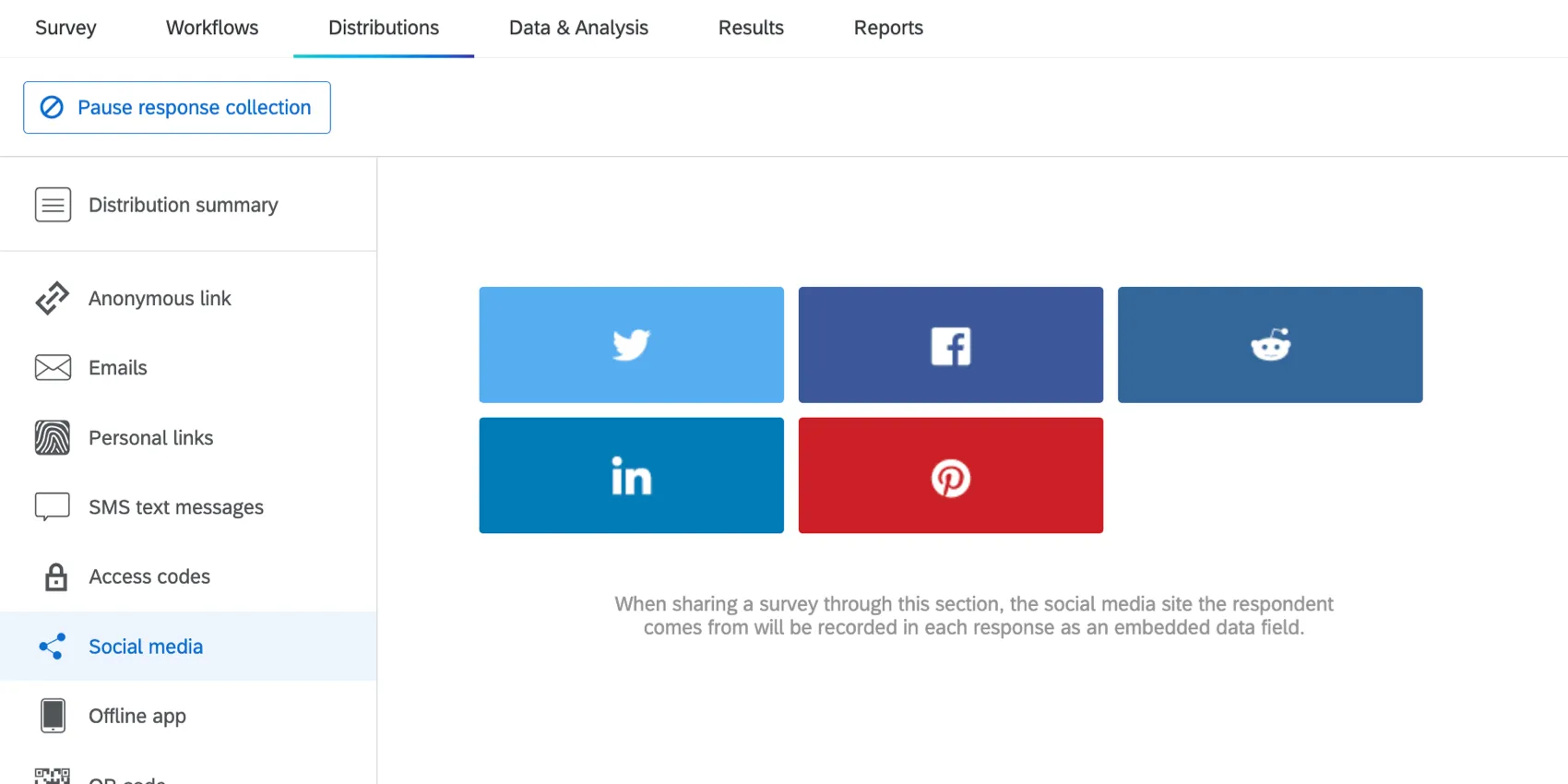
Okay, using social media links may be a little more complicated than that:
You will need to interact with social media site itself, which may require you to learn a little bit about their associations and naming conventions. (See the display name and survey description page for more info. These can be edited in your survey options.)
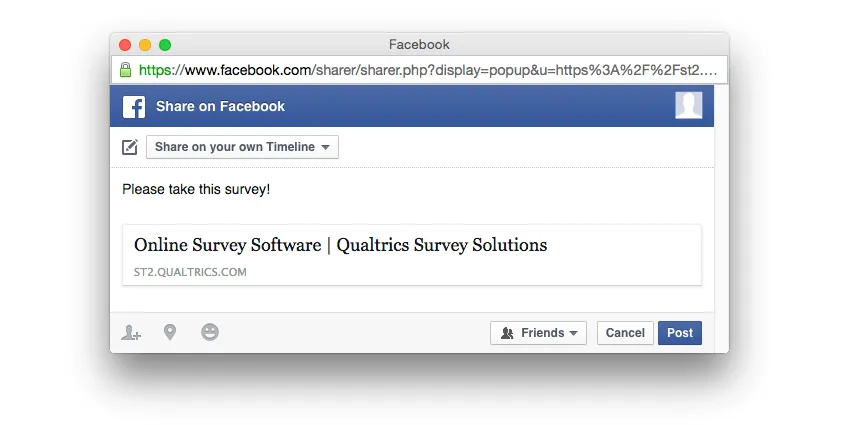
- The referring social media site will be recorded as embedded data. Therefore, you will need to add an embedded data field to your survey and name it Q_SocialSource.
- When you post a survey on social media, a logo will appear with a description and a display name. See the social media distributions support page to learn more.
- Qualtrics uses pop-ups to connect to social media platforms. If you’re having difficulty accessing these features, try enabling pop-ups on your browser.
Qtip: For step-by-step instructions, check out the social media distribution page.
Mobile Distributions
The mobile distribution provides these efficient delivery methods:
- Text Message (SMS)
- Offline App
- QR code®
- Mobile App SDK
Text Message (SMS)
Send your surveys via SMS (Short Message Service, i.e., text message). Distribute SMS surveys in a few ways:
- SMS Invite: Respondents select the anonymous link sent in a text message that opens in their mobile browser.
- 2-way SMS: Respondents text their replies question-by-question. This is only available in certain countries. 2-way SMS can either be sent to a list of phone numbers, or initiated when a respondent texts an access code.
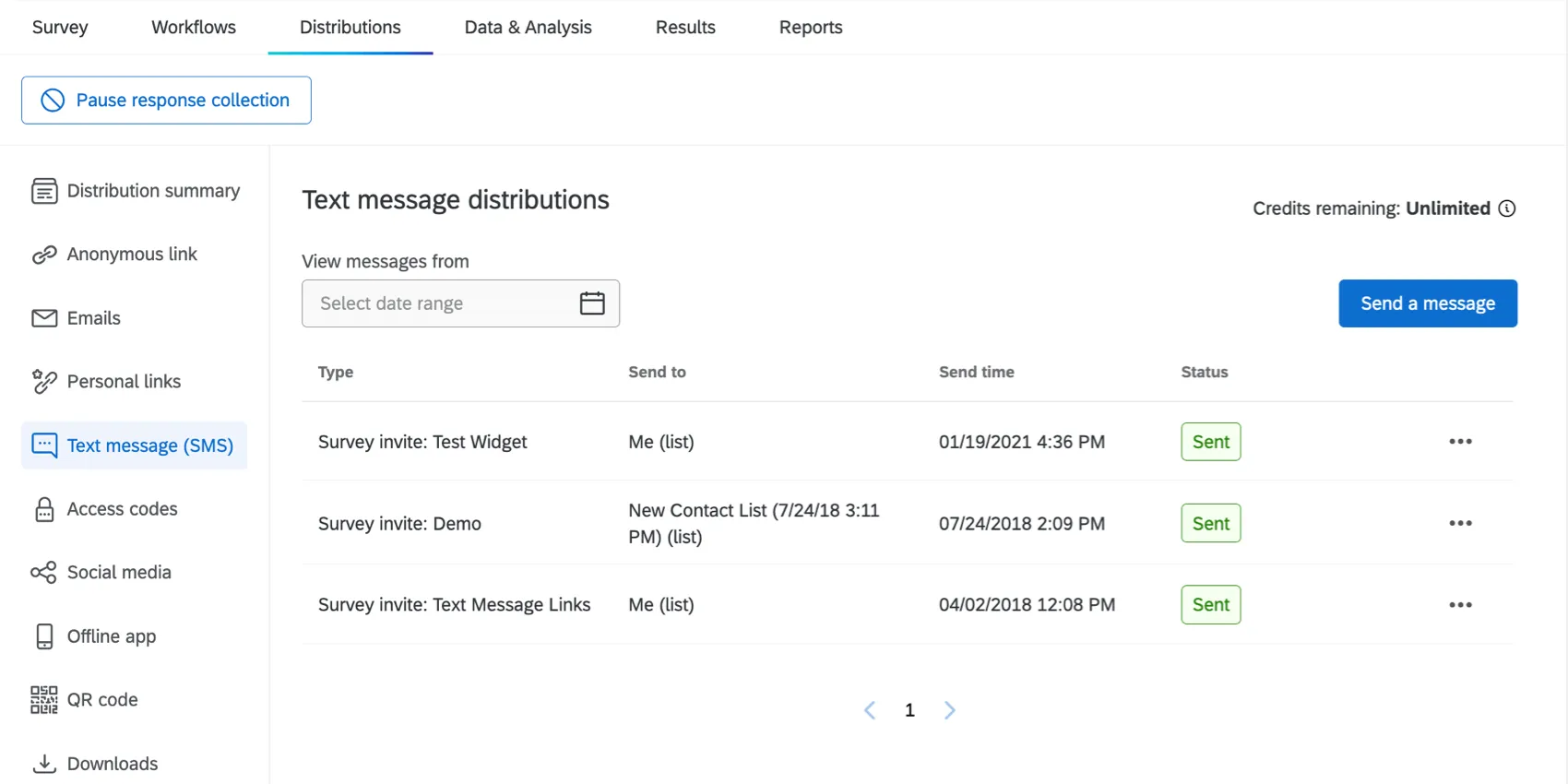
Qtip: Learn more on the SMS surveys page.
Offline App
The Qualtrics Offline App lets you gather data on mobile devices, like iPads and smartphones, without an Internet connection. This can be very helpful in certain “in-the-field” situations.
Simply collect your data and upload your results later to your Qualtrics project for analysis, review, and reporting.
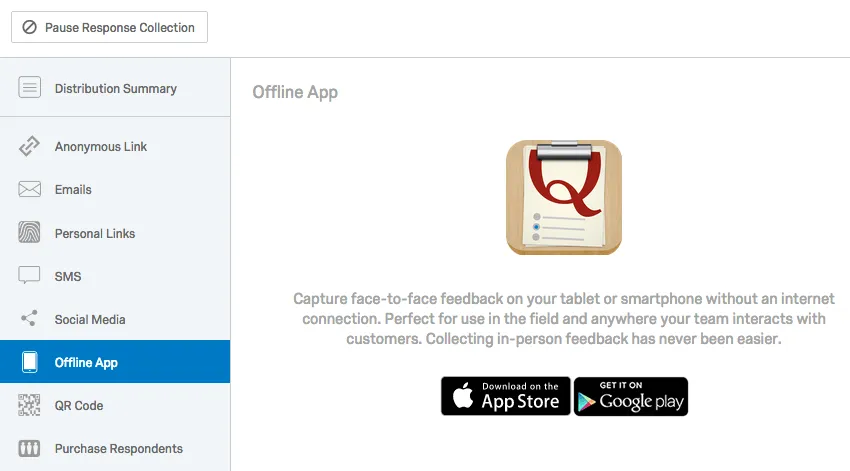
There is a 3-step process for setting up the Offline App:
Qtip: For step-by-step instructions, visit the setting up the offline app page.
Collecting responses in the offline app is very simple and straightforward, but that doesn’t mean you will abandon all of the robustness of an online survey. For example:
- You can work from a contact list.
- If the survey gets interrupted, you can upload the data as an incomplete response.
- You can allow respondents to complete a survey at a later time.
- You can use and gather embedded data.
Qtip: For details on the ins-and-outs of data collection using the Offline App, review the collecting offline app responses page. If you encounter issues, visit the offline app compatibility features troubleshooting page.
QR Codes
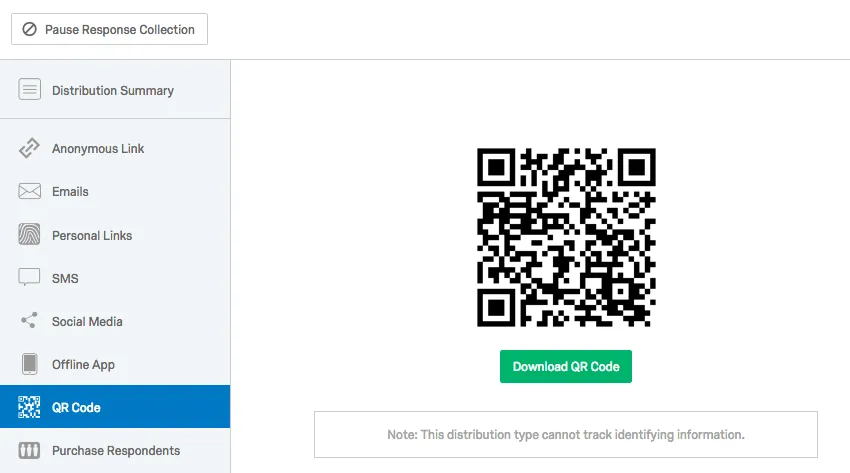
A QR code (Quick Response Code) is a matrix barcode that can be printed on various media, like receipts and posters, or scanned from an online graphic in a PNG image format.
Your survey’s QR code is linked to an anonymous link, so when the code is scanned, respondents will be immediately directed to your survey. QR code distributions do not track information identifying your respondents.
Qtip: To learn more, visit the QR codes page.
Mobile App SDK
If your organization runs a mobile app, you can use Qualtrics to gather valuable insights and feedback on your users.
The Mobile App SDK is not available with all licenses. To learn more, see Mobile App Feedback Project.
Online Panels
A panel is a group of participants who have been recruited to provide feedback on a research topic. You can define targeting criteria and launch your research study to this audience. For example, let’s say you’re launching a product designed for pet owners and would like to gather feedback on the early concepts. You can use a panel to send your survey to only pet owners, enabling you to quickly collect accurate and relevant feedback without the hassle of finding these individuals yourself.
See Online Panels for more information.
Ending Response Collection
You will decide when your response collection will come to an end, either by:
- Pre-setting an availability date.
Manually clicking Pause response collection.
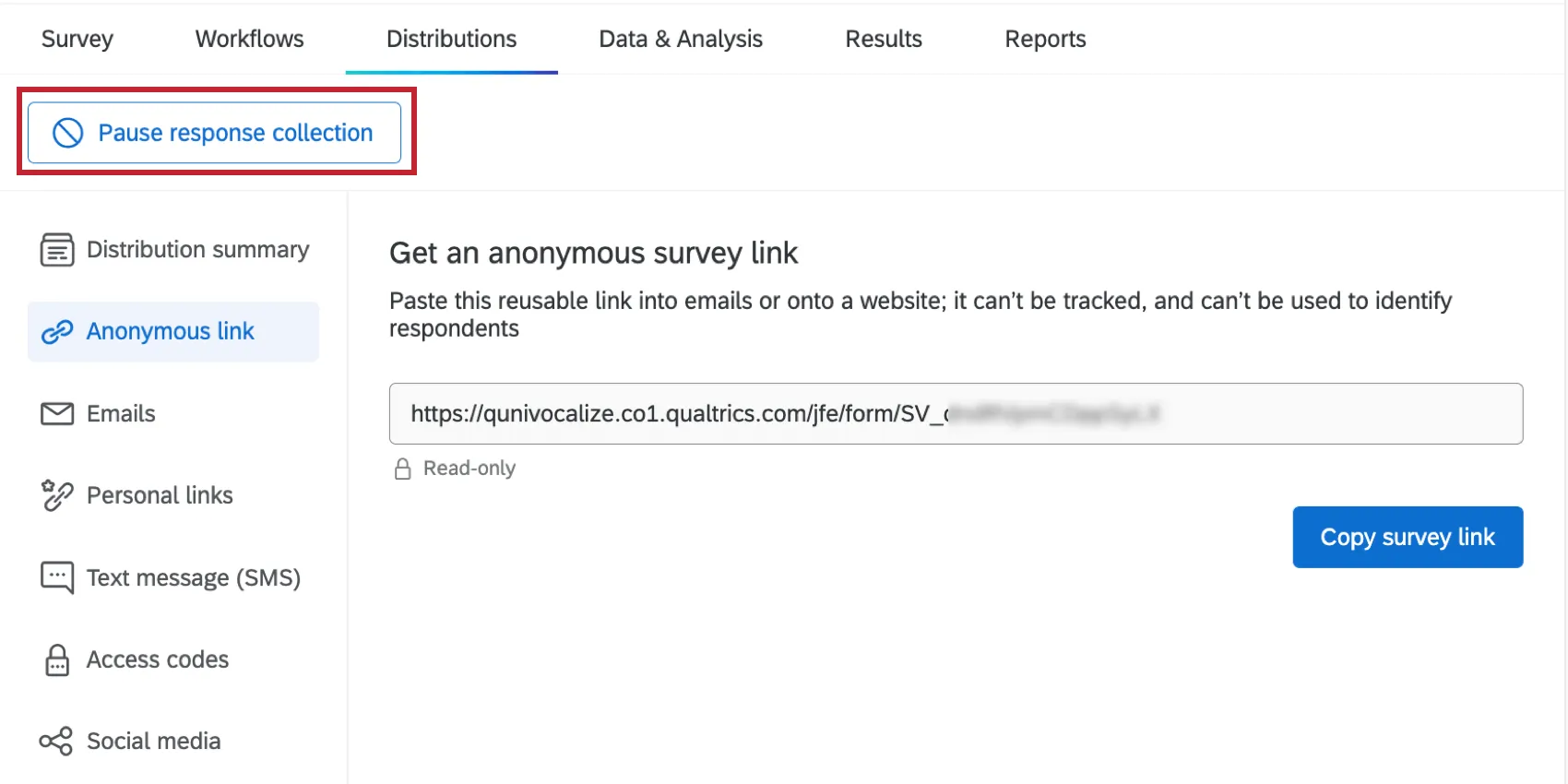
Ending response collection will lead you to a number of decision points:
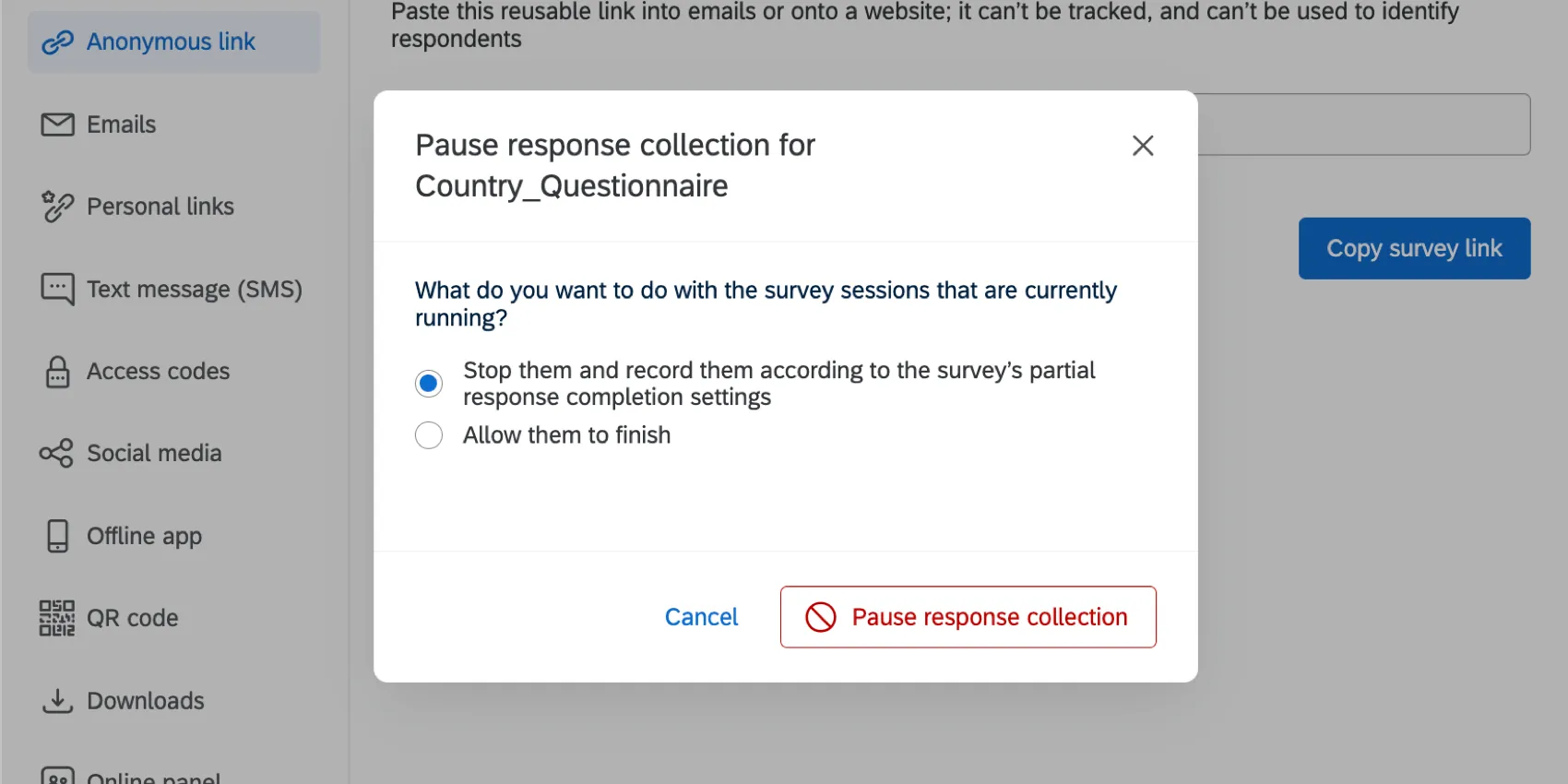
- What do you wish to do with respondents in the middle of taking the survey?
- How can you inform invited latecomers that the survey is now closed?
- Do you want to accept incomplete or partial survey responses? Will that data negatively or positively skew your results?
Qtip: Read the collecting responses page to learn how to set survey availability dates. Learn about incomplete surveys by reading the Incomplete Survey Responses page. Visit the Editing the End of the Survey page to learn more about communicating with latecomers and with those that have completed your survey.
Types of Projects With a Distributions Tab
Attention: Not all of the features described in this section are included in every license. Please contact Account Services if you are interested in getting access to any of these features.
The Distributions tab appears in several types of projects, including:
If your license includes XM Directory, many of the distribution options described on this page are also available right inside the directory. See Distributing to Contacts in XM Directory for more details.
Types of Projects That Are Not Supported
While you can distribute other projects, they don’t have all of the features described on this page.
- For Pulse, see more on scheduling email invites and personal links.
- For Engagement and Ad Hoc Employee Research, see Email Messages (EX) or SMS Distributions (EX).
- For Lifecycle, see Email Messages (EX).
- For 360 projects, see Email Messages (360).
- For Conjoint and MaxDiff projects, see Distributions Tab (Conjoint & MaxDiff).
QR Code is a registered trademark of DENSO WAVE INCORPORATED.
FAQs
How do I import a mailing list?
How do I import a mailing list?
What are the differences between the Anonymous Link and an Individual Link?
What are the differences between the Anonymous Link and an Individual Link?
How can I make sure the participant only takes the survey once?
How can I make sure the participant only takes the survey once?
If you are distributing your survey through the Anonymous Link, there are 2 options to prevent participants from retaking the survey:
- Prevent Multiple Submissions: You can enable Prevent Multiple Submissions in your Survey Options. This option will place a cookie in the participant’s browser that will restrict them from retaking the survey on that browser. However, the participant could still clear their cookie cache, use a different browser, or use a different computer in order to take the survey again.
- Authentication: You can use the Authenticator element in the Survey Flow. This option will require the participant to be a member of a contact list you have previously set up within your account. The Authenticator options will allow you to prevent contacts from retaking the survey by using the contact list as an authentication database.
How can I make Individual Links but not use the Qualtrics mailer?
How can I make Individual Links but not use the Qualtrics mailer?
What are Personal Links and how are they different from sending an individual link through the Qualtrics Mailer?
What are Personal Links and how are they different from sending an individual link through the Qualtrics Mailer?
How do I see which emails were sent, failed, and bounced after I send my survey via email?
How do I see which emails were sent, failed, and bounced after I send my survey via email?
I’m trying to send an email, but there’s an error! What does it mean?
I’m trying to send an email, but there’s an error! What does it mean?
I don't have the tab described on this page! What do I do?
I don't have the tab described on this page! What do I do?
That's great! Thank you for your feedback!
Thank you for your feedback!