-

Qualtrics Platform -

Customer Journey Optimizer -

XM Discover -

Qualtrics Social Connect
Distributing Course Evaluations
About Distributing Course Evaluations
Course evaluations can be configured to send on a recurring basis, or once on a set day and time. Recurring automations will run daily and send evaluations for any courses that meet your specified criteria, while one-time evaluations will only send once, and must be created manually.
Qtip: After they are created, new evaluations may take a few minutes to show up within the Evaluations tab.
Attention: Course evaluations should be distributed using this method. Do not attempt to distribute course evaluations using normal survey distribution methods.
Sending Recurring Evaluations
- Navigate to the Evaluations tab.
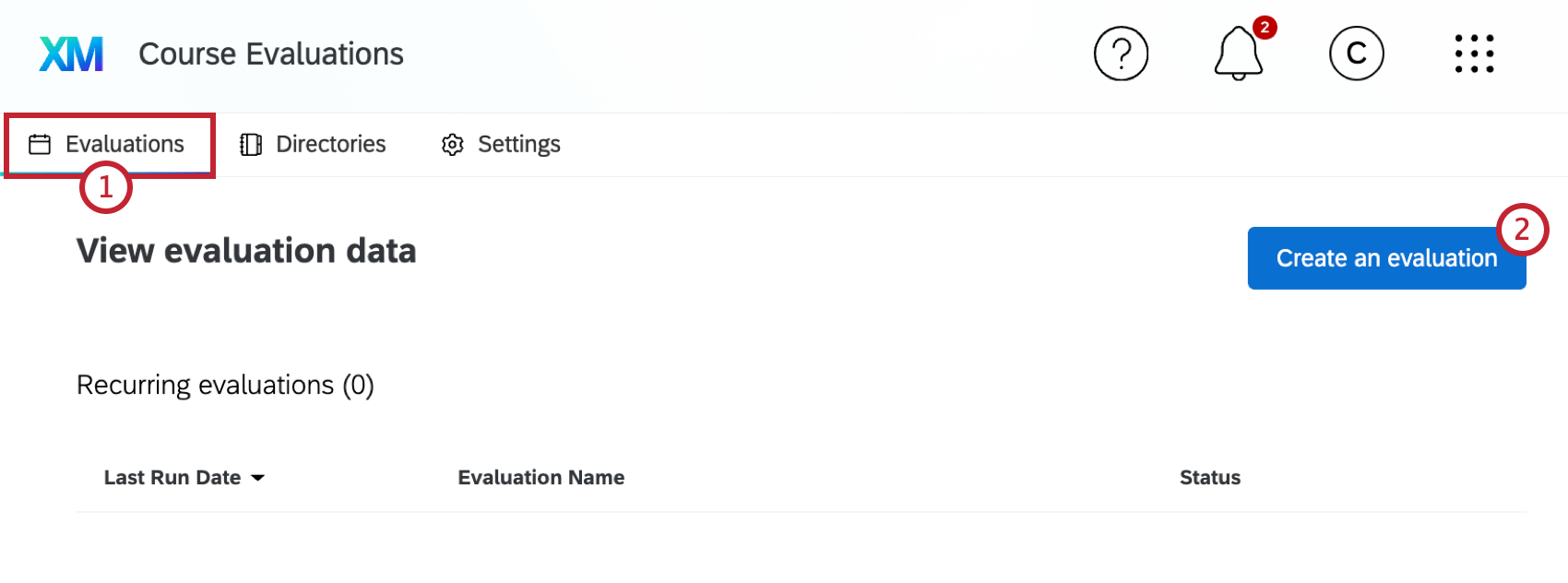
- Click Create an evaluation.
- Enter a name for your evaluation.
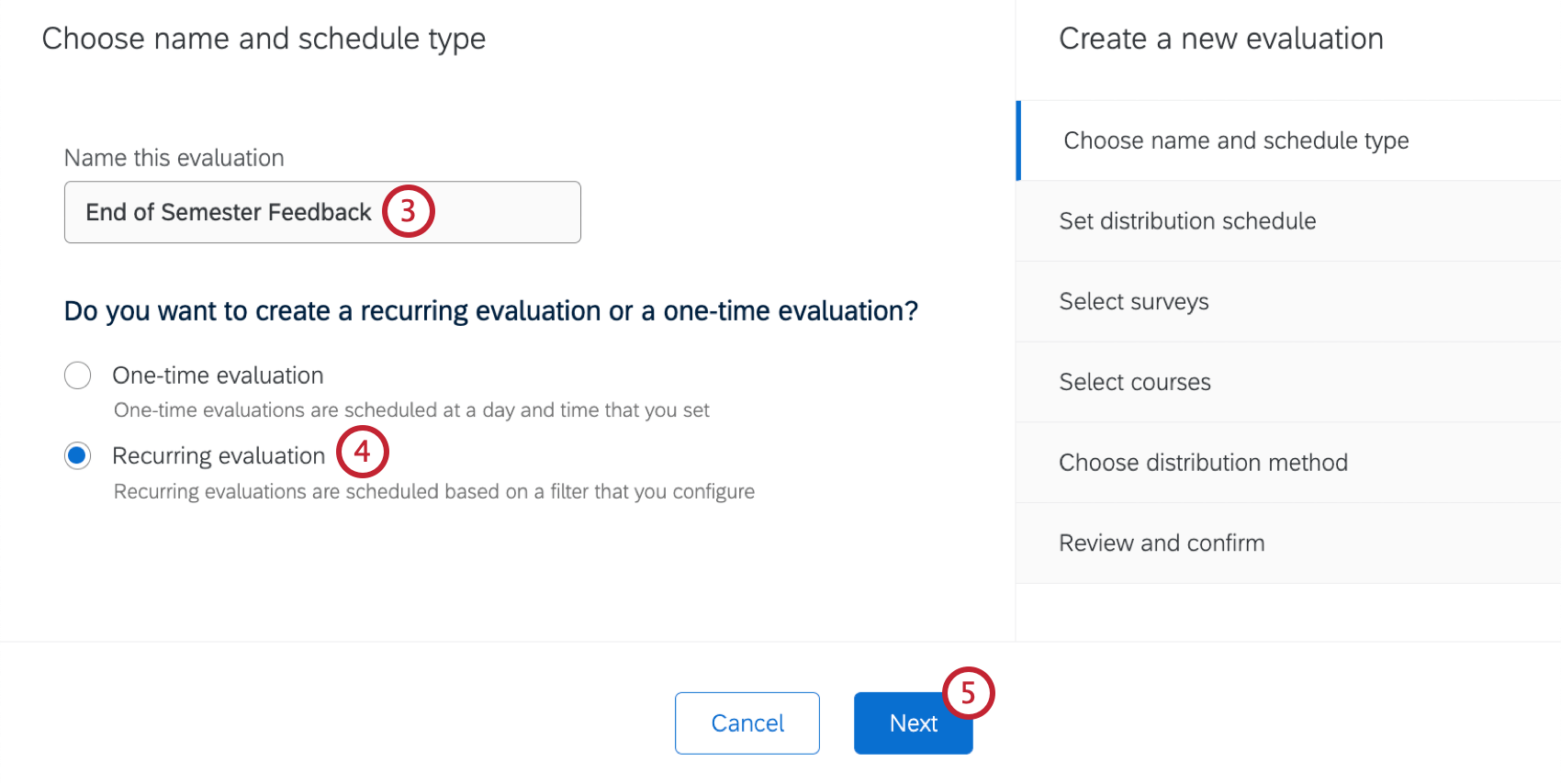
- Select Recurring evaluation.
- Click Next.
- Select a send date for your evaluations. These dates are set based on the start date or end date of the course.
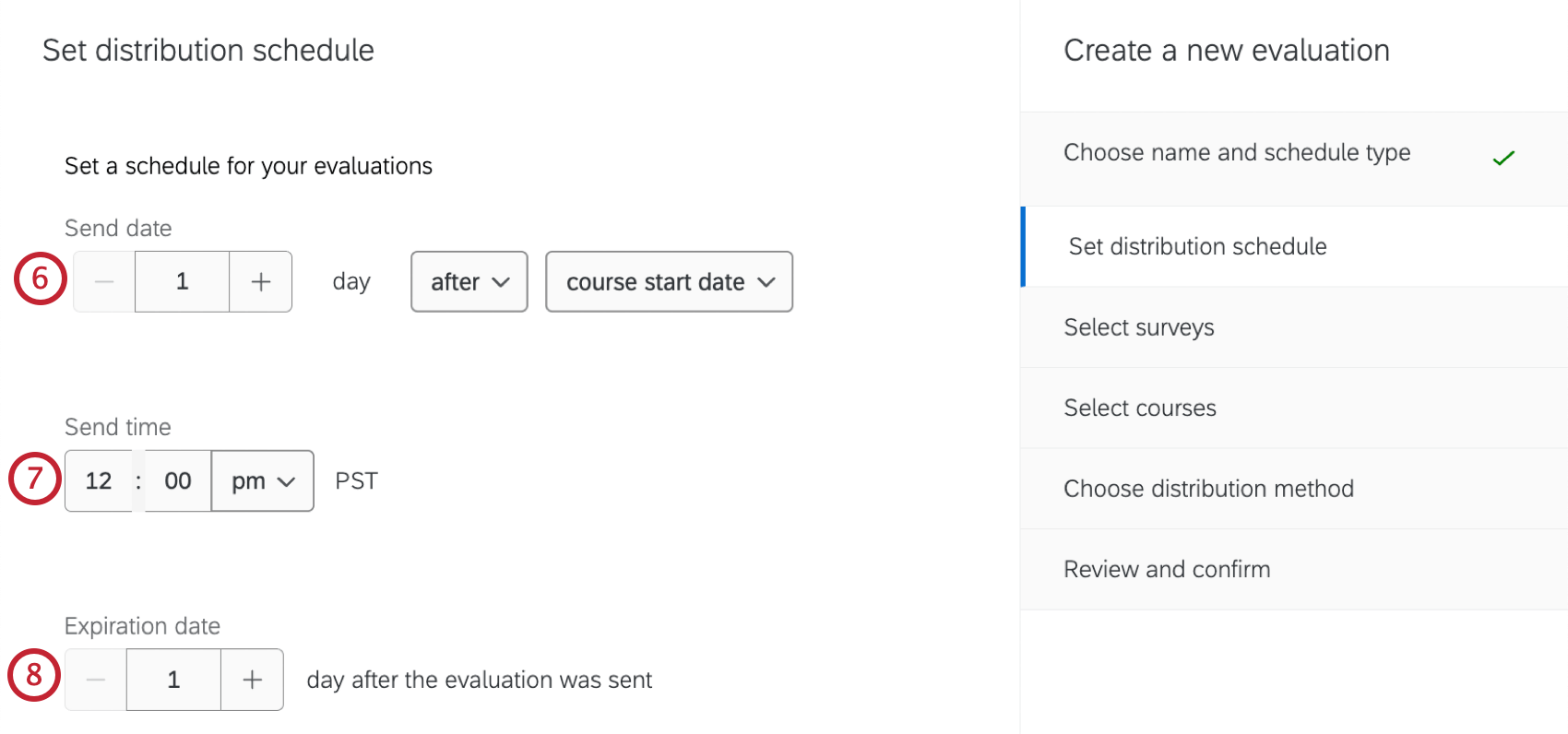 Example: Each time this automation runs it will send evaluations for courses that started 1 day ago.
 - Select a send time for your evaluation. Evaluations will send in the time zone of your account.
- Set an expiration date for your evaluation. This determines when your evaluation links will expire.
Qtip: Any survey expiration date that is set will override the expiration date of your course evaluation. If the survey link has expired, no new responses can be collected.
- If you are ready for your evaluation to start sending, click Enable evaluations. You can also enable the evaluation later, but if this is unchecked your recurring automation will not start running.
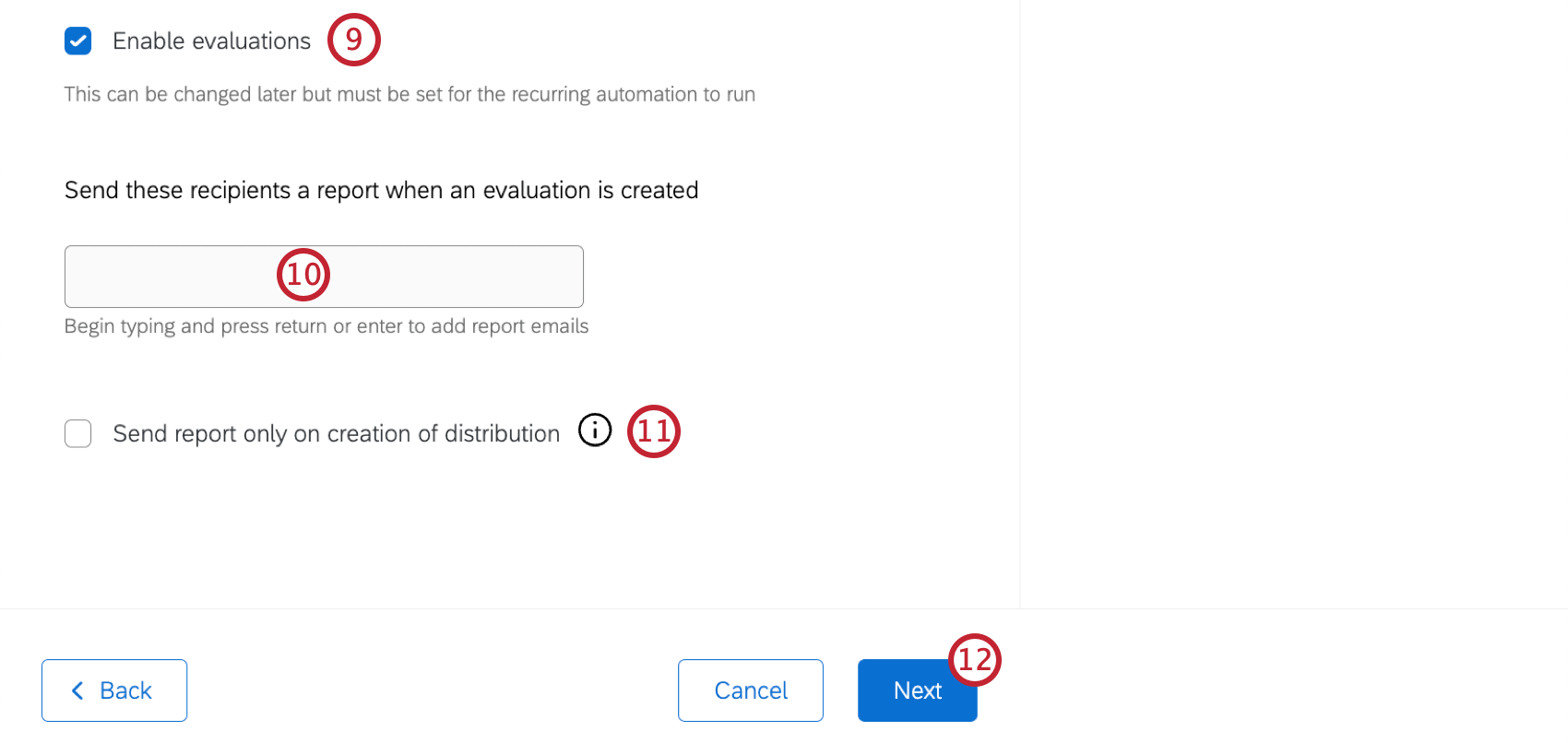
- If desired, enter emails for people you want to receive a report when an evaluation is sent. This option is similar to adding report emails within Organization Settings, but it will only send reports for this specific evaluation. To add emails, type them into the box one at a time and click enter.
- If desired, click Send report only on creation of distribution. When this option is checked, a report will only be sent to the specified recipients when distributions are created. When this option is unchecked, a report will be sent daily, regardless of whether or not distributions were sent.
- Click Next.
- Select a course survey from the dropdown. For more information, see Creating Evaluation Surveys.
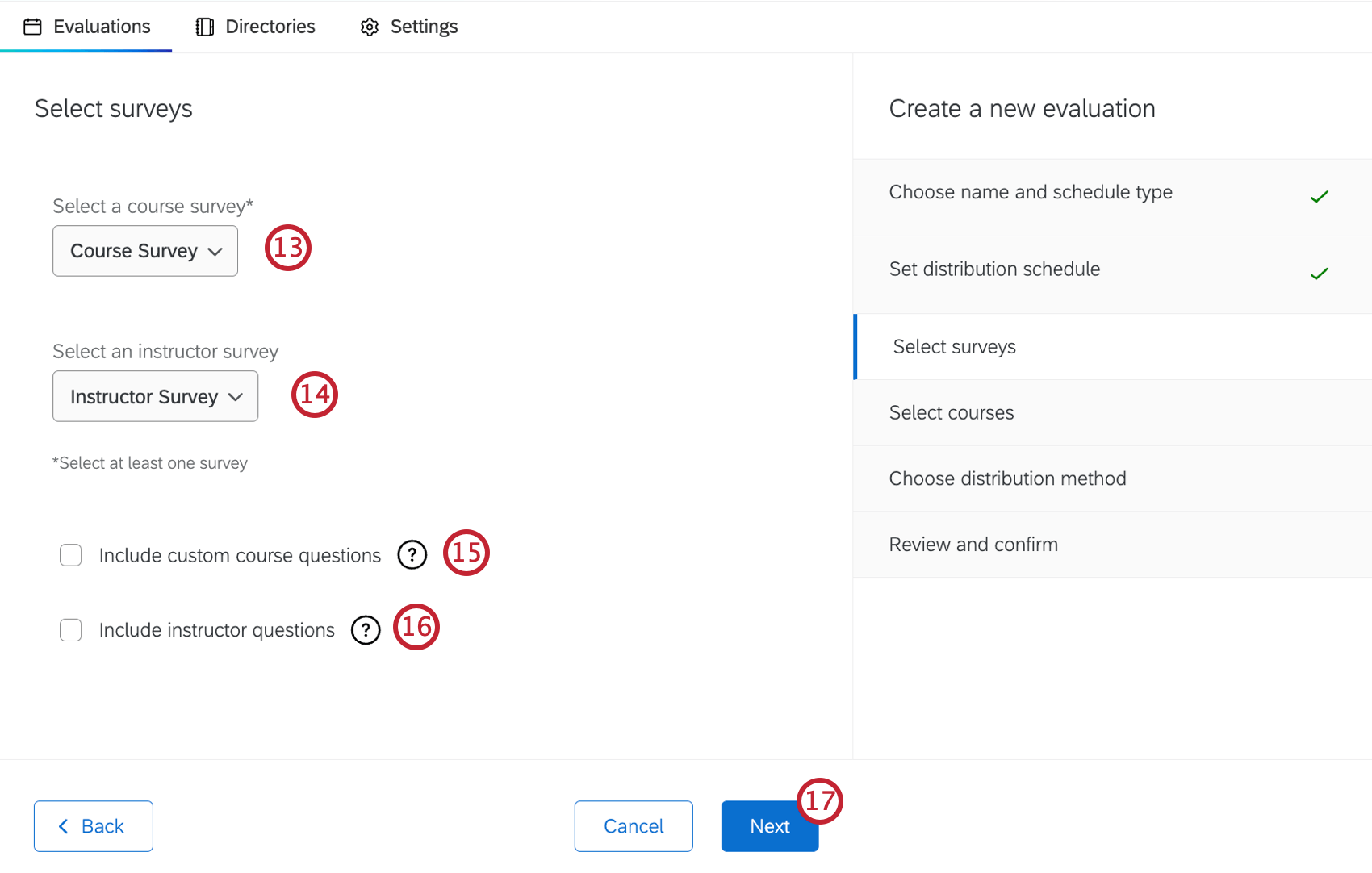
- Select an instructor survey from the dropdown.
- Choose if you want to include custom course questions. When checked, course coordinators can add custom questions to the course survey.
Qtip: This option is only available if a course survey is selected, and a course question bank survey is configured in settings
- Choose if you want to include instructor questions. When checked, instructors can select questions from the question bank survey generated in Organization Settings.
Qtip: This option is only available if an instructor survey is selected, and a teacher question bank survey is configured in settings.
- Click Next.
- Select which courses will be included in your evaluation automation by adding conditions and condition groups to the filter. The table at the bottom will display all the courses that meet your filter conditions.
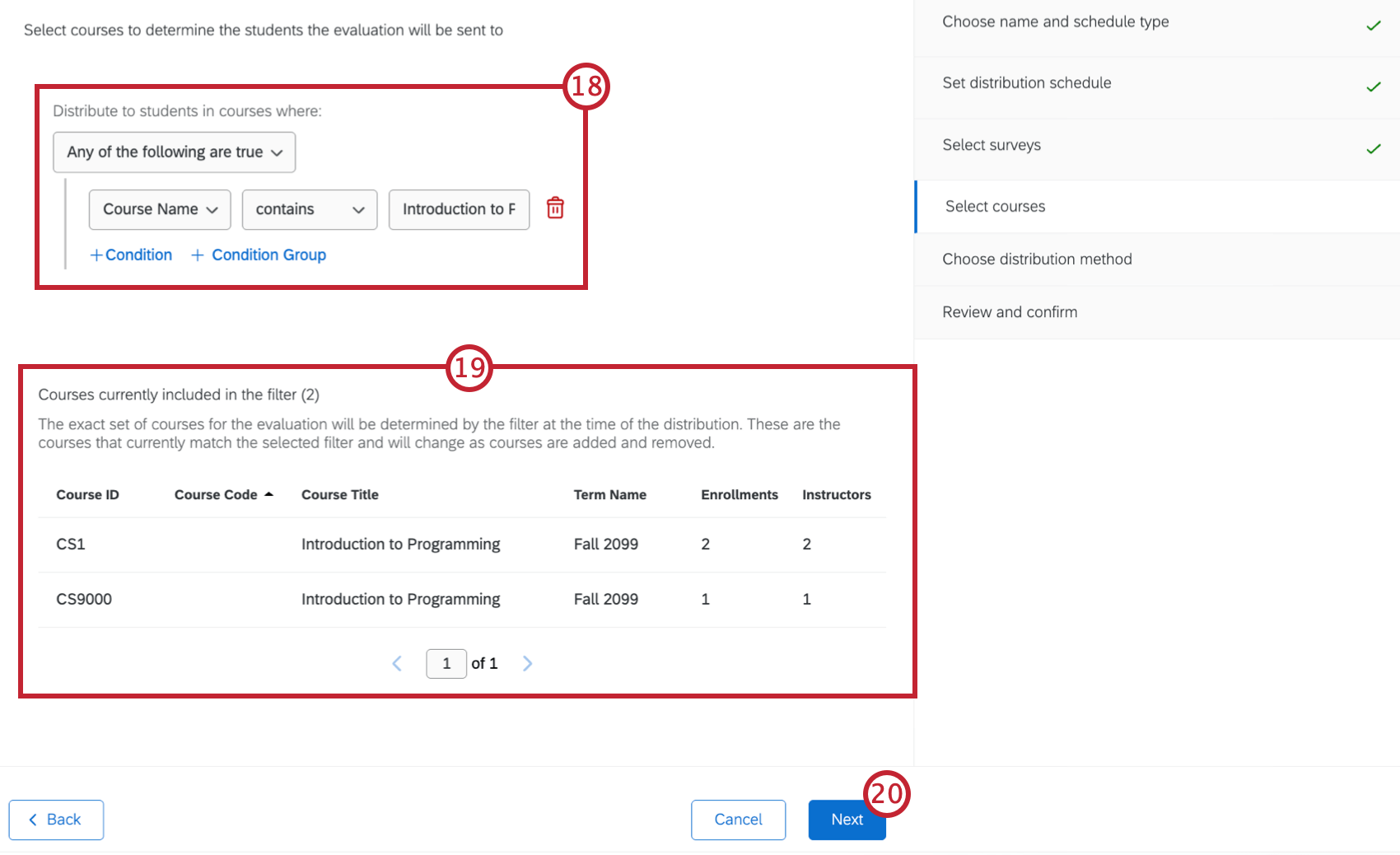 Qtip: If you don’t add any conditions to the filter, all of your courses will be included in the automation.Qtip: You can only filter by course data, which is data you map as Course Data when importing it. You cannot filter by student data or embedded data.
 - Review the course table to make sure evaluations will be sent for the correct courses.
- Click Next.
- Select whether you want to distribute your evaluations by Email and LTI or LTI only.
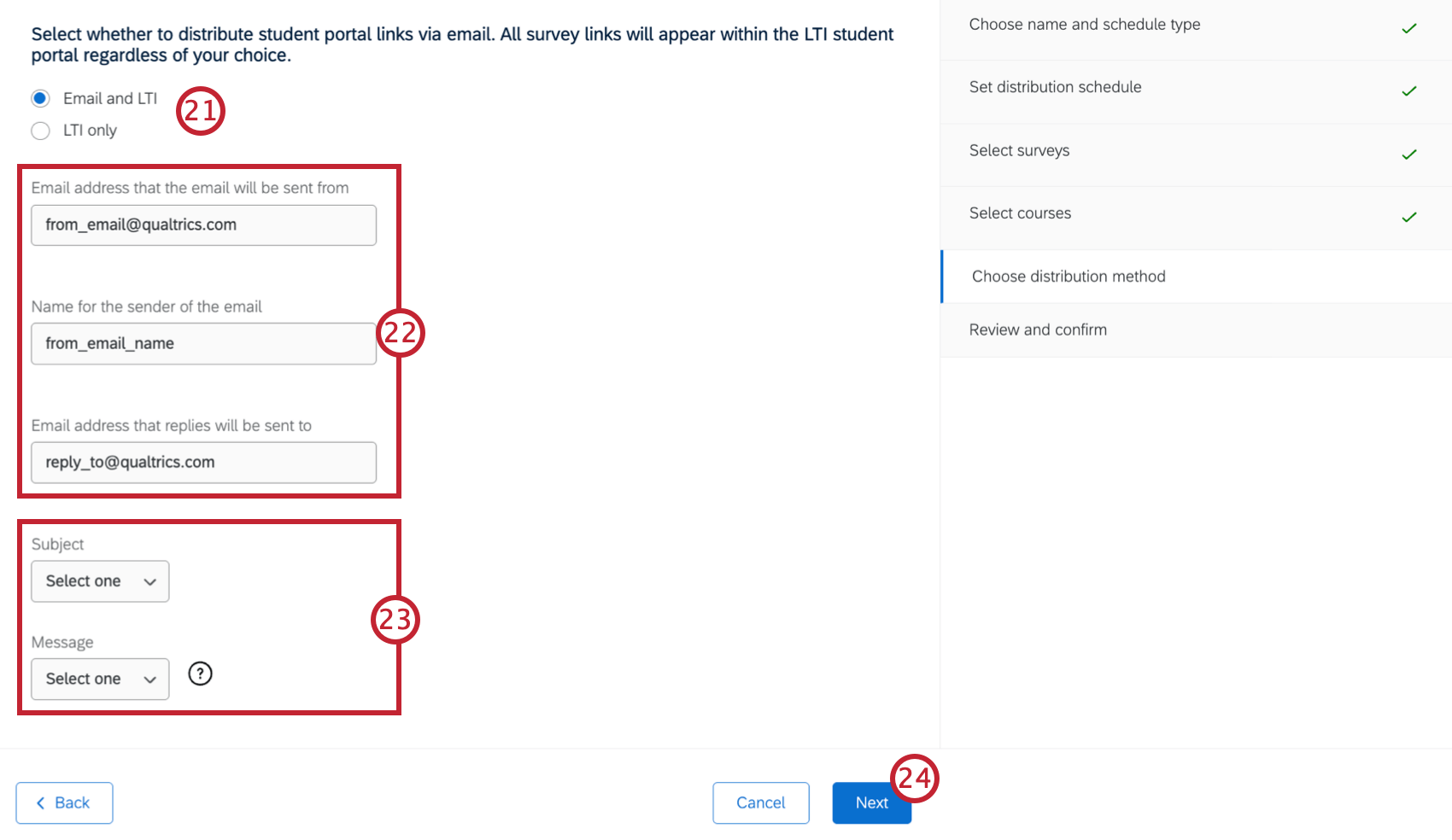
- If you are distributing your evaluations by both email and LTI, enter a “From” email, “From” name, and “Reply-to” email that your evaluations will send from.
- If you are distributing your evaluations by both email and LTI, select an email subject and email message from your messages library.
- Click Next.
- Review the evaluation settings you just created to make sure everything looks correct.
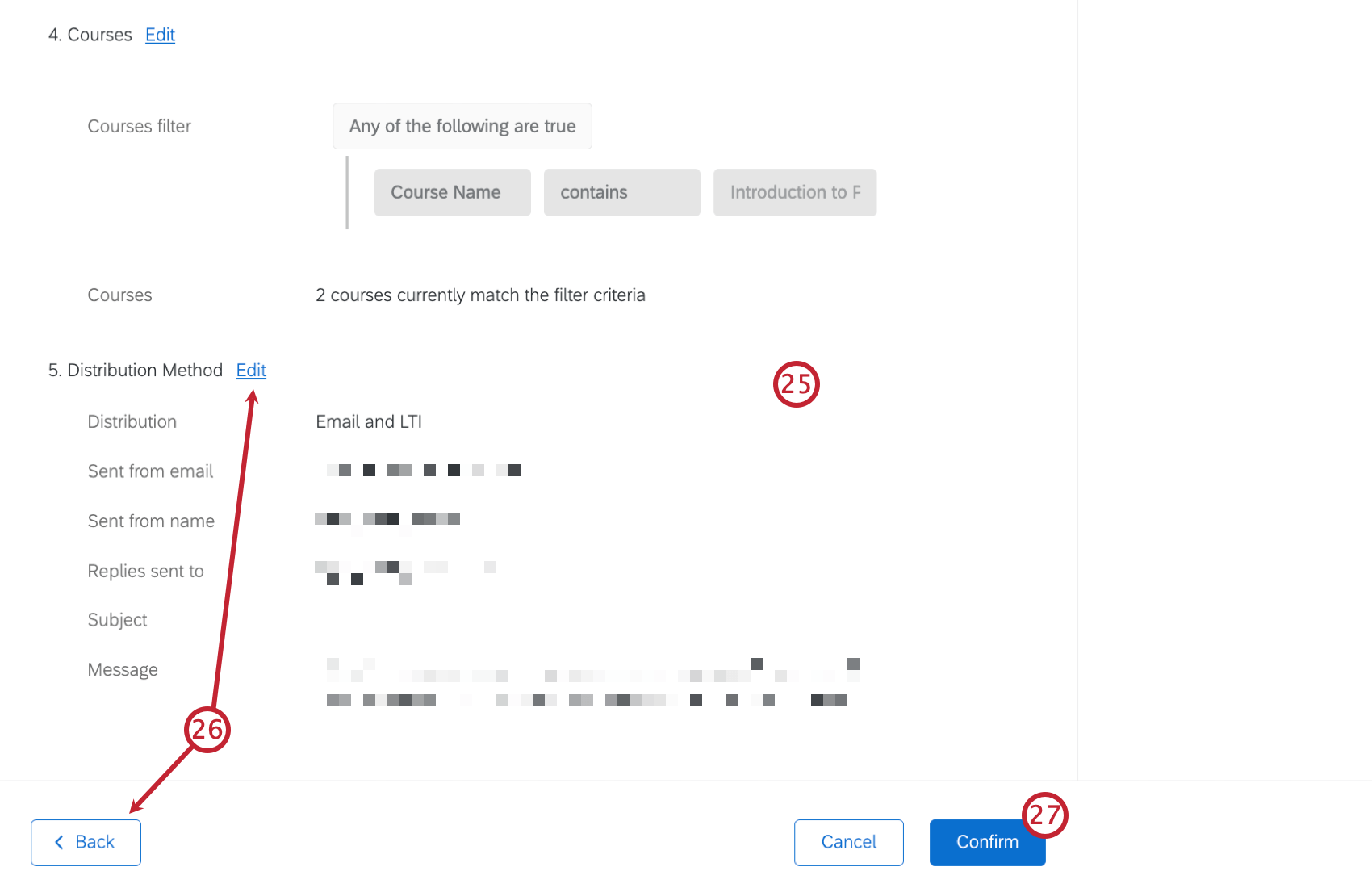
- If you need to make any changes click Back, or select Edit next to the specific section you want to edit.
- Once everything looks correct, click Confirm to enable the automation.
Sending One-time Evaluations
- Navigate to the Evaluations tab.
- Click Create an evaluation.
- Name your evaluation.
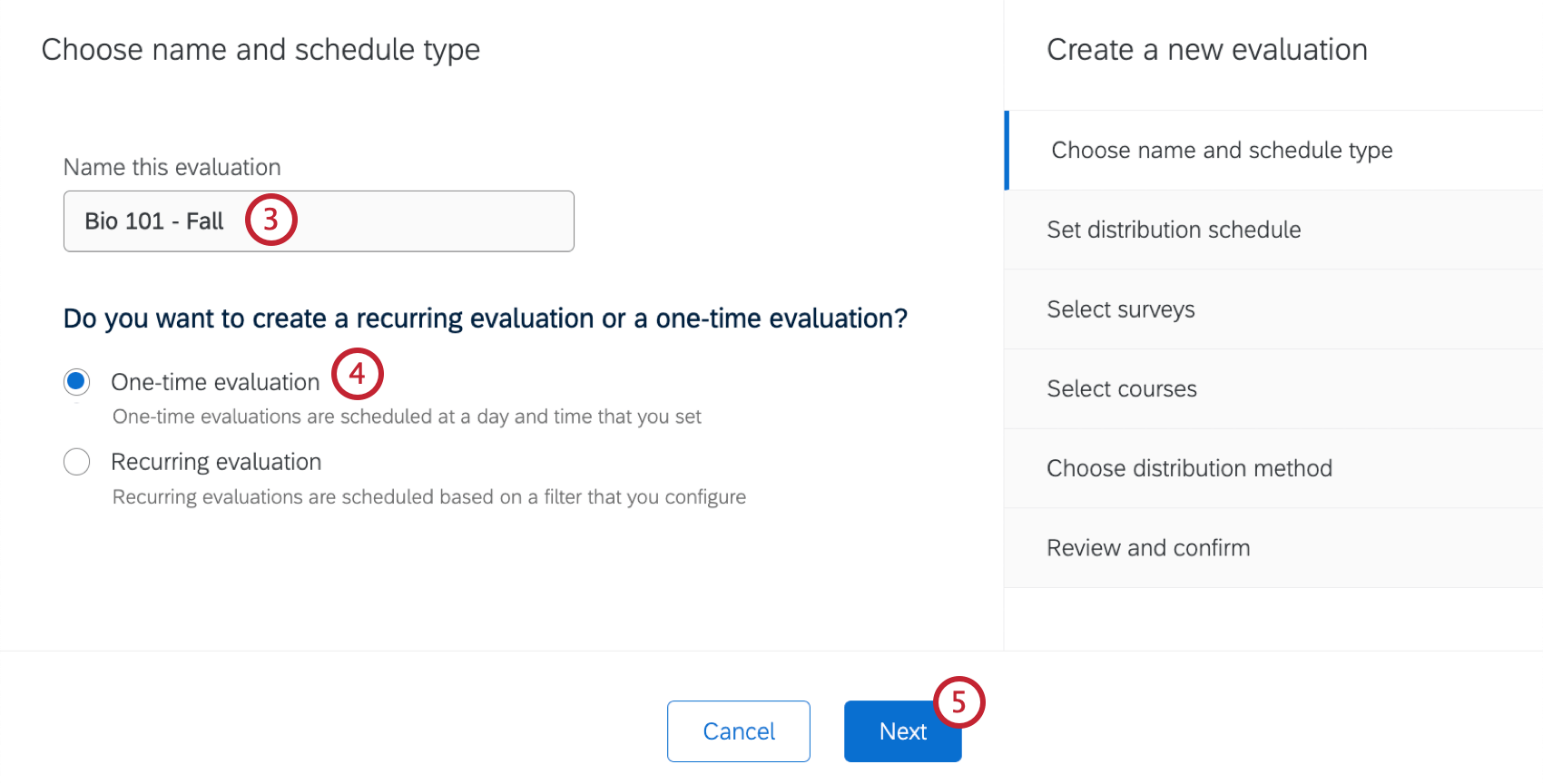
- Select One-time evaluation.
- Click Next.
- Select the date and time you want the evaluation to be sent.
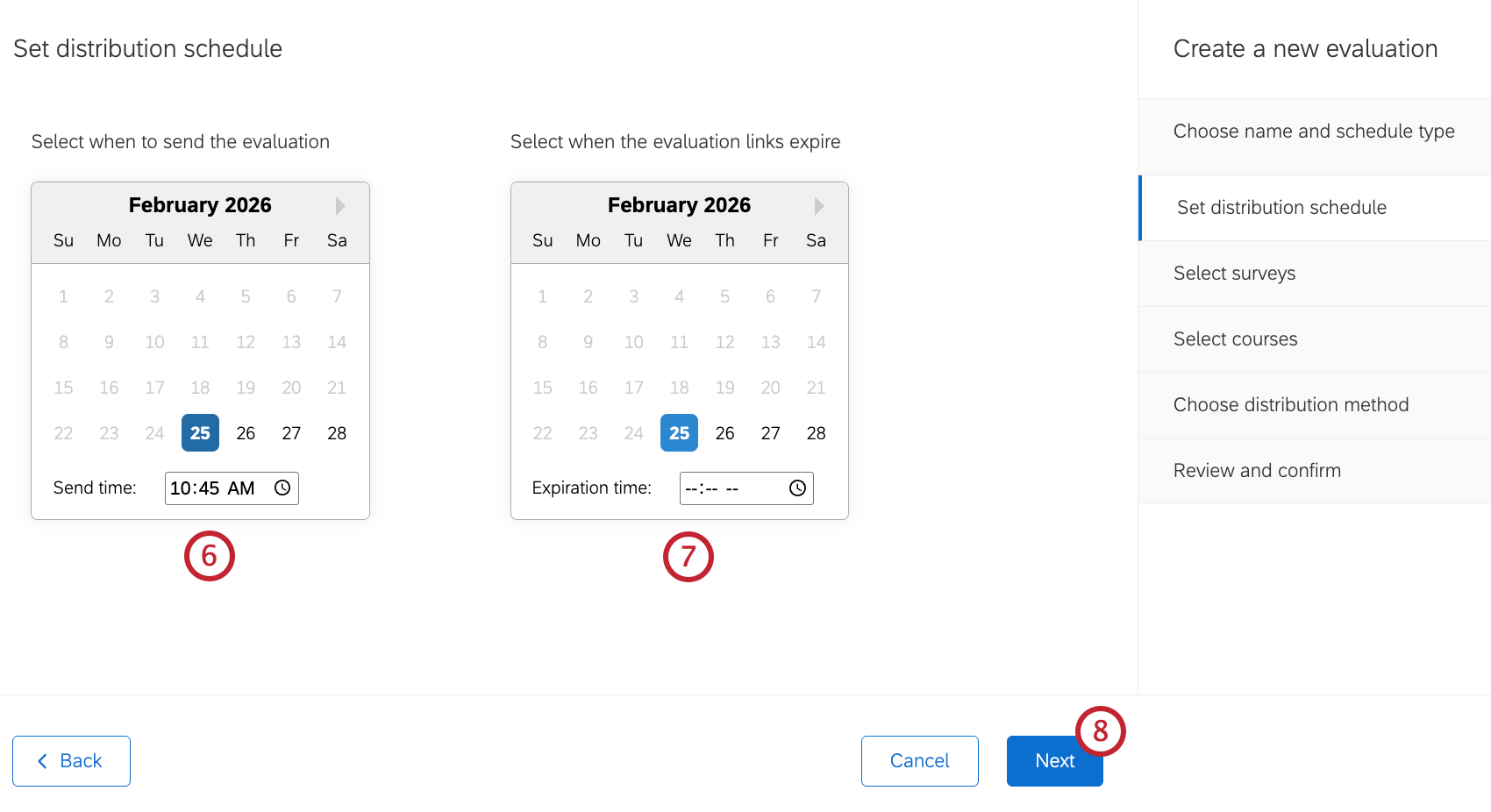
- Select the date and time the evaluation links will expire. The send date must be before the expiration date.
Qtip: You can enter the time manually, or you can click the clock icon to choose from a dropdown selection of times.
- Click Next.
- Select a course survey from the dropdown. For more information, see Creating Evaluation Surveys.
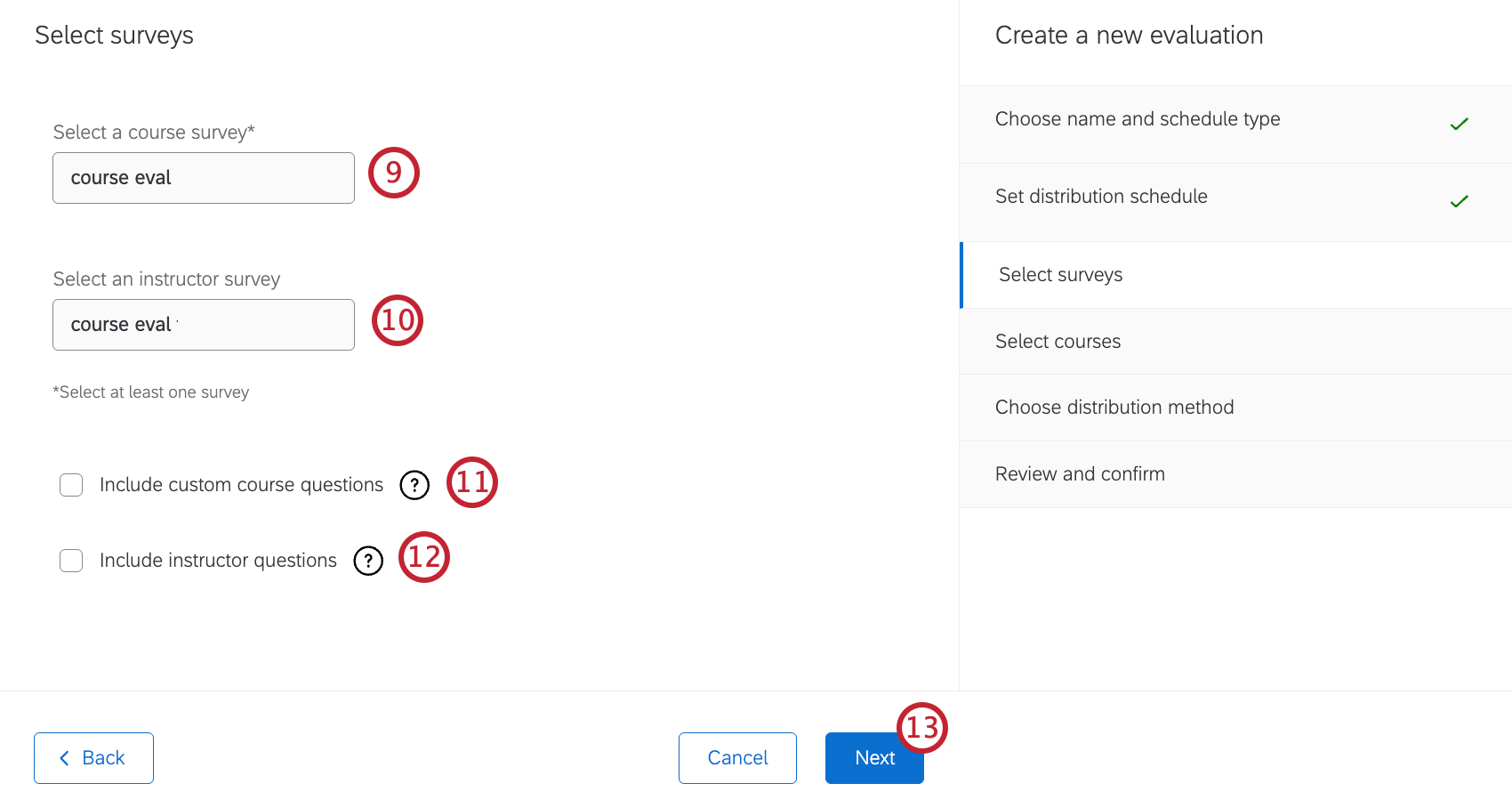
- Select an instructor survey from the dropdown.
- Choose if you want to include custom course questions. When checked, course coordinators can add custom questions to the course survey.
Qtip: This option is only available if a course survey is selected, and a course question bank survey is configured in settings.
- Choose if you want to include instructor questions. When checked, instructors will need to select questions from the question bank survey generated in Organization Settings.
Qtip: This option is only available if an instructor survey is selected, and a teacher question bank survey is configured in settings.
- Click Next.
- Select the courses you want to include in your evaluation by clicking the checkbox next to a course. To select all courses, click Select all.
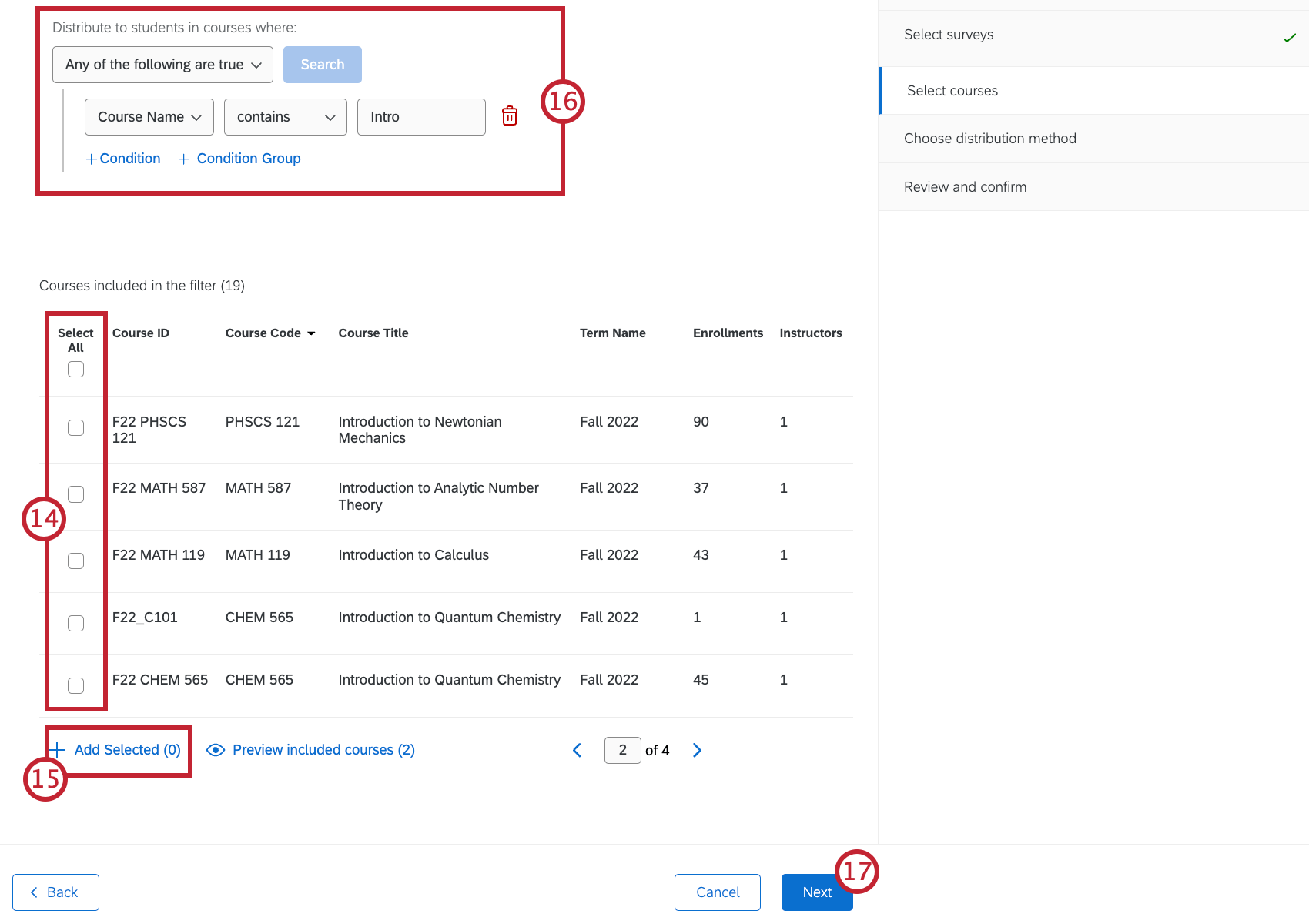 Qtip: You can search through your courses by using the arrows to navigate through the pages in the table.
 - Click Add selected to add your selected courses to the evaluation.
Qtip: To view only your selected courses, click Preview included courses. From here you can also delete courses by selecting them and clicking Remove selected. To return to the filter results click View filter results.
- You can also filter your courses using conditions and condition groups. The table at the bottom will display all the courses that meet your filter conditions.
Qtip: You can only filter by course data, which is data you map as Course Data when importing it. You cannot filter by student data or embedded data.
- Click Next.
- Select whether you want to distribute your evaluations by Email and LTI or LTI only.
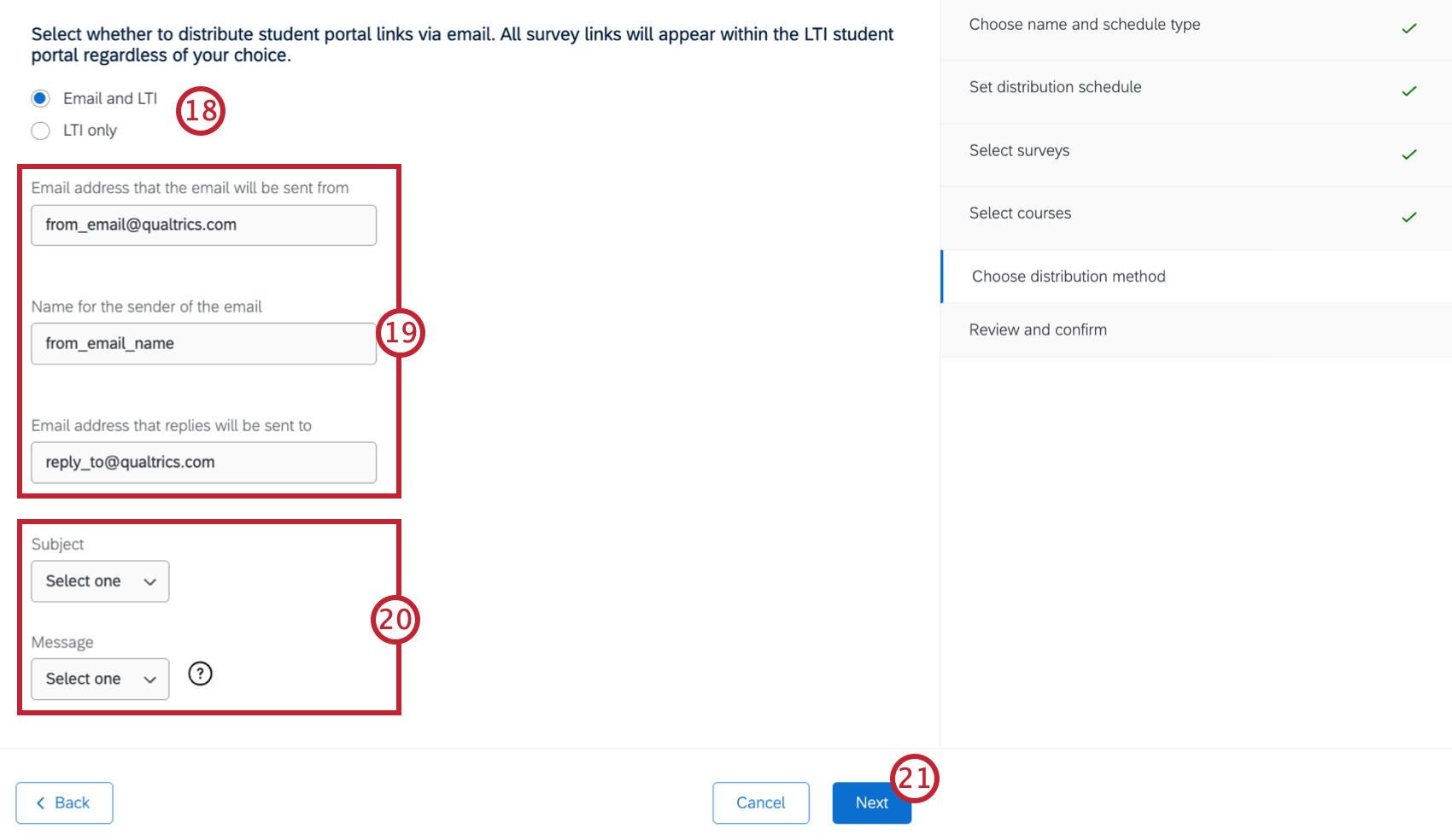
- If you are distributing your evaluations by both email and LTI, enter a “From” email, “From” name, and “Reply-to” email that your evaluations will send from.
- If you are distributing your evaluations by both email and LTI, select an email subject and email message from your messages library.
- Click Next.
- Review the evaluation settings you just created to make sure everything looks correct.
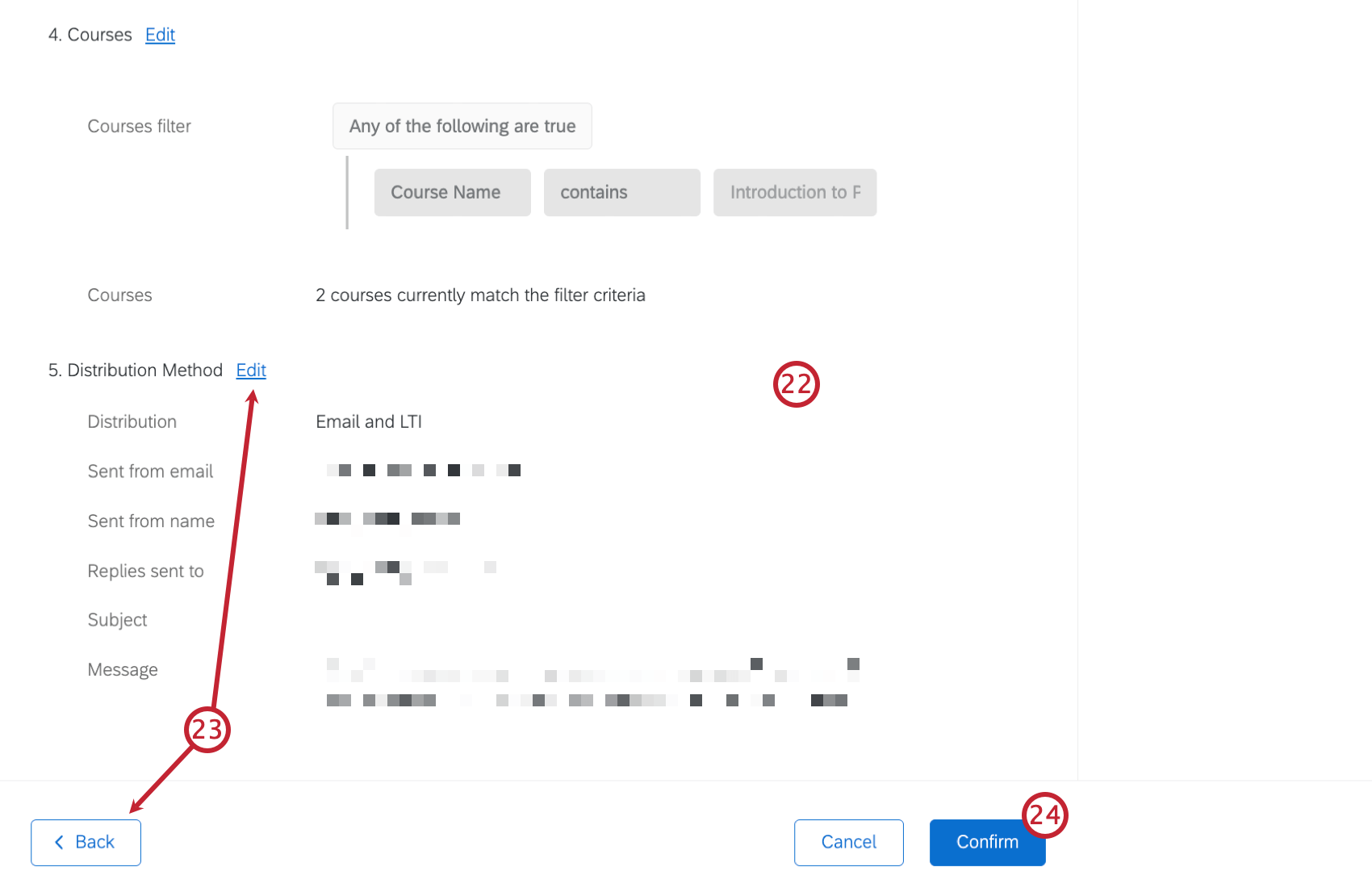
- If you need to make any changes click Back, or select Edit next to the specific section you want to edit.
- Once everything looks correct, click Confirm to enable the distribution.