

Managing the Qualtrics App in Salesforce
What's on this page
About Managing the Qualtrics App in Salesforce
The Qualtrics App on the Salesforce AppExchange has certain capabilities that are managed by Salesforce administrators. The steps on this page must be completed by users with Salesforce administrator permissions.
Installing the App
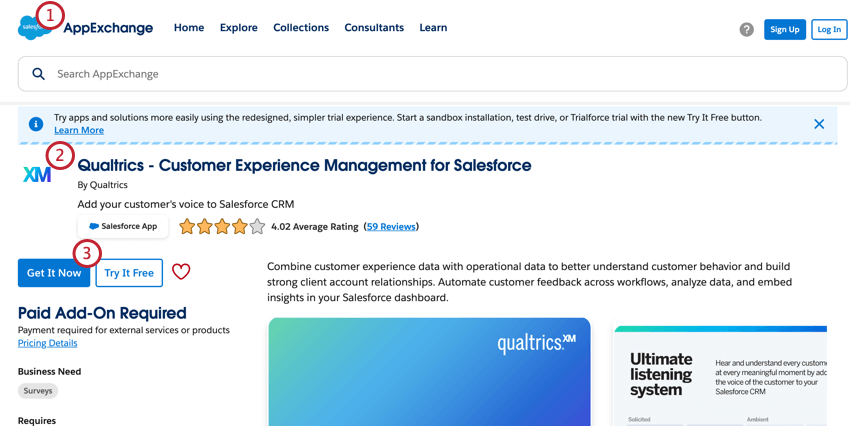
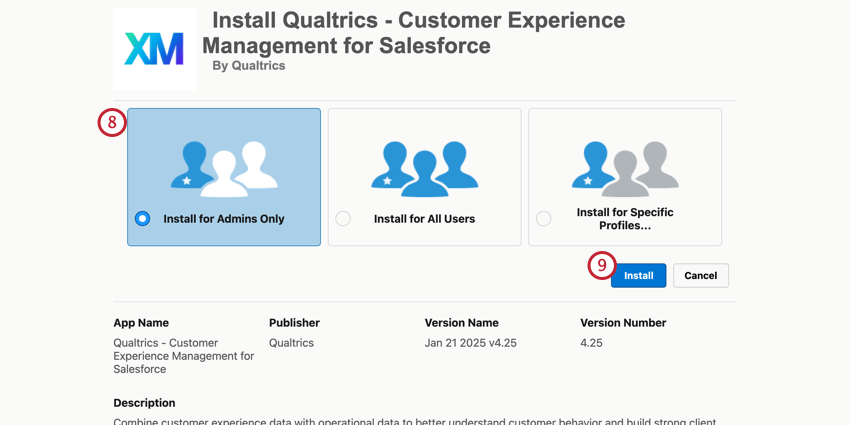
Qtip: You can grant other users access to the app by enabling the Qualtrics Admin permission set for them.
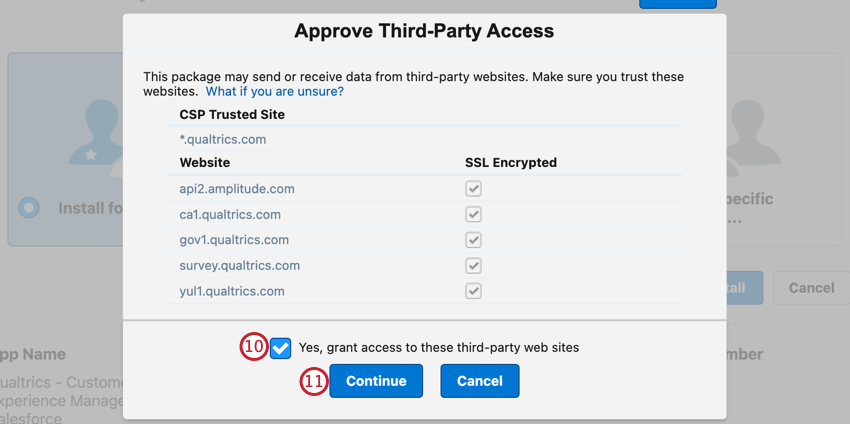
Qtip: You will receive an email once the installation is complete. Then, move on to the next section.
Setting Up the App
After downloading the Qualtrics XM app in the Salesforce App Exchange, follow the steps below to set up the app.
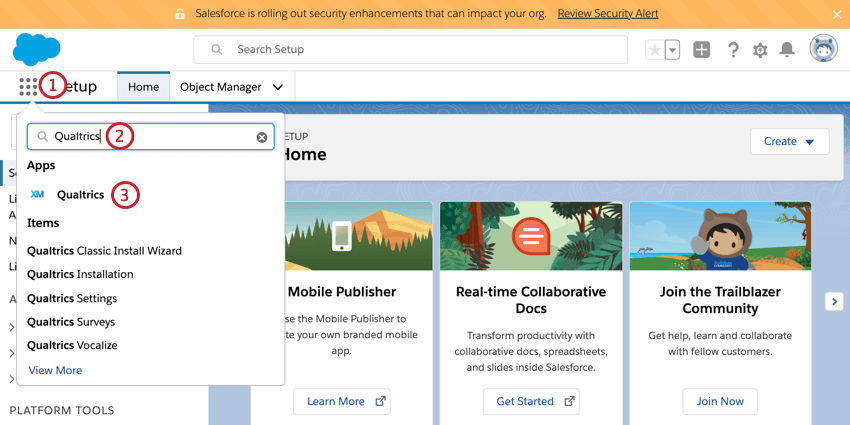
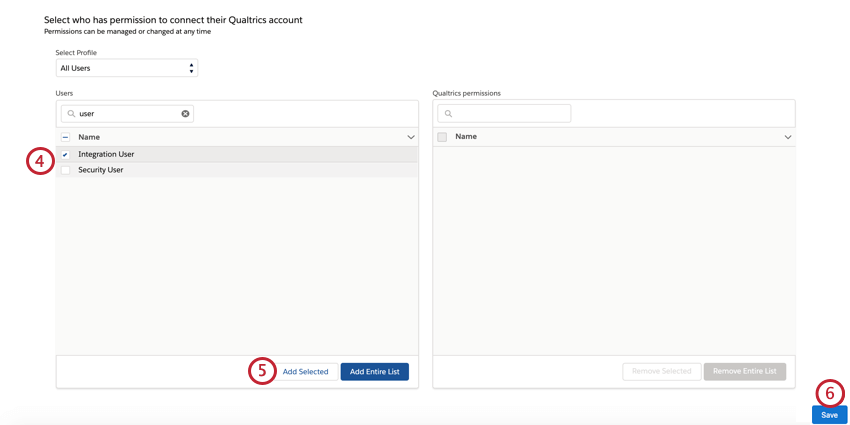
Qtip: Click Add Entire List if you want to give access to every user in your Salesforce instance.
The installation setup is now complete! You can re-launch the installer at any time to change these settings.
Connecting Your Account
Qtip: Users must have the Enable SFDC App user permission enabled to set up the connection.
Before you can send surveys via Salesforce or view responses & CX dashboards, you need to connect your Qualtrics and Salesforce accounts.
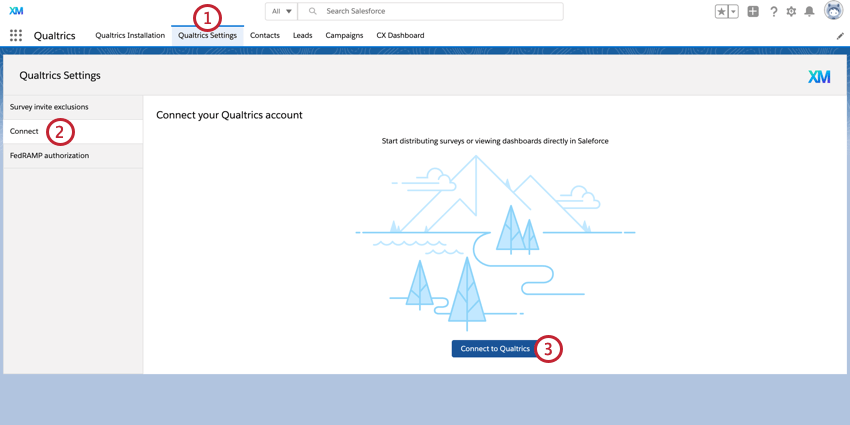
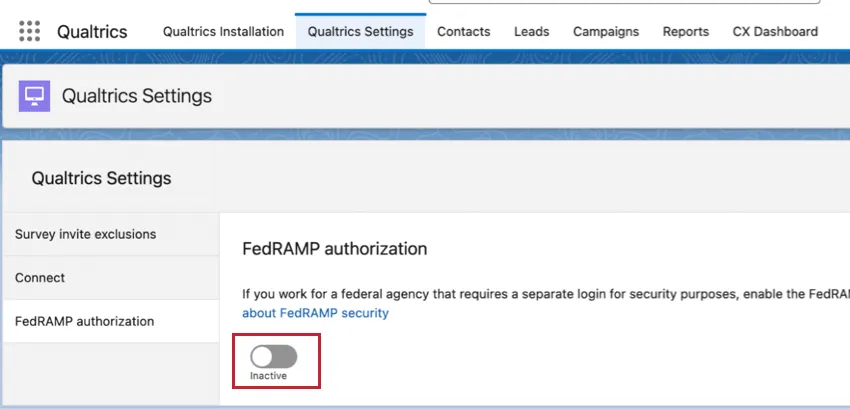
Qtip: If you are securing your data with FedRAMP, you must turn on the FedRAMP option in the FedRAMP authorization tab.
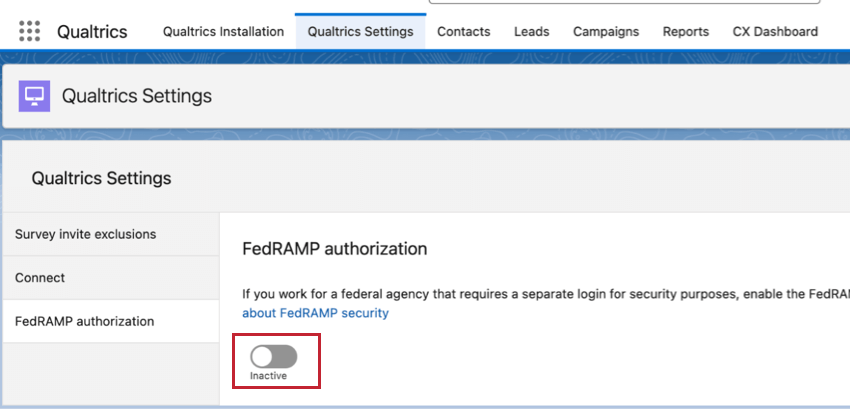
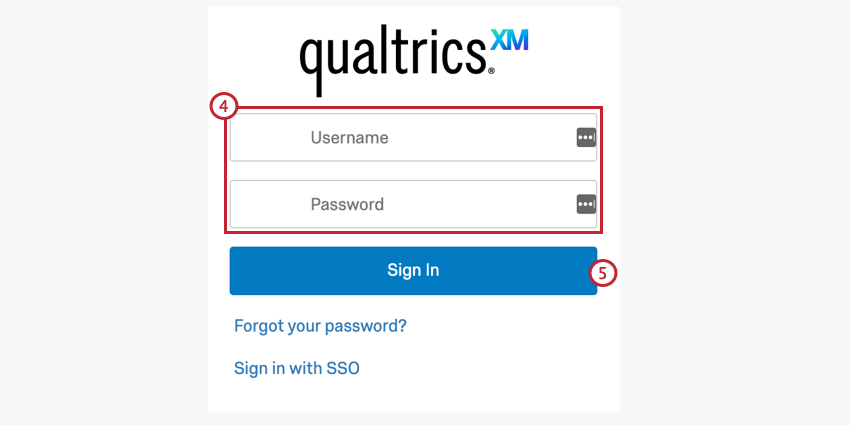
Qtip: If your license uses Single Sign On (SSO), click Sign in with SSO and enter your organization ID. More information about logging in with your organization ID can be found on this support page.
Custom Features
The Qualtrics App in Salesforce comes with custom features that help with the usage and administration of the app.
Custom Permission Sets
The app has two custom permission sets that are determined when the app is installed. These permissions give different levels of access to features within the app.
- Qualtrics Admin: Provides access to administrative tools within the app. Users with this permission can distribute surveys and edit them, as well as read and edit survey records and survey response records.
- Qualtrics User: Provides access to distribute existing surveys but cannot edit or create new ones. Additionally, users with this permission can read permissions on survey responses, and read and create permissions on surveys.
Custom Objects
The app has two custom objects that can be used in Salesforce.
- Survey Responses: This object stores each survey response with the record of the survey taker. Qtip: This object comes with many fields that can be hidden, deleted, or added by a Salesforce administrator.

- Surveys: This object tracks surveys that have been distributed through the Qualtrics app. Each time a survey is sent, a new record is created in this object. This object allows you to track survey responses for each distribution sent.
Custom Tabs
- CX Dashboard: If your license currently has CX Dashboards enabled, this tab allows you to view dashboards that you have access to.
Distributing Surveys Using a Custom “From” Address
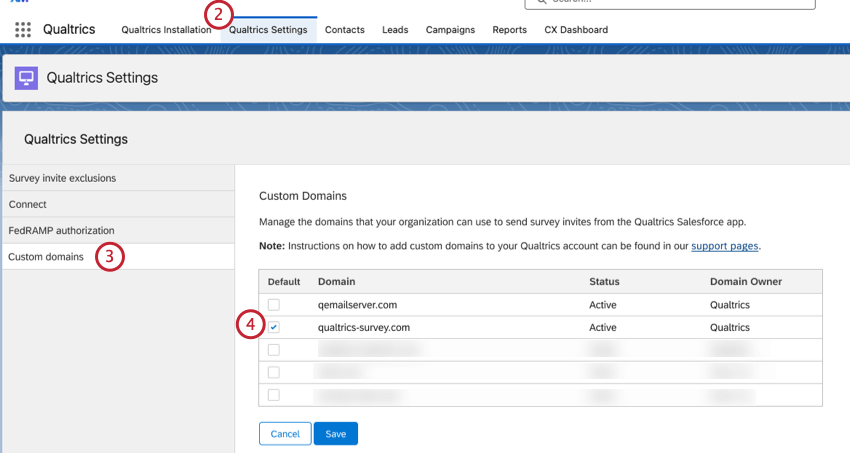
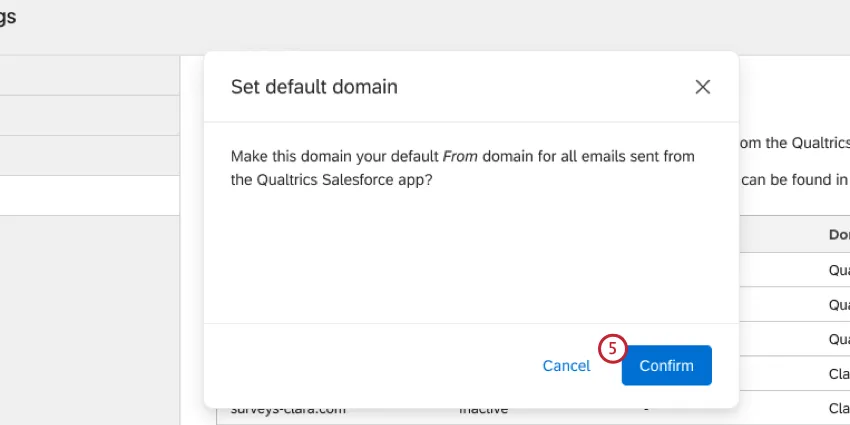
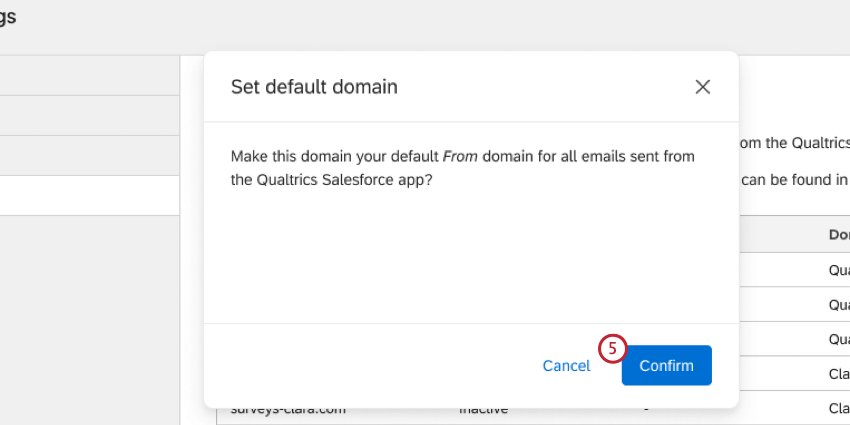
By default, emails sent through the Qualtrics App in Salesforce come from the noreply@qemailserver.com email address. You can configure a custom domain, allowing surveys from Salesforce to be sent using your own email domain.
Qtip: Custom email domains will apply to all users and all surveys sent from the Qualtrics app within your organization.
Attention: You must have admin permissions in both Qualtrics and Salesforce in order to create a new custom domain. For help, reach out to your brand administrator.

Adding Widgets to Salesforce Record Pages
With the Qualtrics App in Salesforce, you can embed widgets from your CX dashboard onto a record page within Salesforce. In order to see the widgets when viewing a record page, a Salesforce user must meet the following conditions:
- Their Salesforce and Qualtrics accounts are connected.
- The user has access to the dashboard containing the widget.
Qtip: See Embedding Dashboard Widgets in Third Party Software for a step-by-step guide on embedding your dashboard widgets in Salesforce.
Troubleshooting
This section covers the most common issues that arise when working with the Qualtrics App in Salesforce. When troubleshooting this app, you should work with your IT team, implementation partner, or administrator in order to resolve.
“You Don’t Have Access To This Page” Error Message
If you receive the “You don’t have access to this page” error message, it likely means that you do not have the Enable SFDC App, Embedded Widgets, and Embedded Dashboards user permissions enabled. Your Qualtrics brand administrator must enable those permissions in order to access the app in Salesforce.
App Not Displayed in Salesforce
If the Qualtrics application is no longer available in your Salesforce organization, the license could have expired. Ensure that the Enable SFDC App user permission is turned on in Qualtrics.
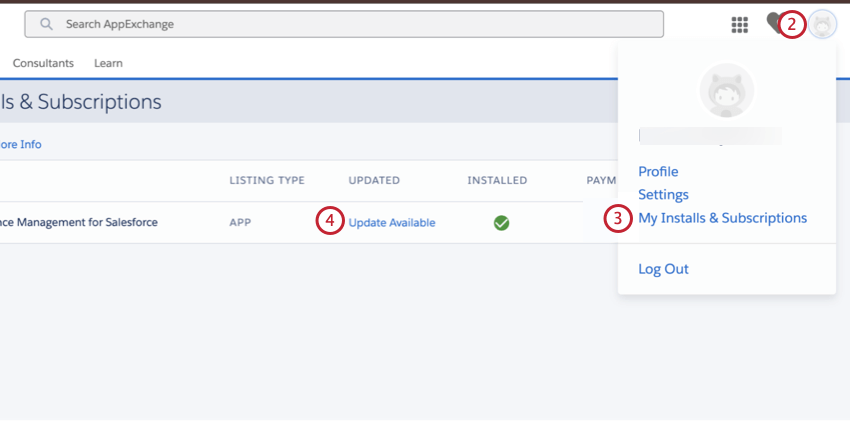
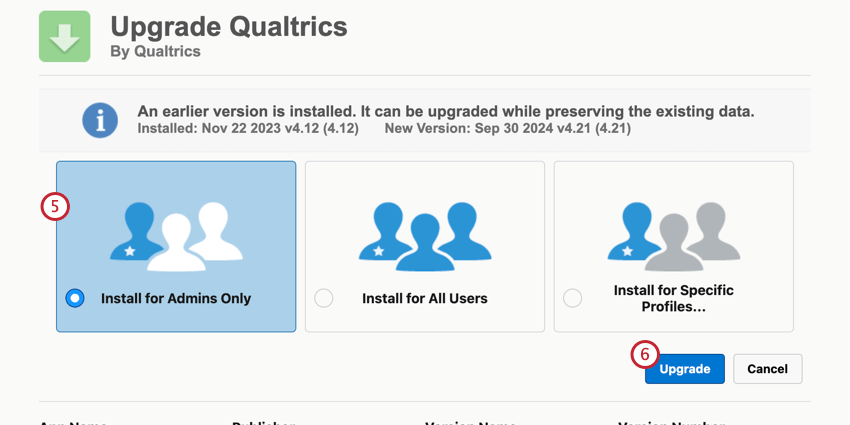
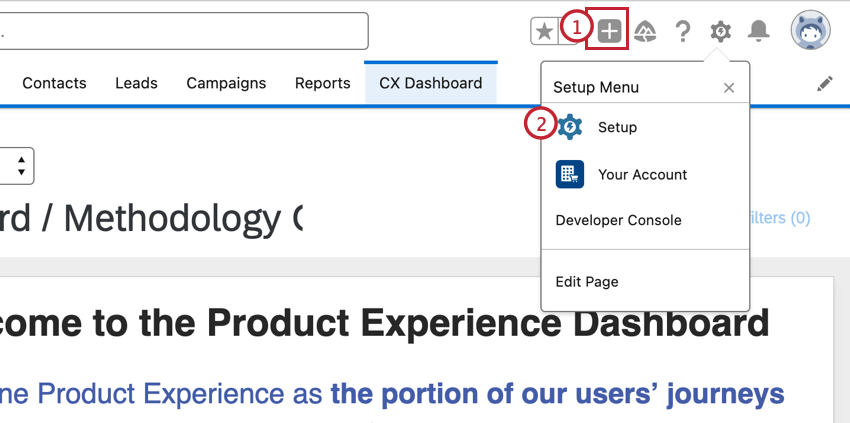
Update the Qualtrics App in Salesforce
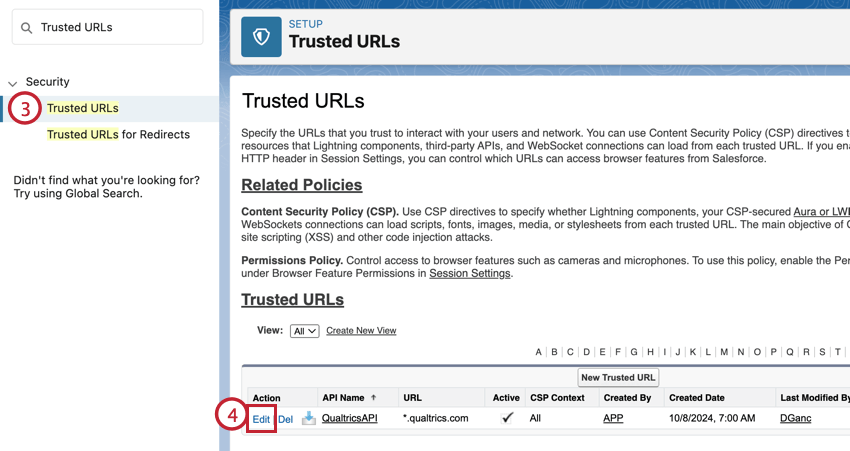
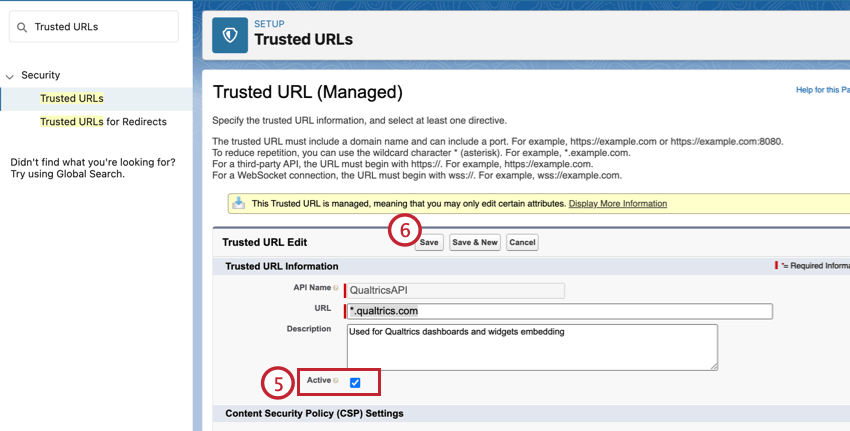
Dashboards and/or Widgets Do Not Display Correctly
The CX Dashboard tab may contain an error after updating the Qualtrics app due to the deactivation of the Trusted URLs setting.
That's great! Thank you for your feedback!
Thank you for your feedback!