-

Qualtrics Platform -

Customer Journey Optimizer -

XM Discover -

Qualtrics Social Connect
Settings Tab (Course Evaluations)
About the Settings Tab
In the Settings tab you can view and manage options that apply to all course evaluations in your organization. This includes connecting your Qualtrics account with your Learning Management System (LMS) software, previewing the student view of evaluations, editing question settings, and more.
For more information on Course Evaluations, see Course Evaluations Overview.
Organization Settings
In this section you can manage settings that will apply to evaluations for your whole organization. After you finish editing your settings, click Save at the bottom of the page.
Learning Tools Interoperability (LTI) v1.1
LTI version 1.1 is deprecated. You can still use this version, however it is recommended that you use version 1.3. See LTI v1.3 Settings for instructions on configuring and using LTI version 1.3.
These email fields set defaults for all course evaluations sent within your organization. These fields are all optional.
- Default email address to send from: The email address your course evaluations will send from by default.
- Name of the default email sender: The name your course evaluations will send from by default.
- Default email address to reply to: The default email address students can reply to from their course evaluations.
Students
- Enable evaluation email opt out for students: Allow students to opt out of email evaluations.
- Enable evaluation survey retakes for students: Allow students to retake evaluations.
Qtip: Retake links are only available for distributions sent after November 30, 2021.
Reports
- Send email reports after an import is complete: When checked, this option will send a report every time there is a student or instructor directory import. This applies to both manual CSV uploads and automated imports.
- Send email reports after an evaluation is sent: When checked, this option will send a report every time an evaluation is sent.
Enter an email address or multiple addresses in the text box to send them a report. If you don’t want anyone to receive reports, you can leave these options unchecked. Report recipients do not need to have a Qualtrics account, but they must have an account to log in to view specific details about the task.
Language
Select a default language from the dropdown. This language will be the default language in the Student View. It will also be the default language when you add new students manually within the Students section. This field is optional.
LTI V 1.3 Settings
In this section you can manage the connection between Qualtrics and your Learning Management System (LMS). Providing your LMS credentials allows Qualtrics to embed course evaluations directly within your learning management site.
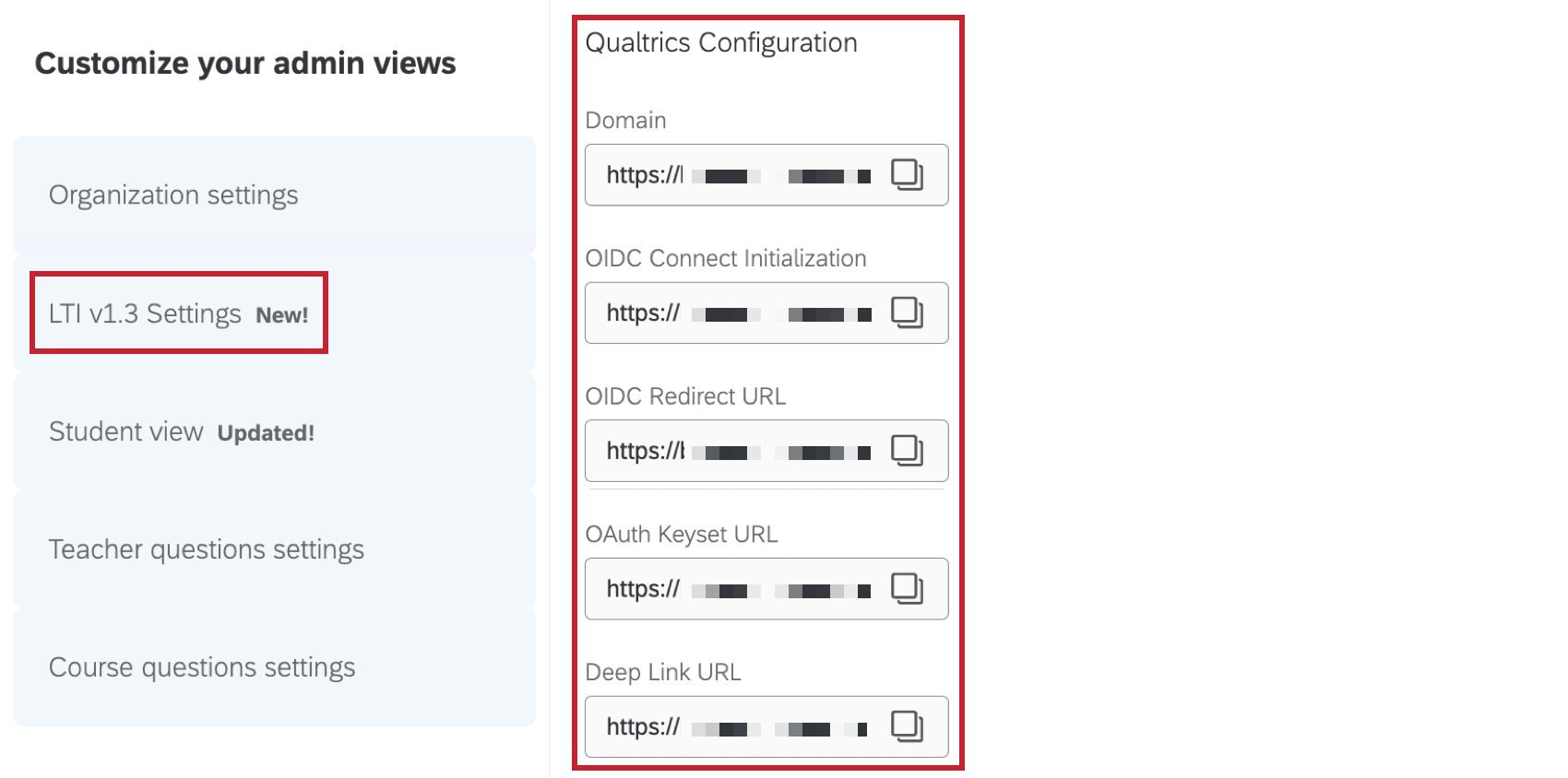
Qualtrics Configuration
The fields in this section are automatically populated with the necessary Qualtrics URLs for your course evaluations project. Use these URLs within your LMS to integrate it directly with Qualtrics.
Platform Registration
Fill out the fields in this section with the relevant information from your LMS. When you’re finished, click Save.
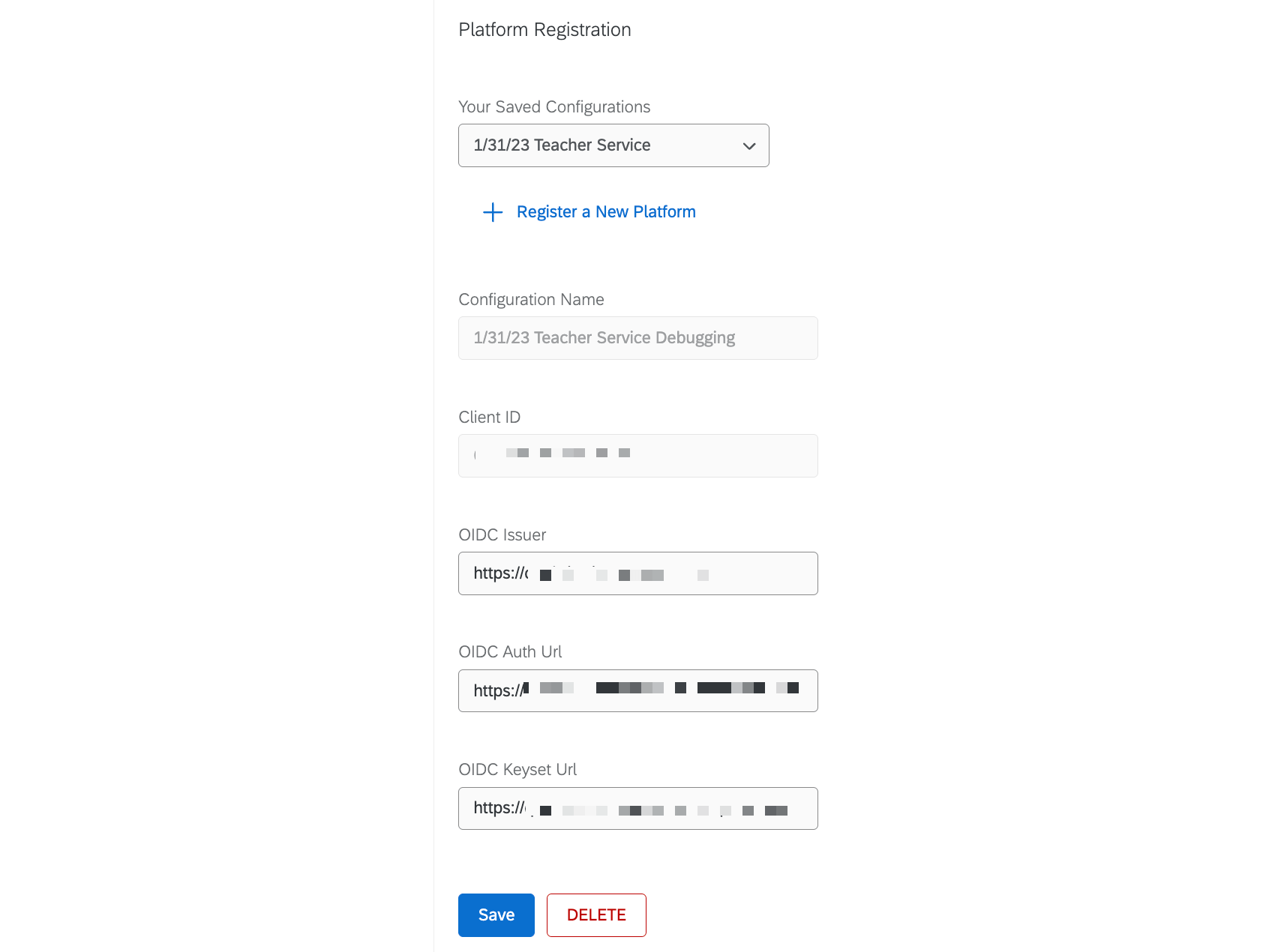
You can add multiple platforms. Click Register a new platform to enter the configuration details for another platform, then click Save. Select one of your platforms from the dropdown to edit details or delete it.
Student View
In this section you can preview how the evaluations portal will appear to your students, as well as edit the content within the portal. The evaluations portal is where students can access the links for all their evaluations in one place.
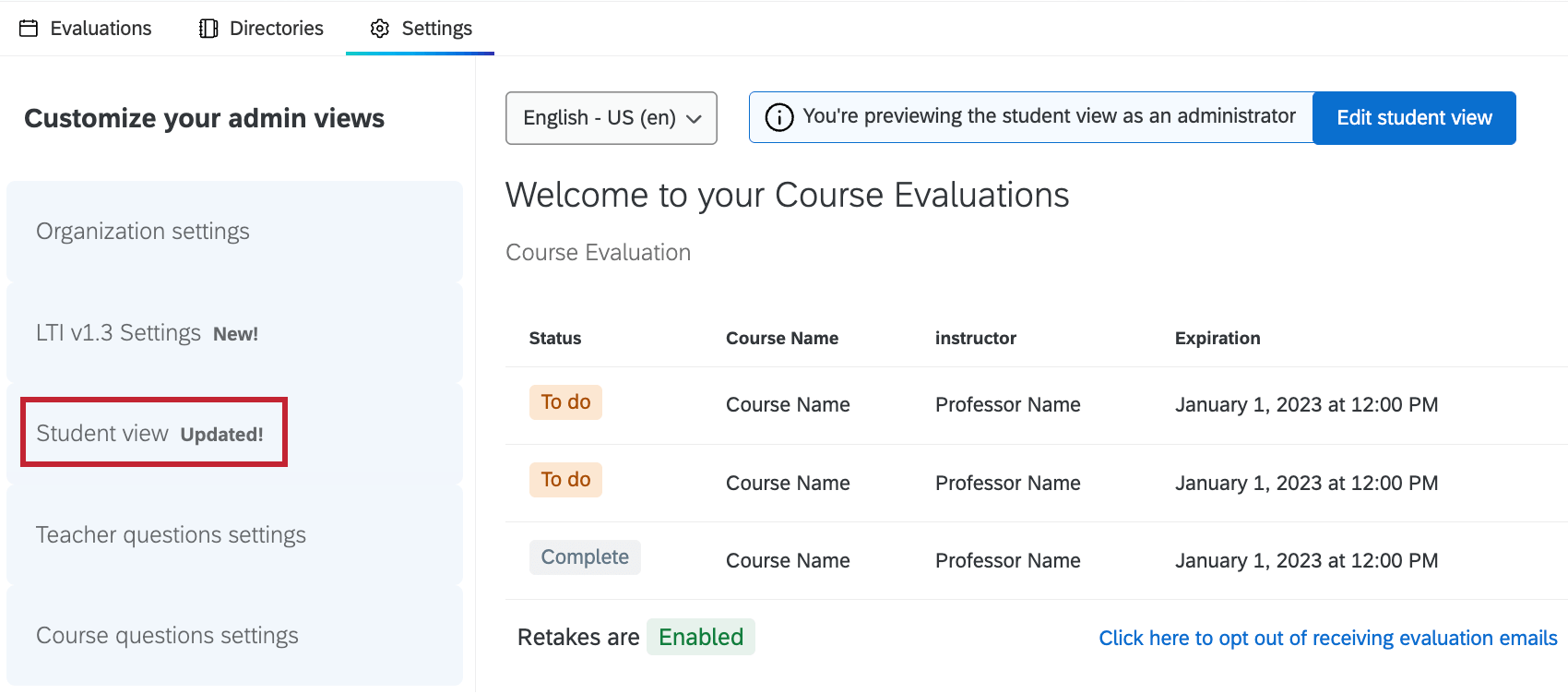
For more information on viewing and editing the student view, see Student View (Course Evaluations).
Teacher Questions Settings
In this section you can give instructors the ability to ask their own questions in course evaluations. Many schools require their instructors to either choose from a list of pre-approved questions they want to ask or write their own custom questions. Once you make changes to these settings, click Save to apply them.
Custom text options
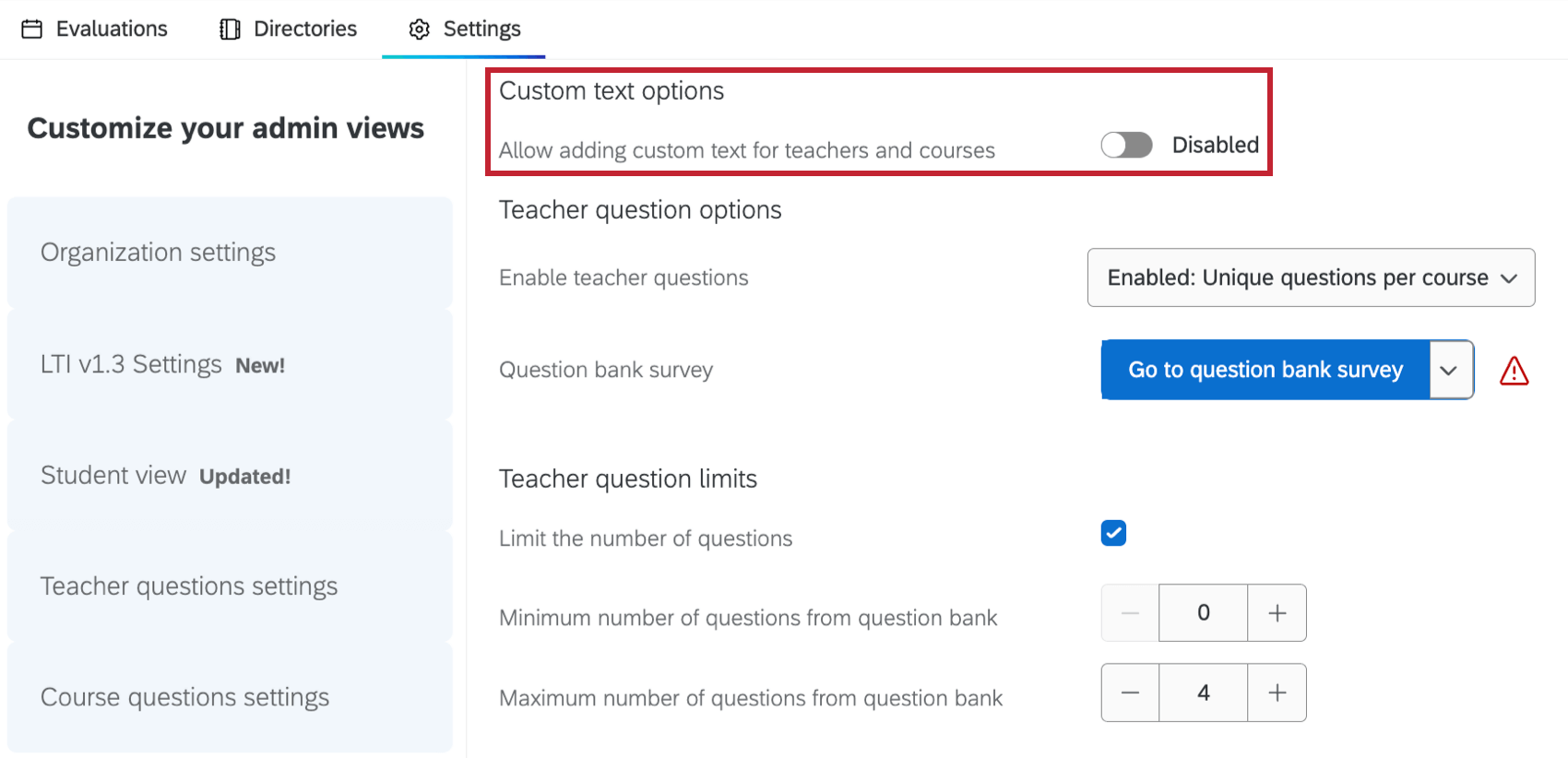
Teacher question options
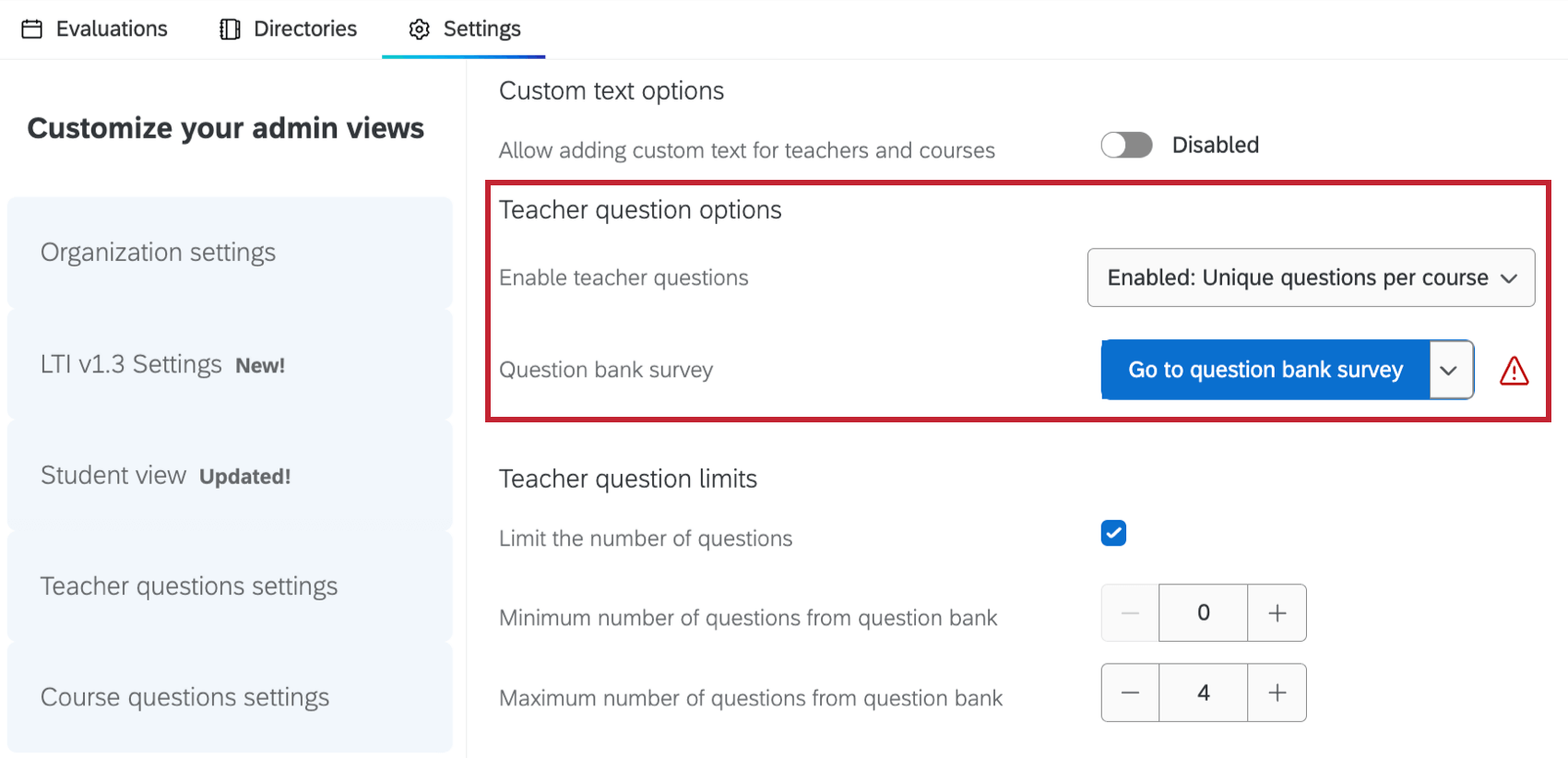
- Enable teacher questions: Use the dropdown to select if and how teacher questions are allowed:
- Disabled: No teacher questions can be added to evaluations.
- Enabled: Decide between adding the Same questions for all courses or Unique questions per course.
Attention: If Enable teacher questions is disabled, none of the following options in this section will appear. - Question bank survey: Create a new survey where evaluation questions can be created and managed. Click Generate Question Bank Survey to automatically create a survey project that you can add questions to. Once the survey is created, clicking Go To Question Bank Survey will take you to the survey where you can add new questions to the question bank.
Qtip: Once a question bank survey has been generated, you can unlink the survey by clicking on the down arrow and selecting Unlink Survey. Keep in mind that you cannot relink a survey after it has been unlinked, and you will need to generate a new survey if you want to have a teacher question bank.Attention: The question bank survey must be activated before it can be used.
Teacher question limits
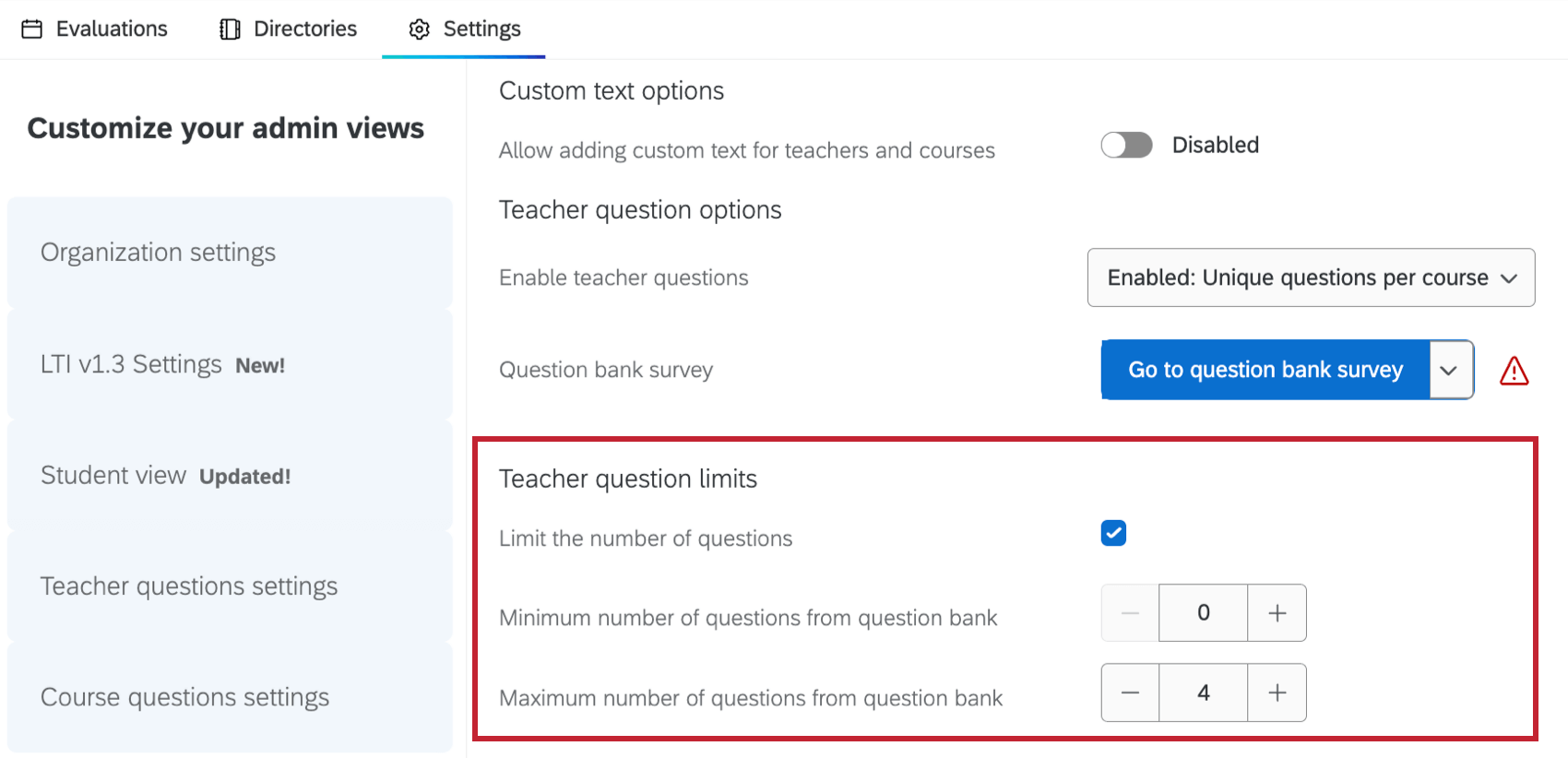
- Limit the number of questions: Set requirements for how many teacher questions must be included in each evaluation.
- Minimum number of questions from question bank: Set a minimum number of questions that must be included from the question bank.
- Maximum number of questions from question bank: Set a maximum number of questions that must be included from the question bank.
Teacher email distributions
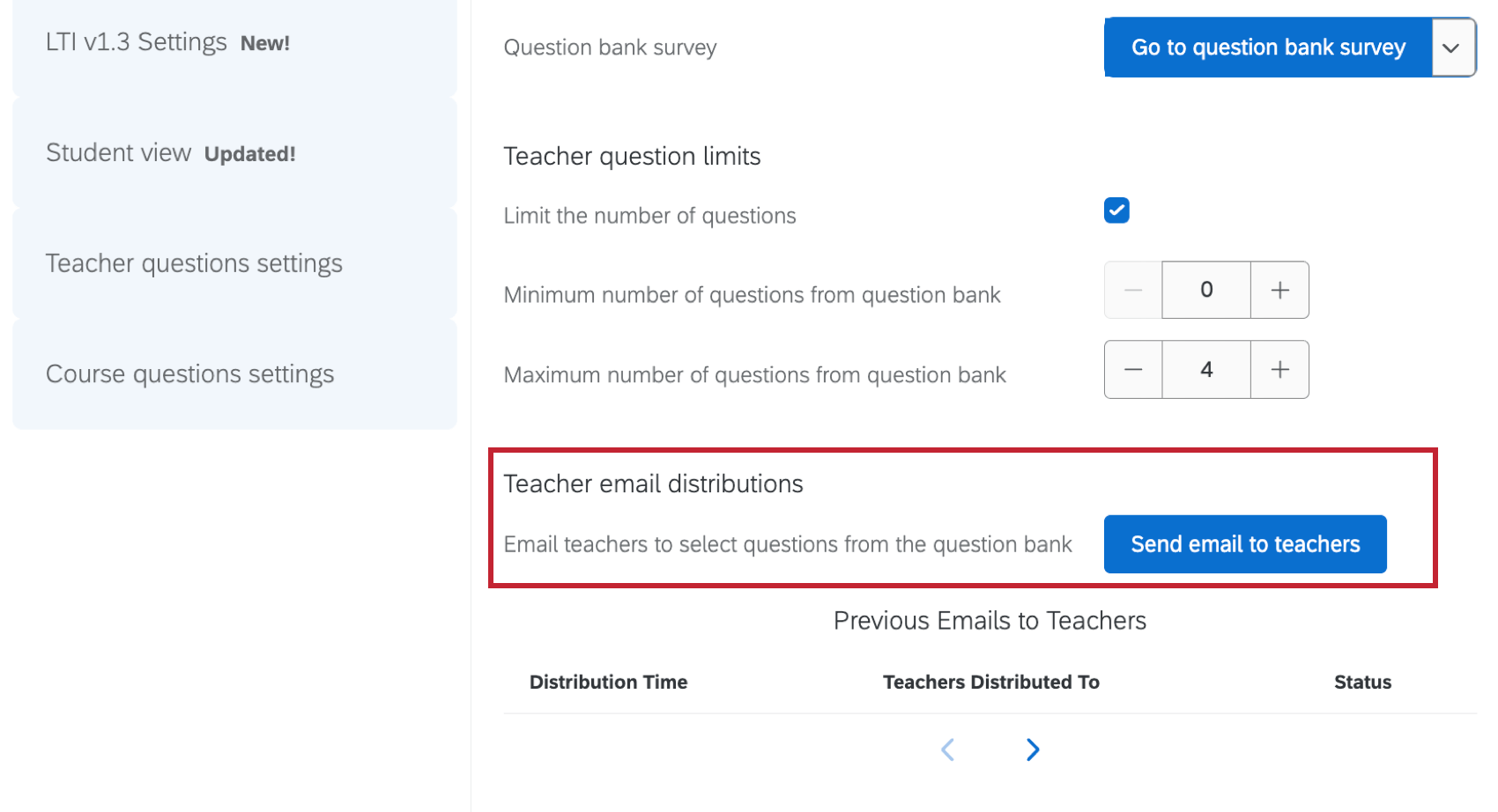
This setting allows you to send emails to teachers about selecting questions from the teacher question bank.
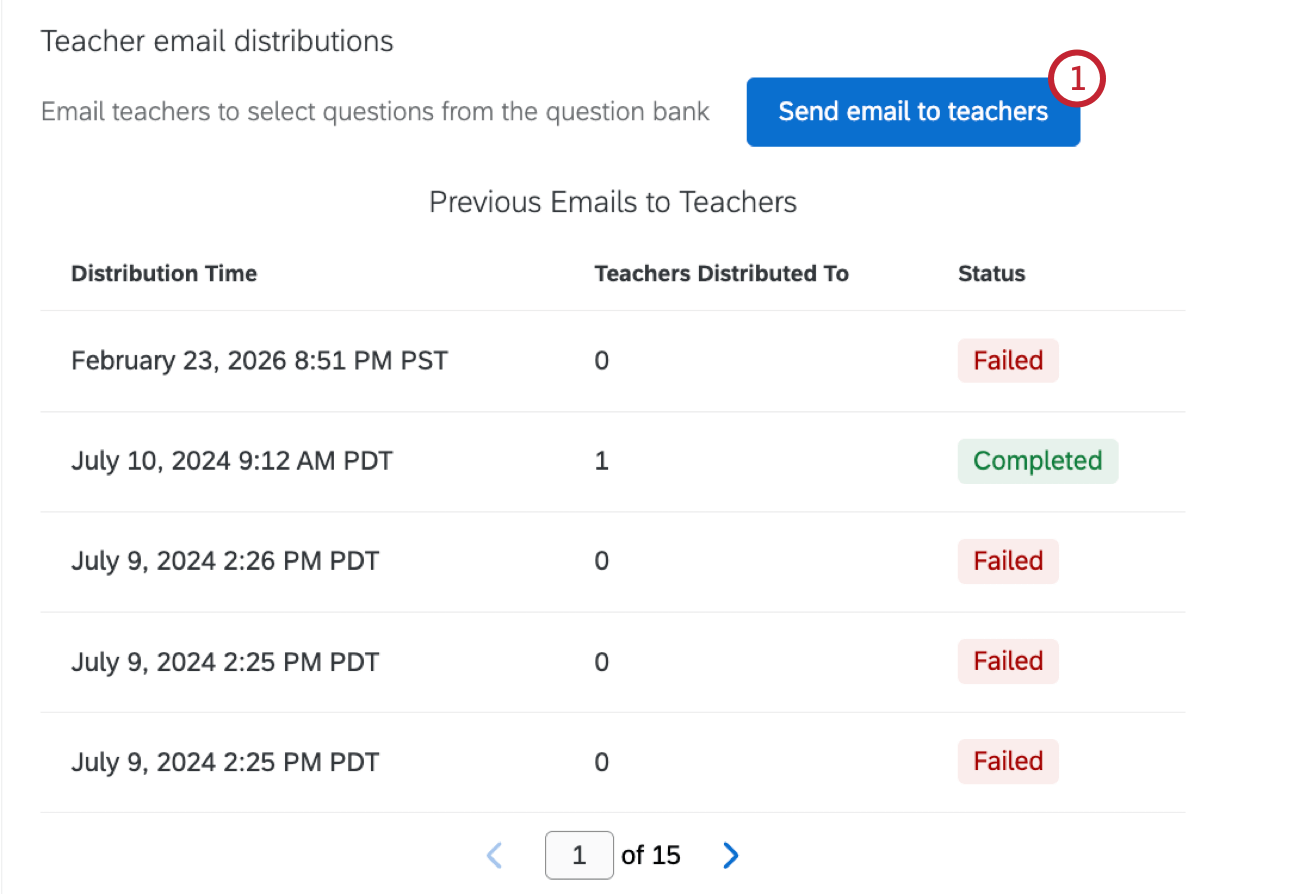
- Click Send email to teachers.
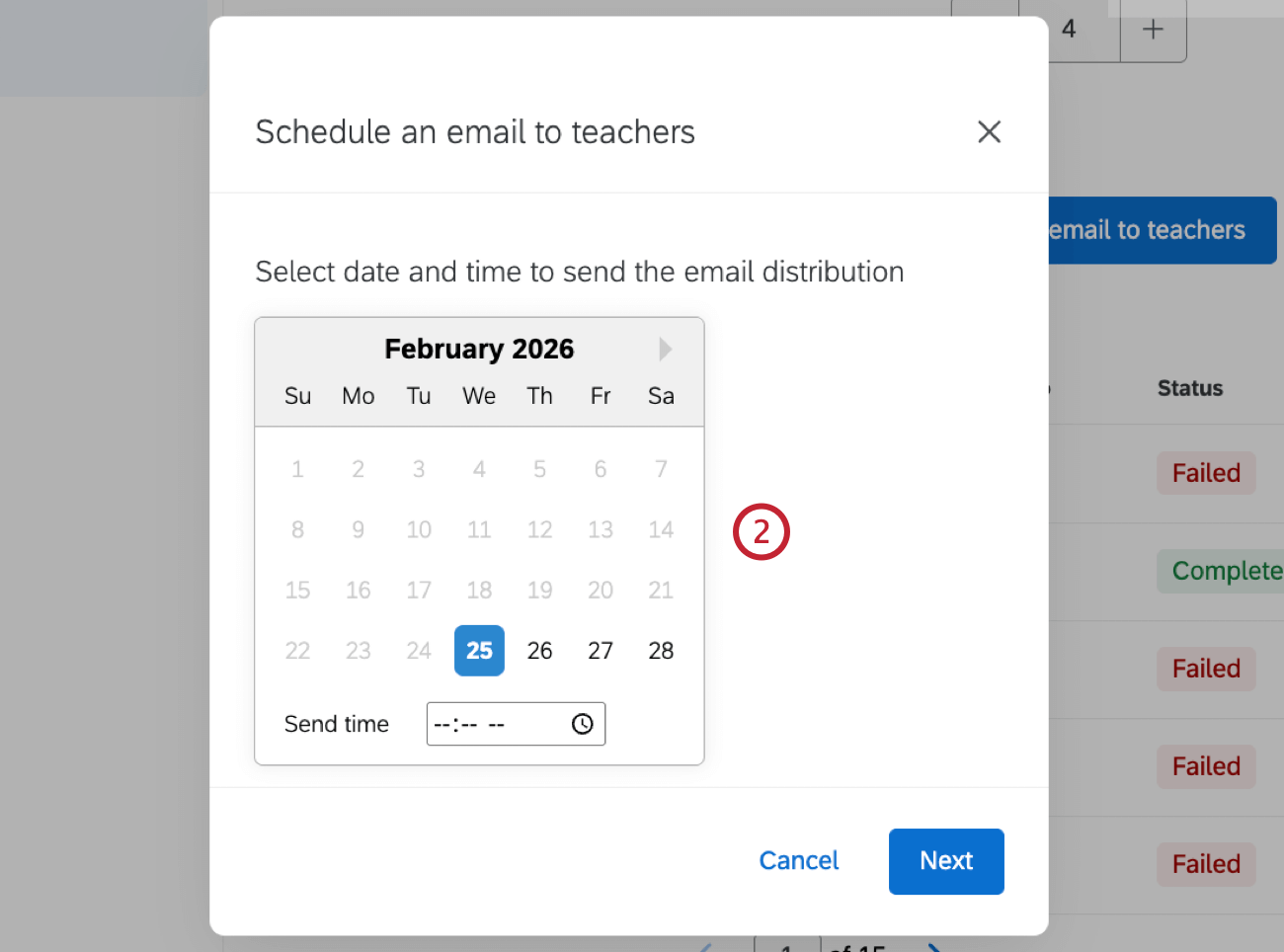
- Select a date and time to send the email distribution.
- If desired, check Send only to teachers with an invalid number of questions selected. This will use the question restrictions set at the time the email is sent.
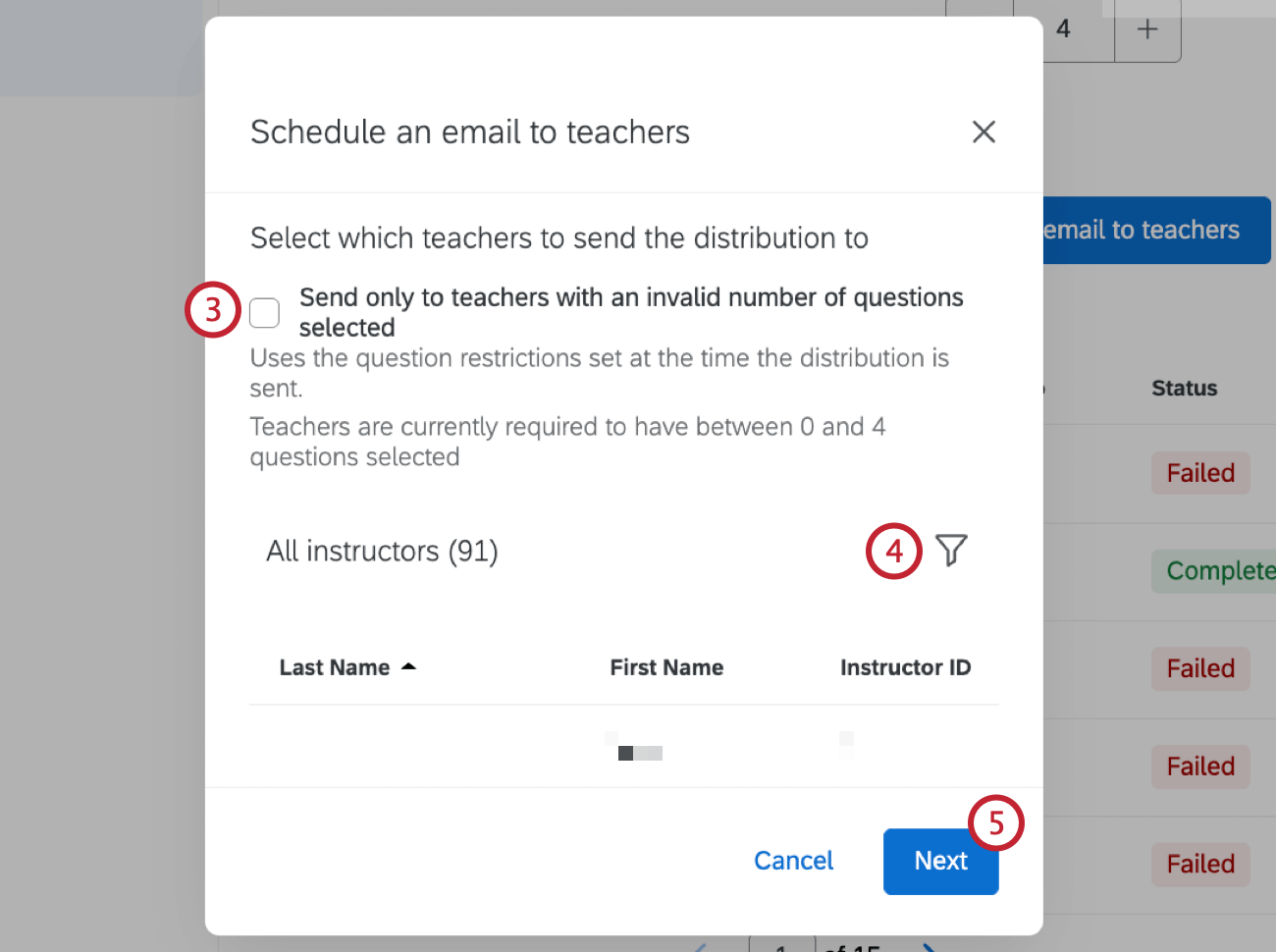
- If desired, click the filter icon and build conditions to filter which recipients will receive the email. If you don’t add a filter, the email will be sent to all teachers. For more information on building filters, see Conditions and Condition Sets.
- Click Next.
- Enter the email address the email will be sent from.
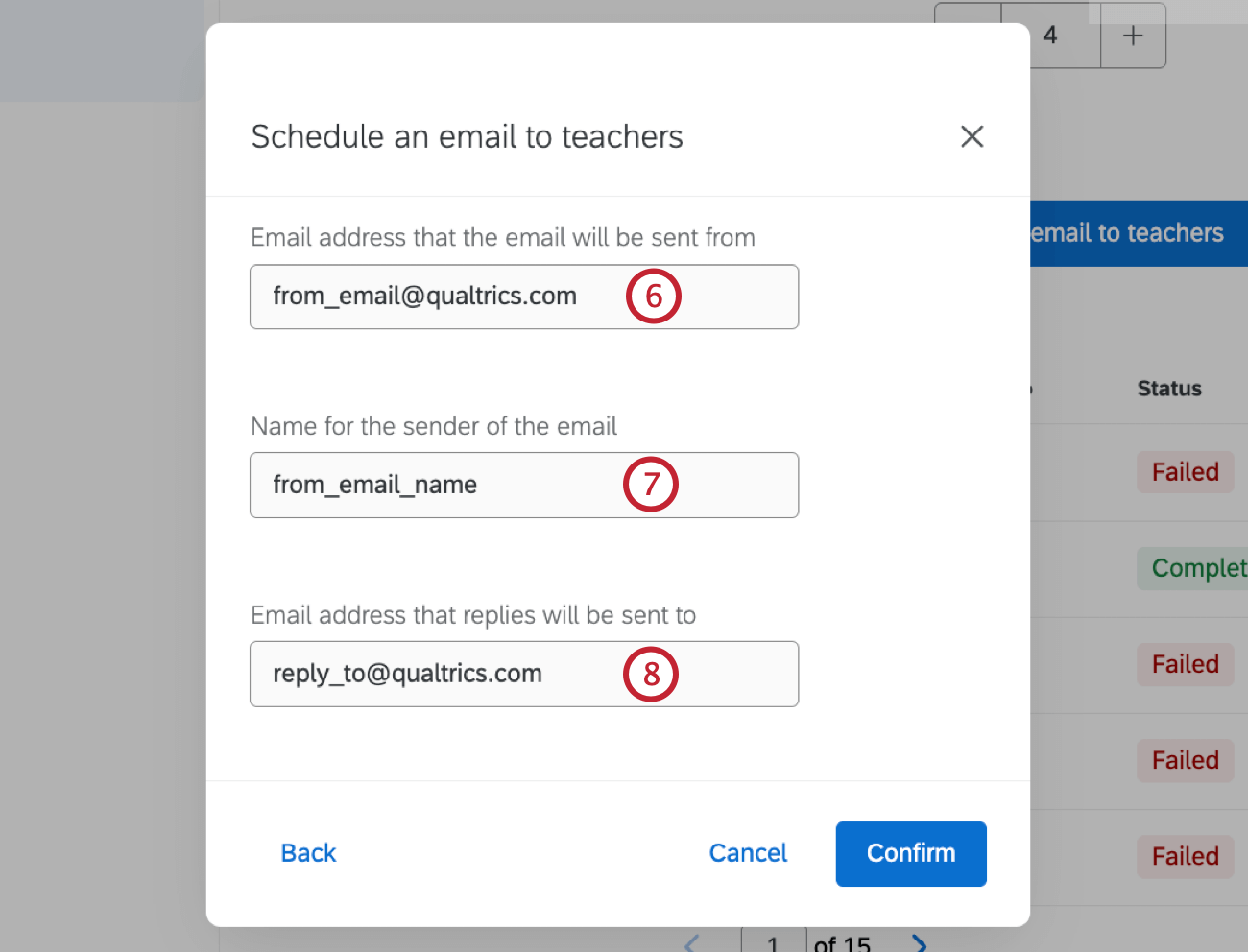
- Enter the name the email will be sent from.
- Enter the email address replies will be sent to.
- Select an email subject from the dropdown. Email subjects must be created and edited within your Qualtrics Library. For more information, see Creating a Message in a Library.
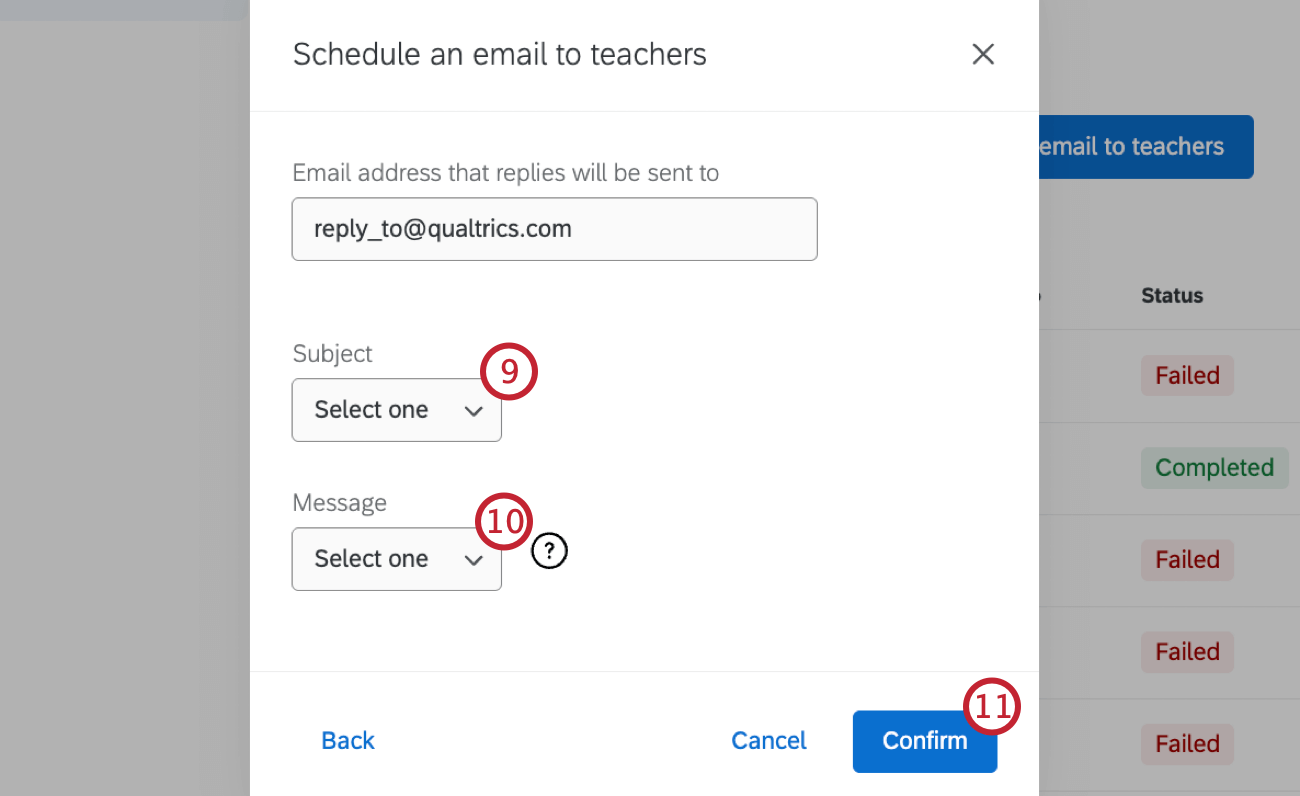
- Select an email message from the dropdown. Email messages must be created and edited within your Qualtrics Library. For more information, see Creating a Message in a Library.
- Click Confirm.
Previous Emails to Teachers
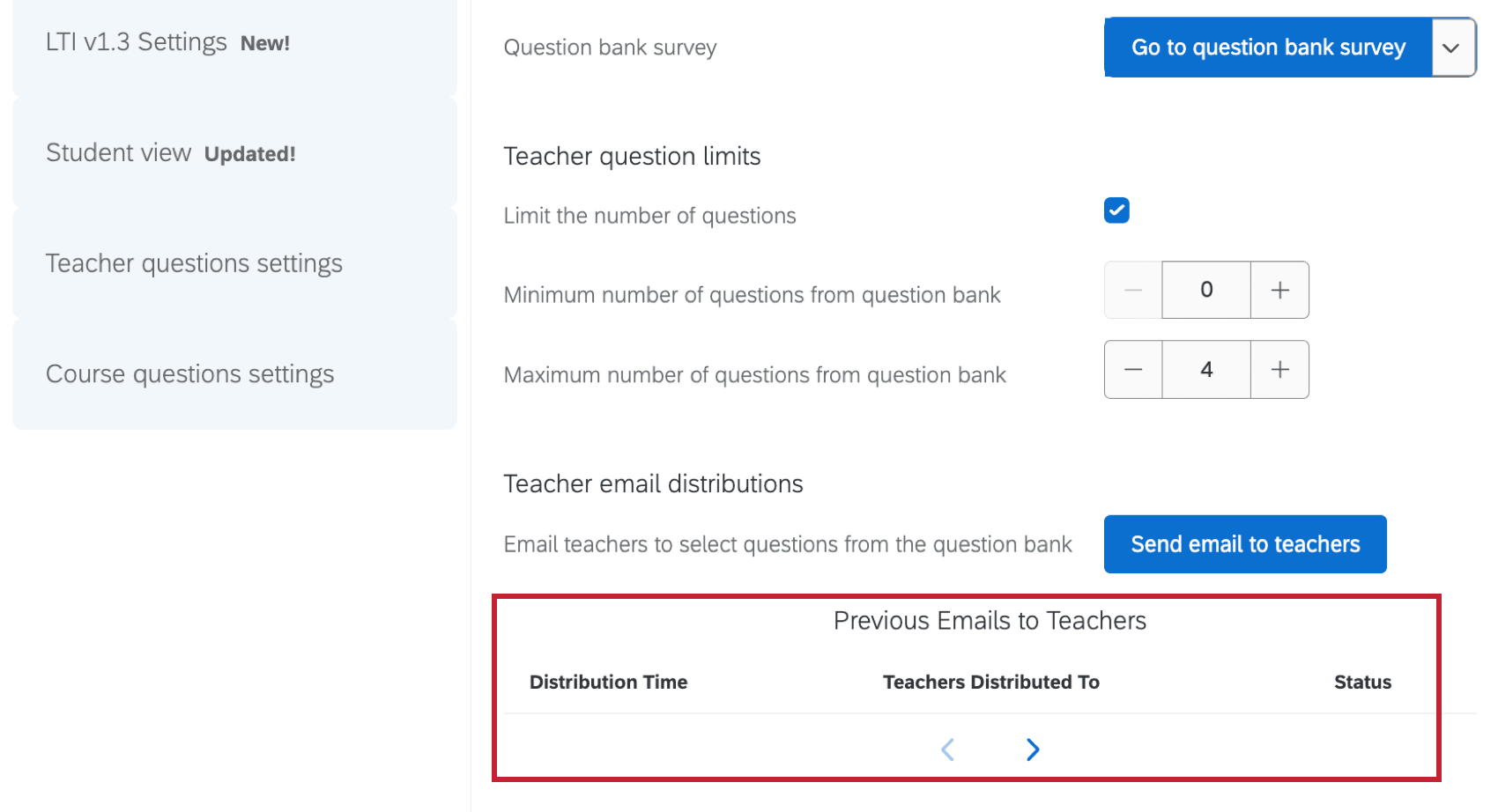
Previous emails you have sent to teachers will appear in this table.
Course Questions Settings
In this section you can give course coordinators the ability to ask their own questions in course evaluations. Once you make changes to these settings, click Save to apply them.
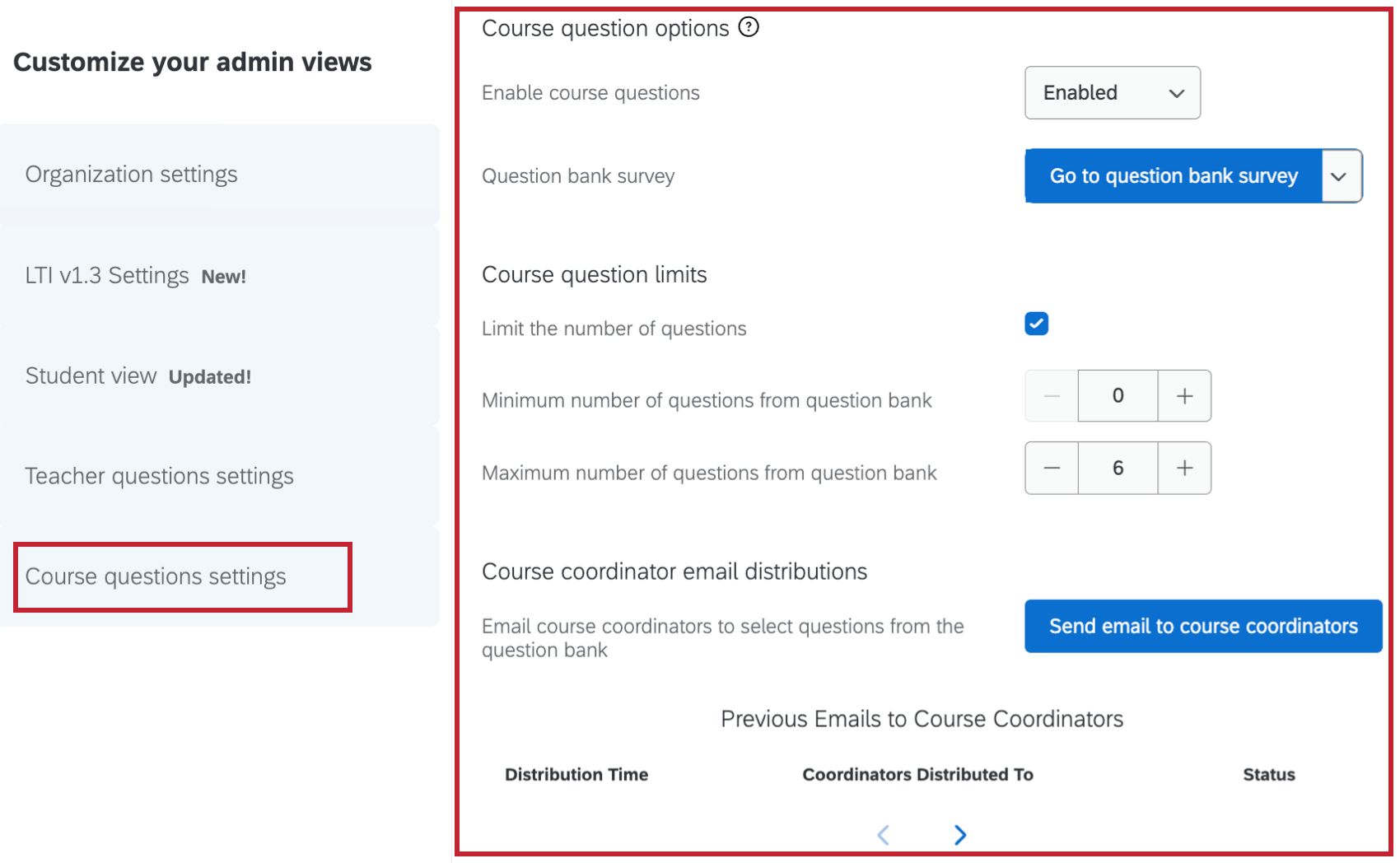
When course questions are enabled, course coordinators can choose and include questions from a survey bank that are custom to their courses. This allows them to get feedback specific to a course. These questions will be included after students complete their regular course evaluations.
The settings in this section are the same as the teacher questions settings, except there is no “Allow adding custom text for teachers and courses” setting, and each setting applies to course coordinators instead of teachers. For more information on each setting in this section, see Teacher Questions Settings.