

Coaching Tab (Customer Care App)
What's on this page
About the Coaching Tab
The coaching tab contains several widgets that show you how the agents in your contact center are performing. You can also view and edit coaching plans for individual agents.
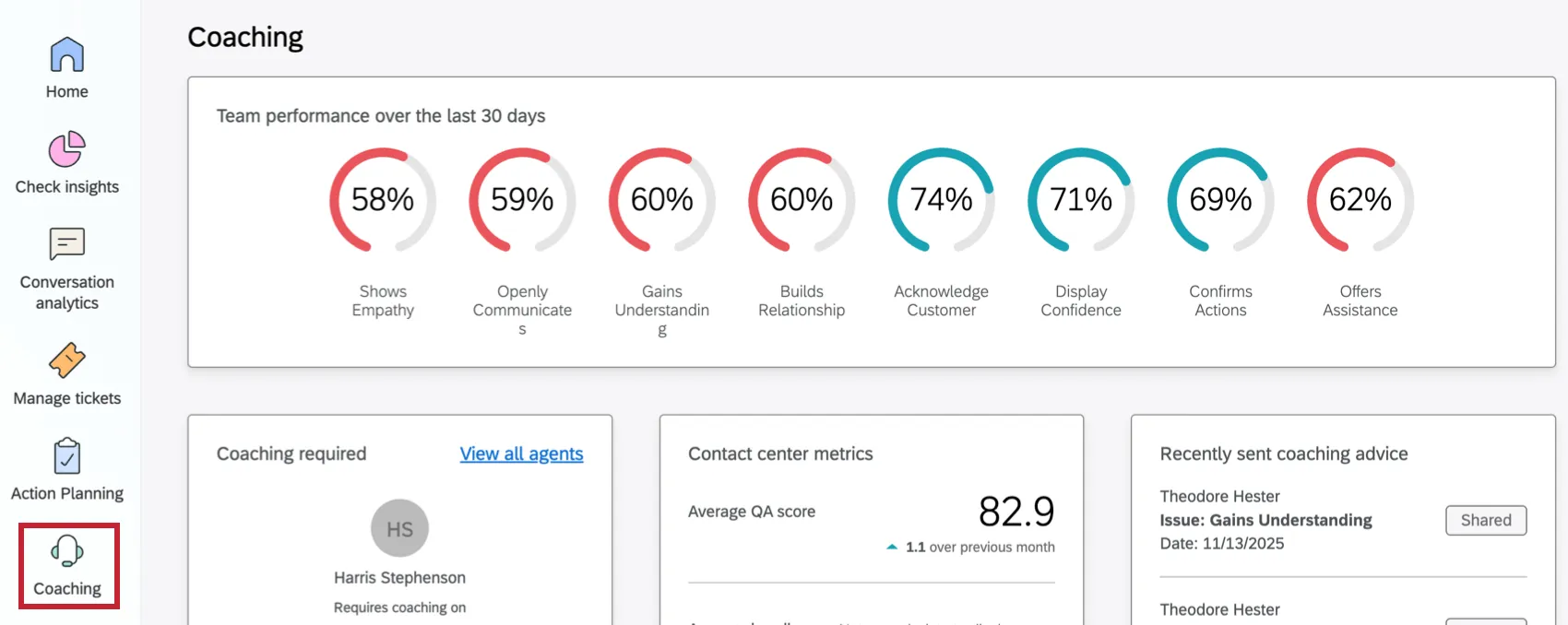
Coaching plans are informed by Intelligent Scoring, and are linked to Coaching Recommendations projects. AI Coaching Recommendations will run on any conversations (calls, chats, email) where Intelligent Scoring was provided.
For an overview of the Customer Care app, see Customer Care App Overview. For information on configuring the Customer Care App as an administrator, see Configuring a Customer Care App.
Requirements for Coaching
To use coaching within the Customer Care app, you must do the following:
- Set up Intelligent Scoring within Discover.
- Link your Discover and Qualtrics accounts.
- Create a Coaching Recommendations project.
- Create Qualtrics accounts for your contact center agents and managers.
- Give your contact center agents and managers the relevant Qualtrics permissions to access the app.
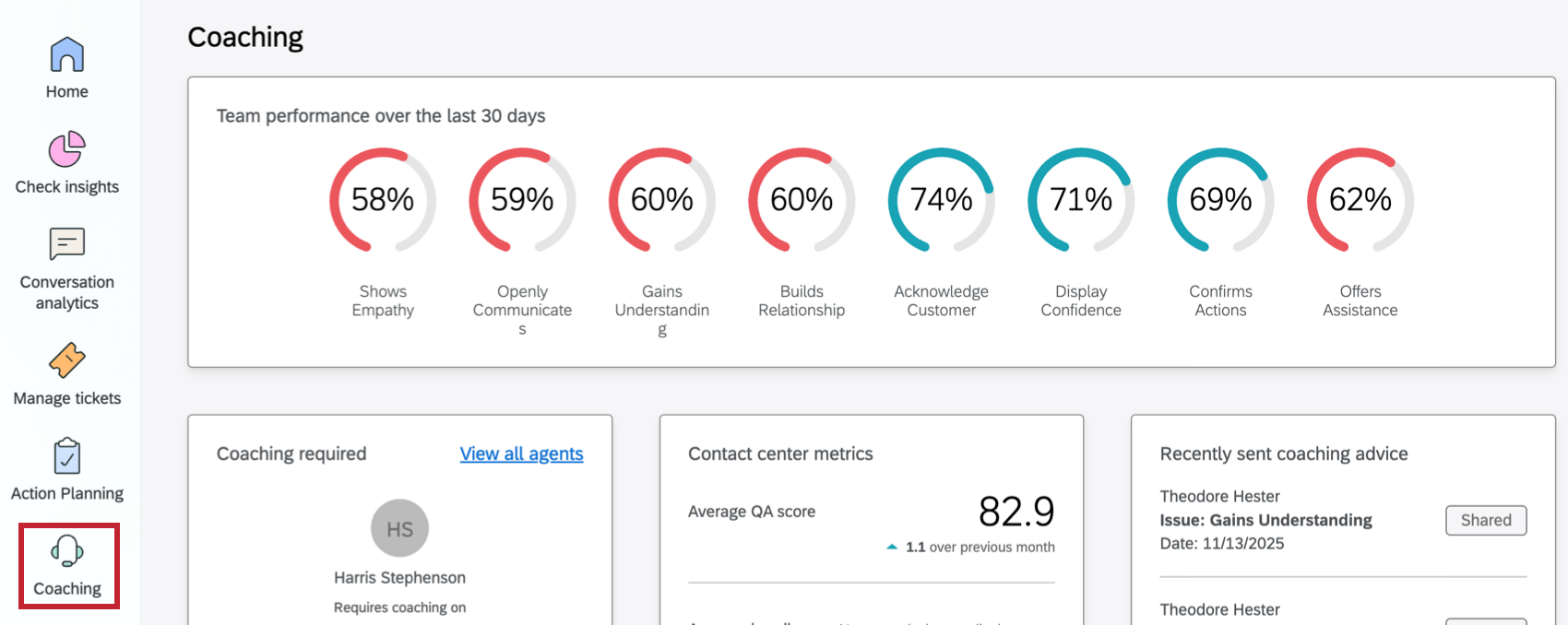
Team Performance Widget
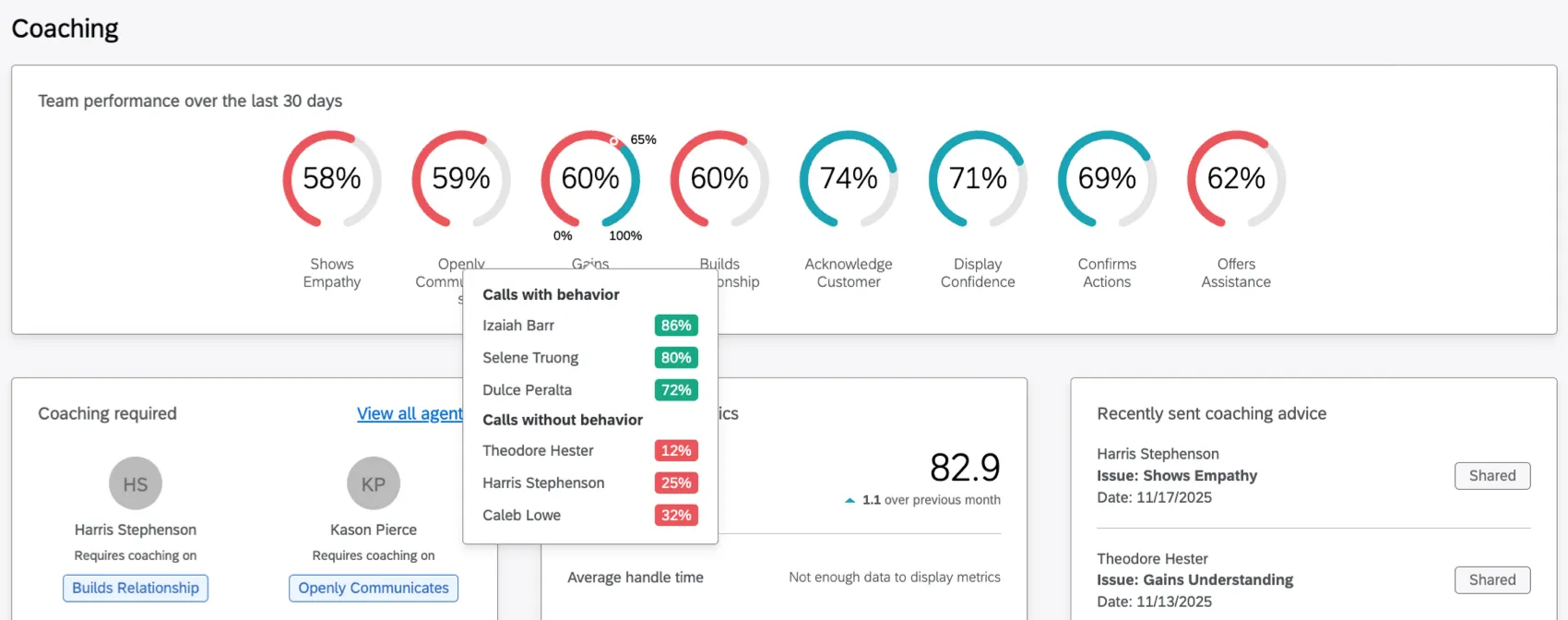
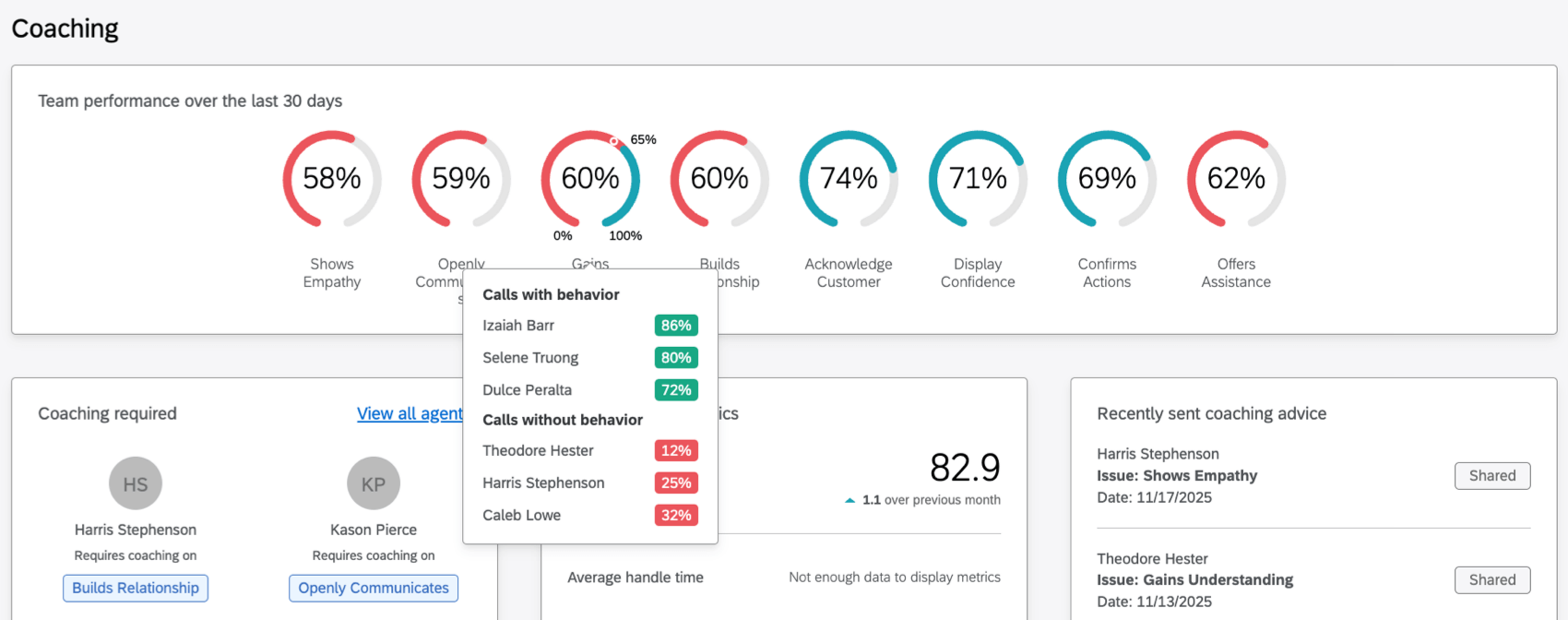
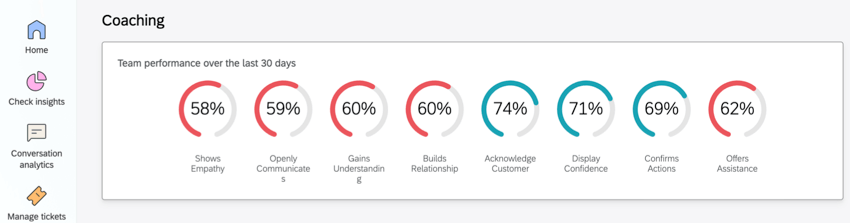
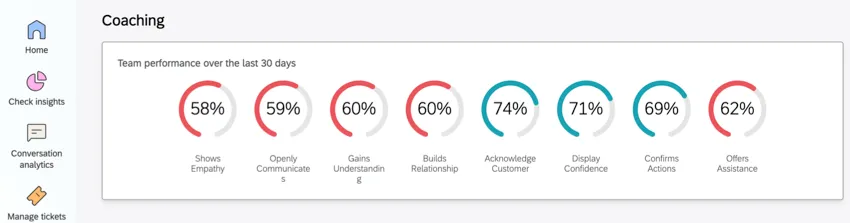
This widget displays your team’s recent overall performance across various behaviors. Hover over a specific behavior to see a breakout by agents and identify any performance outliers. Click on an agent’s name to view their specific coaching advice.
Coaching Required Widget
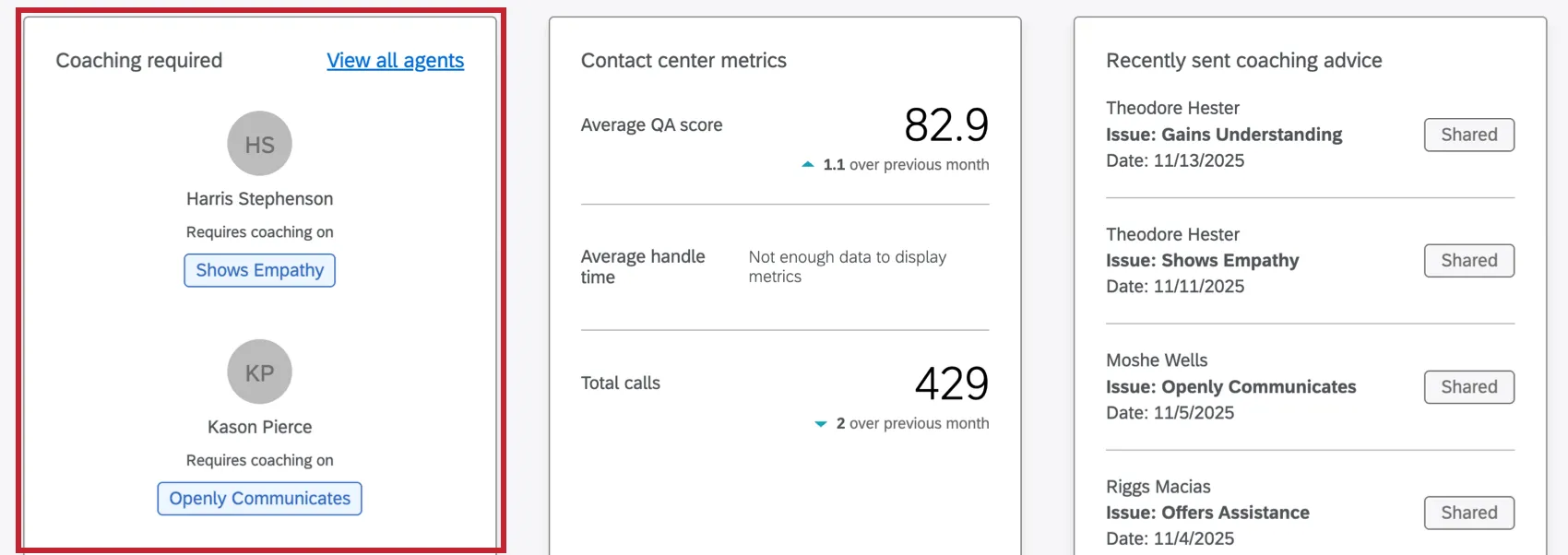
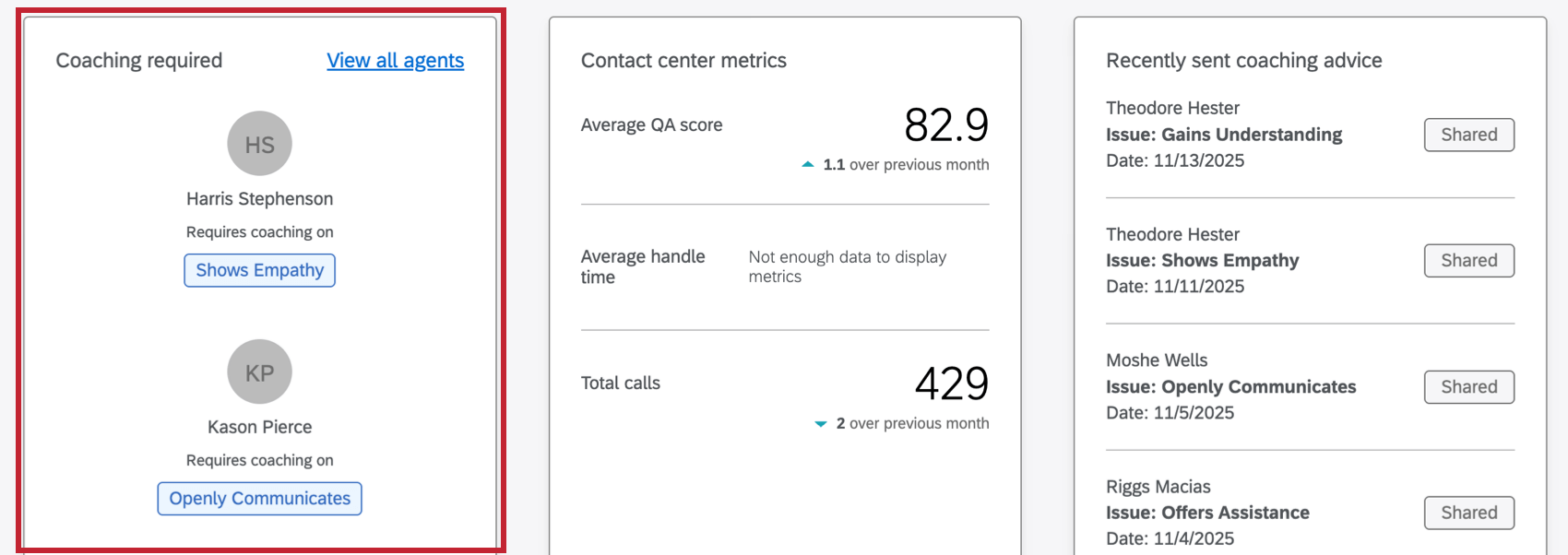
The Coaching Required widget shows 4 agents with the overall lowest scores across all of the possible behaviors defined by rubrics. Each agent is displayed with the specific behavior that needs coaching.
Viewing an Individual Agent
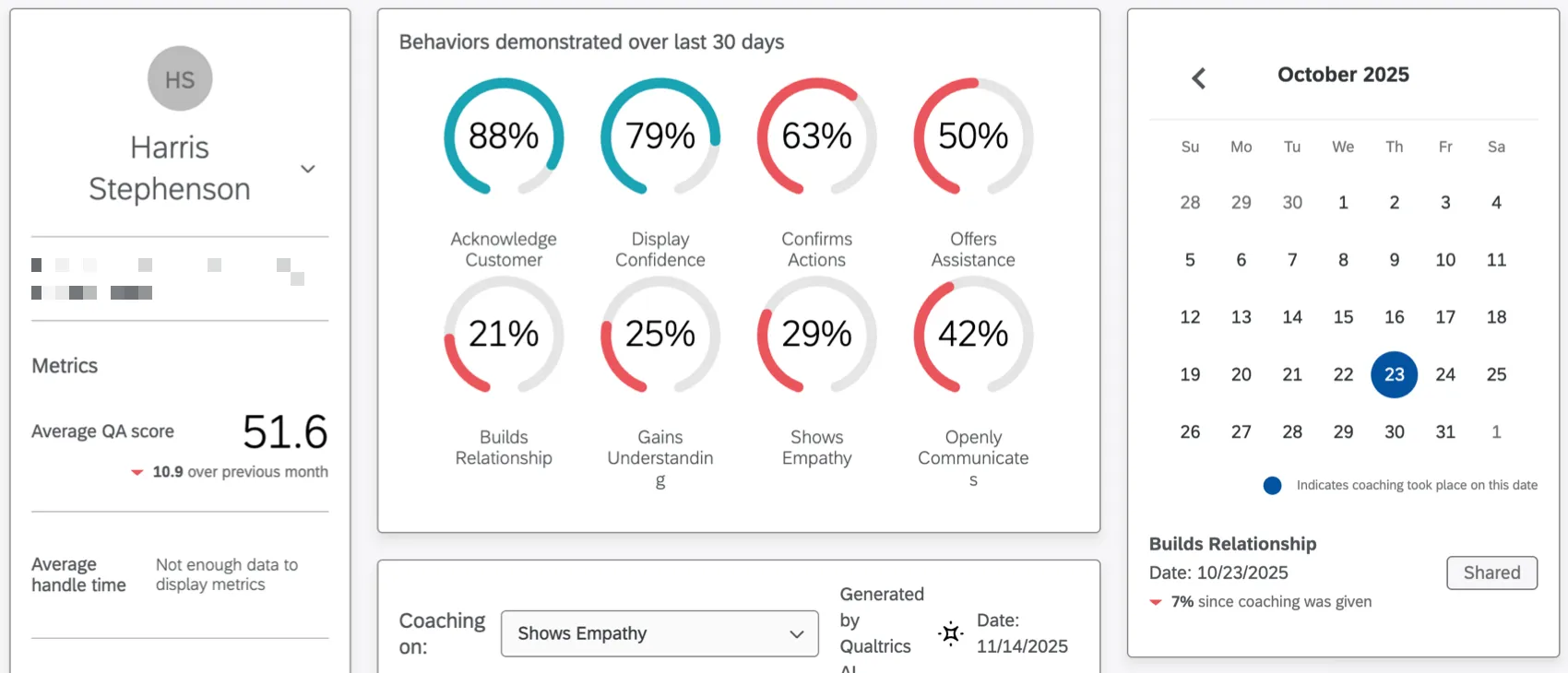
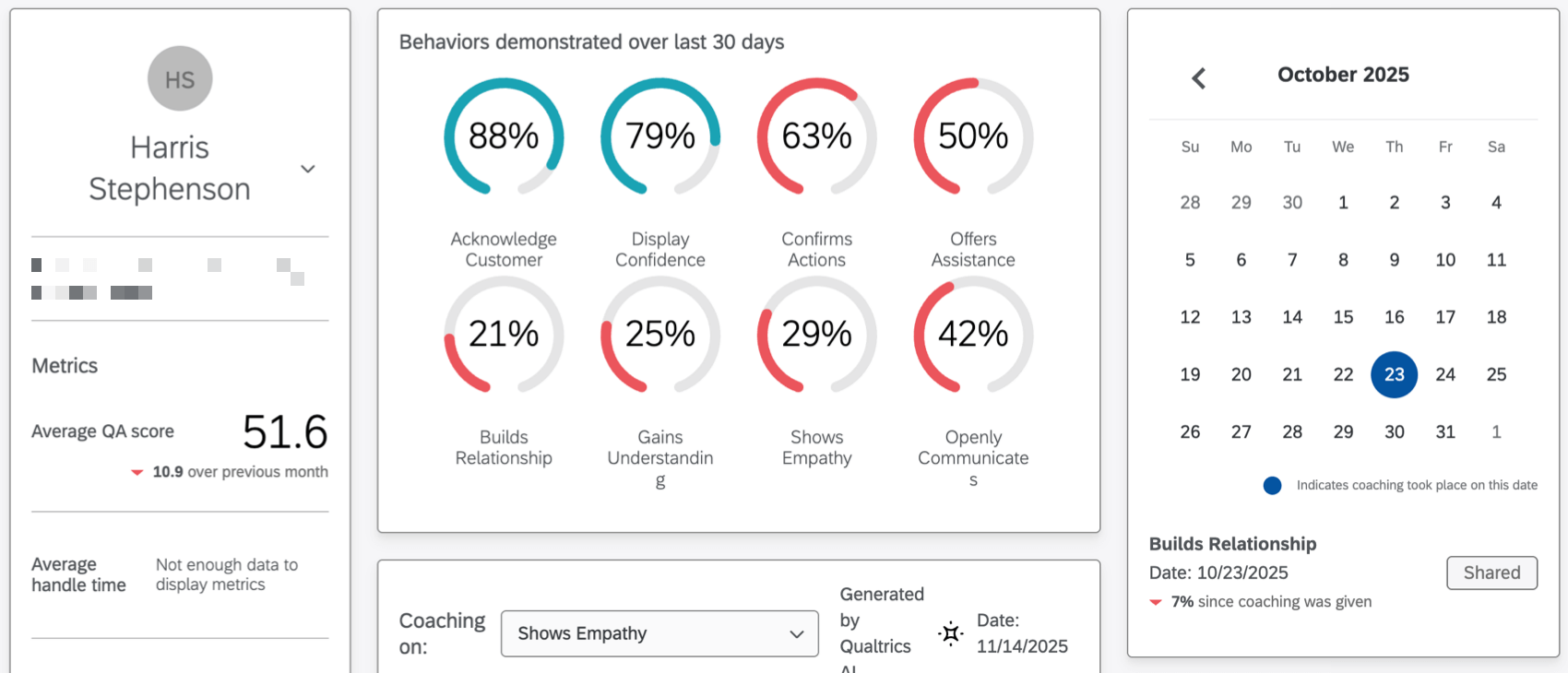
Select an individual agent from the widget to access the Agent overview tab. Here you can see agent information, metrics, behaviors, and coaching advice.
Sending Coaching Advice
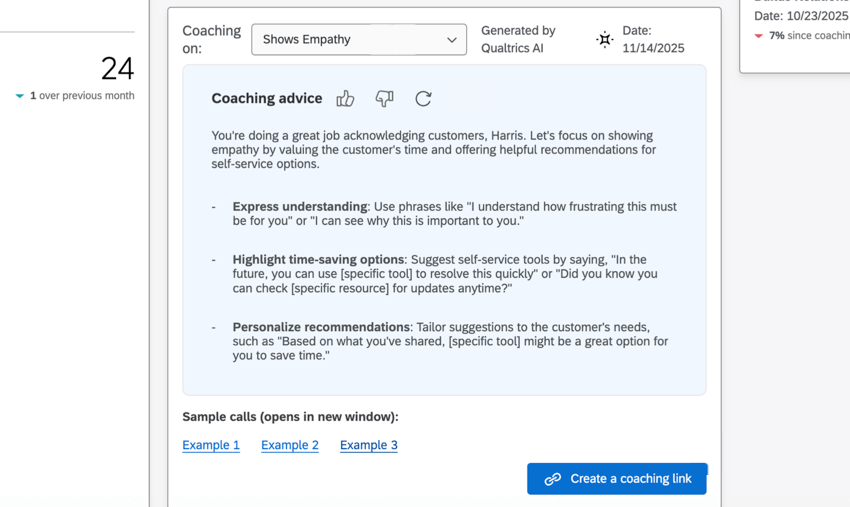
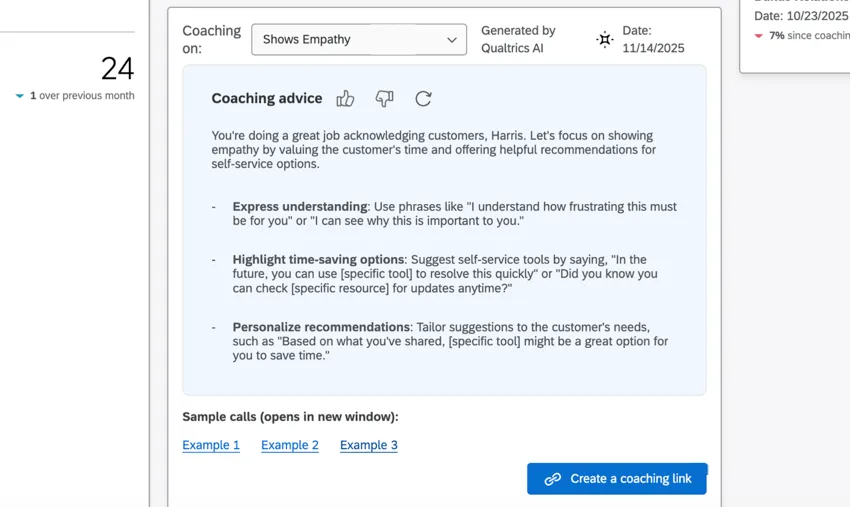
At the bottom of the Agent Overview tab you can send coaching advice to your agents. The top areas an agent needs coaching in are determined based on the highest frequency of issues as well as the highest impact on the intelligent scoring overall average score.
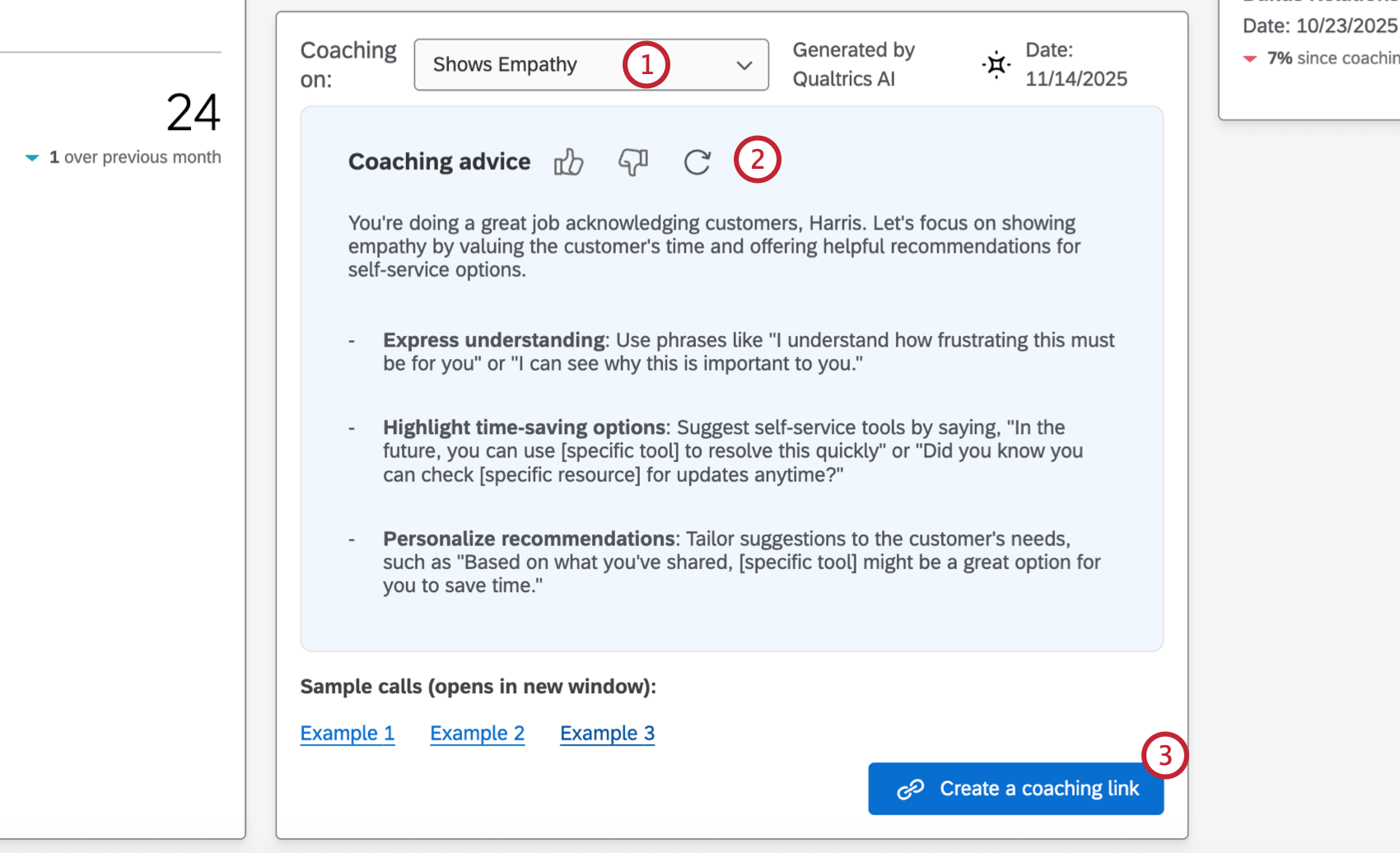
Qtip: Click the example links to view example calls where the agent struggled with this particular behavior. This will open the relevant conversation within Discover. To view these links, you must have a linked Discover account with data access to the project used for coaching. For more information, see Sharing Interactions (Studio).
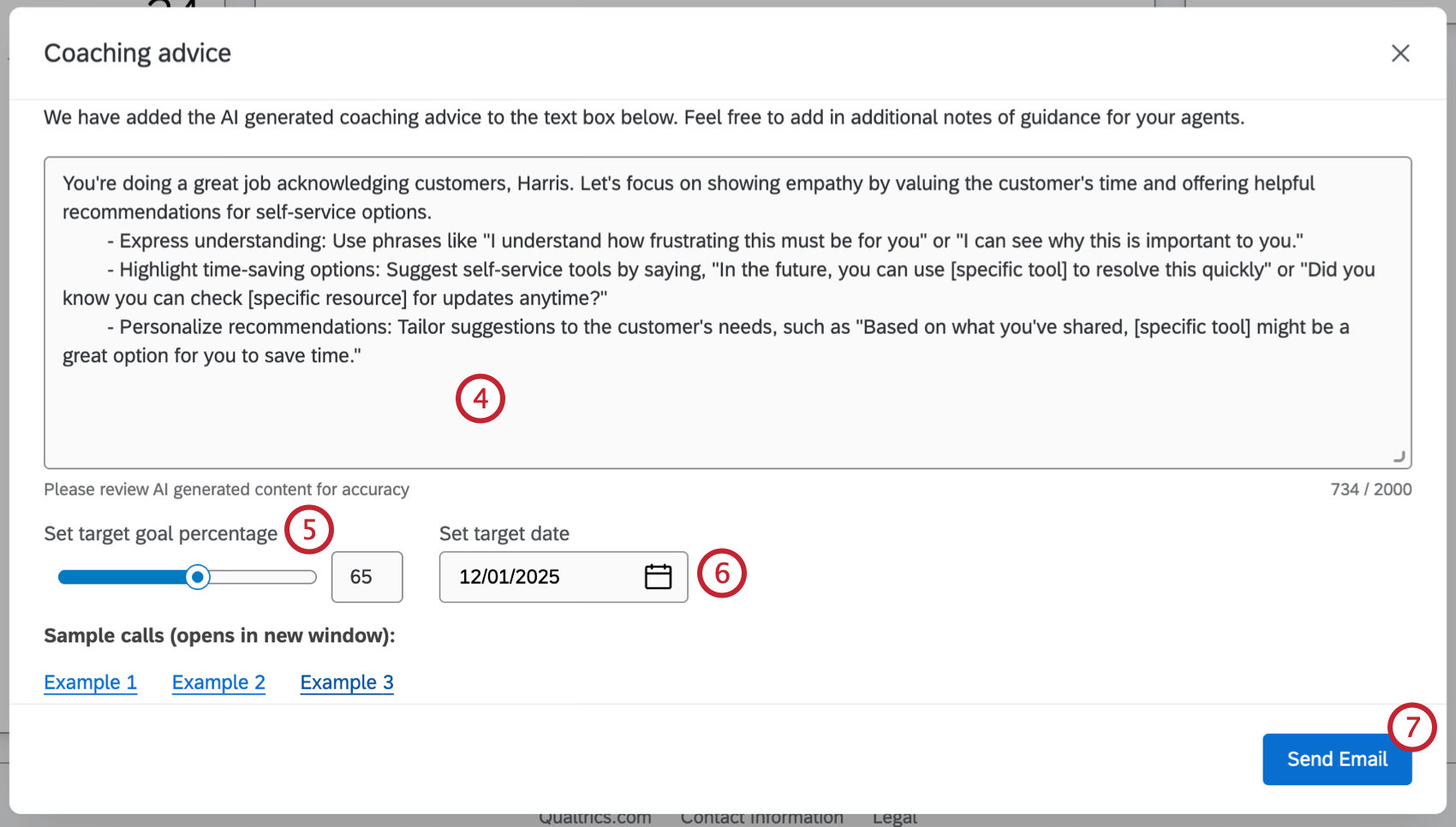
Attention: Goals cannot be edited after they’re created.

Viewing Coaching History
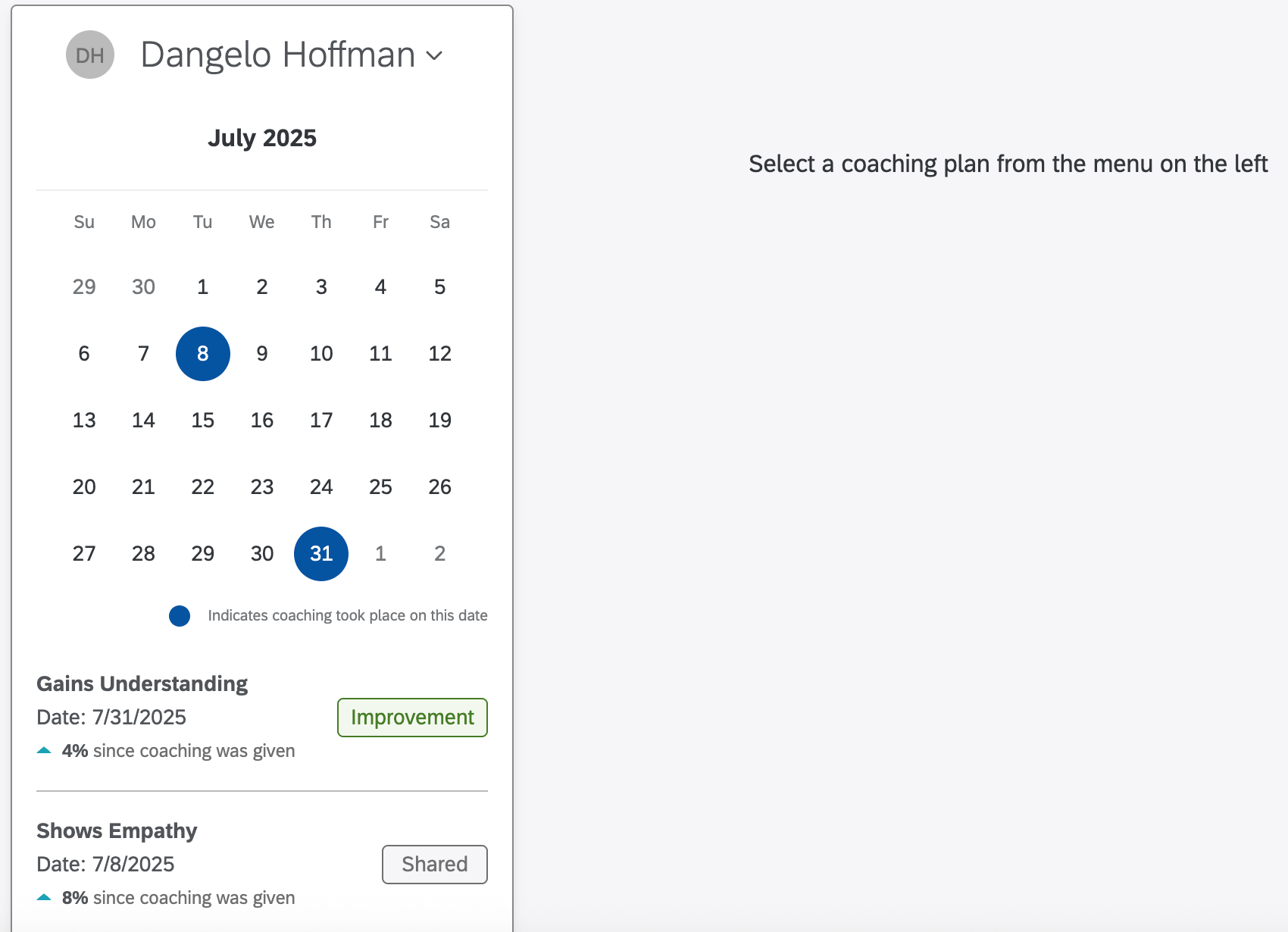
From the agent overview tab of a single agent you can access the Coaching sessions tab. In this tab managers can see all coaching plans they’ve shared with an agent. Click the agent name in the top-left to select a different agent and their plans.
Coaching plans will have one of the following statuses:
- Shared: The plan has been shared with the agent, but not viewed yet. Qtip: If the agent doesn’t log in and view the plan, their coaching plan won’t change in status, even if the agent improves.

- Working On It: The agent has acknowledged the plan by logging in to the platform.
- Improvement: The coaching period has passed and the agent has improved in the behavior they were coached on.
- Action Required: The coaching period has passed and the agent has not improved in the behavior they were coached on, so more action is needed.
Click on a specific plan to view details. In addition to the coaching advice you can view agent performance for the behavior over time.
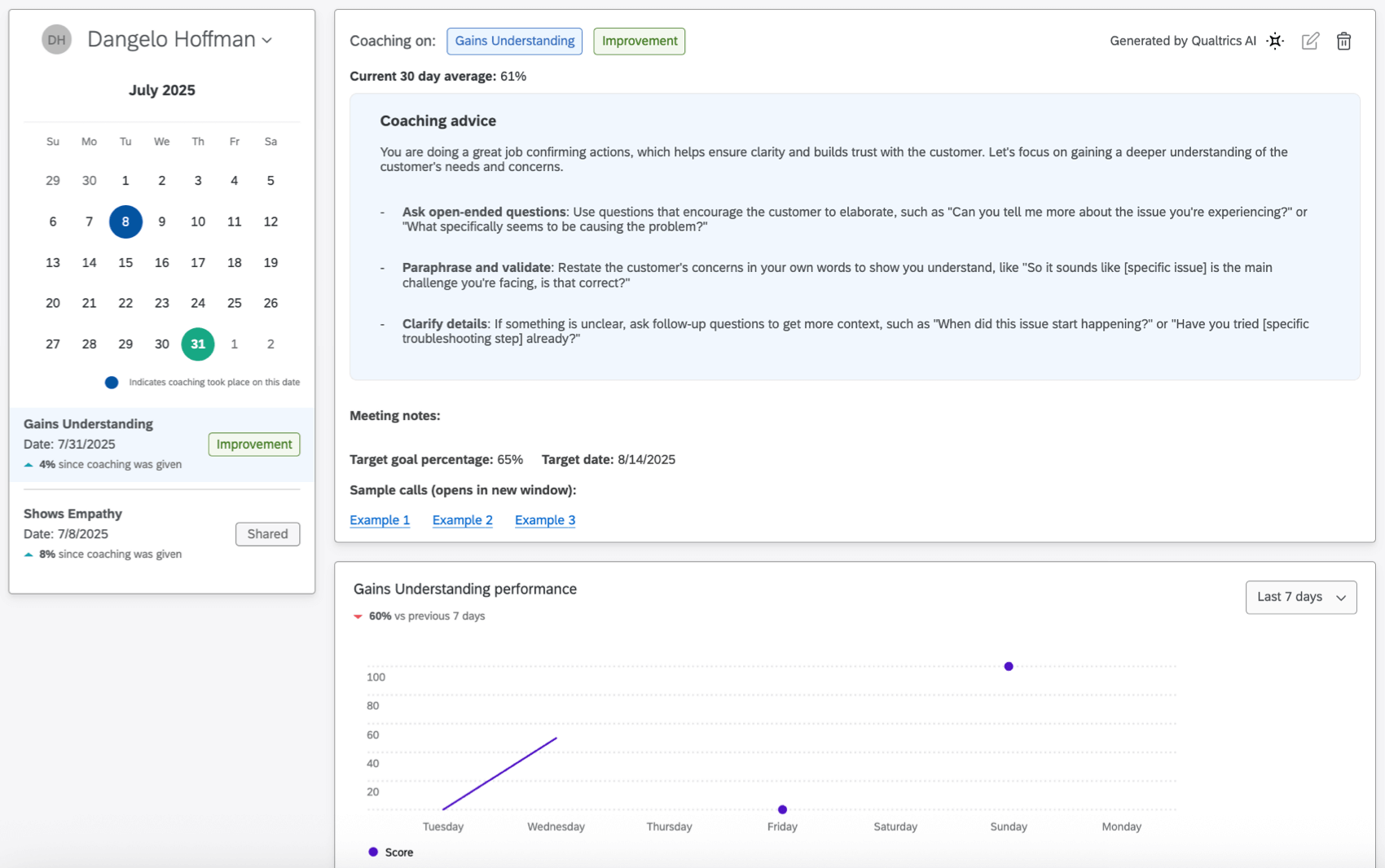
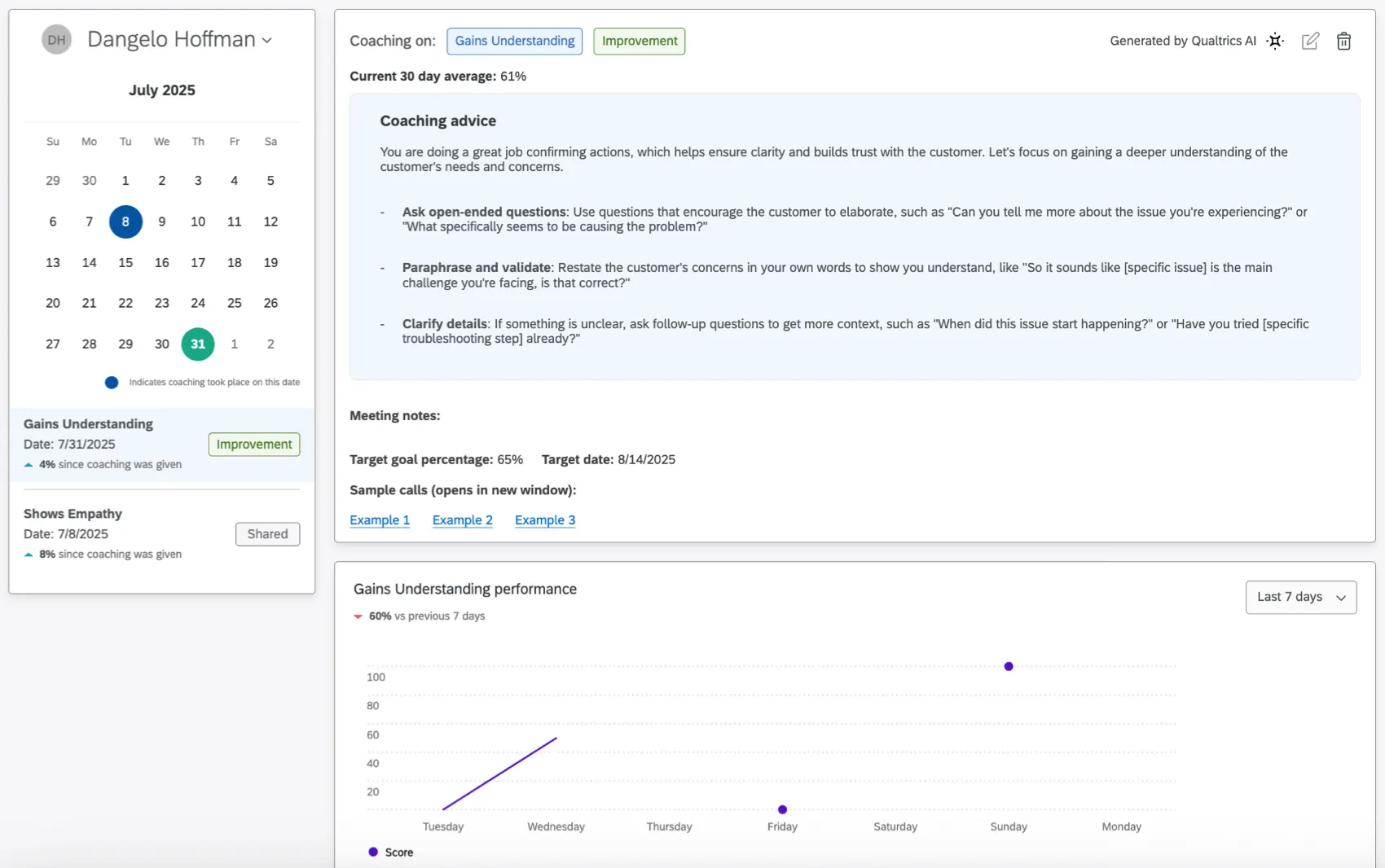
Click the trash can icon to delete a plan.
If the coaching period hasn’t passed, you can select the edit icon to add meeting notes. These notes will be seen by both you and the agent.
Once a due date passes, you cannot edit the plan anymore.
Viewing All Agents
Click View all agents to see a directory of all agents within your contact center.
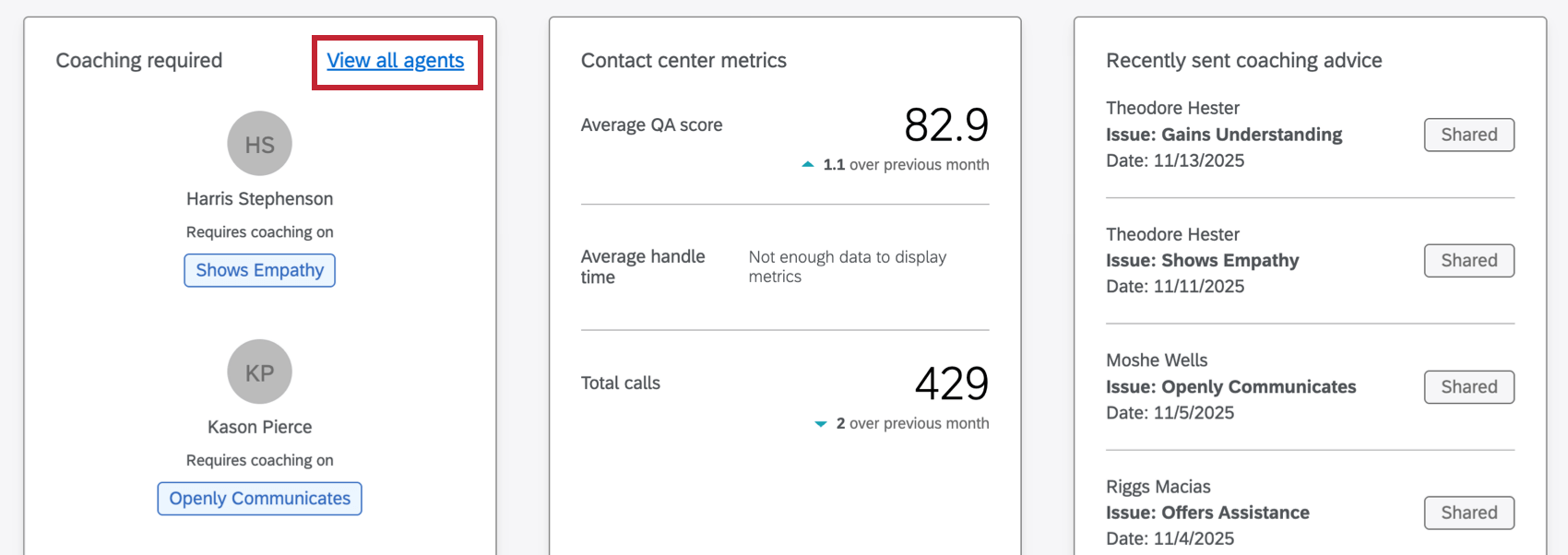
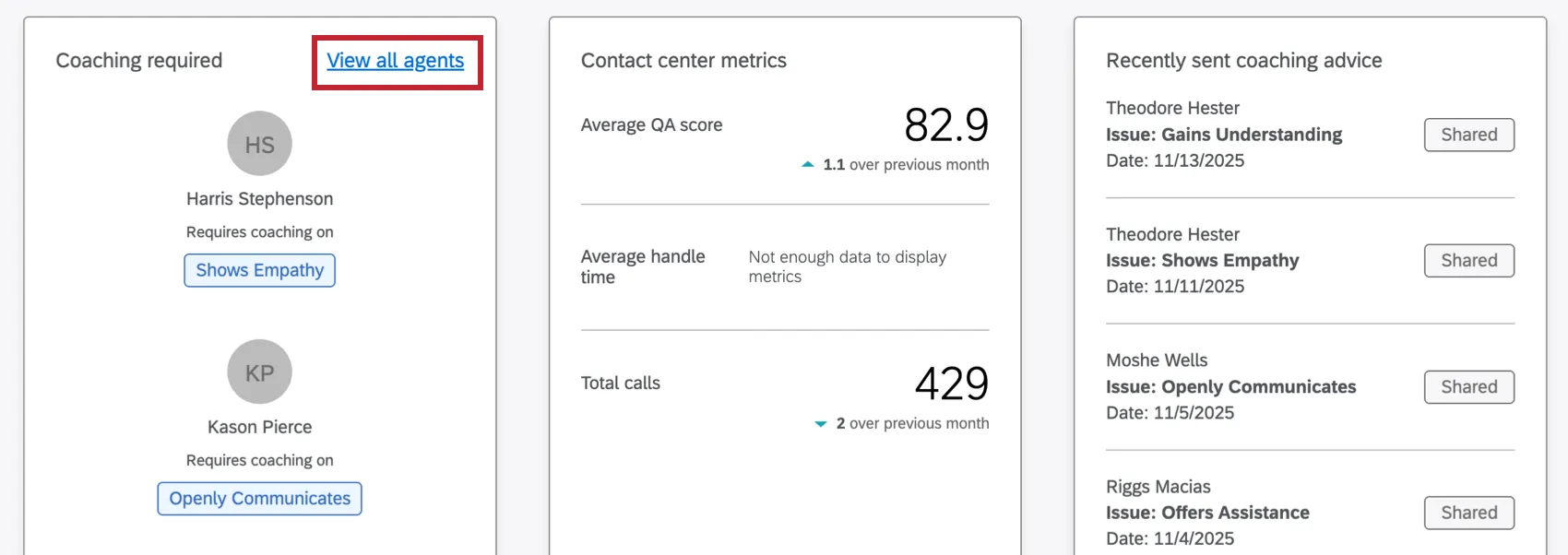
The directory shows the performance of each agent in your contact center, including the status of recent coaching, and if they are improving based on recent coaching plans.
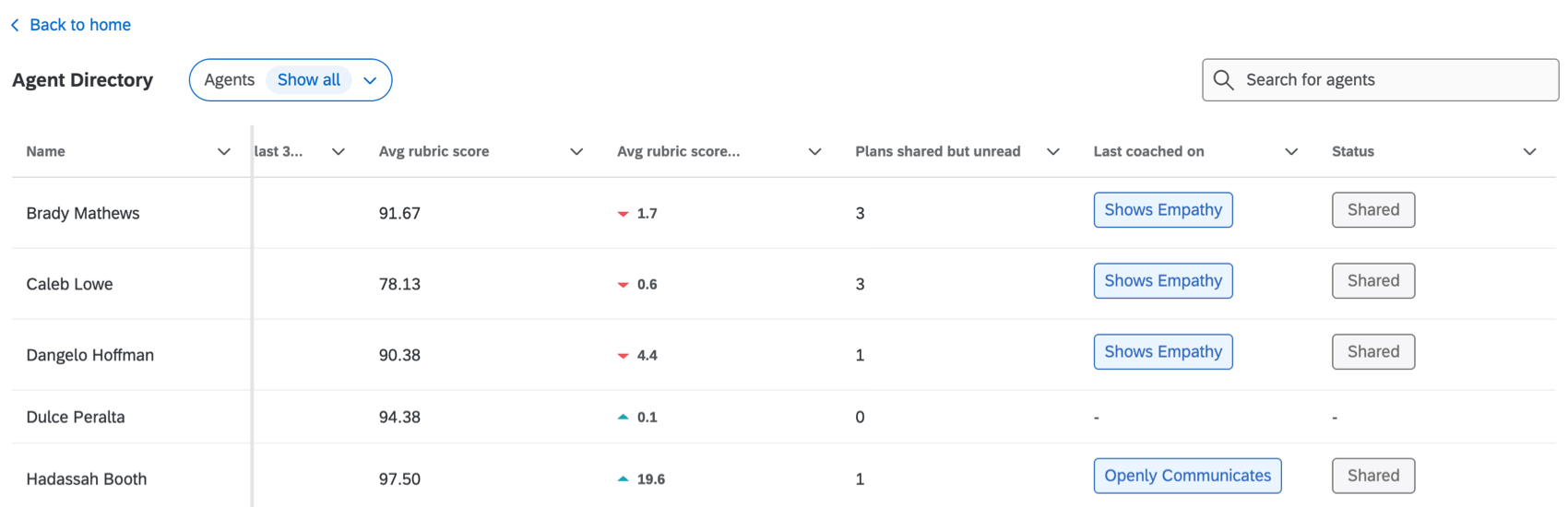
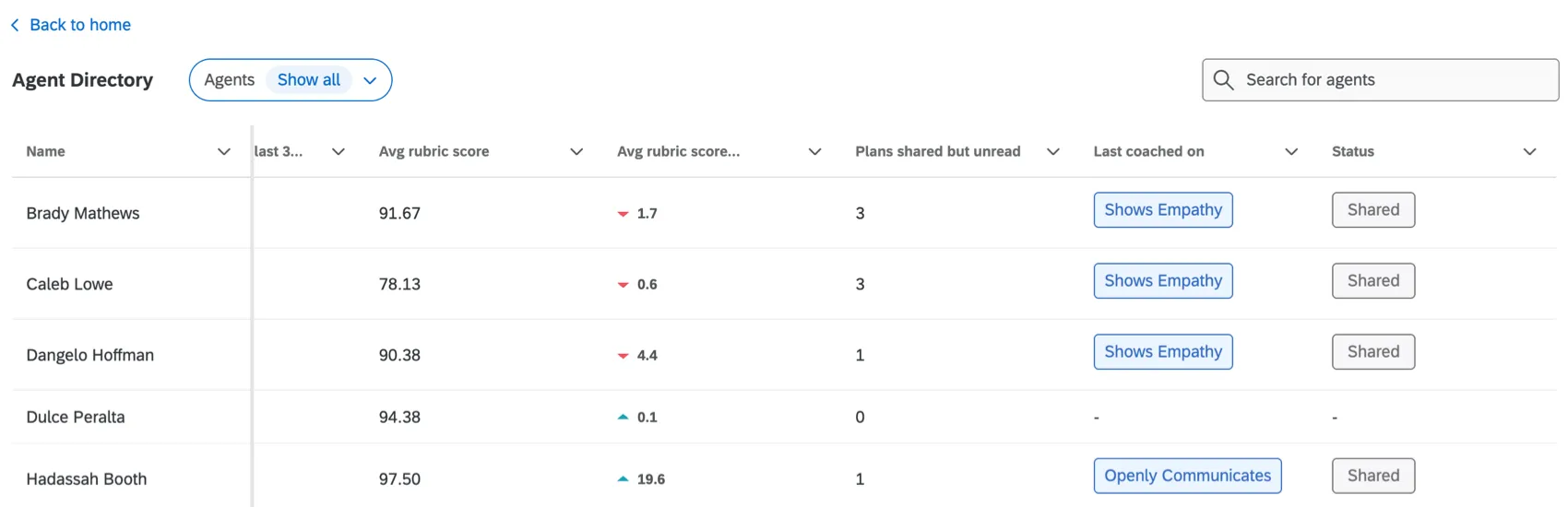
You can use the filter in the top left to filter for agents that need coaching or are improving. You can also search for specific agents using the search bar in the top right.
Contact Center Metrics Widget
This widget displays metrics for your contact center. These include Average QA score, Average handle time, and Total calls.
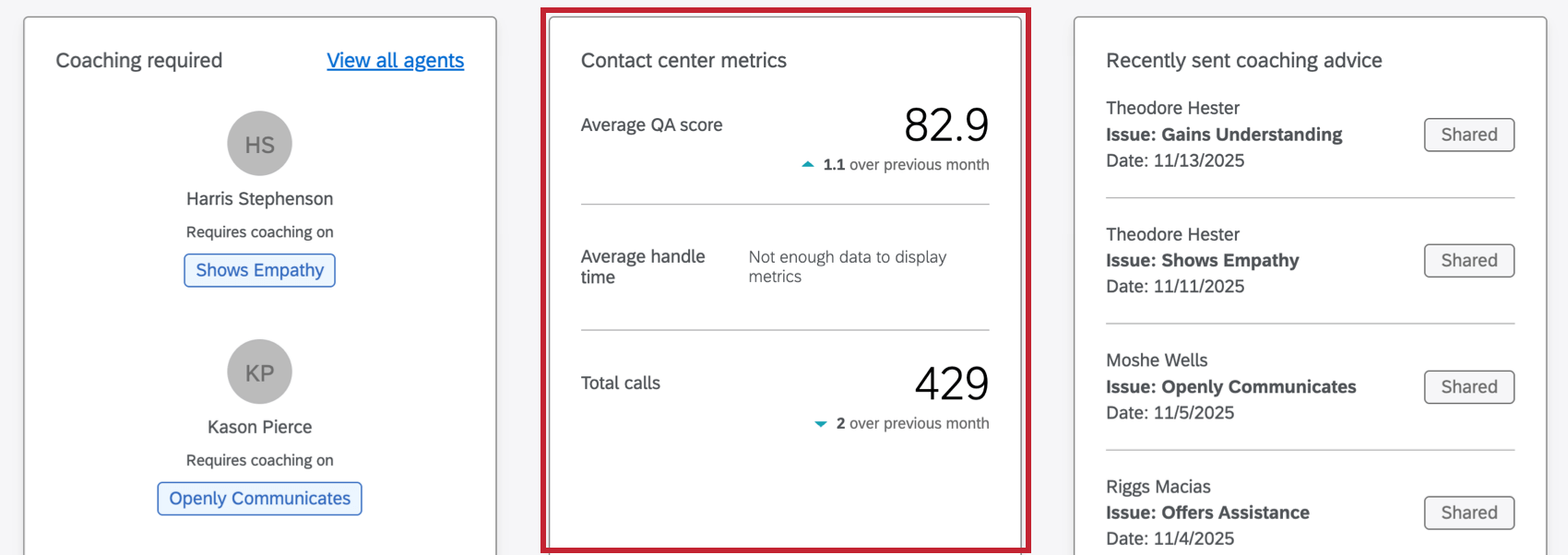
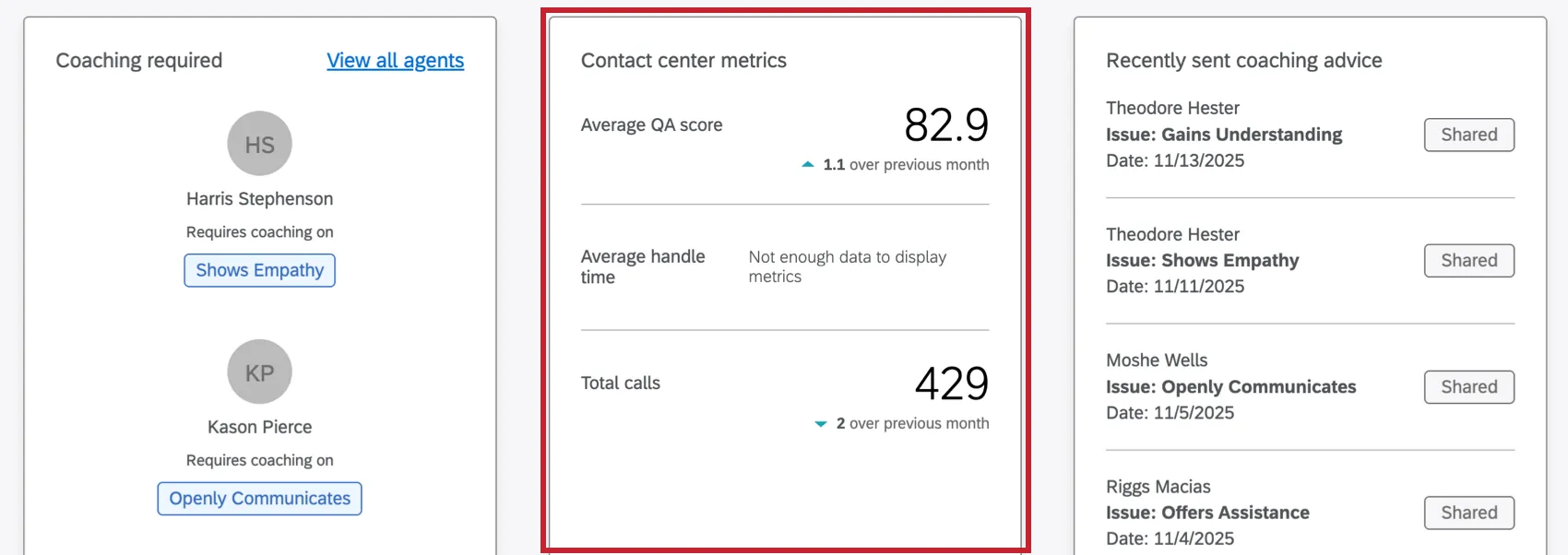
Qtip: Note that you must have enough contact center data to display these metrics.
Recently Sent Coaching Advice Widget
This widget shows a list of coaching advice recently sent to agents.
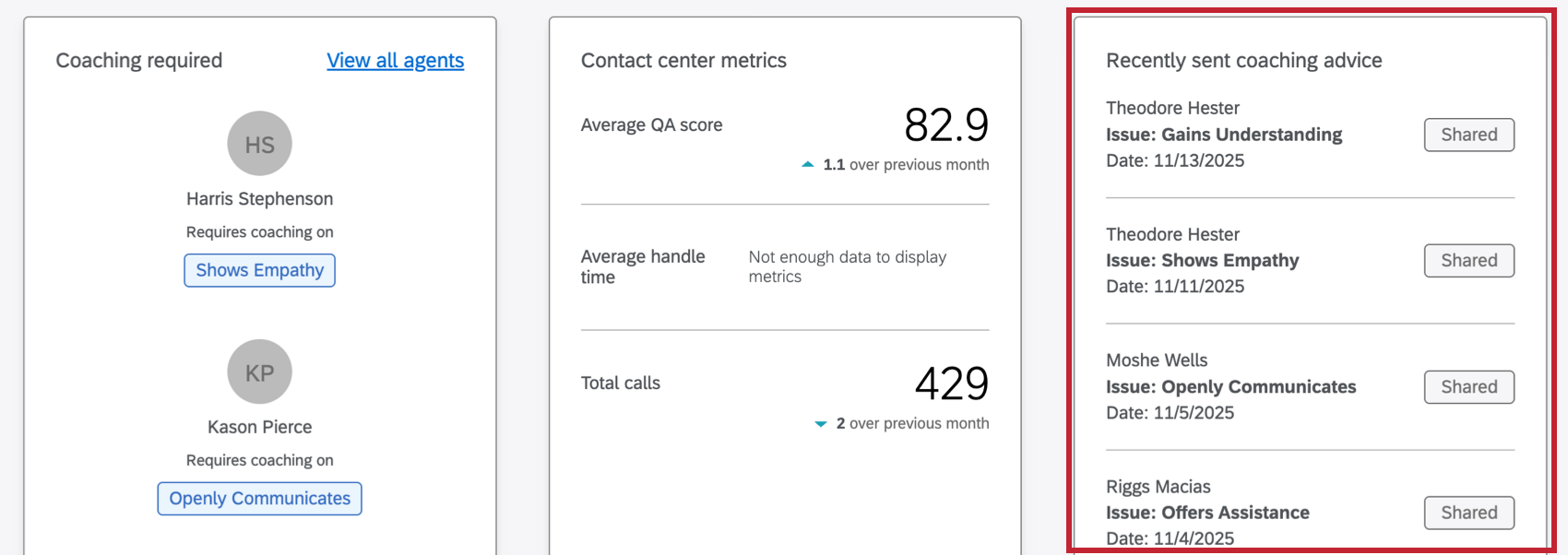
Select a specific item to view the coaching advice, when it was sent, and how the agent’s performance has changed since the advice was sent.
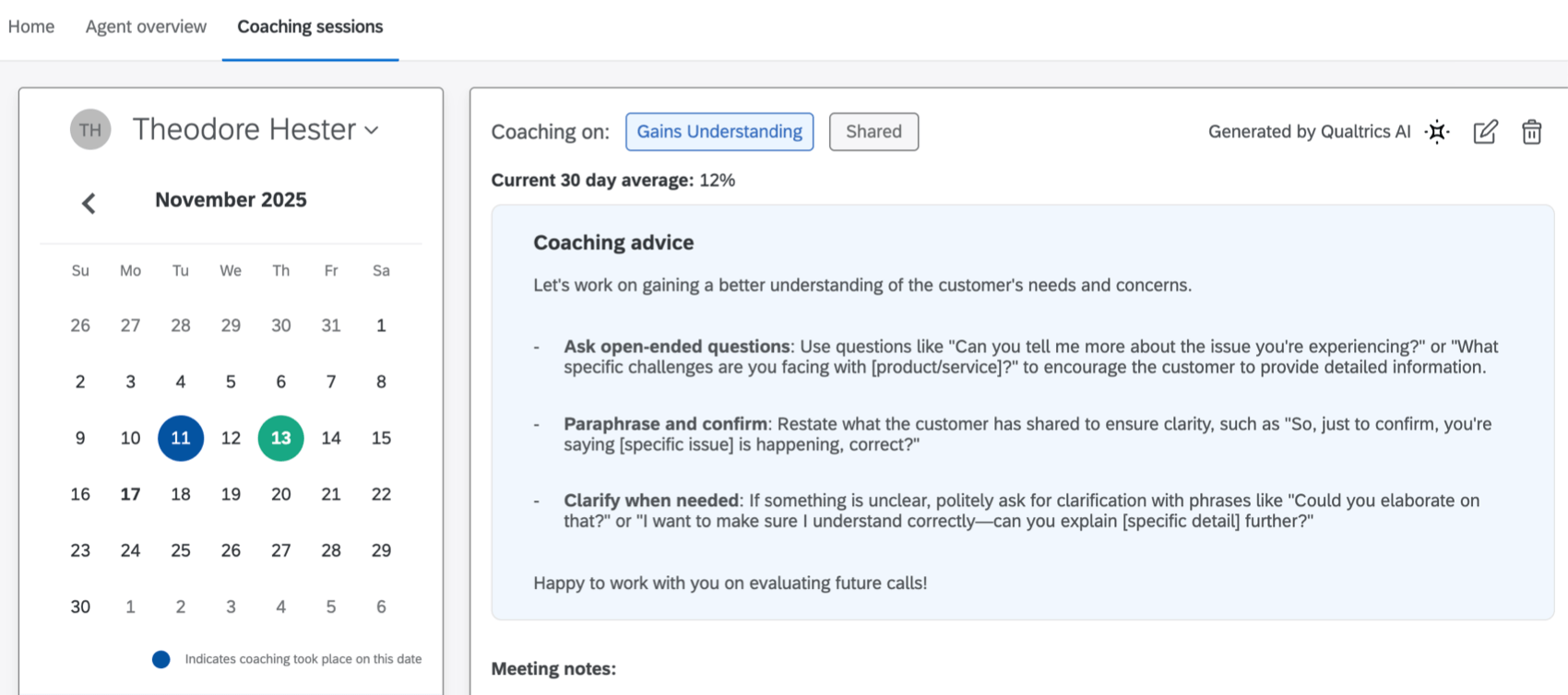
Qtip: Clicking a specific entry in this widget will take you to the Coaching sessions tab, which can also be accessed by clicking on an individual agent within the Coaching required widget.
Viewing Coaching as an Agent
Coaching plans are sent to agents via email. The email contains a direct link to the assigned plan. Once they are in the coaching app, they can view all coaching plans using the calendar view.
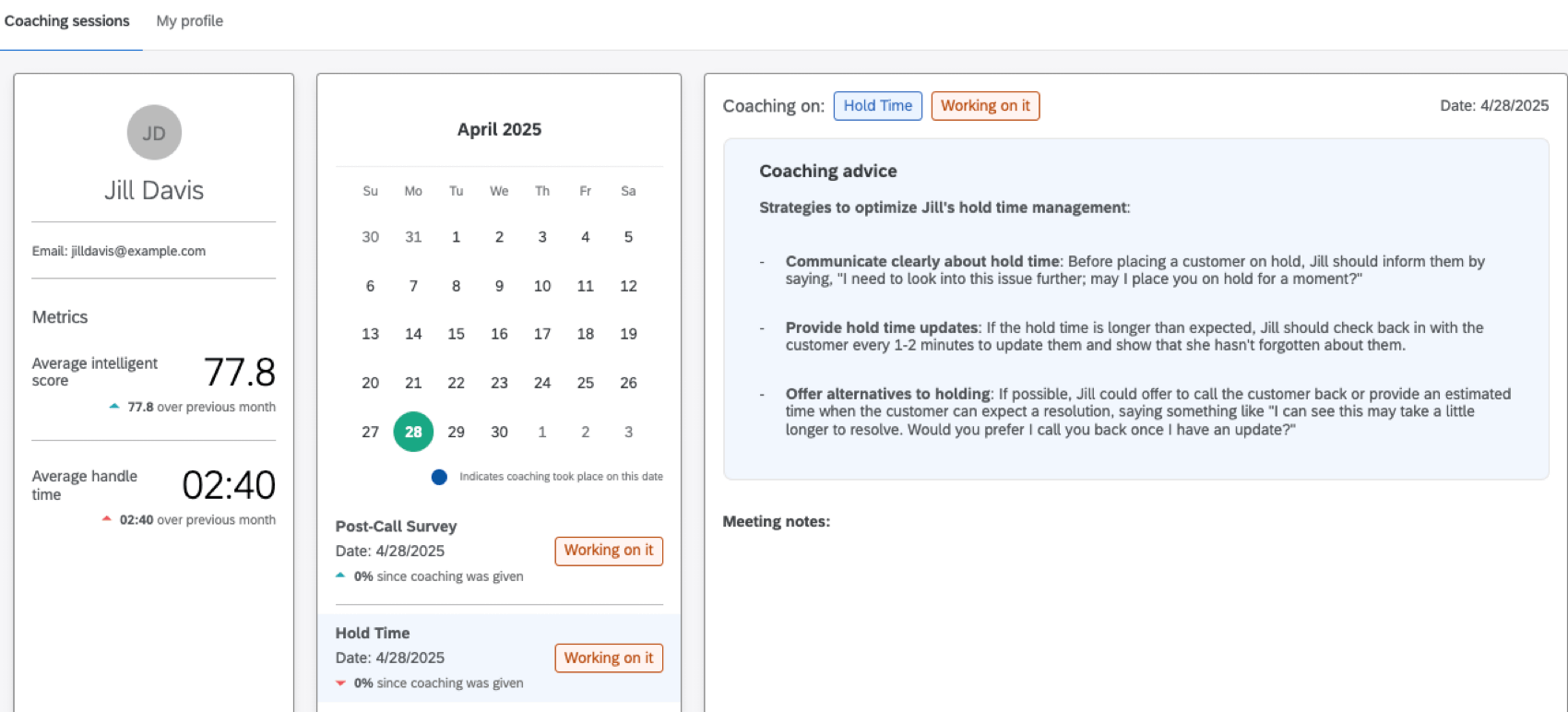
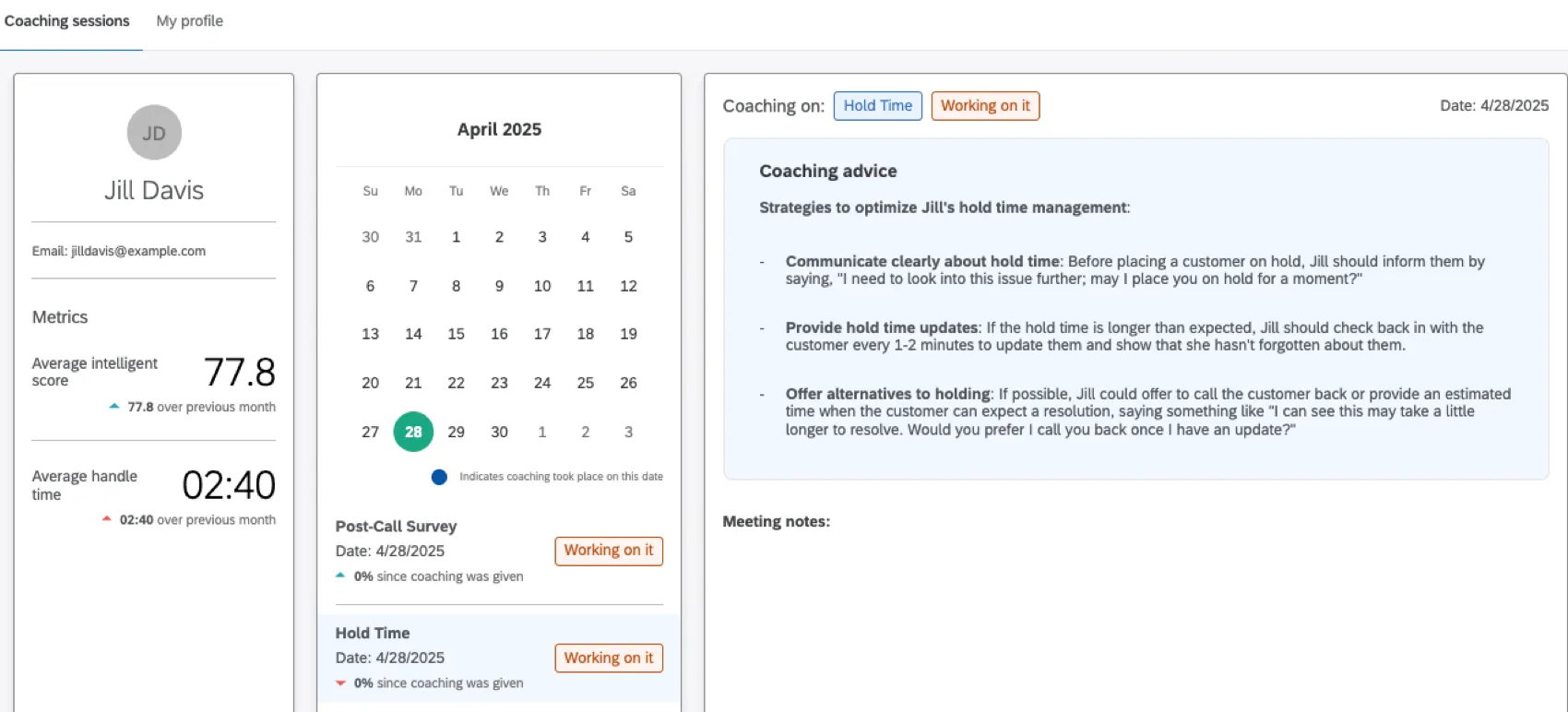
Qtip: Once an agent logs in and clicks on their coaching plan, the status of their plan is automatically changed to Working on it.
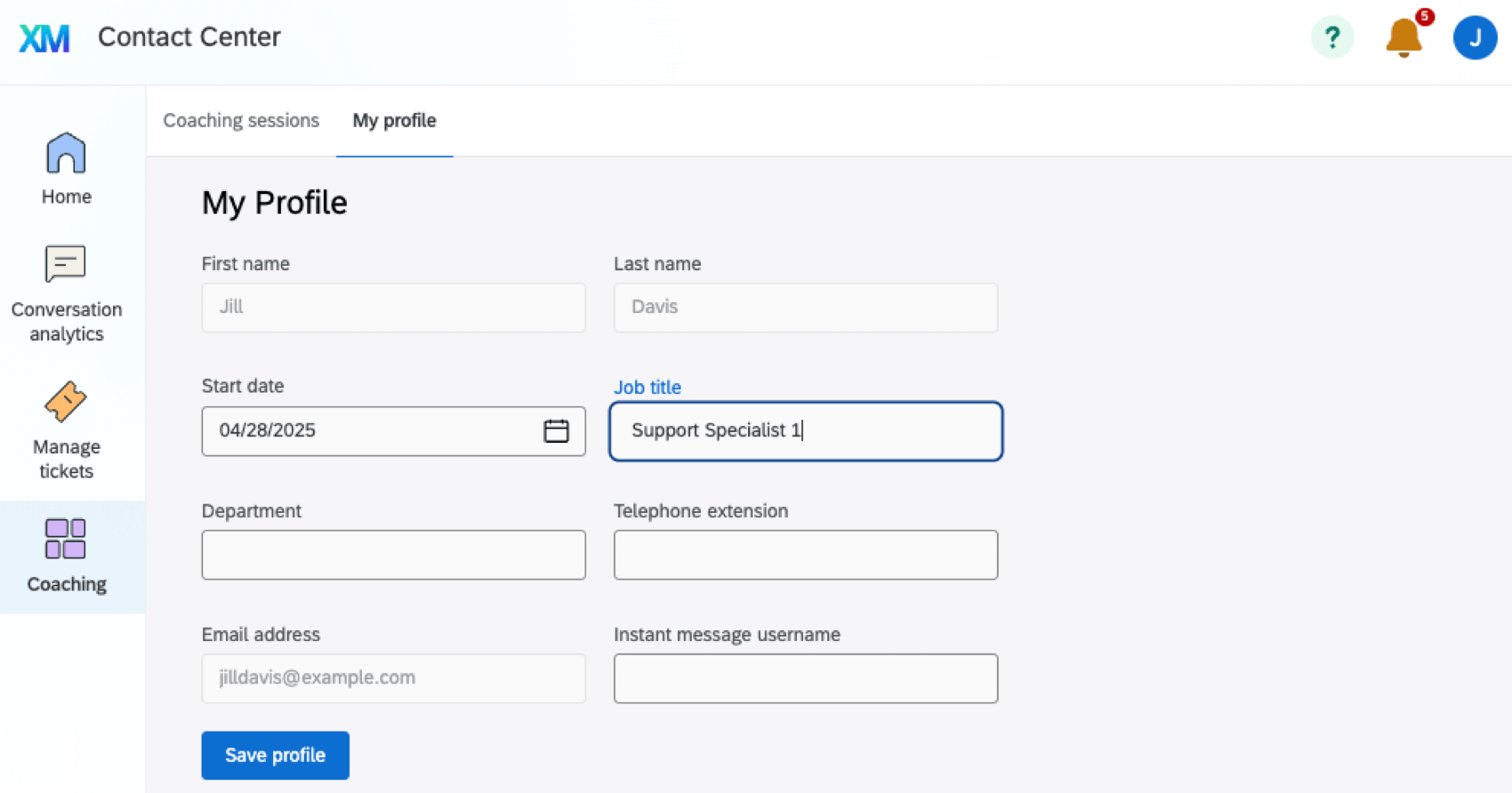
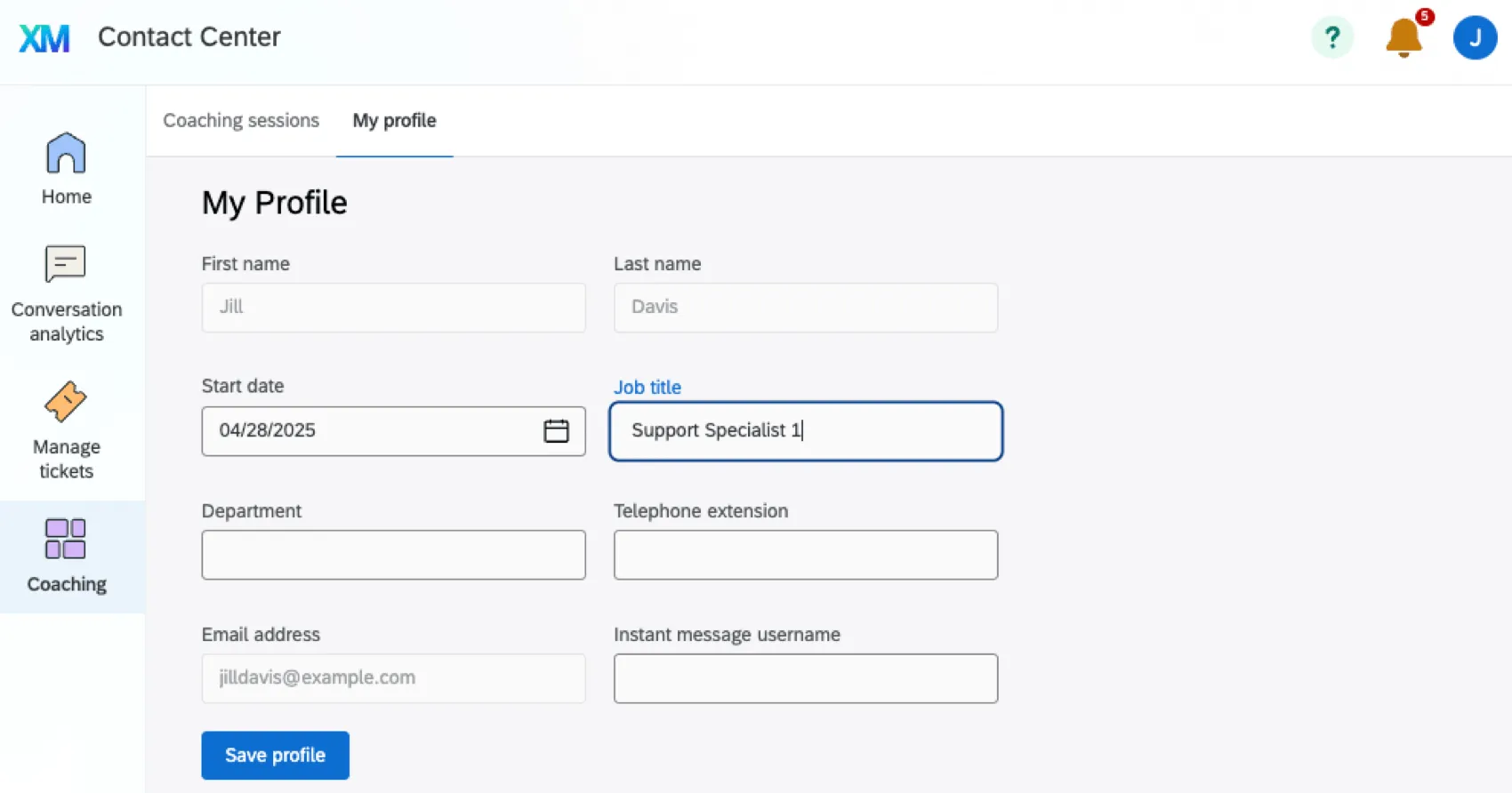
Agents can also click the My profile tab to edit their information. This will be displayed to managers in the Agent Overview.
How Coaching Recommendations Are Generated
In this section, we’ll explain what causes a coaching recommendation to be created. This logic also controls how the gauge charts throughout the Customer Care app are calculated.
Qualtrics does not show new recommendations for agents that already have 2 or more active plans shared within the last 2 weeks, because these agents already have an area of focus. Active plans include any plan with a status of “New,” “Shared,” or “Working On It.”
If the agent meets this requirement, we search for any plans below the configurable coaching threshold (under 75% failure rate is default). Qualtrics looks at 30 days of performance to recommend lowest scoring categories. We collect and sort their categories by impact, ranking categories by the frequency of occurrence and the weight of category in intelligent scoring.
Qtip: See how to adjust the weight of category in intelligent scoring. Frequency of occurrence can be edited when setting up the Coaching section of the app settings.
Once lowest scoring category is found, we check how many plans that category has already:
- If the agent has 2 or more plans for that category marked “New,” we don’t generate another new plan.
- If there is 1 new plan, we check if it is older than 7 days. If so, we generate an additional new plan for that category.
- If there are zero new plans, we check for plans marked “Shared” or “Working On It.” If they exist, we check if the most recently shared plan is older than 2 weeks. If so, we generate a new plan for that category.
- If there are no plans at all for the category, we will generate a new plan.
Qtip: If the agent has no plans at all, only 2 low-scoring categories maximum will generate a new plan. This is so the agent can focus on areas that will have the greatest impact on their intelligent score.
That's great! Thank you for your feedback!
Thank you for your feedback!