-

Qualtrics Platform -

Customer Journey Optimizer -

XM Discover -

Qualtrics Social Connect
Automated Topics
About Automated Topics
Do you have a set of text interactions that you’d like to analyze for common topics and themes? You can jumpstart a topic model by using Artificial Intelligence (AI) to build a topic hierarchy. Using a diverse set of inputs including your unstructured customer data, use case, persona, industry, and additional context information, you can leverage AI to build a topic hierarchy, enabling you to identify the themes most important for your business use case.
Requirements
User Permissions
To build a topic model using AI, you need the Automated Text Analytics user permission enabled for your account. If this permission is disabled, the “Text Analytics” section will not appear in your navigation menu.
Supported Data
You can analyze unstructured data from the following Qualtrics project types:
-
- Survey projects
- Imported data projects
- Online reputation management project
- Email data project
- Chat data project
- Voice project
Please note that you can only create automated topic models for a project if that project does not already have any Text iQ models associated with it. This includes models created in both the Text iQ tab of a project or the Text iQ section of a dashboard using the data modeler. If you select an ineligible project, you will receive a warning that the project already has Text iQ fields.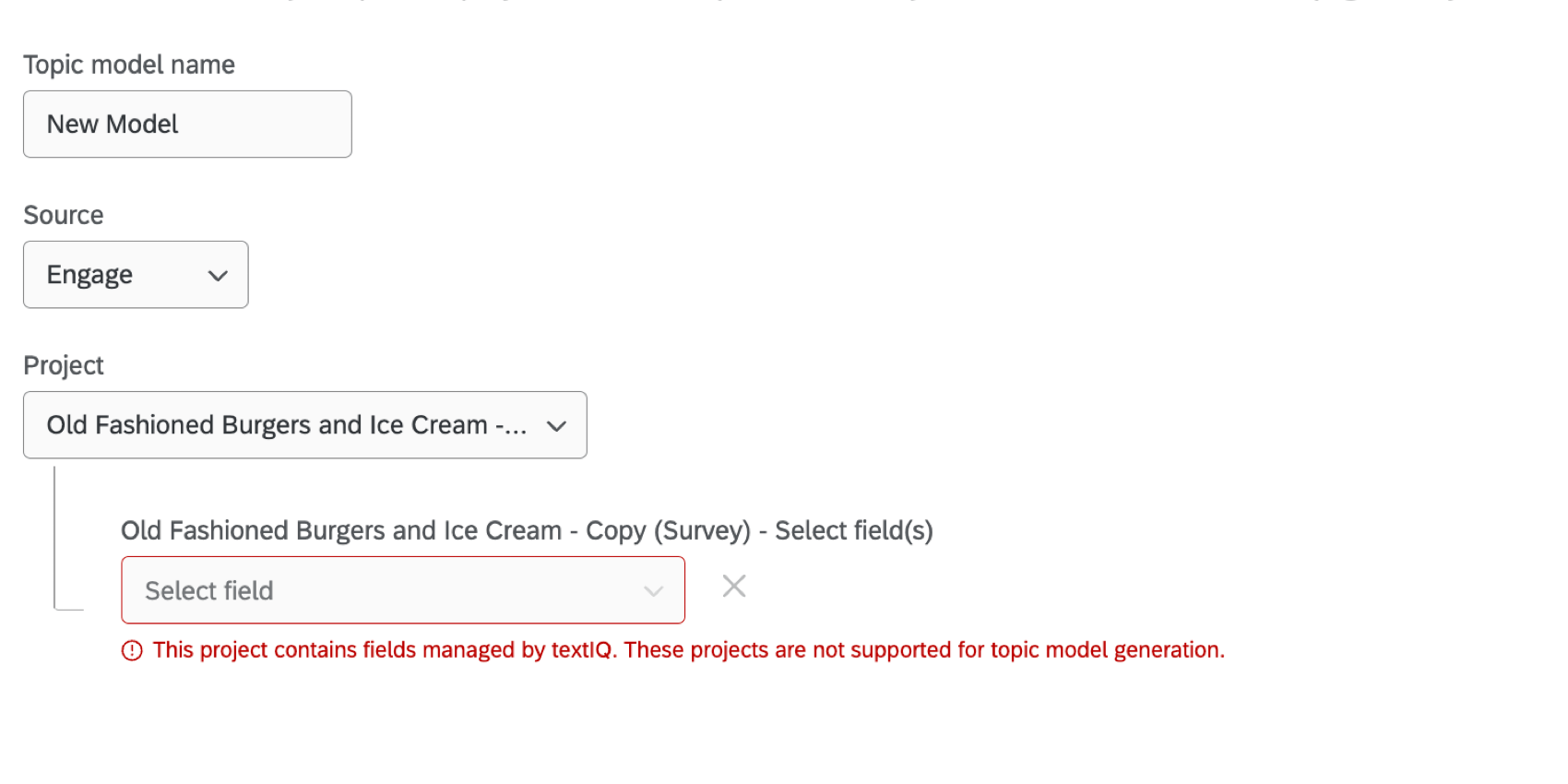
Qtip: If you’d like to use a project that already has been analyzed with Text iQ, you must:
- Export your topics from Text iQ in that project.
- Delete the Text iQ topic model. Please note that manual tags will not be carried over to automated topics.
- Load the source project in your desired dashboard using the data mapper.
- Use Text iQ from the dashboard and upload the previously downloaded model there.
Generating a Topic Model
- Select Text Analytics from the global navigation menu.
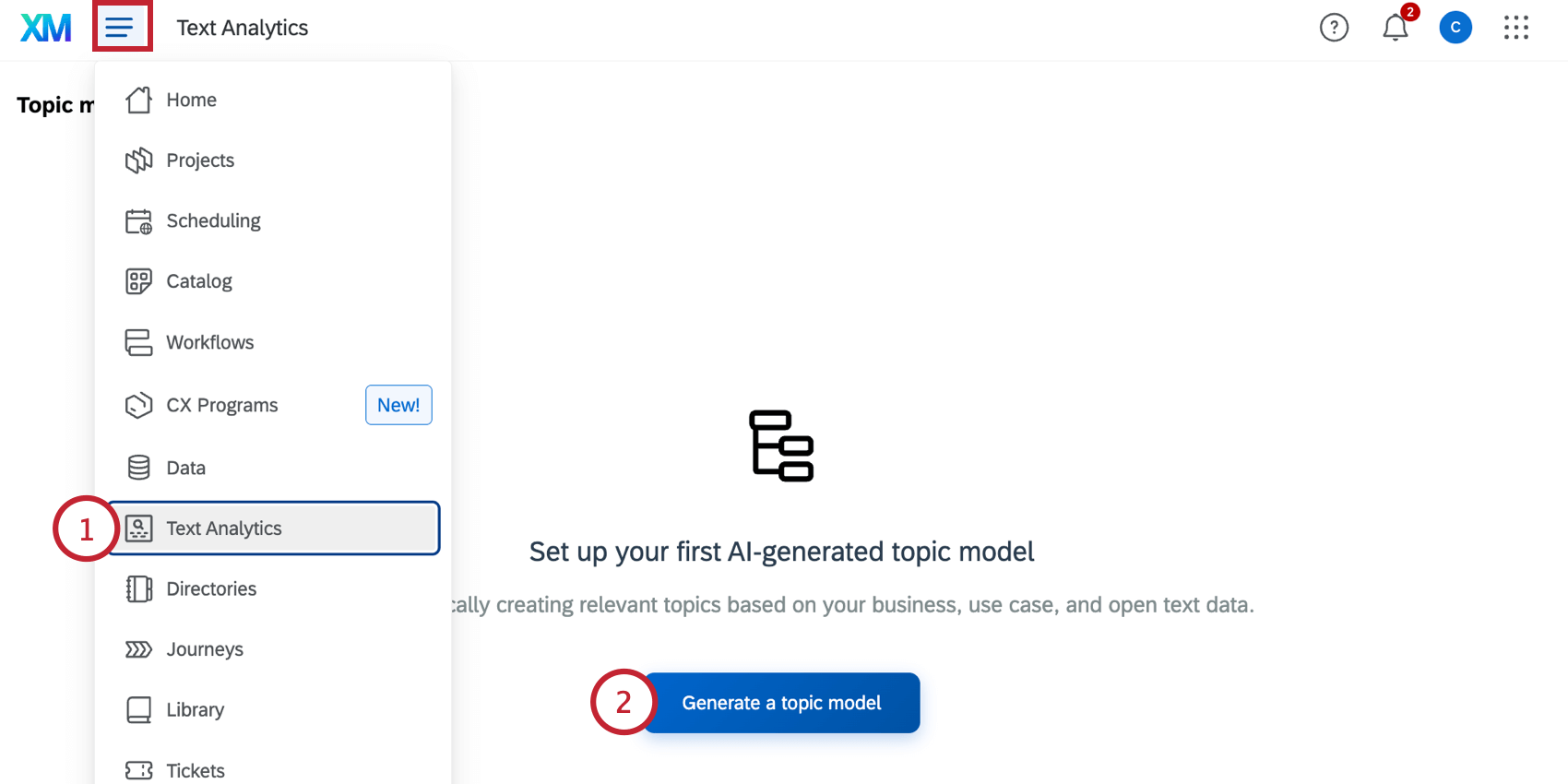
- Click Generate a topic model.
- Give your model a name so you can identify it later.
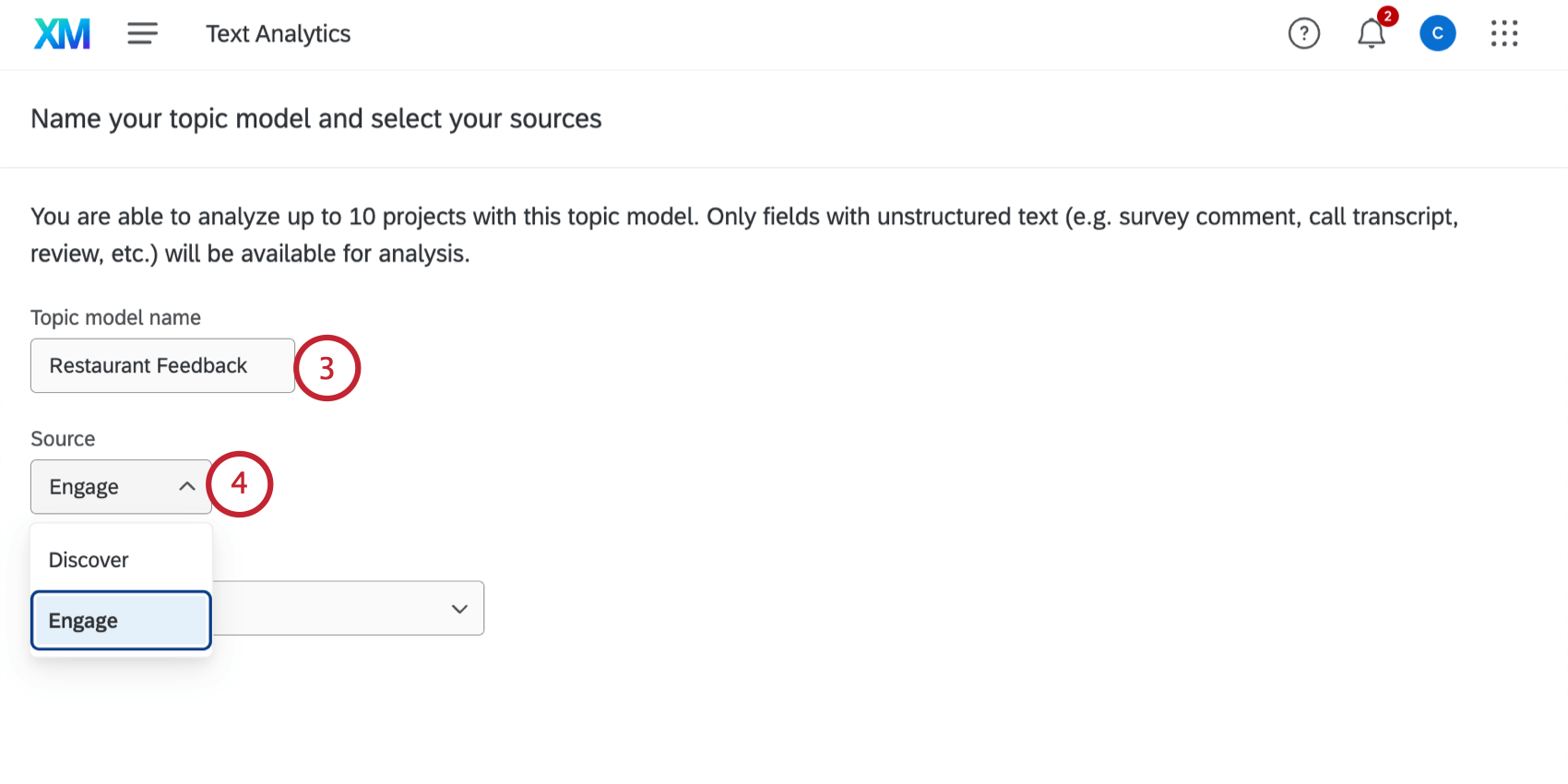
- Select Engage for the source.
Qtip: See Topic Hierarchy Generator in XM Discover for steps on generating a model using data from XM Discover.
- Choose the project(s) you’d like to analyze. You can select up to 10 projects.
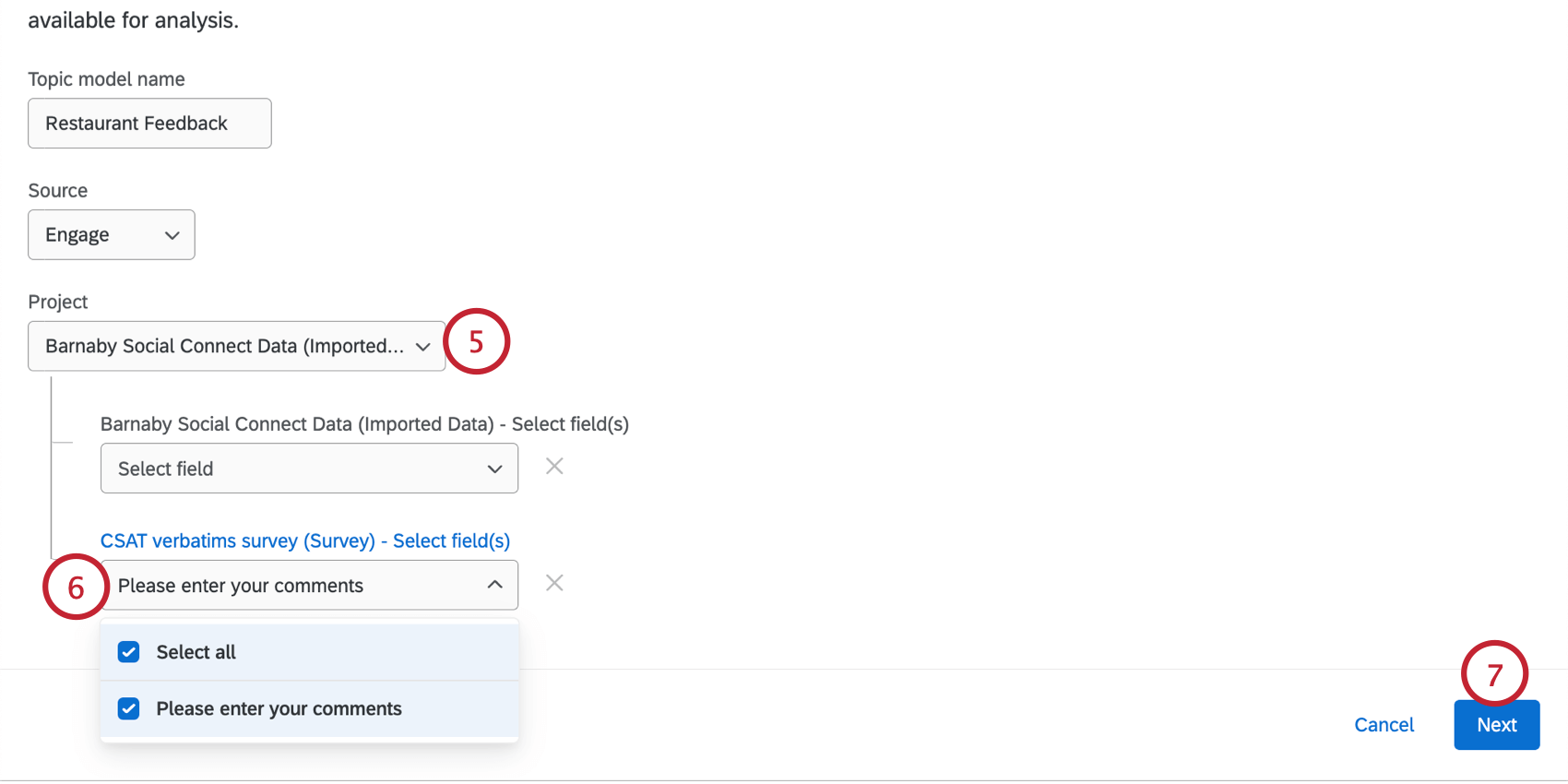 Qtip: See the Requirements section above for information about what data is eligible to be selected here.
 - For each project, select the text field(s) you’d like to include in the analysis.
- Click Next.
- Choose Let Qualtrics AI build it to use AI to build the hierarchy.
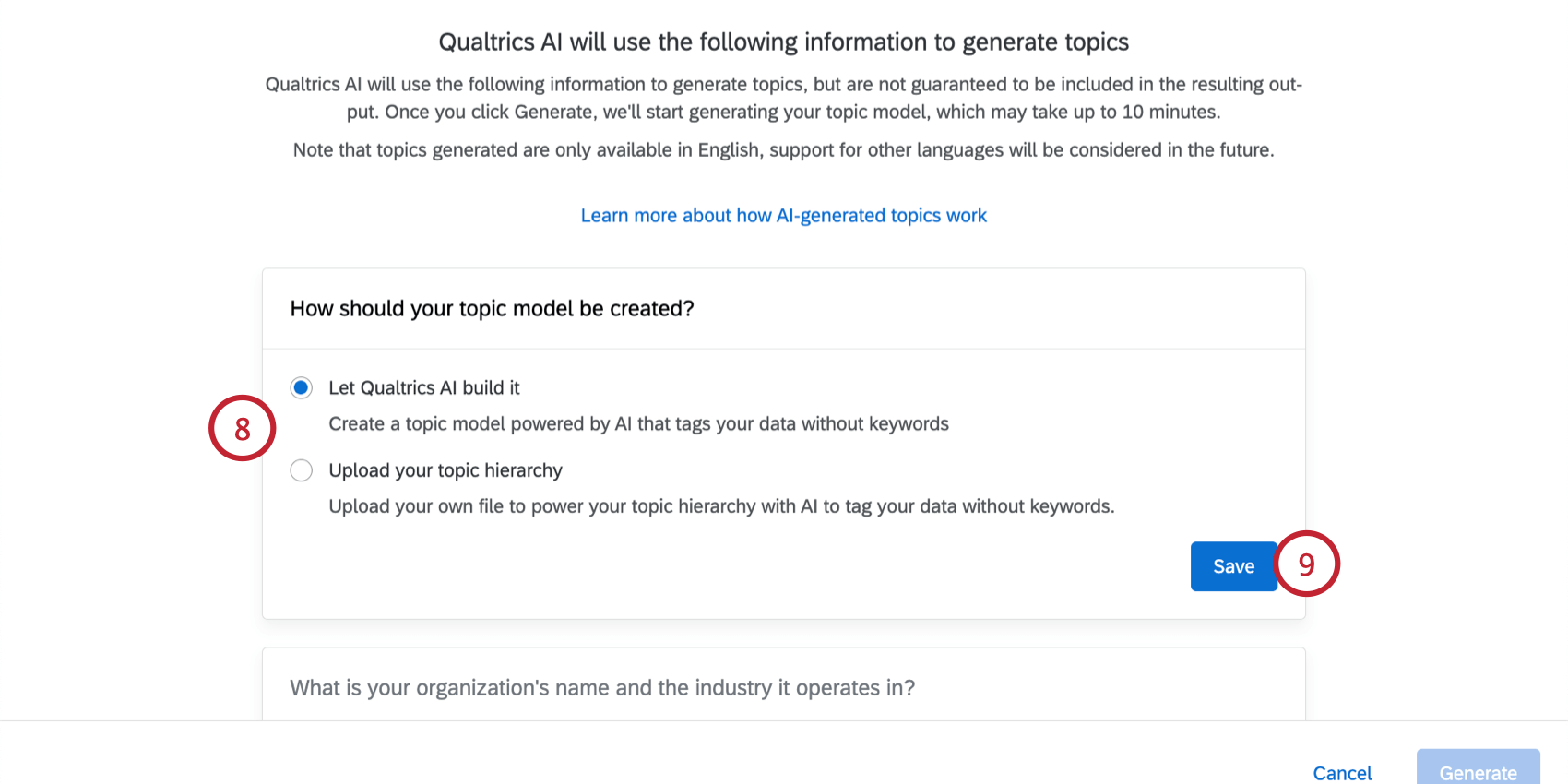 Qtip: The “Upload your topic hierarchy” option is useful if you have an existing topic hierarchy in JSON format that you’d like to reuse instead of generating a new hierarchy.
 - Click Save.
- Enter your organization’s name.
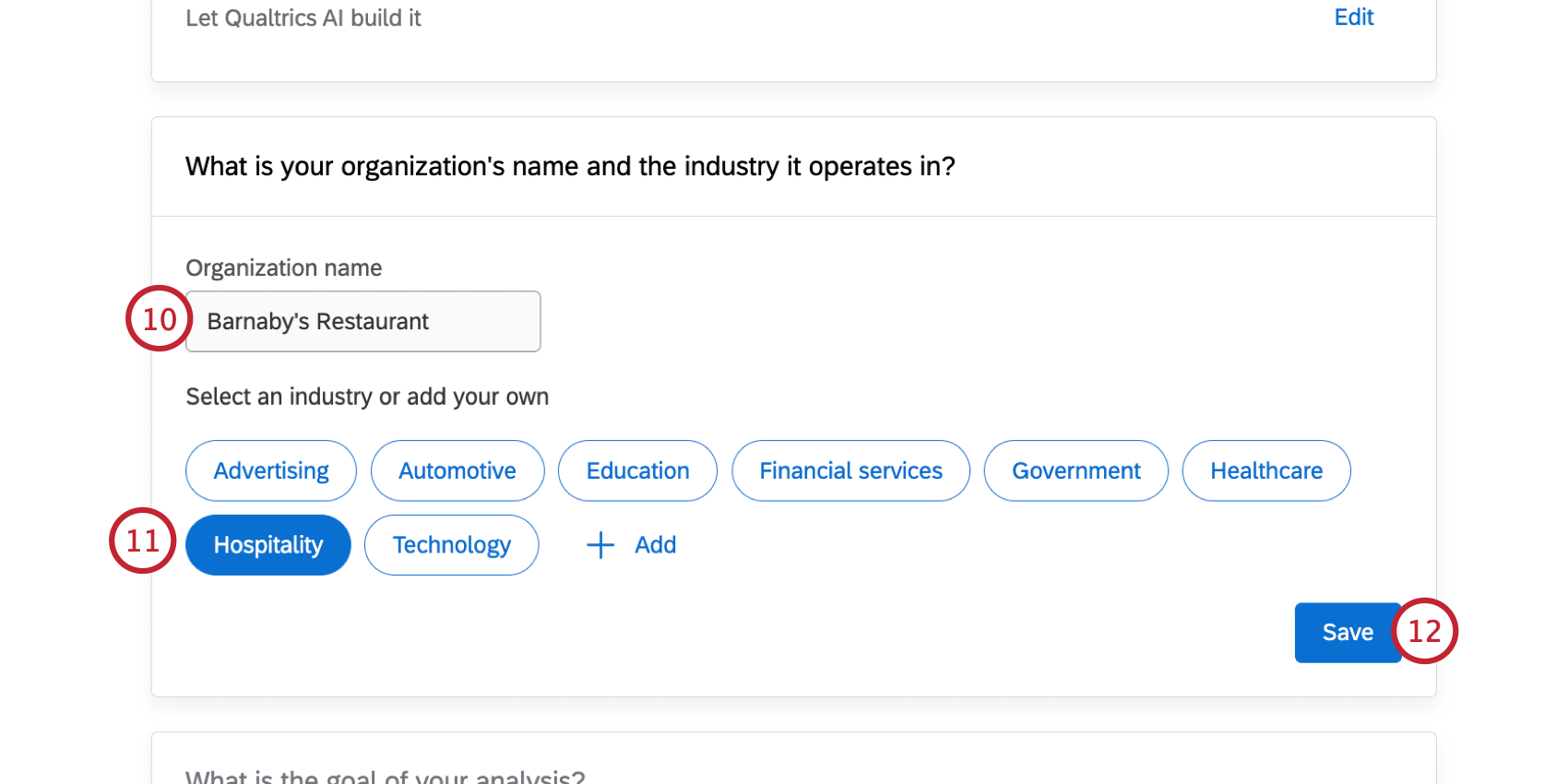
- Select your industry.
Qtip: If your industry isn’t listed here, you can click “Add” and then specify your industry in the text box.
- Click Save.
- Enter the role in the company of the user persona who will use the topic analysis output (e.g., Employee Experience Manager, In-store Manager).
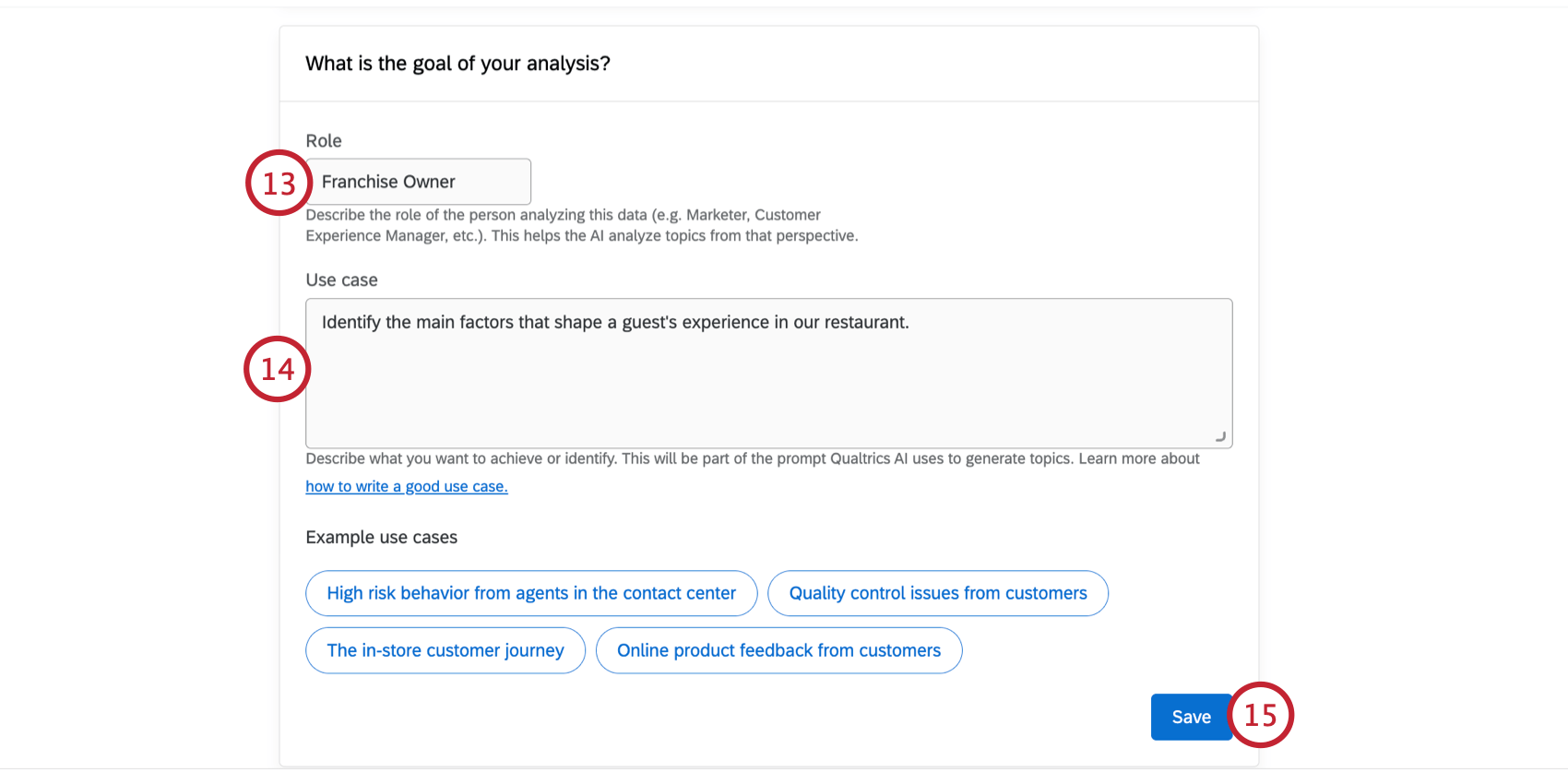
- Enter a use case for the hierarchy. There are example use cases available as a starting point.
- Click Save.
- Choose the number of levels in your hierarchy. You can have between 1 to 5 levels; generally we recommend 3-5 levels for an in-depth analysis.
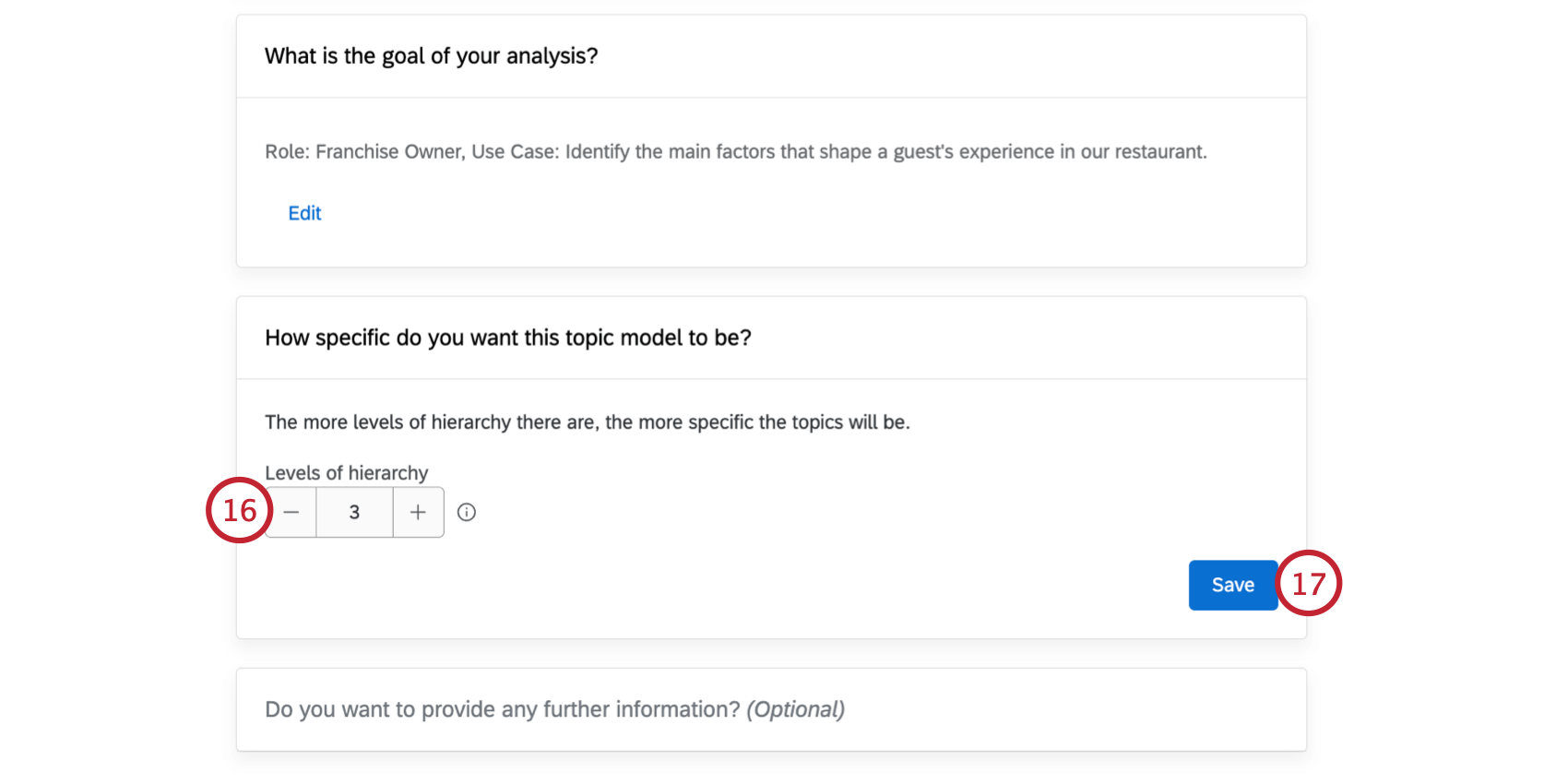
- Click Save.
- If desired, you can enter any extra information about your company, industry, products, and services to help further customize the model.
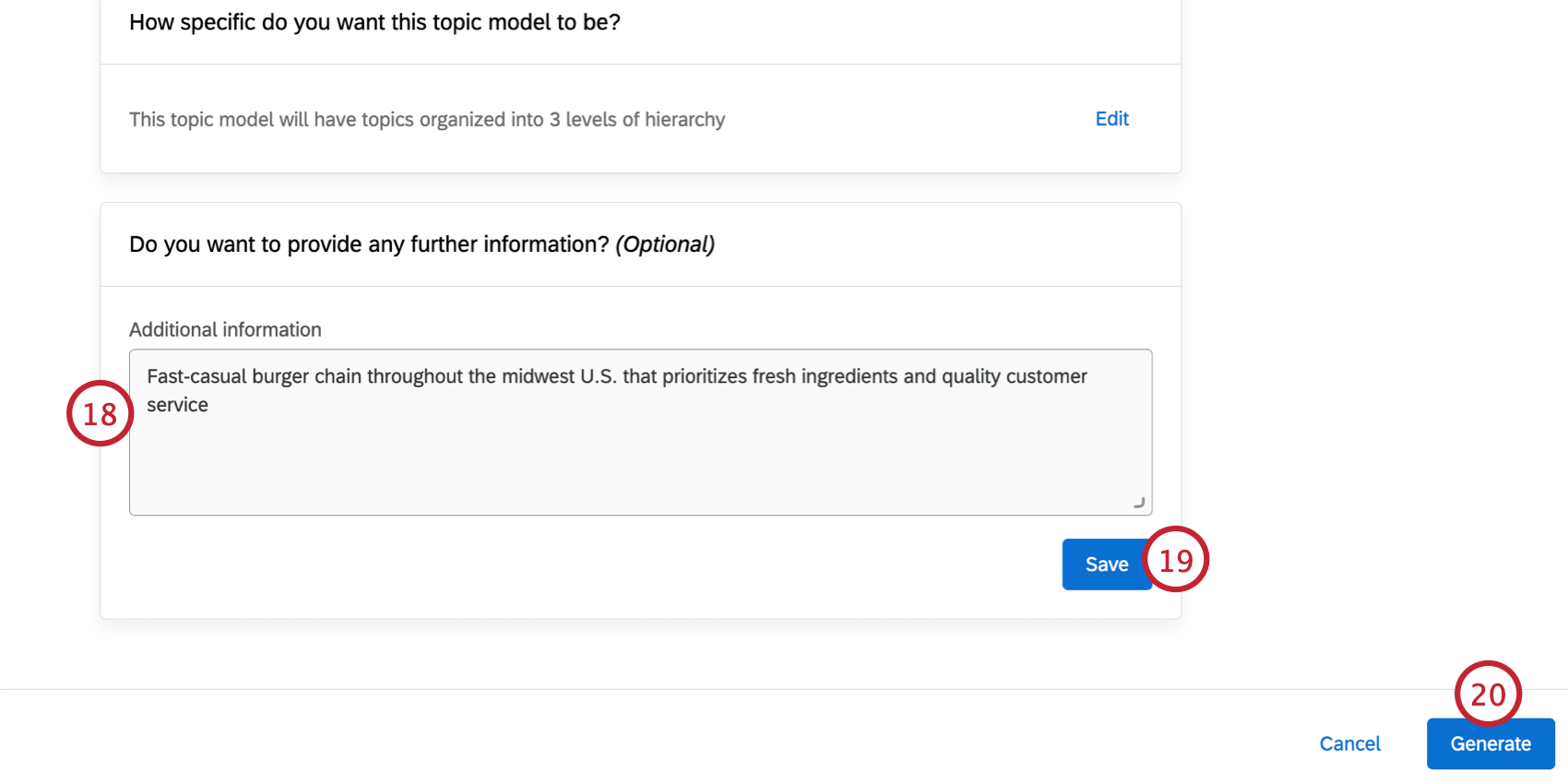
- Click Save.
Qtip: If needed, you can click Edit to change any part of the model parameters before generating the text hierarchy. You cannot edit these parameters after your hierarchy is generated.
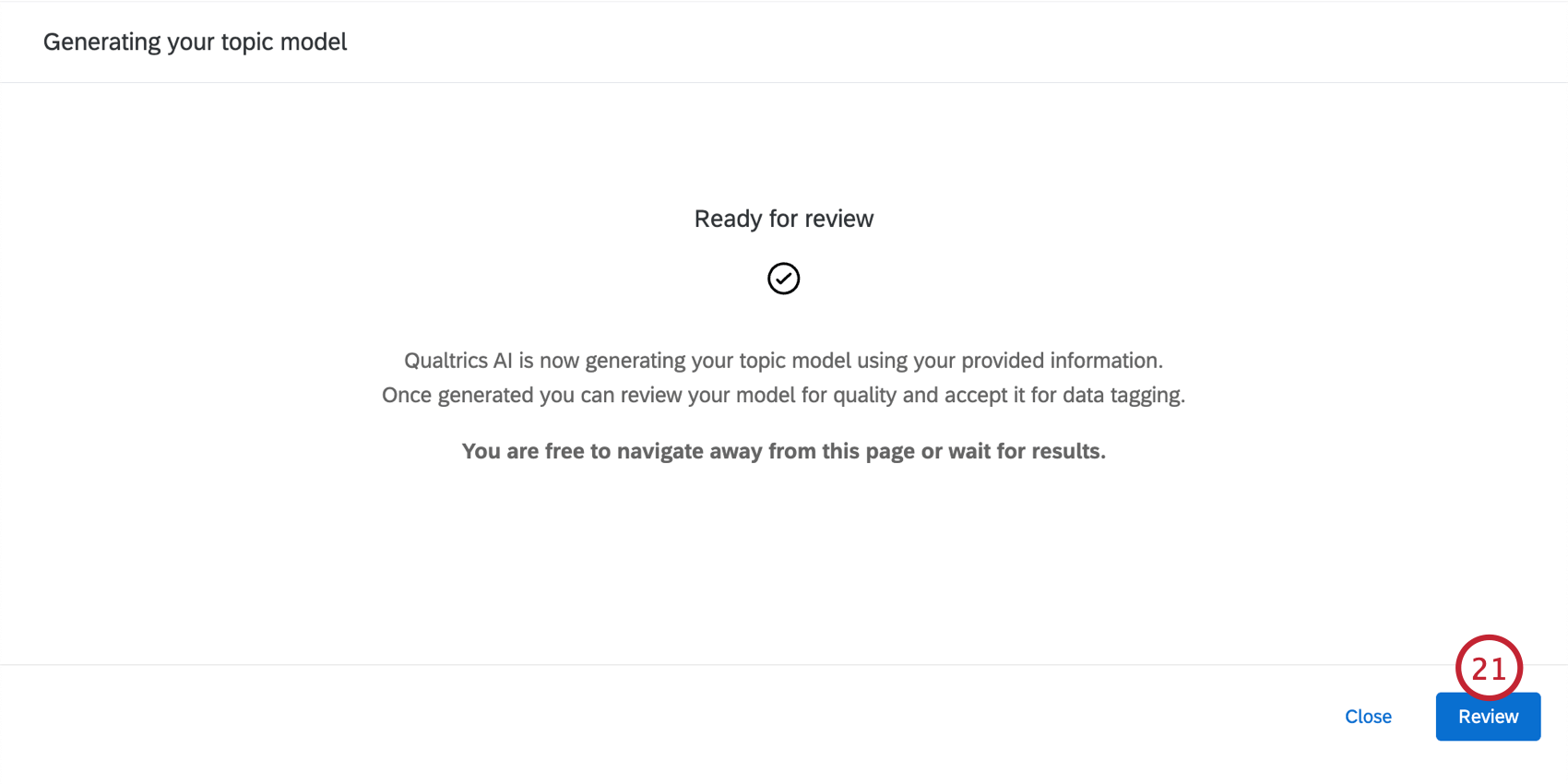
- Click Generate. It will take a few minutes for your model to be ready.
- Once the model is ready, click Review.
- You can click through the hierarchy and deselect any topics you do not want in your hierarchy. If you deselect a parent topic, all children topics will also be deselected.
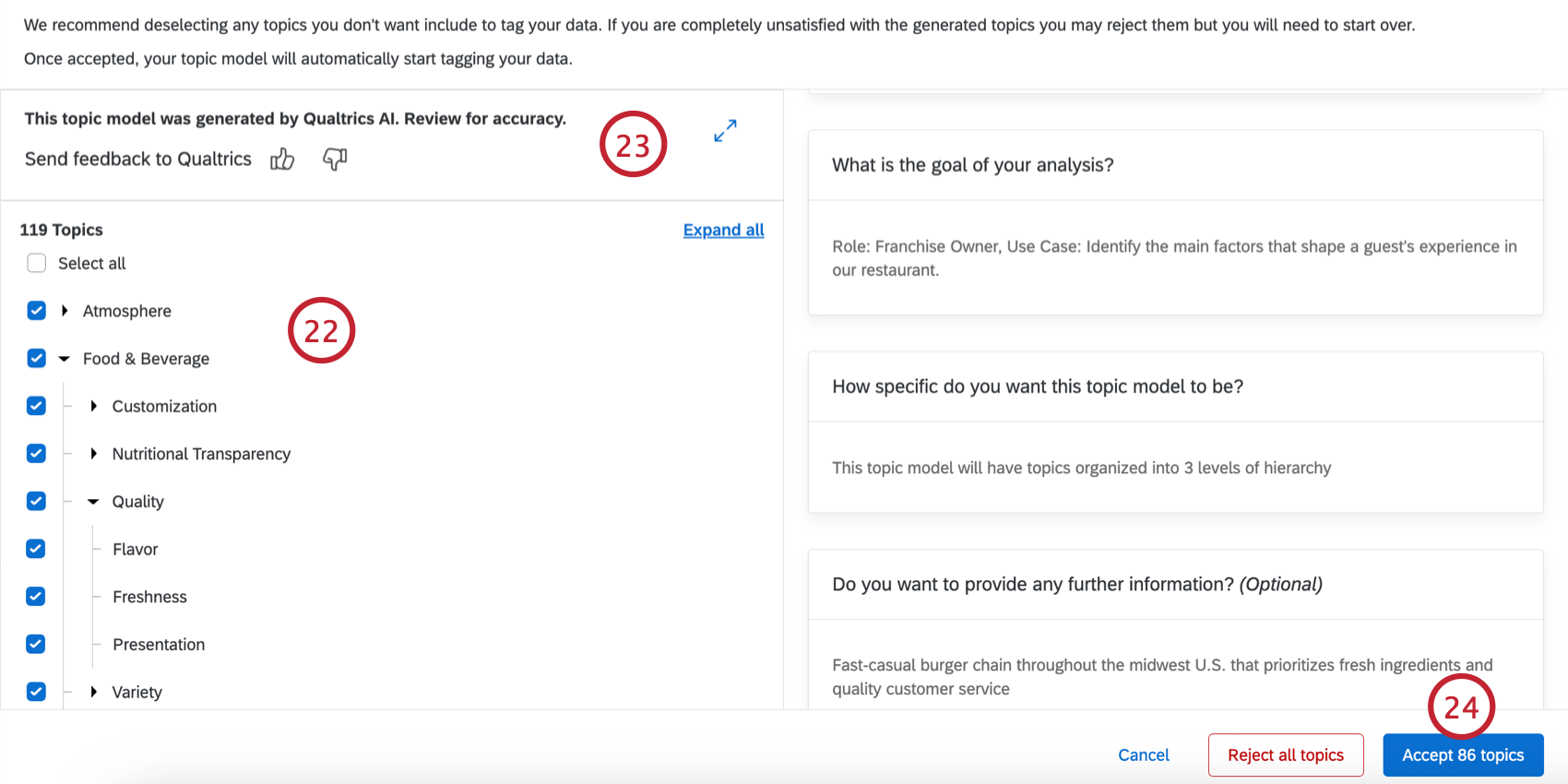
- If desired, you can send feedback to Qualtrics about your generated model to help improve generation in the future.
- Click Accept topics to build the hierarchy.
- After your topic hierarchy is created, you can manage it from the Text Analytics page. Here, you can edit the topics in your model, modify the connected sources, and share the model with other users in your license.
Importing a Topic Model
Follow the steps in this section to import a topic model from a JSON file. Typically, this file is exported from an existing Text iQ dataset.
- Select Text Analytics from the global navigation menu.
- Click Generate a topic model.
- Give your model a name so you can identify it later.
- Select Engage for the source.
- Choose the project(s) you’d like to analyze. You can select up to 10 projects.
Qtip: See Requirements for information about what data is eligible to be selected here.
- For each project, select the text field(s) you’d like to include in the analysis.
- Click Next.
- Select Upload your topic hierarchy.
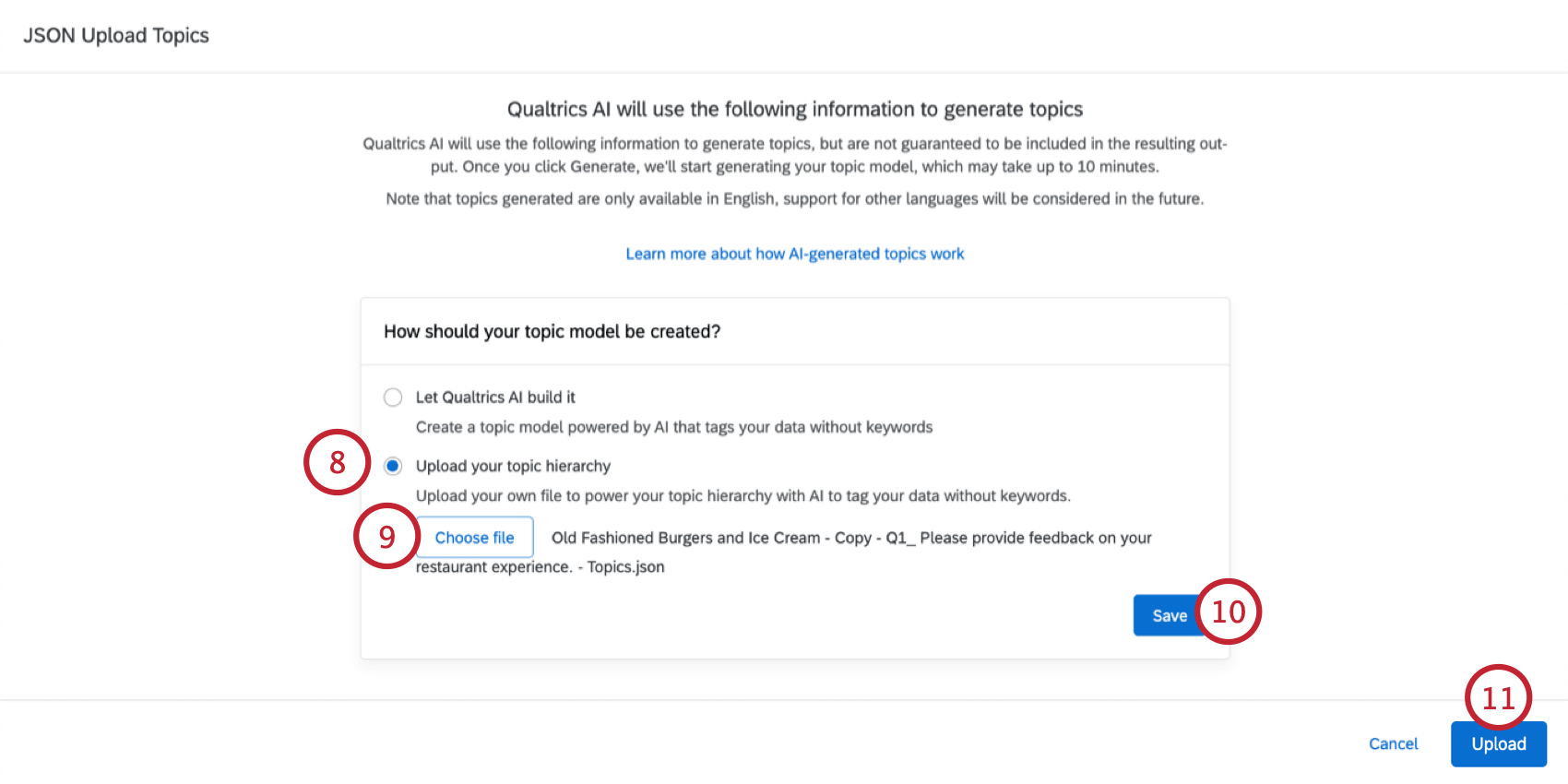
- Click Choose file and select the JSON file saved on your computer.
- Click Save.
- Click Upload.
- If desired, you can deselect any topics you do not want to include in your new model.
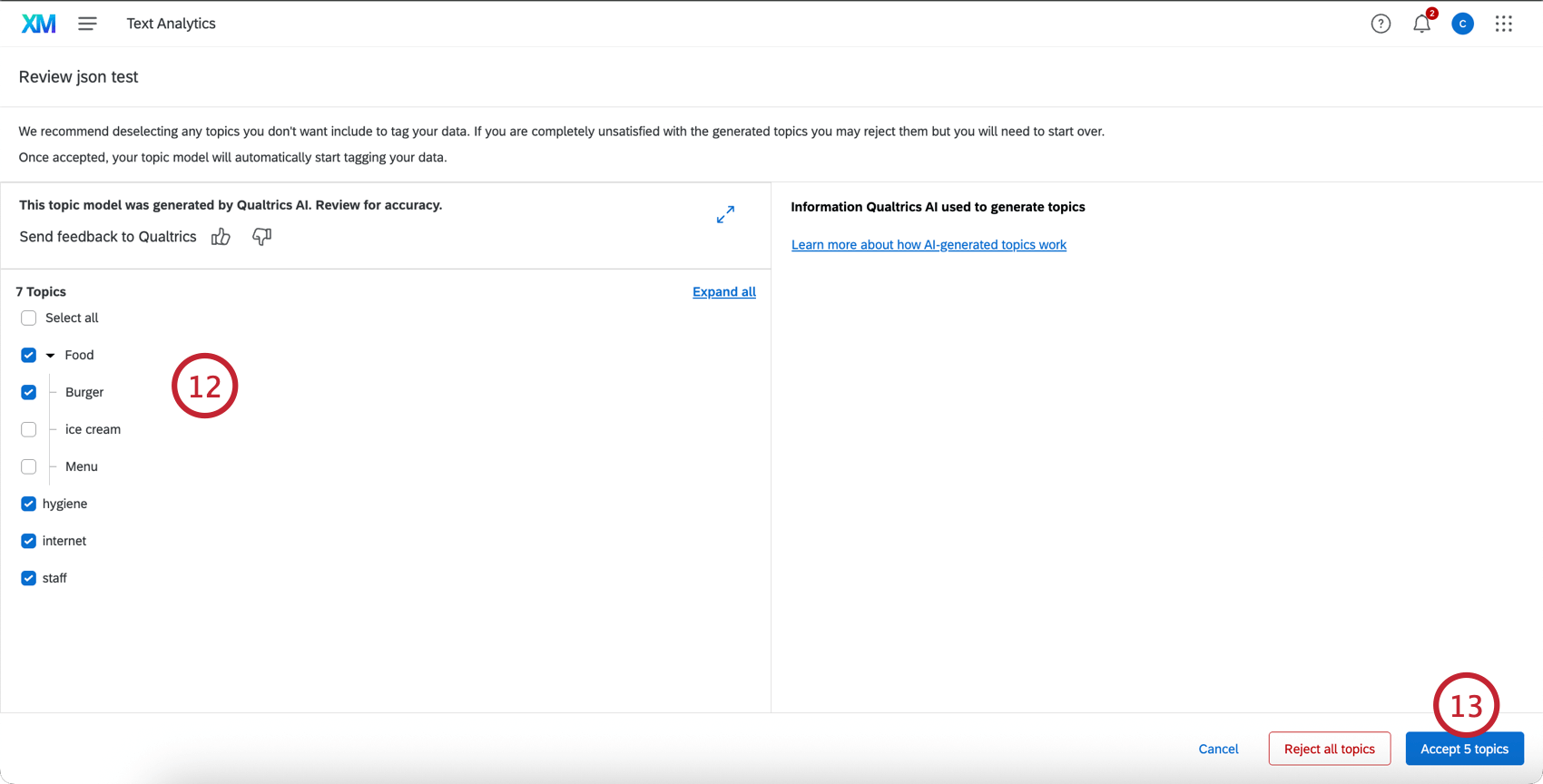
- Click Accept topics.
Using an Automated Topic Model
After creating an automated topic model, the generated topics will be tagged to the data source(s) used for the model. You will be able to see these topics in the Data & Analysis tab of your project, much like any other text topic fields.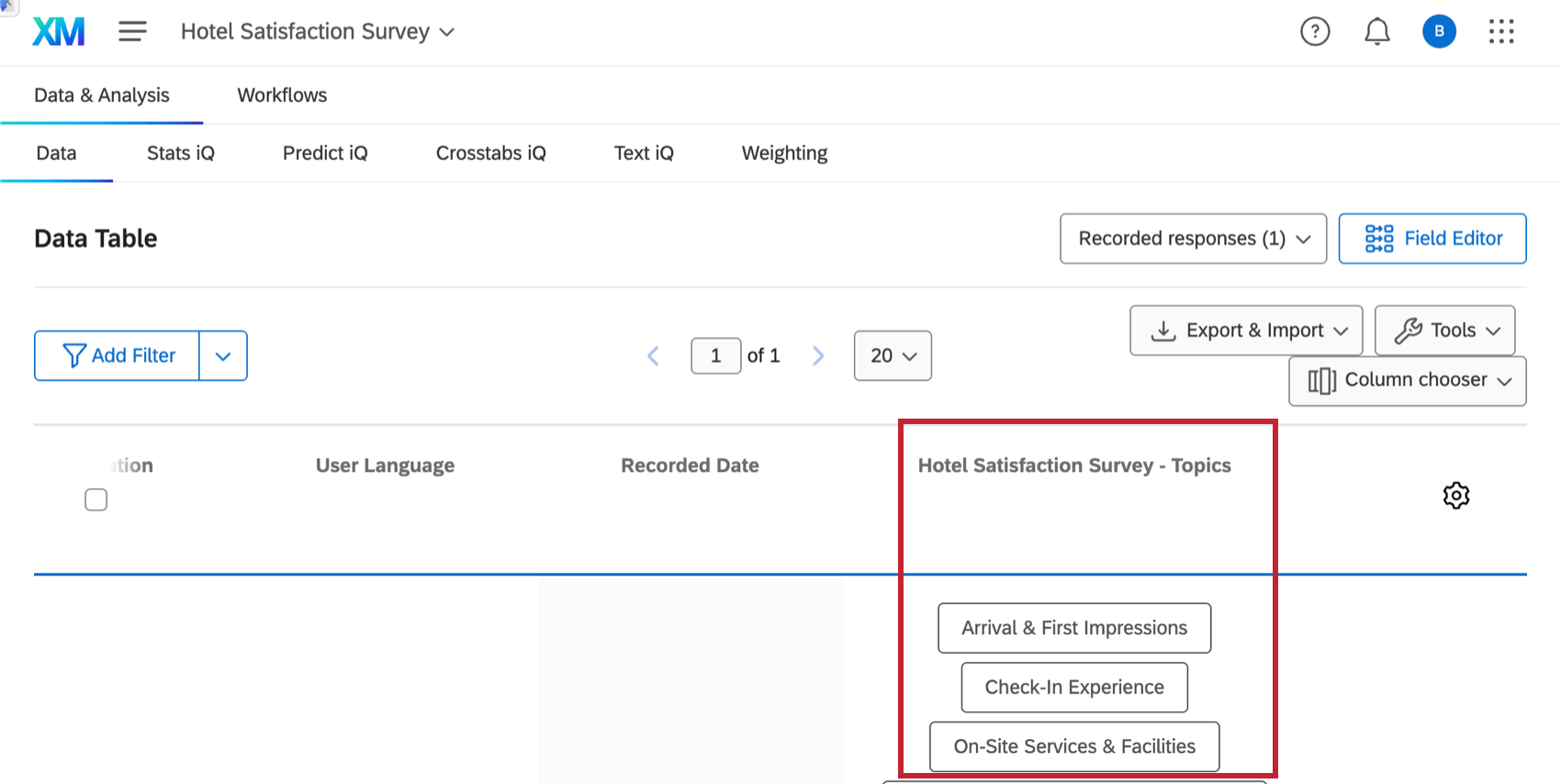
Your automated topic model will also create a “Granular Text Analytics” data source that has the structure of all sentences from source interactions. For each sentence, there will be associated topics, sentiment, effort, emotion, emotional intensity, and actionability fields. This data source is available in the CX dashboard data modeler.
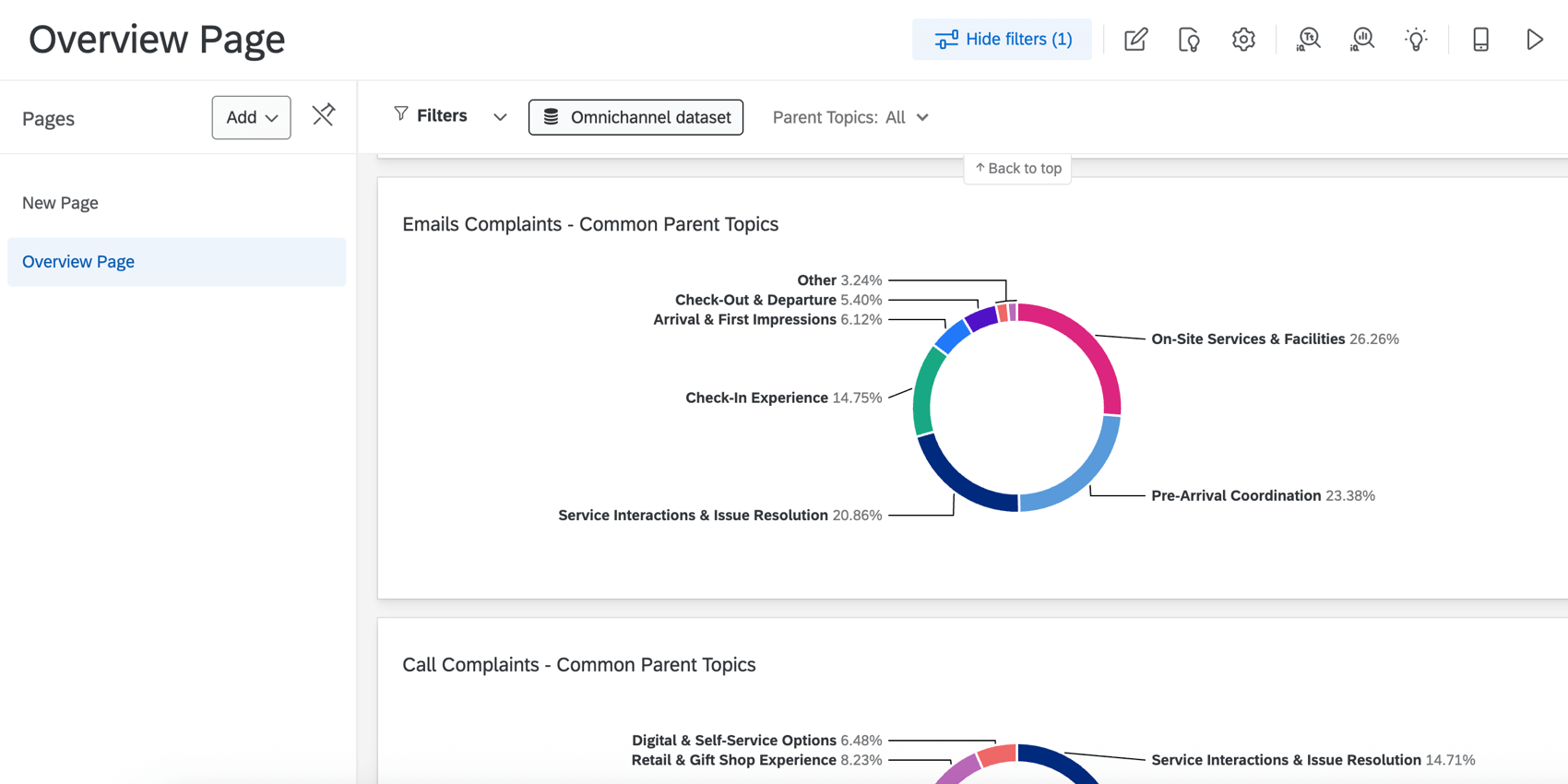
After you have your new source containing text enrichments, you can display it in a CX dashboard. Currently, this is managed by your Qualtrics team. Your new source containing text enrichments will be joined with your original interaction data, and linked dashboard fields are used to link the same field across interaction and derived datasets. Once your dashboard’s data is set up, you can choose which datasets(s) you want to use on an individual widget and filter basis.