

Patient Experience Hub
What's on this page
Attention: This feature is only available to users on the new simplified pricing and packaging plans or customers who actively participated in the Preview Program for this feature. For more information, see Qualtrics Public Preview. If you have questions about your Qualtrics pricing and packaging plan, reach out to Account Services.

About the Patient Experience Hub
The Patient Experience Hub is a purpose-built app designed to help you create and manage a healthcare rounding program. By connecting to EHR and HRIS systems, you can build rounding programs to identify improvement opportunities for each unit in your organization. Afterwards, the Patient Experience Hub helps you take action on your findings and track your organization’s performance over time.
Qtip: Setup for the Patient Experience Hub is conducted by the Qualtrics Implementations team. If you have questions about your implementation or if this feature is available for your license, please reach out to your Qualtrics account team. This page covers how to use the hub after it’s been configured for you.
Navigating the Patient Experience Hub
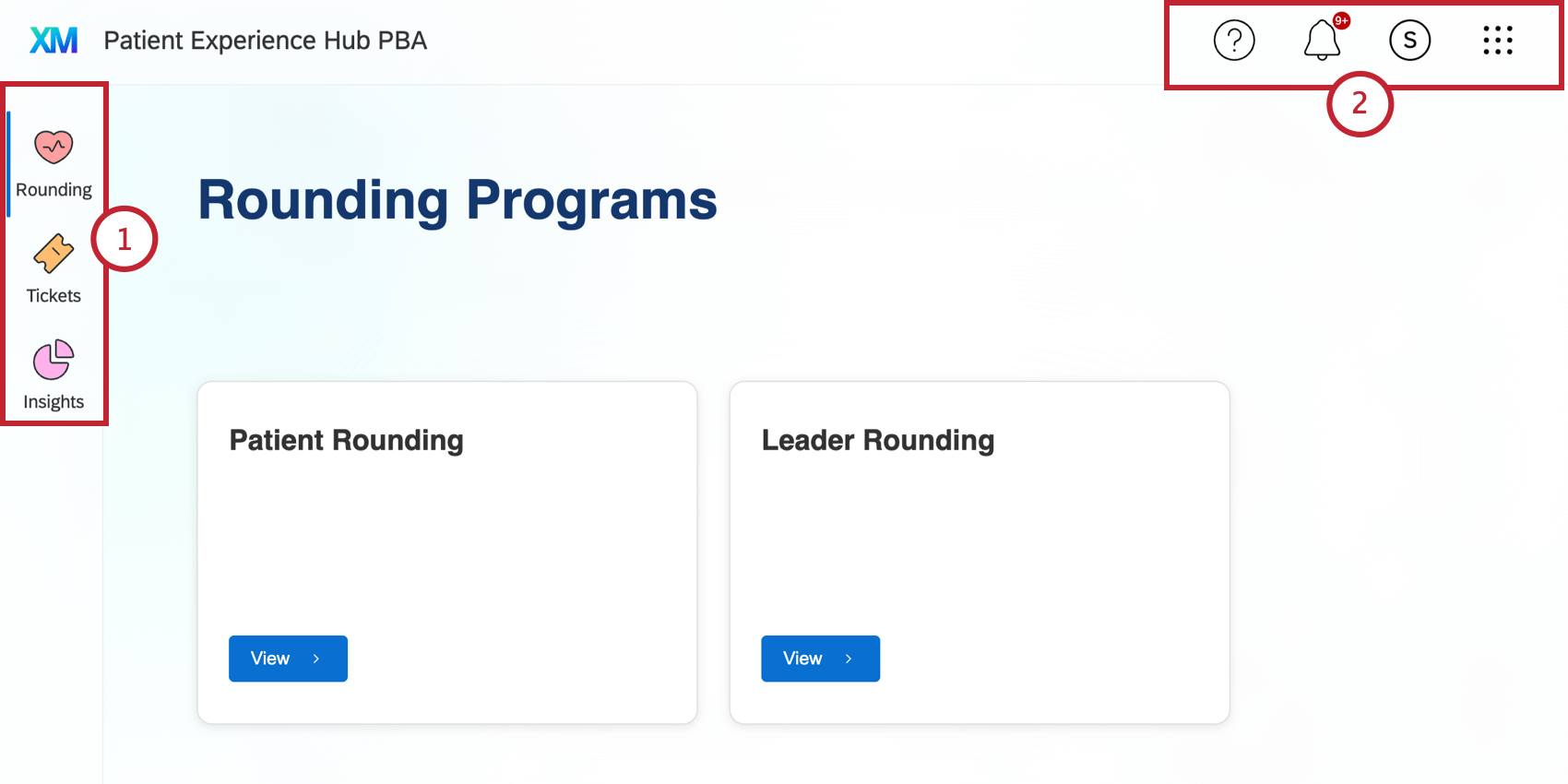
Log into your Qualtrics account to access the Patient Experience Hub. After logging in, use the app switcher in the top right corner to select the Patient Experience Hub.
Qtip: Your Qualtrics account will need the “Use Patient Experience Hub App” user permission enabled to use the Patient Experience Hub. The “Manage Patient Experience Hub App” user permission is needed to make edits to your Patient Experience Hub.
After accessing the hub, you can navigate between the following:
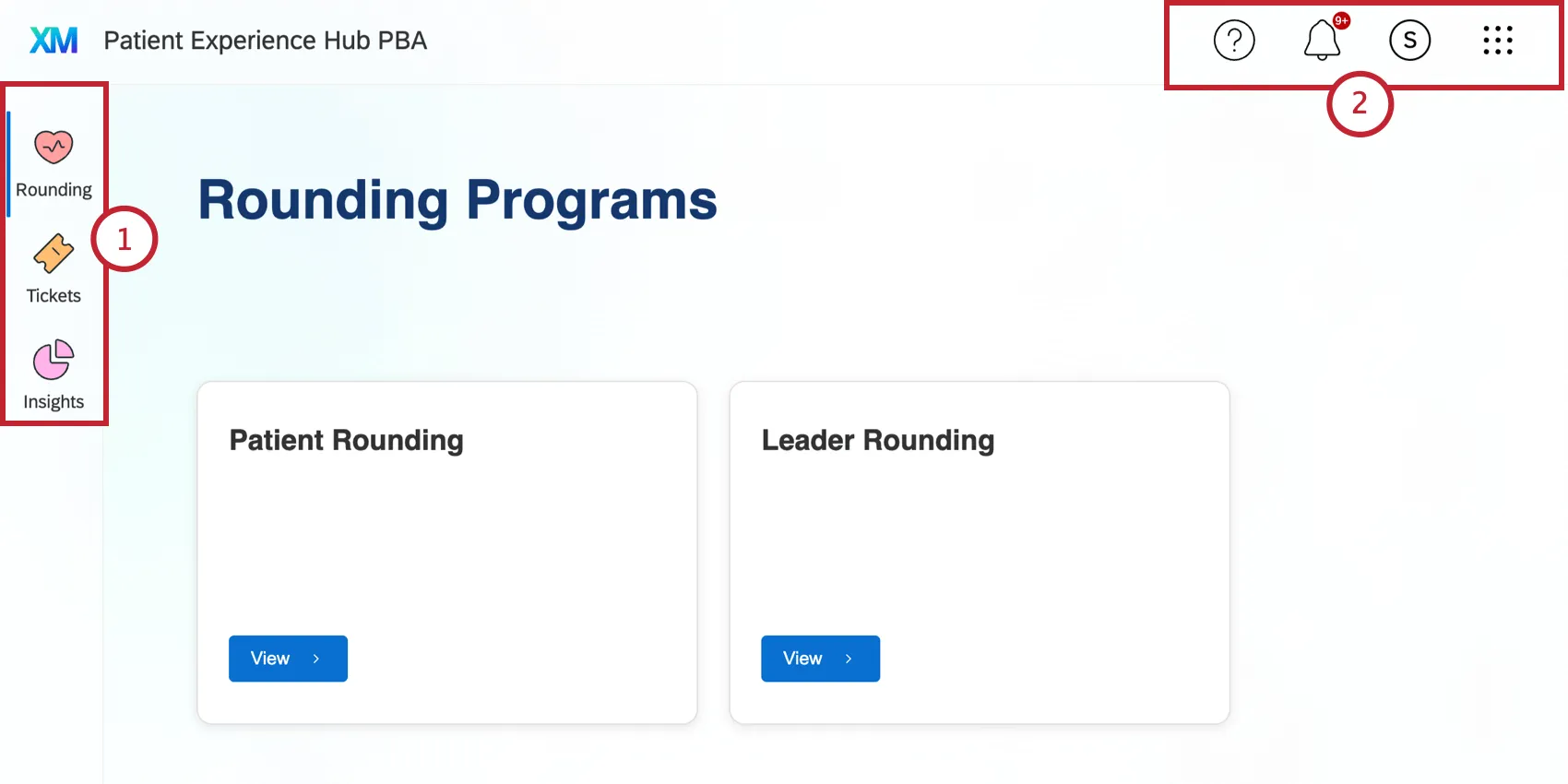
Rounding Tab
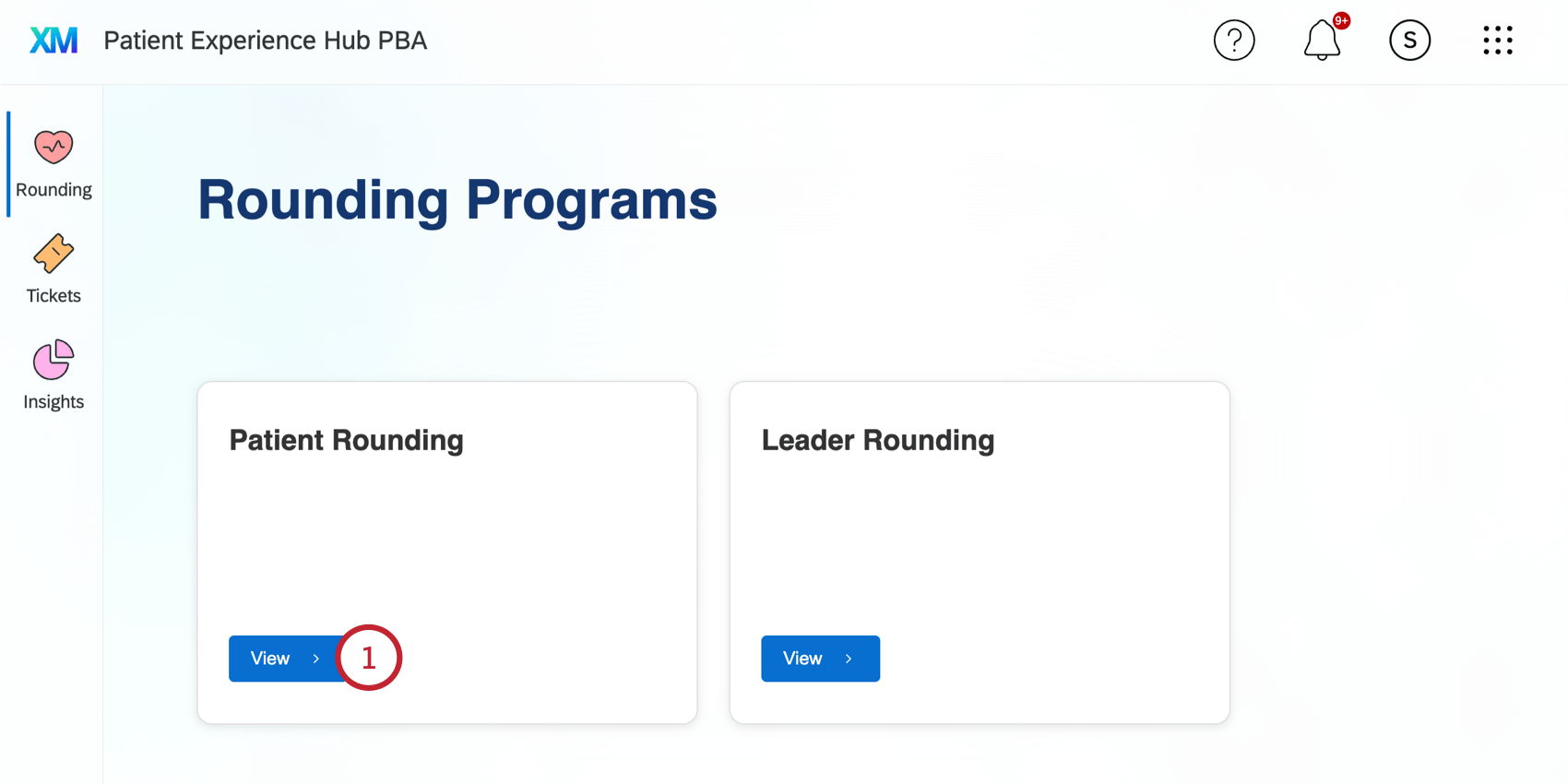
The Rounding tab displays the different rounding programs that you have access to. Depending on your implementation, you could have one or more programs listed here. To view data for a rounding program:
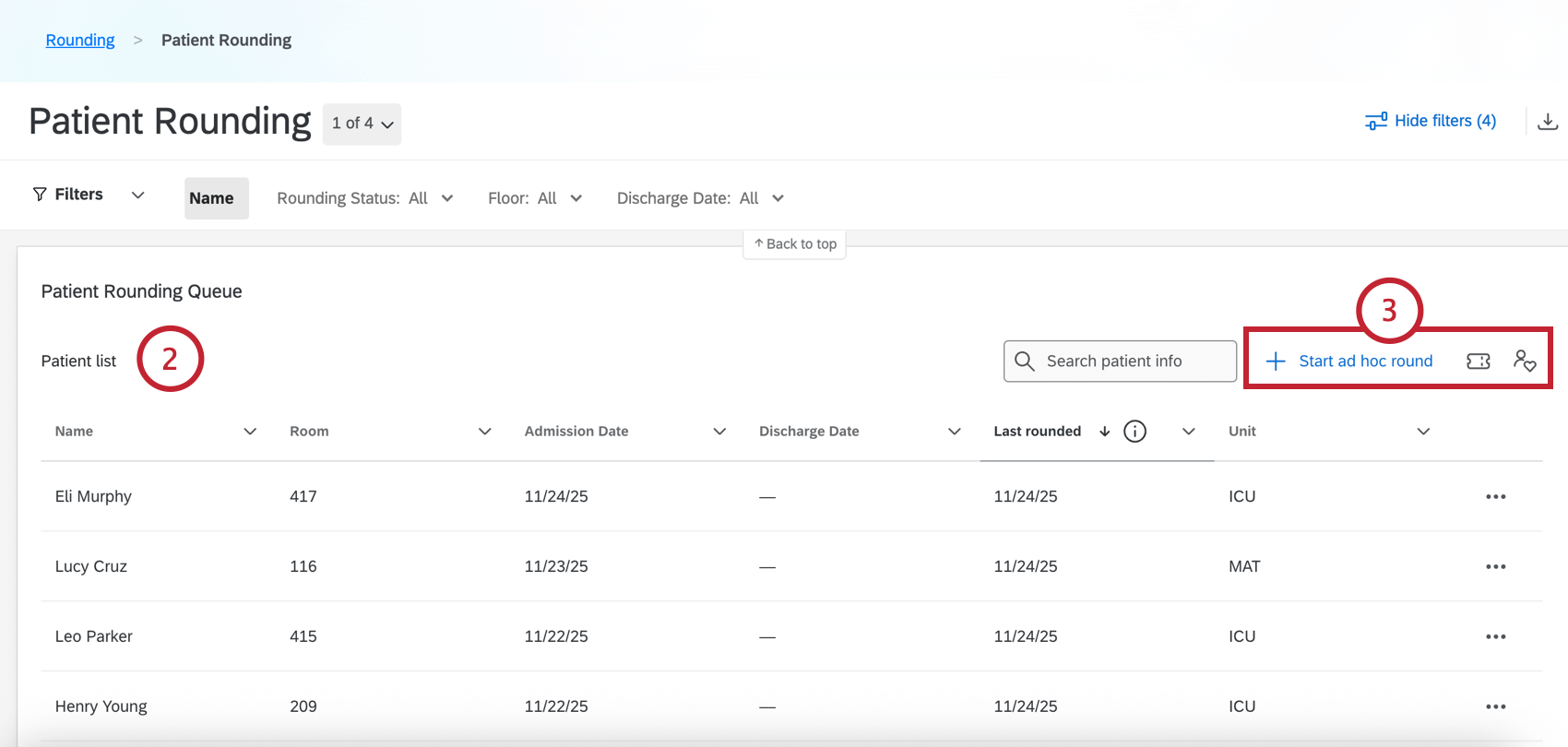
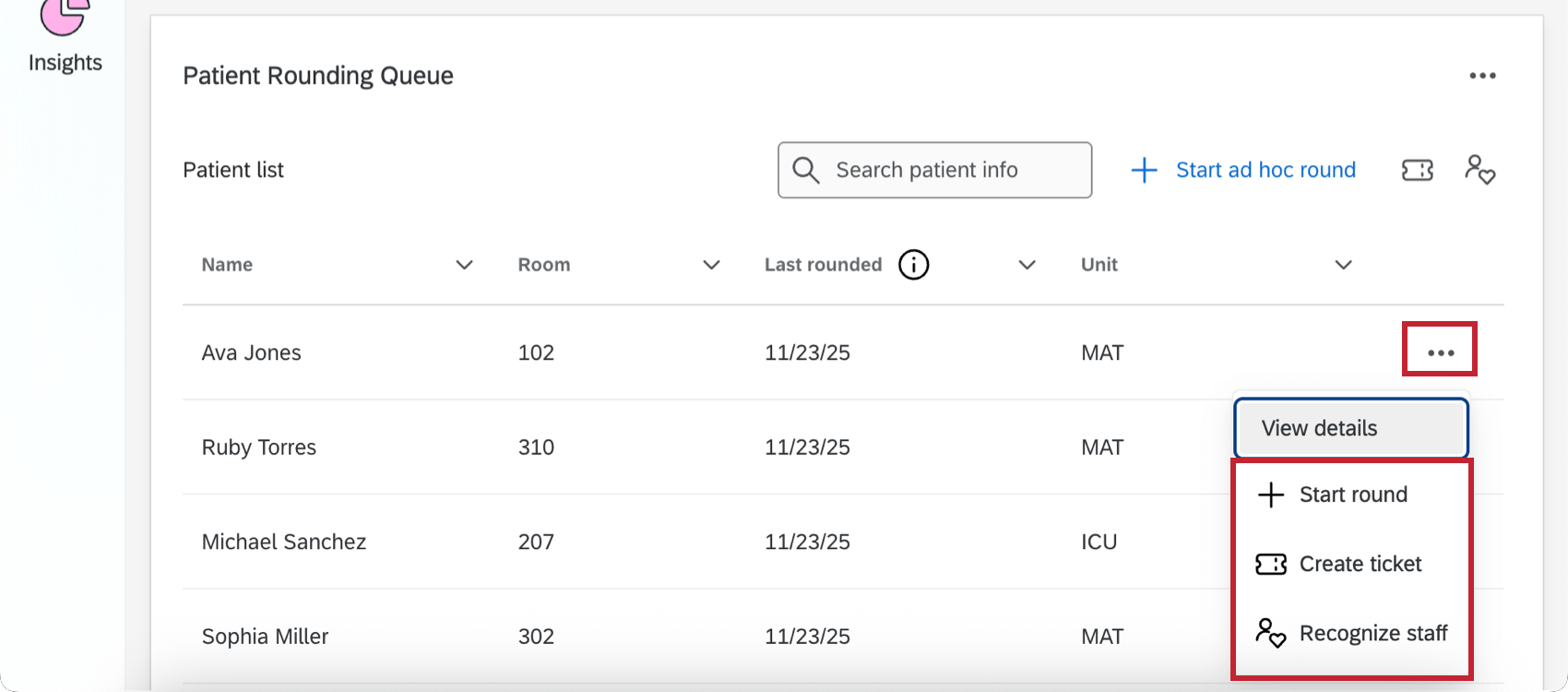
- Start ad hoc round: Open the rounding survey that the practitioner can open, close, update, and submit for up to 24 hours. The patient will not be marked as rounded on until the survey is completed, or 24 hours have passed. Qtip: Rounds that have had at least 1 question answered but not submitted will automatically be recorded after 24 hours. These rounds will be accounted for in any compliance reporting widgets and as part of the overall count of the number of rounds completed. Additionally, discharged patients will appear in the patient census list for 1 day after their discharge. This means they will remain available for a round to be documented on them retroactively for up to 24 hours post discharge.

- Create ticket: Create and assign a ticket with follow-up actions. These can be tracked in the Tickets tab of your hub.
- Recognize staff: Fill out a survey to recognize an employee for excellence. Both the employee and their manager will receive a Qualtrics notification with your feedback.
Qtip: You can click the menu next to a patient to access these same options and prefill the survey with the patient’s information. This menu also contains a “View details” option allowing you to see more information about the patient.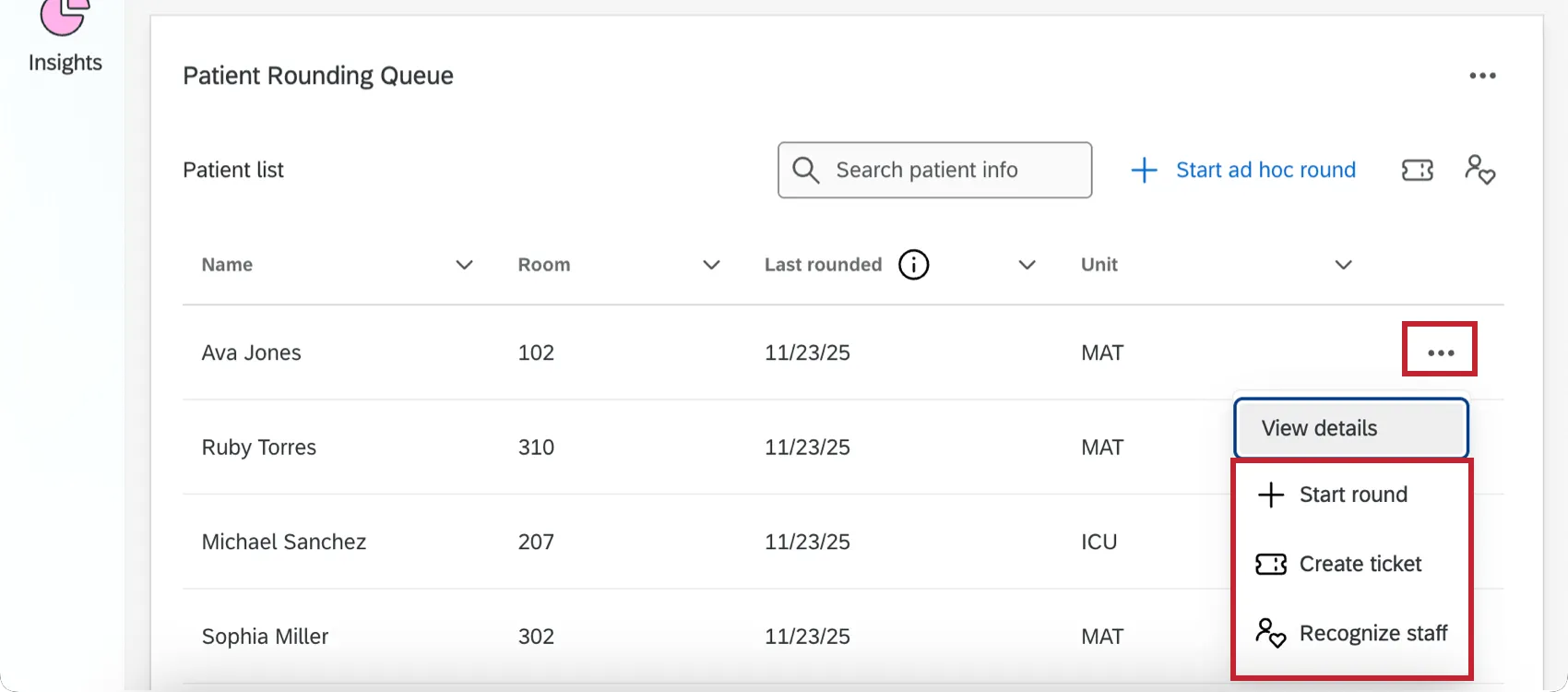
Tickets Tab
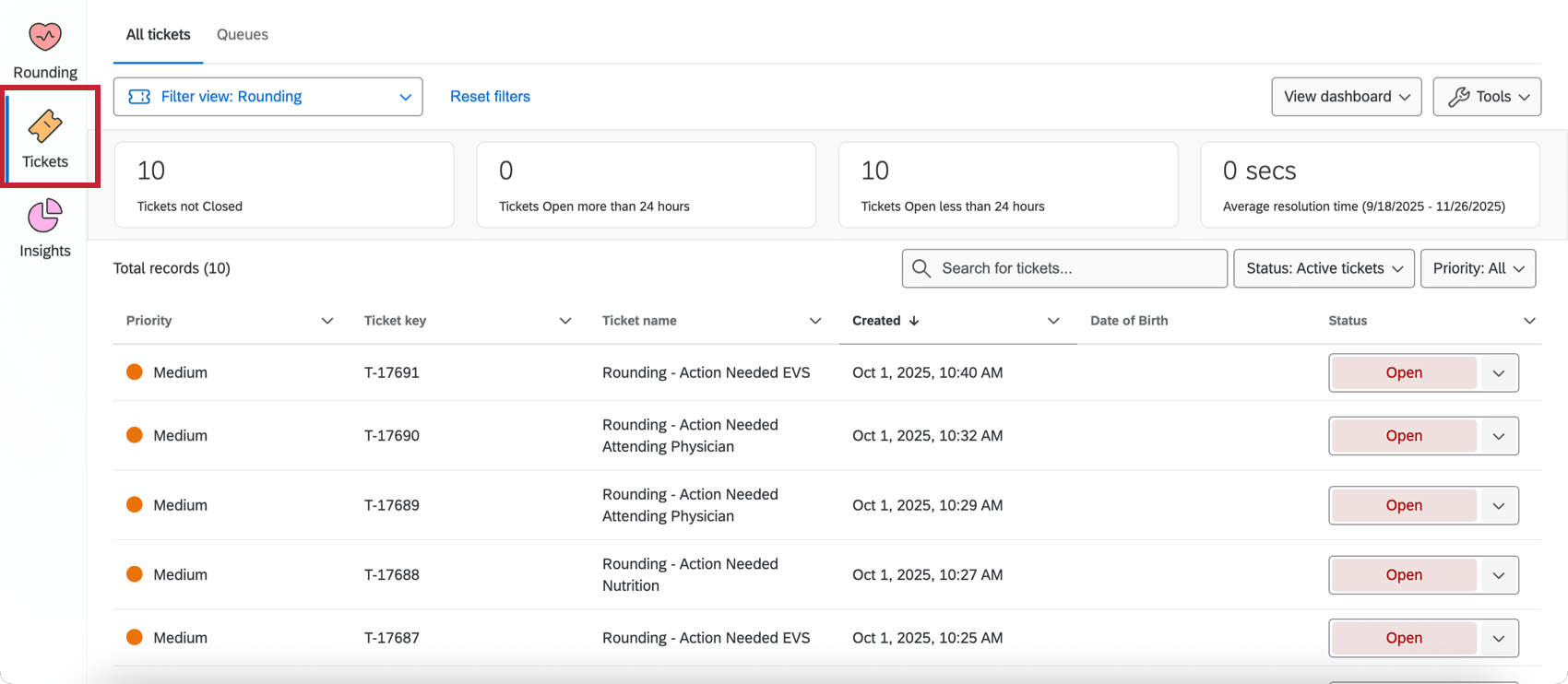
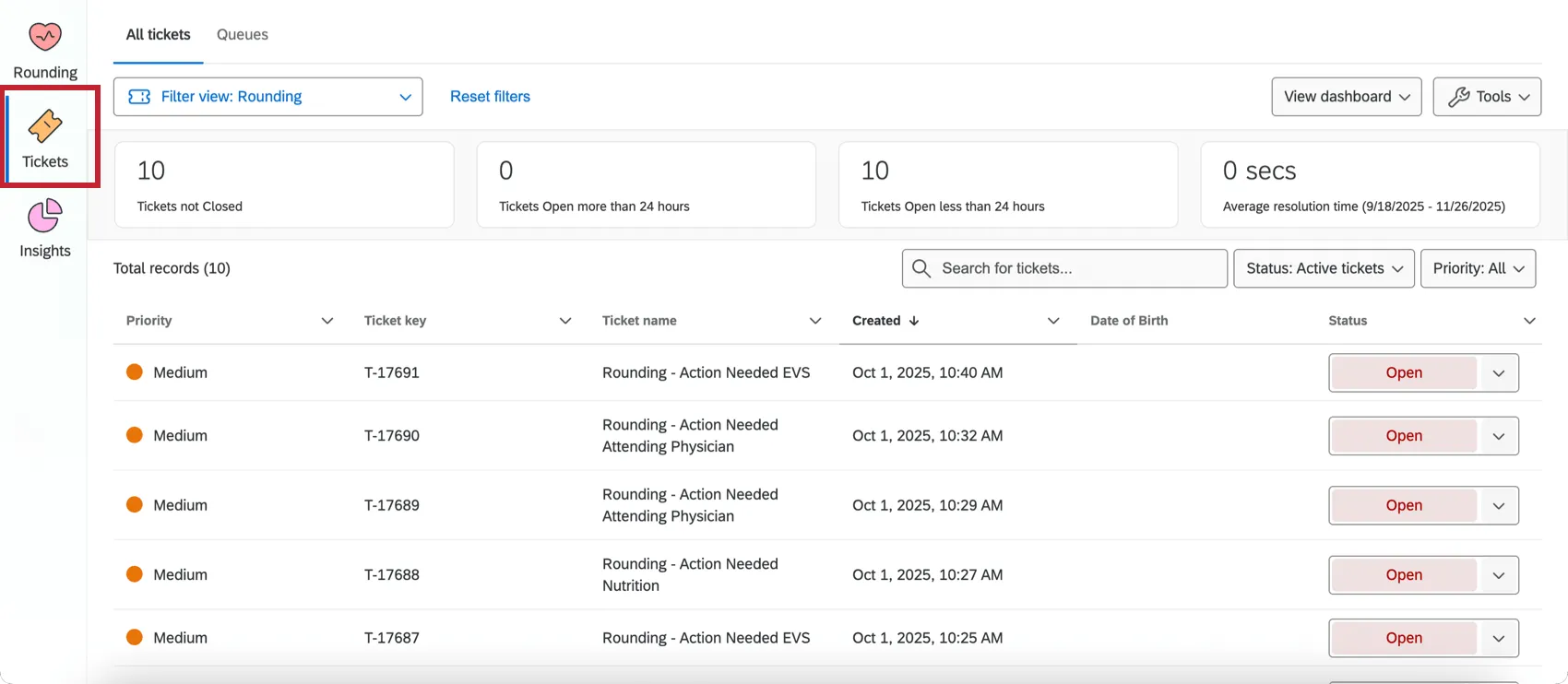
You can view any tickets created by your rounding program in the Tickets tab. This section works just like the standard Ticket Follow-Up Page, but filtered to only show tickets relevant to your rounding program. Tickets can be used for a variety of use cases, like creating a queue for which patients to round next, or any follow-up actions that arise as a result of a round.
Insights Tab
The Insights tab displays different widgets that show you the results of your rounding program for the current calendar month.
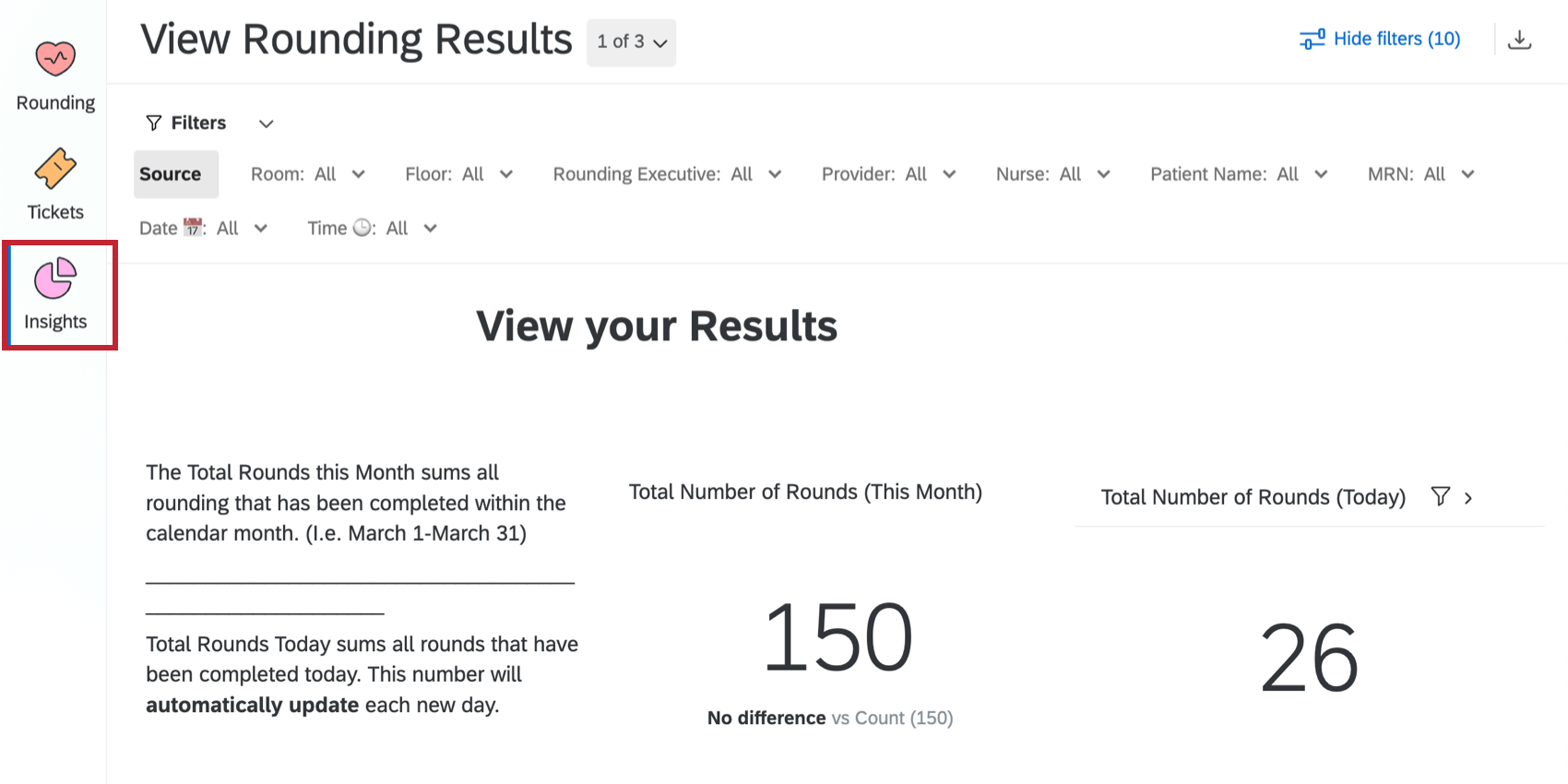
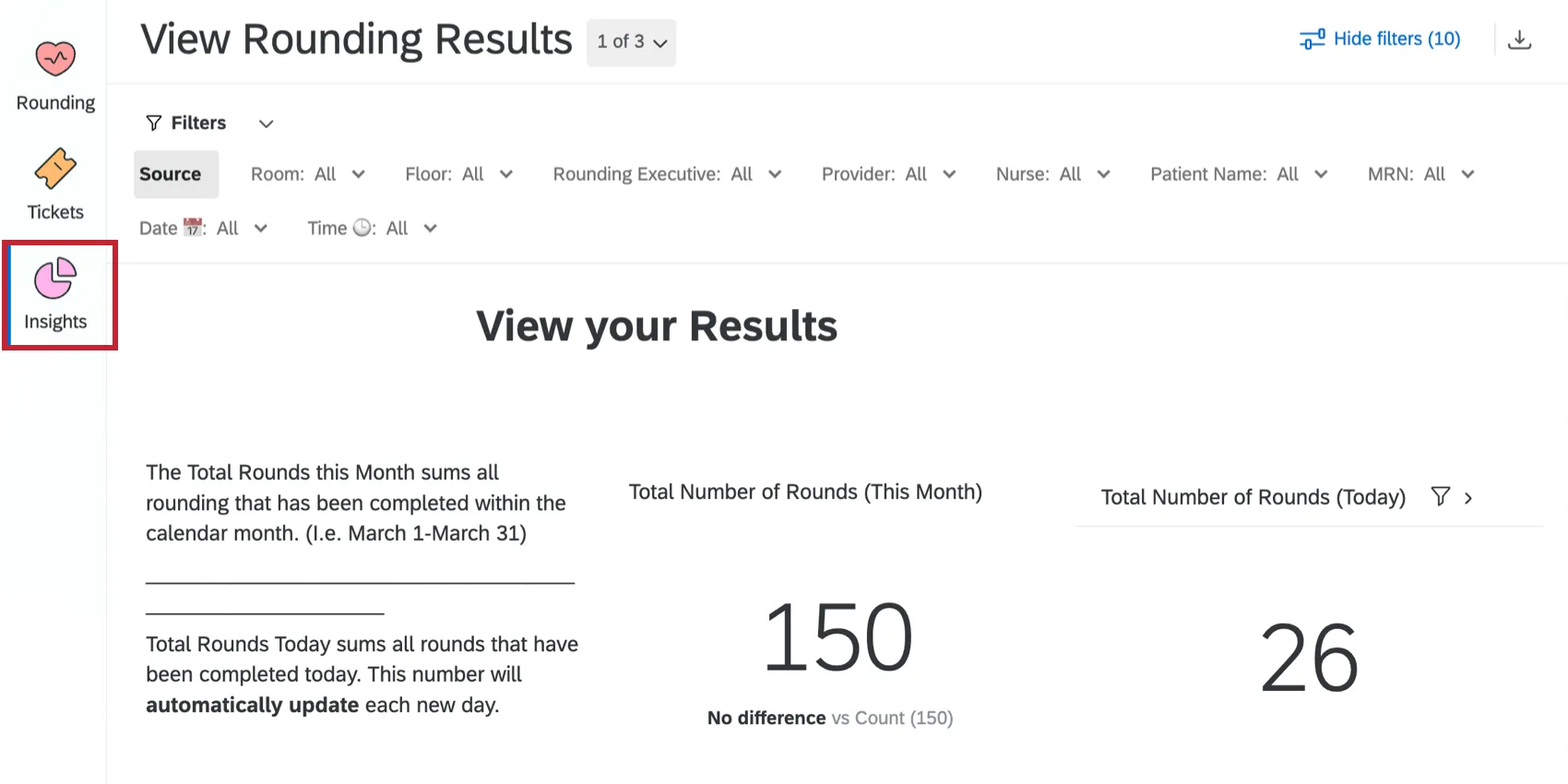
The exact widgets that appear here are created by your Implementation team, and will vary based on your program. Common insights include:
- Data about the number of rounds completed.
- Trend widgets for key questions on the rounding form.
- Calculations for compliance purposes.
- NPS comparisons for patient visits that had rounds completed via a post-visit survey.
This Insights report works the same as other Qualtrics dashboards. See the following pages for help with common tasks you’ll perform when viewing a dashboard:
That's great! Thank you for your feedback!
Thank you for your feedback!