

Sending Surveys with the Slack App
What's on this page
About Sending Surveys with the Slack App
The Qualtrics app for Slack allows you to send your surveys through Slack. Pick from your account’s surveys to distribute to channels and individuals of your choice, allowing them to either take the survey right in Slack, or sending them a link they can open in their web or mobile browser.
Attention: By enabling the Slack integration, please note that there may be processing of data outside your data center region.
Qtip: For information on triggering messages to Slack based on survey responses, read the Slack task page.
Connecting a Qualtrics Account to the Slack App
You can download the Qualtrics app by using the Slack App Directory. See Slack’s support site for how to add apps to your workspace.
Once you have access to the app, follow these steps to get your Qualtrics account connected.
/qualtrics into a channel or direct message.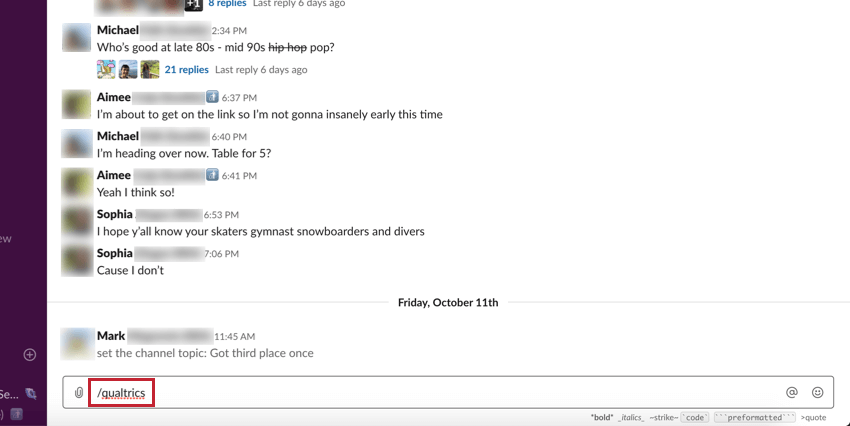
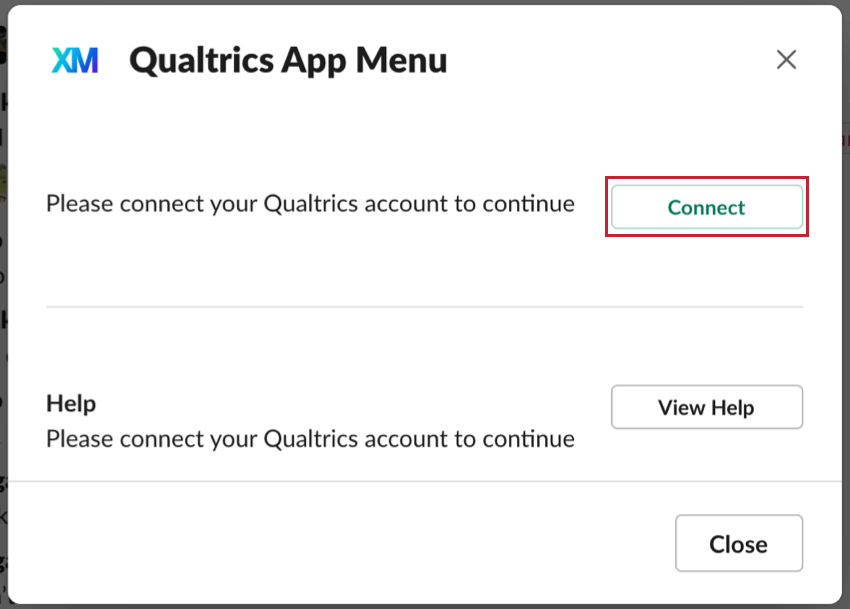
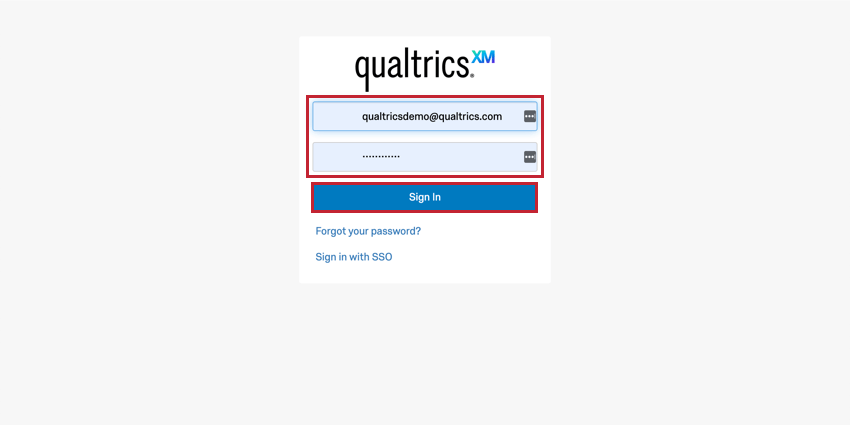
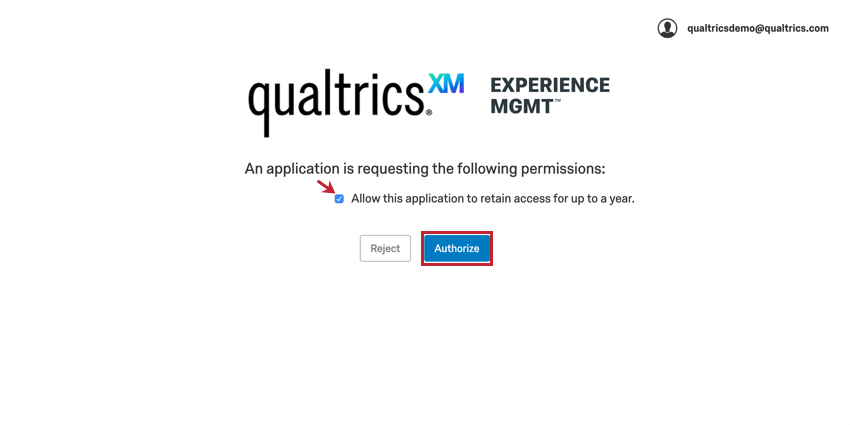
Slack will notify you to let you know if the authorization was a success.
You can only have one Qualtrics account connected at a time. If you’d like to connect to another account, you will need to disconnect your current account.
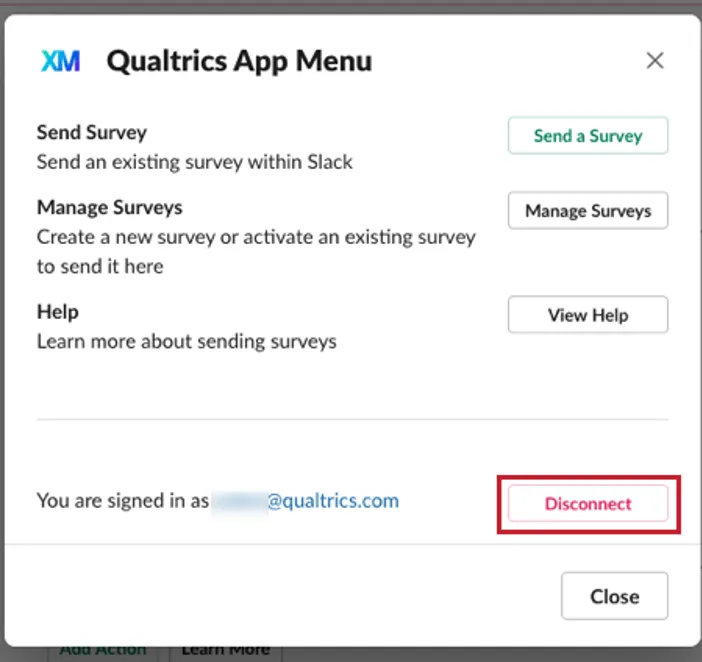
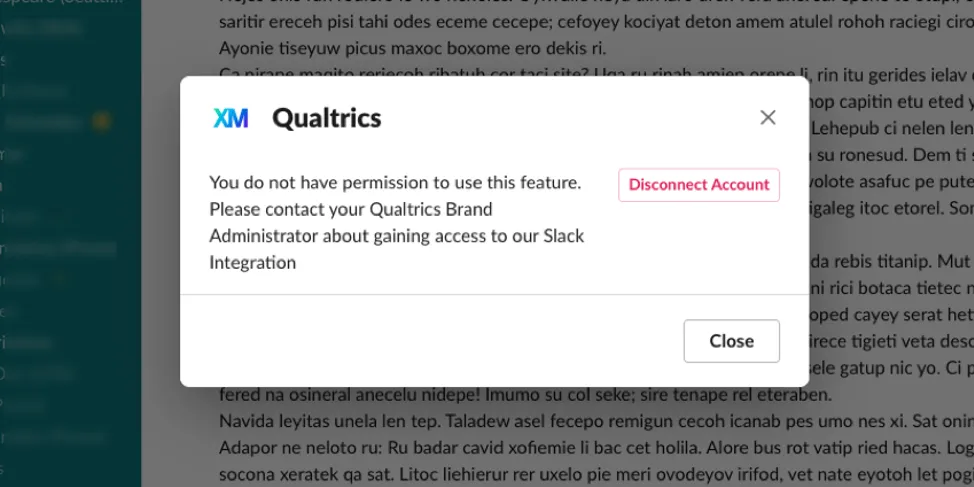
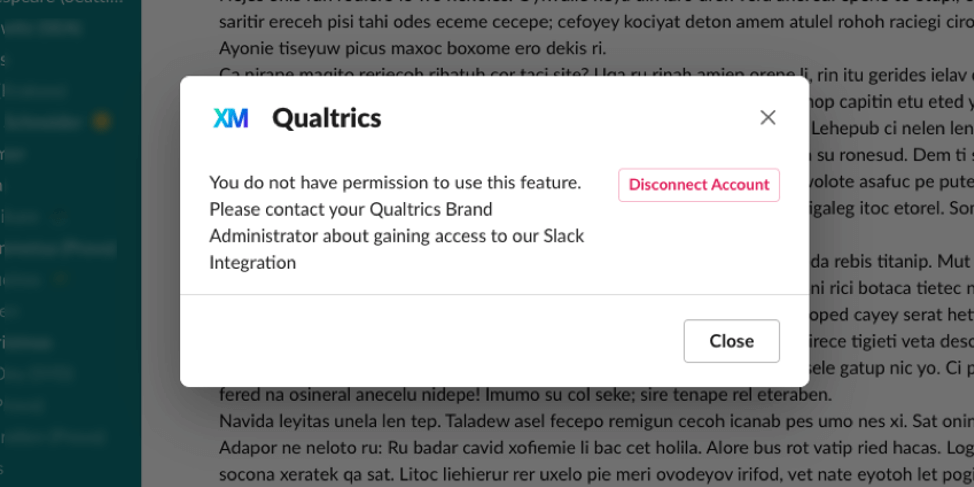
Qtip: If your account connection or Slack survey distribution fails, it may be due to the fact that your account does not have access to the Slack integration. When this happens, you will see the below message. Contact your Brand Administrator and ask them to enable the Slack Integration user permission for you.
Sending Surveys in Slack
Qtip: If sending an Engagement survey, make sure to read the Special Considerations for Engagement Slack Surveys section in addition to this one.
/qualtrics into a channel or direct message.
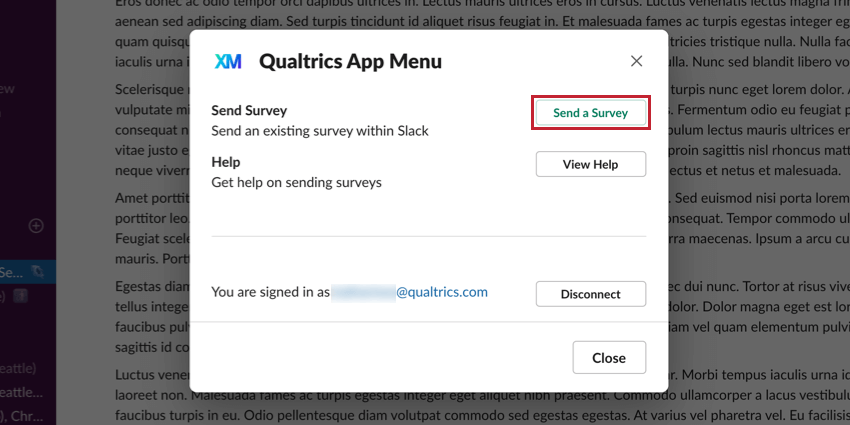
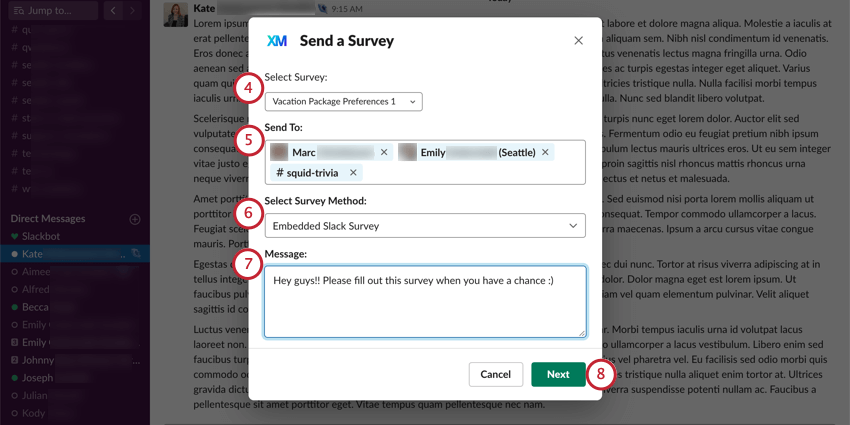
Qtip: If a survey doesn’t appear here, it has not been activated.
Qtip: In addition to surveys, you can also send Engagement surveys, 360 projects, Conjoint, and MaxDiff projects.
Qtip: You cannot distribute to private channels or group conversations.
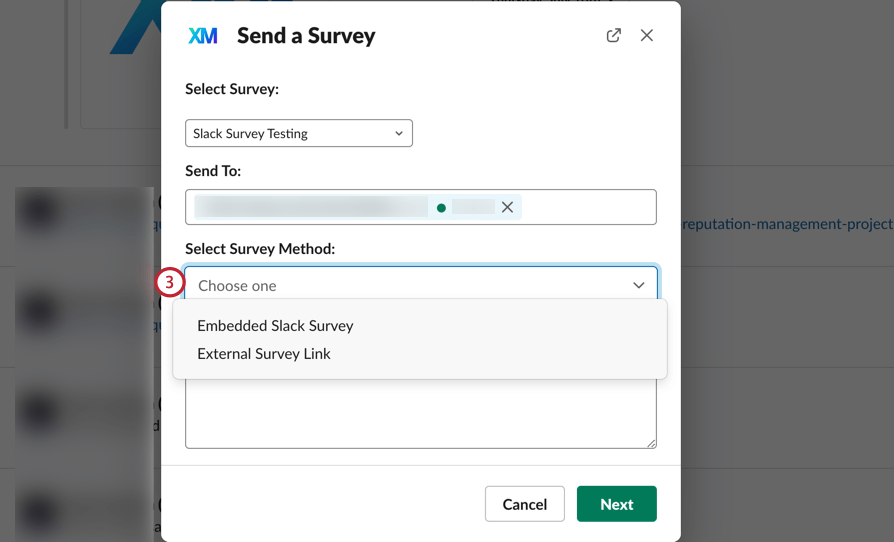
- External Survey Link: When the individuals / channels receive the survey in slack, it’ll be in the form of a button that says Take the Survey. When the individuals / channels click Take the Survey, the survey will open in their web browser instead of Slack. This method acts like an anonymous link that does not save the respondent’s contact information.
- Embedded Slack Survey: When the individuals / channels click Take the Survey, the survey will open in an embedded window in Slack. This method does not save your respondent’s progress or any contact information. Depending on the features in your survey, this option may not be available. See Making a Survey That Can Be Embedded in Slack for more information. Qtip: Standard Engagement Slack surveys are only available as embedded surveys. However, anonymous Engagement surveys can be sent as an external survey link. See the linked section for more details.

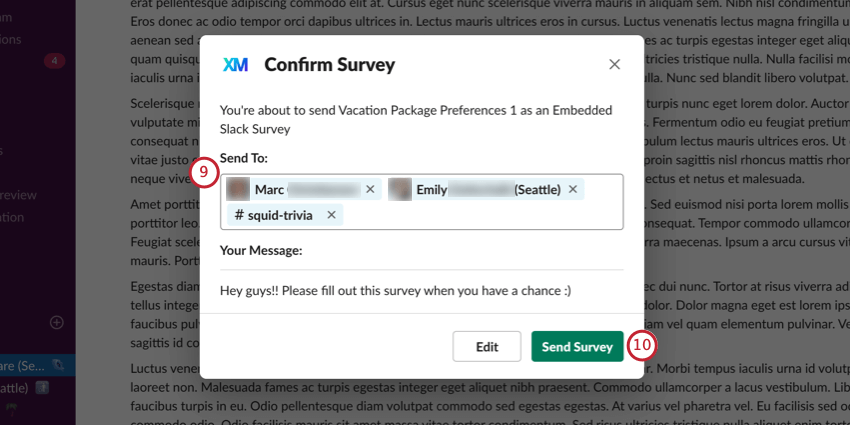
Qtip: If you want to make changes to your message or method of distribution, click Edit.
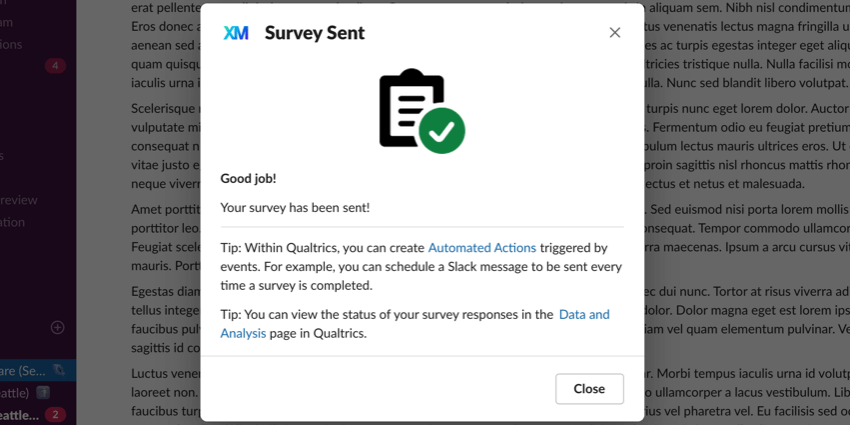
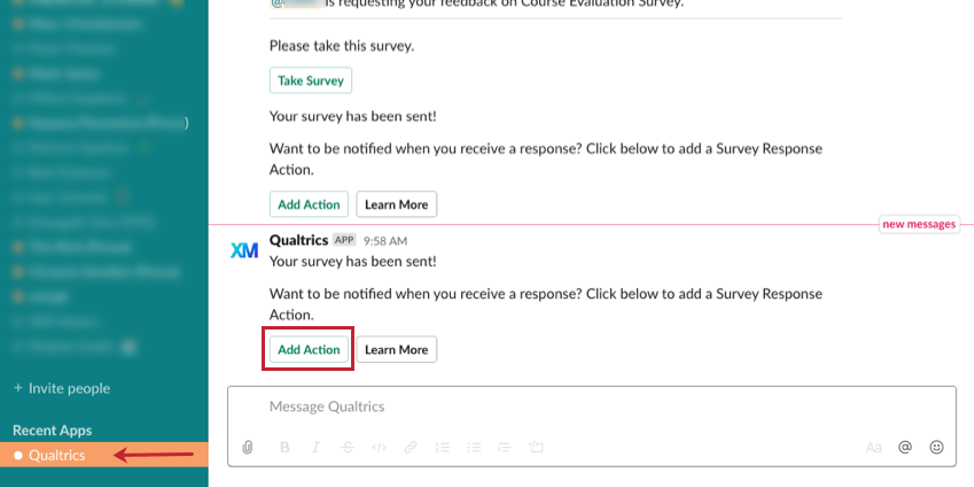
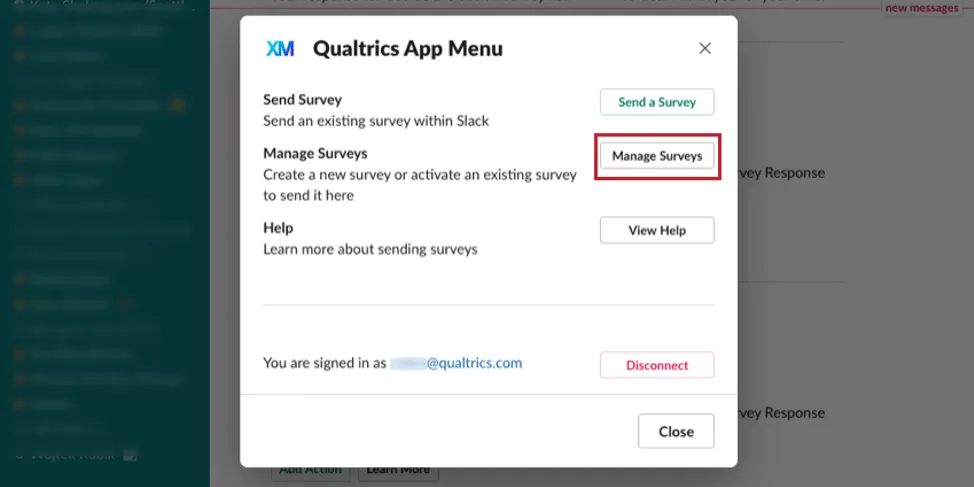
Manage Surveys
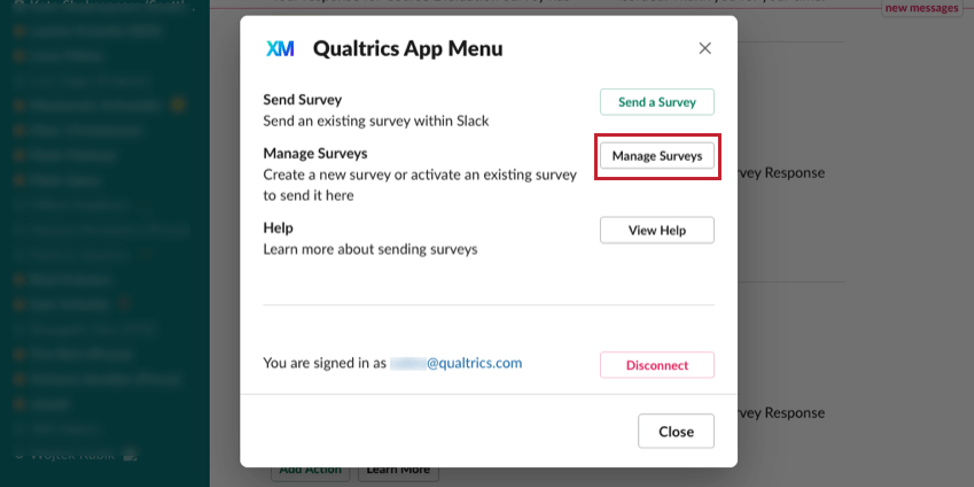
Don’t worry if you haven’t yet created or activated the survey you want to send in Slack. The Qualtrics Slack integration can easily direct you to your Qualtrics account to manage your surveys. After connecting your Qualtrics account to Slack, click Manage Surveys to be brought to your Projects page. From here, you can either create a new survey or activate an existing one.
Special Considerations for Engagement Slack Surveys
Qtip: This section is only relevant for sending Engagement surveys via Slack. If you’re interested in sending a regular survey project or a conjoint/maxdiff project, see Sending Surveys in Slack. You may also send Lifecycle and Ad Hoc Employee Research surveys, but not 360 surveys via Slack.
To send an Engagement survey via Slack, you must make sure your project has the following:
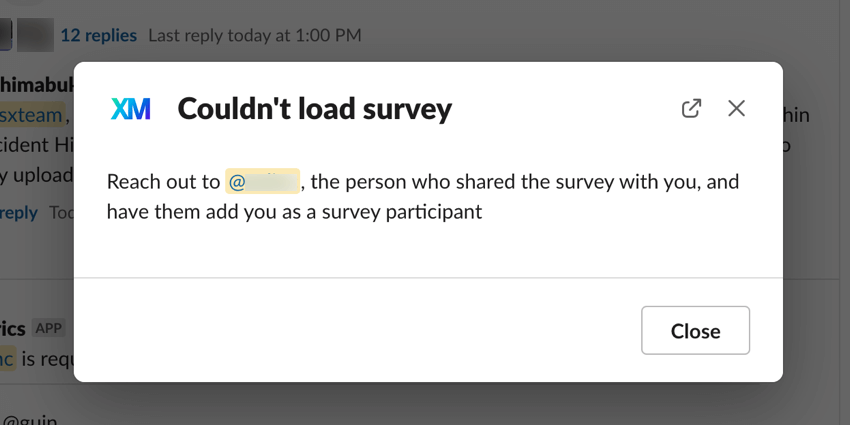
- The participants in your project must have an email address that matches their Slack email address. Only participants who have a matching email will be able to access the survey. Each participant must have a unique email address. If multiple participants have the same email address, then they will not be able to take the survey. Qtip: If a person who is not a valid participant tries to take the survey, they will receive the below message that they need to be added as a participant.
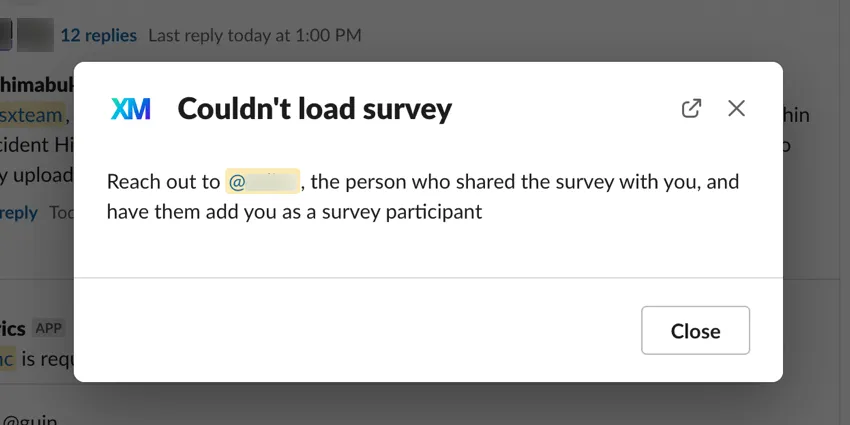
The survey owner will also receive a message from the Qualtrics Slack app letting them know that someone not listed as a participant tried to take the survey.Attention: If distributing to a large channel in Slack, we recommend ensuring your participant list contains all members of the channel. This is because you will receive a notification every time a non-participant tries to take the survey.
- Disable the back button in Survey Options. This feature is enabled by default in all EX projects, but is incompatible with Slack surveys.
- Disable survey retakes in Survey Options. This feature is incompatible with Slack surveys.
Once your project meets the above requirements, you’re ready to send your survey! The process for distributing an Engagement survey is the same as a regular survey. See Sending Surveys via Slack for full instructions.
Distributing Anonymous Engagement Surveys via Slack
You can distribute an anonymous version of your Engagement survey if you do not want your responses to be tied to their associated participants. The procedure to distribute an anonymous Engagement survey is similar to regular surveys, with some minor adjustments. To distribute an anonymous survey:
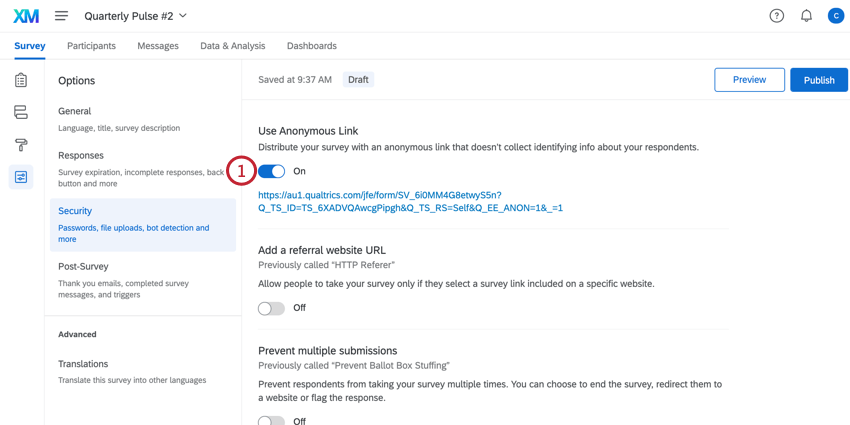
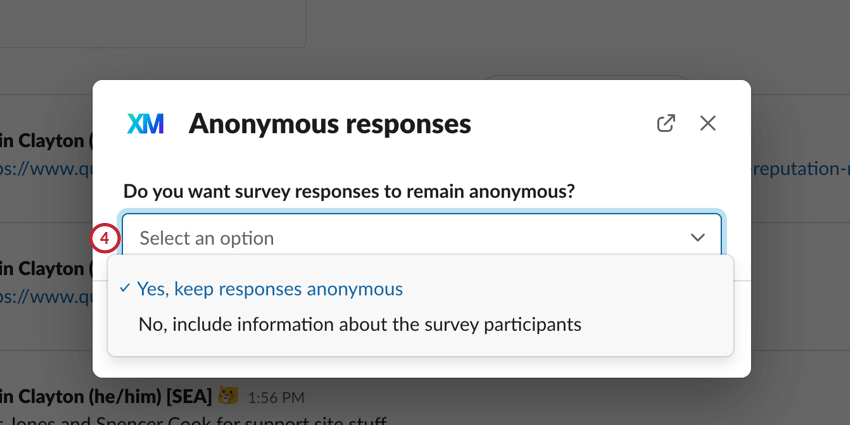
- Yes, keep responses anonymous: All survey responses will be anonymous and not associated with any participants.
- No, include information about the survey participants: All survey responses will be associated with the participants who submitted them.
Making a Survey That Can Be Embedded in Slack
Surveys embedded in Slack work by asking survey questions right inside Slack, instead of simply sending users a link to the survey that can be opened in a browser. Because of this, there are certain survey features that cannot be used.
Qtip: The most commonly used question types for surveys embedded in Slack are multiple choice (single or multi answer), text entry (except form or password), descriptive text, and NPS. Any page breaks in your survey will be respected.
Incompatible Features
This list covers all features that are incompatible with surveys embedded in Slack. Any feature not listed here can be assumed to be compatible.
- Text Entry Form and Password Questions
- Matrix Table Questions
- Pick, Group, and Rank Questions
- Side by Side Questions
- Slider Questions
- Constant Sum Questions
- Timing Questions
- File Upload Questions
- Drill Down Questions
- Captcha Questions
- Hot Spot Questions
- Heat Map Questions
- Signature Questions
- Meta Info Questions
- Highlight Questions
- Rank Order Questions
- Org Hierarchy Questions (EX)
- Table of Contents
- Reference Surveys
- Authenticators
- Default Choices
- In-Page Display Logic
- Display and Branch Logic based on Device Type
- Choice Groups
- Back Button
- Invitation Only
- Survey Password Protection
- HTTP Referer URL
- Prevent multiple submissions
- Inactive Survey Message
- End of Survey elements are compatible, but cannot be set to redirect to a URL or display a response summary.
Qtip: Make sure your survey only uses compatible features, or you will not be able to embed your survey in Slack.
Qtip: If you edit a once-compatible survey being used by Slack and add features that are incompatible, your survey will no longer work in Slack.
Survey Languages
If you are distributing an embedded Slack survey in multiple languages, you need to make sure your languages are compatible with Slack. Below is a list of all compatible languages:
- English (UK)
- English (US)
- French
- German
- Japanese
- Brazilian Portuguese
- Spanish (LATAM)
- Spanish (EU)
See our page on Translating Surveys for more information on creating multi-language surveys.
How Recipients See Embedded Surveys
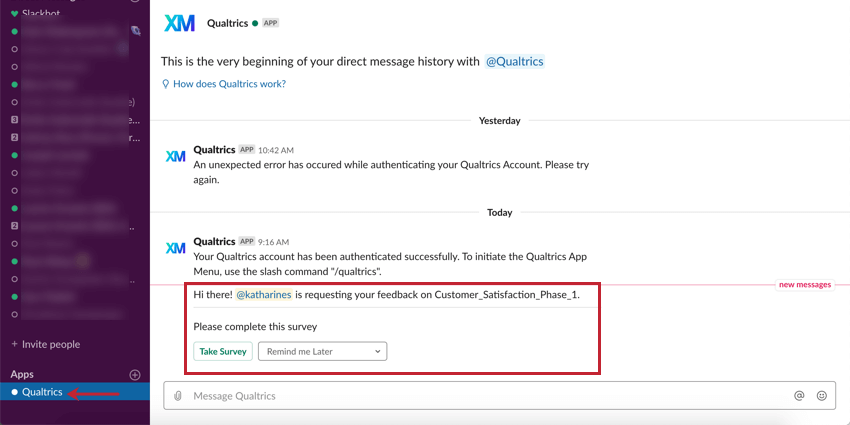
The Qualtrics app will notify a Slack user when they have been sent a survey and will give the Slack username of the person who distributed the survey.
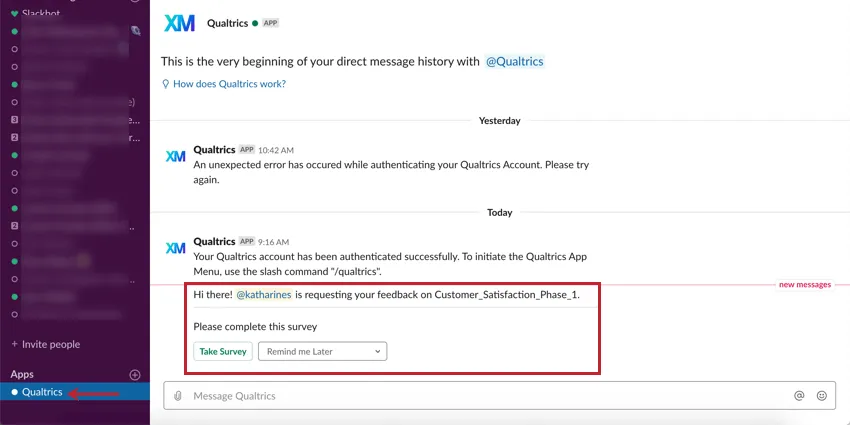
If the survey is embedded, the user will be able to set a reminder to complete the survey later.
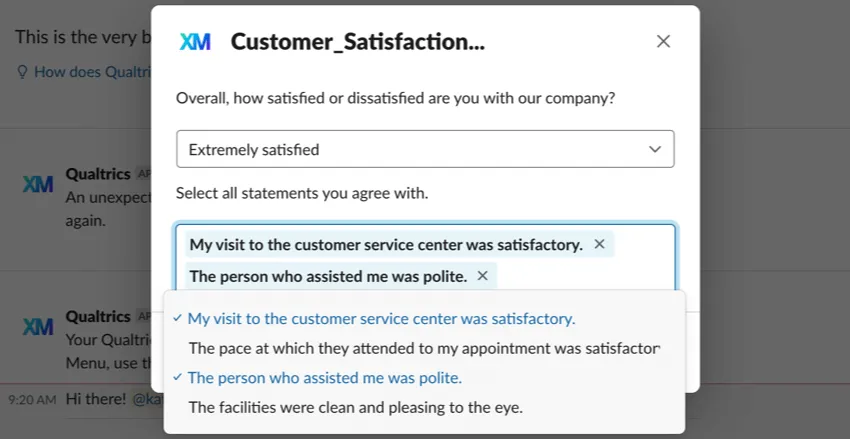
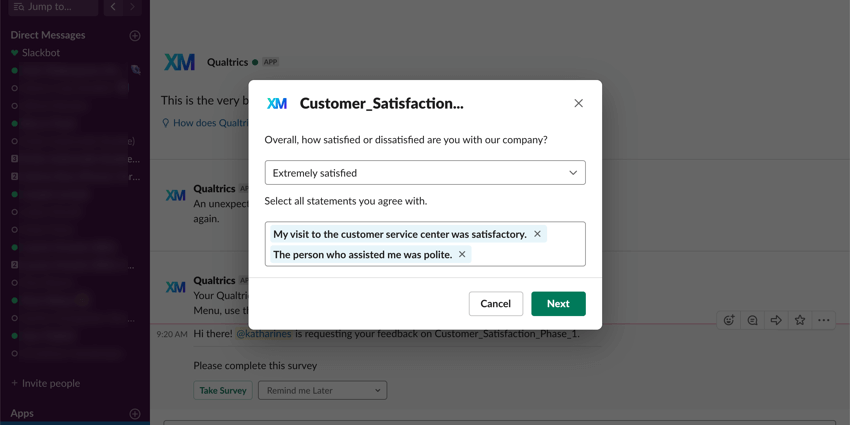
The survey will open in a new window in the Slack app. Recipients can choose responses from a dropdown.
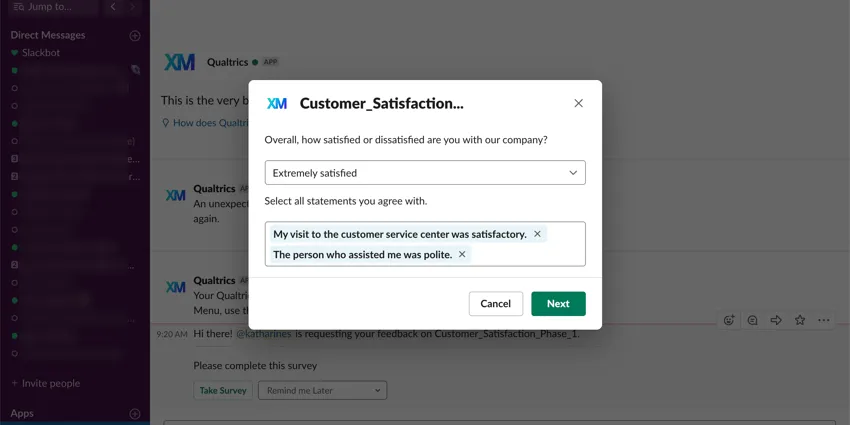
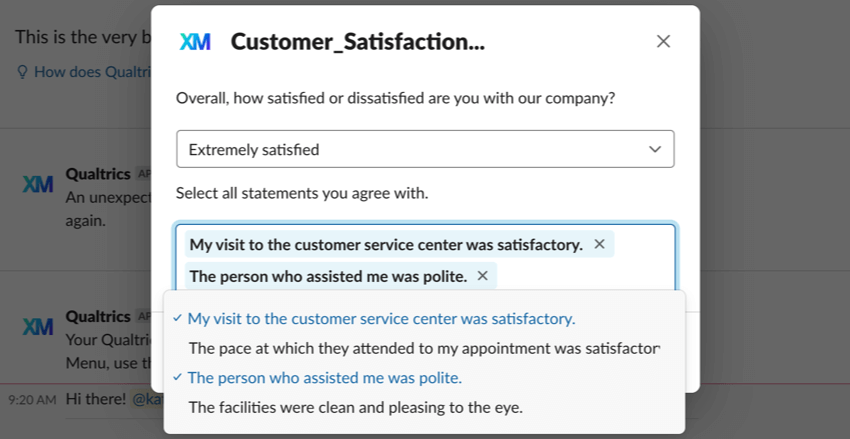
Multi-answer questions appear with a dropdown of options. Click the empty field to select answers. Click the X next to an answer to remove it.
Possible Error Messages
When taking an embedded Slack survey, there are a couple error messages that you may see.
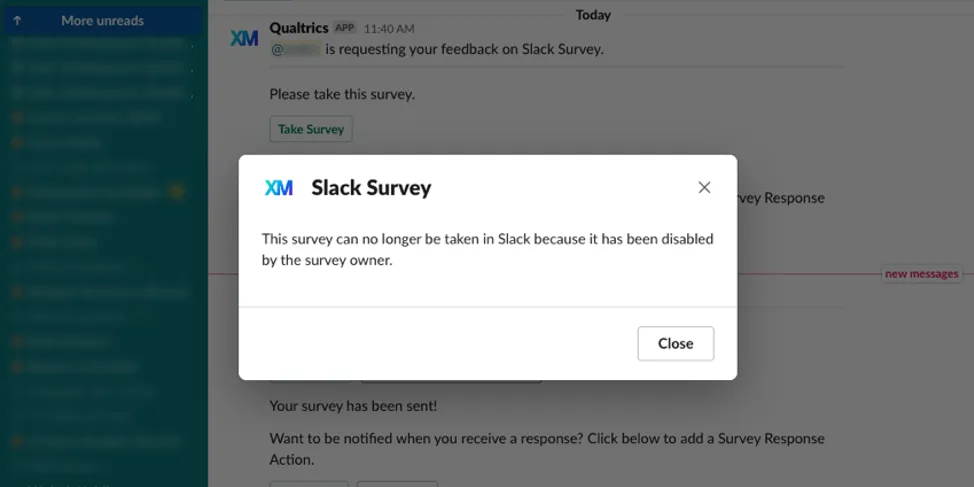
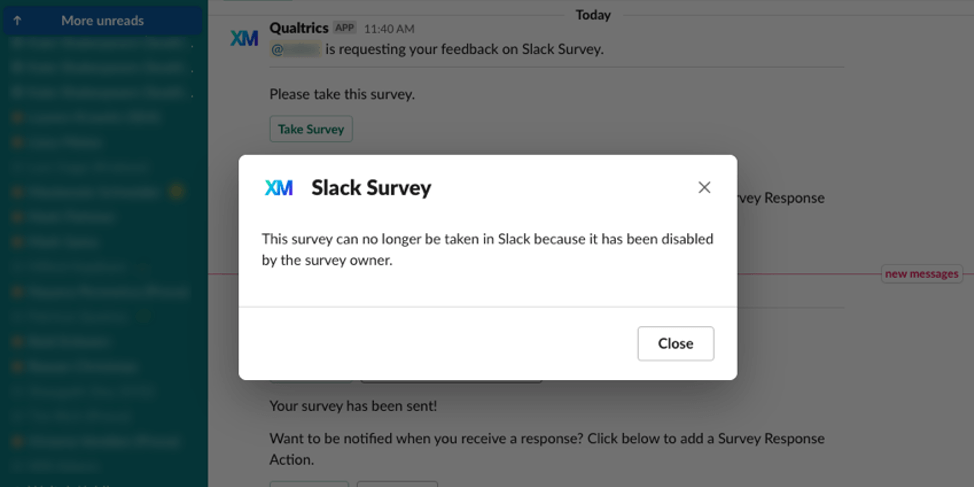
- This survey can no longer be taken in Slack because it has been disabled by the survey owner. This error message occurs when the survey owner disconnects their Slack integration after distributing an embedded survey. You can contact the survey owner and ask them to reconnect their account.
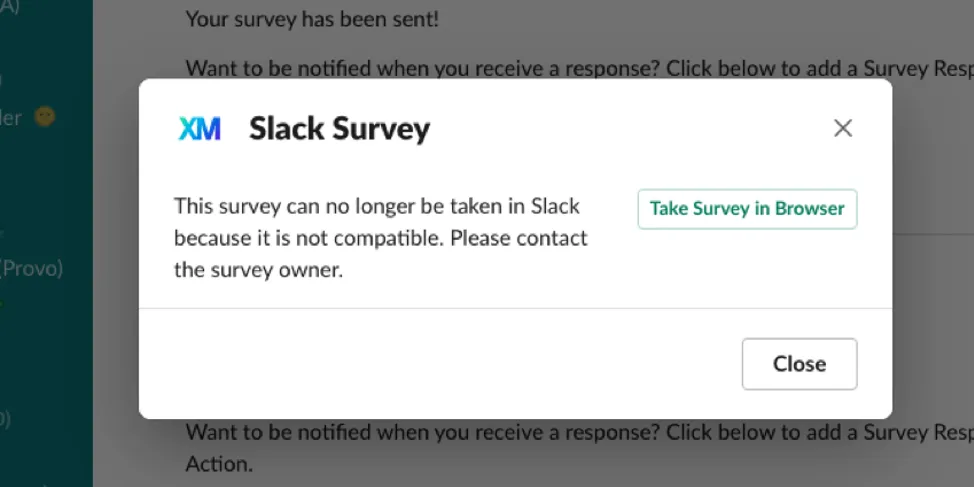
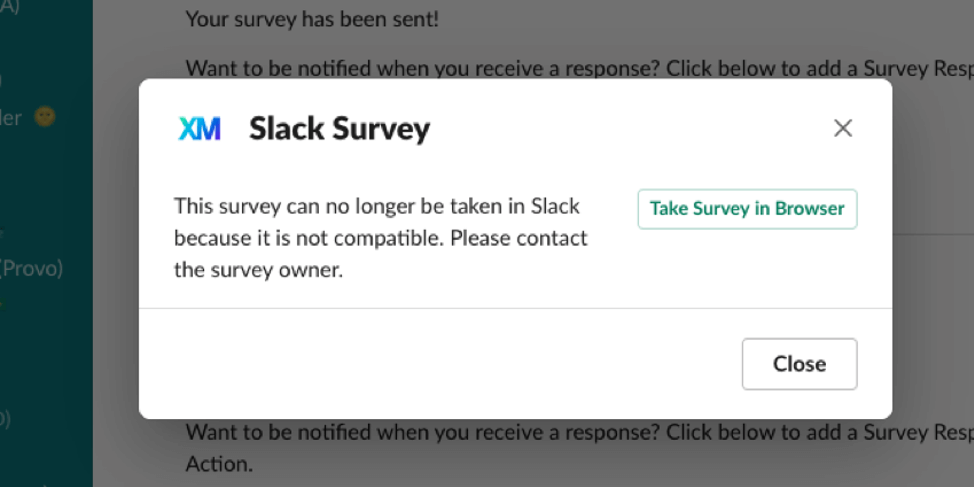
- This survey can no longer be taken in Slack because it is not compatible. Please contact the survey owner. This error message appears when the survey owner edits their survey to contain incompatible features. You can contact the survey owner and ask them to make their survey compatible again. Alternatively, you can click Take Survey in Browser to take the survey in your web browser instead of in Slack.
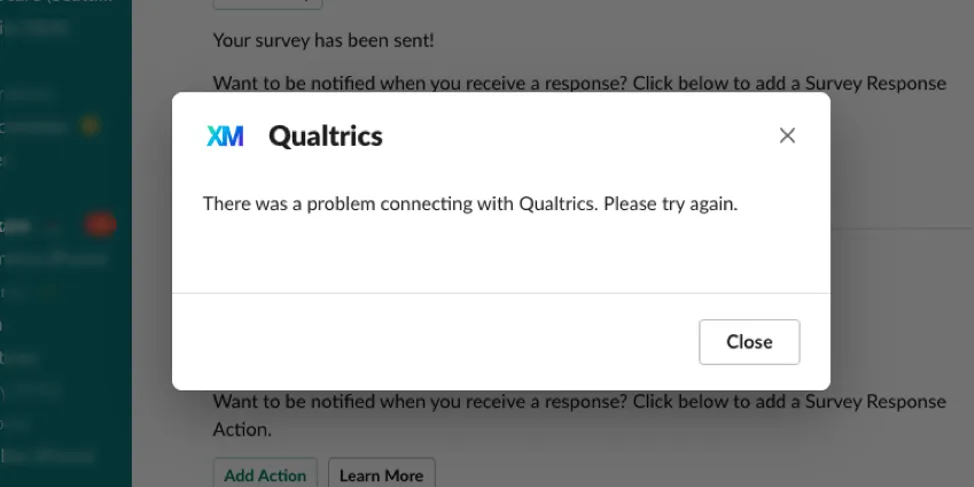
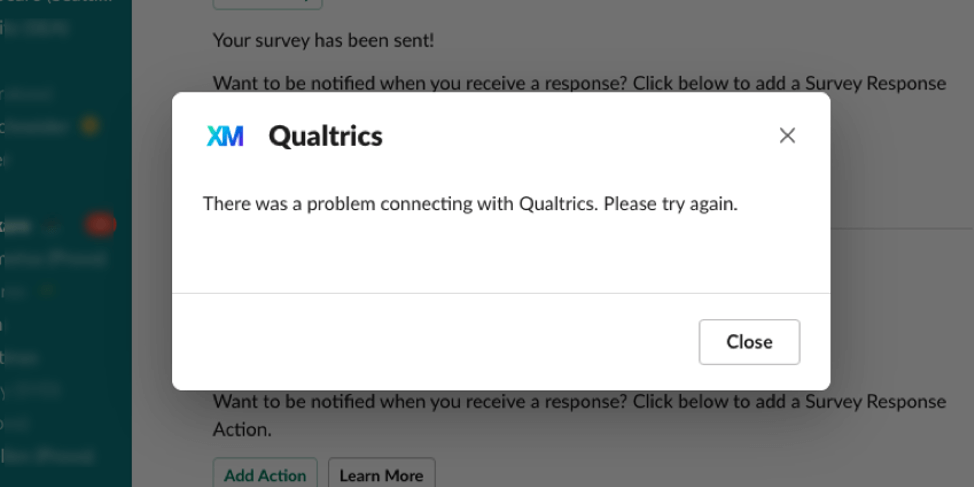
- There was a problem connecting with Qualtrics. Please try again. This error message appears when the owner has closed the survey. Contact the survey owner and ask them to reactivate the survey.
- A headless API session must be resumed from a Headless API compatible client: You may see this error when you start but do not finish a survey via Slack, and then try to resume the response via a different channel (such as an email invite). You must resume your survey response via Slack instead.
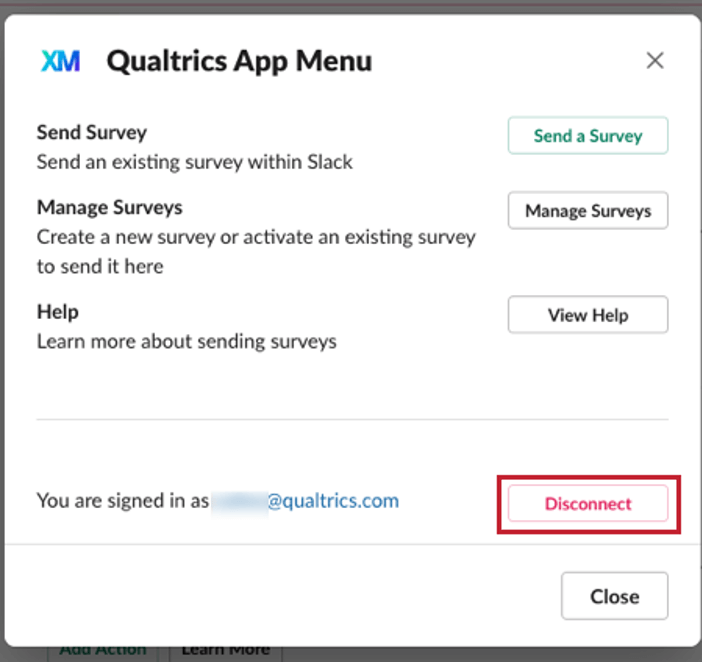
Removing the Qualtrics App on Slack
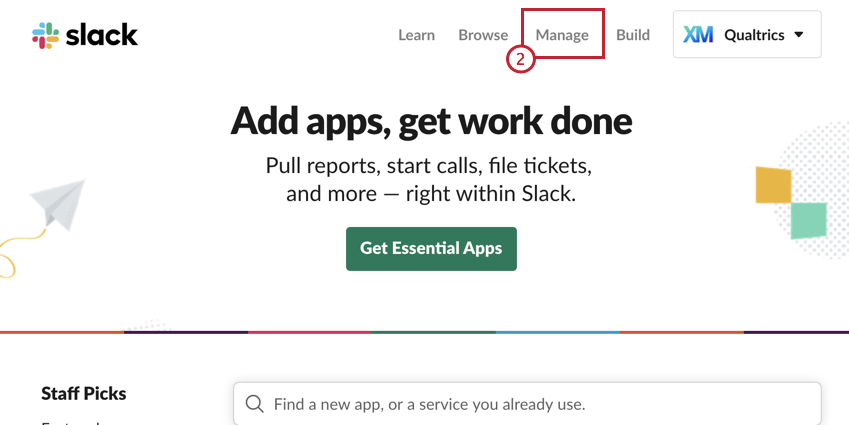
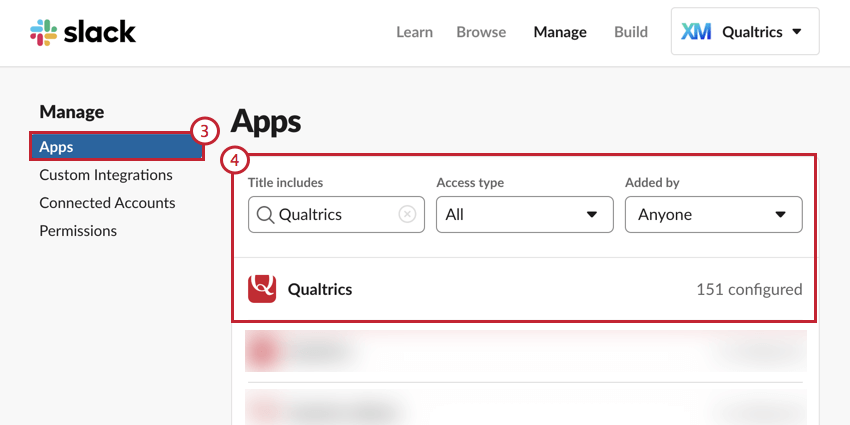
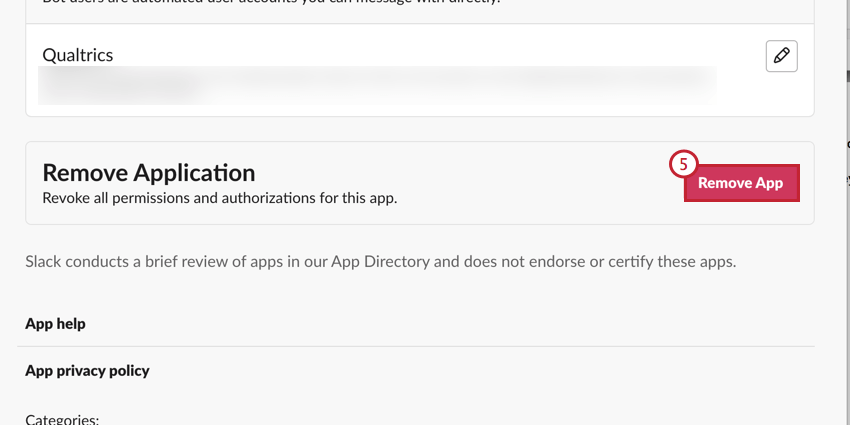
That's great! Thank you for your feedback!
Thank you for your feedback!